

This article is a tutorial for Trademirror. It assumes that readers already have basic knowledge of EA installation/usage and have already installed Trademirror.
## Quick Practice
- Install Trademirror (via the MQL5 Market or by installing the ex4/ex5 file)
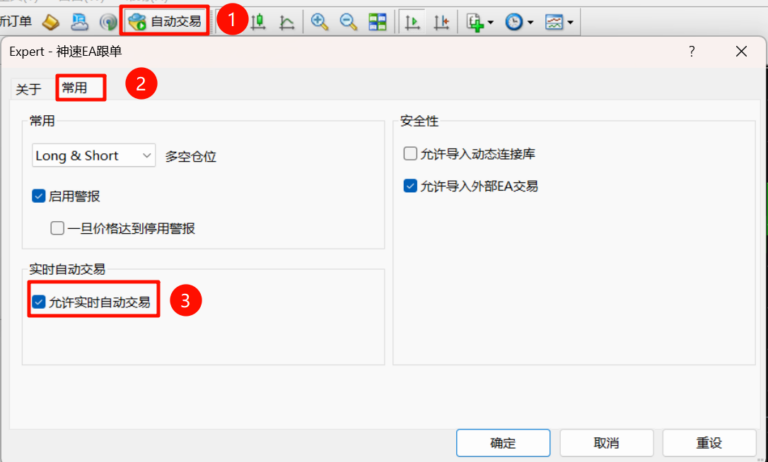
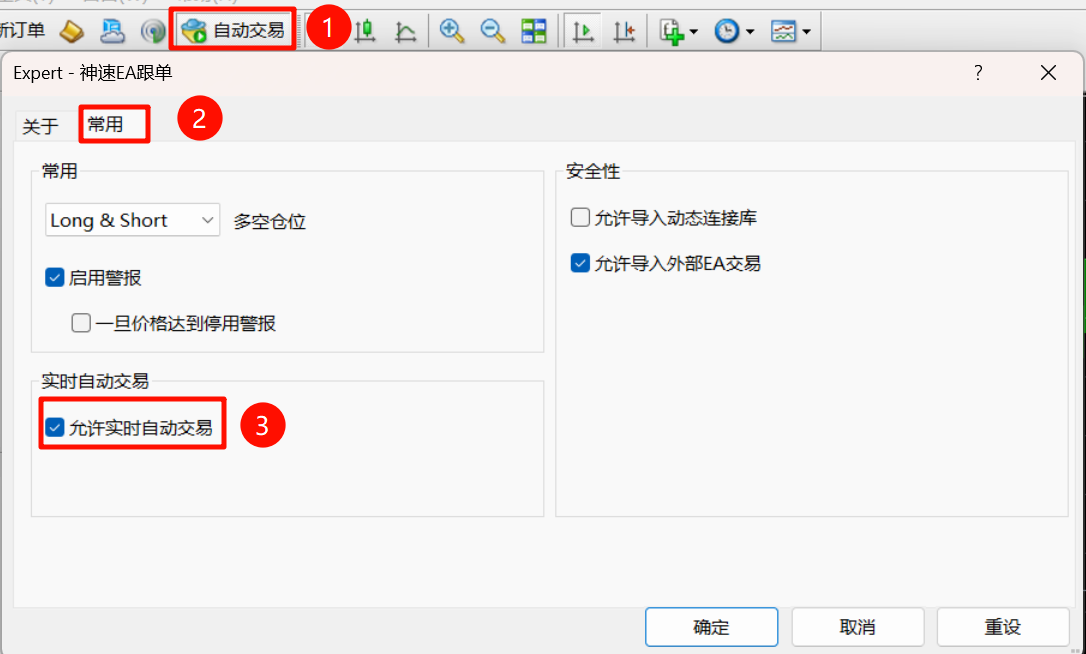
- Open Trademirror in the signal provider's MT4/MT5. When loading the EA, ensure that the global **Auto Trading** (called Algo Trading in MT5) is enabled in the MT4/MT5 toolbar, and confirm that **Allow live trading** (called Allow Algo Trading in MT5) is checked.
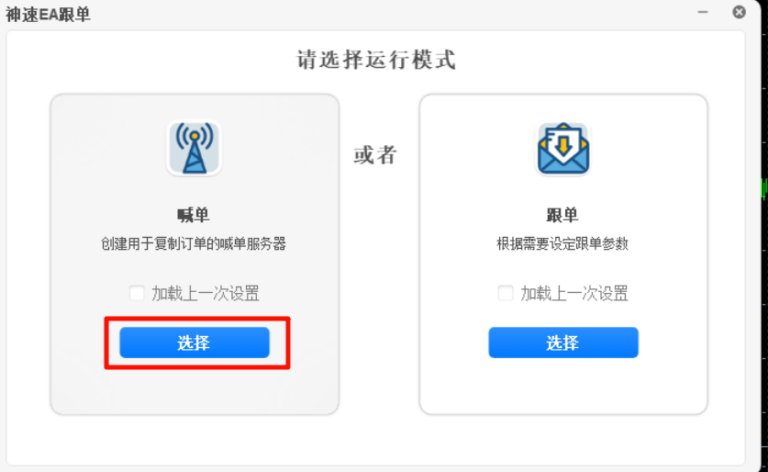
- After opening Trademirror, select **Signal Provider** mode.
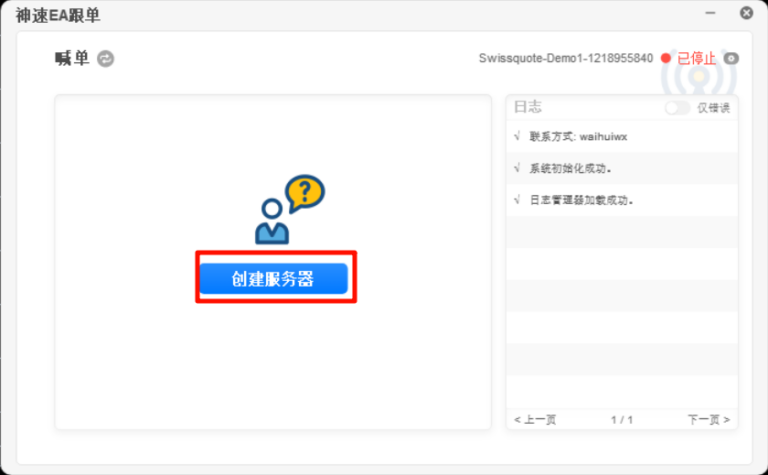
- On the signal provider main interface, select **Create Server**.
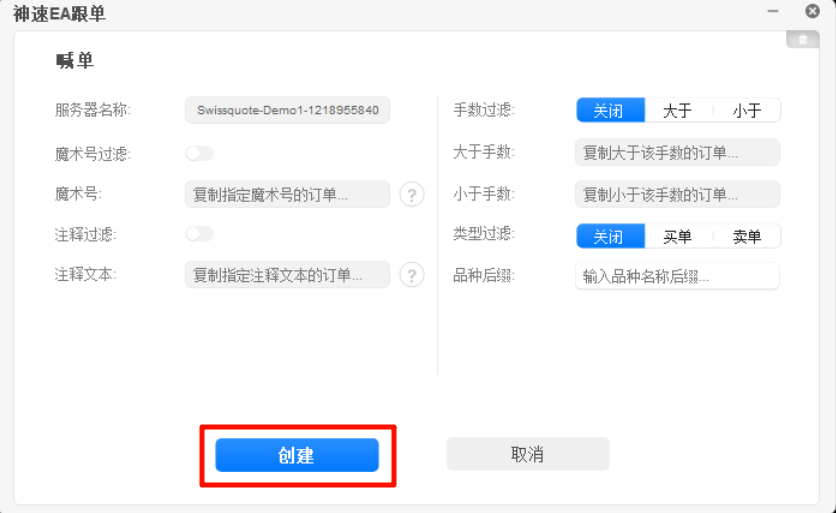
- In the window that opens, directly click the **Create** button.
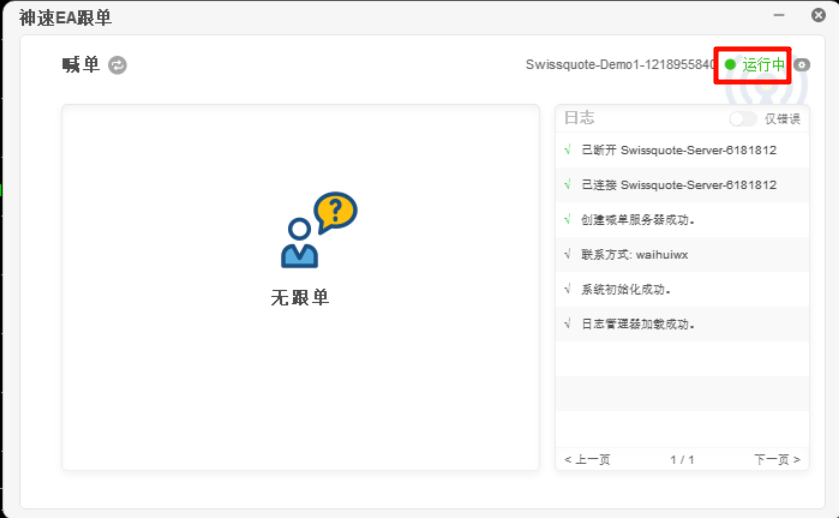
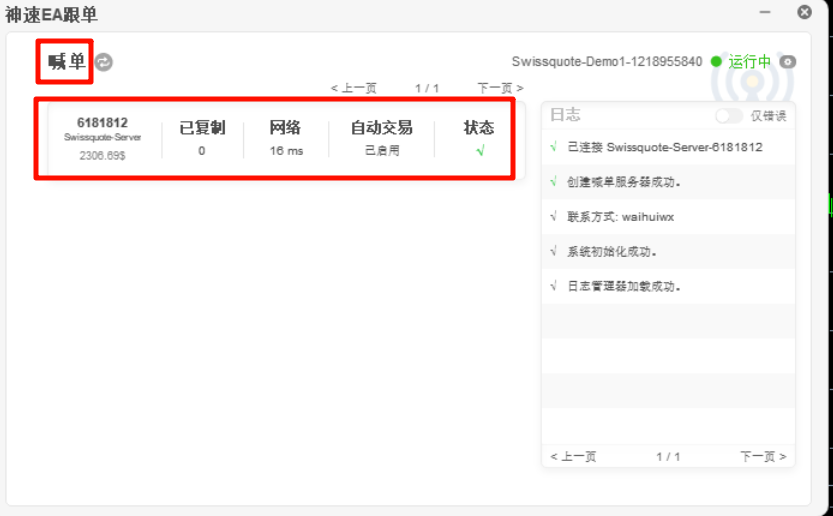
- Now, a green **Running** status will be displayed on the main interface, indicating that everything is normal.
- Open Trademirror in the copier's MT4/MT5. When loading the EA, ensure that the global **Auto Trading** (called Algo Trading in MT5) is enabled in the MT4/MT5 toolbar, and confirm that **Allow live trading** (called Allow Algo Trading in MT5) is checked.
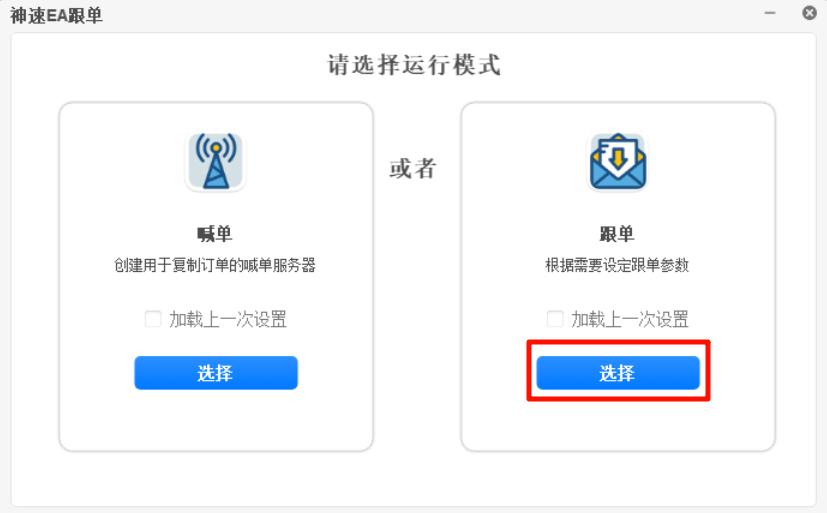
- After opening Trademirror, select **Copier** mode.
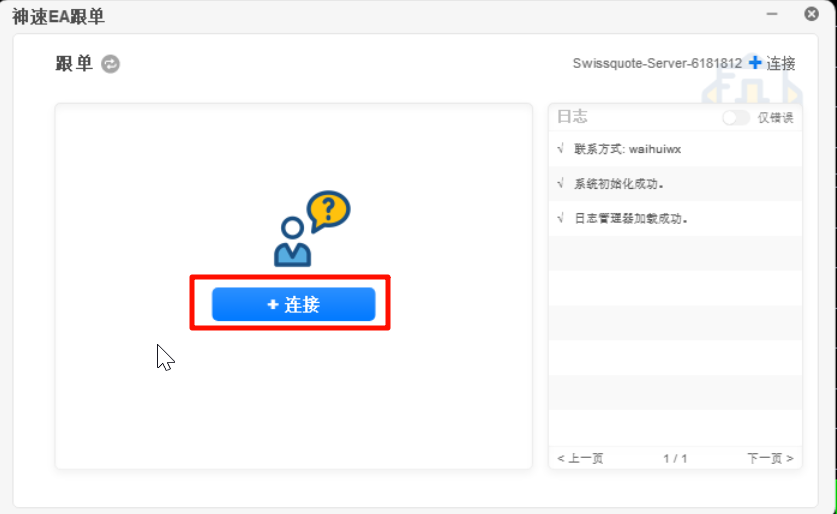
- On the copier main interface, directly click the **Connect** button.
- In the pop-up connection settings window, select the account that just started signal providing, and click **Connect**.
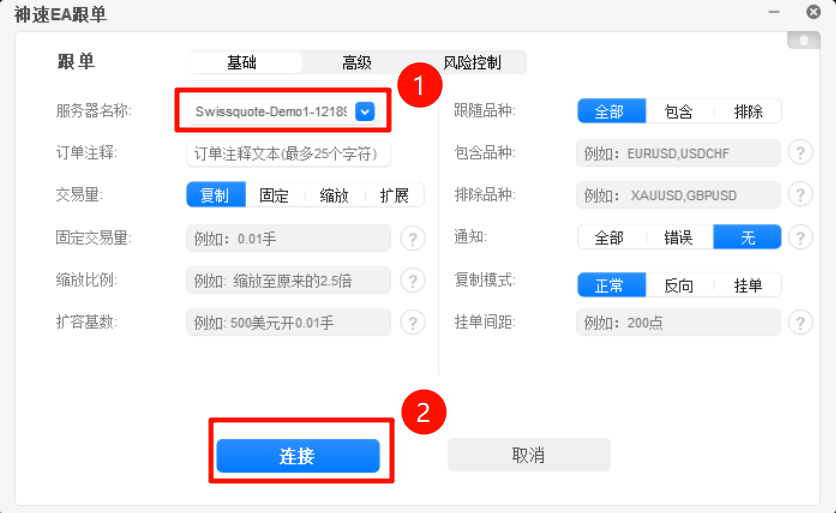
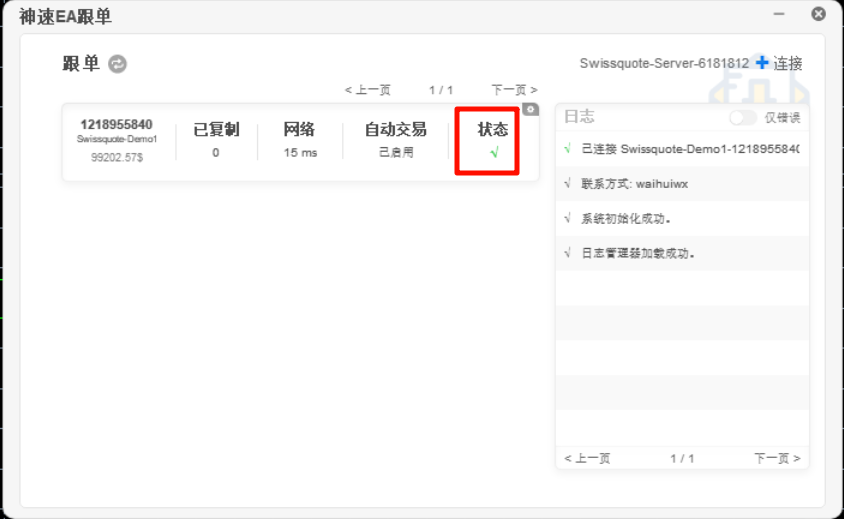
- Now, the copier has successfully connected to the signal provider (a green checkmark indicates connected).
Meanwhile, on the signal provider side's MT4/MT5, you can also see this copier that just connected.
- Now, observe whether orders from the signal provider side are copied to the copier side. If copying is successful, it means everything is working normally.
## Signal Provider Main Interface Introduction
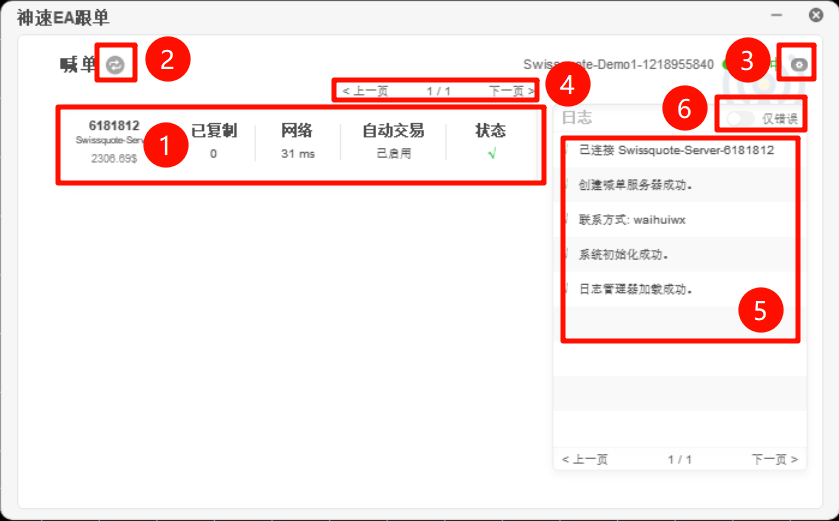
- Information of the currently connected copier accounts, from left to right:
1.1 Copier's trading server and account number
1.2 Number of copied orders (increases by 1 for each successfully copied order)
1.3 Copier network latency (this only calculates the latency for the copying part; latency to the trading server is not included. Normally, it should fluctuate around ~50ms, and should not exceed 100ms at maximum)
1.4 Auto Trading status (Enabled means copying is currently allowed)
1.5 Connection status (a green checkmark indicates everything is normal, a red cross indicates a connection anomaly, mostly caused by the copier side's MT4/MT5 losing connection to the trading server) - Mode switch button. Clicking it brings up a confirmation dialog; after confirming, you will return to the initial mode selection screen.
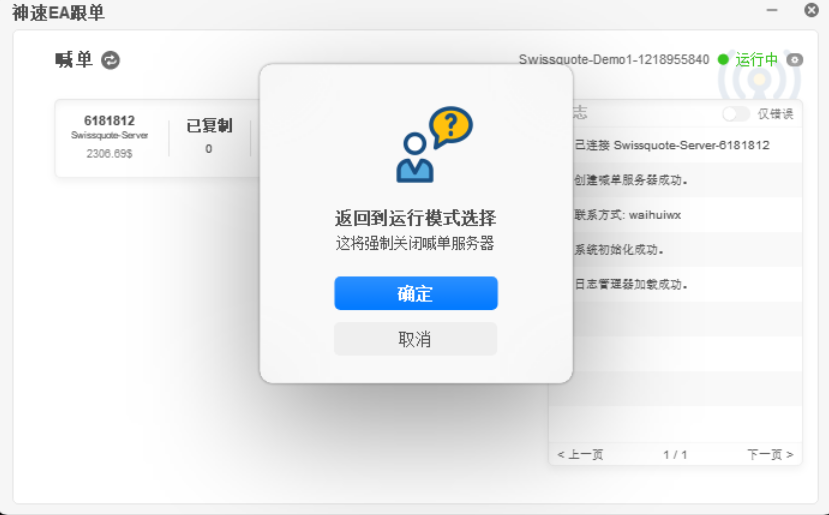
- Settings button. Click it to open the settings window (the usage of the signal provider settings interface will be detailed later).
- If the current number of copier connections exceeds 4, you can use the pagination feature here to go to the next or previous page to view more connections.
- Log display area. All Trademirror operations (successful or failed) will be displayed here. Hovering the mouse over a log entry will show more detailed information.
- Error-only switch. When enabled, the log will only display error messages (convenient for quickly locating error logs).
## Signal Provider Settings Interface
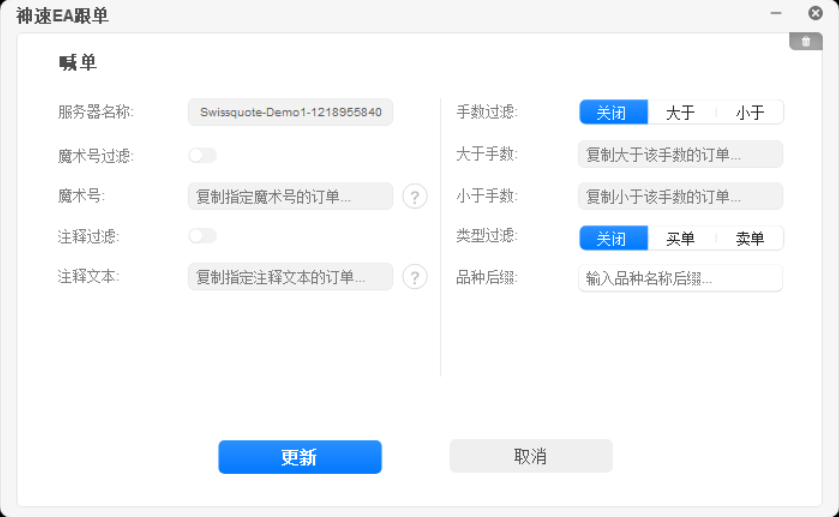
- Server Name (non-modifiable): The trading server and account number currently logged into MT4/MT5. After the signal provider is created, this name will appear in the list of connectable signal provider servers on the copier side.
- Magic Number Filter (switch): When enabled, the magic number input field below becomes editable.
- Magic Number (numeric input): When the magic number filter switch is on, it can be edited. The signal provider will only send orders associated with this magic number.
- Comment Filter (switch): When enabled, the comment text input field below becomes editable.
- Comment Text (string input): When the comment filter switch is on, it can be edited. The signal provider will only send orders associated with this order comment.
- Lot Filter (toggleable): Default is off. When switched to Greater Than, the "greater than lots" input field becomes editable. When switched to Less Than, the "less than lots" input field becomes editable.
- Greater Than Lots (float input): Only copy orders larger than this lot size.
- Less Than Lots (float input): Only copy orders smaller than this lot size.
- Type Filter (toggleable): Default is off. When switched to Buy, only buy orders will send signal provider signals. When switched to Sell, only sell orders will send signal provider signals.
- Symbol Suffix (string input): This is automatically identified and filled in 99.99% of cases, no need to modify. Some small brokers add a suffix to the symbol name, e.g., EURUSD might be called EURUSD.m on some platforms; this symbol suffix input field will be automatically filled with .m.
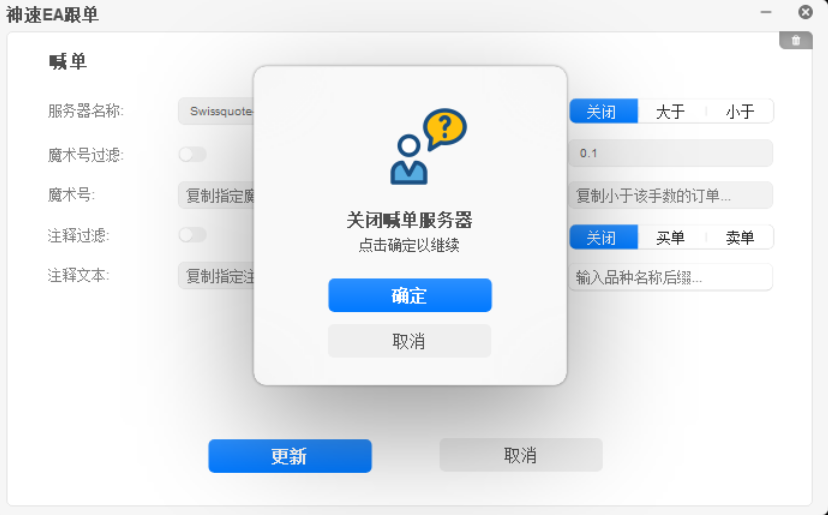
- Trash Can Button (Top Right): Clicking it brings up a confirmation dialog to close the current signal provider server.
## Copier Main Interface Introduction
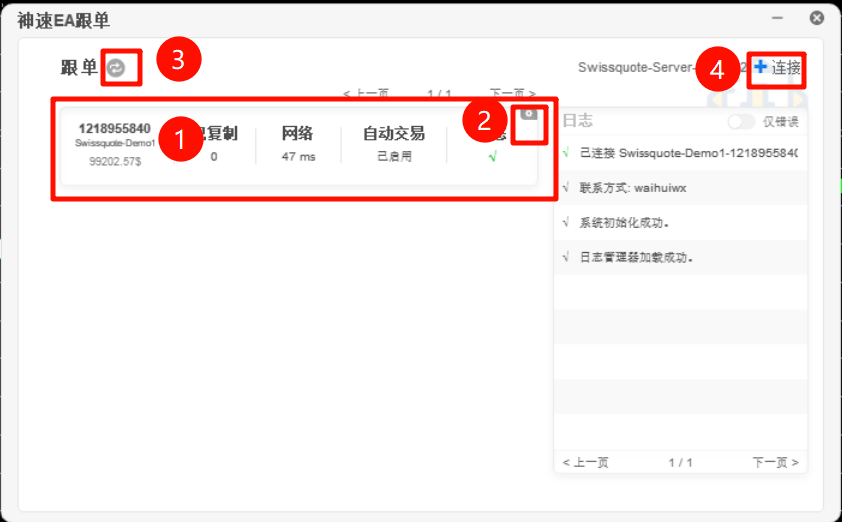
- Information of the currently connected signal provider account, from left to right:
1.1 Signal provider's trading server and account number
1.2 Number of copied orders
1.3 Copier network latency
1.4 Auto Trading status. Enabled means copying is allowed. Click to toggle between pause/enable copying.
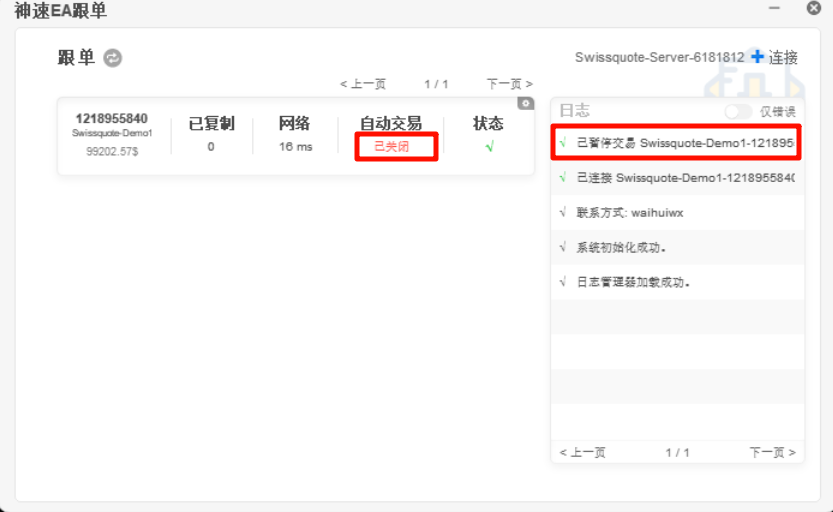
1.5 Connection status (a green checkmark indicates everything is normal) - Settings button. Click to enter the settings window for this copier connection (the usage of the copier settings interface will be detailed later).
- Mode switch button. Clicking it brings up a confirmation dialog; after confirming, you will return to the initial mode selection screen.
- Connect button. Click to add a new copier connection (Trademirror can copy up to 99 signal provider sources).
## Copier Settings Interface
The copier settings interface consists of three sections: Basic, Advanced, Risk Control (the trash can button in the top right corner can close the current connection to the signal provider server).
### Basic
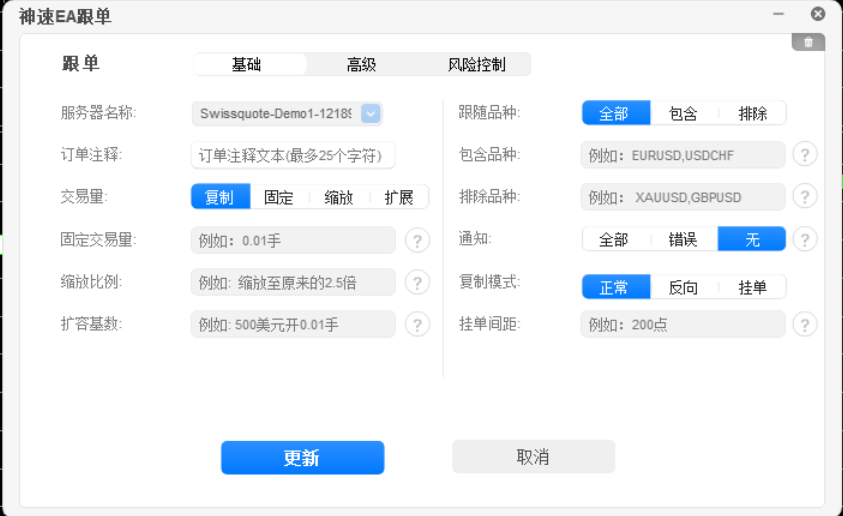
- Server Name: The name of the currently connected signal provider server. It cannot be changed after a successful connection.
- Order Comment: The order comment set when copying orders. Default is empty.
- Trade Volume (toggleable): Can be switched between Copy, Fixed, Scale, and Expansion.
3.1 Copy means a 1:1 copy between the copier and the signal provider.
3.2 Fixed means the copier's lot size is the value in the fixed trade volume input field.
3.3 Scale means the copier's lot size is N times the signal provider's lot size, where N is the value in the scale ratio input field.
3.4 Expansion means the copier's lot size is scaled based on the current copier account balance. - Fixed Trade Volume: For example, if set to 0.02, the copier will always open a fixed 0.02 lots regardless of the signal provider's lot size.
- Scale Ratio: Default is empty, can be filled with a float number.
5.1 When empty, it means the copier lot size is scaled based on the copier/signal provider balance ratio. For example, if the signal provider has $1000 and the copier has $2000, when the signal provider opens a 0.01 lot order, the copier will open 0.01 * (2000/1000) = 0.02 lots.
5.2 When a float number is set, the copier lot size is multiplied by this value. For example, if set to 2.0 here, when the signal provider opens 0.02 lots, the copier will open 0.02 * 2 = 0.04 lots. - Expansion: If this value is set to $500, then for every $500 of equity, the copier will copy trades with 0.01 lots (subject to the instrument's minimum lot size). An account with $2000 equity will have its lot size set to 0.04 lots.
- Follow Symbols (toggleable): Default is All. When Include is selected, the include symbols input field below becomes editable. When Exclude is selected, the exclude symbols input field below becomes editable.
- Include Symbols: Separated by English commas. For example, if filled with "EURUSD,USDCHF", the copier will only copy these two symbols.
- Exclude Symbols: Separated by English commas. For example, if filled with "XAUUSD,GBPUSD", the copier is prohibited from copying these two symbols.
- Notifications (toggleable): Can be switched between All, Errors, and None. Default is "None". When All is selected, all trade success/failure messages will be sent via MT4/MT5 notifications or email. When "Errors" is selected, only trade failure notifications will be sent.
- Copy Mode (toggleable): Can be switched between Normal, Reverse, and Pending Order. Default is Normal. When Normal is selected, the copier is a complete mirror of the signal provider. When Reverse is selected, if the signal provider opens a buy order, the copier opens a sell order; if a sell order, the copier opens a buy order. When Pending Order is selected, the pending order distance input field below will be enabled, and the copier will convert the signal provider's market orders into pending orders.
- Pending Order Threshold: Effective when Copy Mode is set to Pending Order. For example, if set to 200 here, a market order opened by the signal provider will become a Buy Limit/Sell Limit pending order on the copier side, placed 200 pips away from the current market quote.
### Advanced
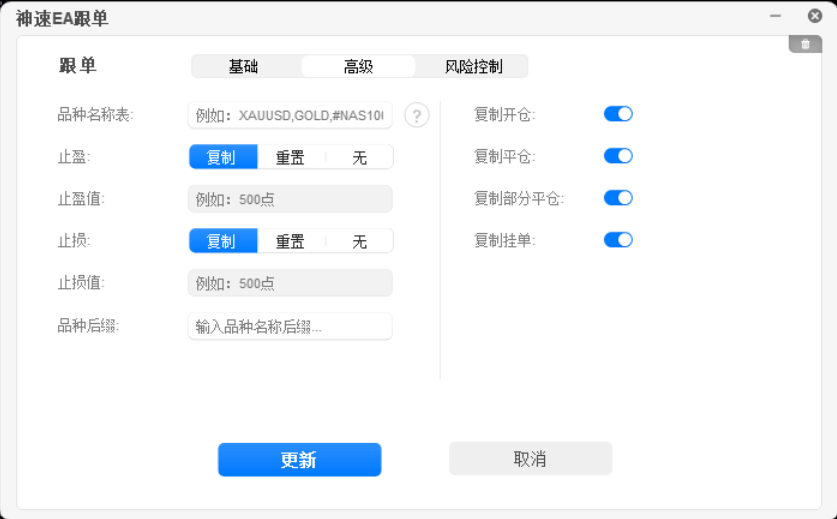
- Symbol Name Map: This parameter does not need to be set in 99.99% of cases. It is only used when the symbol name between the signal provider and copier cannot be matched via the symbol suffix parameter (string separated by English commas). For example, if set to "#NAS100,NASDQ", when the signal provider opens an order for symbol #NAS100, the copier side will open an order under its own symbol name NASDQ.
- Take Profit (toggleable): Can be switched between Copy, Reset, and None. Default is Copy. When Copy is selected, the copier fully copies the signal provider's take profit price. When Reset is selected, the take profit value input field below becomes editable. When None is selected, the copier does not copy the signal provider's take profit price.
- Take Profit Value (number): Only effective when Take Profit is set to Reset. Enter a numeric value. For example, if the signal provider's long position opening price is 1.10000 and this take profit value is set to 200, the copier order's take profit will be set to 1.10200.
- Stop Loss (toggleable): Can be switched between Copy, Reset, and None. Default is Copy. When Copy is selected, the copier fully copies the signal provider's stop loss price. When Reset is selected, the stop loss value input field below becomes editable. When None is selected, the copier does not copy the signal provider's stop loss price.
- Stop Loss Value (number): Only effective when Stop Loss is set to Reset. Enter a numeric value. For example, if the signal provider's long position opening price is 1.10000 and this stop loss value is set to 1000, the copier order's stop loss will be set to 1.09000.
- Symbol Suffix: This is automatically identified and filled in 99.99% of cases, no need to modify. Some small brokers add a suffix to the symbol name, e.g., EURUSD might be called EURUSD.m on some platforms; this symbol suffix input field will be automatically filled with .m.
- Copy Open (switch): Default enabled. When enabled, copy opening trades.
- Copy Close (switch): Default enabled. When enabled, copy closing trades.
- Copy Partial Close (switch): Default enabled. When enabled, copy partial closes.
- Copy Pending Orders (switch): Default enabled. When enabled, copy pending orders (when disabled, pending orders are not copied, but if a signal provider's pending order triggers and becomes a market order, the copier will still copy it as a market order).
### Risk Control
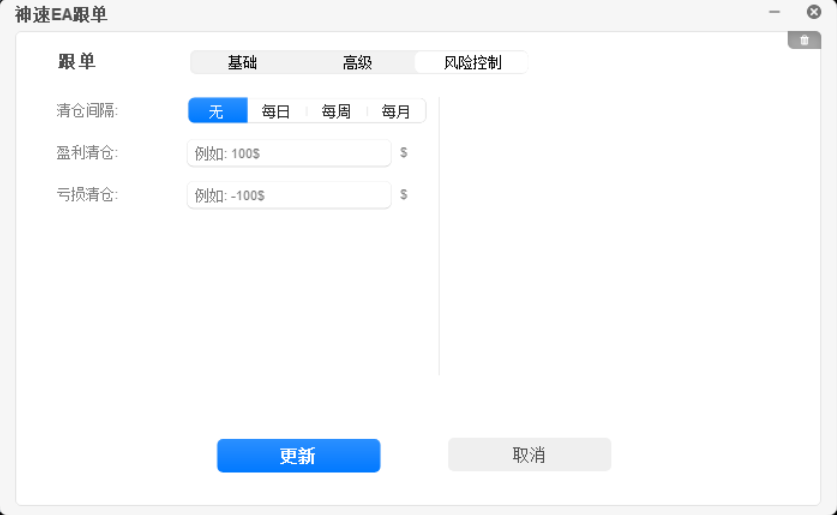
- Liquidation Interval (toggleable): Can be switched between None, Daily, Weekly, and Monthly.
1.1 When None is selected, copying stops immediately after profit/loss liquidation.
1.2 When Daily is selected, copying stops after profit/loss liquidation, and resumes the next day at 0:00 GMT+0.
1.3 When Weekly is selected, copying stops after profit/loss liquidation, and resumes next Monday at 0:00 GMT+0.
1.4 When Monthly is selected, copying stops after profit/loss liquidation, and resumes on the 1st of the next month at 0:00 GMT+0. - Profit Liquidation: Default is empty, can only be a positive number.
2.1 When empty, there is no profit risk control.
2.2 When set to a numerical value, if the current equity is greater than or equal to this value, take-profit risk control is triggered, and all positions in the current copier account will be closed. - Loss Liquidation: Default is empty, can only be a negative number.
3.1 When empty, there is no stop-loss risk control.
3.2 When set to a numerical value, if the current equity is less than or equal to this value, stop-loss risk control is triggered, and all positions in the current copier account will be closed.
## FAQ
Q: Does Trademirror support one signal provider with multiple copiers?
A: Trademirror supports one signal provider with multiple copiers, and also supports multiple signal providers with one copier, and multiple signal providers with multiple copiers. A single Trademirror supports a maximum of 99 copier connections.
Q: Does Trademirror support MT4 to MT5?
A: Yes, it also supports MT5 to MT4.
Q: Does Trademirror support MT5 netting accounts?
A: Trademirror is compatible with netting accounts, but due to the conceptual differences between netting and hedging modes, unavoidable deviations may occur.
Q: Does Trademirror support partial closing?
A: Yes, Trademirror handles partial closing by reducing the order volume. There might be a slight spread difference compared to the traditional closeBy hedging closure (this is unavoidable). In terms of results, Trademirror can perfectly replicate partial closes from the signal provider.
Q: What if the chart in MT4 covers the Trademirror interface?
A: Press F8 to enter Chart Properties, and uncheck "Chart on Foreground".
Q: Do I need to enable DLL when loading Trademirror?
A: No, to prove its security and privacy, Trademirror does not require any additional DLLs to be loaded. All EA operations are under the control of MT4/MT5.
Q: What if the latency displayed on the signal provider/copier interface is consistently over 100ms?
A: Please check if the machine performance is insufficient, or if CPU/disk performance usage is normal. Latency exceeding 100ms might be caused by a sudden performance issue with the computer (e.g., a program suddenly consuming a lot of resources).
Q: What should I do if the copier loses connection to the trading server and Trademirror shows a red cross?
A: Don't worry. As long as the connection to the trading server is restored, Trademirror will automatically reconnect.


