

Shortcuts MT5 Hotkeys Scalping
Developed by Pablo Filipe Soares de Almeida
Link: https://www.mql5.com/en/market/product/146554
Table of Contents
- 1. Overview
- 2. Keyboard Shortcuts
- 2.1 Drawing Tools
- 3. EA Control Panel
- 4. Positions Panel
- 4.1 Trade Assistant
- 5. Financial Protections
- 6. Automatic Trailing Stop
- 7. Risk and Lot Management
- 8- Performance Panel
- 9. News Filter Panel
- 10. EA Settings (Full List)
- 11. All Gifs
- 12. Final Notes
1. Overview
The "Shortcuts MT5 Hotkeys Scalping" is an Expert Advisor designed to simplify trading operations, especially for scalping. It allows you to execute orders, manage positions, and use graphical tools using only the keyboard—without needing to click buttons or navigate menus.
Key Features:
- More than 20 configurable keyboard shortcuts
- Maximum loss and profit protection (per position or total on the symbol)
- Professional real-time EA Control Panel
- Positions panel with individual selection
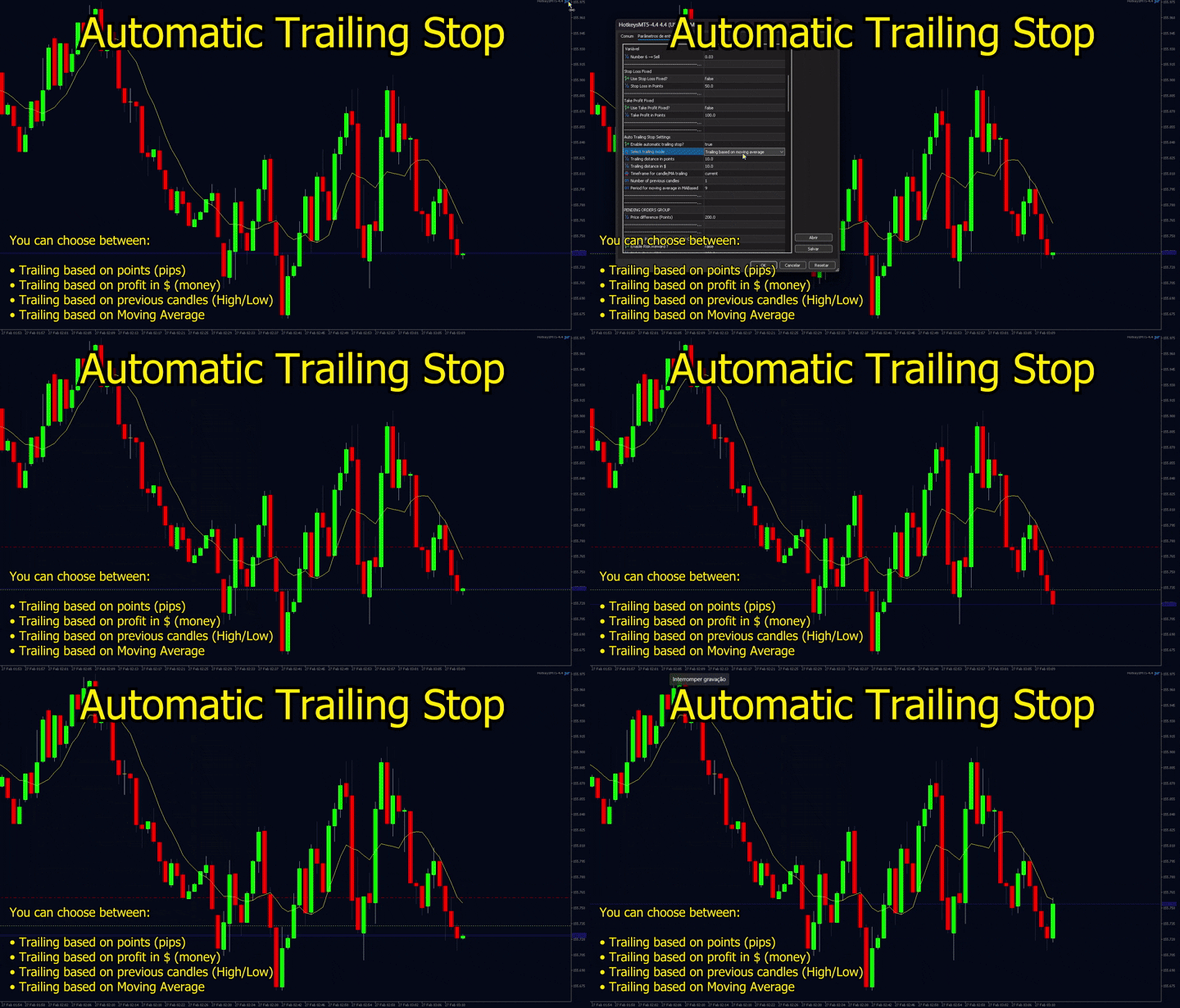
- Automatic trailing stop with 4 different modes
- Intelligent lot calculation (fixed, % of account, fixed risk in USD)
- Fast graphical tools (Fibonacci, Risk/Reward, lines, rectangles…)
- Support for pending orders with Risk:Reward management
Magic Number
- Magic number that identifies all orders opened by this EA. Use 0 if you want the EA to work together with manual orders or other robots.
2. Keyboard Shortcuts (Hotkeys) – Main Commands
| Key | Function | Brief Description |
| I | Show/Hide EA Control Panel | Opens or closes the EA Control Panel |
| E | Trade Assistant | Trade Assistant |
| G | Performance Panel | Performance Panel |
| J | News Filter Panel | News Filter Panel |
| B | Buy (Market Buy) | Opens a market buy position with current settings |
| S | Sell (Market Sell) | Opens a market sell position with current settings |
| 1 | Custom Buy Lot 1 | Lot defined in BuyLot_1 |
| 2 | Custom Buy Lot 2 | Lot defined in BuyLot_2 |
| 3 | Custom Buy Lot 3 | Lot defined in BuyLot_3 |
| 4 | Custom Sell Lot 1 | Lot defined in SellLot_4 |
| 5 | Custom Sell Lot 2 | Lot defined in SellLot_5 |
| 6 | Custom Sell Lot 3 | Lot defined in SellLot_6 |
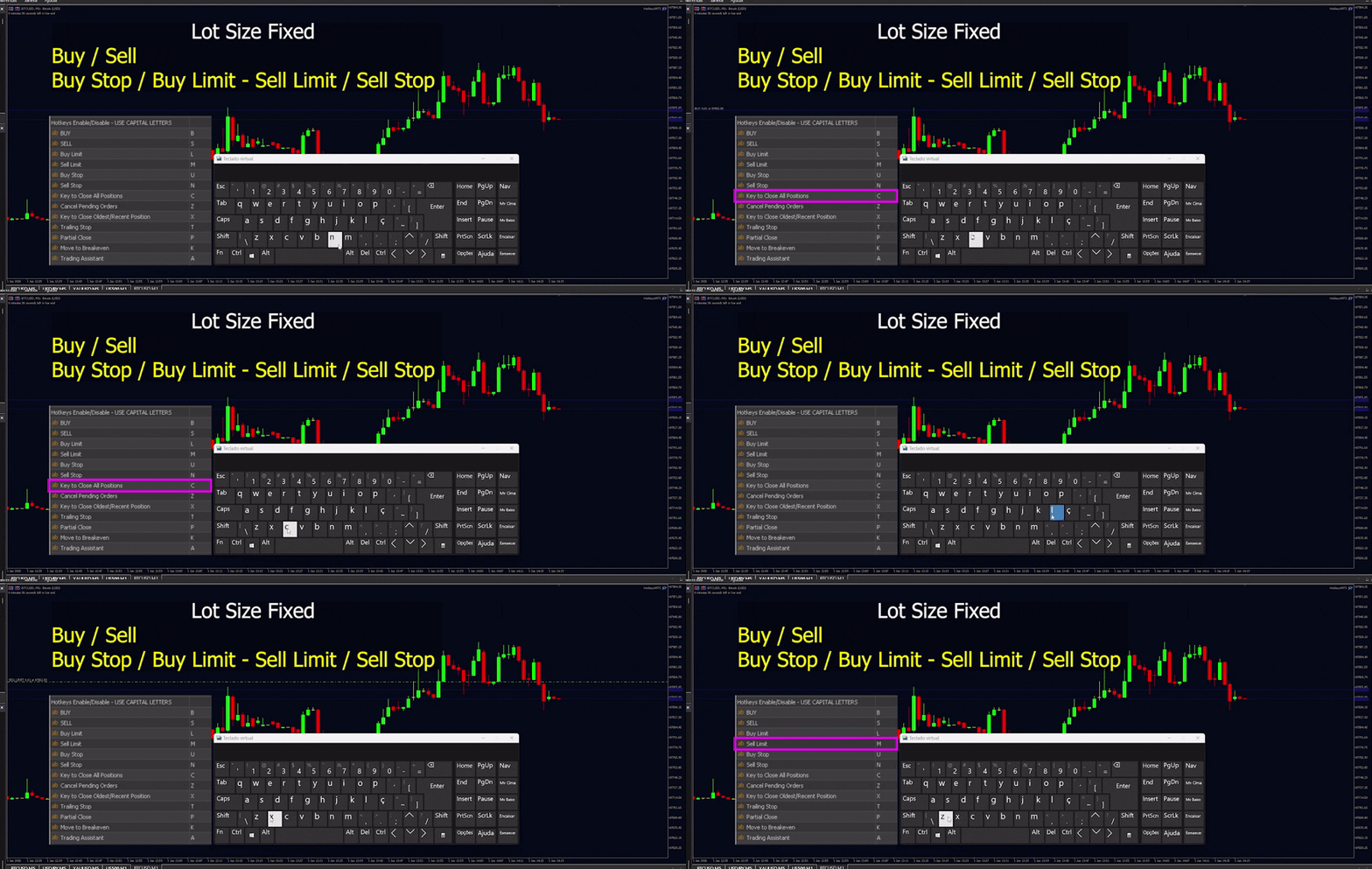
| L | Buy Limit | Places a pending buy limit order (below current price) |
| M | Sell Limit | Places a pending sell limit order (above current price) |
| U | Buy Stop | Places a pending buy stop order (above current price) |
| N | Sell Stop | Places a pending sell stop order (below current price) |
| Q | Remove Stop Loss | Removes Stop Loss from selected positions or all positions |
| W | Remove Take Profit | Removes TP from selected position(s) or all |
| C | Close ALL Positions | Closes all open positions on the symbol (ignores selection) |
| X | Close Specific Position | Closes the oldest/newest or selected position |
| Z | Cancel ALL Pending Orders | Cancels all pending orders on the symbol |
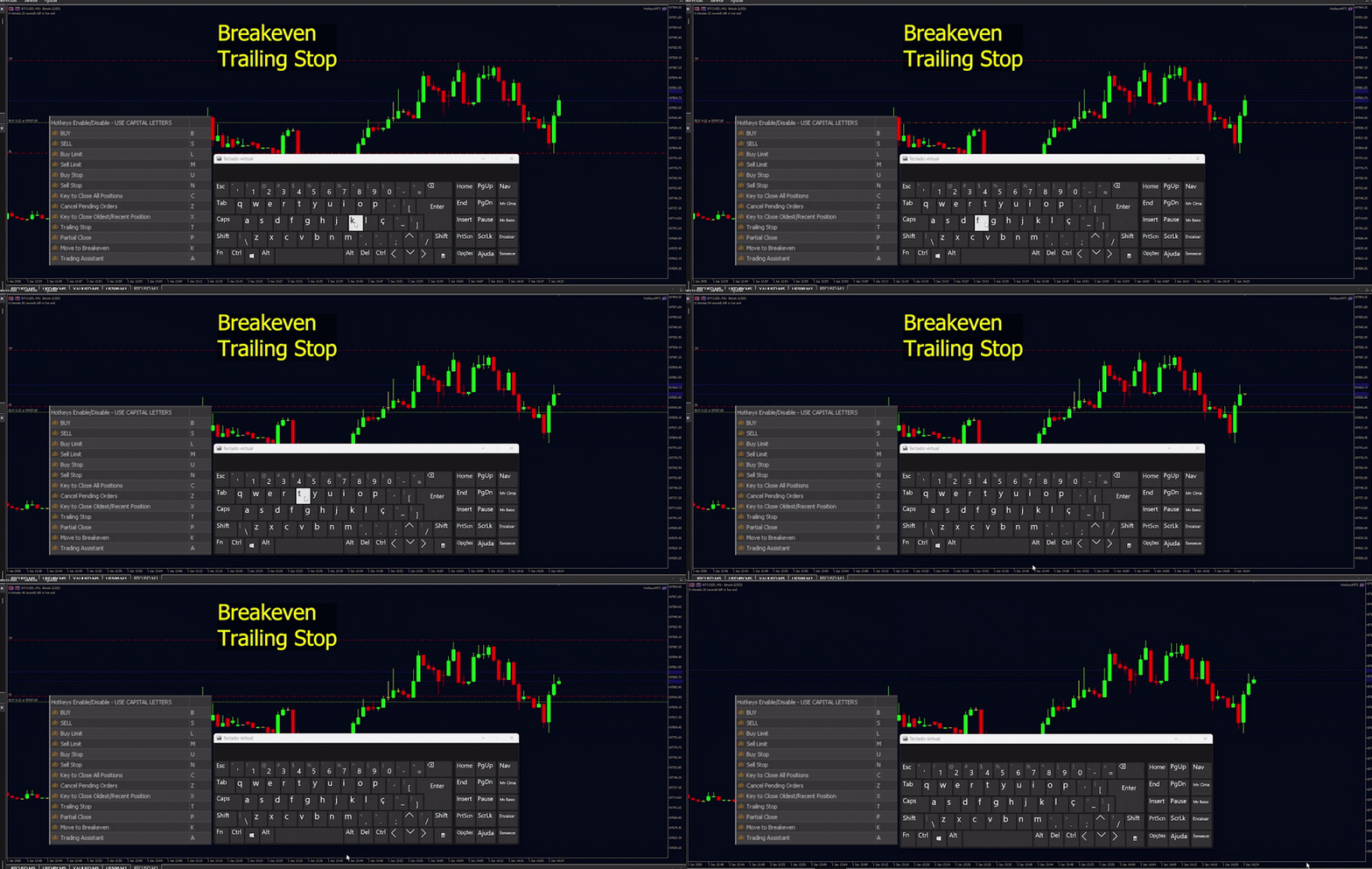
| T | Trailing Stop (manual) | Adjusts SL immediately based on rules |
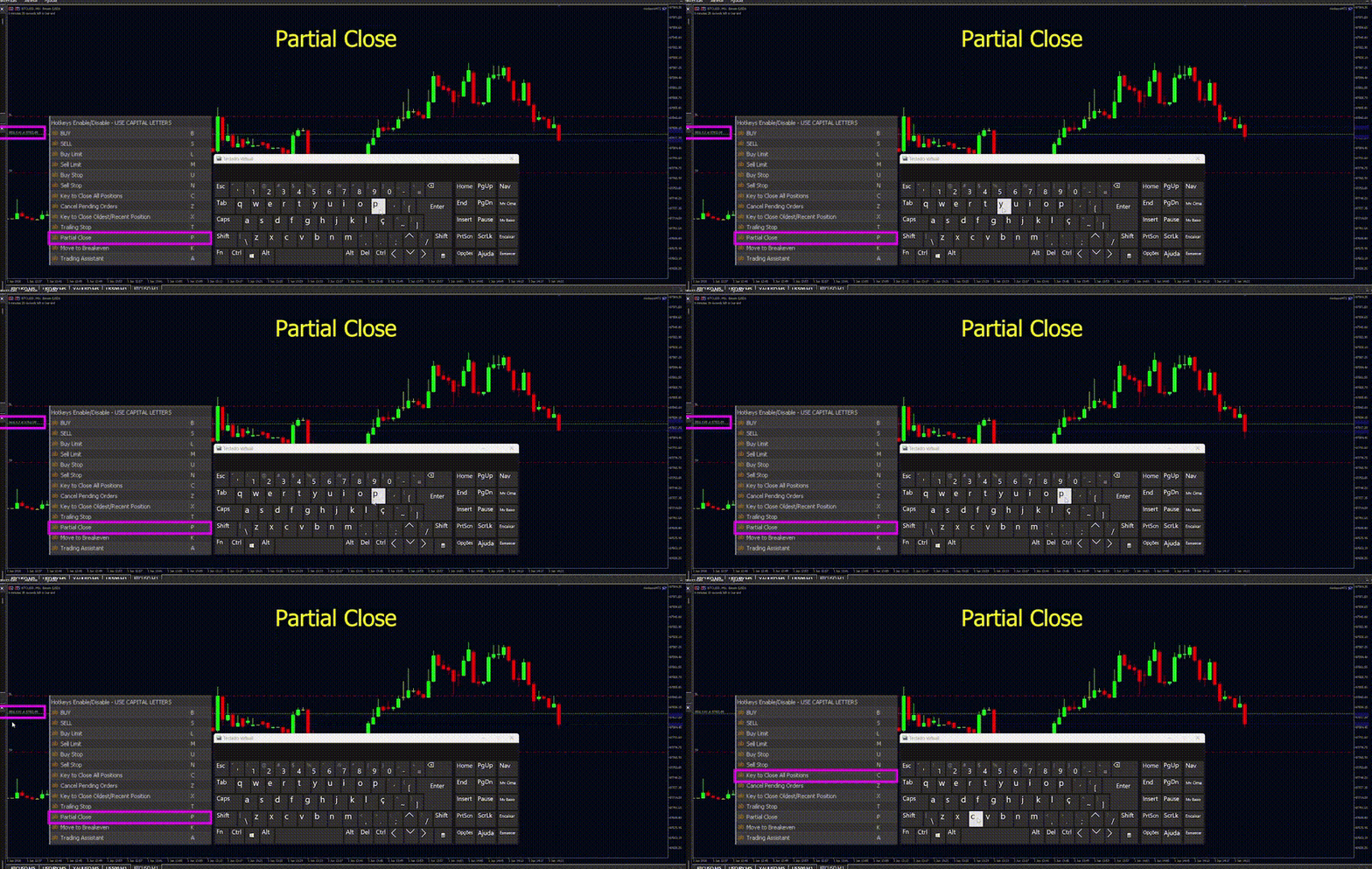
| P | Partial Close | Closes a percentage of the position (PartialClosePercent) |
| K | Breakeven | Moves SL to entry price |
| O | Show/Hide Positions Panel | Opens or closes the positions panel |
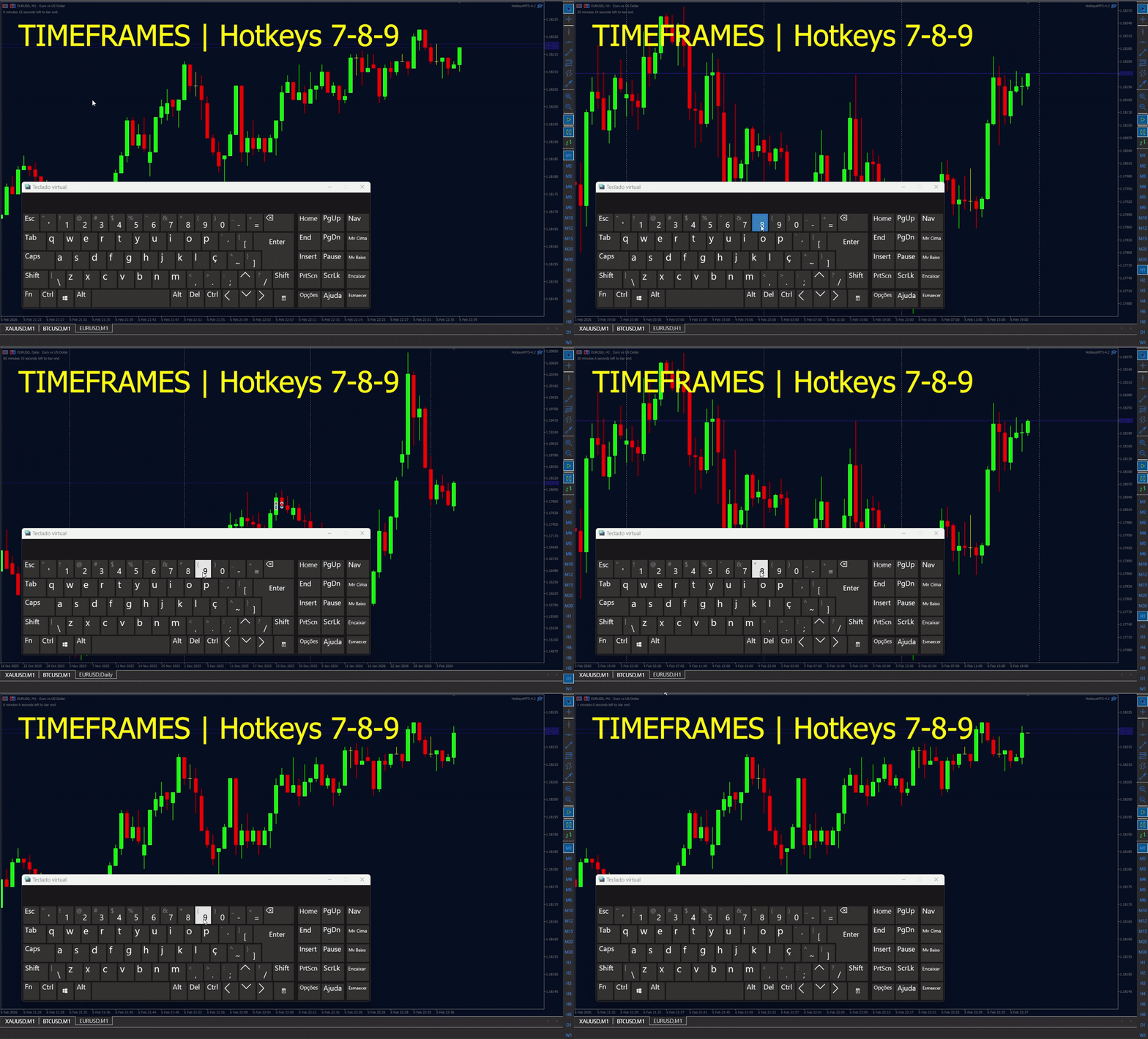
| 7 | Change to Timeframe 1 | Pre-defined timeframe (default M1) |
| 8 | Change to Timeframe 2 | Pre-defined timeframe (default H1) |
| 9 | Change to Timeframe 3 | Pre-defined timeframe (default D1) |
Specific Command Settings
- Price difference (Points): Distance in points from the entry for pending orders (Buy Limit, Sell Limit, Buy Stop, Sell Stop).
- "X" Close oldest transaction? (false = most recent): Defines whether the X key closes the oldest position (true) or the most recent one (false). When using the panel (O key), selecting a position allows you to press X to close the selected position.
- Partial close percentage (e.g., 50%): Percentage of the position that will be partially closed using the P key.
- Close order at minimum lot?: If checked, closes the entire position when it reaches the minimum lot after partial close.
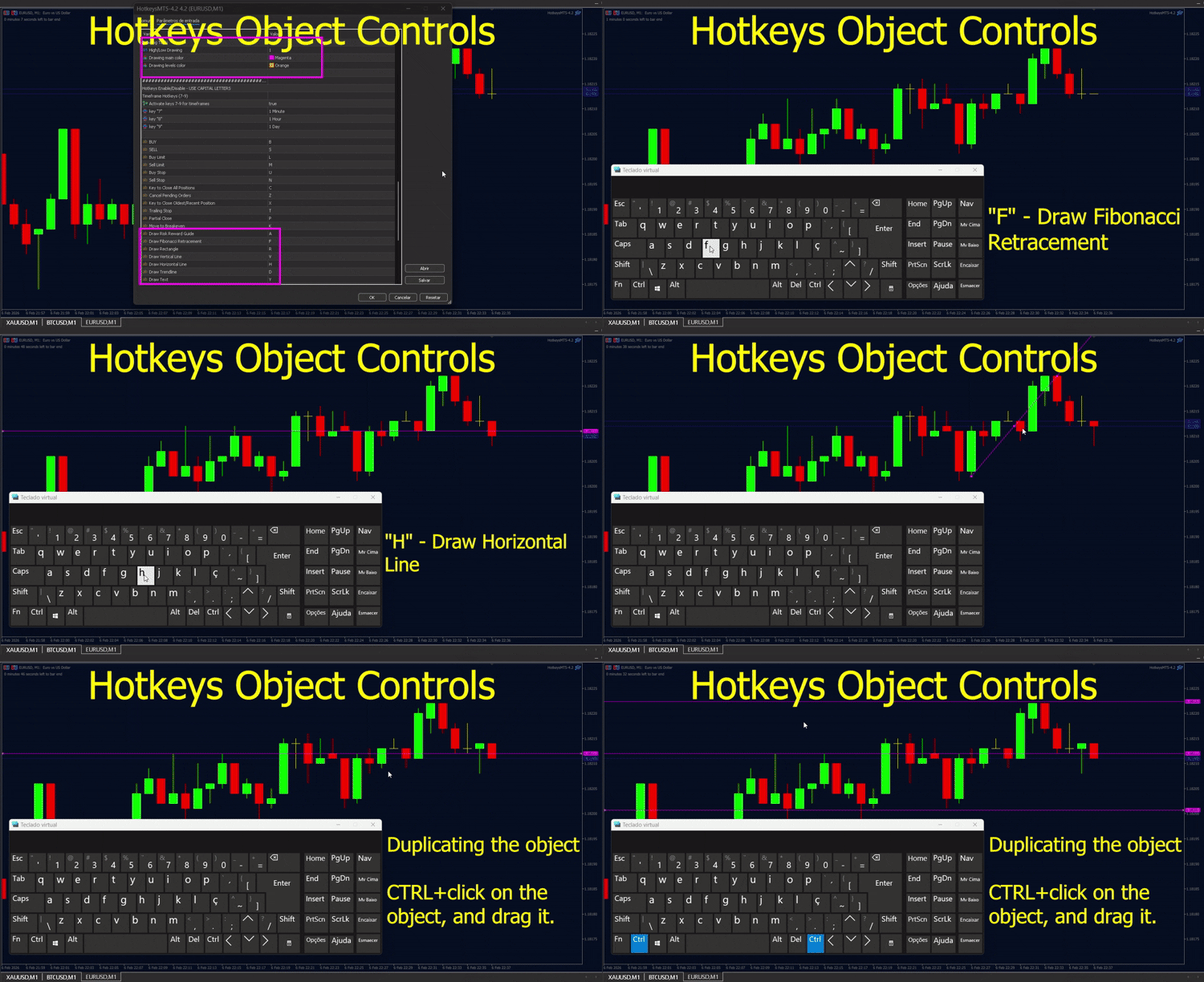
2.1. Drawing Tools Settings
- High/Low Drawing: Number of bars used to calculate High/Low for automatic drawings (Fibonacci, rectangle, trendline, etc.).
- Drawing main color: Main color used for all objects drawn by the drawing hotkeys.
- Drawing levels color: Color of the levels in Fibonacci objects.
- Follow current price: Makes the Fibonacci Risk-Reward Guide automatically follow the current price (fixed movement).
- Risk-Reward ratio levels: Number of multiplier levels (1x, 2x, 3x…) in the Fibonacci Risk-Reward Guide.
| Key | Function | Description |
| A | Draw Risk/Reward Guide | Creates Fibonacci with 1x, 2x, 3x levels |
| F | Draw Fibonacci Retracement | Classic Fibonacci (0.236, 0.382, 0.618) |
| R | Draw Rectangle | Rectangle based on recent high/low |
| V | Draw Vertical Line | Vertical line at current time |
| H | Draw Horizontal Line | Horizontal line at price |
| D | Draw Trend Line | Connects recent high and low |
| Y | Draw Text | Inserts editable text on chart |
Duplication Tip: Hold CTRL + click and drag on an object created by hotkey → duplicates the object.
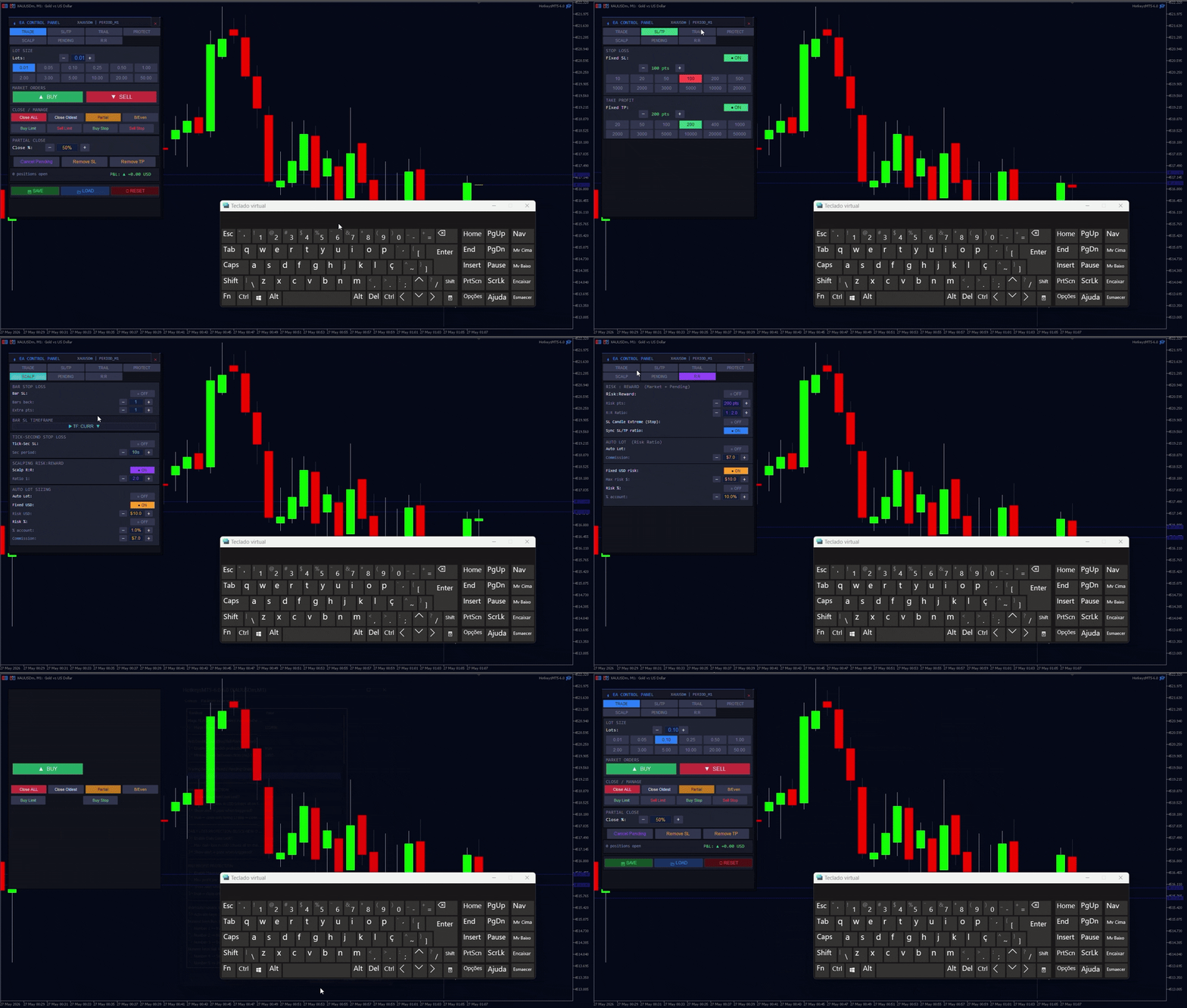
3. EA Control Panel
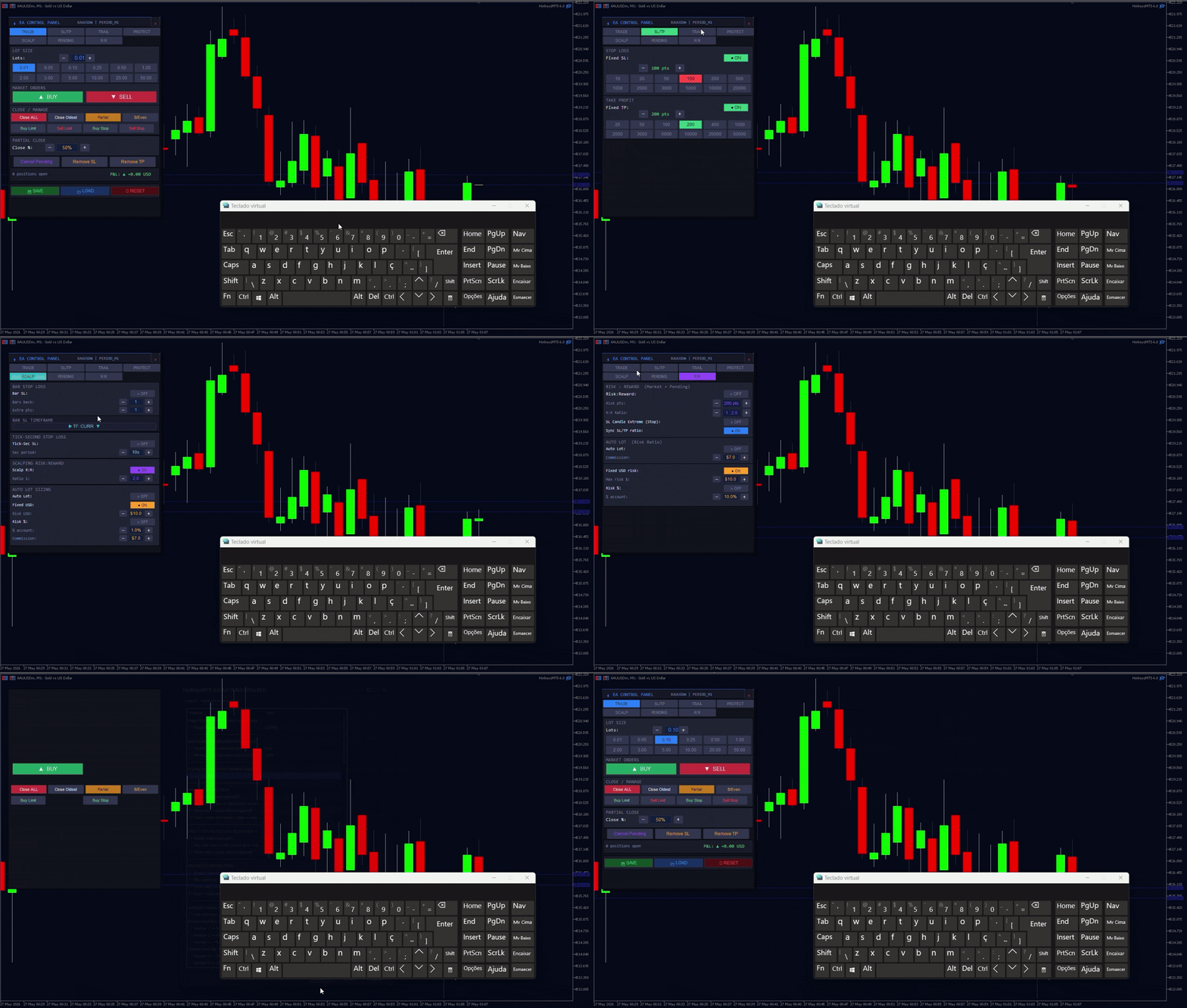
Control Panel
The EA includes a professional real-time Control Panel, designed to provide fast and intuitive access to the most important trading features directly from the chart.
Press "I" on the keyboard at any time to open or hide the panel.
With the Control Panel, you can quickly adjust lot size, stop loss, take profit, trailing stop, risk/reward ratio, partial close settings, protection limits, scalping configurations, pending orders, and many other trading parameters without stopping the EA or reopening the settings window.
All functions are organized into 7 dedicated tabs:
"TRADE, SL/TP, TRAIL, PROTECT, SCALP, PENDING and R:R"
The panel works as a fast runtime modification layer. Changes made inside the panel take effect immediately during operation, but they do not modify the original fixed EA input parameters.
To permanently change the fixed EA parameters, you must open the EA properties directly from the chart and edit the inputs manually. The Control Panel always copies these fixed input values as its default configuration.
The Control Panel also includes a complete profile management system:
- "SAVE" — saves your current panel configuration
- "LOAD" — restores your saved configuration
- "RESET" — restores all panel settings back to the original EA input defaults
This system provides a faster, more practical, and professional trading experience, making real-time strategy adjustments easier during live market conditions.
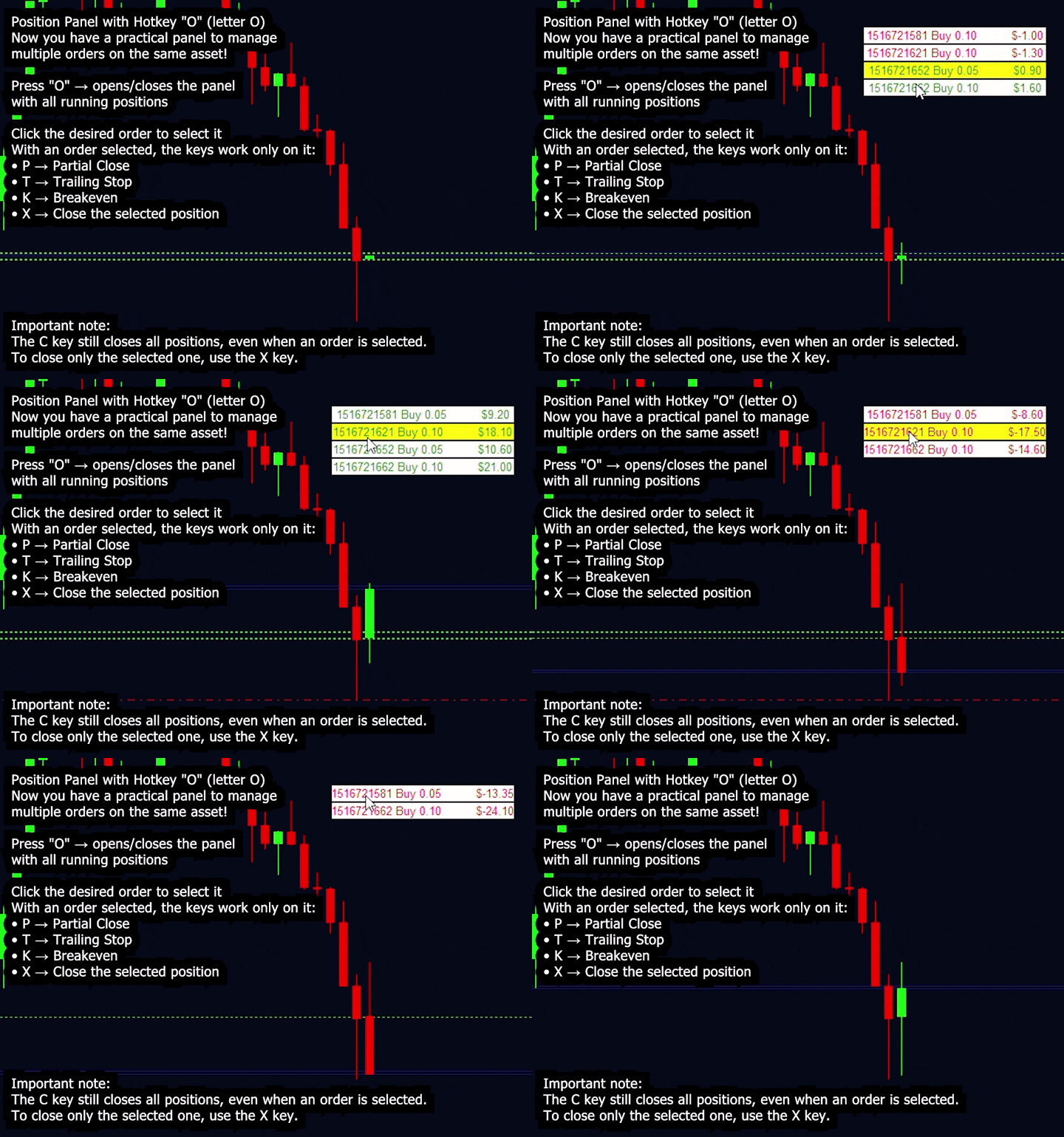
4. Positions Panel (O Key)
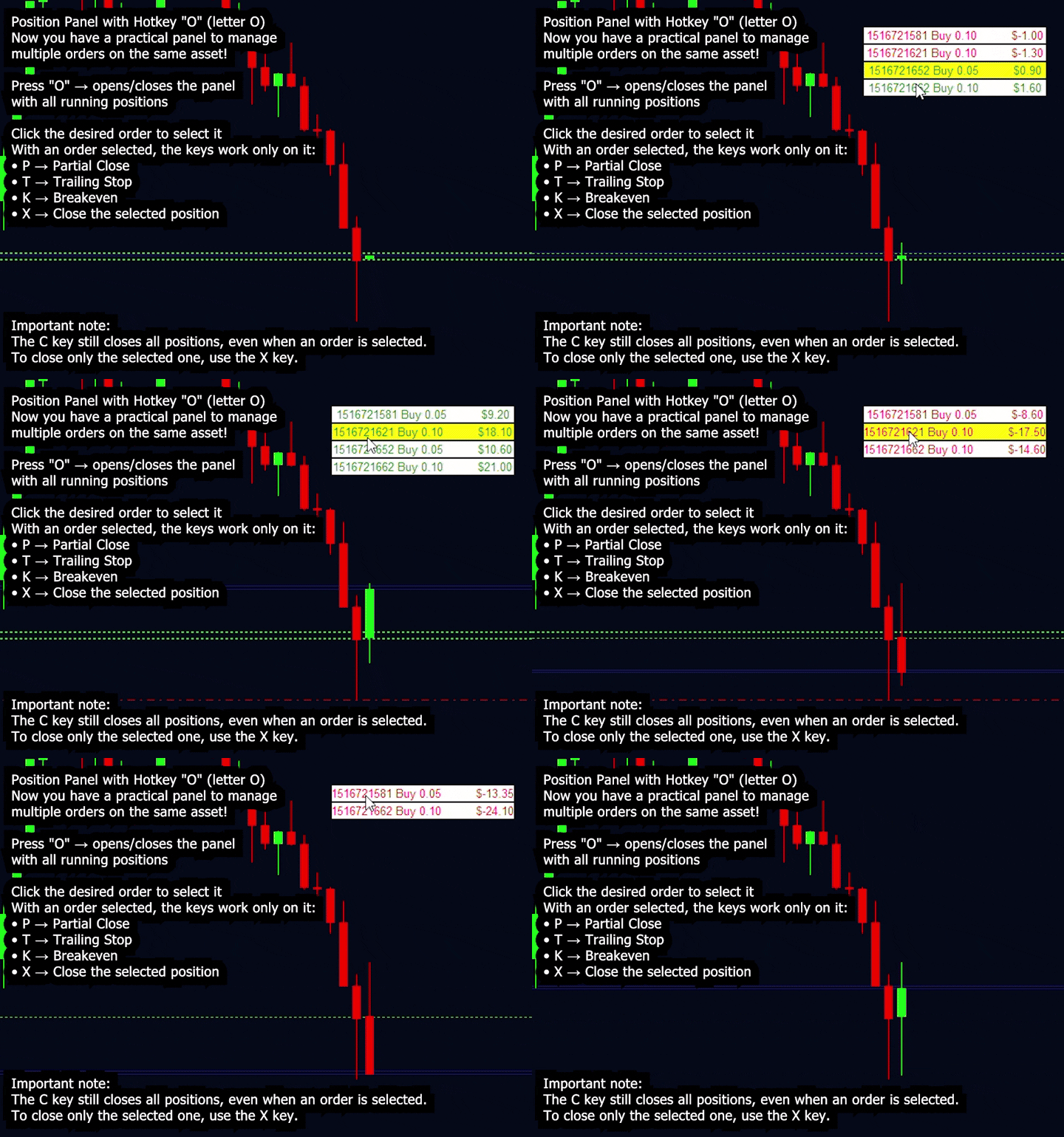
- Shows all open positions on the current symbol
- Click on a position → it becomes selected (yellow background)
- Commands like X, P, K, Q, W, T will then affect only the selected position
- C always closes all positions (does not respect selection)
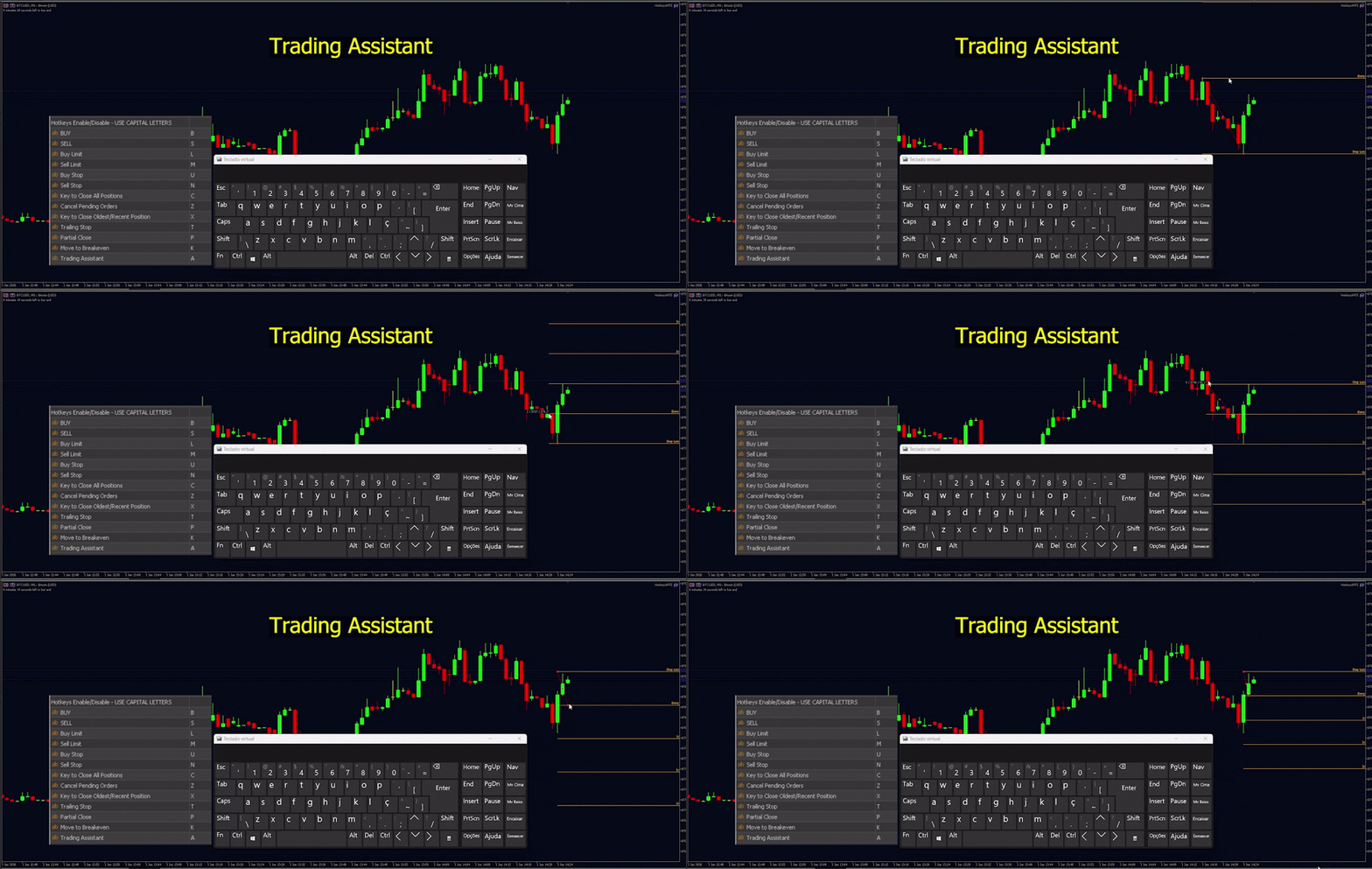
4.1 Trade Assistant
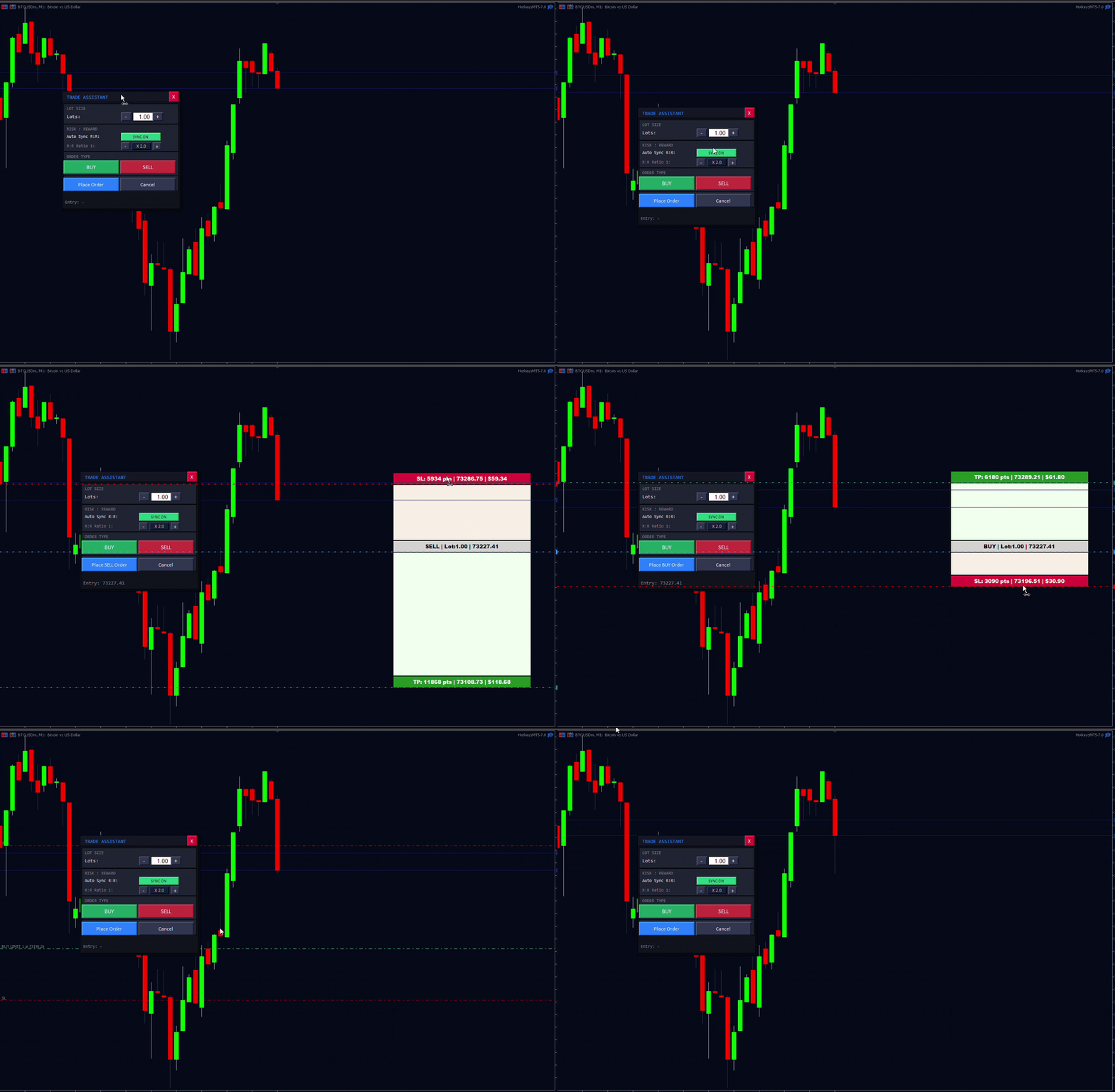
Hotkey "E"The easiest and smartest way to trade pending orders with Risk:Reward!
Now you have the Trade Assistant — a visual tool to create pending orders with precision:
Press E → Opens the Trade Assistant
Choose BUY or SELL
Drag on the screen to define:
Entry Price
Stop Loss (SL)
Take Profit (TP)
The assistant automatically calculates the Risk:Reward ratio (if enabled)
Click on "Place Order" and the pending order (Buy Stop, Buy Limit, Sell Stop or Sell Limit) is automatically sent
5. Financial Protections
5.1. Max Loss Protection
Enable Maximum Loss Limit?: Enables the maximum floating loss limit on the current symbol.
Max floating loss in USD (closes all on this symbol): Maximum floating loss value in USD. When reached, positions are closed according to the setting below.
Show alert + print when triggered?: Displays an alert on screen and a log message when the loss limit is reached.
true = close only losing | false = close all on symbol: If set to true, only losing positions are closed. If false, all positions on the symbol are closed.
5.2. Daily Loss Protection
Daily Loss Limit: Define a maximum loss value per day (in USD).
When the daily limit is reached, the EA automatically closes all positions on the current symbol.
It completely blocks new operations (market orders, limits, stops, and numeric keys) until the next day.
The block is automatic and is only released on the next day (daily reset).
Example:
Each chart (asset) has its own independent daily protection.
If EURUSD hits the limit → it closes only EURUSD positions and blocks operations only on that chart.
Other assets (GBPUSD, XAUUSD, etc.) continue operating normally.
How to use:
Enable the option EnableDailyLossProtection
Set the maximum daily loss value in DailyMaxLossUSD
Important: For the EA to also control your manual orders or orders opened by other robots, you must set Magic Number = 0.
This feature was specially created to help avoid Revenge Trading — that dangerous emotional behavior where the trader, after a loss, keeps trading impulsively trying to recover money quickly.
5.3. Max Profit Protection
Enable Maximum Profit Limit?: Enables the maximum profit limit per position.
Max profit per single position in USD: Maximum profit in USD per position. When reached, the position is closed according to the setting below.
Show alert when triggered?: Displays an alert on screen when the profit limit is reached.
true = close only winning | false = close all on symbol: If set to true, only winning positions are closed. If false, all positions on the symbol are closed.
6. Automatic Trailing Stop
-
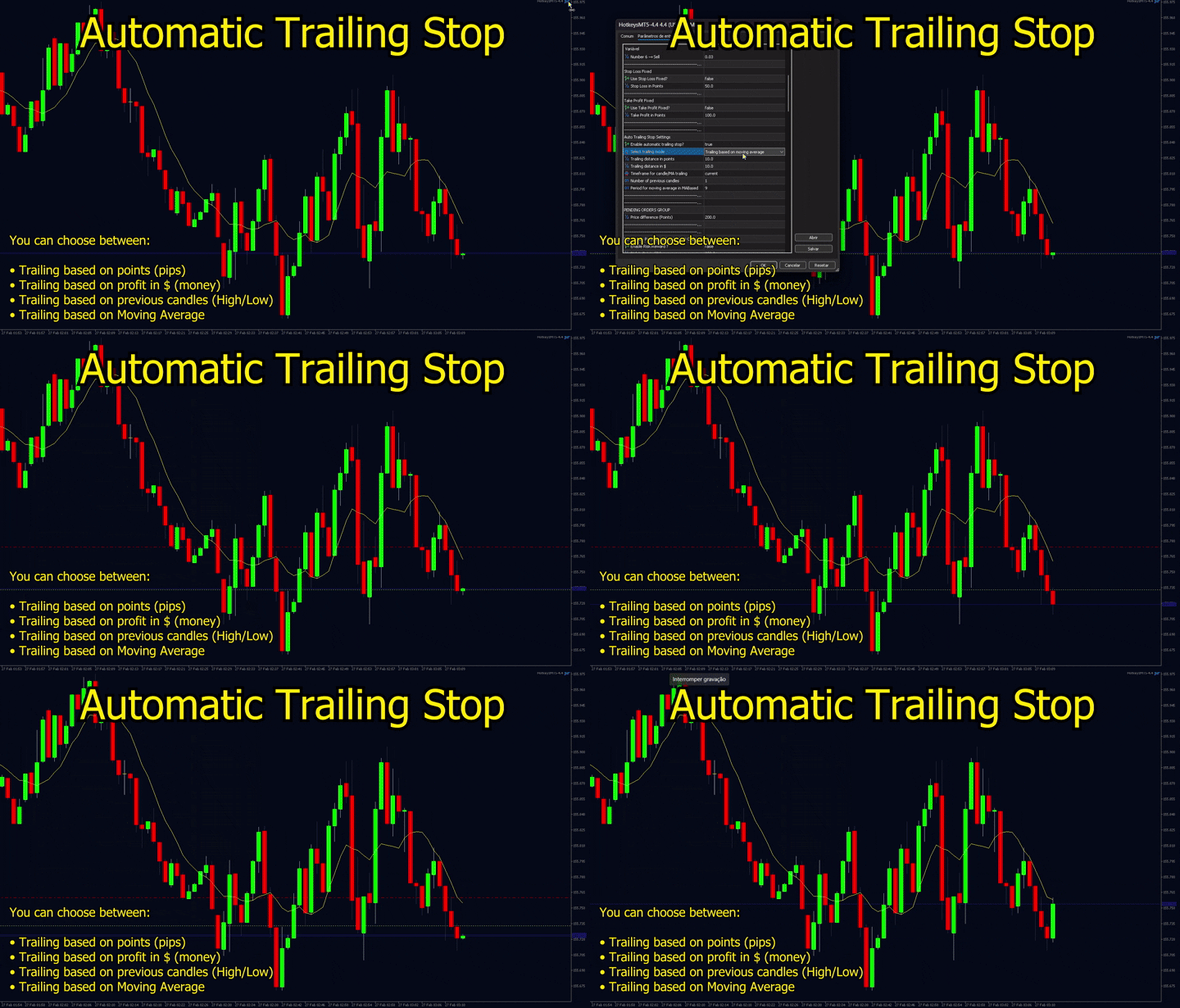
Enable automatic trailing stop?: Enables the automatic trailing stop that operates independently on all positions.
| Mode | Description |
| PointsBased | Fixed points |
| DollarsBased | USD based |
| CandleBased | Previous candles |
| MABased | Moving average |
| Fractal (3c) | Previous Fractal (3C) |
| ATR | ATR × Multiplier |
Automatic Trailing Stop Settings
Points to activate trailing: Number of profit points required for the trailing stop to start moving (0 = activates immediately).
Select trailing mode: Trailing stop mode: PointsBased, DollarsBased, CandleBased, or MABased.
Trailing distance in points: Distance of the trailing stop when PointsBased mode is selected.
Trailing distance in $: Distance of the trailing stop when DollarsBased mode is selected.
Timeframe for candle/MA trailing/ATR: Timeframe used in CandleBased, MABased and ATR modes.
Number of previous candles: Number of previous candles used in CandleBased mode.
Period for moving average in MABased: Period of the moving average used in MABased mode.
3 Candle Fractal Mode
Uses the classic 3-candle fractal
How it works:
The EA searches for the last confirmed fractal (all candles already closed):
For buy: looks for the middle candle where the Low is lower than the Low of the left candle and lower than the Low of the right candle.
For sell: looks for the middle candle where the High is higher than the High of the left candle and higher than the High of the right candle.
The trailing stop is placed exactly at the level of this confirmed fractal (never uses a forming candle).
Average True Range (ATR)
(SELL): New Stop Loss = Ask + (ATR × Multiplier)
Added Inputs:
ATR Period → default 14
ATR Multiplier → default 2.0
7. Risk and Lot Management
Main Management Options
- Fixed Lot
- Automatic Lot Calculation (based on risk in $ or %)
- Stop Loss (based on points, previous bars, or seconds)
- Take Profit (based on points or Risk/Reward ratio)
8. Performance Panel — hotkey "G"
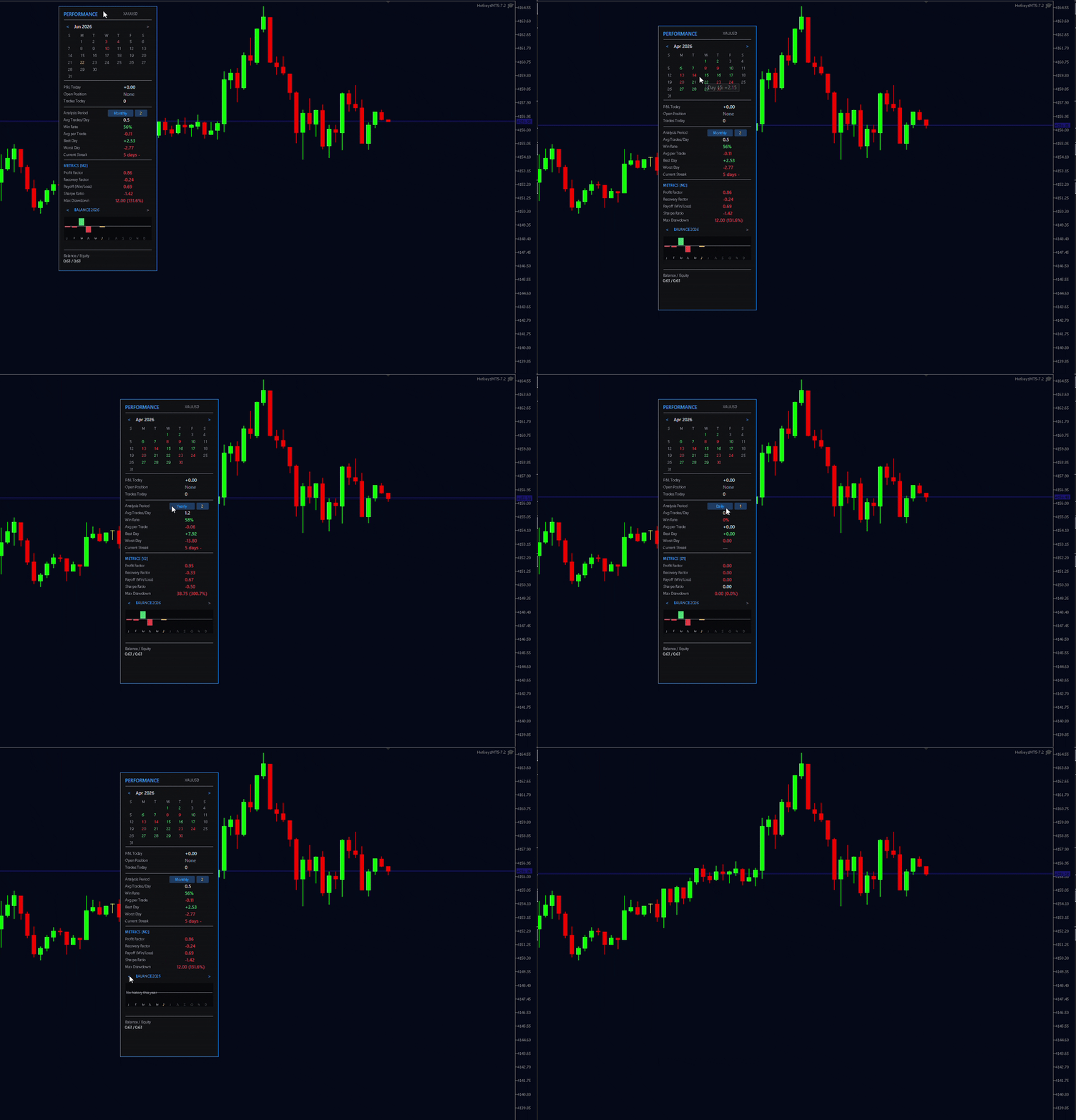
- Green → positive day
- Red → negative day
- Highlight (distinct color) → current day
- Daily
- Monthly
- Yearly
- Win Rate — percentage of winning trades
- Profit Factor — gross profit divided by gross loss (above 1.0 indicates a positive edge)
- Payoff Ratio — ratio between average gain and average loss (measures whether the strategy wins more when it wins than it loses when it loses)
- Recovery Factor — net profit divided by maximum drawdown (measures recovery efficiency)
- Sharpe Ratio (annualized) — risk-adjusted return, based on the volatility of daily results
- Max Drawdown (in $ and %) — largest drop in the equity curve over the analyzed period
- Avg Trades/Day and Avg Profit/Trade
- Best Day / Worst Day
- Current Streak — current sequence of consecutive positive or negative days
New independent visual panel, activated by hotkey G, that displays the strategy's performance in real time directly on the chart — ideal for sharing results publicly without exposing the control panel or the EA's internal parameters.
Performance Mini-Calendar
The panel's highlight is a navigable mini-calendar (< > arrows for previous months), where each day is colored according to the result:
Hover over any day to see the exact P&L in a tooltip. This gives an immediate, visual sense of the consistency (or inconsistency) of results throughout the month.
Configurable Analysis Period
Performance metrics can be calculated in three modes, chosen directly in the panel:
For each mode, you can define the number of look-back periods (e.g. last 3 months, last 2 years, etc.) — useful for comparing the most recent window without having to change inputs and recompile.
Metrics Displayed
The panel calculates and displays the most relevant metrics that any serious trader should track:
Monthly Balance Chart
Below the metrics, a bar chart shows month-by-month P&L for the selected year (also navigable by year), with the current month highlighted — a quick view of yearly progression.
9. News Filter Panel — hotkey "J"
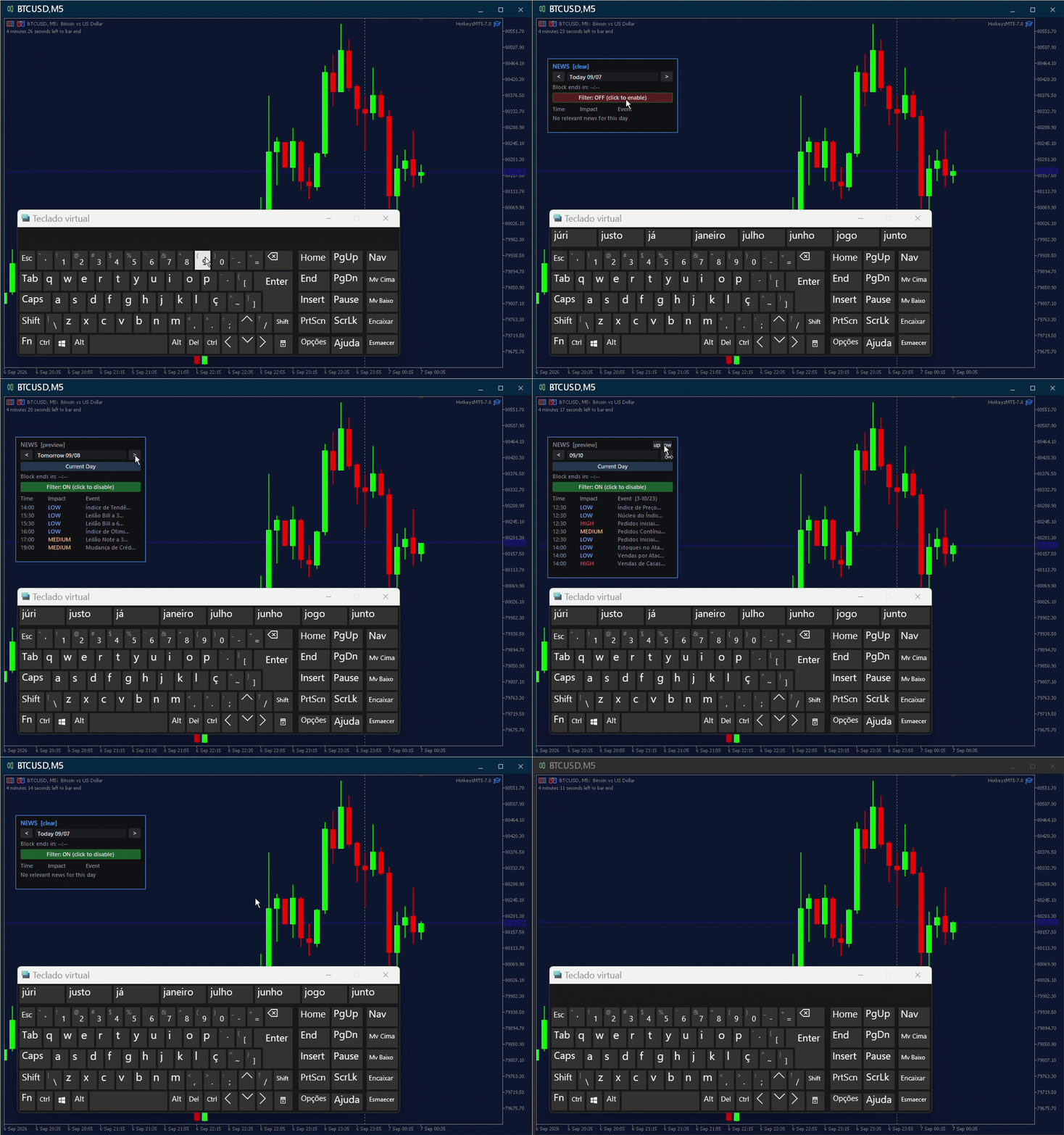
- Time — the scheduled release time of the event
- Impact — Low, Medium or High
- Event — the name of the news release
Standalone panel, activated with the J hotkey, that automatically protects your trades from the volatility and slippage caused by high-impact economic news releases, without requiring you to manually watch the economic calendar.
Press "J" at any time to open or hide the News Filter Panel directly on the chart.
News Table
The panel displays, in table format, all relevant news events filtered by the currencies of the symbol in use, showing:
If the current time falls inside the blocking window of any event, that row is automatically highlighted on the panel, and a countdown shows exactly how much time remains until the blocking period ends. When there are more news events than fit in the panel, a scrollbar appears so the list never stretches beyond the visible area.
Day Navigation
Use the < and > arrows to browse the news of previous or upcoming days without waiting for the day to change, and the "Current Day" button to instantly return to today's view.
Important: browsing other days only changes what is displayed on the panel. Order blocking is always evaluated on the real current day and time — navigating the panel never affects the EA's actual trading protection.
Configurable Blocking Windows
For each impact level (Low, Medium and High), you can independently define how many minutes before and after the news release the EA should block new order openings.
Automatic Order Blocking
While inside a configured news window, the EA automatically blocks any new market or pending order. A confirmation message is displayed on screen, informing that it is currently news time and that the block is active.
Quick Enable/Disable from the Panel
A dedicated button on the News Filter Panel allows the filter to be turned ON or OFF instantly, without needing to reopen the EA settings or restart the chart.
The panel is also fully draggable, so it can be repositioned anywhere on the chart according to your preference.
10. EA Settings (Full List)
- Magic number that identifies all orders opened by this EA. Use 0 if you want the EA to work together with manual orders or other robots.
- Enable double-click protection?: Enables protection against accidental double-clicks on market Buy and Sell orders.
- Minimum time between clicks (ms) 1000ms = 1s: Minimum time (in milliseconds) between clicks on Buy/Sell buttons. Prevents duplicate orders by accident.
- Lot Size Fixed: Fixed lot size used for market and pending orders when Auto Lot is disabled.
- Enable Maximum Loss Limit?: Enables the maximum floating loss limit on the current symbol.
- Max floating loss in USD (closes all on this symbol): Maximum floating loss in USD. When reached, closes positions according to the setting below.
- Show alert + print when triggered?: Shows an alert on screen and in the log when the loss limit is triggered.
- true = close only losing | false = close all on symbol: If true, closes only losing positions. If false, closes all positions on the symbol.
- Enable Maximum Profit Limit?: Enables the maximum profit limit per position.
- Max profit per single position in USD: Maximum profit in USD per single position. When reached, closes the position according to the setting below.
- Show alert when triggered?: Shows an alert on screen when the profit limit is triggered.
- true = close only winning | false = close all on symbol: If true, closes only winning positions. If false, closes all positions on the symbol.
- Enable "J" hotkey (News Panel): Enables the J hotkey to open/close the News Filter Panel.
- News Panel hotkey: Key used to toggle the News Filter Panel (default "J").
- Block new orders during news window: Enables automatic blocking of new market/pending orders during configured news windows.
- Show confirmation popup when blocked: Shows an on-screen confirmation message when an order is blocked due to news time.
- Low Impact News - Minutes before / after: Minutes before and after a low-impact news release during which new orders are blocked.
- Medium Impact News - Minutes before / after: Minutes before and after a medium-impact news release during which new orders are blocked.
- High Impact News - Minutes before / after: Minutes before and after a high-impact news release during which new orders are blocked.
- News Panel X / Y Position: Initial screen position of the News Filter Panel (the panel can also be freely dragged on the chart).
- News Panel Max Visible Rows: Maximum number of news rows shown at once before a scrollbar appears.
- News Panel colors (Background, Accent, Text, Muted, Low/Medium/High Impact, Active Highlight): Customize the appearance of the News Filter Panel.
- News Panel Font Size: Base font size used in the News Filter Panel.
- Activate keys 1-6: Enables numeric shortcuts 1 to 6 to open orders with predefined lots.
- Numeric Keys Buy (1-3)
- Number 1 → Buy: Lot size used when pressing key 1 (market buy).
- Number 2 → Buy: Lot size used when pressing key 2 (market buy).
- Number 3 → Buy: Lot size used when pressing key 3 (market buy).
- Numeric Keys Sell (4-6)
- Number 4 → Sell: Lot size used when pressing key 4 (market sell).
- Number 5 → Sell: Lot size used when pressing key 5 (market sell).
- Number 6 → Sell: Lot size used when pressing key 6 (market sell).
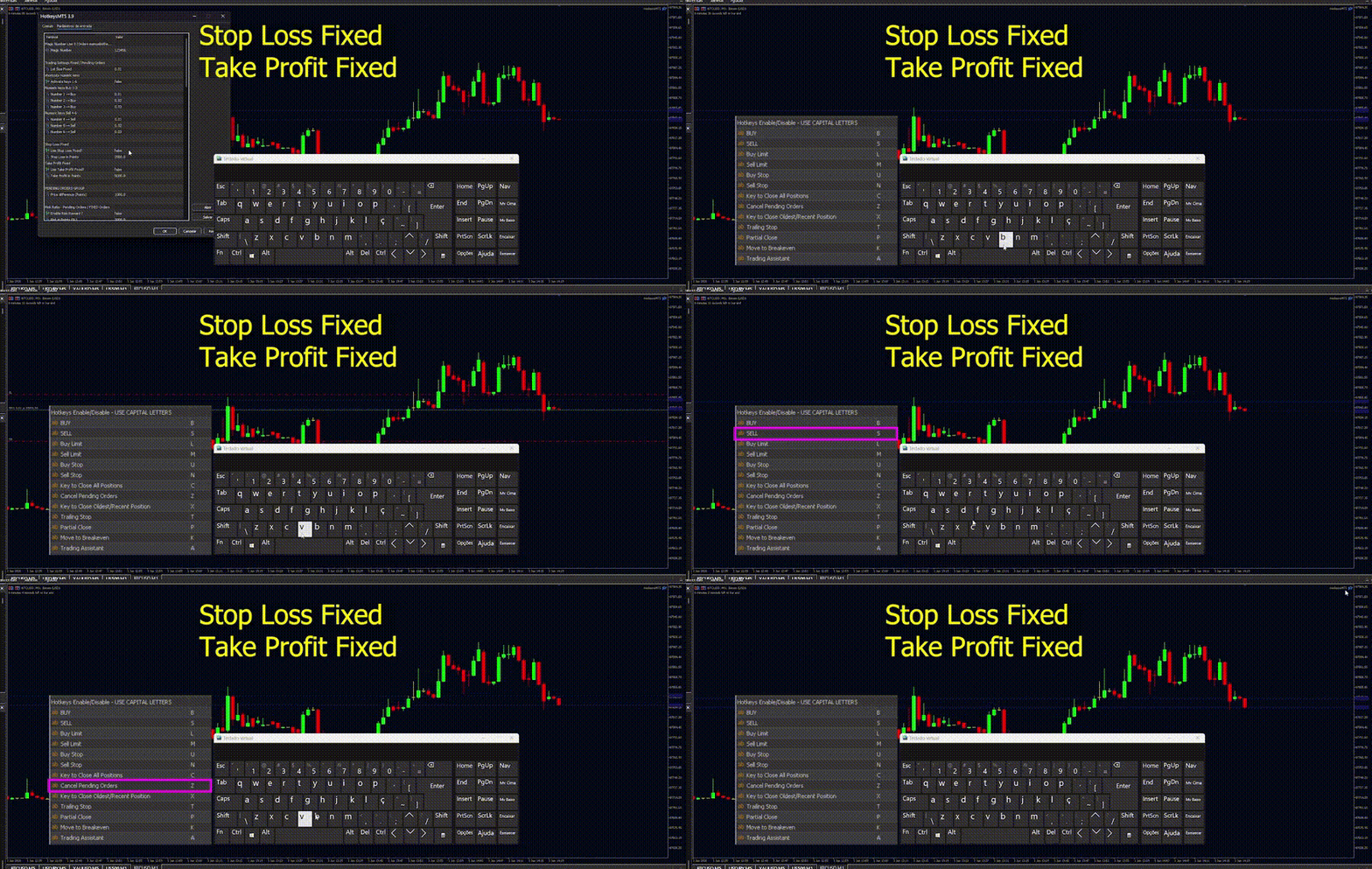
- Use Stop Loss Fixed?: Enables fixed Stop Loss in points for all orders.
- Stop Loss in Points: Stop Loss distance in points when fixed SL is enabled.
- Use Take Profit Fixed?: Enables fixed Take Profit in points for all orders.
- Take Profit in Points: Take Profit distance in points when fixed TP is enabled.
- Enable automatic trailing stop?: Enables the automatic trailing stop that works on all positions.
- Points to activate trailing: Profit points required to activate the trailing stop (0 = activates immediately).
- Select Trailing stop mode: PointsBased, DollarsBased, CandleBased or MABased.
- Trailing distance in points: Trailing distance when PointsBased mode is selected.
- Trailing distance in $: Trailing distance when DollarsBased mode is selected.
- Timeframe for candle/MA trailing: Timeframe used in CandleBased and MABased modes.
- Number of previous candles: Number of previous candles used in CandleBased mode.
- Period for moving average in MABased: Moving average period used in MABased mode.
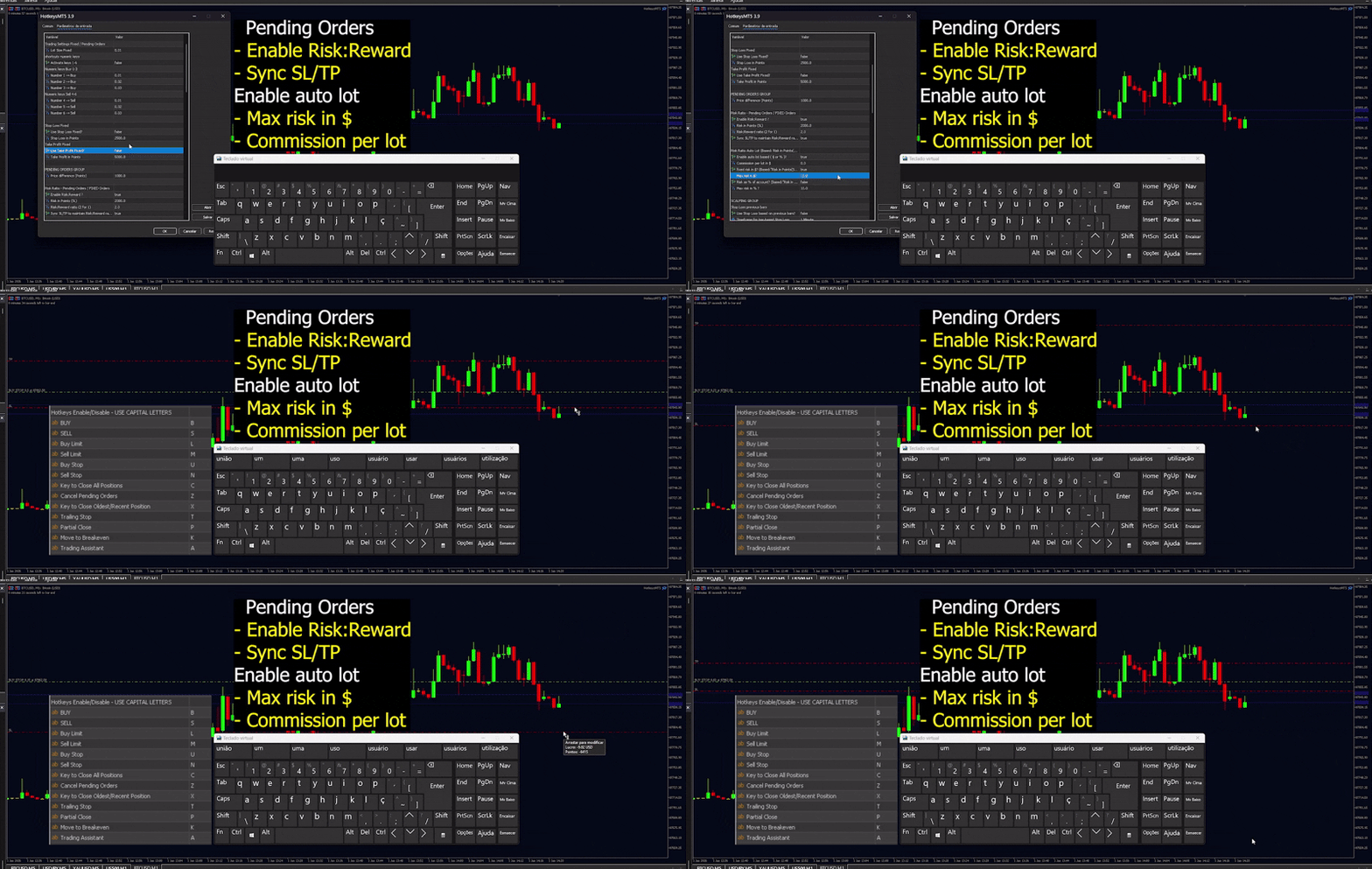
- Price difference (Points): Distance in points from current price for pending orders (Buy Limit, Sell Limit, Buy Stop, Sell Stop).
- Enable Risk:Reward?: Enables the full Risk:Reward system (takes priority over fixed SL/TP).
- Risk in Points (SL): Stop Loss distance in points when Risk:Reward is enabled.
- Risk:Reward ratio (2 for 1): Risk/Reward ratio (e.g., 2 means 1:2).
- Sync SL/TP to maintain Risk:Reward ratio?: Automatically keeps the Risk:Reward ratio if you manually modify SL or TP on pending orders.
- Enable auto lot based ($ or % )?: Enables automatic lot calculation based on the defined risk.
- Commission per lot in $: Commission value per lot (used in automatic lot calculation).
- Fixed risk in $: Defines fixed risk in USD per trade.
- Max risk in $: Maximum risk value in USD.
- Risk as % of account: Defines risk as a percentage of the account balance.
- Max risk in %: Maximum percentage of equity to be risked per trade.
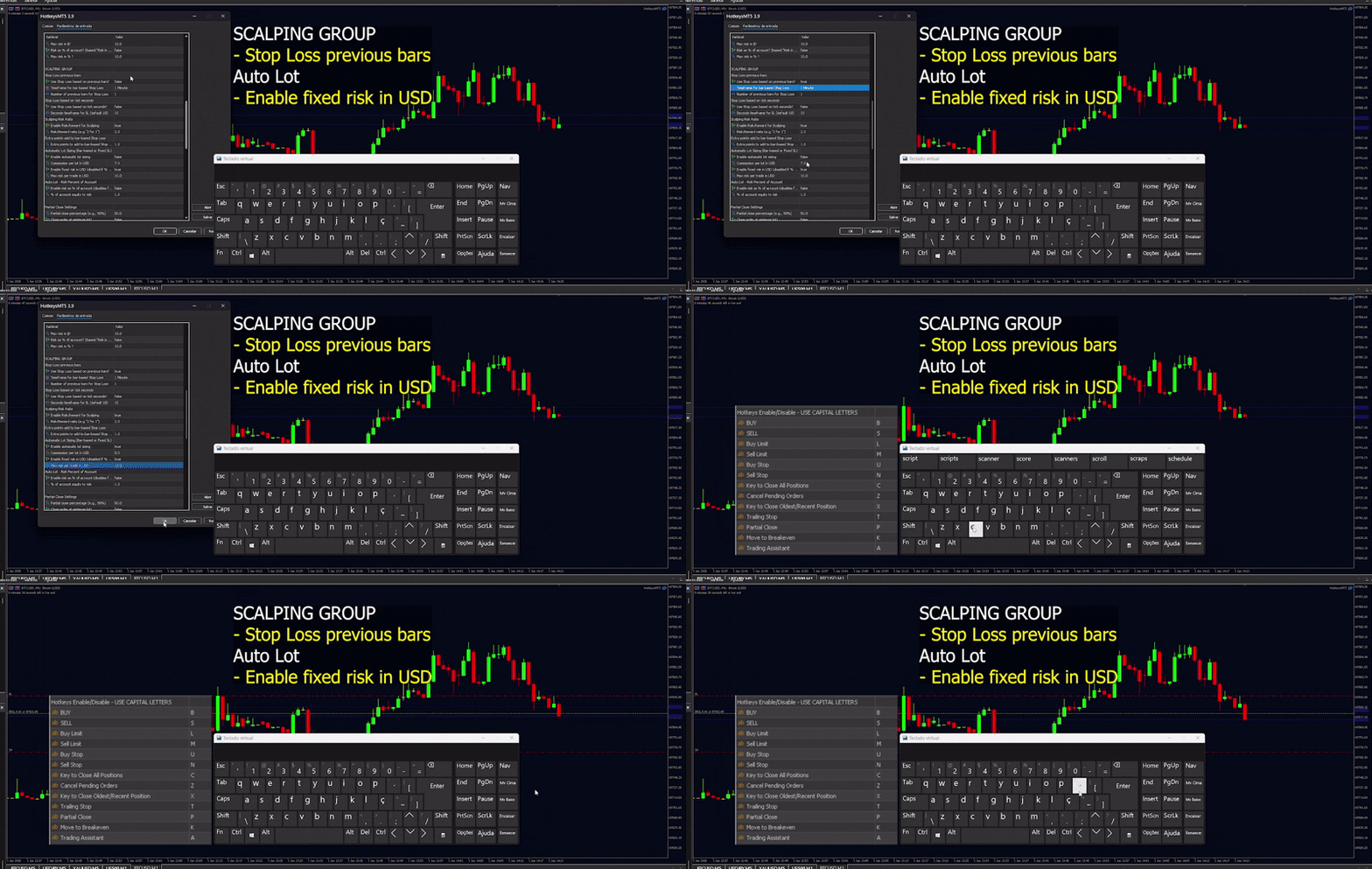
- Use Stop Loss based on previous bars?: Enables Stop Loss based on previous candles.
- Timeframe for bar-based Stop Loss: Timeframe used to calculate Stop Loss.
- Number of previous bars for Stop Loss: Number of candles used.
- Extra points for Stop Loss: Additional safety points.
- Use Stop Loss based on tick seconds?: Enables second-based Stop Loss.
- Seconds timeframe for SL: Duration in seconds for each candle.
- Chart Timeframe for Trading: Timeframe where the EA operates.
- Enable Risk:Reward for Scalping: Enables specific RR for scalping mode.
- Risk:Reward ratio: Ratio used in scalping mode.
- Enable automatic lot sizing: Enables automatic lot calculation.
- Commission per lot in USD: Commission value per lot.
- Enable fixed risk in USD: Enables fixed USD risk.
- Max risk per trade in USD: Maximum risk per trade.
- Enable risk as % of account: Enables percentage-based risk.
- % of account equity to risk: Percentage of equity to risk.
- Partial close percentage (e.g., 50%): Percentage to close with hotkey.
- Close order at minimum lot?: Closes fully if minimum lot is reached.
- "X" Close oldest transaction?: Defines if X closes oldest or most recent order.
- High/Low Drawing: Number of bars used for drawing tools.
- Drawing main color: Main color of drawings.
- Drawing levels color: Color of Fibonacci levels.
- Follow current price: Makes RR guide follow price.
- Risk-Reward ratio levels: Number of RR levels (1x, 2x, 3x...).
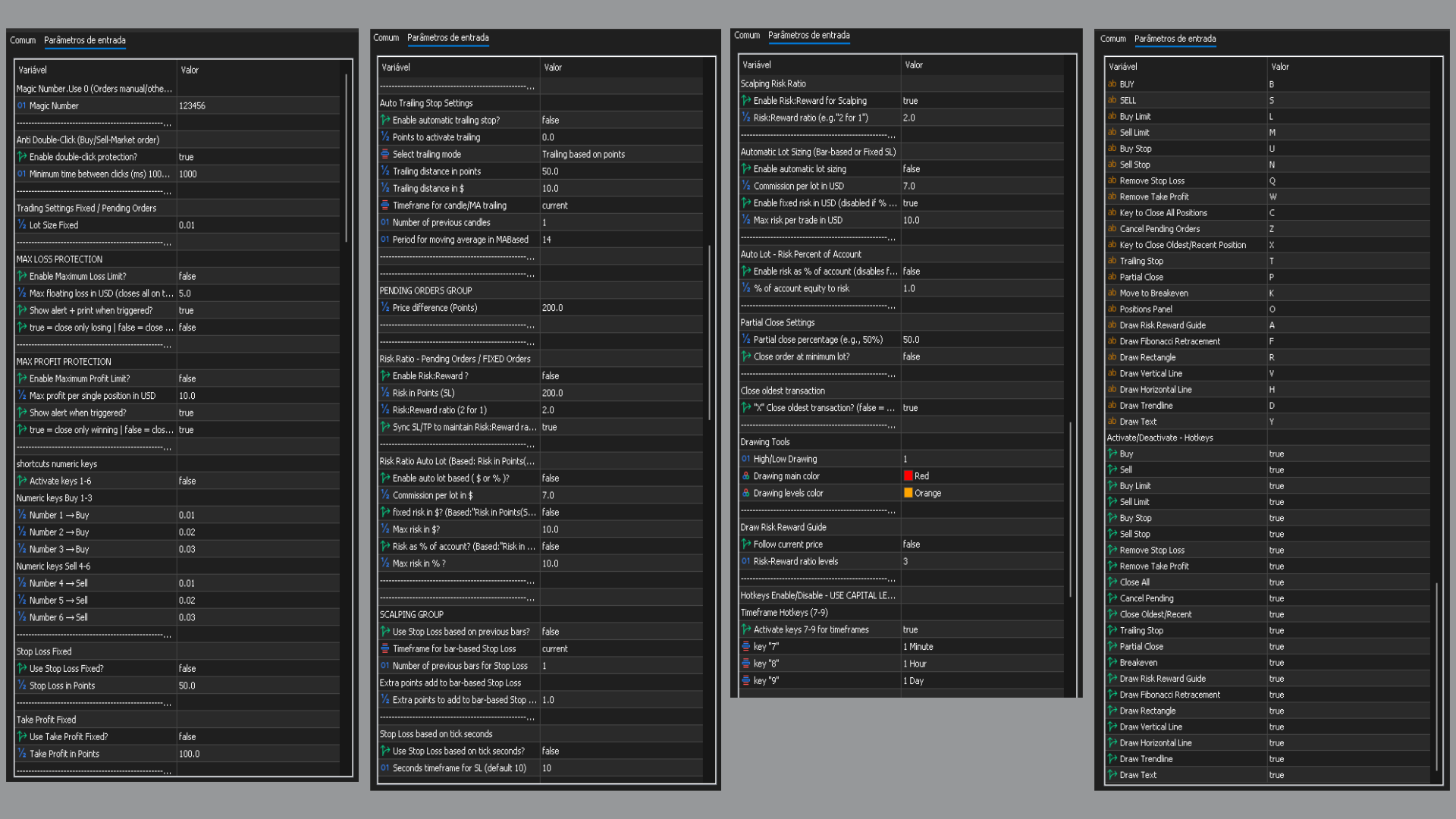
Magic Number
Anti Double-Click (Buy/Sell - Market Order)
Trading Settings (Fixed / Pending Orders)
Max Loss Protection
Max Profit Protection
News Filter (Hotkey "J") - Economic Calendar Trade Block
Shortcuts Numeric Keys
Stop Loss Fixed
Take Profit Fixed
Auto Trailing Stop Settings
Pending Orders Group
Risk:Reward (Pending / Fixed Orders)
Risk:Reward Auto Lot (Based on SL Points)
Scalping Group
Automatic Lot Sizing (Bar-based or Fixed SL)
Auto Lot - Risk % of Account
Partial Close Settings
Close Oldest Transaction
Drawing Tools
Draw Risk Reward Guide
11. All GIFs
12. Final Notes
- Use uppercase letters when changing any hotkey.
- Magic Number: Unique identifier for all orders opened by this EA. Use 0 if you want the EA to work together with manual trades or other EAs.
- Double-click protection: Enables protection against accidental double clicks on market buy and sell commands. The Minimum time between clicks (ms) defines the minimum time (in milliseconds) between one click and another on the Buy/Sell buttons, preventing duplicate orders.
- Chart Timeframe for Trading: Chart timeframe where the EA operates (used as reference).
- The EA works best with AutoTrading enabled in MT5.
- Test all functions in a demo account before using in a real account.
I hope this tool contributes positively to your trading.
Wishing good trades and much success to everyone using it!
By Pablo Filipe Soares de Almeida
https://www.mql5.com/en/users/1500016906/seller




