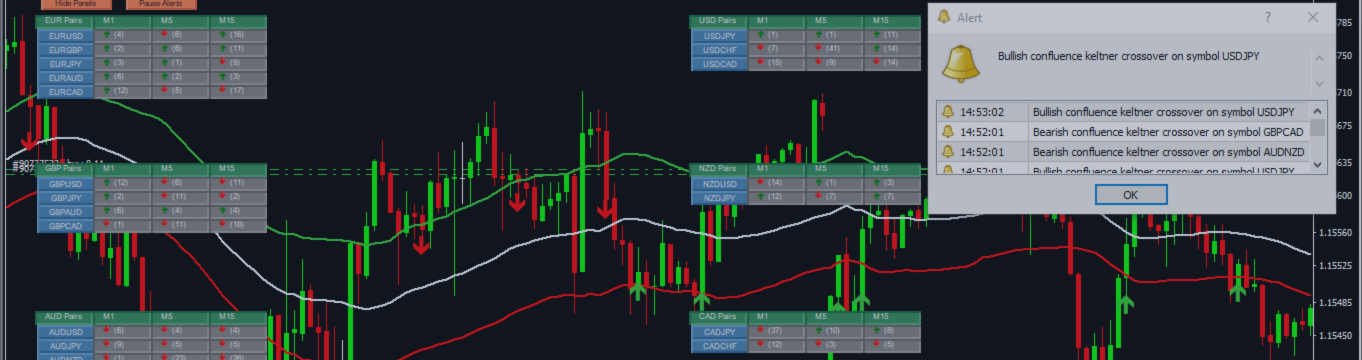
Keltner Channel Multicurrency Settings/Inputs Guide for MT4 & MT5

MT4 Version: Keltner Channel MultiCurrency Scanner MT4
MT5 Version:
Complete User Documentation — MT4 & MT5
1. OVERVIEW
The Keltner Channel MultiCurrency Scanner is an advanced tool designed to scan multiple currency pairs using the Keltner Channel indicator. It helps traders identify potential buy and sell signals based on market volatility and price movements. This scanner simplifies the process of monitoring multiple assets, allowing for more efficient trading decisions.
Who Should Use It: Retail forex traders looking for a comprehensive tool to enhance their trading strategies, particularly those who prefer technical analysis.
Main Benefit: Maximize your trading efficiency by quickly identifying profitable opportunities across various currency pairs with the Keltner Channel MultiCurrency Scanner.
2. INPUT PARAMETERS & SETTINGS
This product shares a common set of general input settings with all Multi-Currency Scanner Dashboard products in this series. The following sections are covered in the common guide: General Settings (pairs list, dashboard colors, panel size), Timeframe Signal Settings (individual TF scan per symbol), Timeframe Confluence Settings (multi-TF confluence scan), and Alert Settings (popup, push notification, email). For full details refer to the Common Multi-Currency Scanner Dashboard Settings Guide. The sections below cover only the product-specific inputs unique to this product.
Keltner Settings
This section controls the Keltner Channel settings, which determine how the indicator is calculated and displayed.
| Setting Name | Type | Default Value | Description | Example |
|---|---|---|---|---|
| Ma Period | int | 50 | Sets the number of periods used to calculate the moving average for the Keltner Channel. A higher value smooths the channel, while a lower value reacts faster to price changes. | 100 - Use this for a longer-term perspective, reducing noise in volatile markets. |
| Ma Mode | ENUM | MODE_EMA | See options explained below. | MODE_SMA - Choose this for a simple moving average calculation. |
| Ma Price | ENUM | PRICE_CLOSE | See options explained below. | PRICE_OPEN - Use this to base calculations on the opening price of each period. |
| Ma Shift | int | 3 | Defines the number of bars to shift the moving average. A positive value shifts it to the right, which can help anticipate future price movements. | 1 - Shift the moving average one bar to project future price action. |
Ma Mode — Options Explained
This setting allows you to choose the type of moving average used in the Keltner Channel calculation.
MODE_EMA: The Exponential Moving Average gives more weight to recent prices, making it responsive to price changes, ideal for fast-moving markets. MODE_SMA: The Simple Moving Average offers a smoother trend line, suitable for identifying longer-term trends.
Ma Price — Options Explained
This setting determines which price type is used in the moving average calculations for the Keltner Channel.
PRICE_CLOSE: This option uses the closing price of each period, which is commonly used for trend analysis. PRICE_OPEN: This option uses the opening price, which can be useful for strategies focused on early price movements.
3. HOW IT WORKS
Core Calculation & Logic
The Keltner Channel MultiCurrency Scanner calculates the upper, middle, and lower bands based on the Average True Range (ATR) and a moving average. It identifies potential breakout conditions in various currency pairs.
This scanner monitors multiple timeframes, helping traders detect trends and reversals by analyzing price movements relative to the Keltner Channels, which are dynamic support and resistance levels.
How Signals Are Generated
A BUY signal is generated when the price crosses above the upper Keltner Channel, indicating potential upward momentum. This suggests a bullish market condition.
A SELL signal occurs when the price drops below the lower Keltner Channel, indicating potential downward momentum, suggesting a bearish market condition.
The scanner can use confluence logic, meaning it checks multiple timeframes for signals to confirm the strength of a trend before presenting it to the trader.
The dashboard displays symbols in rows and timeframes in columns, with arrow colors indicating buy (green) or sell (red) signals. The signal age is shown in parentheses, helping traders assess the timeliness of the signals.
Step-by-Step Workflow
Step 1: Configure Currency Pairs Select the desired currency pairs in the settings to focus your analysis.
Step 2: Set Timeframes Choose the timeframes you want to scan for signals, such as 1M, 5M, or 1H.
Step 3: Adjust Panel Settings Customize the panel height, width, and text size to fit your trading workspace.
Step 4: Monitor Signals Observe the dashboard for buy and sell signals across selected pairs and timeframes.
Step 5: Execute Trades Based on the signals and your trading strategy, execute trades on your chosen currency pairs.
4. USAGE TIPS & BEST PRACTICES
Utilizing the Keltner Channel MultiCurrency Scanner effectively can enhance your trading strategy.
| Feature | Description |
|---|---|
| MultiCurrency Analysis | Scan multiple currency pairs simultaneously to identify trading opportunities. |
| Timeframe Flexibility | Select specific timeframes to tailor the scanner to your trading style. |
| Clear Signal Indicators | Visual signals help quickly identify potential buy and sell opportunities. |
| Panel Customization | Adjust the panel size and appearance to fit your trading workspace for better usability. |
5. IMPORTANT NOTES & WARNINGS
Known Limitations
| Issue | Explanation |
|---|---|
| Market Volatility | High volatility can lead to false signals; traders should confirm with additional analysis. |
| Delayed Signals | As a lagging indicator, signals may not reflect real-time market conditions. |
| Inconsistent Signals | Signals may vary across different timeframes, requiring careful consideration. |
Settings Beginners Should NOT Change
| Setting | Why to Leave Default |
|---|---|
| Pairs List | Default pairs provide a balanced overview of major currencies. |
| Scan Last N Candle | Default settings ensure comprehensive analysis over a significant period. |
| Indicator Colors | Default colors enhance visibility and clarity of signals. |
Dashboard Usage Tips
- Stay Updated: Regularly check the dashboard for the latest signals and market conditions.
- Combine with Other Tools: Use alongside other indicators for a more robust analysis.
- Adjust Timeframes: Experiment with different timeframes to find what works best for your strategy.
- Monitor Signal Age: Pay attention to the age of signals to assess their relevance.
- Practice Risk Management: Always apply risk management techniques before executing trades.
Quick Start Guide
Follow these steps to get started in under 5 minutes:
- Install the Scanner: Download and install the Keltner Channel MultiCurrency Scanner on your trading platform.
- Open the Settings: Access the settings menu to configure your preferences.
- Select Currency Pairs: Choose the currency pairs you want to analyze.
- Set Timeframes: Enable the timeframes you wish to scan for signals.
- Customize Panel: Adjust the panel height and width to fit your workspace.
- Save Settings: Save your configurations before starting the scan.
- Start Scanning: Begin monitoring the dashboard for buy and sell signals.
You may also be interested in these related products:
Installation Guide for MQL Products | Updating Purchased MQL Products on MT4/MT5 | General Troubleshooting Guide
Check all my products: https://www.mql5.com/en/users/biswait50/seller
Contact me for support: https://www.mql5.com/en/users/biswait50




