TRADE MANAGER INTERFACE MANUAL
This is the Manual & user guide for the free Trade Manager Interface.
HOW TO DOWNLOAD THE TRADE MANAGER INTERFACE
- First Open a MetaTrader Terminal, where you are logged in with your mql5 account.
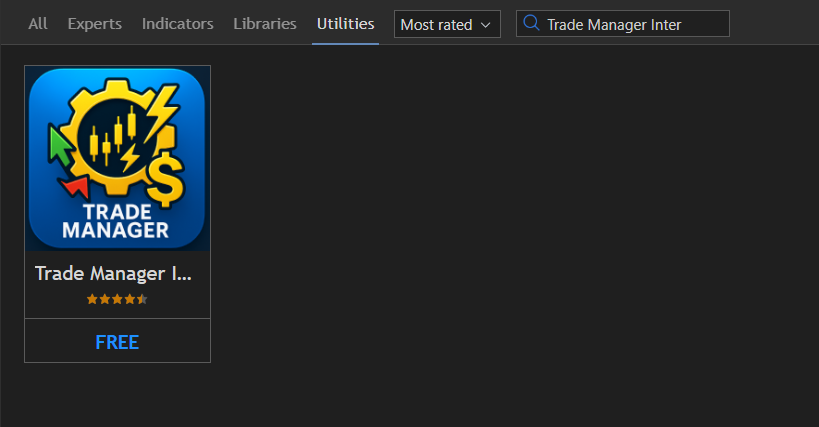
- Go to the Market section: Navigator -> Market. And search for "Trade Manager Interface"
- After you've found the product with the blue logo click on it and download it.
HOW TO SET UP
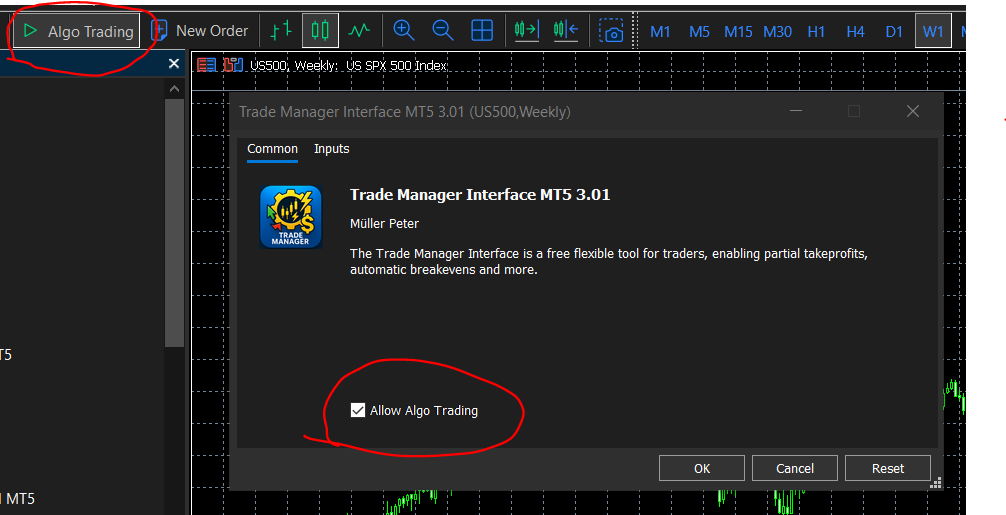
The only input parameter is used to decide whether the closing buttons should close the trades only on the symbol of the chart, or across all symbols. The basic parameter is true so only the symbol's trades will be closed.
TRADE MODE
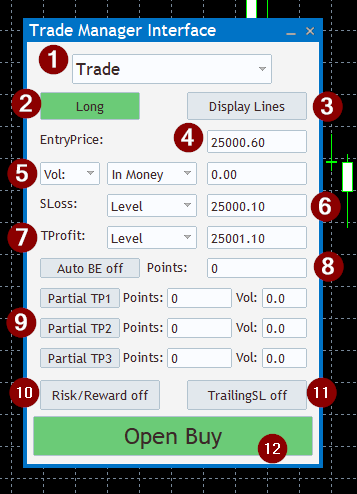
- 1: Mode Navigator: Combobox for selecting Mode between Trade and Close
- 2: Direction Button: This button allows the trader to choose between going long or short. Clicking it changes the trade direction, toggling between "long" and "short". When 'short' is selected, the corresponding button will display "Open Sell".
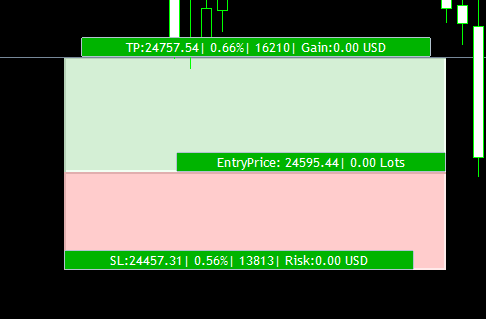
- 3: Display on Chart: This button will create a visual representation on the chart. The buttons are drag-enabled. Sometimes the correct representation of the parameters in the dialog is not possible, in this case the trade will be entered based on the parameters in the dialog. (The EA attempts to synchronise the dialog and the trading box).
- 4: Entry Price: This parameter allows the trader to define the entry price for the trade.
- 5: Volume: In this section, the trader can specify the lot size of the trade or order they wish to enter. The first selection box enables the trader to choose the method for calculating the trade size. Selecting "Vol:" allows setting the Volume/Margin used for the trade. Choosing "Risk:" or "Gain:" enables specifying the desired amount to risk or gain from the trade. With the second selection box, the trader can further refine the calculation method. For example, selecting "Risk:" and "Balance %" allows specifying the risk as a percentage of the balance. Choosing "Gain:" and "In Money" allows setting a specific monetary gain, such as $15. Opting for "Vol:" and "In Money" enables specifying the margin used for the trade. This option is only enabled if the user allows the margin based volume calculation in the inputs.


- 6: Stop Loss: Here the trader can set the stoploss of the trade/order.
- 7: Take Profit: Here the user can set the takeprofit of the trade/order. Both Stoploss and Takeprofit can be specified in 1: The Level where the position needs to be closed 2: In the percentage of the Entryprice 3: in Points.

- 8: Auto Break Even: It is possible to add an automatic breakeven to your trade by enabling this toggle. The Distance where the SL should move to the startprice can be given in points.
- 9: Partial TPs: Here the user can set a maximum number of 3 Partial TakeProfits. All of these need a volume: the amount of volume the EA should close, and a distance in Points: where the EA should close the trade partially.
- 10: Risk Reward Button: Clicking this button will fixate the current Risk/Reward ratio. Changing the SL or the TP after the RiskReward is on will change the other parameter accordingly.
- 11: Trailing Stop Button: A trailing stop can be set by clicking this button. If "TrailingStop on" is displayed the stoploss of the trade will automatically change whenever the price moves in favor of the trade.
- 12: Open Buy/Open Sell Button: With this button the user can enter the trade/place the order, with the parameters specified above. If the Advanced Panel is active the advanced parameters (partial TP and SL, auto breakeven) will also be taken into account, if the panel is not active the trade won't have any further parameters.
CLOSE MODE
This mode is responsible for closing trades with different properties instantly by clicking the corresponding button. All the buttons focus on either the current symbol or across all symbols, depending on the traders "CloseonlySymbol" input.
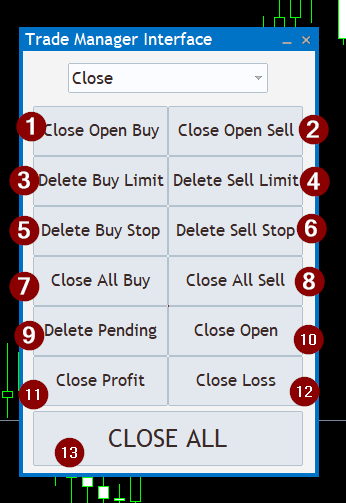
- 1: Close Open Buy: Close all open buy trades on the symbol or across all charts.
- 2: Close Open Sell: Close all open sell trades on the symbol or across all charts.
- 3: Delete Buy Limit: Delete Buy Limit orders.
- 4: Delete Sell Limit: Delete Sell Limit orders.
- 5: Delete Buy Stop: Delete Buy Stop orders.
- 6: Delete Sell Stop: Delete Sell Stop orders.
- 7: Close all Buy: Close all open buy trades and pending buy orders. It is the same as clicking Close Open Buy, Delete Buy Limit and Delete Buy Stop buttons.
- 8: Close all Sell: Close all open sell trades and pending buy orders. It is the same as clicking Close Open Sell, Delete Sell Limit and Delete Sell Stop buttons.
- 9: Delete Pending: Deletes all pending orders. It's the same as clicking Delete Buy Limit, Delete Sell Limit, Delete Buy Stop, Delete Sell Stop buttons.
- 10: Close Open: Close all open trades. Same as clicking Close Open Buy, and Close Open Sell.
- 11: Close Profit: Close all open trades, with a floating profit above 0. If a trade is profitable it will be closed.
- 12: Close Loss: Close all open trades with a floating profit below 0. If a trade is losing it will be closed.