Guide to Installing Free Indicators and EAs Included with the Mirage Trading System Purchase


Installation & Usage Guide : Indicator
-
Files you will receive
-
You will receive indicator files in the following format: .ex5 (already compiled, ready to use).
-
Installation (copy to the Indicators folder)
Open MetaTrader 5.
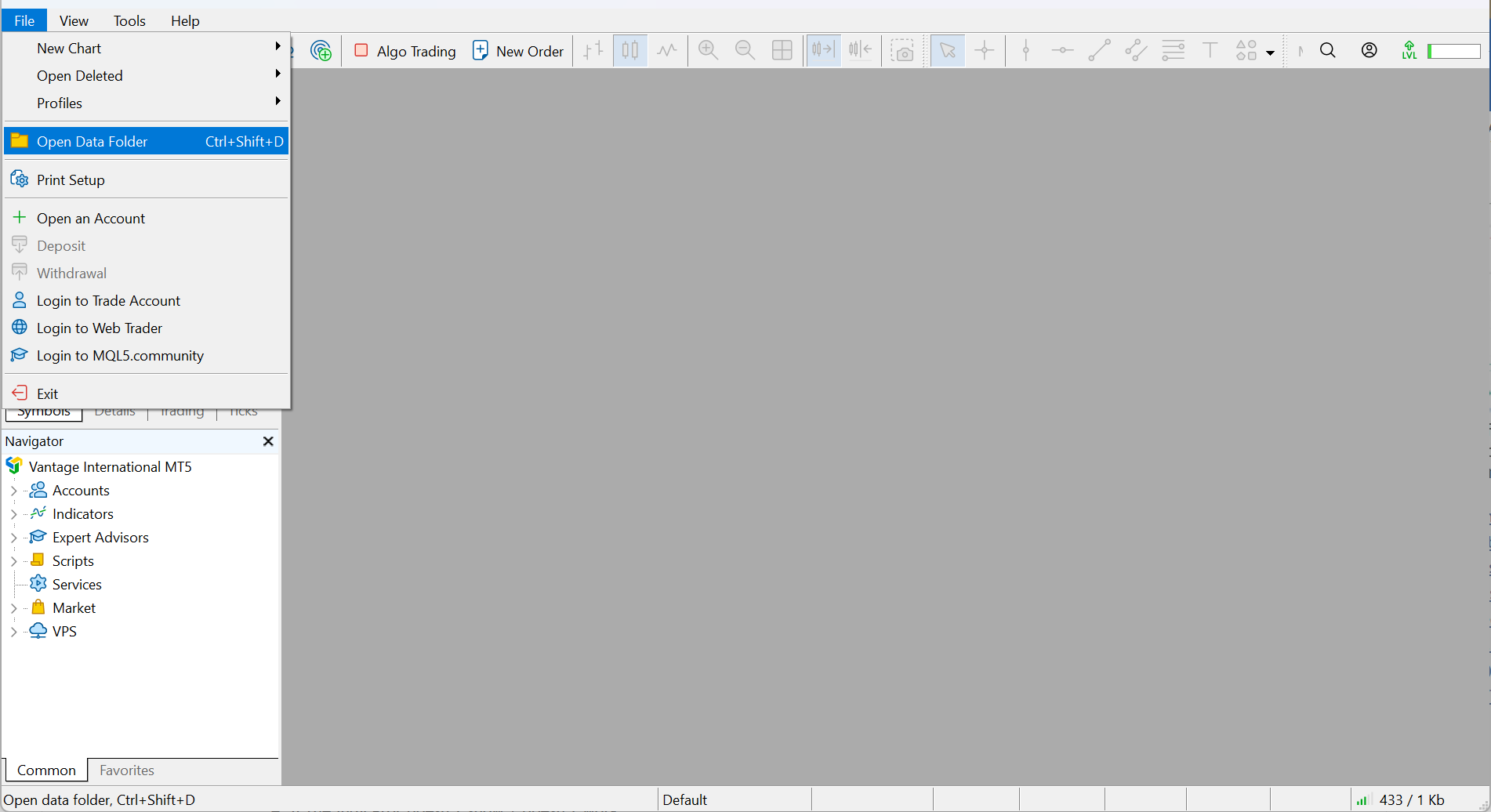
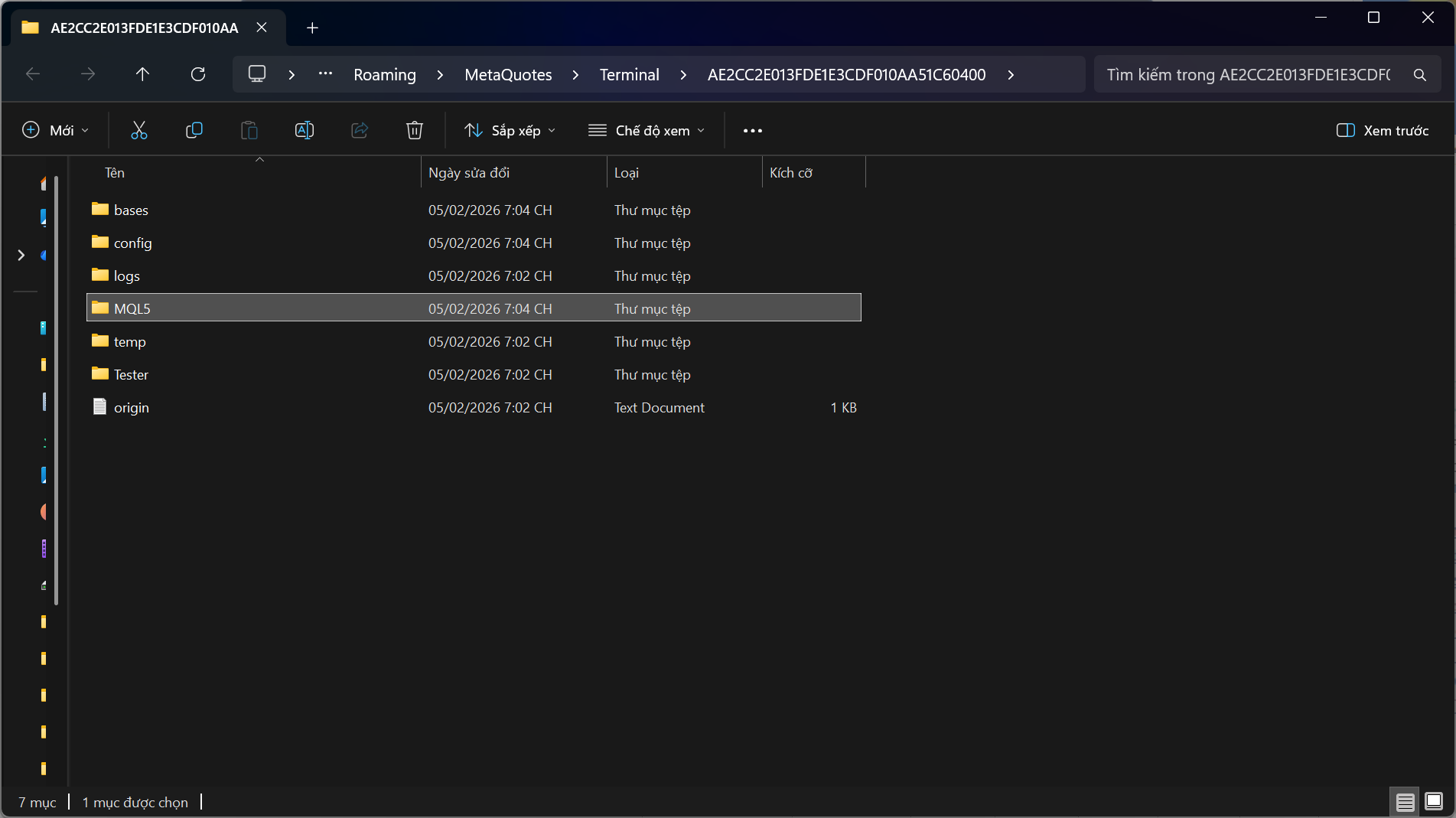
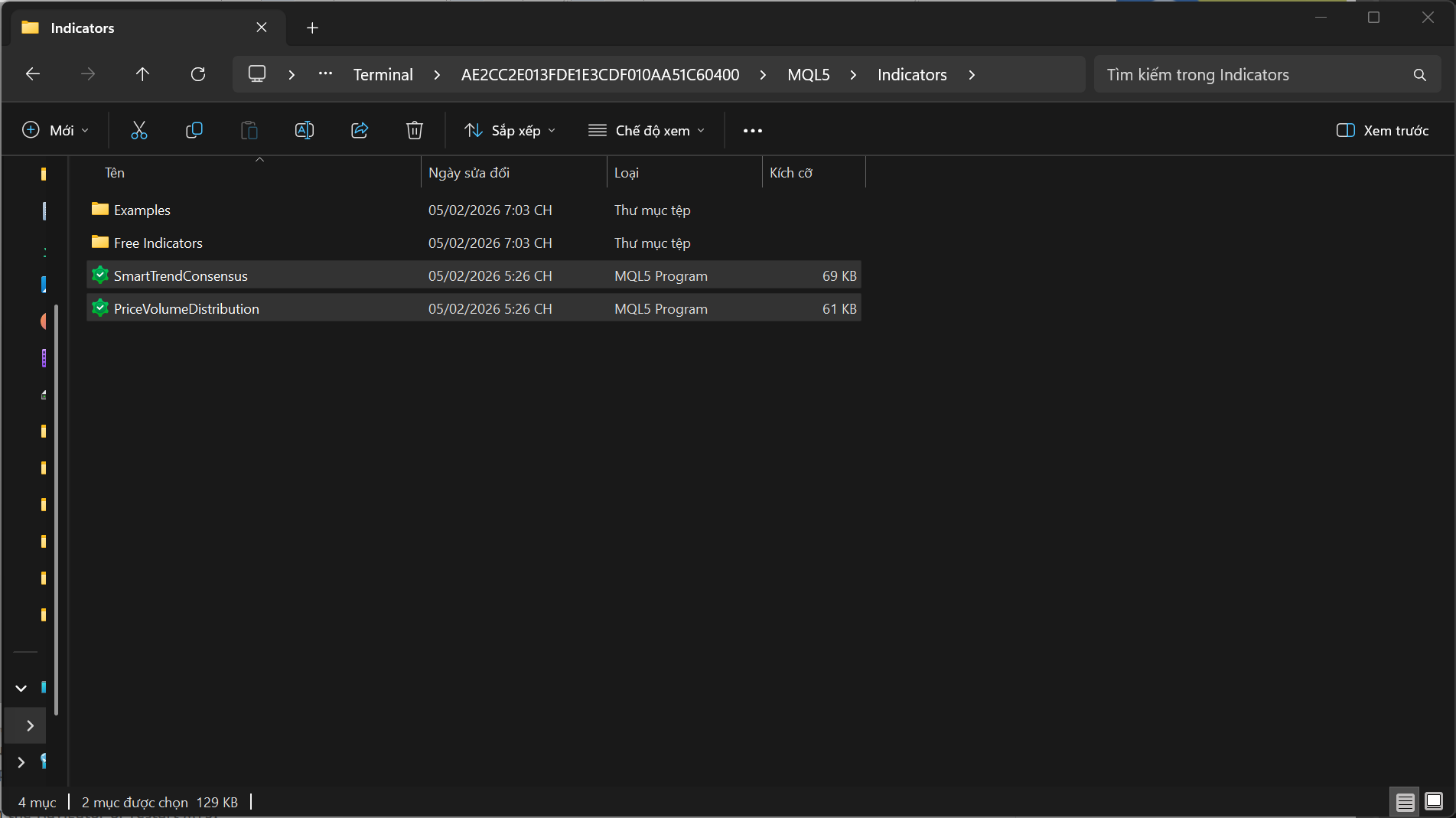
Go to File → Open Data Folder.
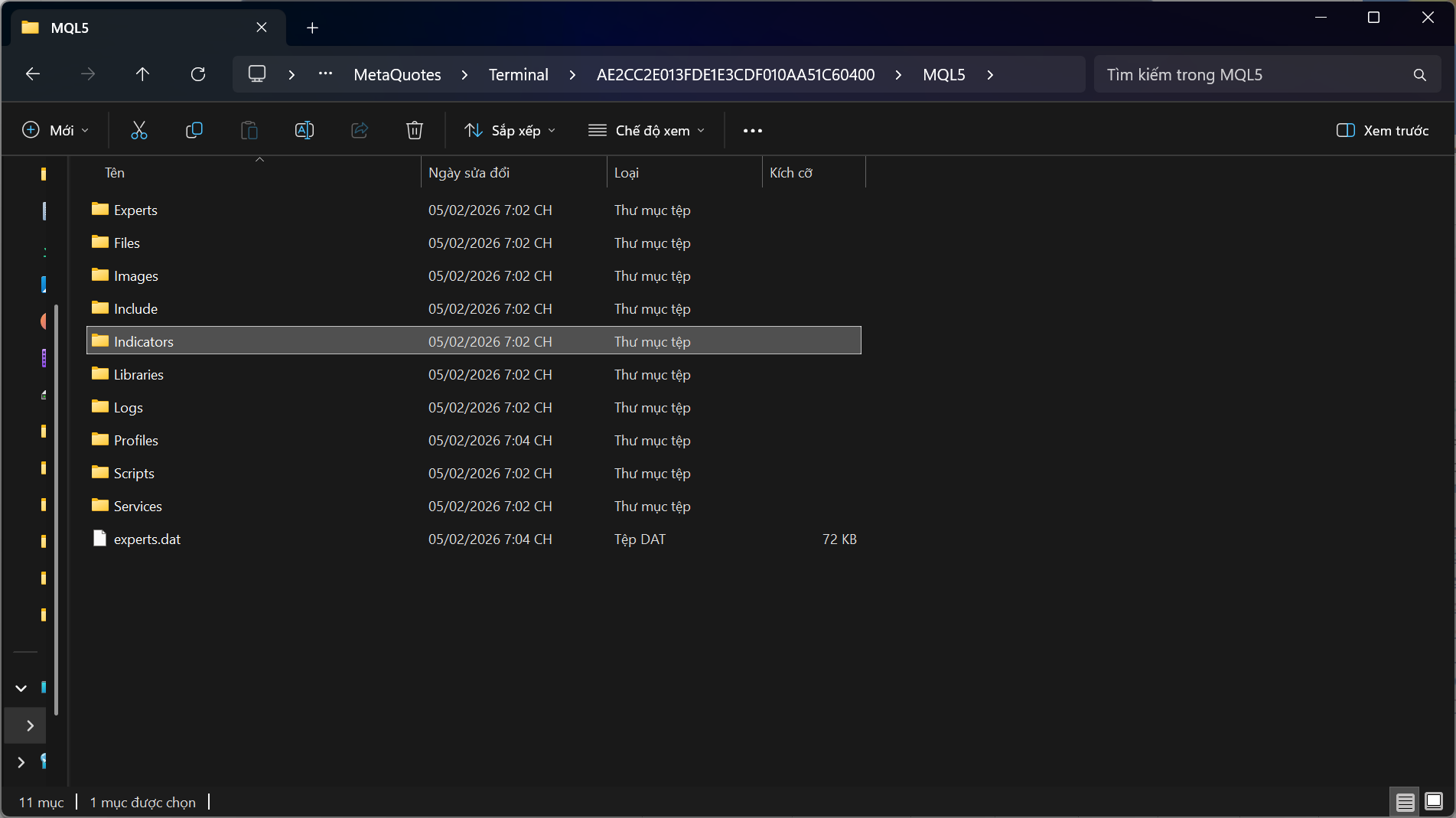
Open: MQL5 → Indicators.
Paste the indicator file (.ex5 or .mq5) into the Indicators folder.
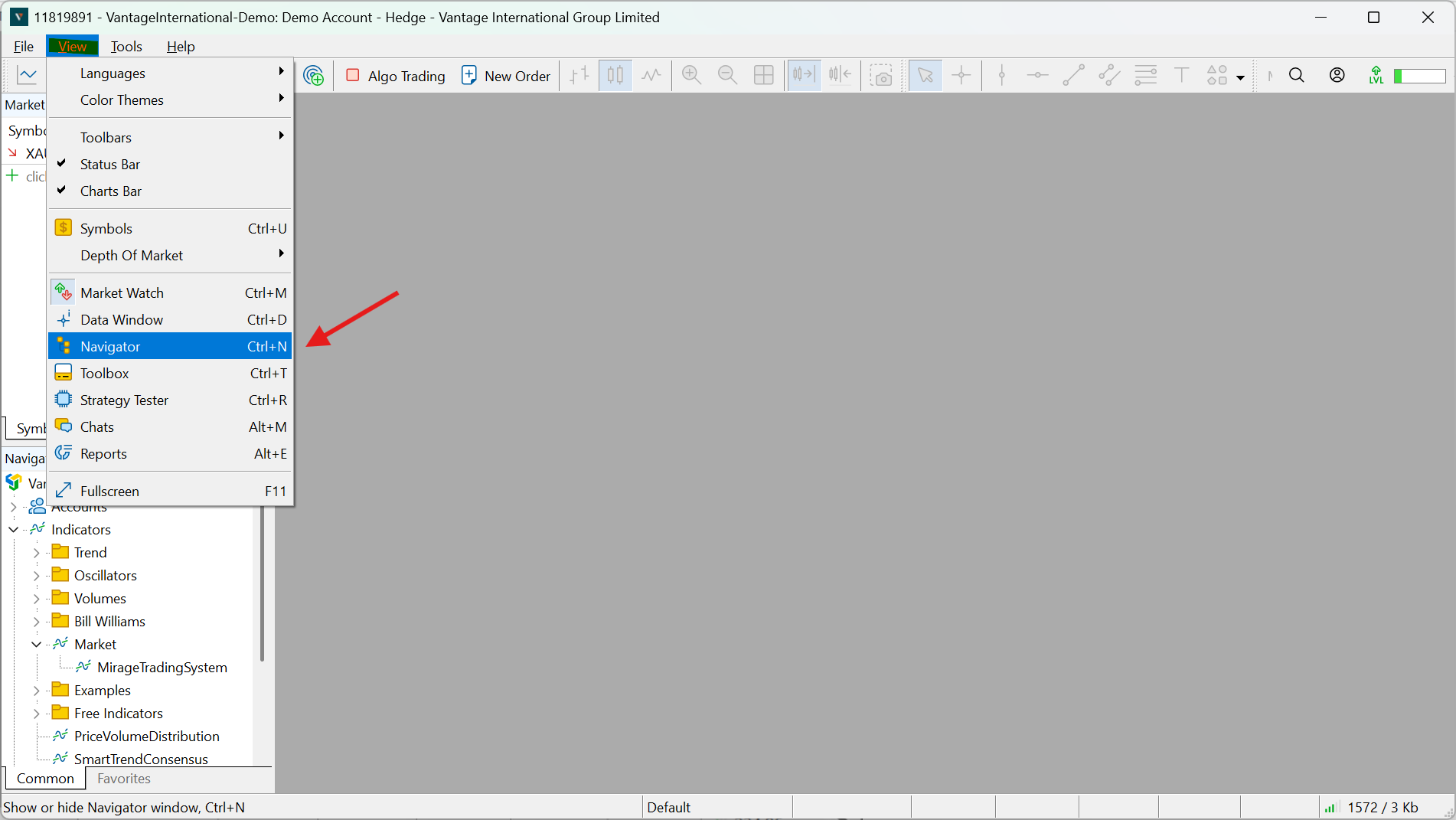
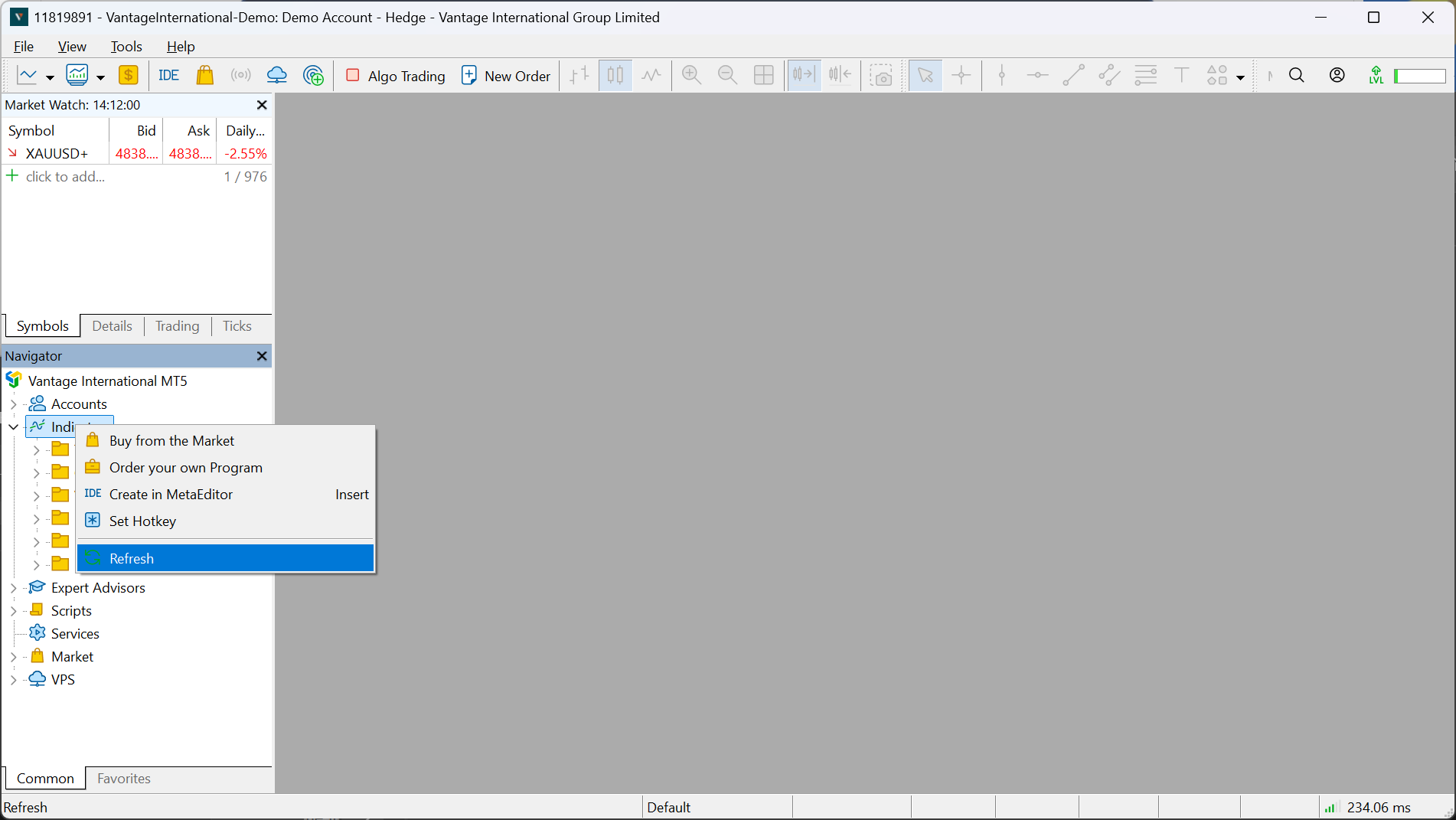
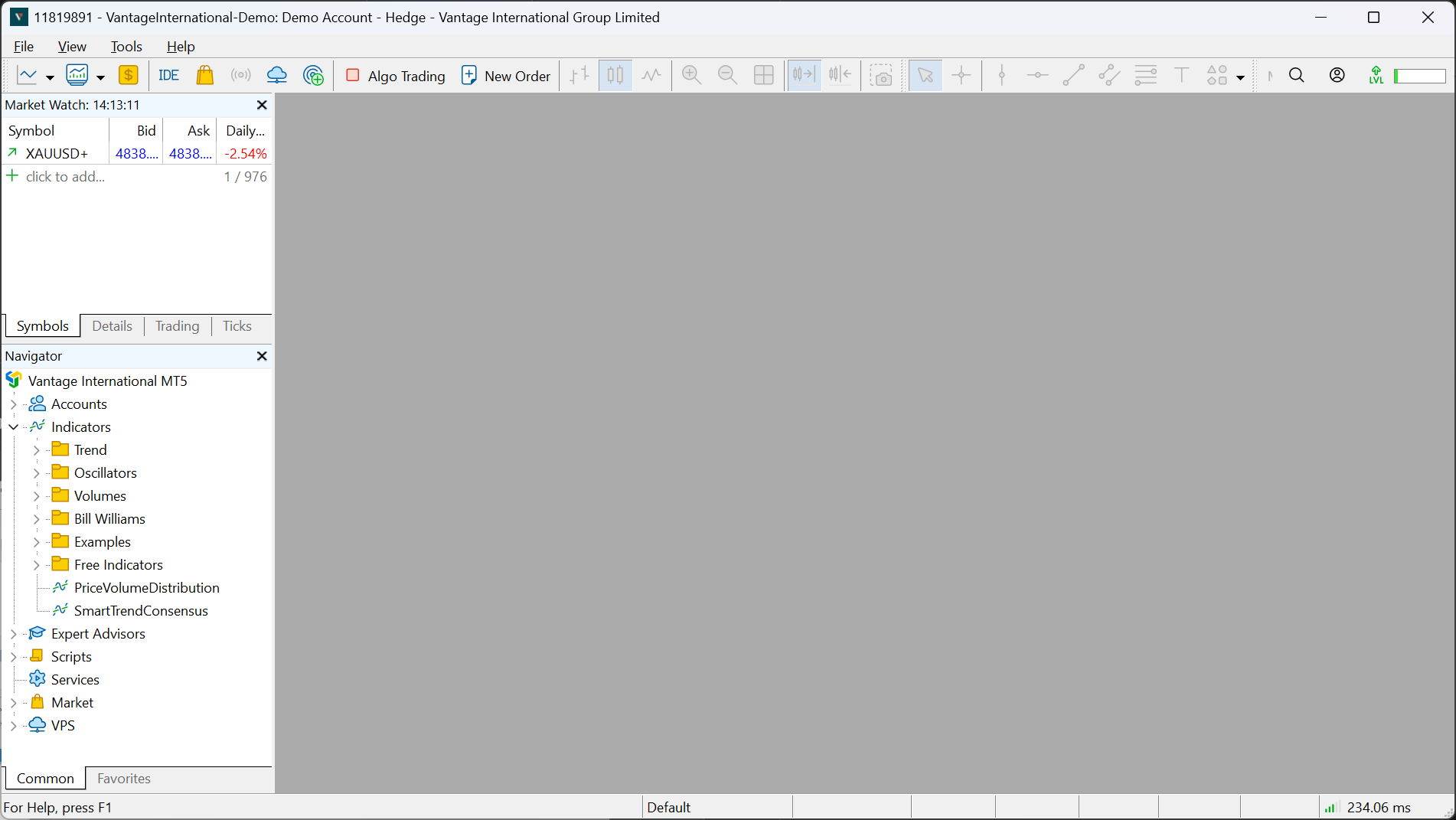
Go back to MT5. In the Navigator window (if it’s not visible: View → Navigator), right-click Indicators and select Refresh, or restart MT5 for the indicator to appear.
-
Attach the indicator to a chart
In MT5, open the chart of the symbol you want.
Open Navigator → Indicators, find your indicator, then drag & drop it onto the chart (or double-click it).
When the settings window appears, adjust Inputs/Colors/Levels (depending on the indicator), then click OK to run it.

-
If the indicator doesn’t show / doesn’t work
Make sure you pasted it into the correct path: File → Open Data Folder → MQL5 → Indicators (do not paste it into Experts/Scripts by mistake).
To use this indicator, you must purchase the Mirage Trading System indicator first. Then, attach Mirage Trading System to any chart in MT5, and this indicator will work normally.

Try Refresh in the Navigator or restart MT5.
Guide to Installing & Running an EA on MT5
1) Files you will receive
-
The EA is typically provided as .ex5 (already compiled, ready to use)
2) Installation (copy to the Experts folder)
-
Open MetaTrader 5.
-
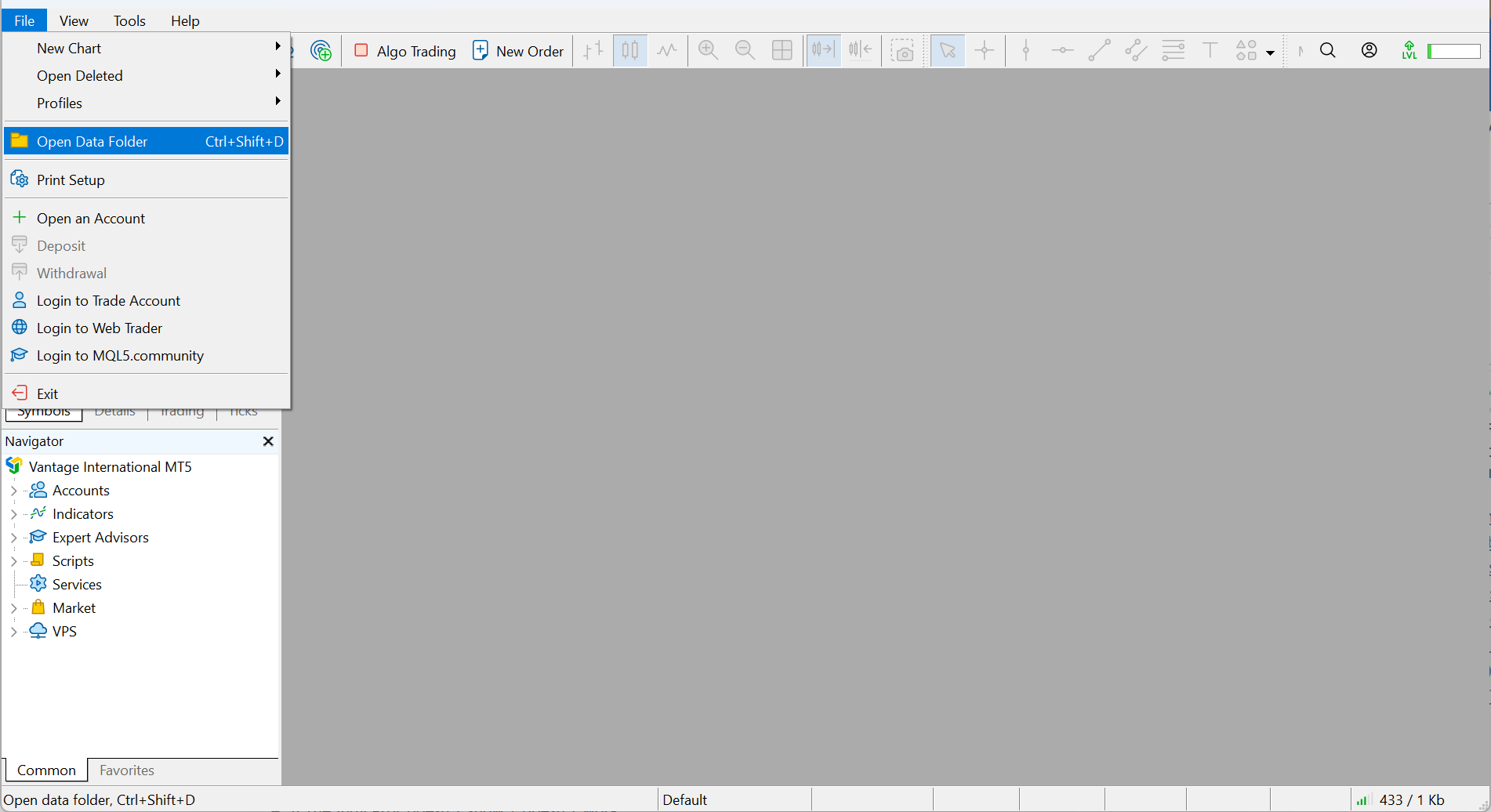
Go to File → Open Data Folder.
-
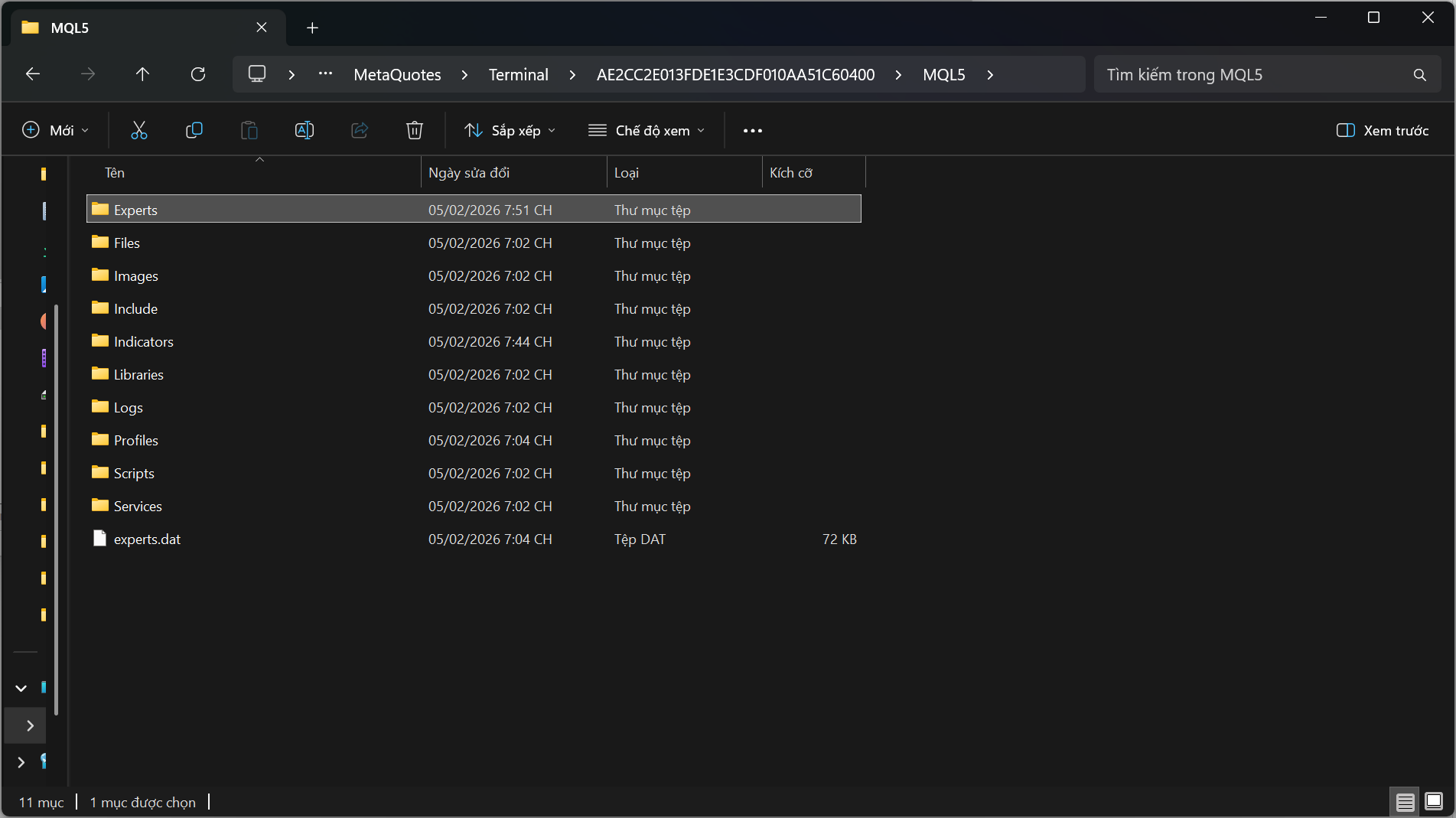
Open the folder: MQL5 → Experts (or “Expert Advisors”, depending on your MT5 version).
-
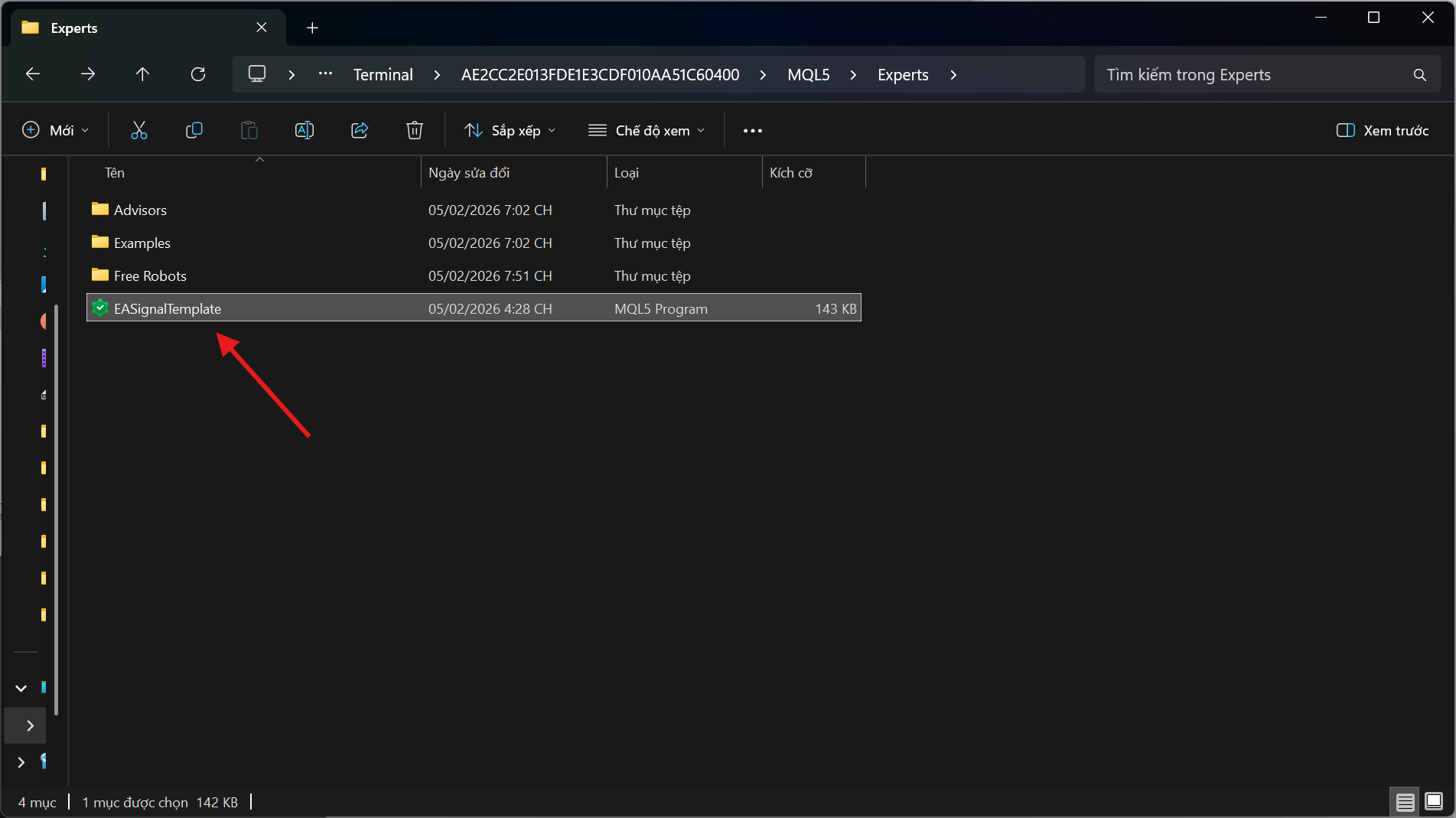
Paste the EA file (.ex5 or .mq5) into the Experts folder.
-
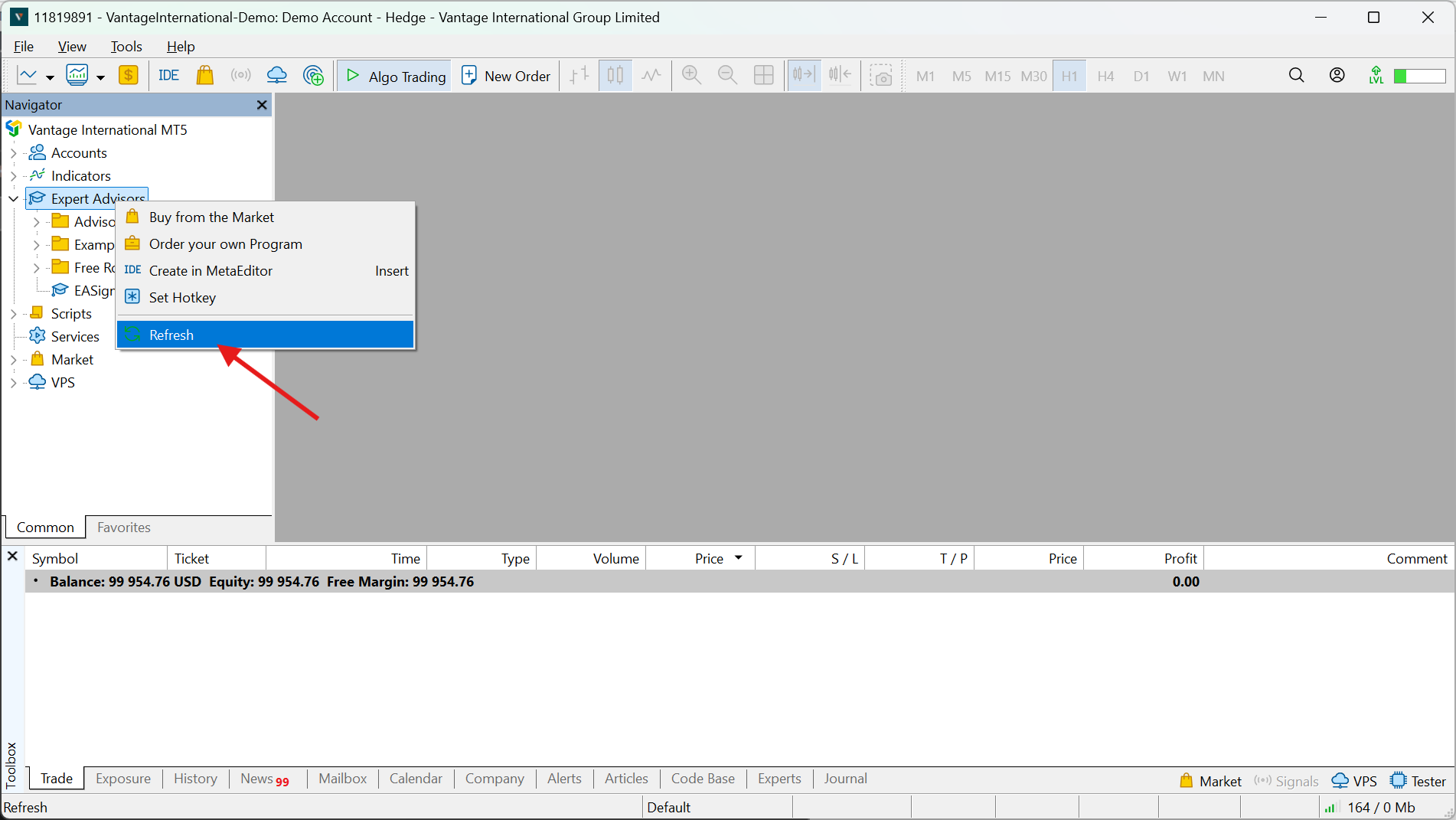
Go back to MT5. In the Navigator window, right-click Expert Advisors/Experts → Refresh, or restart MT5 for the EA to appear.
3) Attach the EA to a chart to run it
-
Open the chart of the symbol you want the EA to run on.
-
Go to Navigator → Expert Advisors, find your EA, then drag & drop it onto the chart (or double-click / “Attach to a chart”).
-
When the “EA Properties” window appears, click OK to start the EA on that chart.
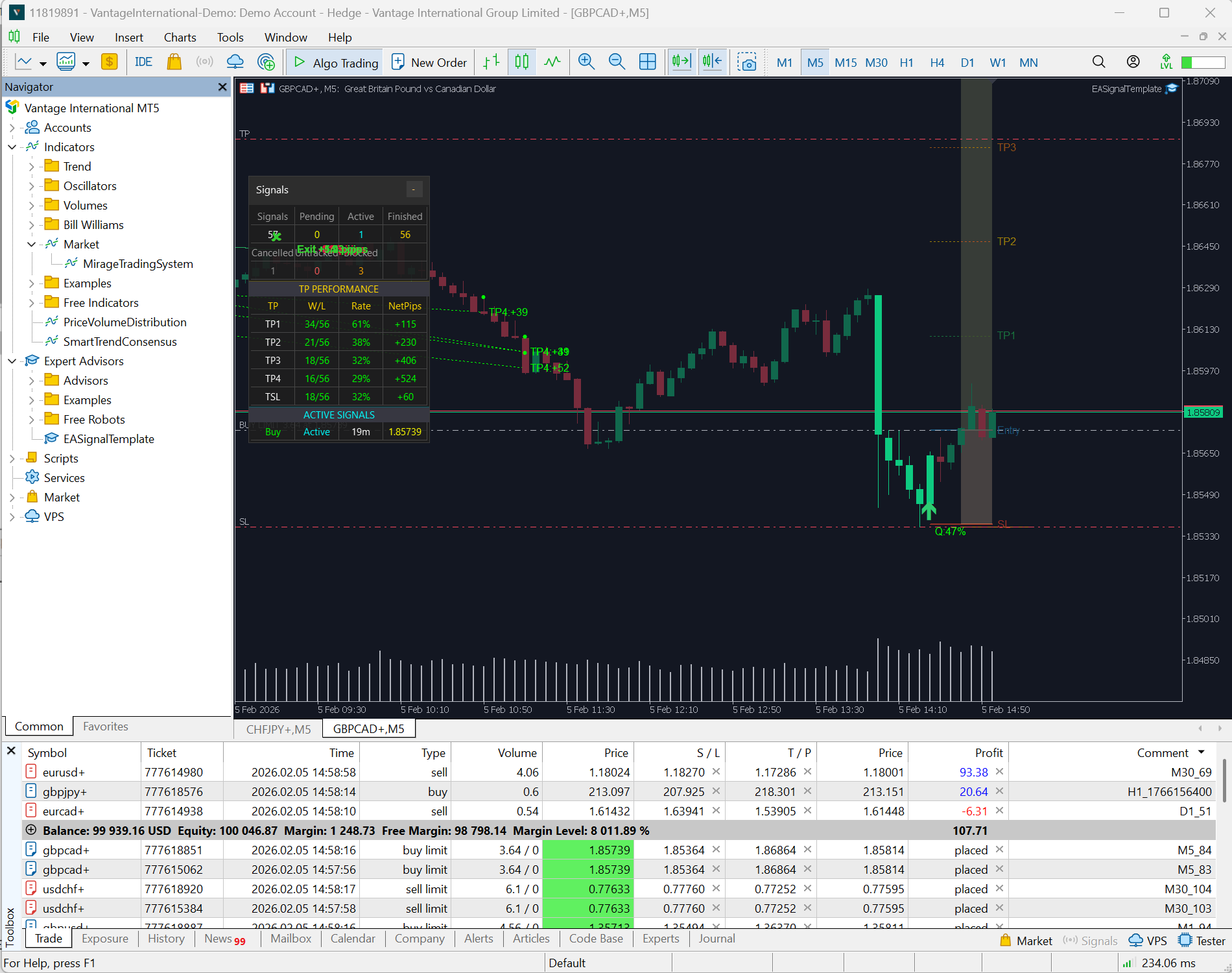
4) Enable permissions for the EA to trade (very important)
-
Turn on the AutoTrading/Algo Trading button on the toolbar; if it’s off, EAs cannot trade even if attached to the chart.
-
Go to Tools → Options → Expert Advisors and enable Allow Algo Trading/Allow automated trading.
-
If required by the EA, enable options like Allow DLL imports in the EA settings (only enable this if you trust the EA source).
To use this indicator, you must purchase the Mirage Trading System indicator first. Then, attach Mirage Trading System to any chart in MT5, and this EA will work normally.
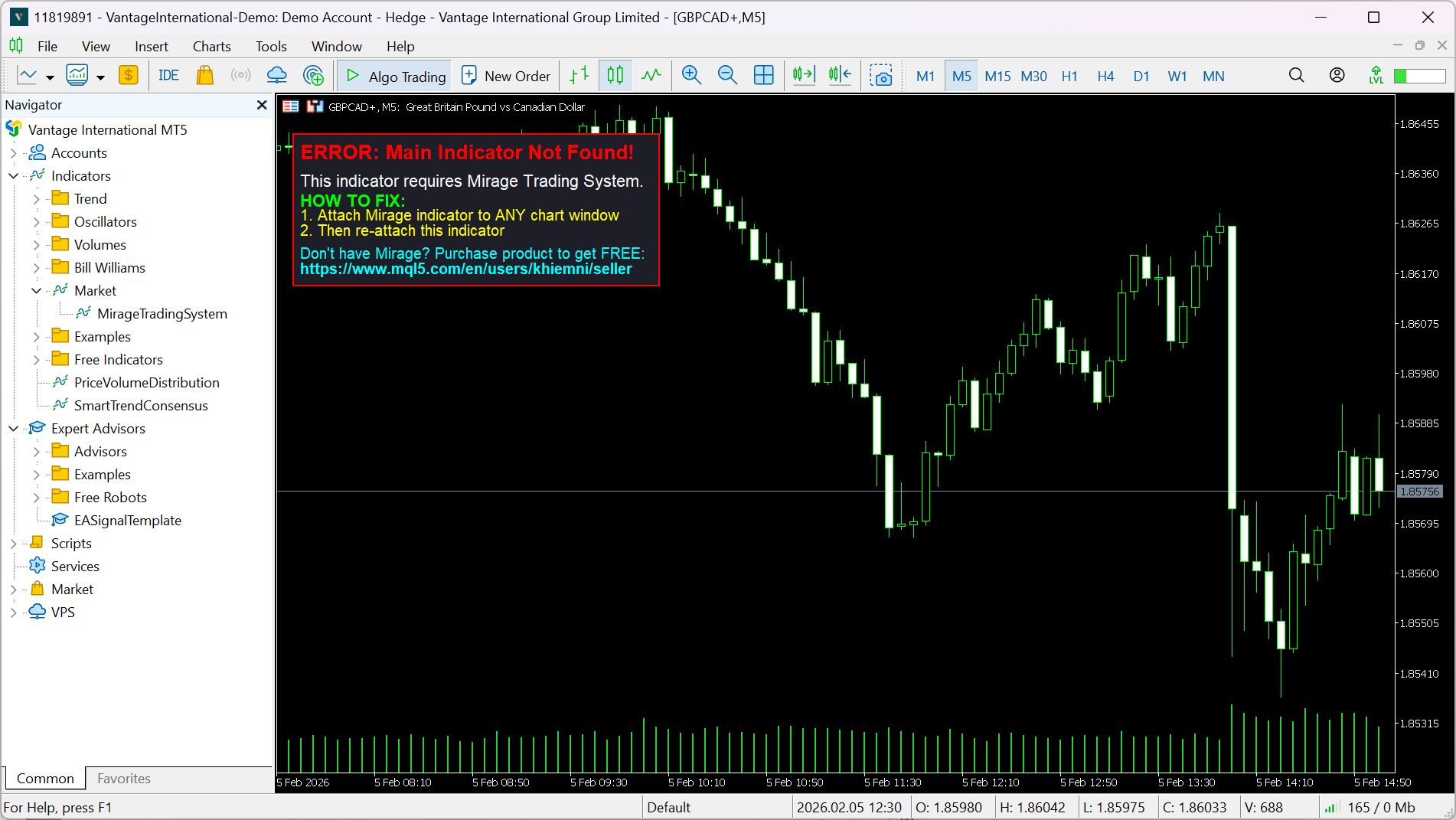
5) If the EA doesn’t run / doesn’t place trades
-
Make sure the EA is in the correct path: File → Open Data Folder → MQL5 → Experts.
-
Make sure AutoTrading/Algo Trading is enabled and “Allow Algo Trading” is allowed both in the platform settings and in the EA properties.
-
Check the top-right area of the chart for the EA name/status to confirm it is running.




