Infinity Trader EA MT4 product page: https://www.mql5.com/en/market/product/116958
Infinity Trader EA MT5 product page: https://www.mql5.com/en/market/product/116959
Live Results: https://www.mql5.com/en/signals/2290275
User Guide: https://www.infinitytraderea.com/InfinityTraderEA_2.1_UserGuide_MQL5.pdf
IMPORTANT: We are excited to announce the release of Infinity Trader EA v2.0. This is the largest and most important update we have ever developed. Infinity Trader EA has been improved and transformed into a powerful trading machine with many new features and enhancements.
Main Improvements in Version 2.0:
- Enhanced information panel
- Added manual trading functionality
- Combined the three separate panels into one super panel
- More detailed information displayed
- Improved AI weekly forecast system
- Default support for one additional currency pair
- Full multicurrency support
- Ability to trade on additional, unsupported pairs
INFINITY TRADER EA LIVE PERFORMANCE
Check Below Infinity Trader EA performance on our accounts:
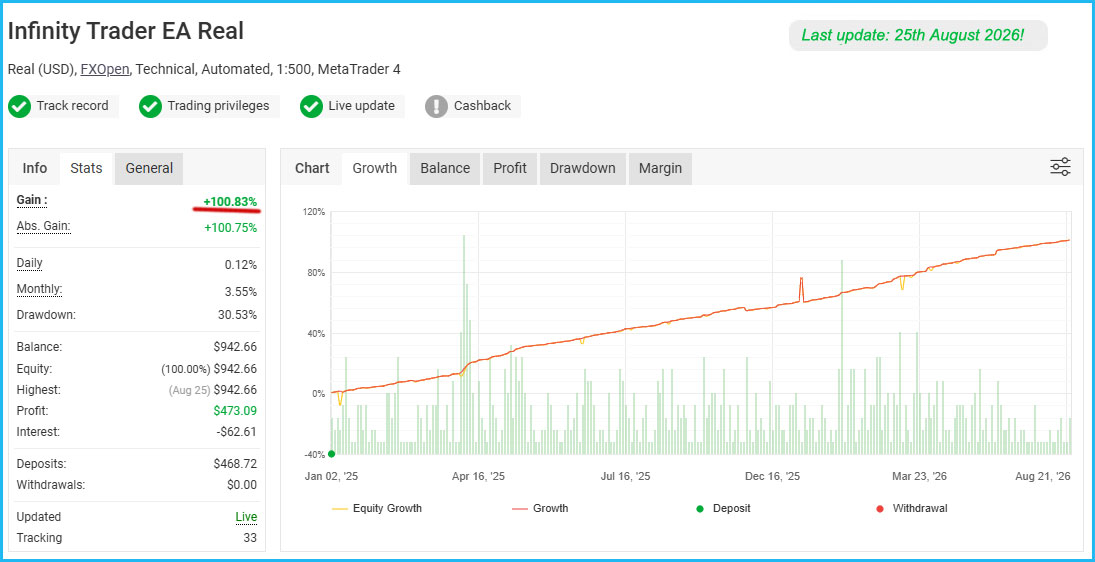
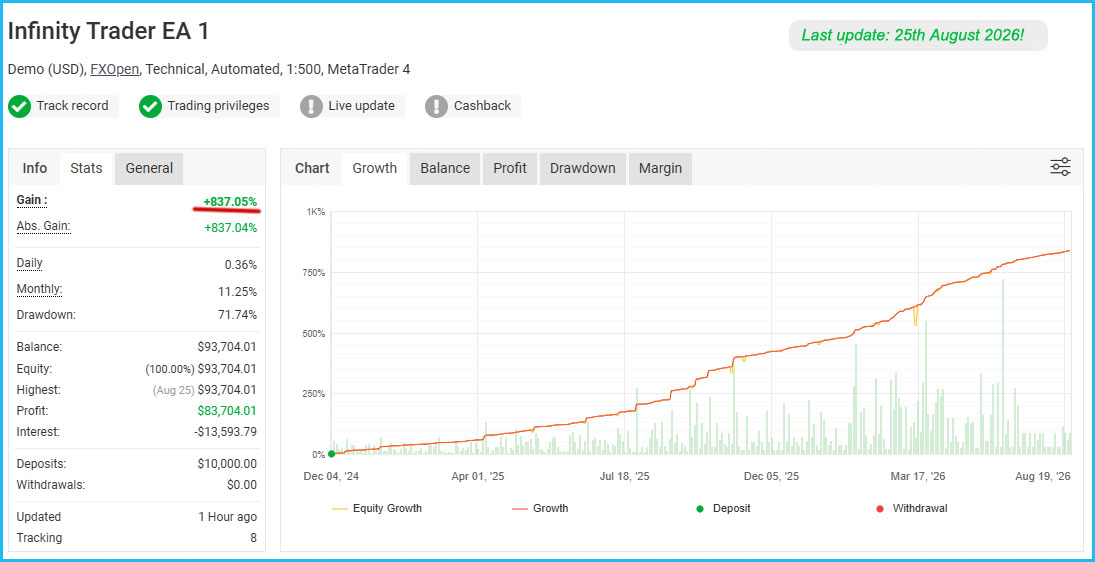
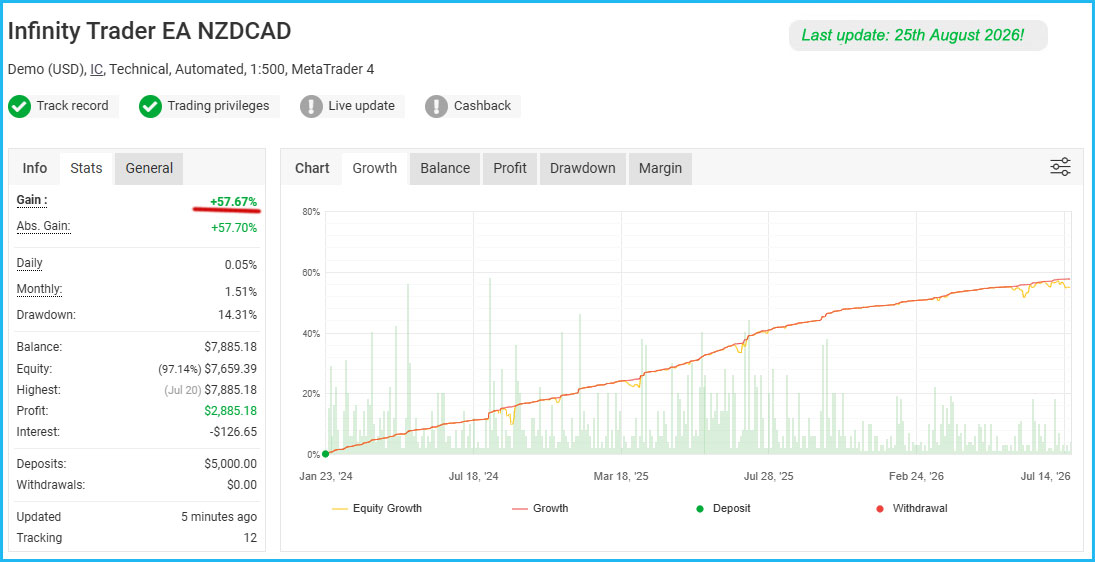
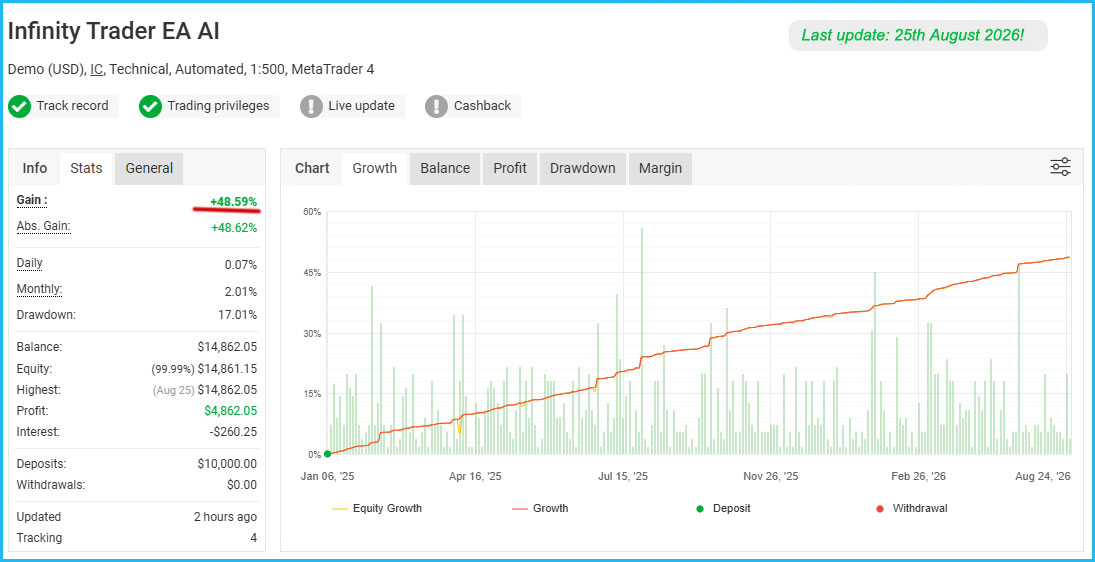
Infinity Trader EA seamlessly integrates the strengths of Chat GPT and Gemini AI, providing unparalleled market insights and in-depth fundamental analysis.
It prioritizes your long-term success with sophisticated Account Protection features. By employing advanced risk management algorithms and customizable drawdown parameters, it minimizes the impact of potential losses and safeguards your capital.
Multicurrency Trading
With version 2.0, Infinity Trader EA becomes a multicurrency system. This means you can attach the EA to just one chart (for example GBPUSD) and trade across multiple supported pairs, as well as up to five additional instruments of your choice.
Why did we implement this? Because it makes EA management easier and more efficient:
- The NoConcurrentTrades option works across all trades.
- The protection panel covers all EA trades, not just those on a single chart.
- Overall, trade execution and management are smoother.
Default supported pairs: GBPUSD, NZDCAD, AUDCAD and AUDNZD. You also have five free slots to add and trade on other instruments.
Key Features:
- AI-Powered Insights: Utilizes the cutting-edge capabilities of Chat GPT and Gemini AI to analyze market sentiment and conduct comprehensive fundamental analysis.
- Proven Price Action Patterns: Identifies statistically significant price patterns for optimal entry and exit points.
- Adaptability: Continuously updates algorithms based on real-time data to adapt to changing market conditions and capitalize on emerging opportunities.
- Consistent Profitability: Delivers consistent and profitable outcomes across various market conditions.
- Sophisticated Account Protection: Minimizes drawdowns and protects capital with advanced risk management features.
- Suitable for All: Ideal for both prop firm traders and individual investors seeking long-term success.
Benefits:
- Precision Trading: Executes trades with accuracy, maximizing trading performance and potential returns.
- Competitive Edge: Provides traders with the tools to navigate the market with confidence and achieve consistent success.
- Reduced Risk: Mitigates the impact of drawdowns and protects capital through robust risk management.
- Increased Confidence: Empowers traders to approach the market with a clear and focused mindset.
Whether you're a seasoned prop firm trader or an individual investor seeking to break into the market, Infinity Trader EA empowers you to approach the market with confidence, execute trades with precision, and consistently achieve your financial goals.
Its unique combination of AI technology, proven trading strategies, and advanced account protection empowers traders to achieve consistent success and navigate the market with confidence.

The new information panel is now a super panel that combines everything into a single interface with easy-to-navigate tabs. No more separate panels – now you can switch between options and information quickly and conveniently.
The biggest addition to the panel is the manual trading feature (explained in detail below). We have also enhanced the AI Forecasts section, allowing you to view and load AI forecasts for each supported pair in one place.
Recommendations:
Recommended settings: The optimal settings for each supported pair are integrated in the EA and you don't need to make anything in addition. Read below to learn more about the supported pairs.
For a low-risk .set file please check blog bottom!
Top Features of Infinity Trader EA:
- Highly Efficient Trading Logic
- Advanced AI Trading Algorithm
- High-Frequency Trading to maximize profit opportunities
- Fully automated - just "Set-and-Forget"
- Intelligent Money-Management System
- Drawdown Protection System
- Precise Entry and Exit Trading Algorithms
- High Spread Protection
- Profit Protection System
- Drawdown Reducing Algorithms
- Advanced High-Impact News Filter
Improved AI Weekly Forecast - Trading based on AI (artificial intelligence)

The AI Weekly Forecast system has been upgraded to offer four states: BUY, SELL, BUY/SELL, and STOP. This allows for more flexibility and more accurate results. The forecast is available for all standard supported pairs and even for some unsupported ones, so you can make use of the EA on more instruments.
- BUY – the EA will trade only in the buy direction.
- SELL – the EA will trade only in the sell direction.
- BUY/SELL – the EA will allow trading in both directions.
- STOP – the EA will not trade.
This system is designed to provide higher precision and better results.
Manual Trading with Infinity Trader EA (optional)
One of the most exciting new features in version 2.0 of Infinity Trader EA is the ability to trade manually while letting the EA manage your positions. If you already have trading experience and intuition, this feature allows you to open positions when you feel the time is right, while Infinity Trader EA takes care of the management.
Remember this is optional! Infinity Trader EA is completely automated trading system and you don't need to trade manually. This is developed just to make the EA more flexible and useful.

Using the manual trading system is simple:
- The super panel displays 4 buttons and a dropdown menu.
- Select the pair you want to trade from the dropdown.
- Click BUY or SELL – the EA immediately opens and manages the trade.
- Use Close All Buy or Close All Sell to close all positions of the selected pair instantly.
If you prefer to trade only manually, set OnlyManualTrading = true in the EA settings. In this mode, Infinity Trader EA will not open automatic trades but will still manage your manual positions.
You can also check the below video to learn more about the manual trading system of Infinity Trader EA:
Working with Supported Currency Pairs
The multicurrency system allows one EA instance to manage all supported pairs. However, each pair requires its own parameters (TP, SL, etc.). We made this simple by including individual parameters for each supported pair, already optimized for you.

For each supported pair, you’ll find two parameters. Example for GBPUSD:
- GBPUSD = true (true/false to activate/deactivate this currency pair)
- GBPUSD_Settings (contains pair-specific settings)
It is similar for the rest of the supported pairs.
We also developed a Settings Generator that lets you easily edit defaults or create your own settings. The generator uses the same parameters as Infinity Trader EA, so it’s simple and intuitive.
How to Edit Pair Settings
Example: editing GBPUSD settings
- Copy the value of GBPUSD_Settings.
- Open the Settings Generator on the official website of Infinity Trader EA. Click here to open Settings Generator!
- Paste the copied value into the "Load settings" field.
- Click Load the settings.
- Adjust parameters as needed.
- Click Generate Settings.
- Copy the new settings.
- Paste them into the GBPUSD_Settings parameter inside Infinity Trader EA.
Note: All pairs are pre-optimized. Changes are optional and only needed if you want custom settings. If a parameter is left empty, the EA automatically applies the default settings.
Check the below video for more information:
Infinity Trader EA Settings/Parameters:
==== Risk Management ====
- FixedLots - The extent of the fixed trading volume. If you use AutoMM>0, the value of the FixedLots parameter does not matter.
- AutoMM - With values greater than zero activates the proportional automatic money management function – as an example the default value AutoMM=0.1 means that the initial trade will be 0.01 lot on $10000 account equity.
- Multiplier - lot size multiplier for the first line additional trades.
==== General Settings ====
- Magic - An unique identifier through which Infinity Trader EA recognizes and manages its own positions. If you use other expert advisors on the same account, please ensure that each of them has a distinct unique identifier.
- EA_Comment - You can type a comment here if you wish to mark the Infinity Trader EA trades.
- MaxSpread - Maximum allowed spread in standard (4 digits) pips.
- NFA – true/false to enable/disable compatibility for NFA regulated brokers
- No_Hedge – true/false to enable/disable hedging. Set it true only if you are sure that your broker doesn’t allow hedging!
- LongTrades – true/false to enable/disable the long trades.
- ShortTrades - true/false to enable/disable the short trades.
- OnlyManualTrading - true/false to enable/disable automated trading and allow only manual trading. Infinity Trader EA allows you to open manual trades by clicking the BUY and SELL buttons on the info panel. These manual trades will be automatically managed by Infinity Trader EA. For users who want to trade only manually we have created this parameter. If you set OnlyManualTrading=true then the EA will disable automated trading and switch to manual trading only. The EA will continue to manage your manual trades and if needed it will open additional and recovery trades in order to close all trades on profit. In case you set OnlyManualTrading=false the EA will trade automatically and at the same time allows you to open manual trades.
- NoConcurrentTrades – true/false to enable/disable concurrent trading on all supported pairs within one account. If you set NoConcurrentTrades=true, then Infinity Trader EA will not trade if there are already open trades for any of the other supported pairs. This option is very useful for reducing risk when trading more than one supported pair because you will always have a trade with only one of the supported pairs and it will be safe enough. If you wish to use this option you need to set NoConcurrentTrades=true on all charts where you trade with Infinity Trader EA!
==== Custom Settings ====
- TimeFrameExecution – trading signals execution time frame in minutes: 0 (every tick), 1, 5, 15, 30, 60 and 240 and the EA trading logic will be executed at the beginning of a new M1, M5, M15, M30, H1 and H4 bar.
- SmartProfit – true/false to enable disable Smart Profit system. By default, SmartProfit is set to true, ensuring trades close at the average price of all open trades. This increases the profitability of the EA. Traders looking to adopt a lower-risk approach, can set SmartProfit to false. When false, the EA will close trades once a total profit in pips (defined by the ProfitPips parameter) is achieved. This is perfect for traders who prefer a more conservative trading strategy.
- ProfitPips - Profit in pips.
- FixedTakeProfit - Fixed take profit in pips.
- FixedStopLoss - Fixed stop loss in pips.
- Filter_1_Period- The entry 1 filter period.
- Filter_1_Level - The entry 1 overbought and oversold level.
- Filter_2_Period - The entry 2 filter period.
- Filter_2_Level - The entry 2 overbought and oversold level.
- TrendFilter - true/false to enable/disable trend filtration.
- Trend1_Per - The period of the first trend filter.
- Trend2_Per - the period of the second trend filter.
- ThrPips – by default zero, this parameter can be only a positive value – as example 10-50, which would increase the trading frequency, when the trend filter is in a border state.
==== Additional Trades Settings ====
- MaxAddTrades - maximum allowed number of the first line additional trades.
- AddDistance - The distance between the initial trade and the first additional trade, as well as the distance between each subsequent additional trade.
- AddTradeCondition- The rule for opening additional trades. There are 3 options: AddOnDistance, AddOnSignal, and AddOnReverse. Read below to learn more about each condition:
- ReverseBarTF – The timeframe used to detect a reversal bar when AddOnReverse is selected in the previous parameter.
==== Recovery Settings ====
- RecoveryProfit – exit profit in pips in case a recovery trade is opened.
- RecoveryAfter – minimum distance in pips between the first recovery trade and the previews additional trade.
- RecoveryTrades – maximum allowed number of recovery trades.
- RecoveryTradesDistance – minimum distance in pips between the recovery trades.
- RecoveryRiskMultiplier - lot size multiplier for the recovery trades
==== Time Restriction Settings ====
With these settings you can enable, or disable trading in certain days of the week and certain hours for each day as well.
- AllowedHour_ForBacktest - this parameter is only for backtesting! It helps optimizing the Time Restriction system. Here is how you can use it. During the optimization set start value 0, end value 23 and the step 1. You can optimize only one day per optimization. For example, you want to optimize the trading hours for Monday, you have to disable other days bay settings TuesdayTrading=false ... to ... FridayTrading=false. At the end of the optimization the tester will show you the best hours for trading on Monday. You can add these best hours in the parameter MondayTradingHours separated by comma, for example: 1,4,6.
- MondayTrading - true/false - enable or disable trading on Monday
- MondayTradingHours - trading hours separated by comma. For example: MondayTradingHours=22,23,0,1,2 - only during these hours the robot will be able to trade
- TuesdayTrading - true/false - enable or disable trading on Tuesday
- TuesdayTradingHours - trading hours separated by comma. For example: TuesdayTradingHours=22,23,0,1,2 - only during these hours the robot will be able to trade
- WednesdayTrading - true/false - enable or disable trading on Wednesday
- WednesdayTradingHours - trading hours separated by comma. For example: WednesdayTradingHours=22,23,0,1,2 - only during these hours the robot will be able to trade
- ThursdayTrading - true/false - enable or disable trading on Thursday
- ThursdayTradingHours - trading hours separated by comma. For example: ThursdayTradingHours=22,23,0,1,2 - only during these hours the robot will be able to trade
- FridayTrading - true/false - enable or disable trading on Friday
- FridayTradingHours - trading hours separated by comma. For example: FridayTradingHours=22,23,0,1,2 - only during these hours the robot will be able to trade
==== Friday Exit ====
- FridayExit - true/false - if you wish to close all trades on Friday, you should use FridayExit=true.
- ExitHourFr - the robot will close all open positions at this hour on Friday.
- LastTradeHour - the robot can trade until the end of this hour on Friday (including this hour).
If you decide to use the "FridayExit" option you should set LastTradeHour and ExitHourFr several hours before the market closing of your broker on Friday.
==== Notifications ====
- EMAIL_Notification - true/false - enable/disable email notifications.
- PUSH_Notification - true/false – enable/disable push notifications to mobile phones
===== GMT Settings ====
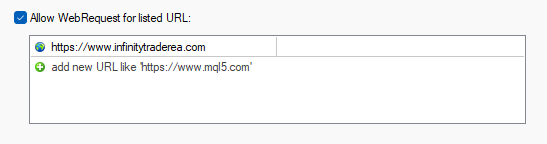
- AutoGMT_Offset – true/false – Change to false only if you want to use the ManualGMT_Offset in your live trading. In this case, please ensure that you have used the correct ManualGMT_Offset for your broker. Auto GMT works only if our website url is added on your terminal "Allow WebRequest for listed URL" configuration. To configure this: Go to MT4/MT5 Terminal → Tools → Options → Expert Advisors tab → "Allow WebRequests for listed URL" and add: https://www.infinitytraderea.com
- ManualGMT_Offset – For this parameter you have to set the winter GMT offset of your broker. This parameter is very important in case that you have disabled the AutoGMT_Offset=false and when you backtest the Infinity Trader EA. If you set wrong value, then you may get unexpected results.
- DST_Usage – This parameter is one of the most important parameters because it tells to Infinity Trader EA how to deal with the GMT offset. You can set 3 different values on this parameter. Actually, it is a drop-down list and you only need to choose the correct value for your broker. Check below:
==== News Filter Settings ====
The News Filter function is disabled by default. It is your personal choice whether, or not to activate this function. The News Filter function can increase the profit factor of the system and reduce the drawdown, but also can reduce the number of the trades and the total profit.
- Avoid_News - true/false – use or not the News Filter.
- Include_Medium_News - true/false – include, or not the medium impact news. The high impact news are included by default.
- Filter_NFP_FOMC_ONLY - true/false - when true the news filter will stop trading only during NFP and FOMC news.
- Wait_Before_News - the amount of minutes, before the news release, when the trading will be disabled.
- Wait_After_News - the amount of minutes, after the news release, when the trading will be enabled.
==== AI Settings ====
- UseAITrading – true/false – enable/disable AI based trading
Infinity Trader EA can trade based on an AI (artificial intelligence) weekly forecast for the supported pairs. When UseAITrading is enabled, the TrendFilter will be deactivated automatically, since both cannot work at the same time.
The Infinity Trader EA AI weekly forecast has 4 states: BUY, SELL, BUY/SELL, and STOP.
- BUY – the EA will trade only in the buy direction.
- SELL – the EA will trade only in the sell direction.
- BUY/SELL – the EA will allow trading in both directions.
- STOP – the EA will not trade.
This system is designed to provide higher precision and better results.
IMPORTANT: Additional trades and Recovery trades are not affected by the AI Weekly Forecast system. Since they are very important for managing initial trades and closing the trades in profit, we have made them independent of the AI Weekly Forecast system/filter.
==== Protection Settings ====
- Max open lots – The total allowed lot size for all open trades.
- Maximum daily loss(currency) - Set a maximum limit on the amount you can lose in a single day to protect your capital.
- Maximum daily drawdown % - Define the maximum percentage of your balance that can be lost in one day.
- Daily reset hour(terminal) – Daily reset hour. This is usually 00:00 but if your broker has different reset hour then you can set any hour. Have in mind that if you change the hour directly on the control panel it will be effective after the new hour is reached!
- Minimum Equity(currency) - Establish a minimum equity level that, when reached, triggers protective measures.
- Maximum Equity drawdown % - Limit the maximum percentage drawdown of your total equity to prevent significant losses.
- Maximum Equity(currency) - Set an upper limit on your equity to help manage gains and protect from volatile shifts.
The values of the protections can be edited in the EA inputs and also in the new Protection panel shown on the chart. The default values (zero) mean that the respective protection is not active.
Some traders need such protections in “Prop Firm” challenges.
We will refrain from recommending specific values. It is the responsibility of the traders to set these parameters correctly based on their broker restrictions.
We are obliged to inform you, that using such protections could decrease the overall profit in long-term.
Each trader must decide for himself whether to use these protections and at what values.
Here is how the Protection Panel looks like in Infinity Trader EA:

==== Trading Pairs ====
- GBPUSD – true/false – activates/deactivates trading on GBPUSD pair.
- GBPUSD_Settings – This parameter contains all settings specific to the GBPUSD currency pair. It is a specially formatted string. When copying and pasting the value of this parameter, make sure not to add any extra characters or spaces, as this will affect the EA’s performance on GBPUSD.
- NZDCAD – true/false – activates/deactivates trading on NZDCAD pair.
- NZDCAD_Settings – This parameter contains all settings specific to the NZDCAD currency pair. It is a specially formatted string. When copying and pasting the value of this parameter, make sure not to add any extra characters or spaces, as this will affect the EA’s performance on NZDCAD.
- AUDCAD – true/false – activates/deactivates trading on AUDCAD pair.
- AUDCAD_Settings – This parameter contains all settings specific to the AUDCAD currency pair. It is a specially formatted string. When copying and pasting the value of this parameter, make sure not to add any extra characters or spaces, as this will affect the EA’s performance on AUDCAD.
- AUDNZD – true/false – activates/deactivates trading on AUDNZD pair.
- AUDNZD_Settings – This parameter contains all settings specific to the AUDNZD currency pair. It is a specially formatted string. When copying and pasting the value of this parameter, make sure not to add any extra characters or spaces, as this will affect the EA’s performance on AUDNZD.
IMPORTANT: By default, only GBPUSD is active among all supported pairs. This is for greater security.
This is simply to avoid potential problems that may arise at the beginning due to incorrect terminal configurations or other problems.
If you want to trade with other supported pairs, you need to activate them one by one:
- NZDCAD=true
- AUDCAD=true
- AUDNZD=true
Five additional slots for trading on custom (unsupported) currency pairs/instruments
- Symbol1_Name – Enter the symbol name as the value of this parameter to activate automated trading in this slot. For example, if you want to trade EURUSD, set Symbol1_Name=EURUSD. Make sure to enter the symbol name exactly as it appears in your terminal’s Market Watch (including any suffixes, if present). If the symbol name is entered incorrectly, the slot will remain disabled.
- Symbol1_Settings – Custom settings specially generated for the symbol specified in Symbol1_Name. If this parameter is left empty, the EA will use the default settings.
If slot #1 is configured correctly, the symbol will appear on the information panel:

- Slot#2: Symbol2_Name / Symbol2_Settings
- Slot#3: Symbol3_Name / Symbol3_Settings
- Slot#4: Symbol4_Name / Symbol4_Settings
- Slot#5: Symbol5_Name / Symbol5_Settings
VERY IMPORTANT: Read carefully and try to understand!
There are two types of settings: default and pair-specific settings.
The default settings are all settings under:
- Custom Settings
- Additional Trades Settings
- Recovery Settings
- Time Restriction Settings
The pair-specific settings are:
- GBPUSD_Settings
- NZDCAD_Settings
- AUDCAD_Settings
- AUDNZD_Settings
The above parameters contain all the pair-specific settings which overwrite the default settings in the EA. If one of these parameters is empty then the EA will use the default settings when trading on this specific pair. By default, all these parameters have values which means all the supported pairs are pre-optimized and you don’t need to do anything in addition. No need to change these settings.
In case you wish to make changes in the pair-specific settings please read the next section “Settings Generator”. We have explained how you can update these settings.
Knowing which settings have priority will let you use the EA better and risk free!
"Settings Generator" is located on the official website of Infinity Trader EA -> https://www.infinitytraderea.com/settings-generator
Trading based on AI (artificial intelligence)
Infinity Trader EA can trade based on AI (artificial intelligence). If you wish to use this feature first you need to set UseAITrading=true and then allow WebRequest to our website. Read below how to allow WebRequest to our website.
Configure your MT4/MT5 terminal to allow WebRequest to our website
Why to allow WebRequest to our website? The reasons are two: Infinity Trader EA can trade based on AI (artificial intelligence) and it has a News Filter. Both systems need to connect to our website and download some information. You have to configure MT4/MT5 terminal to allow WEB Requests to the following url: https://www.infinitytraderea.com
You can find it in: MT4/MT5 terminal -> Tools -> Options -> Expert Advisors -> Allow WebRequests for listed URL
Infinity Trader EA Backtests
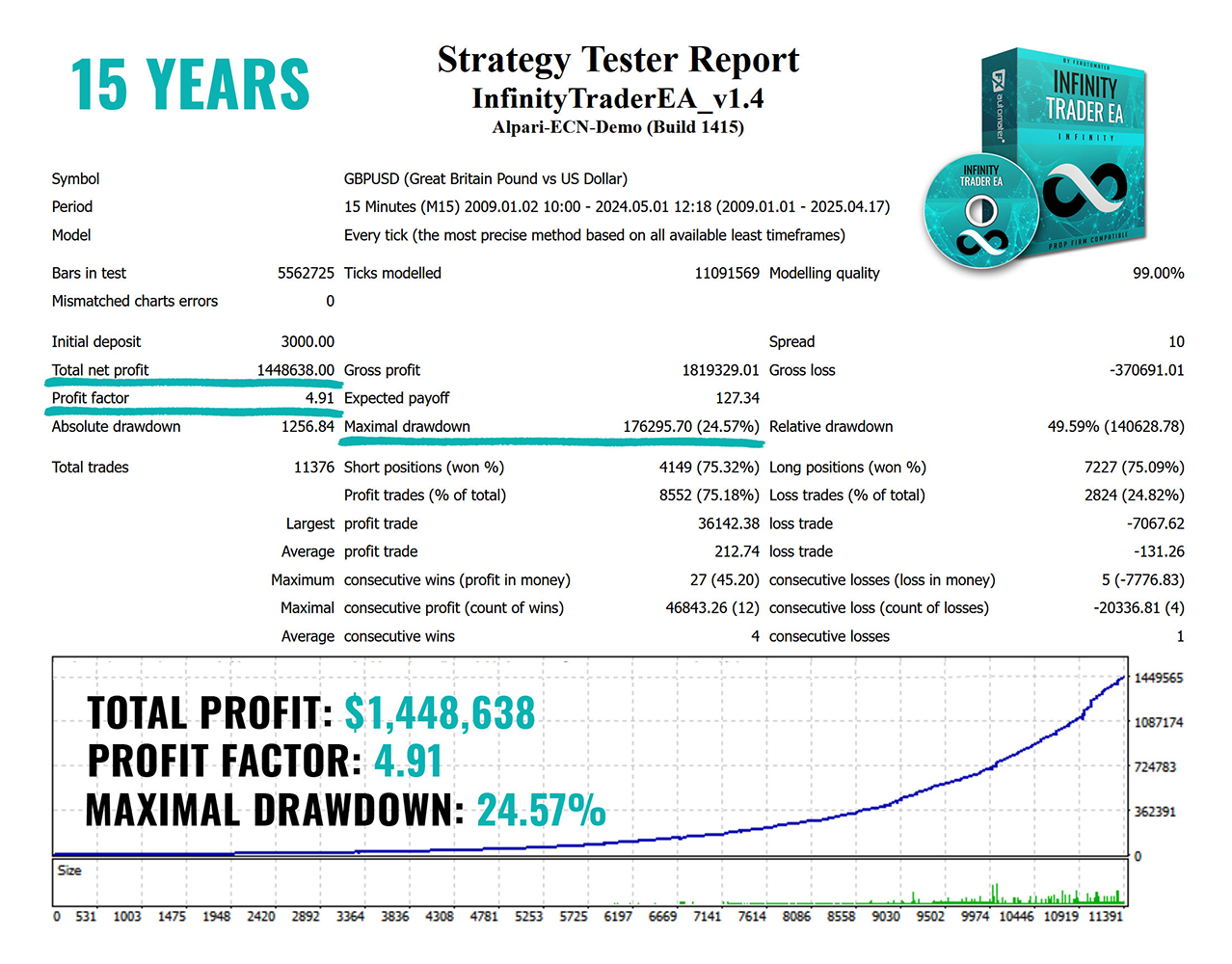
1. Infinity Trader EA GBPUSD backtest results:
Infinity Trader EA LOW-RISK .SET file
Infinity Trader EA version 2.0 is now a multicurrency system. This means you only need to attach it to one chart, and it can automatically trade all supported pairs: GBPUSD, NZDCAD, AUDCAD, and AUDNZD.
This is a major improvement compared to older versions, where you had to run the EA separately on each pair. With version 2.0, new rules apply for managing pairs and their individual settings. Each supported pair has its own parameters for activation and for storing pair-specific settings.
By default, the EA is fully optimized and ready to trade all supported pairs. You don’t need to change anything — the only action you may take is enabling or disabling specific pairs from the settings.
We understand, however, that the default setup might not be suitable for every situation. For example:
- Traders using prop firm / FTMO / funded accounts with strict rules on daily or overall drawdown.
- Traders with smaller accounts.
For these cases, we’ve created a special low-risk .set file with optimized settings for all supported pairs.
This low-risk .set file is included in the bottom of this blog post. You can download it on your terminal and load it. If your account balance is below $1,000, or if you are trading on a prop firm / FTMO / funded account, we strongly recommend using the low-risk .set file.
Infinity Trader EA MEDIUM-RISK .SET file
- Potentially higher overall profitability by reducing the time capital remains tied up in existing positions.
The Medium Risk settings are recommended only for trading accounts with a balance of $1,000 or more. If your account balance is below $1,000, we strongly recommend using the Low Risk settings instead.
This medium-risk .set file is included in the bottom of this blog post. You can download it on your terminal and load it.
Note: while the standard settings remain our recommended configuration for maximum profitability, the low-risk and options provide an excellent alternative for those with smaller accounts or a preference for cautious trading.
If you like my product, please write a review! I will be very grateful!
You can check out my other products in my profile! Click here to check my other products!
If you want to be notified of my new products, please add me as a friend! I regularly publish new forex robots!