How to Use Omega Gold Risk Guard: From Planning to Position Management

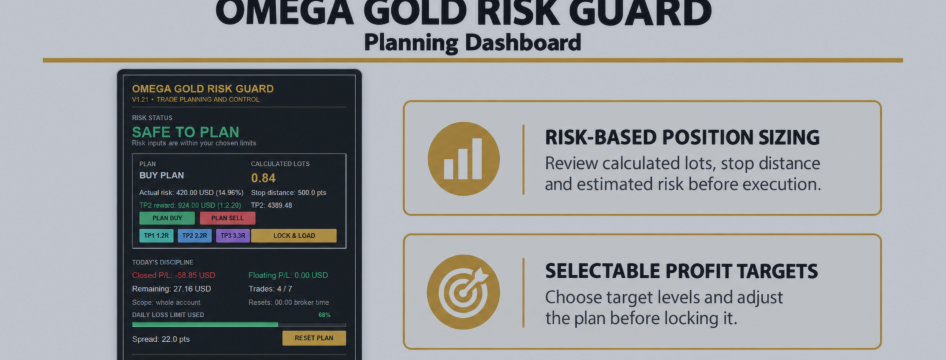
Omega Gold Risk Guard brings position sizing, chart-based planning, confirmed execution and position management into one MetaTrader 5 panel. This guide covers version 1.21.
It is a manual trading utility. You choose the setup, direction and timing. Risk Guard calculates the planned position size and checks its execution conditions before submitting your order. It does not find trading signals or open trades automatically.
Omega Gold Risk Guard: https://www.mql5.com/en/market/product/196807
1. Getting started
Install the product in MetaTrader 5 and attach it to an XAUUSD chart. Broker symbols beginning with XAUUSD, such as XAUUSDm, are supported by this version. Enable algorithmic trading in the terminal and the program permissions if you want to use the execution and management buttons.
Start on a demo account. Use one Risk Guard instance per account and symbol, and avoid assigning its magic number to another Expert Advisor.
Multiple independent target positions require a hedging account. On a netting account, use one target and clear existing exposure on that symbol before submitting a new Risk Guard trade.
2. Configure your plan
The main Inputs are:
| Input | What it controls |
|---|---|
| RiskPercent | The percentage used to size each new planned group. |
| RiskBasis | Whether sizing uses account balance or equity. |
| InitialStopDistancePoints | The starting distance between entry and stop. |
| TakeProfitOneR / TwoR / ThreeR | Target distances expressed as multiples of the planned stop distance. Defaults: 1.2R, 2.2R and 3.3R. |
| DailyLossLimitPercent | The daily loss threshold used to block new Risk Guard entries. |
| MaximumTradesPerDay | The daily entry-count limit. |
| MaximumOpenTrades | The maximum symbol position count allowed for new Risk Guard submissions, with pending orders reserving slots. Default: 3. |
| MaximumSpreadPoints | The spread threshold for new entries. |
| BreakEvenEligibleAtR | The R threshold used to make the break-even control available. Default: 1.0R. |
These values are configuration choices, not recommended trading settings. Increasing a limit gives the tool more permission; it does not make a trade safer.
RiskPercent applies to the new group being planned, not the combined risk of all open positions. The Market candidate has no private 0.03-lot ceiling, so review the displayed size before confirming execution.
3. Choose a direction and adjust the chart lines
Select PLAN BUY or PLAN SELL. The panel uses these planning lines:
-
Gold: planned entry.
-
Red: stop loss.
-
Turquoise: target one.
-
Blue: target two.
-
Purple: target three.
While the plan is unlocked, adjust the entry and stop lines on the chart. You can also use STOP minus and STOP plus to change the stop distance in the configured increments.
Risk Guard recalculates the lot size from the planned entry-to-stop loss, the risk budget and the broker's contract specifications. It rounds volume down to the broker's lot step and observes the minimum and maximum volume requirements.
If the calculated size falls below the broker's minimum, the tool blocks that plan rather than rounding it up beyond the requested risk budget.
The panel's “Actual risk” value is the estimated loss at the planned stop for the rounded lot size. Before execution, it is still a plan estimate. Fill-price movement, commission, swap and slippage can change the final outcome.
4. Select your profit targets
Click the target buttons to select or deselect individual targets. At least one must remain selected for execution.
The calculated total volume is divided between the selected targets. It is not repeated in full for every target. For example, a total of 0.03 lots can be divided into three 0.01-lot positions where the broker permits that volume.
If the volume cannot be split into valid positions, execution is blocked. Each selected target needs enough volume to meet the broker's minimum.
The panel's TP2 reward display estimates the result if the entire planned volume reached TP2. It is not the combined projected return of a group split across different targets.
5. Lock, review and confirm execution
When the plan is ready:
-
Press LOCK & LOAD. This protects the planning lines from accidental changes and loads the calculated volume.
-
Review the direction, size, stop, selected targets and execution status.
-
Click the matching BUY or SELL execution button.
-
Click again within the confirmation window to confirm. The default window is five seconds.
This is a two-click confirmation process. Locking the plan alone does not place an order. The opposite-direction execution button remains unavailable.
Before submission, the tool checks conditions including trading permissions, plan validity, volume, available margin, spread, daily limits and available position slots. It rechecks entry distance and several execution conditions before each target order.
If an order fails or conditions change partway through a group, later orders stop. Earlier successful positions remain open with their submitted stop and target. Check the Trade and Experts tabs before making another attempt; there is no automatic rollback.
6. Understand the fixed 300-point entry allowance
The executable quote must be within 300 broker points of the locked entry before an order is submitted. Buy checks use Ask; sell checks use Bid. The check applies to movement in either direction.
This allowance is fixed in the program and does not appear in Inputs.
Points depend on the symbol's precision:
-
If one point is 0.01, 300 points represents a price difference of 3.00.
-
If one point is 0.001, 300 points represents a price difference of 0.300.
This is different from MaximumDeviationPoints, which is supplied with trade requests and handled according to the broker's execution rules. Neither setting guarantees an exact market fill.
The planned stop and targets remain fixed, so entering at a different price changes the actual risk and reward distances.
7. Daily limits and open-position limits are different
MaximumTradesPerDay concerns entries during the broker's trading day. Risk Guard normally counts one of its multi-target groups as one trade idea using the lead entry's comment. Other entries in the monitored scope are counted from opening deals. Broker comment changes or split fills can affect that count.
MaximumOpenTrades concerns simultaneous exposure on the exact chart symbol. Each target position counts separately. Positions belonging to other programs or manual trades also occupy slots, and pending orders reserve slots.
For example, with a maximum of three and two positions already open, only one slot remains. A two-target selection is rejected before either new order is sent.
The default daily statistics cover the whole account. Turning AccountWideDailyFigures off restricts those statistics to the chart symbol, not just Risk Guard trades.
The daily loss calculation uses the current balance minus the day's included realised trading result as its starting-balance estimate. Deposits and withdrawals can therefore affect that estimate. Realised results include trading costs recorded in the included deals. Floating profit or loss is included when IncludeFloatingPLInDailyLimit is enabled.
The allowance is based on current net results, not peak-to-trough drawdown. Floating recovery can restore available allowance. It does not reserve the possible future losses of every open stop.
Daily statistics reset at midnight broker time. RESET PLAN resets the chart plan; it does not erase trading history or reset the daily counters.
8. Read the status messages
| Status | Meaning |
|---|---|
| SAFE TO PLAN | The displayed planning checks are within the configured limits. Further execution checks still apply. |
| PLAN LOCKED | The plan is locked against accidental editing. This is not confirmation that an order has been placed. |
| CHECK PLAN | Review the entry, stop, targets or calculated volume. |
| CAUTION | A warning threshold has been reached, such as elevated spread or daily loss usage. Read the accompanying reason. |
| STOP TRADING | The configured daily trade count has been reached. |
| DAILY LIMIT REACHED | The monitored daily loss allowance has been used. |
“Safe to Plan” is a status label, not an assessment that the selected risk percentage is suitable or that the trade will succeed. Read the execution message near the buttons for the specific reason an entry is unavailable.
9. Manage open Omega positions
The live-position section shows monitored exposure, floating results and R information. When Risk Guard positions exist, the panel prioritises that group for its management controls.
BE OMEGA becomes available when the monitored group meets the configured break-even conditions. Confirming it requests stops at each position's own entry price. Existing stops that are already more protective are preserved. Broker stop and freeze distances may prevent the change.
CLOSE OMEGA requests closure of the matching Omega positions after confirmation.
These are group controls: they act on the chart symbol's positions with the configured ExecutionMagic. They do not select a single ticket or manage unrelated manual positions. Keep that magic number unchanged while its positions remain open.
For Omega positions, the R baseline is captured when the tool first observes the position and stored locally. Attaching after a stop has already changed cannot reliably recover the original risk. Break-even at entry also does not guarantee a net zero result after costs or slippage.
10. If a button is unavailable
Read the status message first. Common causes include an unlocked plan, no selected targets, insufficient volume for the selected split, a full position limit, a daily limit, excessive spread, disabled trading permission or a quote outside the entry allowance.
BE and Close need eligible Omega positions. They are not expected to be active when the panel says “No monitored position.”
Risk Guard's limits govern its own submissions. They do not stop orders placed manually, from another EA or from another terminal, and they do not automatically liquidate the account when a daily threshold is reached.
For help, send the product version, symbol, account mode and relevant Experts messages through the MQL5 product comments or private messages. Never send your trading password.
Omega Gold Risk Guard: https://www.mql5.com/en/market/product/196807