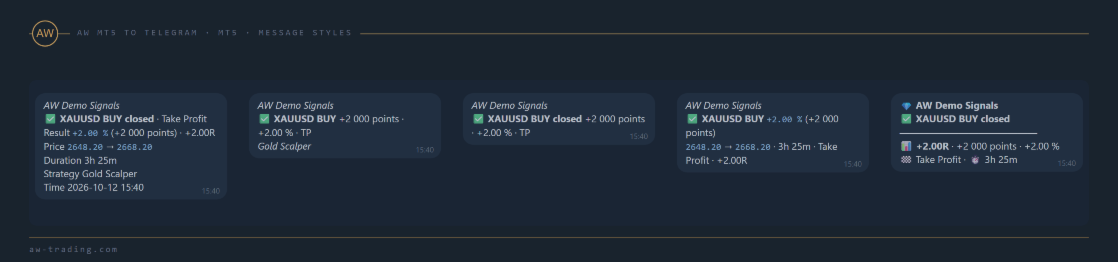

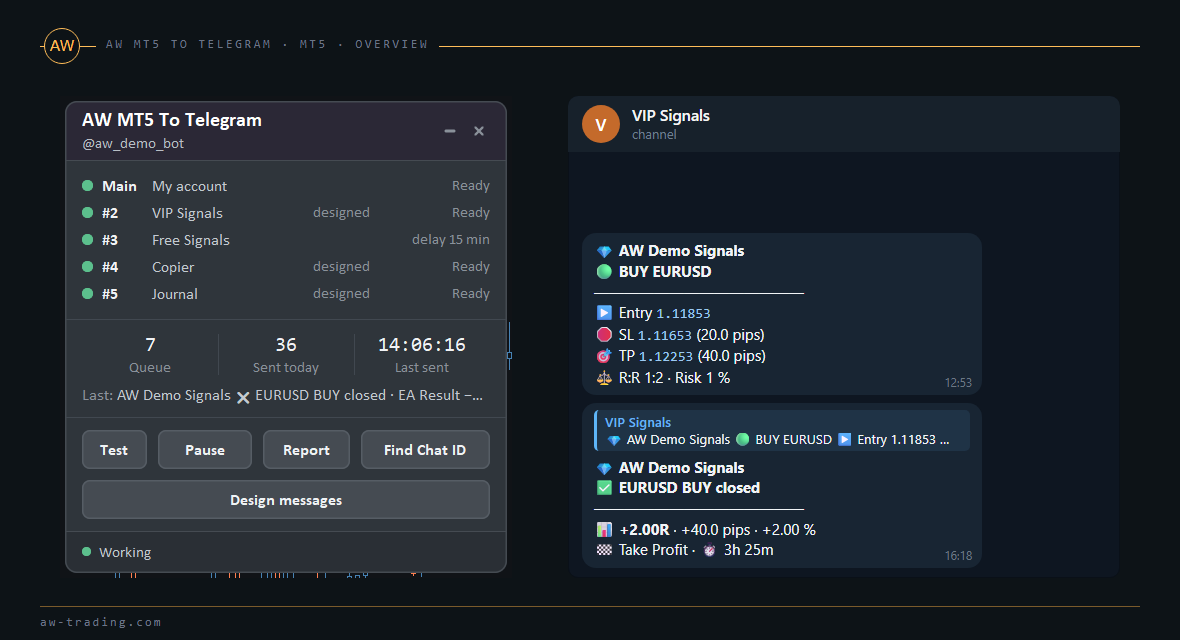
AW MT5 To Telegram sends the events of a MetaTrader 5 account to Telegram: opened and closed positions, partial closes, Stop Loss and Take Profit changes, pending orders, deposits and withdrawals, account alerts and reports. Messages go to up to five chats at once: a private chat, a group with topics or a channel. The utility does not trade and does not change anything on the account or on the trader's charts.
One copy of the utility is attached to one chart and watches the whole account: all symbols, manual trades and trades of any EA.
Two things are needed before the first message: a Telegram bot of its own (section 3) and permission for the terminal to send web requests to https://api.telegram.org (section 4).
The article contains the following sections:
- How the utility works
- Testing in the strategy tester
- Installation and creating a bot
- Allowing WebRequest
- Where to get the Chat ID
- The panel
- Input settings
- Typical setups
- AW Message Designer
- Ready templates
- Custom templates
- Hints on the panel and in the journal
- Questions and answers
1. How the utility works
The close reason is taken from the deal itself: Take Profit, Stop Loss, Stop Out, closed manually in the terminal, from the mobile app, from the web terminal, by an EA or by Close By.
| Event | When it comes | Input in WHAT TO SEND |
|---|---|---|
| Position opened | A new position, including one opened by a pending order (the message says pending order filled) | Position opened |
| Volume added | Netting account: a deal in the direction of an open position | Partial close and added volume |
| Partial close | Part of the volume is closed, the position stays open | Partial close and added volume |
| Position closed | The whole position is closed. The result is the sum of all its deals with swap and commission, prices are the average entry and exit | Position closed |
| Reversal | Netting account: one deal turns the position to the other side | Position opened or Position closed |
| SL/TP changed | Stop Loss or Take Profit of a position changed without a deal | Stop Loss / Take Profit changed |
| Pending order | Placed, changed (price, SL, TP, expiration), cancelled, expired | Pending orders: placed, changed, deleted, expired |
| Balance operation | Deposit, withdrawal, credit, bonus, commission, interest, dividend, tax, correction | Deposits and withdrawals |
| Account alert | Section 7, ACCOUNT ALERTS | its own inputs |
| Report | Section 7, REPORTS | its own inputs |
Hedging or netting? Both. Positions are told apart by the position identifier. On a hedging account each new deal in the same direction is a separate position and comes as an open, on a netting account it comes as added volume.
An EA sets SL and TP a moment after the entry. The open message waits up to 1.5 seconds after the entry, so SL and TP set by a second request get into the open message instead of a separate change message.
What happens after a restart? Trades made while it was off are sent after the start with the line While the utility was offline. If there are more of them than Missed while offline: send up to N trades, more - one summary, one summary comes instead: how many trades were closed and the total result. Pending orders and SL/TP changes made while it was off are not caught up. On the very first start on an account the old history is not sent.
2. Testing in the strategy tester
The tester has no network, so the utility sends nothing there. Messages are built exactly as on an account and printed to the Journal tab of the tester with the prefix [Telegram preview] and the chat name; in visual mode the panel shows the latest messages instead of the chat list.
- Open the Strategy Tester, select AW MT5 To Telegram, any symbol and timeframe. Enable Visualization to see the panel.
- In the inputs set Demo trades in the tester to show the messages to true and choose Message style and Language of messages. The Chat ID of the main chat can stay empty: its preview is always shown in the tester. Channels 2 to 5 appear in the preview when their Chat ID field is filled in.
- Start the test. Every four bars of the chart timeframe the utility makes the next step of a cycle on the chart symbol: open, SL change, partial close, close, pending order placed/changed/deleted, sell, close. The cycle repeats until the end of the test.
- Run the test again with other values of Message style, Trade result in, Hide account size (risk % and pips instead of lots and money) and Language of messages to compare the results.
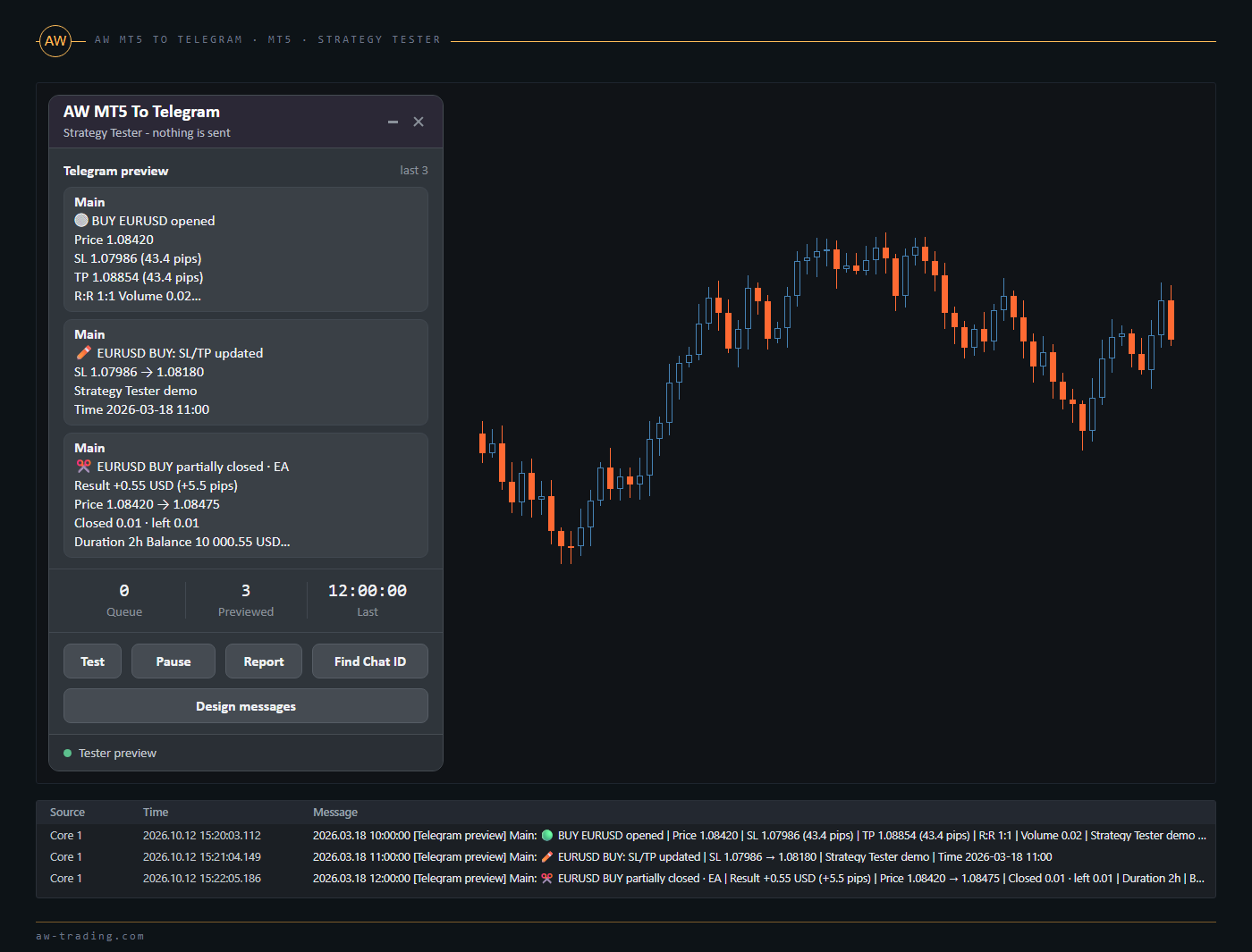
The demo trades exist only in the tester: on a demo or real account this code does not run, and the utility opens no trades. Screenshots and the Find Chat ID helper do not work in the tester because they need a live chart and the network.
3. Installation and creating a bot
Installation. After the purchase the utility appears in the Navigator window under Expert Advisors - Market. It is dragged onto a chart of any symbol. In MetaTrader 5 a chart holds only one EA, so the utility needs a chart without a trading EA: otherwise it would replace that EA on the chart. The chart symbol does not matter, the utility watches the whole account. One copy per account is enough: a second copy on the same account shows Another copy works on this account and sends nothing until the first one is removed.
Creating a bot. Messages are sent by a Telegram bot that belongs to the trader.
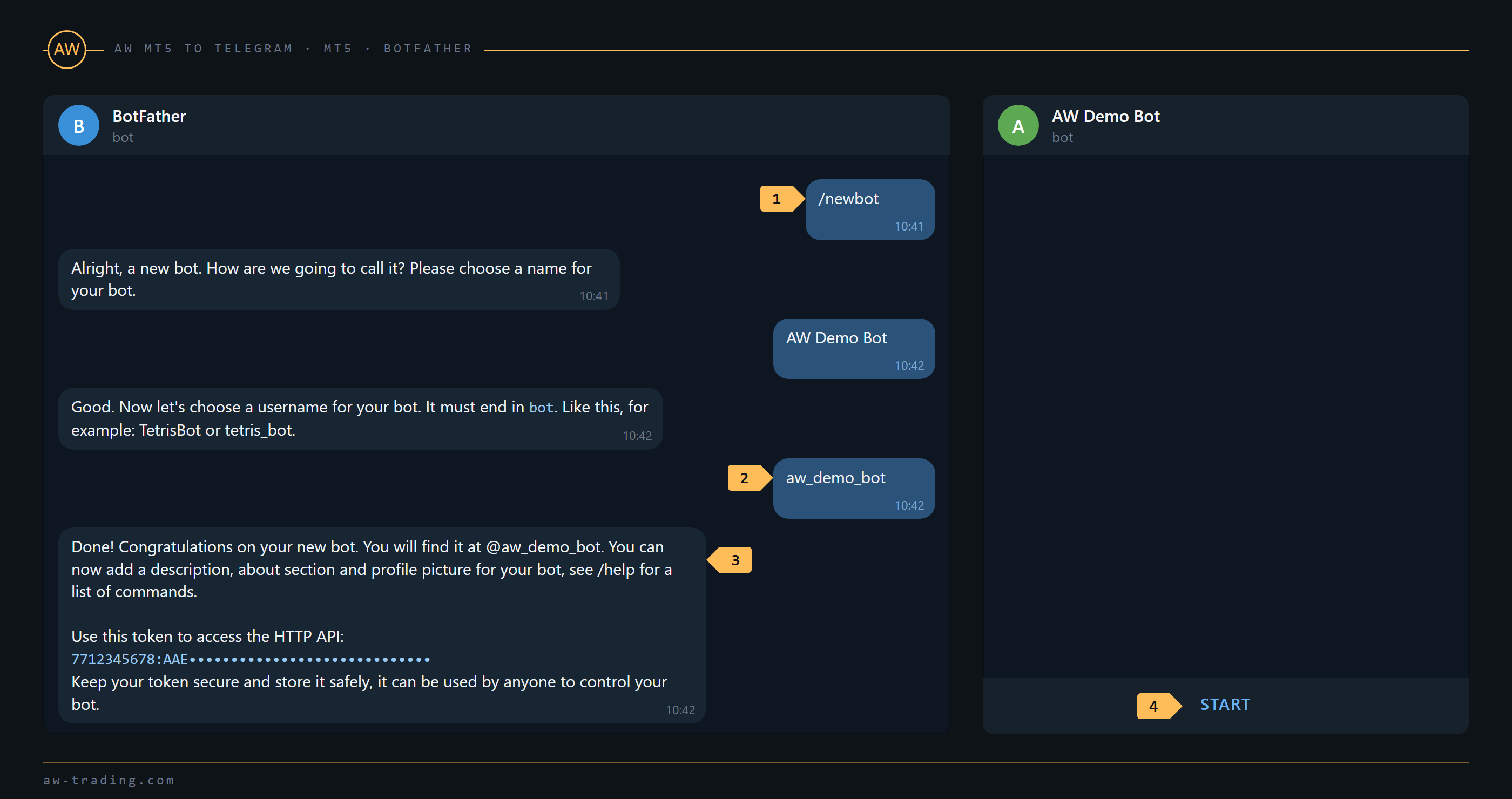
Step 1 - In Telegram open the official bot @BotFather and send it the /newbot command.
Step 2 - Enter a display name of the bot (any), then its username, which must end with bot.
Step 3 - @BotFather replies with the token: a number, a colon and a long string of letters and digits. The whole token is copied into the Bot token (create a bot with @BotFather) input.
Step 4 - For messages to a private chat, open the new bot in Telegram and press Start. Telegram does not let a bot write first to a person who has not started it.
Token safety. The token gives full control of the bot. The utility keeps it only in its inputs and never writes it to the journal. If the token has leaked, the /revoke command in @BotFather issues a new one, which is then pasted into the inputs.
4. Allowing WebRequest
By default the terminal does not let programs send web requests. The Telegram address is added to the list once per terminal:
- The menu Tools > Options, the Expert Advisors tab.
- Enable the Allow WebRequest for listed URL checkbox.
- Double-click the line for a new address, enter https://api.telegram.org and press OK.
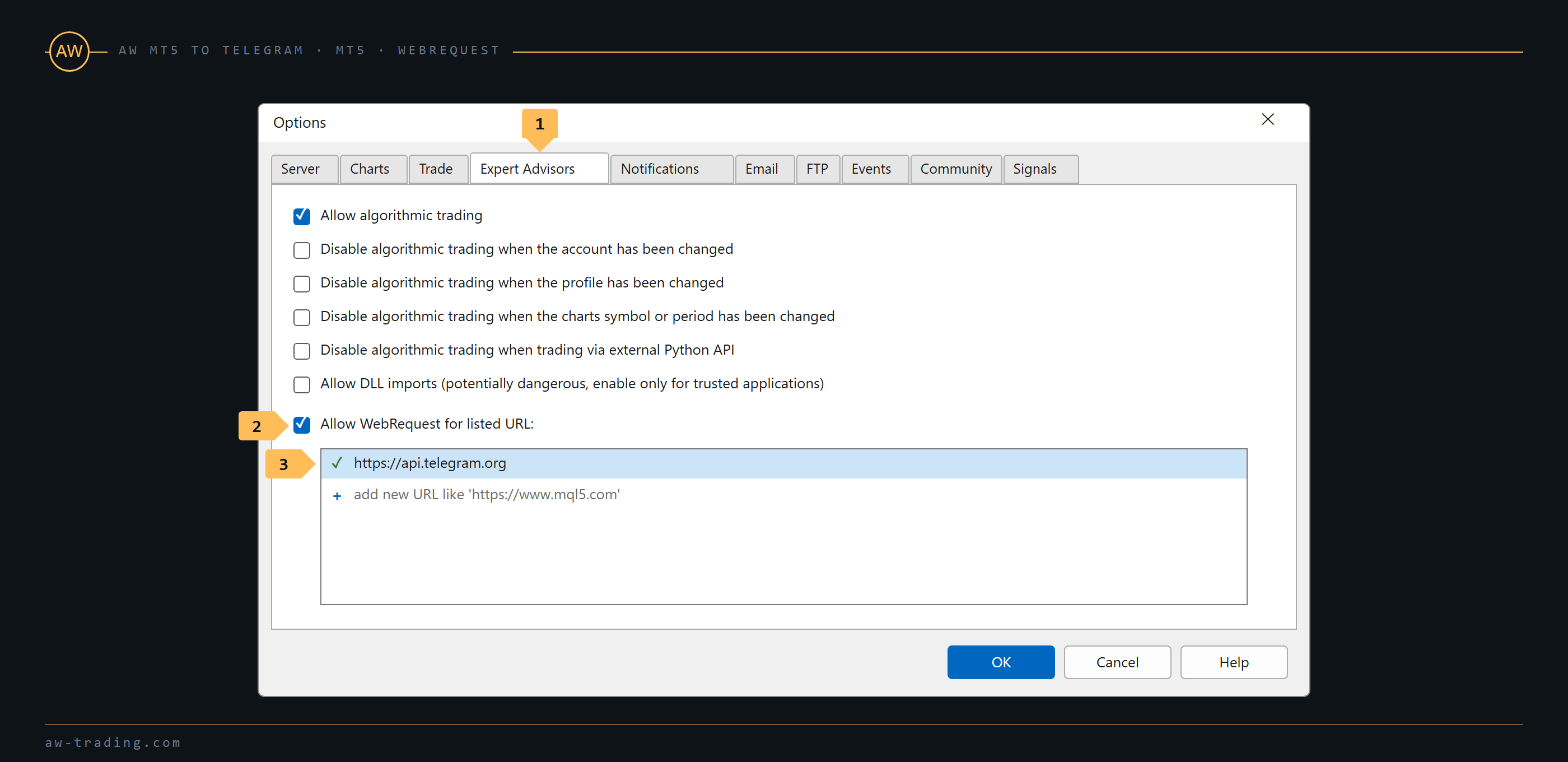
Without this address the panel shows Add https://api.telegram.org to Tools > Options > Expert Advisors (Allow WebRequest). Messages are kept in the queue. After the address has been added, the Test button on the panel checks the connection again and sends the queued messages; without pressing it the utility checks again by itself once a minute.
5. Where to get the Chat ID
The Chat ID or @channel input tells the bot where to write. What to enter depends on the chat type.
| Chat | What to enter | What the bot needs |
|---|---|---|
| Private chat with the bot | A positive number, the ID of the person | Start pressed in the bot |
| Group | A negative number; for supergroups it starts with -100 | The bot is a member of the group |
| Group with topics | The group ID, plus the topic number in Topic ID in a group with topics (0 - none) | The bot is a member of the group |
| Public channel | @channelname or the numeric ID starting with -100 | The bot is an administrator with the right to post messages |
| Private channel | The numeric ID starting with -100 | The bot is an administrator with the right to post messages |
The Find Chat ID button. The panel finds the ID itself.
Step 1 - The token is in the inputs and the panel shows the bot name.
Step 2 - Press Find Chat ID. For two minutes the utility reads new messages addressed to the bot.
Step 3 - Write any message to the bot in a private chat, or add the bot to a group, or publish a post in a channel where the bot is already an administrator. For a topic, write a message inside that topic.
Step 4 - The panel lists the found chats: type, title, ID and topic number. The ID can be selected and copied.
Step 5 - The ID is copied into Chat ID or @channel of the needed chat, the topic number into Topic ID. A second press of the button stops the search.
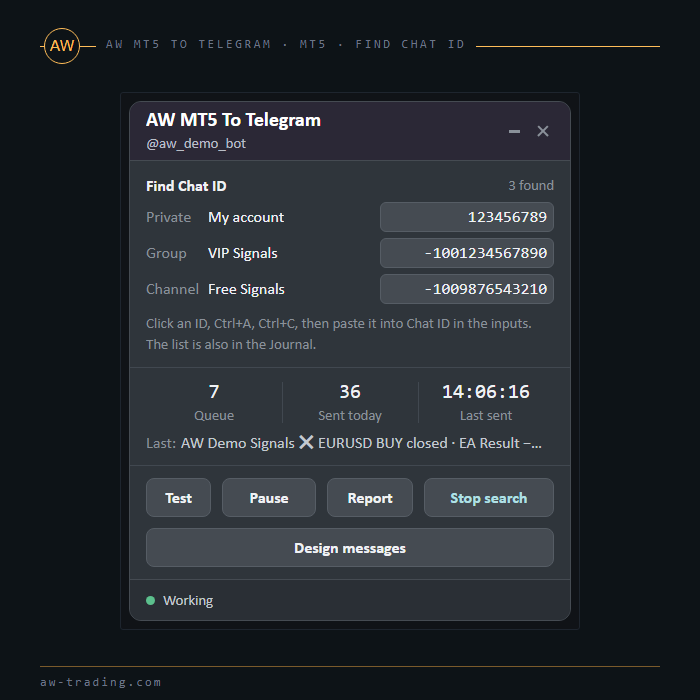
Channel name without @. A name without the @ sign is read as @name, and a public link to the channel is accepted too: the utility takes the name from it.
The bot does not see messages in a group. By default a bot in a group sees only commands and messages addressed to it. The simplest way is to make the bot an administrator of the group for the time of the search; adding the bot to the group is also noticed by the helper.
Topics. The General topic needs no number: Topic ID stays 0. If Topic ID is set but the group has no topics, the panel shows Topic ID is set, but this group has no topics.
The group became a supergroup. Telegram changes the ID of a group when it is upgraded. The utility continues with the new ID until the next restart and shows Group became a supergroup - set Chat ID to ... with the new number to enter.
Another app reads this bot's updates. If the bot has a webhook or is read by another program, the helper gets no messages. The ID is then entered by hand (@channel for public channels) or a separate bot is created for the utility.
6. The panel
The panel shows where the messages go, what has been sent and what needs fixing. It contains no trading figures.
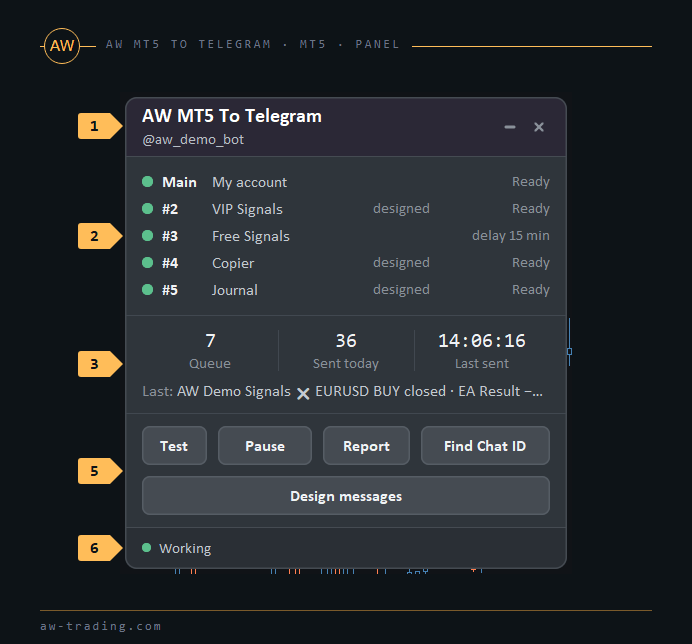
| No. | Panel block |
|---|---|
| 1 | The header with the bot name received from Telegram. |
| 2 | The chats: a line for the main chat and for each channel with a Chat ID, up to five, with a status LED, the chat title from Telegram (before the check, the Chat ID as entered) and a short status. A chat with a delay shows delay N min, a chat with an error shows a hint, a chat with a saved design is marked designed. |
| 3 | Queue - messages waiting to be sent, Sent today, Last sent - time of the last sent message, and the beginning of that message. |
| 4 | The last error with a hint, shown only when there is an error. |
| 5 | The buttons Test, Pause / Resume, Report and Find Chat ID, and Design messages below them. |
| 6 | The status: Working, Paused, Checking..., Check settings, Tester preview or Another copy works on this account. |
| Button | What it does |
|---|---|
| Test | Checks the bot and the chats again, clears the error states and sends a test message to every chat set up. The account number, broker and server are not sent, so Test is safe for public channels. Messages waiting in the queue are sent again at once. |
| Pause / Resume | While paused, new events, alerts and reports are not sent and do not accumulate: after Resume the utility does not send what happened during the pause. Messages that were already in the queue before the pause are still sent. Test and Report work during the pause. |
| Report | Sends the open positions report to the main chat right away. |
| Find Chat ID | Searches for chat IDs for two minutes, section 5. |
| Design messages | Opens AW Message Designer, section 9. |
With Panel style (No panel / AW panel) set to No panel the utility works the same way, but the buttons, including Find Chat ID and Design messages, are not available.
7. Input settings
The variable names are given as they appear in the settings window. The main chat and channels 2 to 5 are five independent recipients: each has its own Chat ID, style, set of events, hiding of the account size and footer with buttons. A channel with an empty Chat ID is off.
TELEGRAM BOT
| Variable | What it does |
|---|---|
| Bot token (create a bot with @BotFather) | The bot token, section 3 |
MAIN CHAT
| Variable | What it does |
|---|---|
| Chat ID or @channel (panel button "Find Chat ID") | Where to write, section 5 |
| Topic ID in a group with topics (0 - none) | The topic number in a group with topics |
| Message style | The look of trade messages, table below |
| Events to send | Which events this chat receives, table below |
| Hide account size (risk % and pips instead of lots and money) | Volume is replaced by the risk to SL in % of the balance (no SL - no line), money by % and pips. Balance, deposits and withdrawals are not shown, balance operations are not sent, the account number in the start, stop and pause messages is shortened to the last four digits, reports show only % and pips |
| Close and changes as a reply to the open message | Close, partial close, added volume, reversal and SL/TP change come as a reply to the open message of the same position in this chat |
| Changes and pending orders without sound | SL/TP changes and pending order messages arrive without a notification sound |
| Screenshots to this chat | Whether this chat gets screenshots and the balance chart of the reports |
| Footer line and buttons in this chat | Whether trade messages of this chat get the footer line and the URL buttons from MESSAGE FORMAT |
| Message style | What the messages look like | Where it fits |
|---|---|---|
| Detailed (all fields) | All fields | Private chat |
| Compact (one line per fact) | One line per event | Private chat, group |
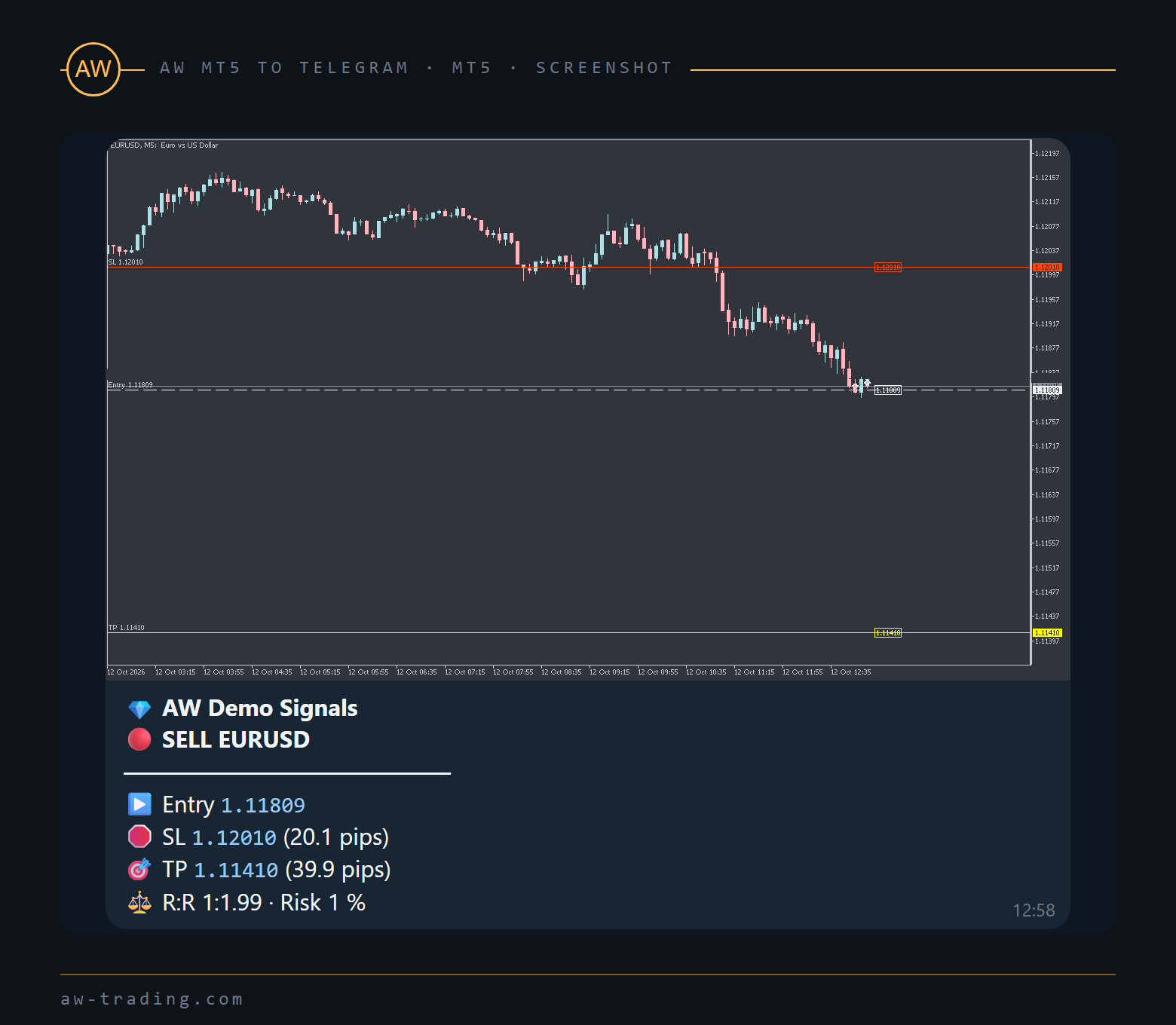
| Signal (copier-friendly: BUY EURUSD @ ... SL ... TP ...) | Fixed short lines: side, symbol and price, then SL and TP lines | Signal channels |
| Results only (closed trades) | Only closes and partial closes | Results channel |
| Custom template file | Section 11 | Own layout |
| Events to send | What gets into the chat |
|---|---|
| Everything enabled in WHAT TO SEND | All trade events, balance operations, account alerts, the start message and all reports, including the open positions report and the live status |
| Trades only (no account alerts / reports) | Trade events: positions, SL/TP changes, pending orders |
| Entries and exits only | Open, added volume, partial close, close, reversal |
| Closed trades only | Close and partial close |
| Reports and account alerts only | Account alerts, balance operations, the start message and all reports |
| Trades + reports (no account alerts) - for signal channels | Trade events and the daily, weekly and monthly reports |
The Test message reaches a chat with any event set. Account alerts, the system messages and the reports use the same built-in layout in every style; the style changes only trade messages.
CHANNEL 2 (for example, VIP signals), CHANNEL 3 (for example, Free signals with a delay), CHANNEL 4, CHANNEL 5
The same inputs as MAIN CHAT, plus the following. Chat ID or @channel (empty - off) turns the channel off when it is empty.
| Variable | What it does |
|---|---|
| Delay of trade messages, minutes (0 - instantly) | Trade messages, combined messages and the offline summary are sent this many minutes after the event. Account alerts, reports and Test are not delayed. |
| Protect content (no forwarding and saving) | Telegram does not allow subscribers to forward or save messages of this channel |
| Symbols of this channel (empty - common filter) / Magic numbers of this channel (empty - common filter) | Own filter of the channel in the same format as in FILTERS. When it is filled in, the common one is not used for this channel |
WHAT TO SEND
Common switches for all chats. An event switched off here does not reach any chat.
| Variable | What it does |
|---|---|
| Position opened; Position closed; Partial close and added volume; Stop Loss / Take Profit changed; Pending orders: placed, changed, deleted, expired; Deposits and withdrawals | Switch the event on or off for all chats (table in section 1). A SL moved to the entry price is marked breakeven. Balance operations are not shown in the Signal and Results only styles and with Hide account size |
| Report SL/TP change from, points (0 - any change) | A change smaller than this distance from the SL and TP last reported for the position is not sent. It keeps a trailing stop from sending a message on every step |
| Pause between change messages of one position, sec | After a change message of a position, the next changes of the same position wait for this time. The intermediate values are skipped, the last one is sent when the pause is over, if the position is still open |
| Combine 3+ similar events within, sec (0 - never) | Three or more events of one type (opens, closes, partial closes or SL/TP changes) in one chat within this window come as one message. Trade messages wait for this window before they are sent |
| Missed while offline: send up to N trades, more - one summary | Section 1 |
FILTERS
| Variable | What it does |
|---|---|
| Symbols: ALL or a list (EURUSD,XAU*,-GBPUSD) | ALL or a list separated by commas or semicolons. * is any text, a minus excludes a symbol. Broker suffixes are matched: EURUSD also matches EURUSD.m, EURUSDm and EURUSD-pro, but not EURUSDT. A list of exclusions only means all symbols except them |
| Magic numbers: ALL or a list (0,1001,2000-2999,-777) | ALL or a list: single numbers, ranges with a dash, exclusions with a minus. 0 is manual trades |
| Trades of | All trades, Manual trades only (magic 0) or Expert Advisors only (magic != 0) |
| Order comment contains (empty - any) | Only trades whose comment contains this text, case is ignored |
The filters apply to trade messages. Account alerts always cover the whole account. Reports of a chat whose symbol or magic number filter (its own or the common one) is not ALL count only the trades and positions that pass this filter; balance, equity, margin level, deposits and withdrawals in them stay account values. Trades of and Order comment contains are common for all chats, the symbol and magic number filters can be replaced for channels 2 to 5.
MESSAGE FORMAT
| Variable | What it does |
|---|---|
| Language of messages | English, Русский, Español, Português, Deutsch, Français, Italiano or Türkçe. The panel and the journal stay in English |
| Title of messages (signal or account name) | The first line of every message, in italics; empty - no title |
| Strategy names (1001=Gold Scalper;777=Grid) | Pairs magic number = name separated by semicolons. The Strategy line shows the name instead of Magic 1001 |
| Time in messages | Trade server time, This computer's time or UTC + offset. The report times in REPORTS use the same clock |
| UTC offset, hours (for "UTC + offset") | The offset for UTC + offset |
| Trade result in | Money + pips, Money, Pips, Points or % of balance + pips. For forex symbols with 3 and 5 digits a pip is 10 points; for metals, indices and crypto the distance is always shown in points. % is counted from the balance before the trade |
| Show volume, Show ticket, Show order comment, Show balance after close | Turn the matching line on or off |
| Footer line of trade messages (for example, your channel name) | A line at the end of trade messages in chats with Footer line and buttons in this chat on. Telegram tags are allowed: <b>, <i>, <a href="https://..."> |
| Button 1 under trade messages: text, Button 1: link (https://...) | A URL button under trade messages in chats with Footer line and buttons in this chat on. The link must start with https://, otherwise the button is not added |
| Button 2: text, Button 2: link (https://...) | The second button, next to the first one |
| Custom style: template file in MQL5\Files\AW_Telegram\ | The template file name for the Custom template file style, section 11 |
SCREENSHOTS
| Variable | What it does |
|---|---|
| Screenshots | No screenshots, On open, On open and close (partial closes too) or On every trade event (except cancelled and expired pending orders) |
| Screenshot timeframe | The timeframe of the picture |
| Screenshot width, px / Screenshot height, px | Width from 320 to 2560, height from 240 to 1600 |
For a picture the utility opens a separate chart of the symbol with a clean template, takes the picture and closes that chart. The trader's charts, their timeframes and objects are not touched. The message text becomes the caption of the picture; if it is longer than Telegram allows for a caption, the picture comes first and the text as a reply to it. Screenshots are not made in the tester and on MQL5 VPS: there the message goes as text.
ACCOUNT ALERTS
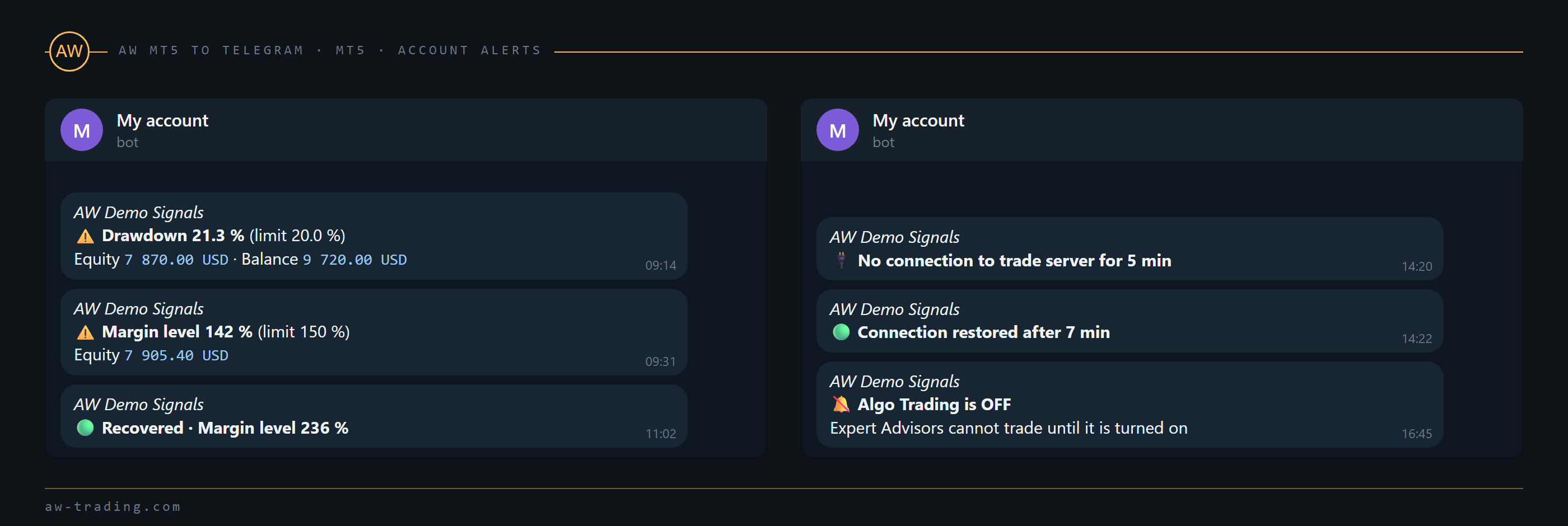
An alert comes once when the value crosses the threshold. The next alert of the same kind comes only after the value has returned to normal, and the return is reported with Recovered.
| Variable | Alert |
|---|---|
| Equity drawdown from peak, % (0 - off) | Equity without credit has dropped from its peak by this percentage. Deposits and withdrawals shift the peak proportionally |
| Daily loss, % of balance (0 - off) | The loss since the start of the trade server day, floating included, has reached this percentage of the balance at the start of the day |
| Margin level below, % (0 - off) | The margin level has dropped to this value. With this input on, the broker's Margin Call level is also reported when the broker sets it in percent |
| Equity below, money (0 - off) | Equity is below this amount |
| No connection to the trade server, minutes (0 - off) | The terminal has had no connection to the trade server for this time. The first 30 seconds after the start are not counted |
| Algo Trading switched off | The Algo Trading button of the terminal is off, or trading by EAs is disabled on the account |
REPORTS
| Variable | What it does |
|---|---|
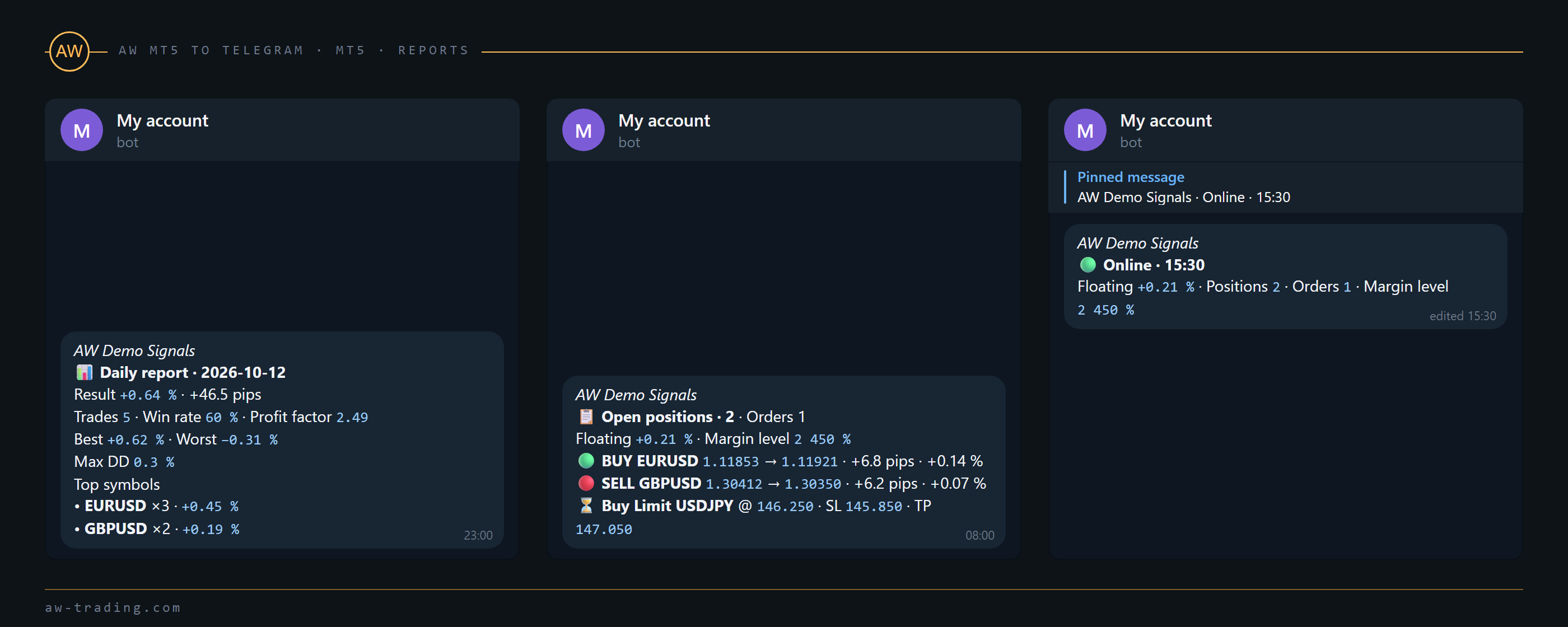
| Daily report at HH:MM (empty - off) | The daily report at this time, covering the 24 hours before it |
| Weekly report | Off or a day of the week. The report comes on that day at the daily report time, or at 00:05 if the daily report is off, and covers 7 days |
| Monthly report (on the 1st day) | On the 1st day of the month at the daily report time (00:05 if the daily report is off), for the previous month |
| Open positions report at (for example, 08:00,20:00) | Times of the open positions report, separated by commas |
| Pinned live status: update every N minutes (0 - off) | One message with balance, equity, floating result, number of positions and orders and the margin level. It is pinned without sound at the first send and then edited every N minutes; Telegram does not notify about edits |
| Balance chart in weekly and monthly reports | A picture of the balance curve with the weekly and monthly report, for chats with Screenshots to this chat on |
The terminal was off at report time. A report missed by no more than 6 hours is sent at the start, a later one waits for its next time. After the first installation the report of the previous period is not sent.
The live status cannot be pinned. To pin, the bot needs the right to pin messages in a group or to edit messages in a channel. Without it the message is still sent and edited, only not pinned.
GRAPHICS SETTINGS
Panel style (No panel / AW panel), Color Cheme for Panels (Light scheme or Dark scheme), Panel size (Auto by screen DPI, Small (100%), Medium (125%), Large (150%)) and Font size (the same scale for the font) set the look of the panel.
STRATEGY TESTER
| Variable | What it does |
|---|---|
| Demo trades in the tester to show the messages | The demo cycle of trades in the tester, section 2. Outside the tester it has no effect |
8. Typical setups
Three setups that cover most tasks. Only the inputs that differ from the obvious are listed; the values are examples.
Setup 1. Personal monitoring of an account. One private chat gets everything: trades, alerts and reports.
| Block | Variable | Value |
|---|---|---|
| MAIN CHAT | Chat ID or @channel | The personal ID from Find Chat ID |
| MAIN CHAT | Message style / Events to send | Detailed (all fields) / Everything enabled in WHAT TO SEND |
| ACCOUNT ALERTS | Equity drawdown from peak, %, Margin level below, %, No connection..., Algo Trading switched off | Thresholds that fit the account |
| REPORTS | Daily report at HH:MM, Open positions report at, Pinned live status | For example, 23:00; 08:00,20:00; 15 |
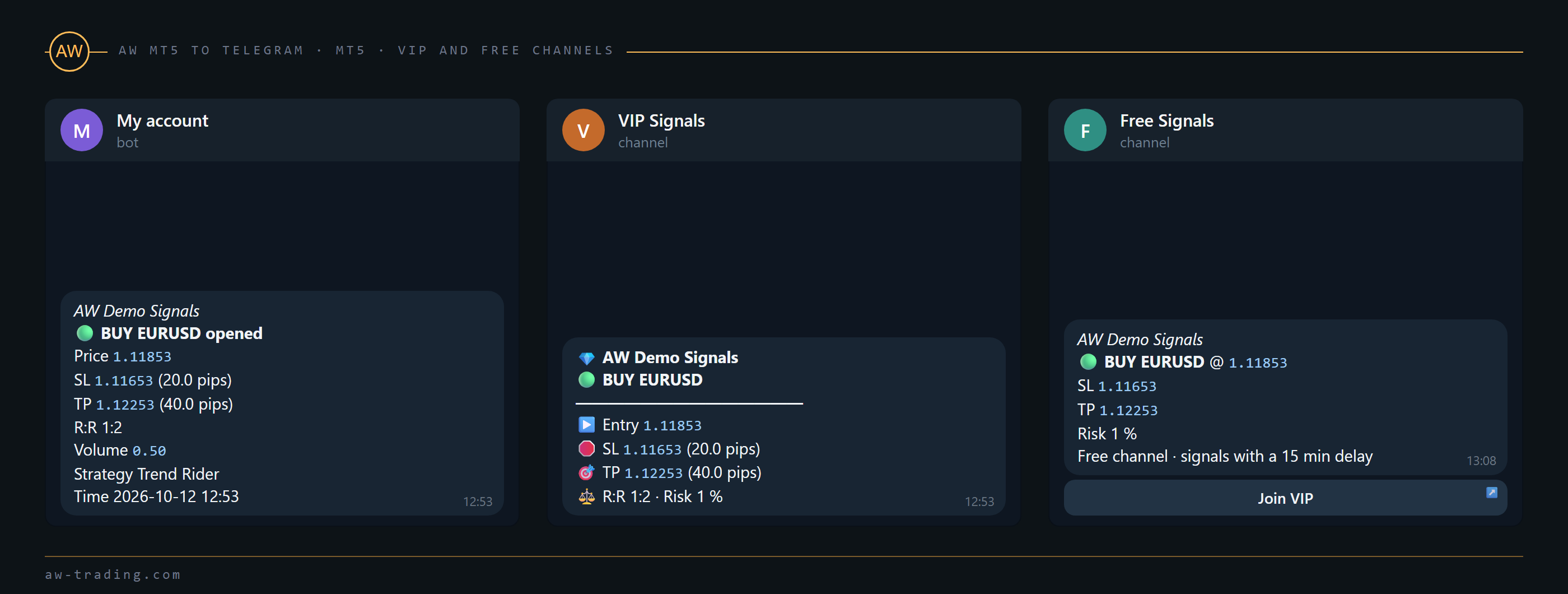
Setup 2. VIP channel at once, Free channel with a delay. The owner keeps alerts and reports in a private chat, subscribers see only trades.
| Block | Variable | Value |
|---|---|---|
| MAIN CHAT | Chat ID / Message style / Events to send | The personal ID / Detailed (all fields) / Everything enabled in WHAT TO SEND |
| CHANNEL 2 | Chat ID or @channel (empty - off) | @vip_channel or -100... of the private VIP channel |
| CHANNEL 2 | Message style / Events to send | Signal / Trades + reports (no account alerts) - for signal channels |
| CHANNEL 2 | Hide account size / Delay / Protect content | true / 0 / true |
| CHANNEL 2 | Footer line and buttons in this chat | false: VIP subscribers do not need the Join VIP button |
| CHANNEL 3 | Chat ID or @channel (empty - off) | @free_channel |
| CHANNEL 3 | Message style / Events to send | Signal or Results only (closed trades) / Entries and exits only or Closed trades only |
| CHANNEL 3 | Hide account size / Delay of trade messages, minutes | true / for example, 30 |
| CHANNEL 3 | Symbols of this channel | For example, only EURUSD,XAU* while VIP gets all symbols |
| CHANNEL 3 | Footer line and buttons in this chat | true |
| MESSAGE FORMAT | Button 1 under trade messages: text / Button 1: link | Join VIP / the https:// address of the page where the VIP subscription is sold |
| MESSAGE FORMAT | Title of messages / Strategy names | The signal name / names for the magic numbers of the EAs |
Before publishing, the Test button shows that both channels accept messages. The look of the VIP channel can be taken from the VIP Signal template in AW Message Designer (sections 9 and 10).
Setup 3. A group with topics. One group, separate topics for trades, gold and reports. The same group ID goes into all three chats, the topics differ.
| Chat | Chat ID / Topic ID | Style and events |
|---|---|---|
| MAIN CHAT | -100... / number of the Trades topic | Compact (one line per fact) / Trades only (no account alerts / reports) |
| CHANNEL 2 | -100... / number of the Gold topic | Detailed (all fields) / Trades only, Symbols of this channel = XAU* |
| CHANNEL 3 | -100... / number of the Reports topic | Any / Reports and account alerts only |
| FILTERS | Symbols: ALL or a list | -XAU*: the common filter of the main chat leaves gold to the Gold topic |
The topic numbers come from Find Chat ID after a message is written in each topic. With MAIN CHAT on Trades only, the start message is not sent; Test still reaches all three topics.
9. AW Message Designer
The Design messages button on the panel opens AW Message Designer: a window on the chart where every trade message of a chat is built line by line and checked in a preview before it is sent. A design belongs to one chat and does not change the inputs.
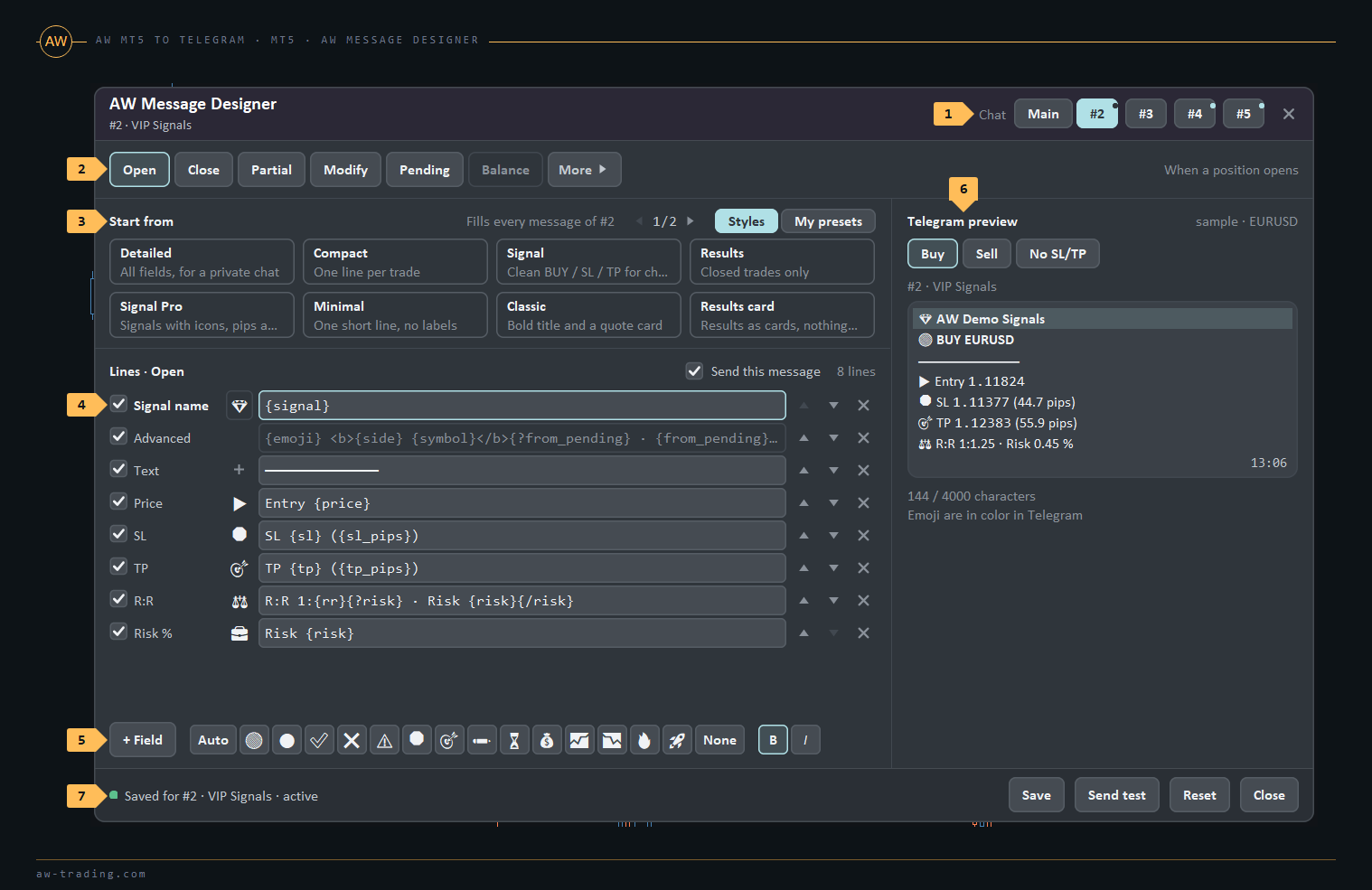
| No. | Part of the window |
|---|---|
| 1 | Chat: Main, #2, #3, #4, #5. A channel without a Chat ID in the inputs cannot be picked. |
| 2 | Events: Open, Close, Partial, Modify, Pending, Balance. The Send this message checkbox turns the message of the event on or off for this chat. |
| 3 | Start from: Styles - the 12 ready templates of section 10, My presets - designs saved earlier. The choice fills every message of the chat at once. |
| 4 | Lines: a checkbox turns the line on or off, the field holds the text with {placeholders}, the arrows move the line up and down, the cross deletes it. A line that cannot be shown as plain text is marked Advanced and is edited in the template file. |
| 5 | + Field adds a ready line below the selected one. Next to it: Auto (the emoji follows the event: buy, sell, profit, loss), a row of emoji, None, and B and I for a bold or italic line. |
| 6 | Telegram preview: a sample message of the event (for an open - Buy, Sell or without SL/TP) and the number of characters out of 4000. In the window emoji are drawn in one color, in Telegram they are in color. |
| 7 | The status of the design and the buttons Save, Send test, Reset, Close. |
| Button | What it does |
|---|---|
| Save | Saves the design and starts using it for this chat at once. The design is kept in MQL5\Files\AW_Telegram\templates\<account number>\chat<N>.txt and survives a restart; the panel marks the chat designed. A line with an error is shown in the status and must be fixed before saving |
| Send test | Sends the preview to this chat now, with the footer and buttons if the chat has them. In the tester the message goes to the panel preview |
| Reset | After a confirmation the chat goes back to the Message style from the inputs. The saved file stays on disk, but the chat stops using it |
| Close | Closes the window; with unsaved changes it asks whether to save them |
| Save as, Load (My presets) | Save as stores all messages of the chat under the typed name in MQL5\Files\AW_Telegram\presets\<name>.txt. Load puts the picked preset into the chat; it is used after Save. Presets are common for all chats and accounts of the terminal |
What the design changes. Only the look of the trade messages of this chat: it replaces Message style. Events to send, the filters, the delay, Hide account size and Footer line and buttons in this chat keep working.
Language of the labels. Labels such as Price, Risk or Entry are written in the Language of messages at the moment the template is picked. A saved design is plain text and is not translated when the language is changed later.
The design file. It is an ordinary template file (section 11).
10. Ready templates
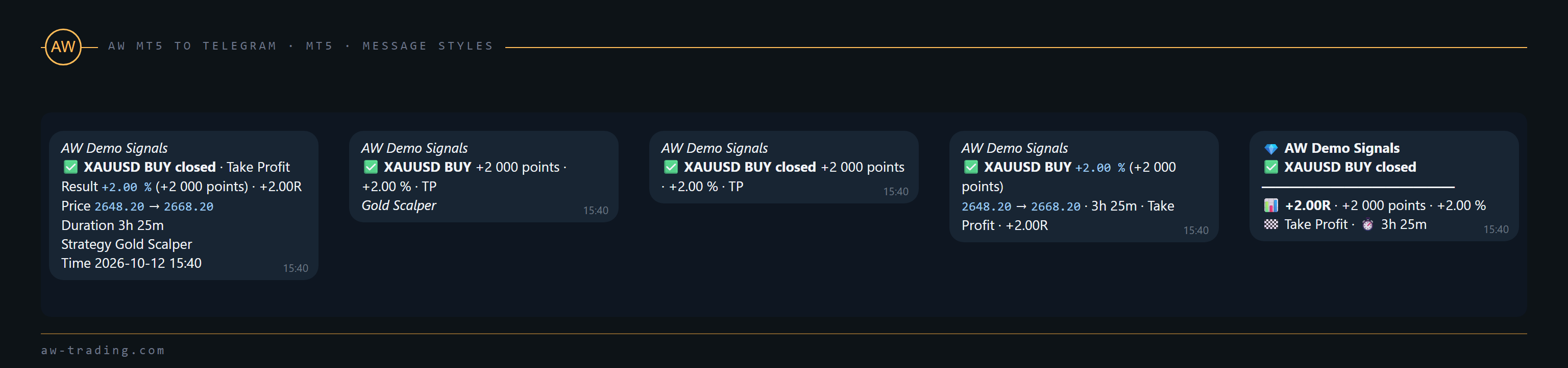
The gallery of AW Message Designer holds 12 templates. The first four give the same messages as the built-in styles of the same name, the other eight are extra layouts. Each one fills all eleven messages of a chat; an empty section in a template means that the message is not sent.
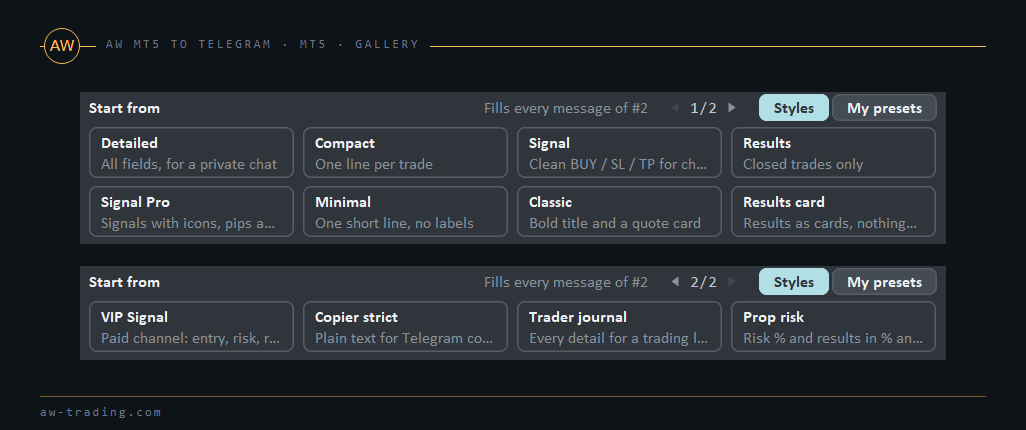
| Template | Description in the gallery | Not sent |
|---|---|---|
| Detailed | All fields, for a private chat | - |
| Compact | One line per trade | - |
| Signal | Clean BUY / SL / TP for channels | Balance operations |
| Results | Closed trades only | Everything except closes and partial closes |
| Signal Pro | Signals with icons, pips and R:R | Balance operations |
| Minimal | One short line, no labels | - |
| Classic | Bold title and a quote card | - |
| Results card | Results as cards, nothing else | Everything except closes and partial closes |
| VIP Signal | Paid channel: entry, risk, result in R | Balance operations |
| Copier strict | Plain text for Telegram copiers | Balance operations and trades caught up after a restart |
| Trader journal | Every detail for a trading log | - |
| Prop risk | Risk % and results in % and R | - |
A template is used in two ways: in AW Message Designer with Start from and Save, or without the window - its text is pasted into the template file and the chat gets Message style = Custom template file (section 11).
For a chat with Copier strict, Footer line and buttons in this chat is switched off: then the messages contain nothing but the commands.
11. Custom templates
With Message style set to Custom template file the trade messages of the chat are built from a text file. The file is MQL5\Files\AW_Telegram\templates.txt; the name is set by Custom style: template file in MQL5\Files\AW_Telegram\. This file is common for all chats with this style. At the first start the utility creates it with a working example of every section and the list of all placeholders. The folder opens from the terminal menu File > Open Data Folder, then MQL5 > Files > AW_Telegram.
The file is edited in any text editor and saved as UTF-8 (UTF-16 from Notepad is read too). The utility reads the file at start, so after saving it is reloaded: any input is changed or the utility is attached again.
File rules.
- A section starts with its name in square brackets and ends where the next section begins. Sections: [OPEN] [ADD] [PARTIAL] [CLOSE] [REVERSE] [MODIFY] [PENDING] [PENDING_MODIFY] [PENDING_DELETE] [PENDING_EXPIRE] [BALANCE].
- A missing section uses the Detailed style. An empty section turns that message off.
- A line that starts with # is a comment. The # must be the first character of the line. A line that starts with #off is a switched-off line: it does not reach the message, and AW Message Designer shows it unticked.
- The text is Telegram HTML: <b> <i> <u> <s> <code> <a href="..."> <blockquote>. Other < and > characters are shown as text. Values of placeholders are inserted safely, a comment with < does not break the message.
- {?name}...{/name} shows the text inside only when {name} has a value, {?!name}...{/name} only when it is empty. A line that became empty this way is removed.
- The title of messages is not added by itself, the template places it with {signal}. The footer line is added after the template, except [BALANCE], in chats with Footer line and buttons in this chat on. A trade from the offline catch-up gets the While the utility was offline line on top, unless the template uses {offline} itself.
12. Hints on the panel and in the journal
Each error is shown as a short hint in the chat line or the Last error block of the panel and is written to the Experts journal with the prefix AW Telegram or AW MT5 To Telegram. Token and WebRequest errors also open one terminal alert window. Messages of a chat with an error stay in the queue: the utility tries again once a minute, and the Test button tries at once.
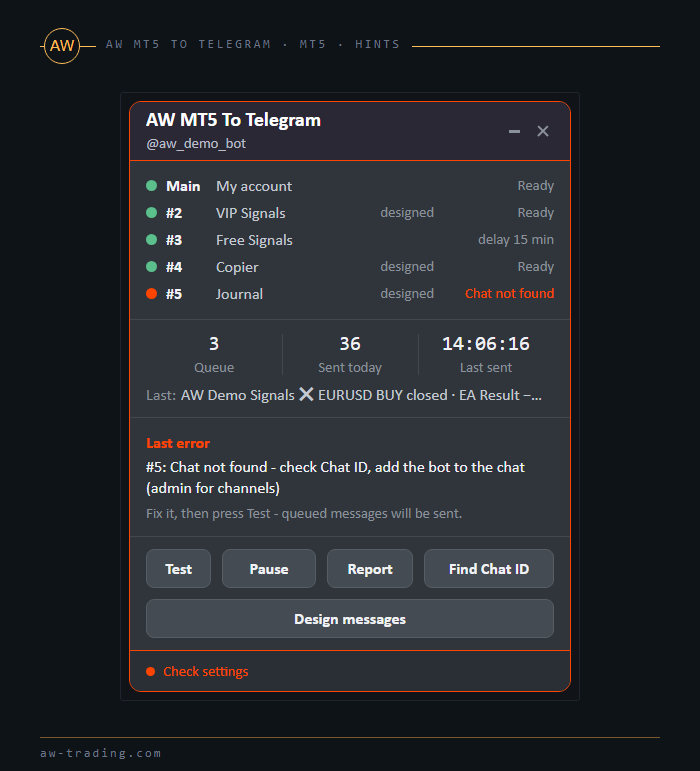
| Hint | What happened and what to do |
|---|---|
| Bot token looks wrong: copy it from @BotFather again | The token is not in the number:letters format, for example a part is missing. Copy the whole token again |
| Bot token invalid - copy it from @BotFather again | Telegram does not know this token: it was revoked or mistyped |
| No connection to Telegram - retrying | No internet or Telegram does not answer. Messages wait and are sent again |
| Telegram rate limit - waiting N s | Too many messages to one chat. The utility waits as long as Telegram asks; nothing is lost |
| Open the bot in Telegram and press Start | Private chat: the person has not started the bot |
| Bot is blocked - unblock it in Telegram and press Start | The bot was blocked in the private chat |
| Chat not found - check Chat ID, add the bot to the chat (admin for channels) | Wrong Chat ID, or the bot is not in this group or channel |
| Add the bot to this chat / Bot was removed from the chat - add it back | The bot has left or was removed from the group or channel |
| Make the bot an admin with the Post Messages right / Bot needs the Post Messages right in this chat | The bot is in the channel or chat but has no right to post |
| Bot needs the right to send photos in this chat | The group forbids media for the bot. The message goes without the picture |
| Chat was deleted - check Chat ID | The chat no longer exists |
| Topic not found - check Topic ID | Wrong topic number |
| Topic is closed - reopen it or change Topic ID | The topic is closed in the group |
| Message formatting error - sent as plain text | Telegram did not accept the HTML of the message (usually in a template or the footer line). The message has gone without formatting; check the tags |
| URL button rejected - check button text and URL | Telegram did not accept a button. The message has gone without buttons |
| Queue full - oldest messages dropped | The queue holds up to 1000 messages. When it is full for a long time (a broken chat), the oldest ordinary messages are removed first |
| Telegram: ... | Another error with the Telegram text. The utility tries five times with a pause and then removes the message, writing the reason to the journal |
13. Questions and answers
The panel says Working, but a message did not come. The event may be switched off in WHAT TO SEND, excluded by Events to send of the chat or by a filter, or held by a delay of the channel or by the combining window. During Pause new events are not sent. The Test button shows that the chat itself accepts messages.
Why did the close come as a separate message and not as a reply? A reply is possible when the open message of this position was sent to this chat by the utility within the last 30 days. Positions opened before the utility was installed, or filtered out at the open, get the close as an ordinary message.
Will messages be lost if the internet or the terminal goes down? The queue is on disk and survives a restart, sent messages are marked at once, so they do not go twice. Trades made while the terminal was off come after the start (section 1).
Why is there no message that the utility has stopped? When the terminal closes or crashes there is no time to send it. The pinned live status with its update time shows that the terminal is alive.
Is the Signal style read by copiers? Whether a particular copier reads the Signal lines is checked with that copier.
Several accounts. Each account needs its own copy of the utility in its terminal. One bot can serve all of them; the start message shows which account the copy belongs to.
After the update from 1.x the old settings do not fit. The input settings of 2.00 are new, so the utility is set up again by this manual. The bot and the Chat ID stay the same.
Buy AW MT5 To Telegram:
MT5 version
👉 https://www.mql5.com/en/market/product/81256

AW Trading Software