
Getting Started with MQL5 Algo Forge
 8 220
8 220
 29
29

The new MQL5 Algo Forge is more than just a list of your projects – it's a full-fledged social network for developers. You can easily track changes, maintain project history, connect with like-minded professionals, and discover new ideas. Here, you can follow interesting authors, form teams, and collaborate on algorithmic trading projects.
MQL5 Algo Forge is built on Git, the modern version control system. It equips every developer with a powerful toolset for tracking project history, branching, experimenting, and working in teams. But how does it all work? In this article, we'll explain how to get started with MQL5 Algo Forge.
What Is a Repository in MQL5 Algo Forge?
Developing software is usually a lengthy process that requires time and debugging. Code must not only be written and maintained but also stored securely. Modern trading algorithms go far beyond simple moving average crossovers. They are built on mathematical libraries, neural networks, and machine learning. This means developers need a convenient way to save changes quickly and access up-to-date code from anywhere.
MQL5 Storage is the built-in version control system integrated into MetaEditor. It previously used Subversion 1.7, a centralized version control system in which all history was stored on MetaQuotes servers. Without an internet connection, you couldn't commit changes, roll back to previous versions, or view history. Today, it has been fully replaced by a more powerful and flexible solution – MQL5 Algo Forge.
Now, MQL5 Algo Forge works differently:
| MQL5 Algo Forge (Git-based) | MQL5 Storage (legacy) | |
|---|---|---|
| History storage | Local and cloud | MetaQuotes cloud only |
| Offline work | Full (commits, rollbacks, diff) | Limited or unavailable |
| Operation speed | Instant, local | Dependent on network/server |
Algo Forge gives you freedom. You can work offline on a train, create experimental branches, save intermediate results, and later merge them into the main branch.
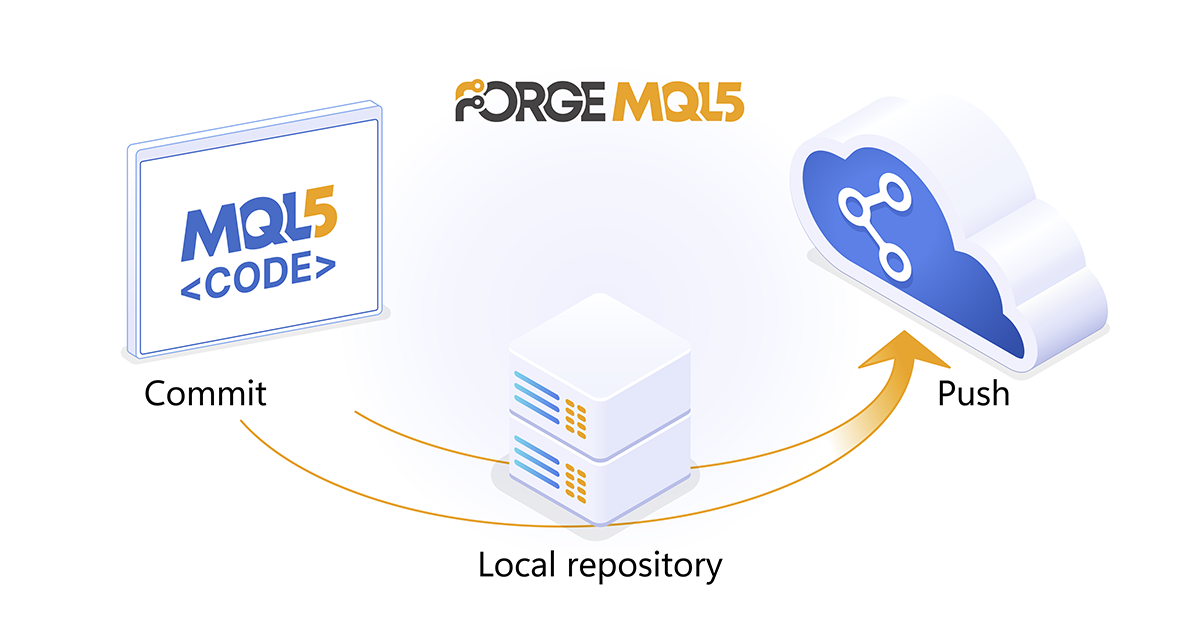
A project repository in Algo Forge is not just a cloud folder. It is a structured Git repository that exists on your local drive and synchronizes with the MQL5 Algo Forge cloud server. It consists of several layers:
Working Directory in MetaEditor
 | Your .MQ5, .MQH, .SET, and other files that you edit in MetaEditor. This is where you write Expert Advisor code, connect indicators, and test strategies. Until you explicitly add changes, Algo Forge does not track them. |
Staging Area (Index)
 | Before saving changes to the project history, you prepare them. Using the 'Git Add' command, you select the files to include in the next commit. This allows you to group changes logically – for example, saving adjustments to trading logic separately from updates to the interface or configuration. |
Local Repository
 | Once you commit changes with 'Git Commit', Algo Forge stores a snapshot of your files in the local repository on your computer. At any time, you can review previous versions, roll back to an earlier state, or analyze which modifications affected your Expert Advisor's performance. |
Remote Repository in MQL5 Algo Forge
 | When ready, you can push commits to the MQL5 Algo Forge server using 'Git Push'. This creates a secure backup and makes your changes available to team members. Even if you work solo, this is useful: your code is safely stored in the cloud, and your project history remains intact. |
How to Connect to MQL5 Algo Forge
To start working with MQL5 Algo Forge, all you need is an MQL5 account. Simply log in with your credentials at https://forge.mql5.io/.
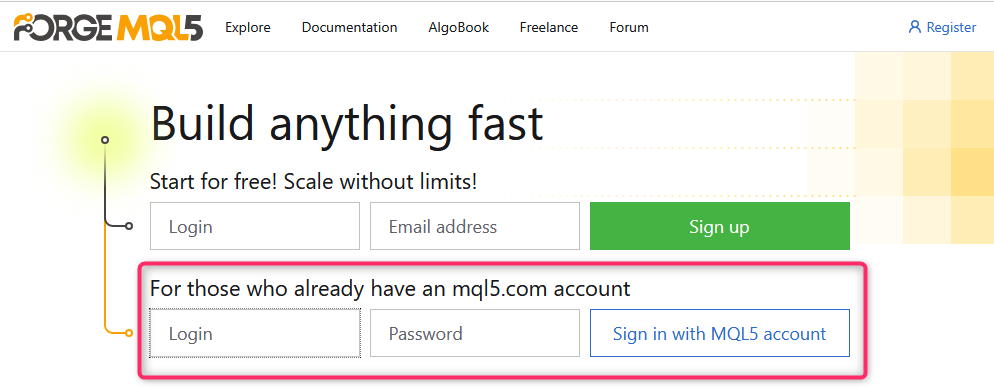
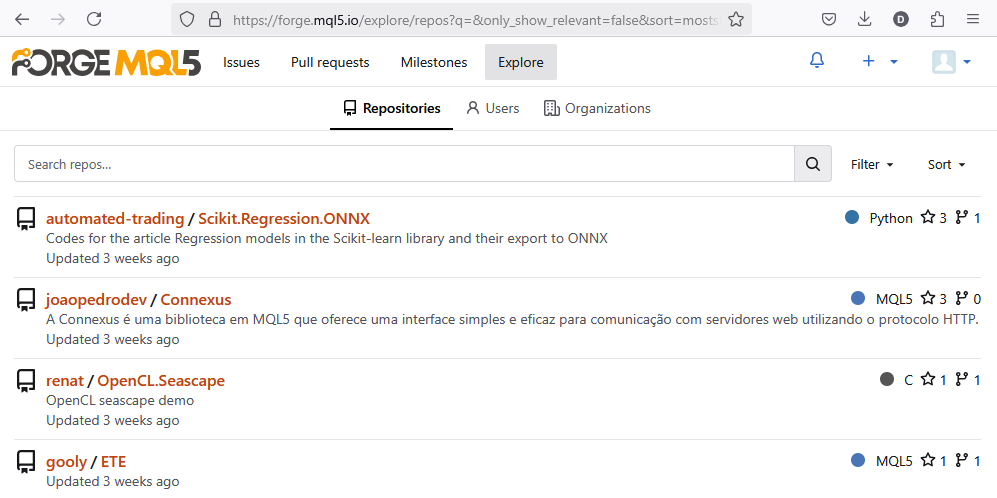
Once logged in, you can explore all of its features. Public projects are available in the Explore section, where you can browse projects, study their code, share your own work, and collaborate with others.
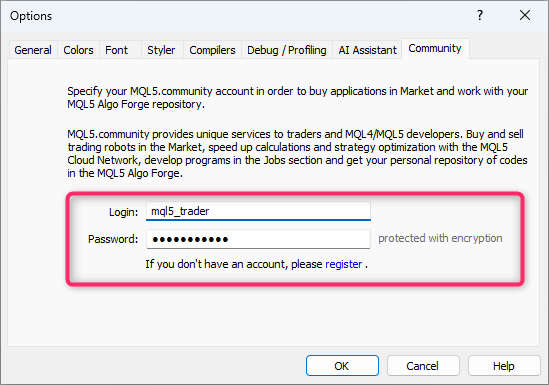
However, most of your development work will take place in the MetaEditor environment. To connect MetaEditor to MQL5 Algo Forge, just log in with your MQL5 account credentials under the Community tab.
What Is Git and How It Works in MQL5 Algo Forge
Git is a version control system that records how your files looked at different points in time. It helps prevent the loss of important changes, makes it easy to roll back, supports branching for experiments, and enables multiple developers to collaborate on the same project.
In MetaEditor, you don't work directly with Git commands – everything is handled through a user-friendly interface. Under the hood, however, Git is executing a few essential operations. Let's break them down and see what happens when you use the corresponding commands in MetaEditor.
Let's create a new project "Base_EA" in the public projects folder.
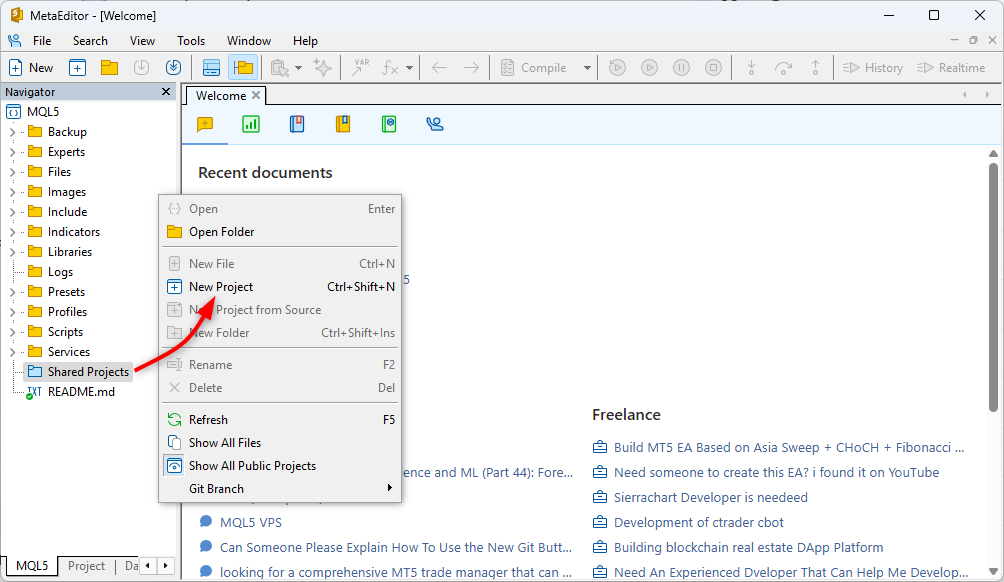
Right-click on the project file to see available Git commands.
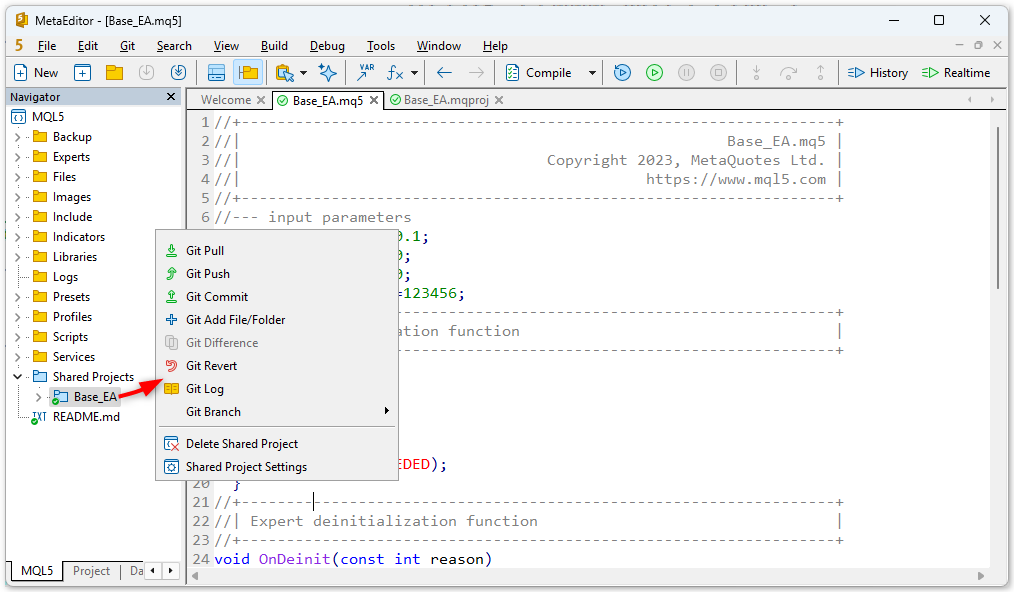
1. Git Add File/Folder – Staging Changes
When you edit files, Git doesn't automatically track them. To tell the system that you want to save these changes, you add files to the index. This can be done via 'Git Add File/Folder' or when selecting files for a commit.
Git takes a snapshot of the file's current state and prepares it for saving – like placing documents into a "To be signed" folder.
2. Git Commit – Saving a Project Snapshot
Clicking 'Git Commit' in MetaEditor captures the current state of your project and saves it to the version history.
Here's what happens:
- Git compares your changes with previous files.
- It stores only the differences (to save space).
- Changes are written into a hidden .git folder.
- The commit gets a unique SHA-1 identifier.
A commit is essentially a checkpoint, showing how the project looked at that moment. You can always return to any such point later and continue from there.
3. Git Push – Sending to the MQL5 Algo Forge Cloud
When you select 'Git Push;, your local commits are uploaded to the MQL5 Algo Forge server.
It's like uploading a new version of your project to the cloud but with a complete change history.
For convenience, MetaEditor automatically performs 'Git Push' right after 'Git Commit'. This ensures that your current version is always synced to the cloud. If pushing changes to the server fails for any reason, you can run 'Git Push' manually.
4. Git Pull – Retrieving the Latest Version
When collaborating, someone else may update the project before you. Or you might commit changes from one computer and continue work on another (or on the same computer but within a different terminal). To fetch these updates, use 'Git Pull', which retrieves all changes from the Forge.
Git will download the new commits from the cloud and merge them with your local version.
5. Git Branch – Branching and Experimenting Safely
Sometimes you my want to test ideas without affecting the main project. This can be done through branches. For example, you could create a branch to test a different indicator or add a filter to your strategy. Each branch has its own name, and you can switch between them freely.
A branch is simply a parallel line of development. You can experiment as much as you like, then either discard it or merge it into the main branch.
6. Git Difference – Reviewing File Changes
This command shows exactly what changed in a file (line by line) before committing. It opens a comparison panel highlighting added, deleted, or modified lines.
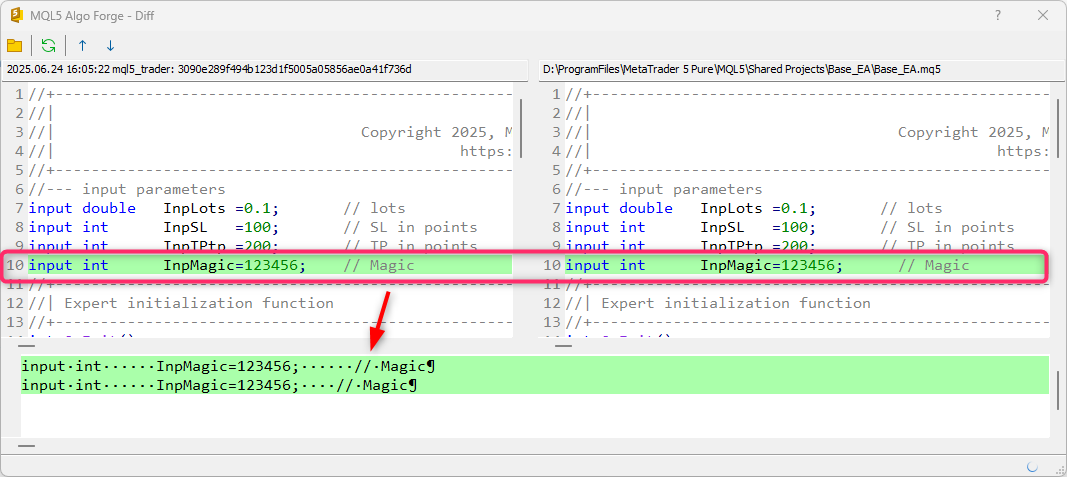
7. Git Log – Viewing Project History
The 'Git Log' command lists all commits with their date, author, and commit message. This gives you a clear timeline of project development and lets you track who changed what and when.
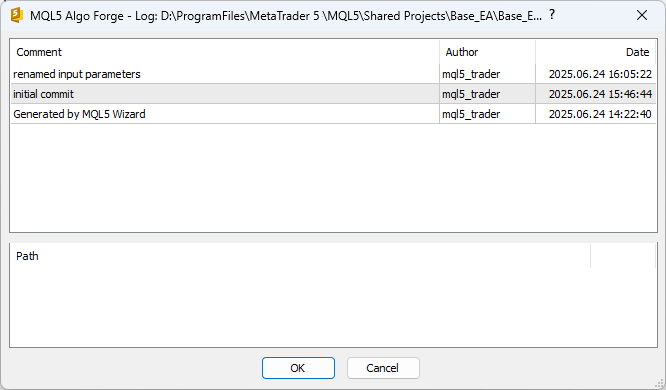
8. Git Revert — Undoing a Commit
'Git Revert' creates a new commit that cancels the effect of a previous one without erasing it from history. This is the safest way to undo changes. But it only works cleanly on the latest commit.
This command can be especially useful if you notice that a commit has broken the Expert Advisor – you can quickly undo it without affecting other commits. However, if the reverted commit affects the same code as later commits, a merge conflict may occur, which must be resolved manually.
Safe Practices for Working with Projects
One of the most common issues in version control is conflicts between local and remote versions. To avoid them, follow simple rules: Always pull first. When you open a project to continue working, run 'Git Pull' to ensure you have the latest version.
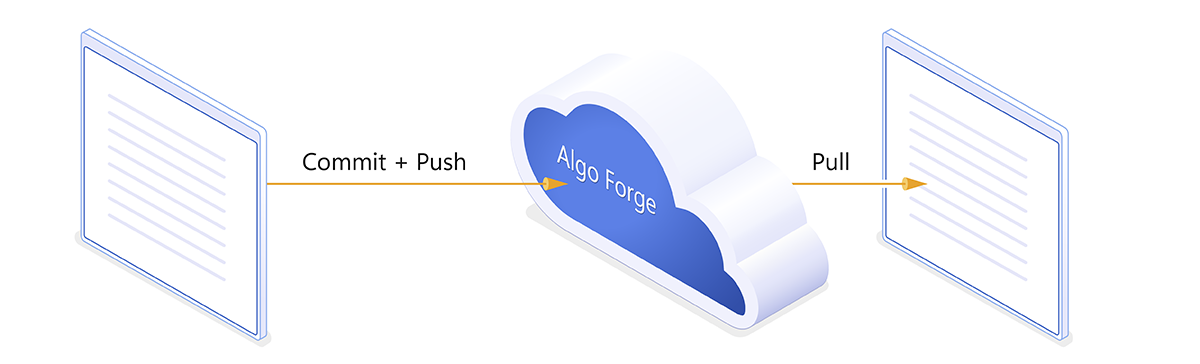
Another rule is Always commit + push last. When you finish working, run 'Git Commit' (with the automatic push) to send your updates to the cloud. Following these habits will keep your workflow smooth and conflict-free, while ensuring your code is always safe.
MQL5 Algo Forge – Everything You Need for Reliable Project Management
You don't need to type Git commands manually. Everything is integrated into MetaEditor:
- Adding files, committing, and branching – via the project context menu.
- Push and Pull – just two buttons for syncing with the cloud.
- Branch and Revert – simple commands for development control.
- Change history – available as a clear, built-in log.
These 8 commands are all you need to use MQL5 Algo Forge confidently. They provide structured development, safe experimentation, teamwork support, and complete protection against data loss.
Get Started Today
MQL5 Algo Forge is more than just storage – it's a complete project management system for algorithmic traders. It lets you track every change, experiment without risk, collaborate in teams, and maintain stable, reliable code.
If Git once felt too complex, MQL5 Algo Forge makes it simple. MetaEditor integrates the essential commands, so you can focus on writing code, saving progress, and staying ready for any rollback.
Useful links:
Translated from Russian by MetaQuotes Ltd.
Original article: https://www.mql5.com/ru/articles/18518
Warning: All rights to these materials are reserved by MetaQuotes Ltd. Copying or reprinting of these materials in whole or in part is prohibited.

 Trend criteria in trading
 Automating Trading Strategies in MQL5 (Part 28): Creating a Price Action Bat Harmonic Pattern with Visual Feedback
 Simplifying Databases in MQL5 (Part 1): Introduction to Databases and SQL
 Analyzing binary code of prices on the exchange (Part II): Converting to BIP39 and writing GPT model

- Free trading apps
- Over 8,000 signals for copying
- Economic news for exploring financial markets
You agree to website policy and terms of use
You can try deleting yourself using swagger:
I just added a test account as a collaborator (there's no 2FA). If you're not a collaborator admin, this won't work:
{
"message": "user should be an owner or a collaborator with admin write of a repository",
"url": "https://forge.mql5.io/api/swagger"
}
After I made the test account an admin, I was able to delete it through Swagger. But it's unlikely you're an admin there, so it won't help you.
You are most likely a co-author in this repository. You can try removing yourself using Swagger:
https://forge.mql5.io/api/swagger#/repository/repoDeleteCollaborator
You will need to log in (at the top of the page):
I tried this (after adding myself as a co-author to a test account), but received a 401 response (invalid OTP provided), probably because I have 2FA enabled. I don’t want to disable 2FA; try it yourself if you like.
It’s all a bit of a mystery to me. It’s asking for some sort of key – where on earth am I supposed to get that from? And how can I be a co-author there?
I fully realise that I must have picked up this post – or whatever it is – somewhere myself. But I’m genuinely surprised that I can’t delete this rubbish that I don’t need.
And how can I be a co-author there?
Like this - video below.
I suspect you expressed interest at some point, and the repository owner decided to give you the opportunity to contribute.
It’s asking for some sort of key – where on earth am I supposed to get that from?
There's an option to log in with your username and password. But as I already found out, this method will only work if you are an admin for this repository. That's highly unlikely, so there's no point in wasting your time on it.
How do I remove someone else’s project from my page?
It seems you don't have the technical ability to stop being a collaborator on your own.
Try contacting singwai and asking them to remove you from the collaborators.
If that user doesn't respond, then most likely only an AlgoForge admin (who should be someone from MQ) can remove you from the collaborators.