Trading Email Alert
- 유틸리티
- 버전: 1.0
- 활성화: 5

1. Overview
Trading Email Alert monitors the trading account and automatically sends an email whenever a buy or sell
position is opened and/or closed on the symbol (instrument) it is attached to. The email subject line is fully
configurable, along with several filters that determine which events trigger a notification.
Key features:
• Separate email subject line for trade opening and trade closing.
• Filter to notify only openings, only closings, or both.
• Filter to notify only buy trades, only sell trades, or both.
• Optional filtering by chart symbol and by Magic Number (EA/robot identifier).
• On closing, the email includes profit/loss, swap, commission and net result.
• Option to include account details (balance, equity, broker) in the email body.
Important: pending orders (Buy Stop, Sell Stop, Buy Limit, Sell Limit) do not trigger an email when they are
created. The opening email is only sent once the pending order is triggered and becomes an actual open buy or
sell position.
2. Prerequisite: Configuring Email in the Terminal
Before using the EA, you must enable and configure email sending directly in the MetaTrader 5 (MQL5)
terminal:
•1. From the top menu, go to Tools ® Options.
•2. Open the Email tab.
•3. Check the Enable box.
•4. Fill in your email account's SMTP server details (server, login, password, port) — for example, for Gmail:
smtp.gmail.com:465, using an app password rather than your regular account password.
•5. Fill in the From (sender email) and To (recipient email) fields.
•6. Click Test to confirm that a test email is delivered correctly.
•7. Click OK to save.
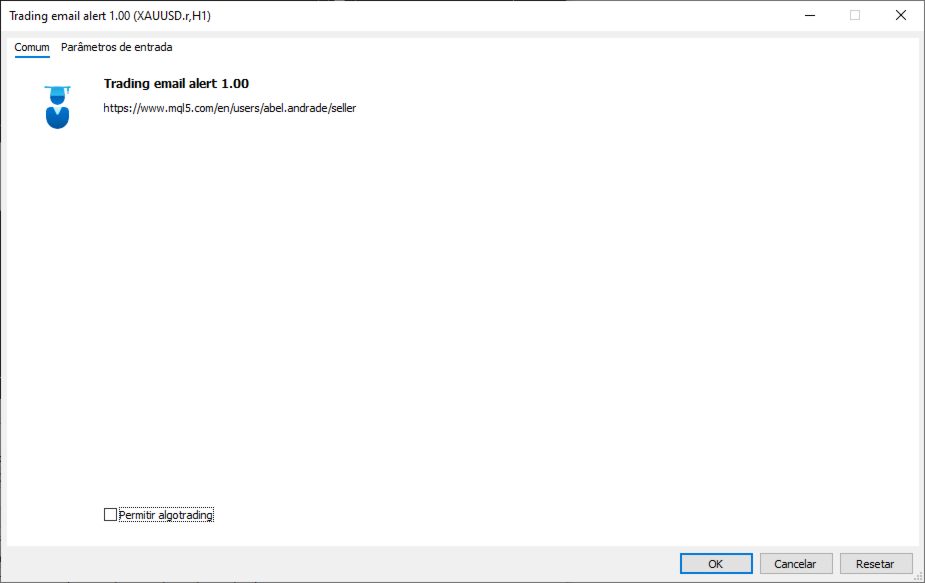
In addition, when attaching the EA to a chart, you must check the "Allow Email" option in the Common tab of the
Expert Advisor's properties window. Without this permission, the email command is blocked even if the EA is
running normally.
Email sending (the SendMail function) does not work inside the Strategy Tester — it only works on a live or demo
account, with the terminal open and connected to the internet.
3. Installation and Compilation (MetaTrader 5 (MQL5))
•1. Copy the Trading email alert.mq5 file to the MQL5/Experts/ folder of your MetaTrader 5 installation (in
MT5, right-click "Expert Advisors" in the Navigator ® "Open Folder" to locate the correct directory).
•2. Open the MetaEditor (press F4 in MT5, or Tools ® MetaQuotes Language Editor).
•3. Open the .mq5 file inside the MetaEditor.
•4. Press F7 (or click "Compile") to generate the .ex5 file. Check the "Errors" tab to confirm it shows "0
error(s), 0 warning(s)".
•5. Back in MT5, open the Navigator (Ctrl+N), locate the EA under "Expert Advisors" and drag it onto the
chart of the desired symbol.
•6. In the properties window, adjust the settings under the "Inputs" tab and check "Allow Email" under the
"Common" tab.
4. Settings Reference Table
Setting Default Description
InpEmailSubjectOpen "New Trade
Opened"
Email subject line sent when a position is OPENED.
InpEmailSubjectClose "Trade
Closed"
Email subject line sent when a position is CLOSED.
InpIncludeAccount true If enabled, adds account details to the email body: account
number, broker, balance and equity.
InpNotifyOnOpen true Controls whether the EA sends an email when a position is
OPENED.
InpNotifyOnClose true Controls whether the EA sends an email when a position is
CLOSED (includes profit/loss, swap and commission).
InpNotifyOnBuy true Controls whether BUY trades trigger a notification.
InpNotifyOnSell true Controls whether SELL trades trigger a notification.
InpOnlyThisSymbol false If enabled, only notifies trades on the same symbol as the
chart the EA is attached to.
InpOnlyThisEA false If enabled, only notifies trades carrying the Magic Number
set below (useful to ignore manual trades or trades from
other EAs).
InpMagicNumber 0 Magic Number used as a filter when InpOnlyThisEA = true.
5. How Trade Events Are Detected
The MT5 version uses the native OnTradeTransaction event, which is fired by the terminal itself on every
account activity. The EA identifies whether the transaction is an entry (DEAL_ENTRY_IN, opening) or an exit
(DEAL_ENTRY_OUT / DEAL_ENTRY_OUT_BY, closing) and builds the corresponding email.
6. How the Open/Close and Buy/Sell Filters Work
The EA combines two independent filter groups that work together (a logical AND). A trade only triggers an
email if it passes both groups at the same time:
Filter group What it controls
Notify on OPEN / Notify on CLOSE Controls WHEN the email should be sent: at the start of the
trade, at the end, both, or neither.
Notify BUY / Notify SELL Controls the DIRECTION of the trade that should trigger an
email: buys only, sells only, or both.
For example, if you set Notify on OPEN = true, Notify on CLOSE = false, Notify BUY = true and Notify
SELL = false, you will only receive an email when a BUY trade is opened — no sell trade triggers an email,
and no closing triggers an email, regardless of direction.
7. Ready-to-Use Configuration Scenarios
Get an email only when buying and selling (ignore closings)
You want to be notified as soon as a position is opened, whether buy or sell, but you don't want an email when it is
closed.
• Notify on OPEN = true
• Notify on CLOSE = false
• Notify BUY = true
• Notify SELL = true
Get an email only with the final result of each trade
You only want to know the outcome (profit/loss) of each trade, without being notified at entry time.
• Notify on OPEN = false
• Notify on CLOSE = true
• Notify BUY = true
• Notify SELL = true
Track sell trades only, from start to finish
You mostly trade short and want to follow the full life cycle of those trades only, ignoring buy trades entirely.
• Notify on OPEN = true
• Notify on CLOSE = true
• Notify BUY = false
• Notify SELL = true
Track the full life cycle of every trade (default)
Get an email on every opening and every closing, for both buy and sell trades.
• Notify on OPEN = true
• Notify on CLOSE = true
• Notify BUY = true
• Notify SELL = true
Temporarily disable all emails without removing the EA from the chart
Useful during testing, adjustments or maintenance, without having to delete the EA.
• Notify on OPEN = false
• Notify on CLOSE = false
8. Frequently Asked Questions
Q: Does the EA send an email when I simply place a pending order (Buy Stop, Sell Stop, Buy Limit,
Sell Limit)?
A: No. The email is only sent once the pending order is triggered and becomes an actual open position in the market.
Q: Why isn't the email arriving?
A: Check, in this order: (1) whether email sending is enabled and tested under Tools ® Options ® Email; (2) whether
"Allow Email" is checked in the EA's properties; (3) the "Experts" or "Journal" tab of the terminal, where the EA logs an
error message if sending fails; (4) the recipient's spam folder.
Q: Does the EA work inside the Strategy Tester?
A: No. Email sending (SendMail) is not supported inside the tester — it only works on a live or demo account with the
terminal running.
Q: Can I use the Magic Number filter to ignore manual trades?
A: Yes. Manual trades normally have Magic Number equal to 0. Enable "Notify only this EA's trades" and set your
automated strategy's Magic Number so that only its trades trigger emails.
Q: Do the MT4 and MT5 versions have the exact same settings?
A: Almost all of them are identical. The MT4 version has one extra setting, InpNotifyExistingOnStart, which is not
available in MT5 since MT5 can reliably distinguish new transactions from pre-existing ones without needing this extra
option.
Manual generated for the Trading email alert.mq5 file (MetaTrader 5 (MQL5)).