SimpleKeys
- 유틸리티
- 버전: 1.5
- 업데이트됨: 3 3월 2026
- 활성화: 5

Most trade managers give you a dashboard full of buttons you'll click once and forget. SimpleKeys does the opposite. Every action is a single keypress. Every level is a visual line you place exactly where you want it. No panels to navigate, no dropdowns to open mid-trade.
Place your stop, place your target, press Space. Done.
Who This Is For
SimpleKeys is built for traders who already know what they're doing and need execution to keep up with their thinking. If you're manually calculating lot sizes, moving stops to breakeven by hand, or fumbling through right-click menus while price is moving — this EA solves those problems directly.
It is not an automated strategy. It does not trade for you. It makes you faster and more precise at the trading decisions you're already making.
How It Works
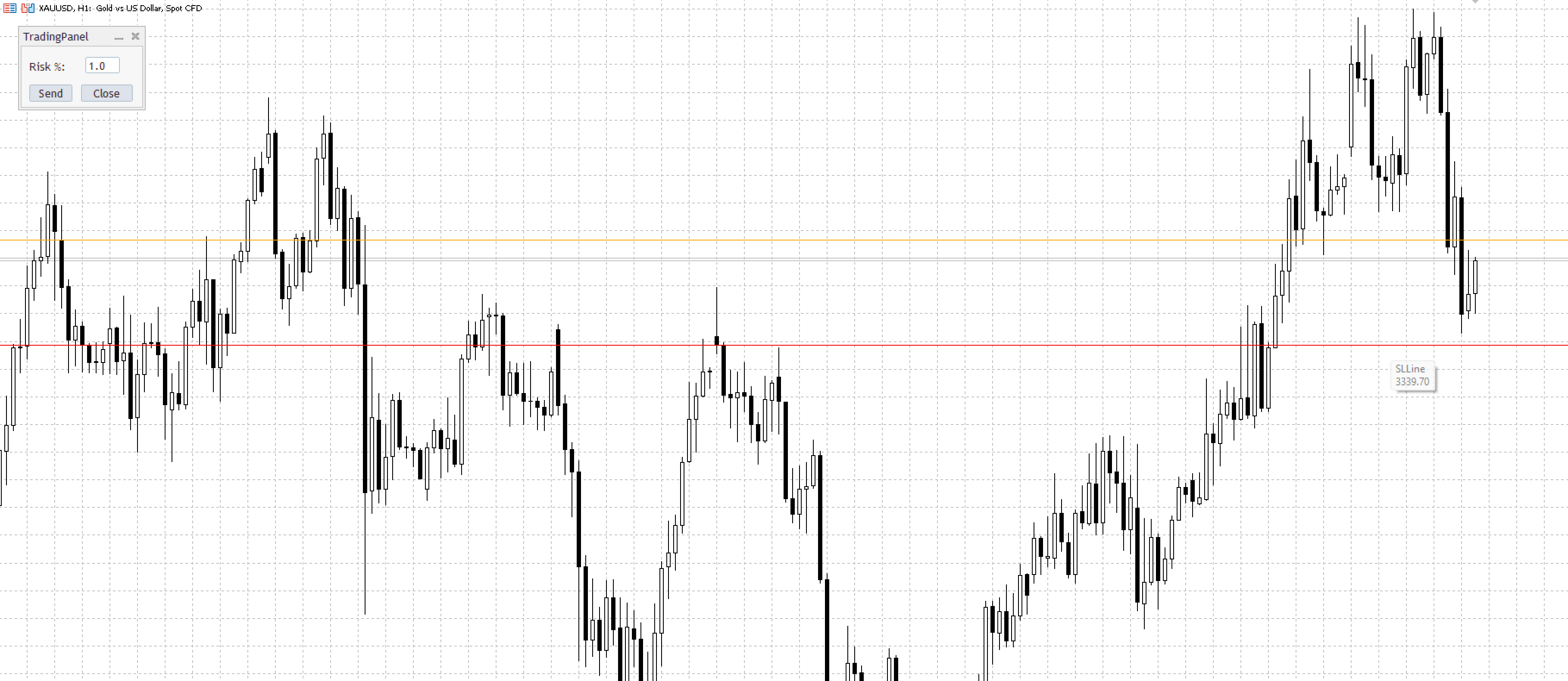
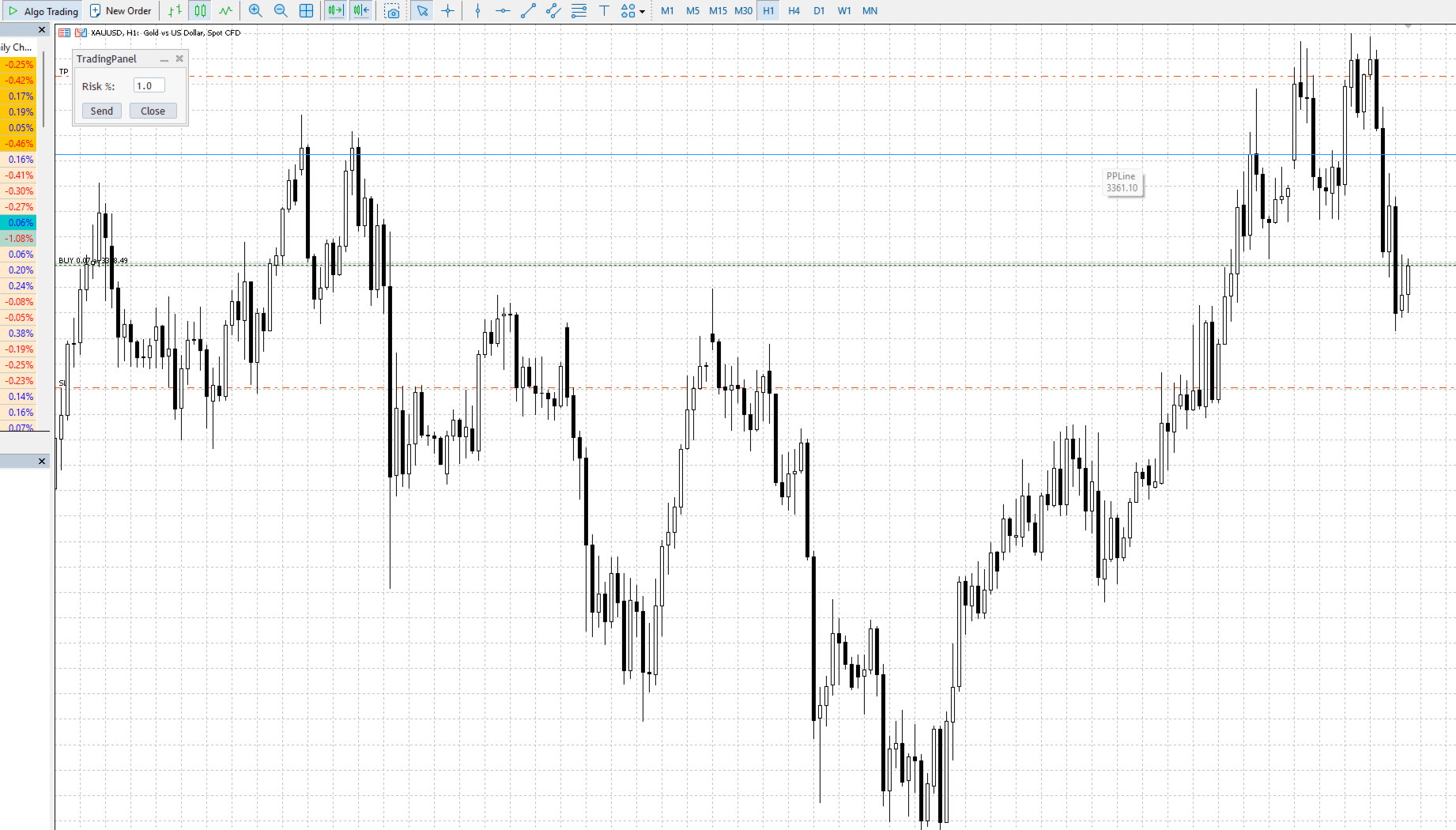
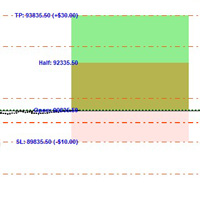
You control everything through horizontal lines on the chart and a set of hotkeys. Press a key, a line appears and follows your cursor. Click to lock it in place. Set your levels, press Space to execute. The EA handles lot sizing, order type detection, and optional confirmation automatically.
Default hotkeys (all customizable):
| Key | Action |
|---|---|
| S | Stop Loss line |
| T | Take Profit line |
| P | Entry Price line (pending orders) |
| X | Partial Profit trigger line |
| Space | Send order |
| V | Manual partial close |
| B | Move stops to breakeven |
| C | Close all positions |
Press the same key again to cancel and remove the line. Every hotkey is remappable in the EA settings.
Order Execution
SimpleKeys detects the correct order type automatically based on where you place your lines relative to current price. You don't select BUY STOP or SELL LIMIT from a menu — you just place your levels and the EA figures it out.
Market orders — place a Stop Loss line only, or a Stop Loss and Take Profit together, then press Space. Direction is determined by whether your stop is above or below current price.
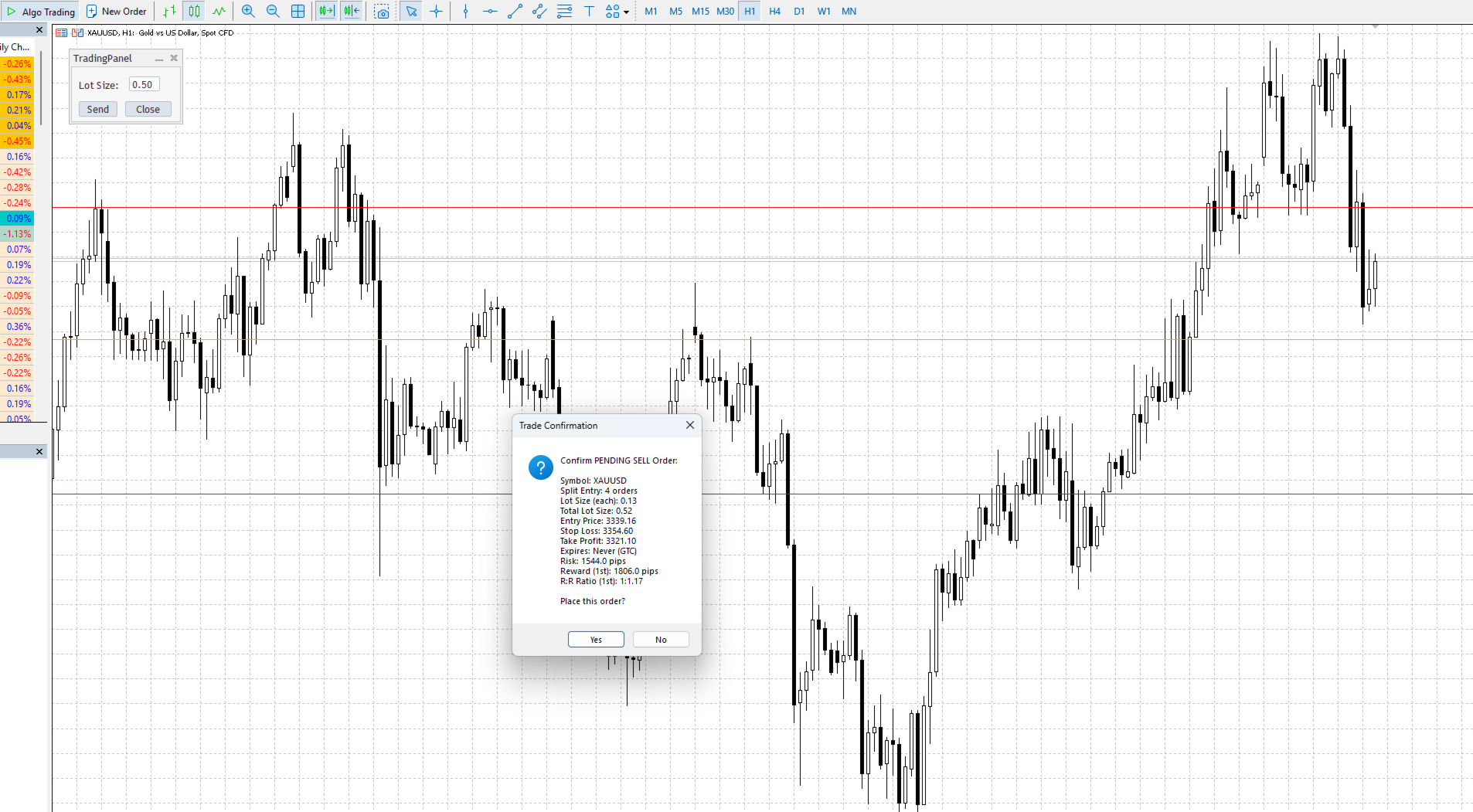
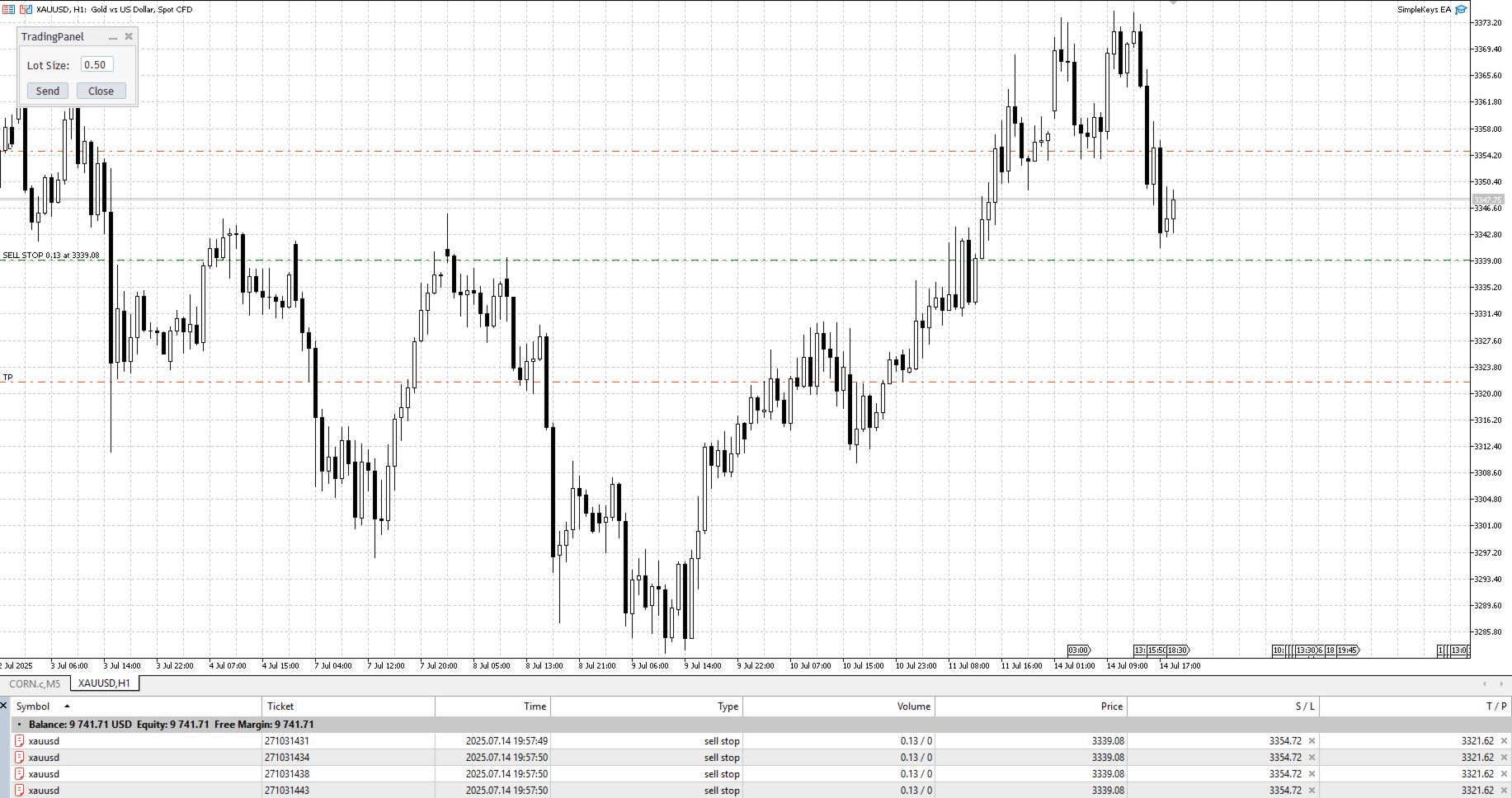
Pending orders — add a Price line. The EA detects the order type from the relationship between your price line, stop line, and current market price:
| Setup | Order Type |
|---|---|
| Price above market, stop below price | BUY STOP |
| Price below market, stop below price | BUY LIMIT |
| Price below market, stop above price | SELL STOP |
| Price above market, stop above price | SELL LIMIT |
Risk Management
Three methods, selectable from the EA inputs. The trading panel adjusts its label automatically to show the correct input type.
Percentage of balance — enter your risk percentage in the panel and the EA calculates lot size from your stop distance in real time. Risk stays consistent regardless of where you place your stop.
Dollar amount — specify a fixed currency risk per trade. Lot size is calculated the same way, just from a dollar figure instead of a percentage.
Fixed lot size — bypass calculation entirely and trade a predetermined size.
All three methods respect broker volume limits and step sizes automatically.
Split Entry System
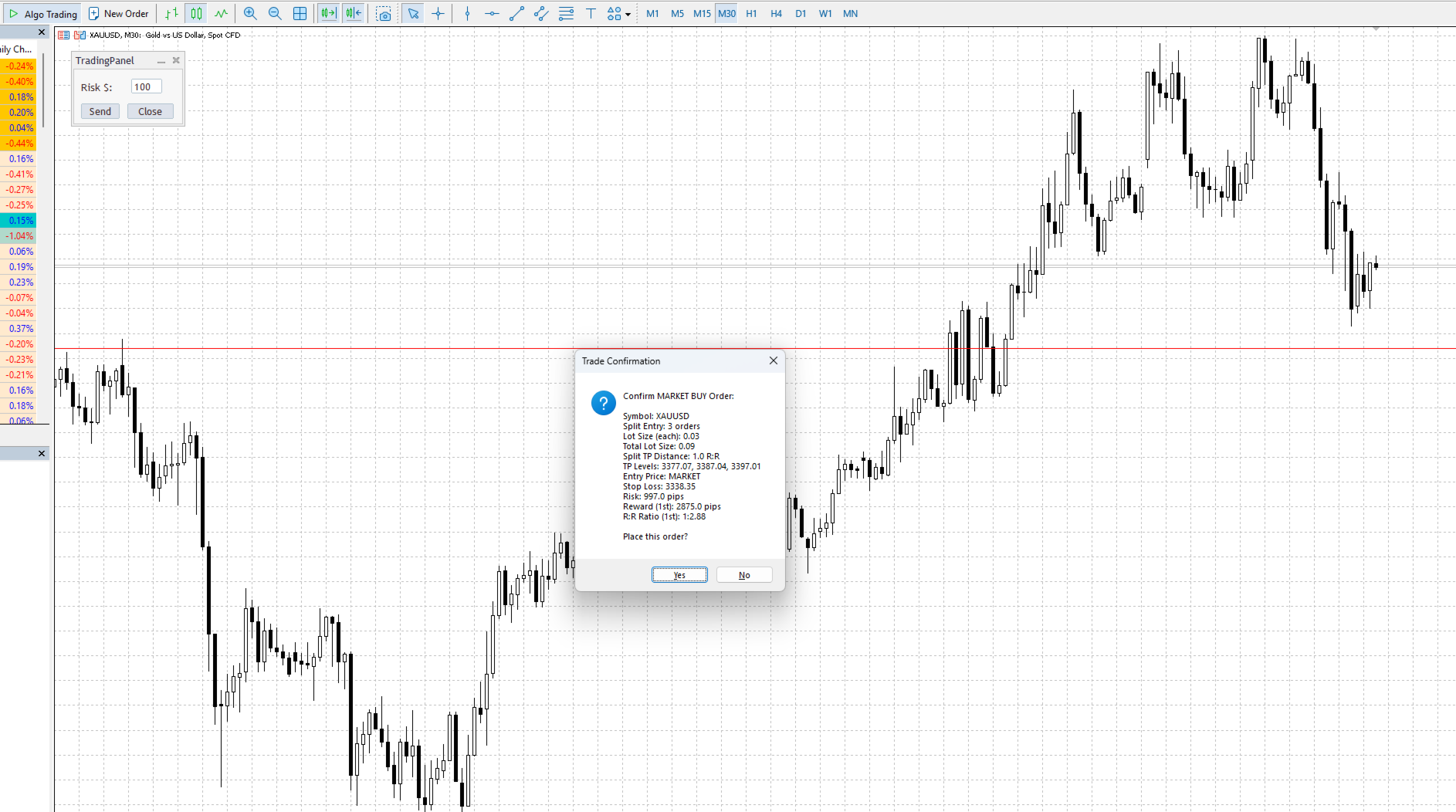
Set splitEntry to 2 or more and the EA divides your position across multiple orders at the same price level. Each order uses its own lot calculation so your total risk stays within your specified limit.
Combined with splitTpDistance , each order can target a progressively higher take profit level. Set the multiplier to 1.0 and each additional order's TP is spaced one full R away from the last. Use 0.5 for tighter spacing, 2.0 for wider.
Example with splitEntry = 3 and splitTpDistance = 1.0, a 1:2 base R:R setup:
- Order 1: TP at 2R
- Order 2: TP at 3R
- Order 3: TP at 4R
Each order sized so the combined risk equals your specified risk amount.
Partial Profit System
Place the Partial Profit line (X key) anywhere on the chart after entering a position. When price touches that level, the EA automatically closes the percentage you've set in partialPercent (default 50%) and deletes the line.
The trigger is bidirectional — it fires whether price approaches from above or below, making it usable for both profit-taking and defensive scaling on retracements.
Optional: enable autoBreakevenAtPartial to have the EA move your stop to entry automatically at the same moment the partial executes.
For manual partial closes, press V at any time. If showPartialConfirmation is enabled, you'll see a breakdown of each position and the volume to be closed before anything executes.
Breakeven Management
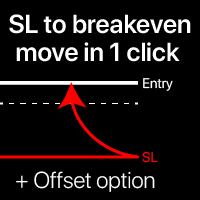
Press B to move all stops on the current symbol to entry level. breakEvenOffset adds a small pip buffer above or below entry — set it positive to lock in a few pips of profit, negative to give the trade slight room.
The EA checks broker minimum stop distance requirements and adjusts automatically. It won't move a stop that's already in a better position.
Trade Confirmation
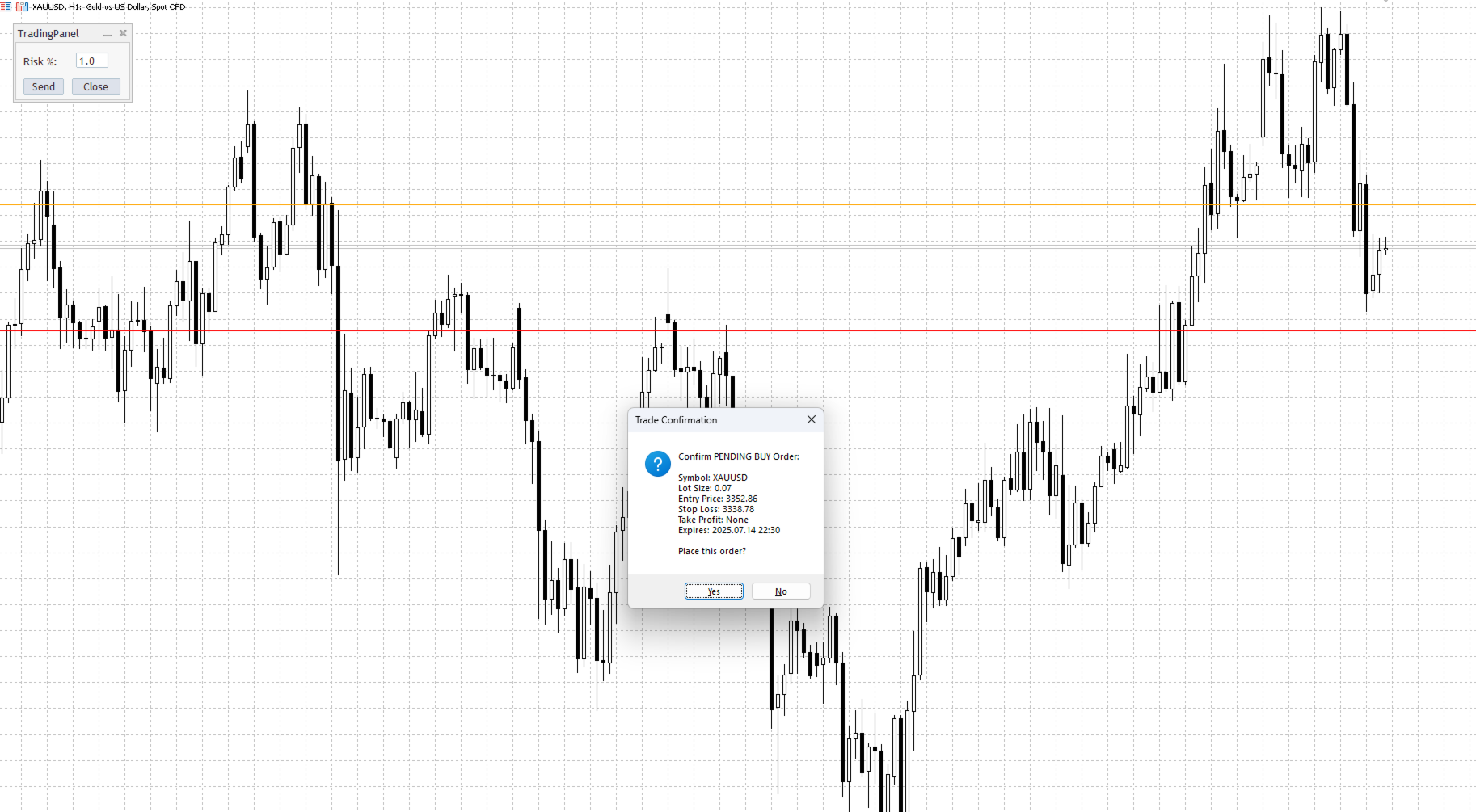
Enable showTradeConfirmation to see a full order summary before anything is sent — order type, lot size, entry, stop, target, R:R ratio, pip risk, and expiry time for pending orders. Split entry setups show all TP levels in the confirmation.
Disable it for immediate execution with no dialog.
Pending Order Expiry
Two methods for automatically cancelling unfilled pending orders:
Time-based ( pendingExpiryTime ): set a specific time in HH:MM format. Useful for closing all pending orders before market close or major news events.
Duration-based ( pendingExpiryMinutes ): cancel orders that have been sitting unfilled for longer than X minutes.
Both can run simultaneously. If both are set, the earlier of the two triggers first.
Technical Details
- MetaTrader 5 only
- Compatible with all symbols — forex, indices, commodities, crypto
- All timeframes
- No DLL files, no external dependencies
- Magic number support for filtering trades placed by other EAs
- Custom order comment support
Settings Reference
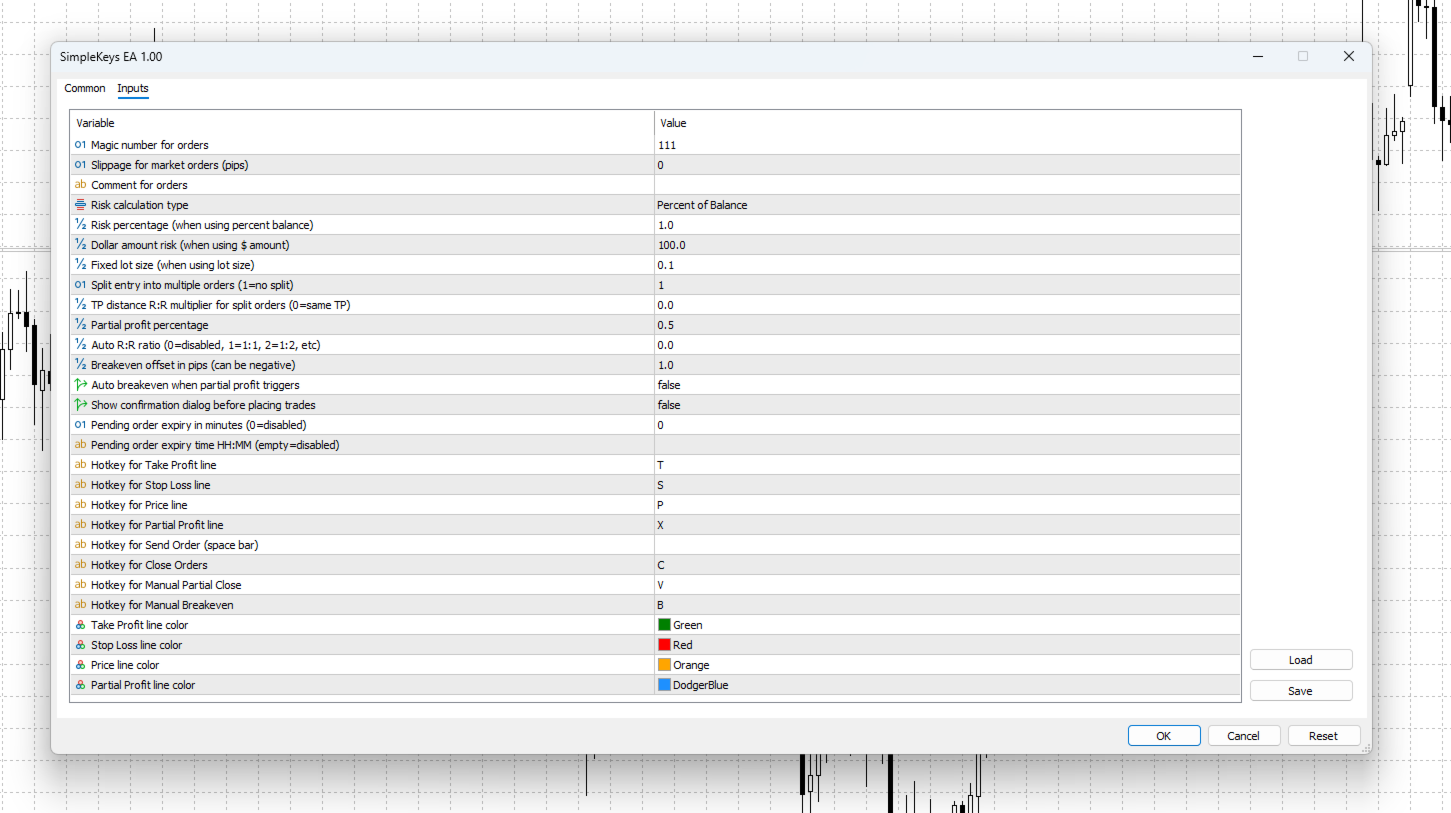
| Input | Description |
|---|---|
| magic | Magic number for order identification |
| slippage | Maximum slippage for market orders (pips) |
| comment | Comment attached to all orders |
| riskType | RISK_PERCENT / RISK_DOLLAR / RISK_LOTSIZE |
| riskPercent | Default risk percentage |
| dollarAmount | Default dollar risk |
| lotSize | Default fixed lot size |
| splitEntry | Number of orders to split entry into (1 = no split) |
| splitTpDistance | TP spacing multiplier for split orders (0 = same TP) |
| partialPercent | Portion to close on partial profit trigger (0.5 = 50%) |
| autoRiskReward | Auto-calculate TP from SL at this R:R (0 = disabled) |
| breakEvenOffset | Pips above/below entry for breakeven (can be negative) |
| autoBreakevenAtPartial | Move stop to BE when partial profit triggers |
| showTradeConfirmation | Show order summary dialog before execution |
| showPartialConfirmation | Show position summary before manual partial close |
| pendingExpiryMinutes | Cancel pending orders after X minutes (0 = disabled) |
| pendingExpiryTime | Cancel pending orders at HH:MM time (empty = disabled) |
All hotkeys and line colours are customizable in the inputs.
Test on a demo account before using on live funds. Past performance of any trading tool does not guarantee future results.