Opening Range Pro

Opening Range Pro


WHAT DOES THIS INDICATOR DO?


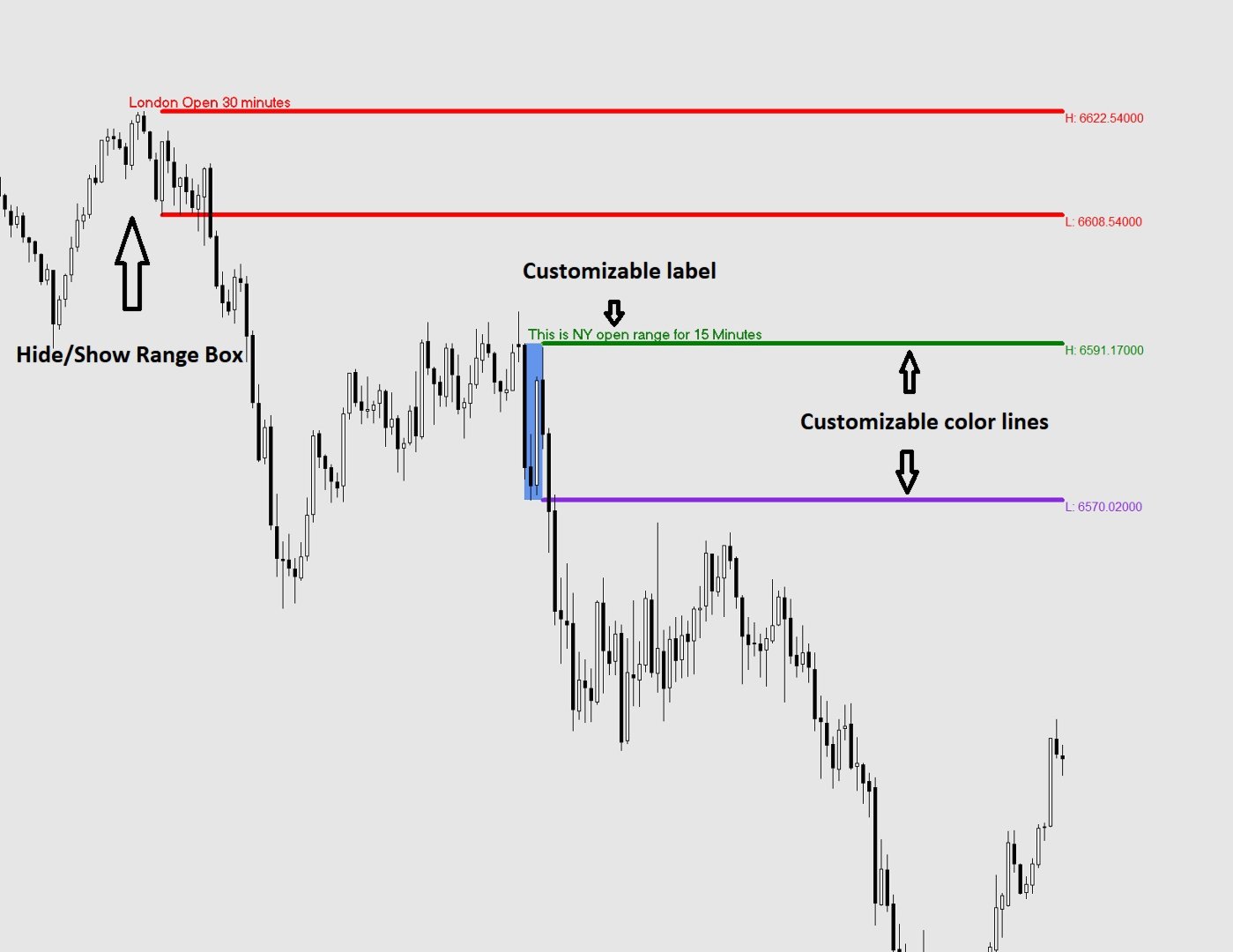
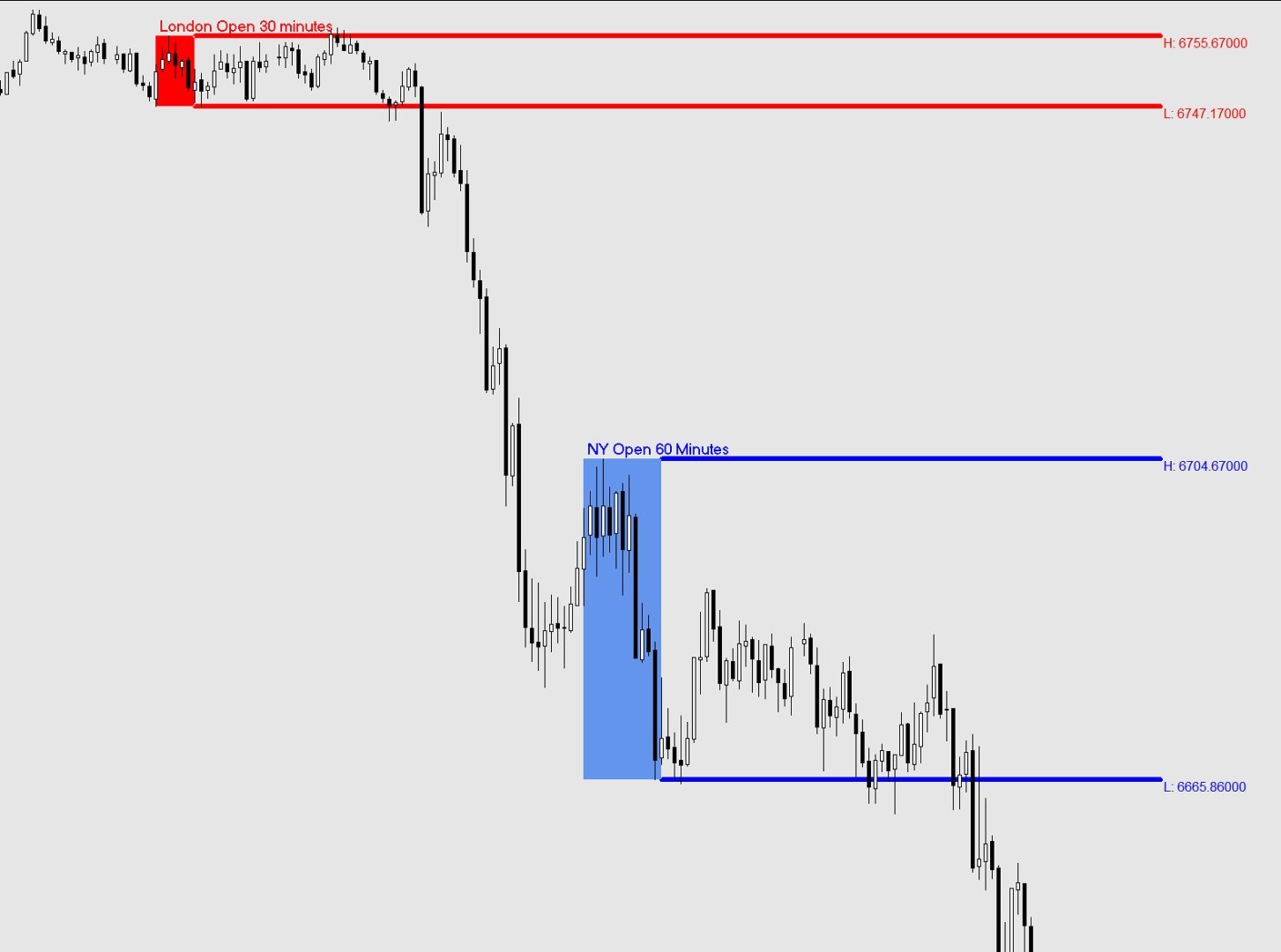
The Opening Range indicator marks the highest and lowest price reached during a

specific time window that you define (for example, the first 15 minutes of the

New York session). Once that window closes, it draws two horizontal lines — one

at the high and one at the low — extending across the rest of the trading day,

so you can see at a glance whether price is above or below the range, and use

those levels as reference for your trading decisions.


The indicator also draws a shaded box covering the formation period, and can

display the exact price of each level right on the chart.


All times used by the indicator are your broker's server time, which you can

see at the bottom of your MetaTrader platform.


SETTINGS REFERENCE


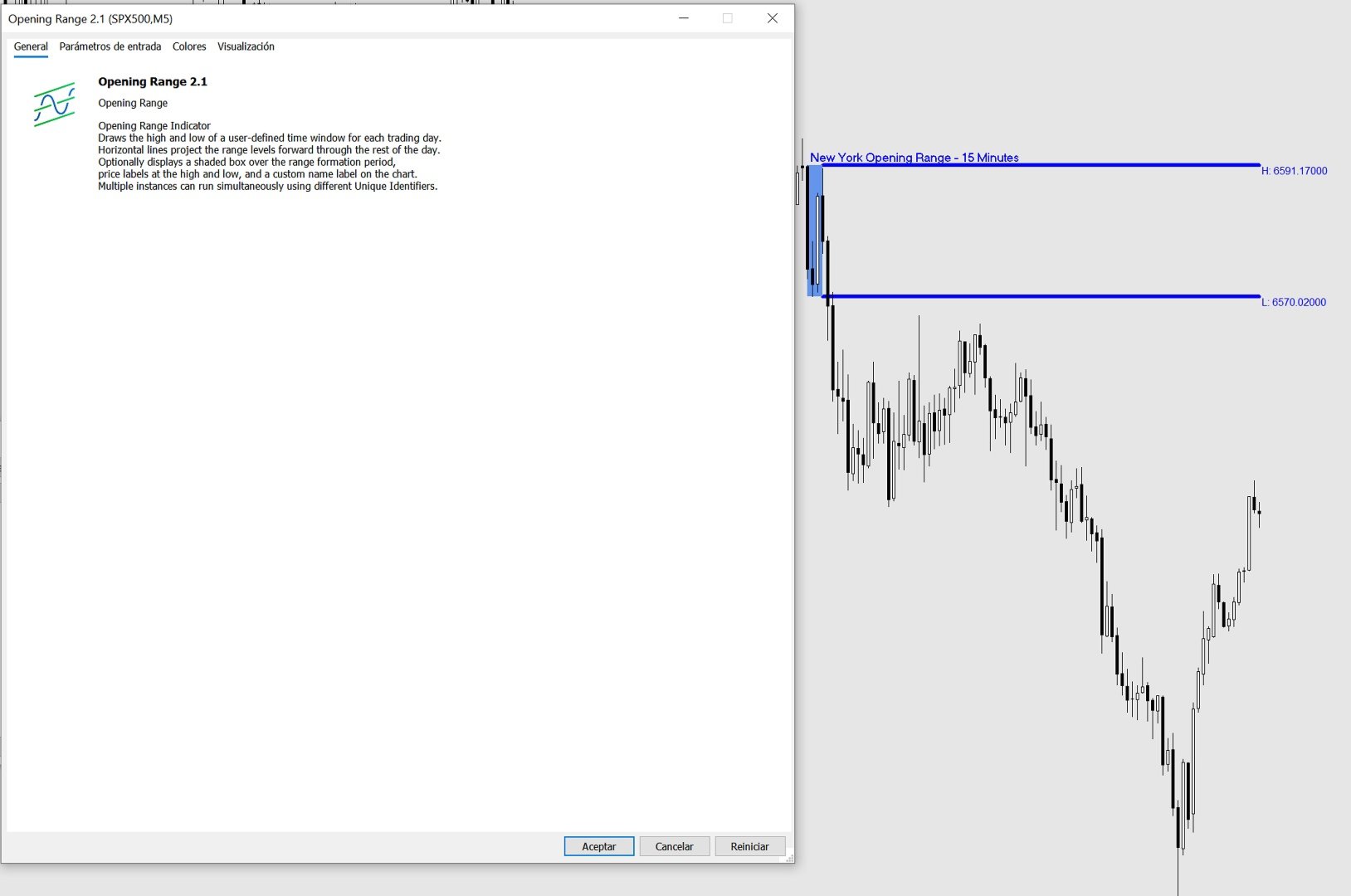
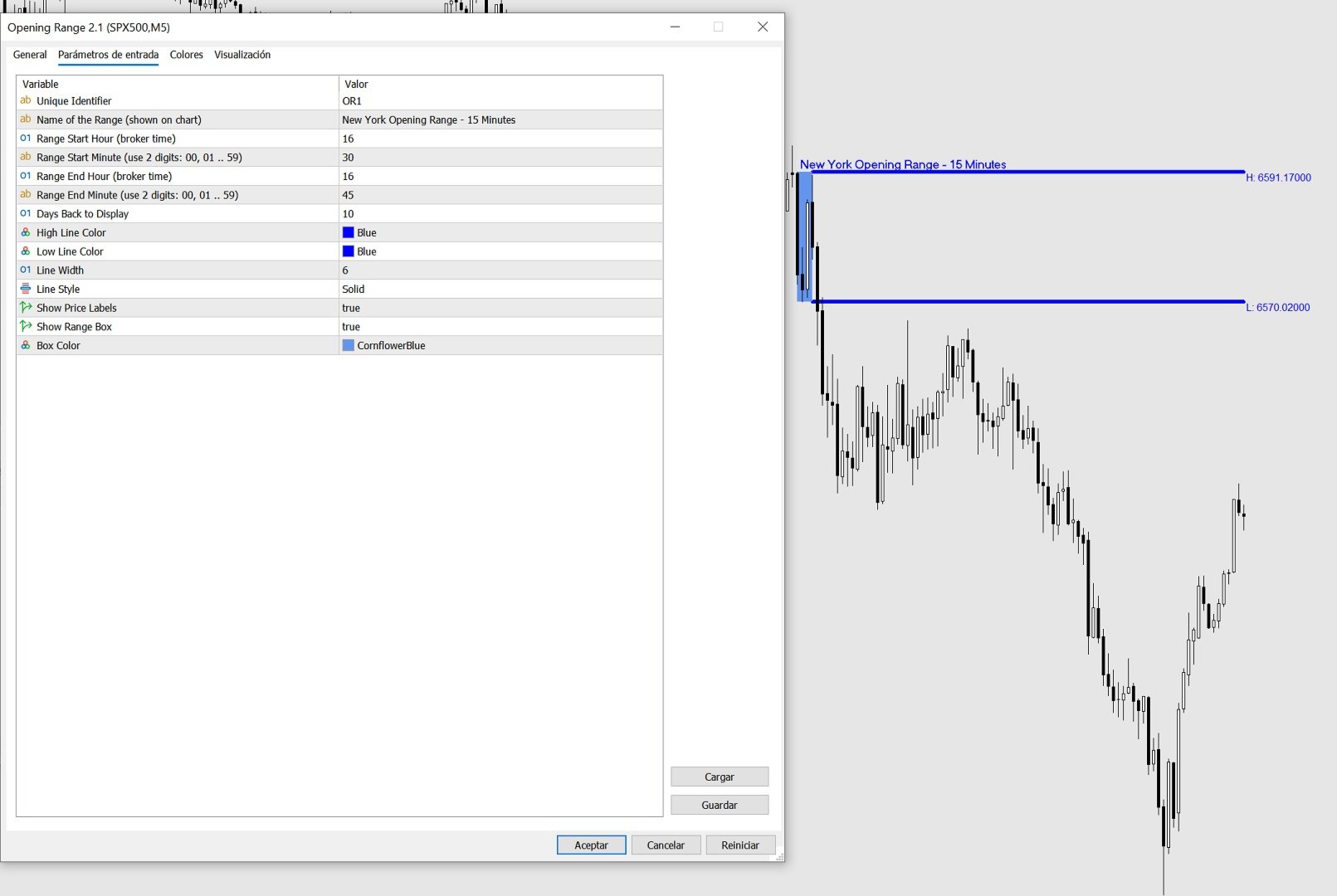
When you attach the indicator to a chart, a settings window will appear with

two tabs: General (description) and Inputs (your settings). All settings are

found in the Inputs tab.


-- IDENTIFICATION --


  Unique Identifier

      A short label used internally to tell apart multiple instances of the

      indicator running on the same chart. If you only use one instance, leave

      this as the default (OR1). If you add a second instance for a different

      session, change this to OR2 (or any unique text) to avoid conflicts.

      Example: OR1, OR2, London, NY


  Name of the Range (shown on chart)

      Optional. Whatever you type here will appear as a bold label directly on

      the chart at the top-left corner of the range box and at the start of the

      high line. Leave it blank if you do not want a label.

      Example: "London Open", "NY Open", "Asia Range"


-- TIME SETTINGS --

  All times refer to your broker's server time (shown at the bottom of MT4/MT5).


  Range Start Hour

      The hour at which the range formation period begins.

      Enter a number from 0 to 23 using the 24-hour clock.

      Example: 9 means 9:00 AM broker time.


  Range Start Minute

      The minute at which the range formation period begins.

      Always enter 2 digits: 00, 01, 05, 15, 30, 45, etc.


  Range End Hour

      The hour at which the range formation period ends.

      Enter a number from 0 to 23 using the 24-hour clock.


  Range End Minute

      The minute at which the range formation period ends.

      Always enter 2 digits: 00, 01, 05, 15, 30, 45, etc.


  Example — to capture the first 15 minutes of a session starting at 09:30:

      Range Start Hour   = 9

      Range Start Minute = 30

      Range End Hour     = 9

      Range End Minute   = 45


-- DISPLAY --


  Days Back to Display

      How many past trading days to draw on the chart. Higher values give you

      more history but may slow things down on low-powered computers.

      Recommended: 5 to 20.


  High Line Color

      The color of the horizontal line drawn at the top of the range.


  Low Line Color

      The color of the horizontal line drawn at the bottom of the range.


  Line Width

      Thickness of the high and low lines. Enter a number from 1 (thinnest)

      to 6 (thickest).


  Line Style  (MT5 only — dropdown)

  Line Style  (MT4 — enter a number: 0=Solid, 1=Dash, 2=Dot, 3=DashDot, 4=DashDotDot)

      The style of the high and low lines.


  Show Price Labels

      True = display the exact price of the high and low at the right end of

             each line, next to the last candle of the day.

      False = hide the price labels.


  Show Range Box

      True = draw a shaded rectangle covering the range formation period

             (between Range Start and Range End) showing you exactly where

             the high and low were established.

      False = hide the box. The high and low lines are still drawn.


  Box Color

      The fill color of the range box. Choose a color that is visible but

      not distracting on your chart background.


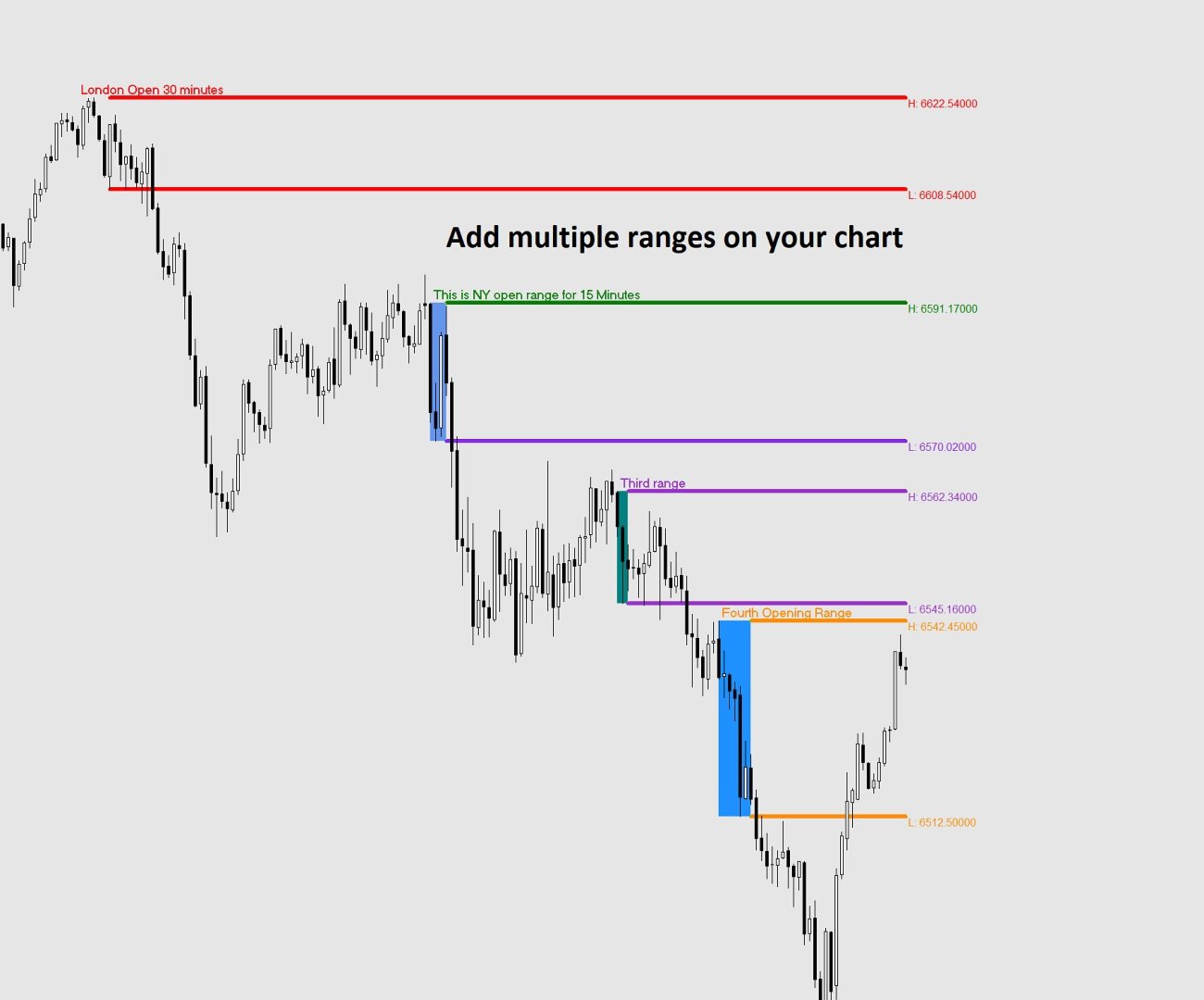
USING MULTIPLE RANGES ON THE SAME CHART


You can add the indicator more than once to study different session ranges

simultaneously (e.g. London open and New York open on the same chart).


To do this:

  1. Attach the indicator a first time and configure it for the first session.

     Set Unique Identifier to OR1.

  2. Attach the indicator a second time and configure it for the second session.

     Set Unique Identifier to OR2.


Each instance must have a different Unique Identifier. If two instances share

the same identifier, their objects will overlap and produce incorrect results.


TIPS

- The lines only appear AFTER the range formation period has closed. During the

  formation period you will see the shaded box building in real time, but the

  extending lines appear once the End Hour/Minute is reached.


- If no lines appear for today, it may be that the range end time has not yet

  passed on the current day. Historical days will still show correctly.


- If lines appear at the wrong time, double-check your broker's server time

  (visible at the bottom of your MetaTrader window) and adjust the start and

  end hours accordingly.


- Weekend days (Saturday and Sunday) are automatically skipped.


- Removing the indicator from the chart will cleanly delete all lines, boxes

  and labels it created.
作者のその他のプロダクト
HOW TO USE                                                       1. Drag the indicator onto any chart.                            2. Set AnchorDate (YYYY.MM.DD) and AnchorTime (HH:MM) to the        bar where you want the VWAP to start calculating from.        3. The VWAP line and up to 3 standard deviation bands will          appear from that anchor point to the current bar.             MULTIPLE INSTANCES                                                Set a different IndicatorID (e.g. 1, 2, 3
Draws high of the day and low of the day anchored VWAPs for multiple days.                   DaysBack = Today only, today + 1 day back, today + 2 days back...               Today recalculates live                             Historical days are computed ONCE and frozen (static).                Colors tab shows exactly 2 entries:                                  High of the day VWAP color  (default: Green)                                   Low of the day VWAP color  (default: Red)               
# VWAP Trend Dashboard  --- ## What It Does Displays a compact dashboard on any MT5 chart showing the **VWAP-based bias** for up to **5 symbols simultaneously**. For each symbol it checks the current price against four VWAP levels and summarises the overall directional bias in a single Trend column. --- ## Dashboard Columns | Column | What It Means | |---|---| | **Symbol** | Your custom display label | | **NY VWAP** | VWAP anchored at NY session open today | | **Day VWAP** | VWAP anchored
Stop wasting time digging through MT4/MT5 account statements to understand how your trading is performing. The Trading Stats Indicator puts every number you need — Win Rate, Avg Profit, Avg Loss, Risk:Reward Ratio, Expected Value, and Total Profit — right on the chart, updated live with every tick. Why Trading Stats Exists? Every serious trader eventually asks the same questions at the end of a session: How many trades did I take today? What was my average winner versus my average loser? Do I a
Opening Range Pro WHAT DOES THIS INDICATOR DO? The Opening Range indicator marks the highest and lowest price reached during a specific time window that you define (for example, the first 15 minutes of the New York session). Once that window closes, it draws two horizontal lines — one at the high and one at the low — extending across the rest of the trading day, so you can see at a glance whether price is above or below the range, and use those levels as reference for your trading decisions.
CRT Pro WHAT PROBLEM DOES CRT PRO SOLVE? --------------------------------- When trading on low timeframes such as M1, M5, M15 or M30, it is easy to lose sight of the broader market structure. CRT Pro solves this  by overlaying H1 candles and H4 High/Low range lines directly behind your  low timeframe chart, in real time, so you always know where the higher timeframe market structure sits relative to current price — without switching charts or opening multiple windows. -----------------------
Draws high of the day and low of the day anchored VWAPs for multiple days.                   DaysBack = Today only, today + 1 day back, today + 2 days back...               Today recalculates live                             Historical days are computed ONCE and frozen (static).                Colors tab shows exactly 2 entries:                                  High of the day VWAP color  (default: Green)                                   Low of the day VWAP color  (default: Red)               
# VWAP Trend Dashboard  --- ## What It Does Displays a compact dashboard on any MT5 chart showing the **VWAP-based bias** for up to **5 symbols simultaneously**. For each symbol it checks the current price against four VWAP levels and summarises the overall directional bias in a single Trend column. --- ## Dashboard Columns | Column | What It Means | |---|---| | **Symbol** | Your custom display label | | **NY VWAP** | VWAP anchored at NY session open today | | **Day VWAP** | VWAP anchored
Trading Stats
Frank Jose Olivo Flores
Stop wasting time digging through MT4/MT5 account statements to understand how your trading is performing. The Trading Stats Indicator puts every number you need — Win Rate, Avg Profit, Avg Loss, Risk:Reward Ratio, Expected Value, and Total Profit — right on the chart, updated live with every tick. Why Trading Stats Exists? Every serious trader eventually asks the same questions at the end of a session: How many trades did I take today? What was my average winner versus my average loser? Do I a
CRT Pro WHAT PROBLEM DOES CRT PRO SOLVE? --------------------------------- When trading on low timeframes such as M1, M5, M15 or M30, it is easy to lose sight of the broader market structure. CRT Pro solves this  by overlaying H1 candles and H4 High/Low range lines directly behind your  low timeframe chart, in real time, so you always know where the higher timeframe market structure sits relative to current price — without switching charts or opening multiple windows. -----------------------
フィルタ:
レビューなし
レビューに返信