PEGASUS GOLD v1.00 — Quick Start Guide
MetaTrader 5 / GOLD / XAUUSD-family symbols
PEGASUS GOLD v1.00 is a MetaTrader 5 Expert Advisor designed for GOLD / XAUUSD-family symbols. This illustrated guide explains the first setup, essential entry restrictions and control-panel functions.
IMPORTANT: PEGASUS adds positions to BUY baskets and does not use a conventional fixed stop-loss for individual BUY positions. A sustained adverse move can produce large floating losses, margin liquidation, or loss of the entire account. Start with a demo account and read the complete manual before trading live.
Quick orientation: This is a setup guide, not a statement of expected results. The figures are examples from the provided screenshots. Your trading account, symbol and displayed values may differ.
STEP 1 — Check your trading account
Account compatibility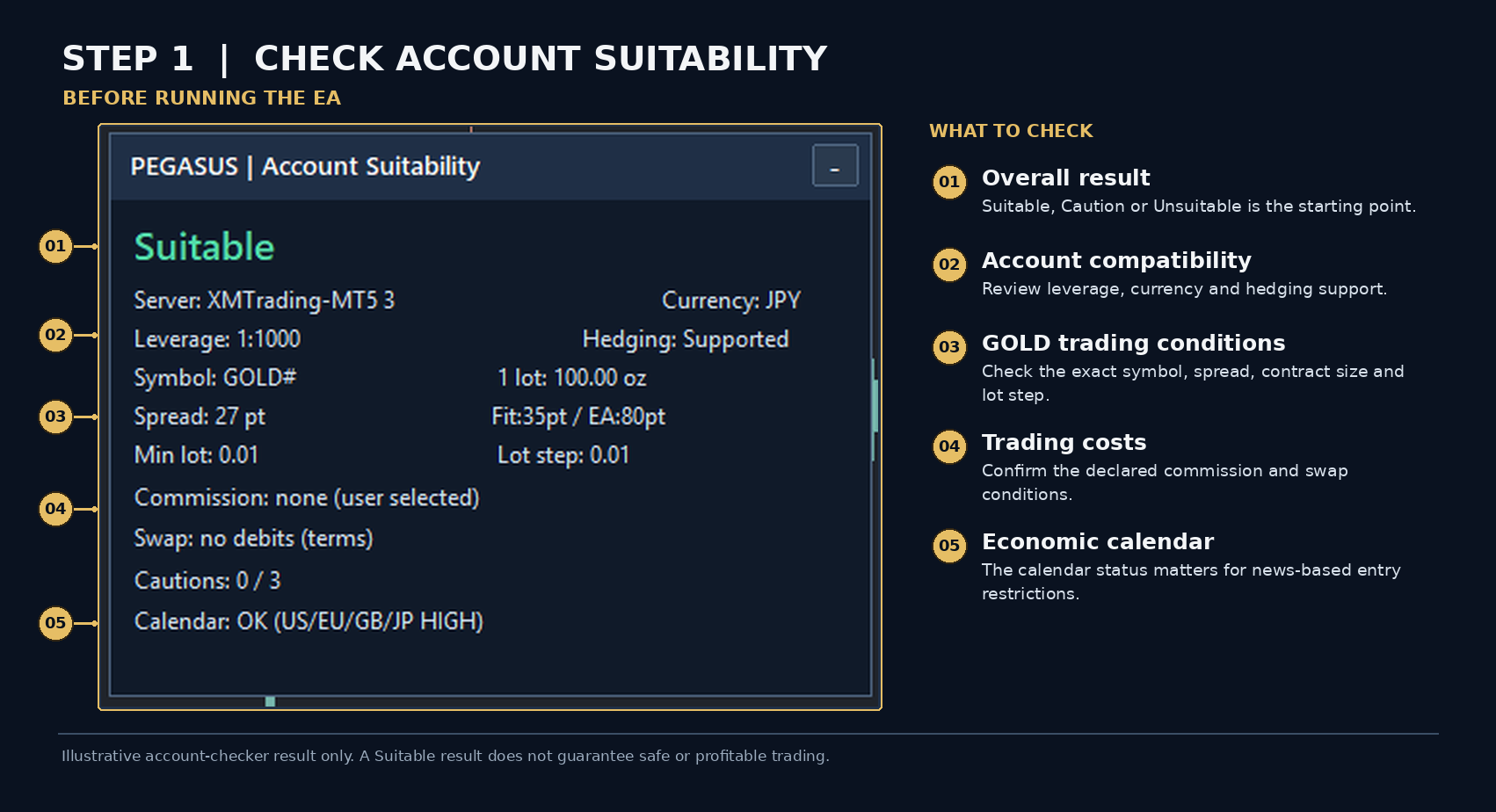
Figure 1. PEGASUS GOLD Account Checker — example result, not a guarantee of suitable performance.
01 — Overall assessment — Start with the checker’s Suitable / Caution / Unsuitable assessment. Review the underlying conditions instead of relying on the label alone.
02 — Account compatibility — Confirm leverage, account currency and hedging support. PEGASUS requires a hedging account.
03 — GOLD specifications — Check the broker’s symbol, spread, contract size, minimum volume and volume step. Symbol suffixes such as GOLD# can differ across brokers.
04 — Trading costs — Review commissions and swap terms, including values that require your manual confirmation.
05 — Economic calendar — Check whether the terminal can obtain the economic calendar data needed for news-related entry restrictions.
Free companion tool — PEGASUS GOLD Account Checker (MT5)
Before activating PEGASUS GOLD, download the free Account Checker to review your broker’s leverage, GOLD contract specifications, spread, hedging support, trading costs and economic calendar availability.
Download PEGASUS GOLD Account Checker — Free on MQL5 Market
The checker helps identify account conditions; it does not guarantee profitability or eliminate trading risk.
STEP 2 — Install PEGASUS and open a GOLD M5 chart
Chart setup
Install PEGASUS from your MQL5 Market purchases in MetaTrader 5. Open your broker’s GOLD / XAUUSD-family symbol and attach the EA from Navigator.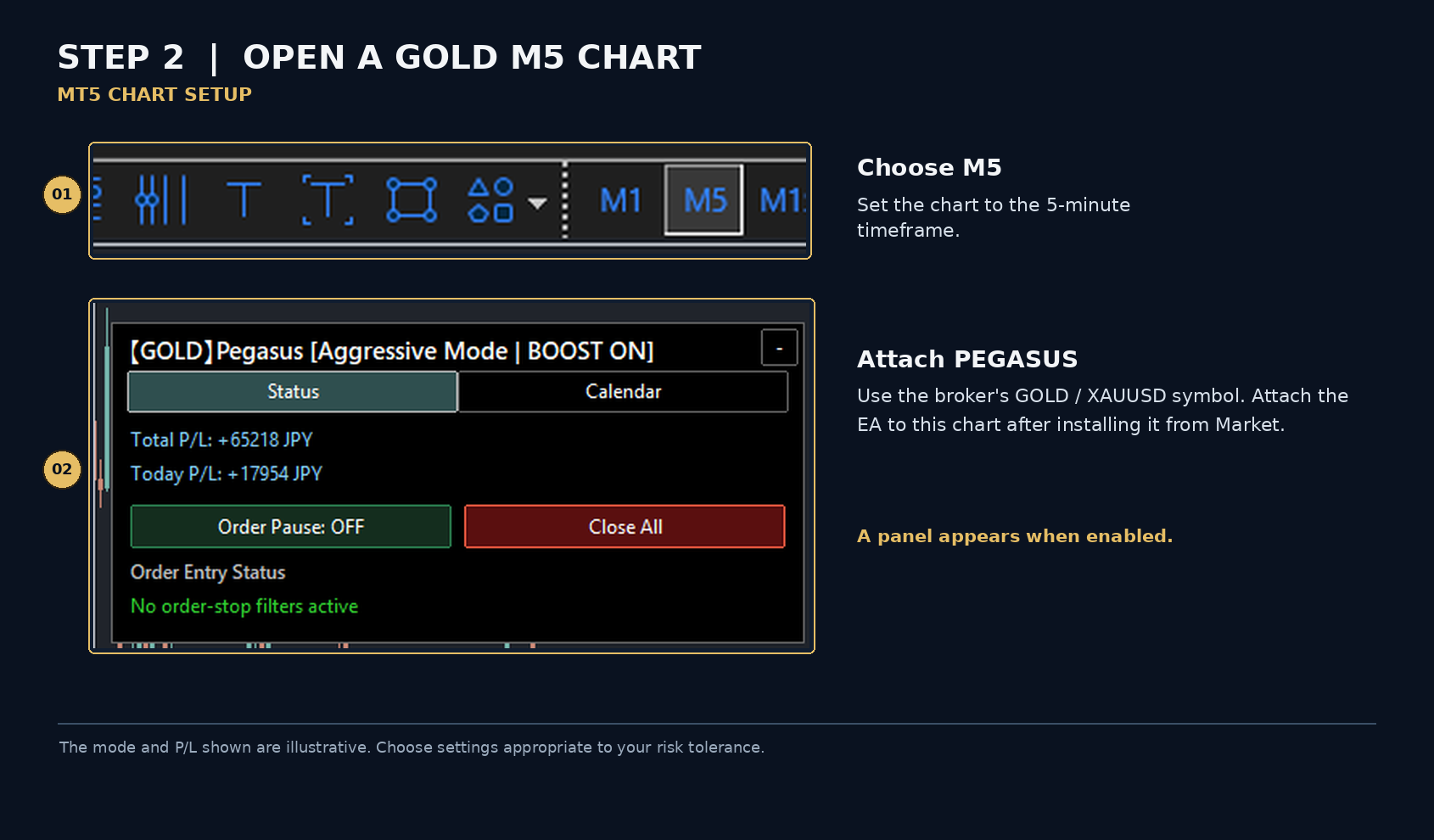
Figure 2. Five-minute timeframe and an example chart with PEGASUS attached.
01 — Select M5 — Set the chart to the five-minute timeframe (M5). PEGASUS evaluates its core signals using M5 data.
02 — Attach PEGASUS — Drag the Expert Advisor onto the GOLD chart. When panel options are enabled, the control panel will appear.
STEP 3 — Choose the starting settings
Trading profile
Open the EA’s Inputs tab and confirm your choices before starting: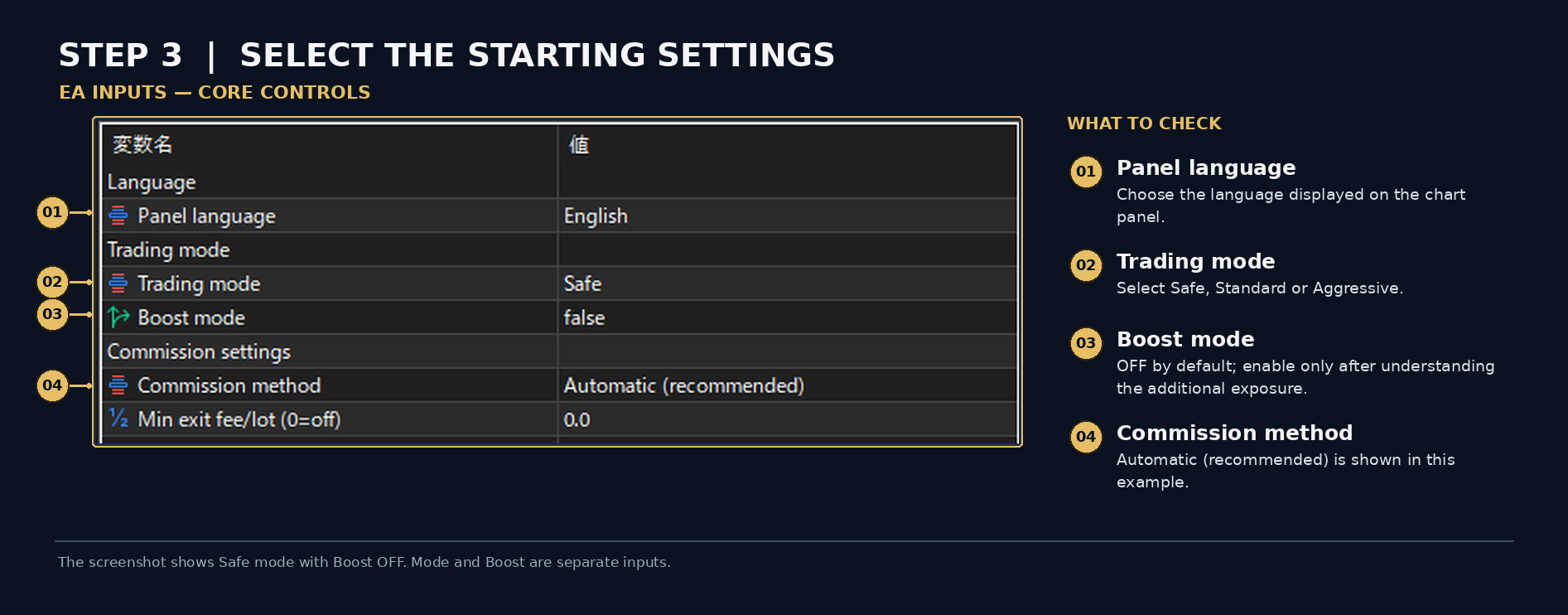
Figure 3. The example shows Safe, Boost OFF and automatic commission handling.
01 — Panel language — Select your preferred on-chart panel language. English is the default.
02 — Trading mode — Choose Safe, Standard or Aggressive. These are different exposure profiles, not promises of specific returns.
03 — Boost mode — OFF is the default. Enabling Boost can increase exposure.
04 — Commission method — Automatic (recommended) is the default. Review broker charges and change the method only if you understand the applicable fee treatment.
STEP 4 — Review entry-safety controls
Restrictions on new entries
These controls may prevent new entries when market or account conditions do not meet the rules. They do not guarantee that open positions cannot lose money.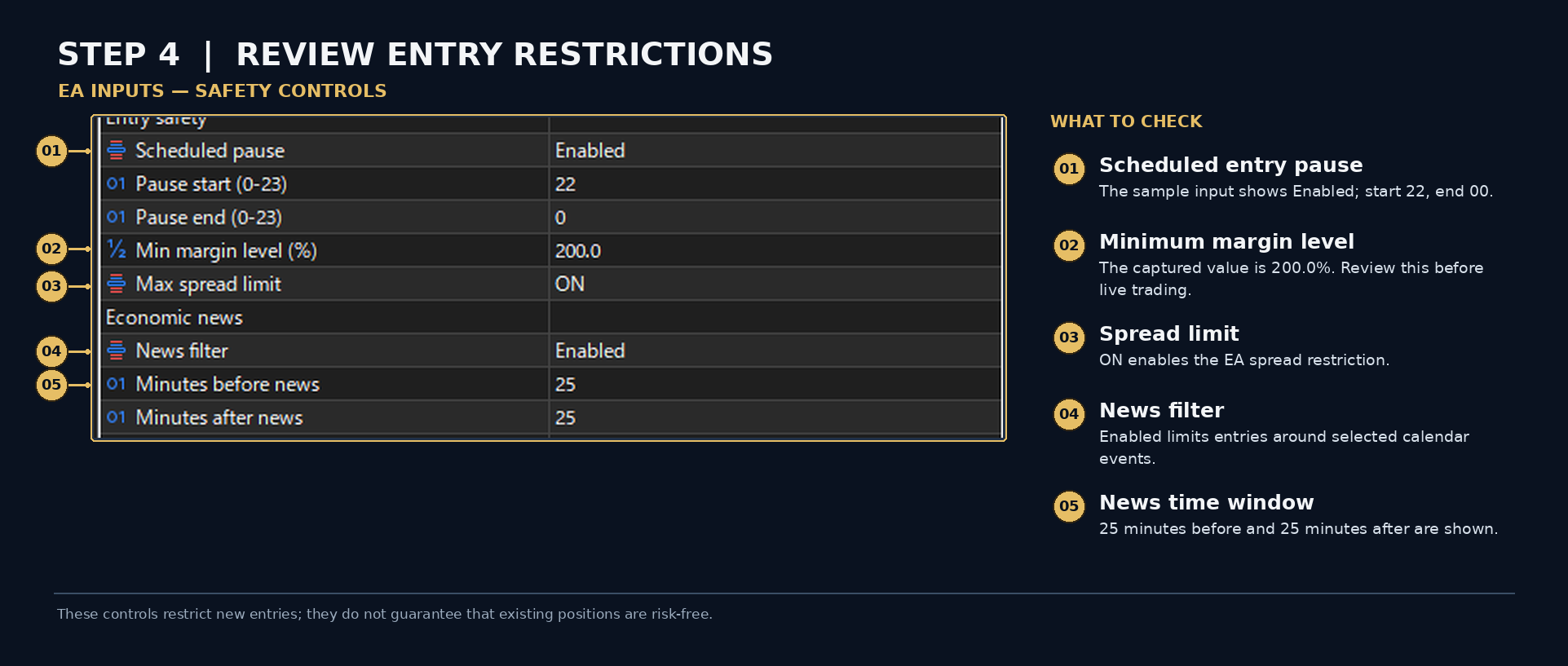
Figure 4. The entry filters and their displayed initial values.
01 — Scheduled pause — Enabled in the example, with a start hour of 22 and an end hour of 00.
02 — Minimum margin level — The displayed initial threshold is 200%. This is an entry check; it is not a stop-loss guarantee.
03 — Maximum spread limit — ON in the example. Wide spreads can block new entries.
04 — News filter — Enabled in the example. PEGASUS restricts new entries around selected high-importance calendar events.
05 — News time window — The screenshot shows 25 minutes before and 25 minutes after the event. All-day high-importance events can result in a day-long entry pause.
STEP 5 — Enable algorithmic trading
MT5 permissions
Both permissions must allow automated trading: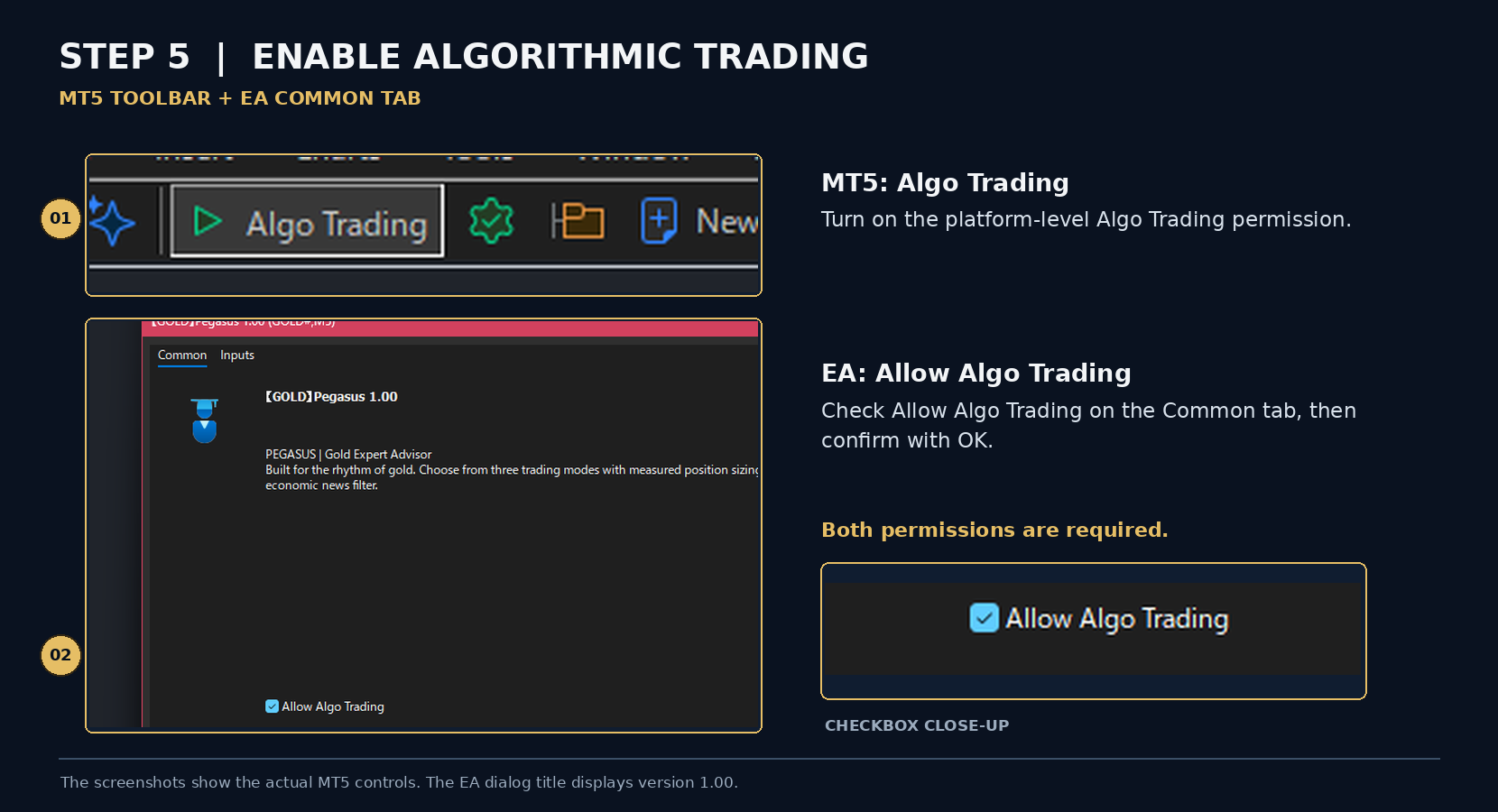
Figure 5. MT5 toolbar and the Expert Advisor Common tab.
01 — Platform permission — Enable Algo Trading on the MetaTrader 5 toolbar.
02 — EA permission — In the EA’s Common tab, enable Allow Algo Trading, then confirm with OK.
Check the MT5 Experts and Journal tabs for initialization, symbol or permission errors. No immediate order after launch is normal when the entry conditions have not been met.
STEP 6 — Understand the Status panel
Trading controls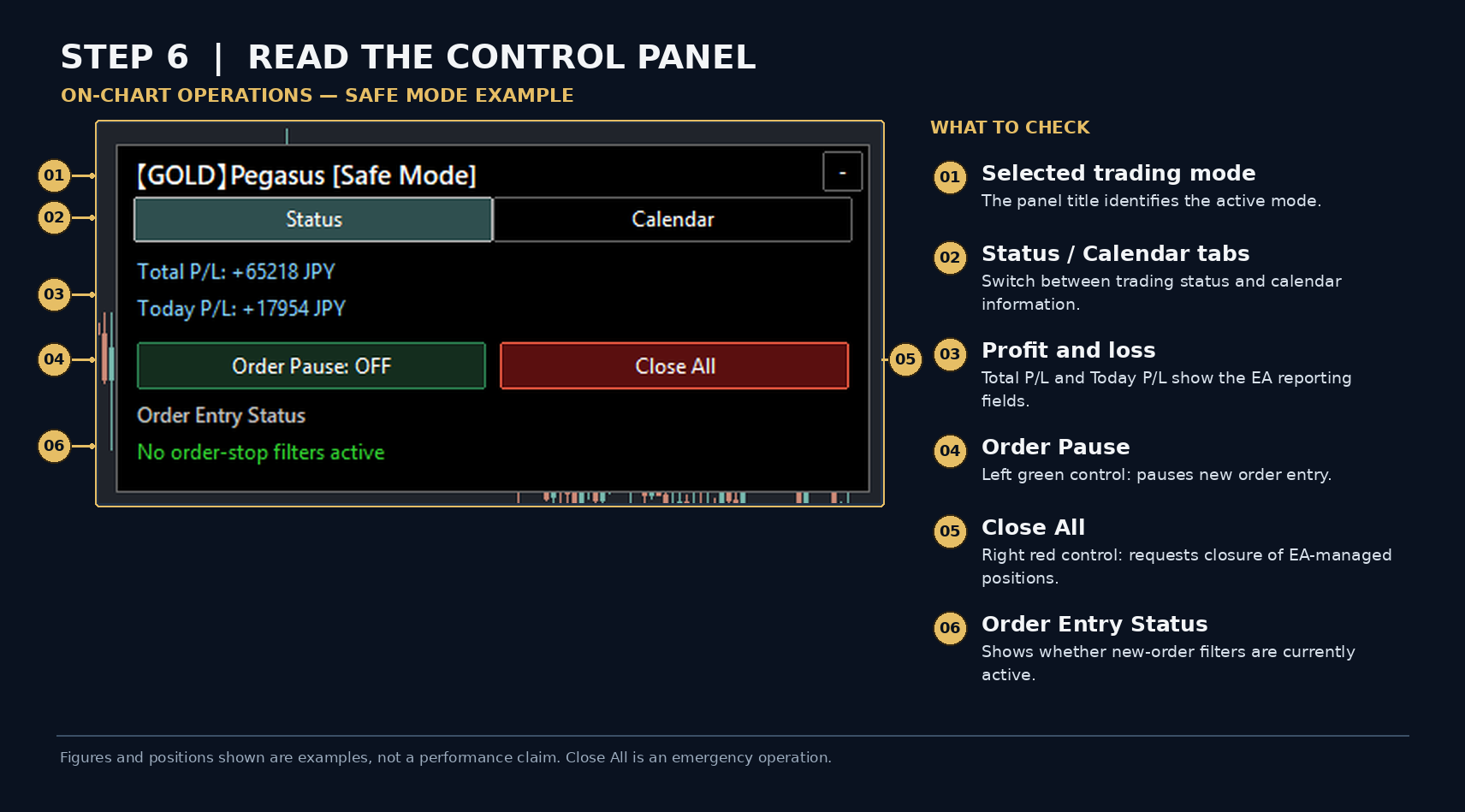
Figure 6. The Status panel, shown here in Safe mode.
01 — Current mode — The title displays the selected trading mode.
02 — Status / Calendar — Switch between the trading status and the daily performance calendar.
03 — Profit and loss — Total P/L and Today P/L display the EA’s reported results in the account currency.
04 — Order Pause — This control pauses new entries. It does not close positions already held by the EA.
05 — Close All — An emergency control that requests closure of PEGASUS-managed positions.
06 — Order Entry Status — Shows whether the current order-entry filters are active.
STEP 7 — Read the daily P/L calendar
Performance review
Select Calendar in the control panel to inspect the EA’s date-by-date results: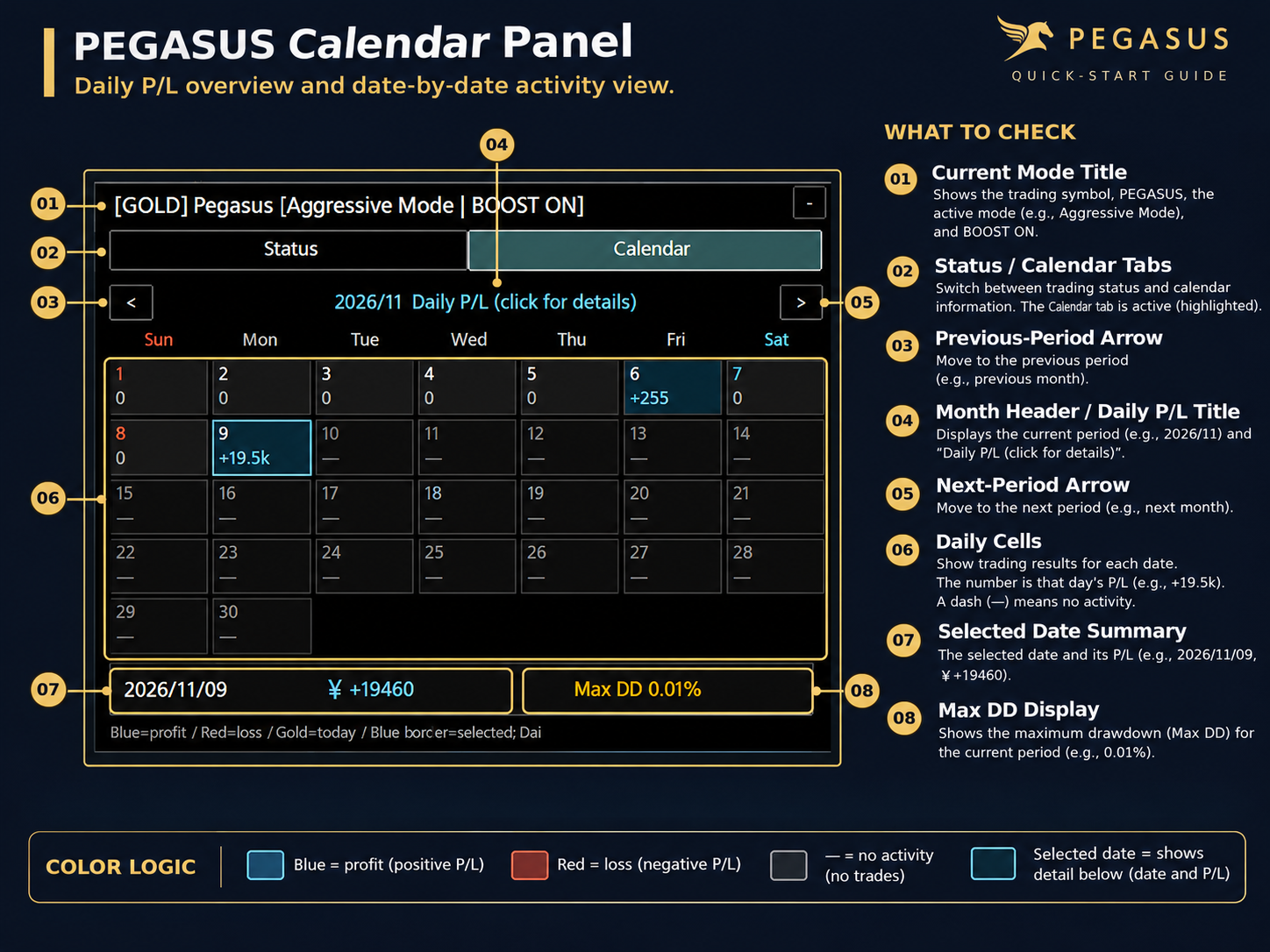
Figure 7. Calendar tab example. This is a DAILY P/L calendar, not the MT5 economic-news calendar.
01 — Mode title — The title continues to show the active mode and BOOST ON if Boost is enabled.
02 — Status / Calendar tabs — The highlighted Calendar tab is active.
03 and 05 — Month navigation — Use the left and right arrows to review previous or next calendar months.
04 — Month heading — Displays the selected year/month and the Daily P/L view.
06 — Day cells — A cell shows the day and its P/L.
07 — Selected day — Click a date to see its exact P/L below the grid.
08 — Daily Max DD — The detail row also shows the selected day’s recorded maximum drawdown when available.
Amounts in this screenshot illustrate the interface only. They are not a forecast, verified live-account track record or performance guarantee.
STEP 8 — Confirm the BOOST ON indicator
Final mode check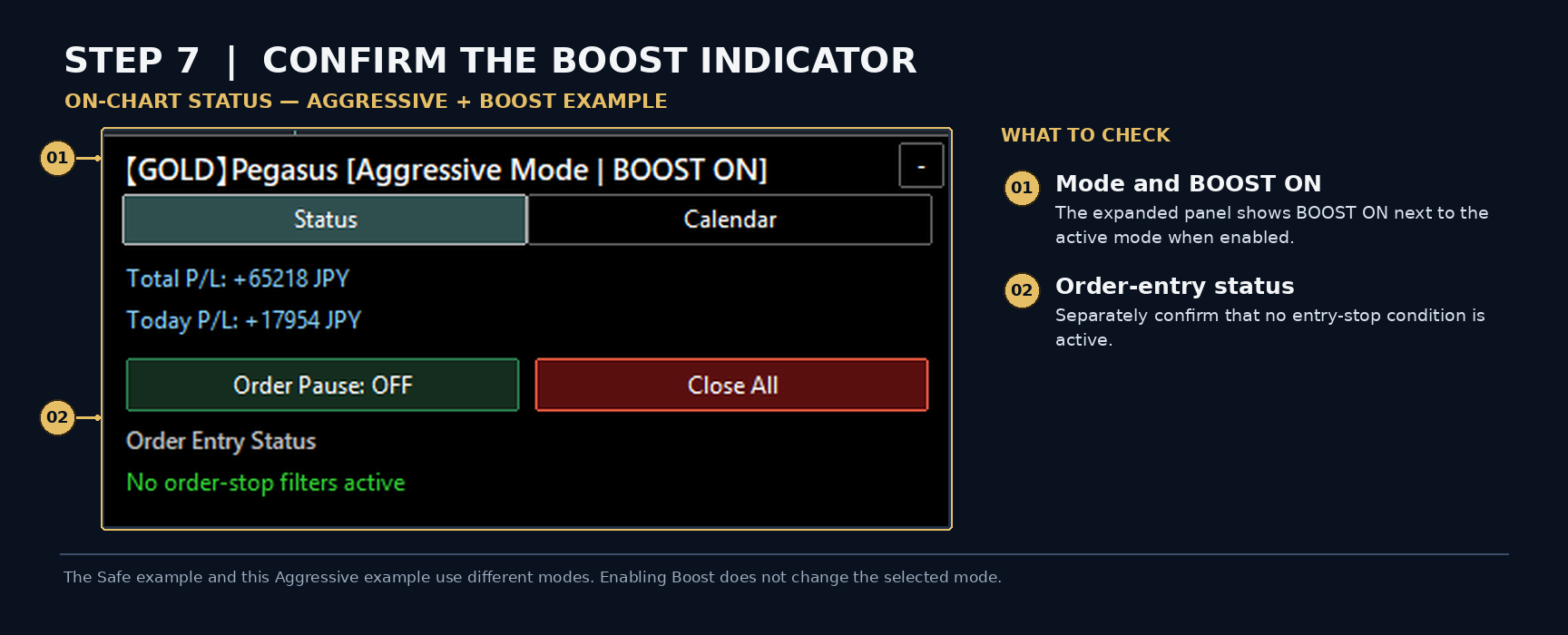
Figure 8. Aggressive with BOOST ON is a separate example from the earlier Safe-mode screenshot.
01 — Read the title — When Boost is enabled, BOOST ON appears next to the active trading mode.
02 — Check entry status — Verify that Order Entry Status is consistent with your intended operation.
Before running live, confirm that the actual mode and Boost setting match your intended configuration.
Before switching to a live account
Start on a demo account and confirm the GOLD symbol, hedging account type, trading costs and available margin.
Confirm that Safe / Standard / Aggressive and Boost OFF / ON match your intended settings.
Make sure Algo Trading is enabled and there are no unexpected messages in Experts or Journal.
Review the new-entry restrictions and confirm that the control panel shows the expected order-entry state.
Keep MT5 connected and operating (or use a suitable VPS) if the EA is expected to manage positions continuously.
PEGASUS can restore saved settings. If a new choice seems not to take effect, review the active panel display and the Override saved settings input before operating live.
Important trading risks
The BUY strategy uses position additions and has no conventional fixed stop-loss per BUY trade.
SELL positions follow separate loss-management rules; no automated risk control can prevent every loss.
Spread, commission, swap, leverage, symbol specifications, connectivity and broker execution can all affect results.
Figures show example interface values only. They are not verified live performance and do not predict future returns.
Support and further reading
If something is unclear, check the Expert and Journal messages and contact the developer through MQL5 product comments or MQL5 messaging.
The full parameter reference and more detailed behavior explanations belong in the separate PEGASUS GOLD Complete User Manual.
PEGASUS GOLD — v1.00 | Illustration and setup guide | Screenshots are examples.