Complete User Manual — MetaTrader 5
Audience: Purchasers and users of the PEGASUS GOLD Expert Advisor (EA). Platform: Desktop MetaTrader 5. Instrument: GOLD / XAUUSD-family symbols. Reference chart: M5 (five minutes).

Figure: PEGASUS GOLD product icon.
This manual covers the visible inputs, account requirements, control panel, daily P/L calendar, trading restrictions, reference lines, saved settings and troubleshooting. It complements the PEGASUS GOLD Quick Start Guide available through the developer’s MQL5 blog.
Scope: Parameter defaults and behavior below were checked against the PEGASUS v1.00 Market-source package supplied for this project. Screenshots are illustrative; the actual broker, account currency, balance and market values may differ.
Important risk warning: PEGASUS adds positions to BUY baskets. It does not use conventional individual fixed stop-loss orders for BUY positions. Severe adverse price movement can produce significant drawdown, margin liquidation, or loss of the full trading balance. No trading mode is risk-free.
1. Supported Environment and Account Requirements
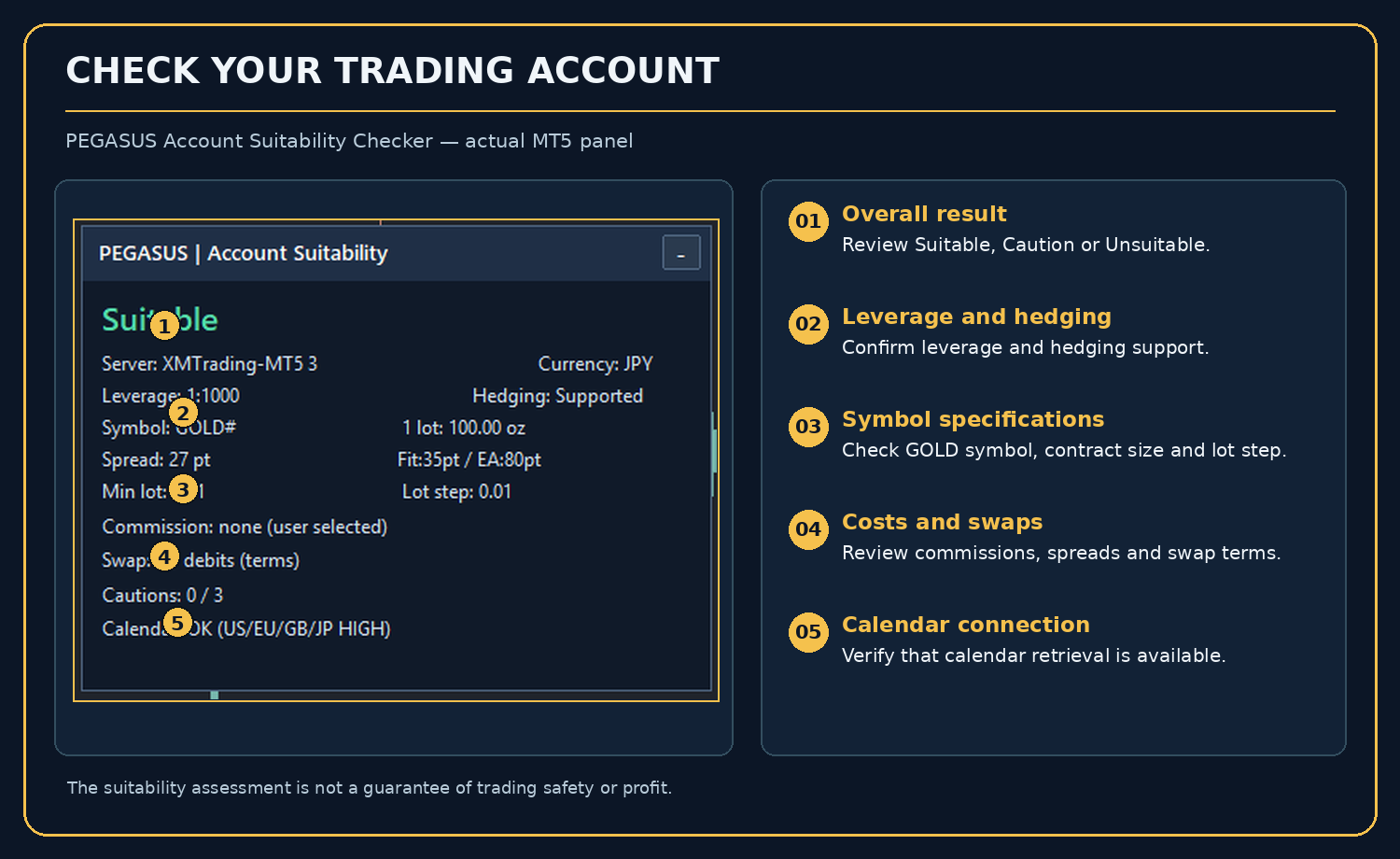
Figure: Free Account Checker: leverage, account type, GOLD specifications, trading costs and calendar-data status.
- Hedging account required: A netting account is not supported. PEGASUS manages multiple positions and identifies its orders using magic numbers.
- Supported symbol: the broker’s instrument name must begin with GOLD or XAUUSD; a broker suffix is acceptable (for example, GOLD#).
- Trading specifications: contract size, minimum volume, volume step and maximum volume must allow the EA to calculate a valid order. The EA sizes GOLD exposure in ounces and converts it to the broker’s lot units.
- Account currency: JPY and USD use dedicated account-currency profiles. Other currencies use USD-reference amounts converted using available pricing; if that conversion cannot be established, new orders are paused.
- Trading costs: spreads, commissions and swaps affect execution and basket results. An account suitability result is not a performance guarantee.
- Economic calendar: live trading requires the MT5 calendar data if the news filter is enabled; failure to retrieve the required data can block new entries.
Free companion indicator: PEGASUS GOLD Account Checker
To verify your account environment before using the EA, install the free PEGASUS GOLD Account Checker for MT5. It reviews account and GOLD-symbol specifications, spreads, hedging support, trading costs and calendar access, and displays the results in its on-chart panel.
Get the free PEGASUS GOLD Account Checker on MQL5 Market
Its suitability assessment is informational and is not a guarantee of safe or profitable trading.
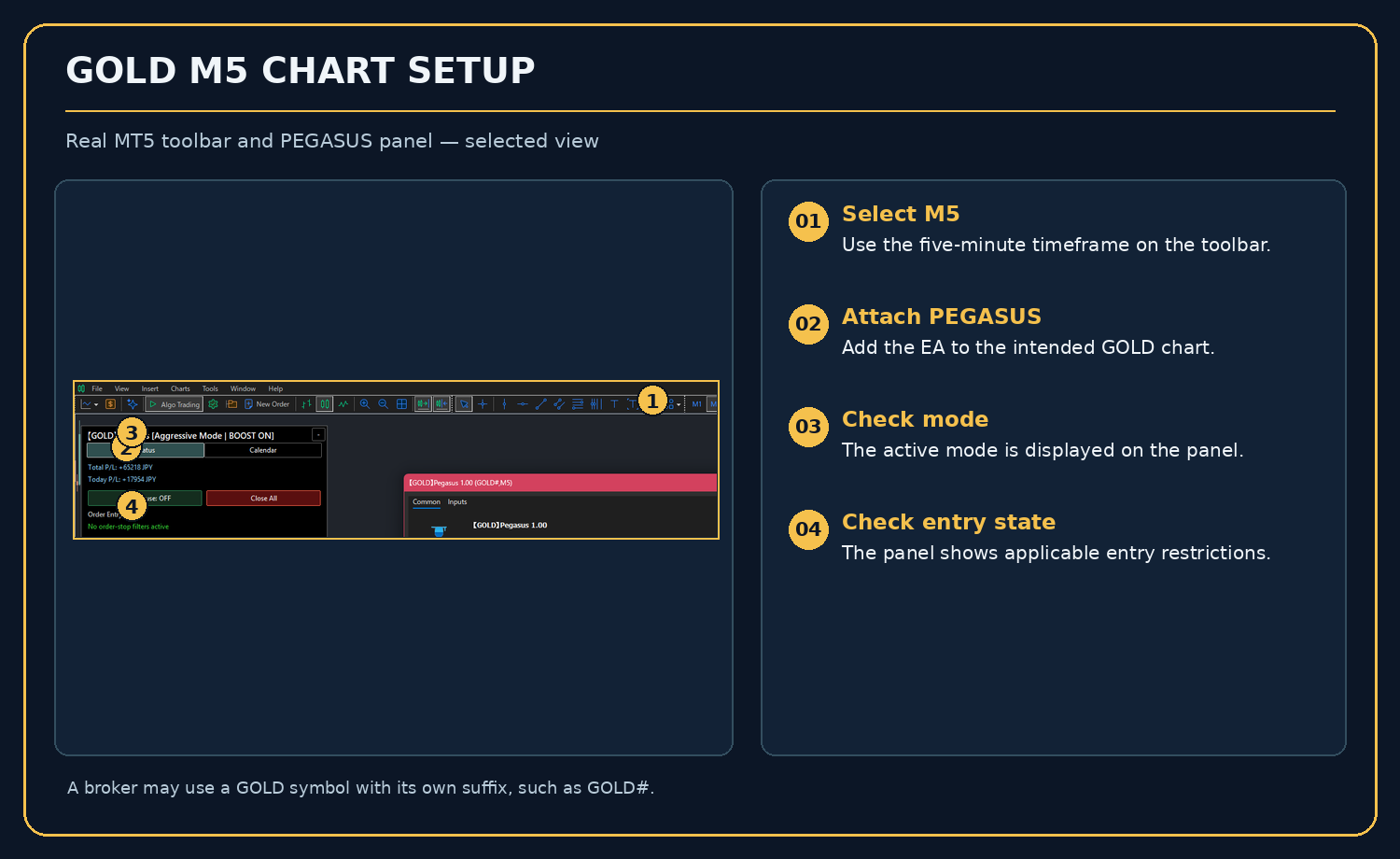
Figure: GOLD M5 chart with the PEGASUS control panel.
Use the broker’s actual GOLD symbol and select M5. The EA’s core RSI and ATR signals use M5 data. For the installation procedure, refer to the Quick Start Guide. Algorithmic trading must also be enabled in both MT5 and the EA.
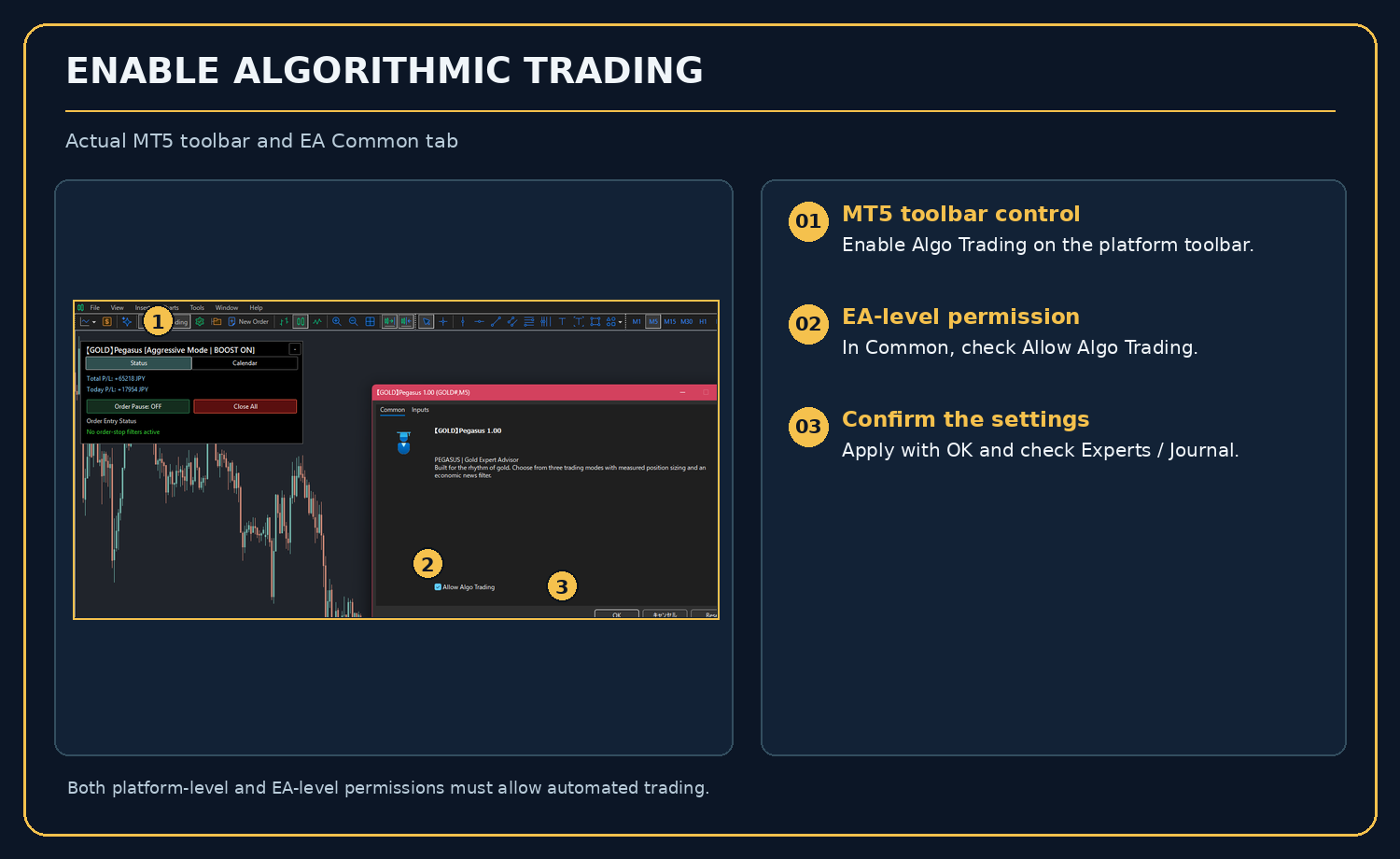
Figure: MT5 toolbar Algo Trading and the EA-level Allow Algo Trading option.
2. Trading Modes, Position Sizing and BOOST
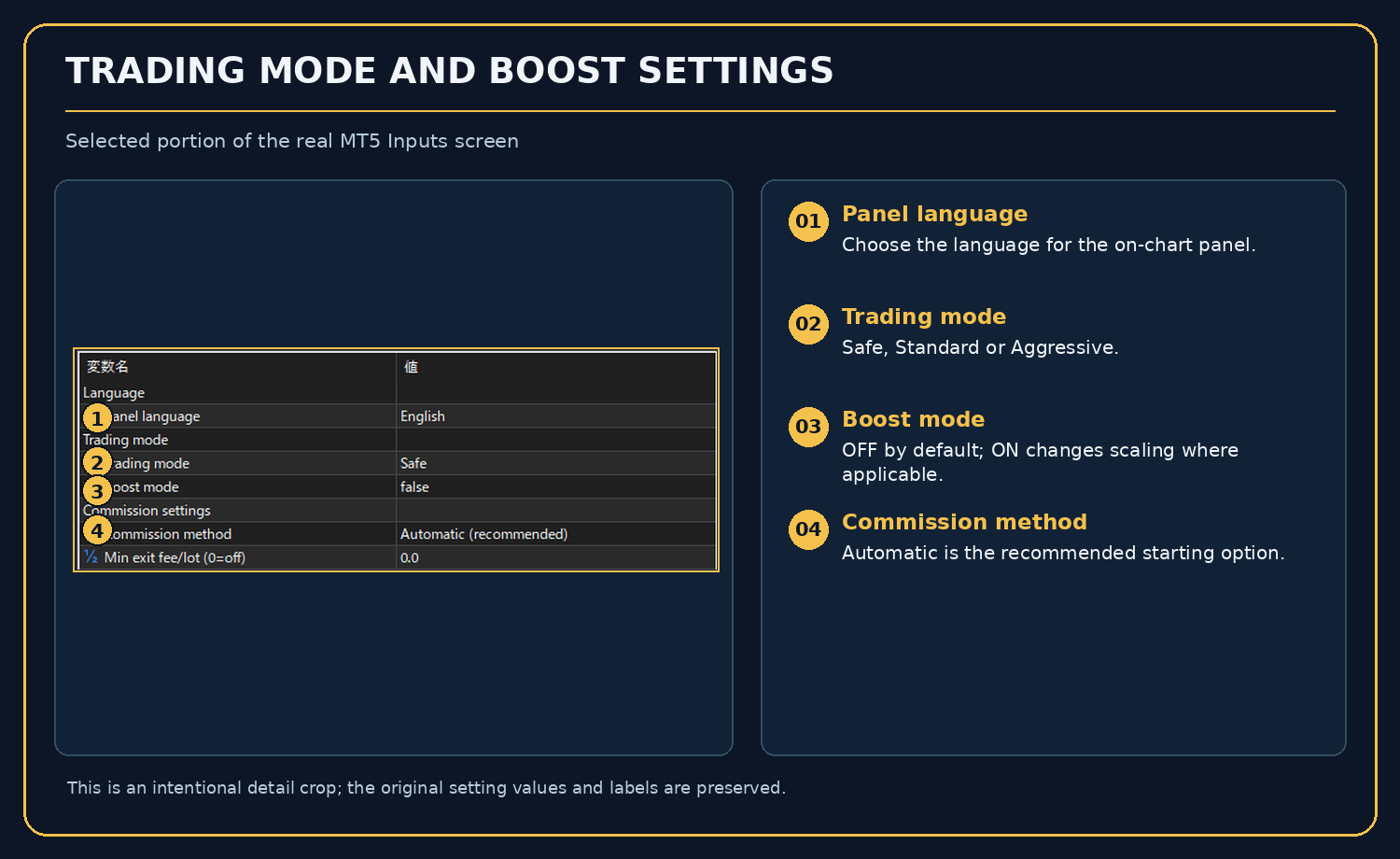
Figure: Input fields for Panel language, Trading mode, Boost mode and Commission method.
Three trading profiles can be selected. They change position-sizing and exposure limits; they do not remove market risk. The default is Safe with Boost mode = false.
| Trading mode | Selection | Purpose and caution |
|---|---|---|
| Safe | Default | The most conservative profile. In the reviewed engine, the basic BUY target is fixed at one ounce, independently of the BOOST switch; BOOST ON is therefore not an additional BUY-size accelerator for Safe. |
| Standard | Optional | Uses a higher account-balance-dependent BUY-size profile. BOOST can expand the normal sizing cap once the profile’s threshold is exceeded. |
| Aggressive | Optional | Uses a more aggressive account-balance-dependent BUY-size profile. BOOST can further expand sizing above the profile threshold, increasing potential exposure. |
Important BOOST distinction: “BOOST ON” appears in the panel title whenever the option is enabled, including Safe. That title is a setting indicator, not proof that the current lot size has changed. BOOST is not a guaranteed increase in trading profits. It can increase drawdown and margin risk in the applicable profiles.
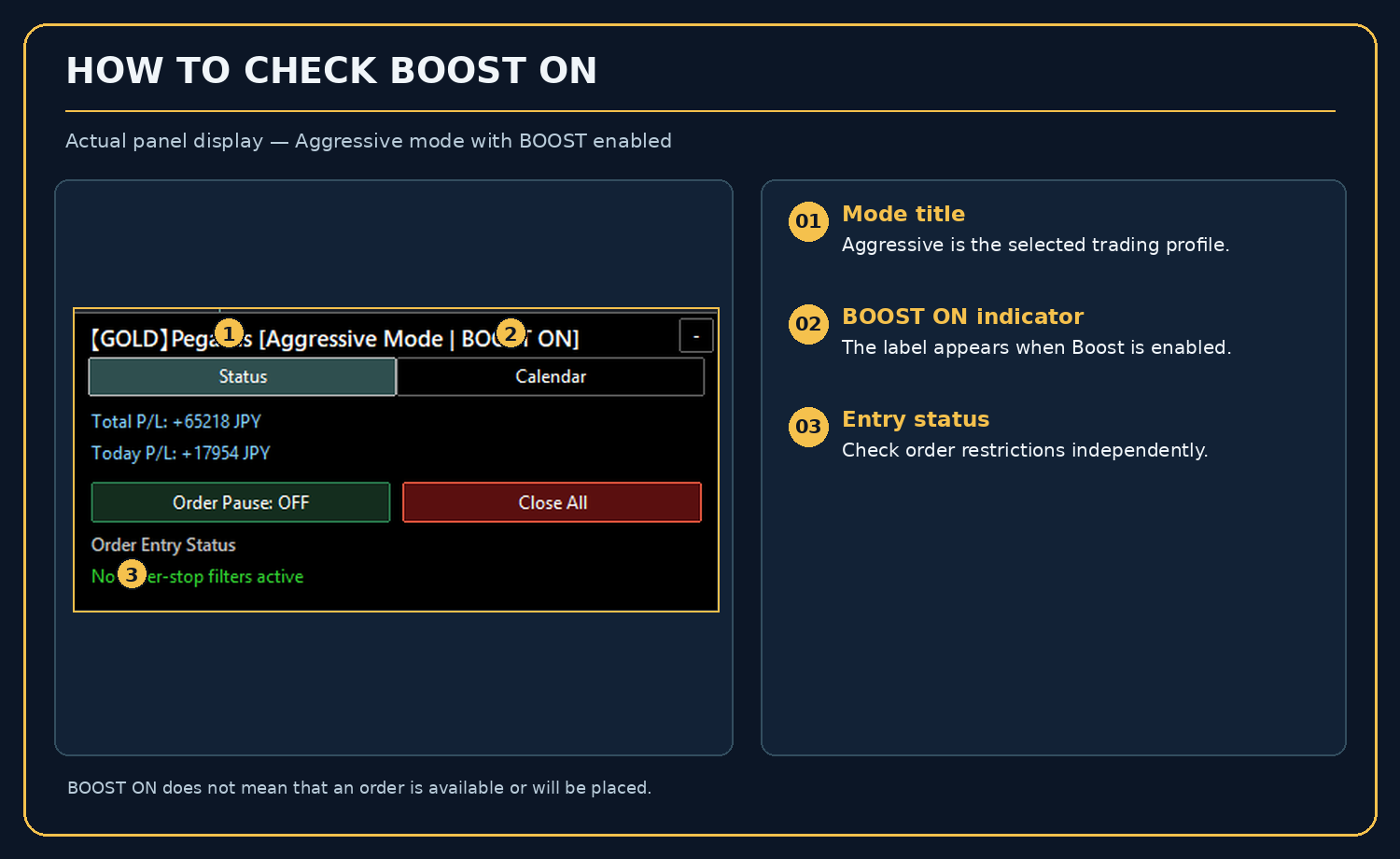
Figure: Example of the expanded panel with BOOST ON displayed next to the selected trading mode.
Existing open basket exposure is not intended to be silently increased by a restart or a changed profile. Avoid changing trading modes or key account settings while positions remain open without verifying the active configuration and management implications.
3. Complete Parameter Reference — All 29 Visible Inputs
The following names and defaults match the product-facing input definitions in the reviewed source. Fields not present in the Inputs tab are internal strategy constants and are intentionally not presented as adjustable settings.
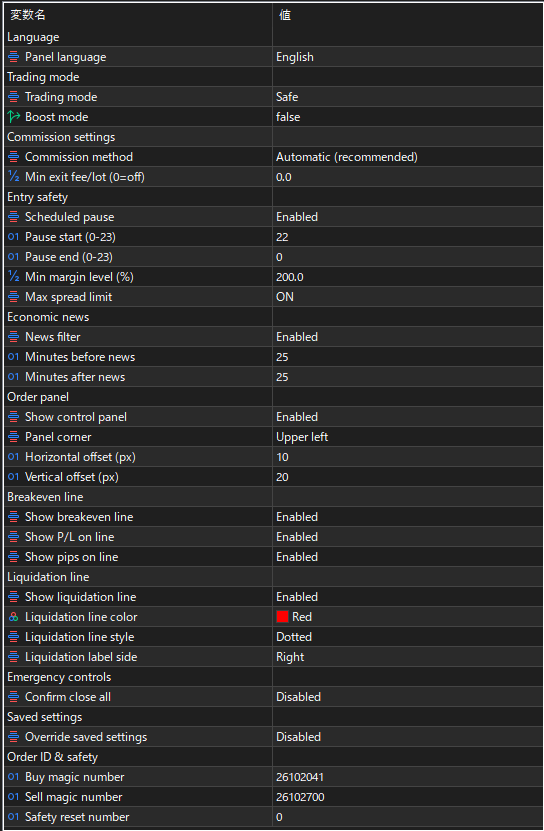
Figure: Full Inputs-tab screenshot supplied for the user manual. Use the tables below to interpret each setting.
3.1 Language and Trading Mode
| Input (exact label) | Default | What it controls / when to change it |
|---|---|---|
| Panel language | English | Sets the on-chart panel language. Choices: English, Japanese, Russian, Spanish, and Portuguese (Brazil). The Inputs-tab labels remain in English. |
| Trading mode | Safe | Selects Safe, Standard or Aggressive. Higher profiles may carry substantially higher exposure and drawdown. |
| Boost mode | false (OFF) | Enables the BOOST sizing option for applicable profiles. In Safe, the basic BUY size remains fixed in the reviewed implementation. An enabled setting is shown as BOOST ON in the panel title. |
3.2 Commissions
| Input (exact label) | Default | What it controls / when to change it |
|---|---|---|
| Commission method | Automatic (recommended) | Choose how the EA interprets round-trip trading commissions. Options: Automatic, Commission free, Round-trip at entry, and At entry and exit. Use the actual broker billing model. |
| Min exit fee/lot (0=off) | 0.0 | Optional minimum fee assumption per broker lot, expressed in account currency. 0 disables the manual floor. Leave at zero unless a verified broker commission specification requires a floor. |
Commission warning: Automatic evaluates observed trading charges and available broker information. It can remain conservative when history is incomplete. Do not select “Commission free” solely to improve displayed results if the broker actually charges fees.
3.3 Entry Safety
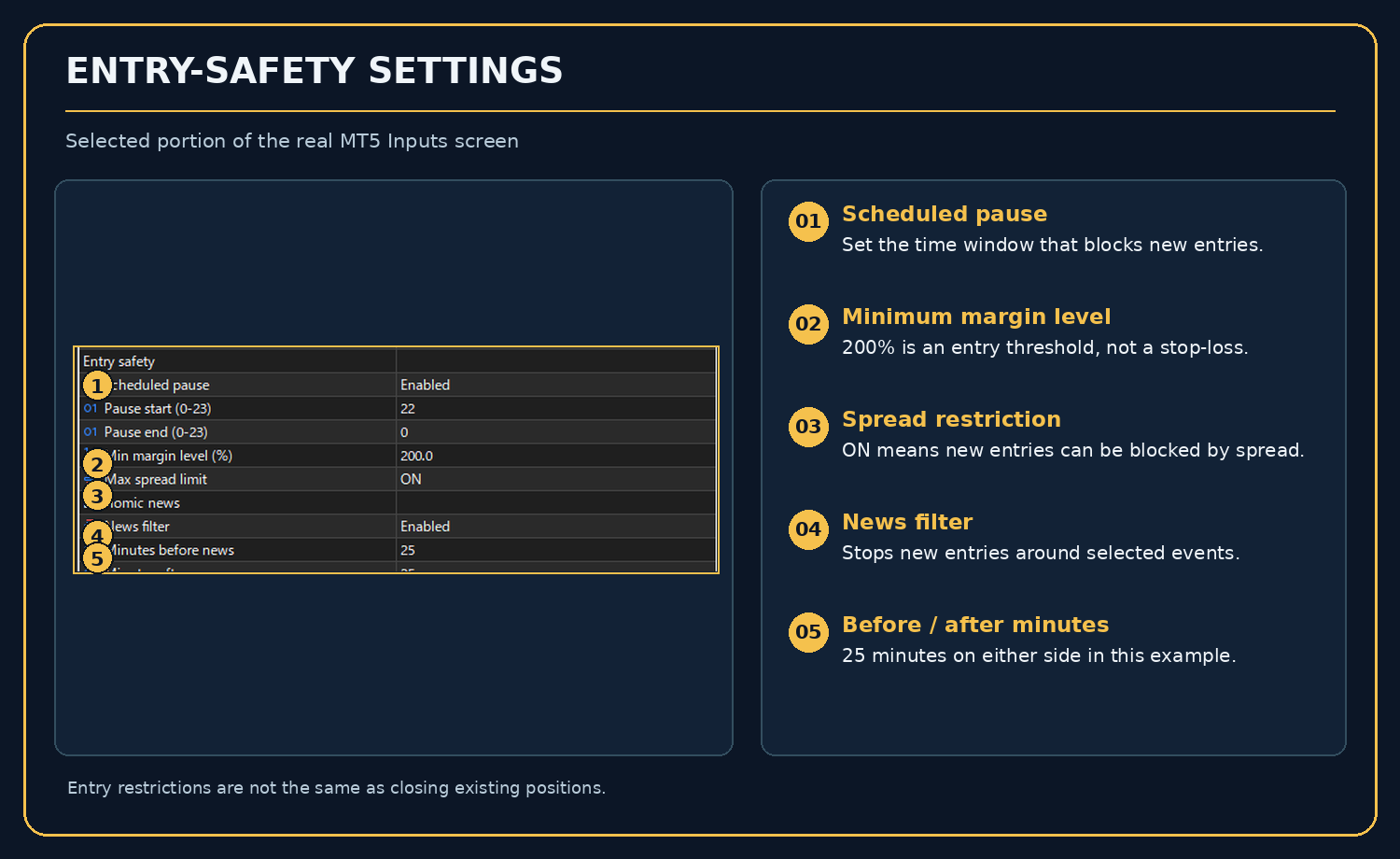
Figure: Safety inputs: scheduled pause, minimum margin level, spread limit, and news timing.
| Input (exact label) | Default | What it controls / when to change it |
|---|---|---|
| Scheduled pause | Enabled | When enabled, restricts NEW orders during the specified server-time window. Existing positions still require management. |
| Pause start (0-23) | 22 | Beginning hour (0 to 23) of the new-entry pause, using the broker/MT5 server clock. |
| Pause end (0-23) | 0 | Ending hour (0 to 23) of the new-entry pause. The default 22 → 00 spans midnight. |
| Min margin level (%) | 200.0 | Restricts new entries when the required margin-level condition is not satisfied. This is not a 200% stop-loss or automatic close level. |
| Max spread limit | ON | Enables a fixed spread cap of 0.80 GOLD price units: normally 80 points for 2 decimal places or 800 points for 3 decimal places. The Inputs tab offers ON/OFF, not a user-editable numerical spread threshold. |
The entry pause uses the MT5 server time returned to the EA; do not assume your local time zone. Scheduled pause, spread and margin checks do not necessarily close existing trades.
3.4 Economic News
| Input (exact label) | Default | What it controls / when to change it |
|---|---|---|
| News filter | Enabled | Uses the MT5 economic calendar to restrict NEW entries around HIGH-importance releases from US, EU, GB and JP calendar regions. Calendar retrieval failures can block new entries. |
| Minutes before news | 25 | Pre-announcement new-entry pause in minutes for timed high-importance events. |
| Minutes after news | 25 | Post-announcement new-entry pause in minutes for timed high-importance events. |
All-day events: A qualifying HIGH-importance date-only, tentative-time, or no-time event in the designated regions can block new entries for that server day. The news filter does not target other regions or events merely because their name mentions monetary policy.
Calendar terminology: This economic-news filter is a different feature from the on-chart “Calendar” tab, which shows the EA’s DAILY PROFIT/LOSS.
3.5 Order Panel
| Input (exact label) | Default | What it controls / when to change it |
|---|---|---|
| Show control panel | Enabled | Show or hide the PEGASUS on-chart controls. Hiding the panel does not turn off the trading engine. |
| Panel corner | Upper left | Select Upper left, Lower left, Lower right or Upper right. The entire panel should be positioned relative to the selected corner. |
| Horizontal offset (px) | 10 | Distance in pixels from the selected horizontal chart edge. |
| Vertical offset (px) | 20 | Distance in pixels from the selected vertical chart edge. |
The displayed panel width and height change with expansion and the selected tab. If a chart is too narrow, enlarge the chart area to show the calendar fully. The corner/expanded/collapsed combinations require confirmation on the end user’s MT5 layout; this manual does not certify unperformed runtime tests.
3.6 Breakeven and P/L Line
| Input (exact label) | Default | What it controls / when to change it |
|---|---|---|
| Show breakeven line | Enabled | Displays the calculated BUY/SELL basket reference/breakeven line when a matching basket and required market data are available. |
| Show P/L on line | Enabled | Displays the matching basket’s net P/L in account currency alongside the line label. |
| Show pips on line | Enabled | Displays the signed price difference in the symbol’s displayed point units alongside the line label. |
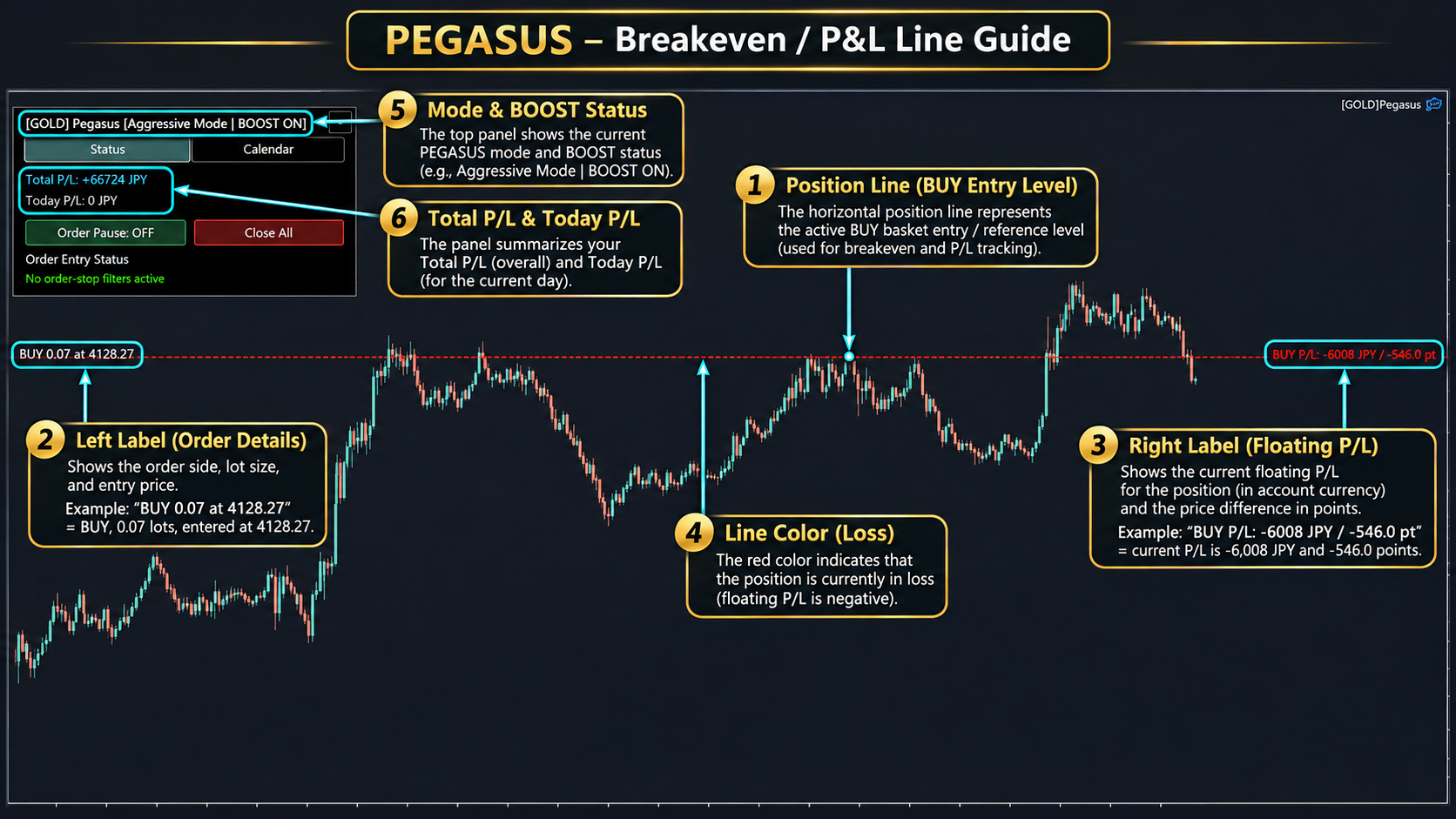
Figure: Annotated real-chart image showing a BUY position/P&L label and related display elements. The EA’s own calculated basket breakeven may differ from an individual position’s entry price.
Read the line correctly: The EA calculates a basket-wide breakeven/reference price using open volume and its estimated net profit after closure. It may differ from a single order’s entry level, particularly when there are multiple positions or trading costs. The line color reflects the current basket P/L: red = loss, blue = profit, gray = approximately flat. Line labels are shown when the corresponding display settings are enabled and the price is within the visible chart area.
Screenshot note: A red horizontal BUY line in the annotated example may include the MT5 position-level entry label. Do not interpret every such horizontal line as the exact fee-adjusted basket breakeven.
3.7 Liquidation Line
| Input (exact label) | Default | What it controls / when to change it |
|---|---|---|
| Show liquidation line | Enabled | Requests the estimated forced-liquidation reference line when the calculation is available; does not place a stop-loss order. |
| Liquidation line color | Red | Selects the line and label color. |
| Liquidation line style | Dotted | Selects Solid, Dashed, Dotted, Dash-dot or Dash-dot-dot. |
| Liquidation label side | Right | Places the distance-to-liquidation label at the right edge; Left is also available. |
Illustration — NOT a live account or an actual liquidation calculation:
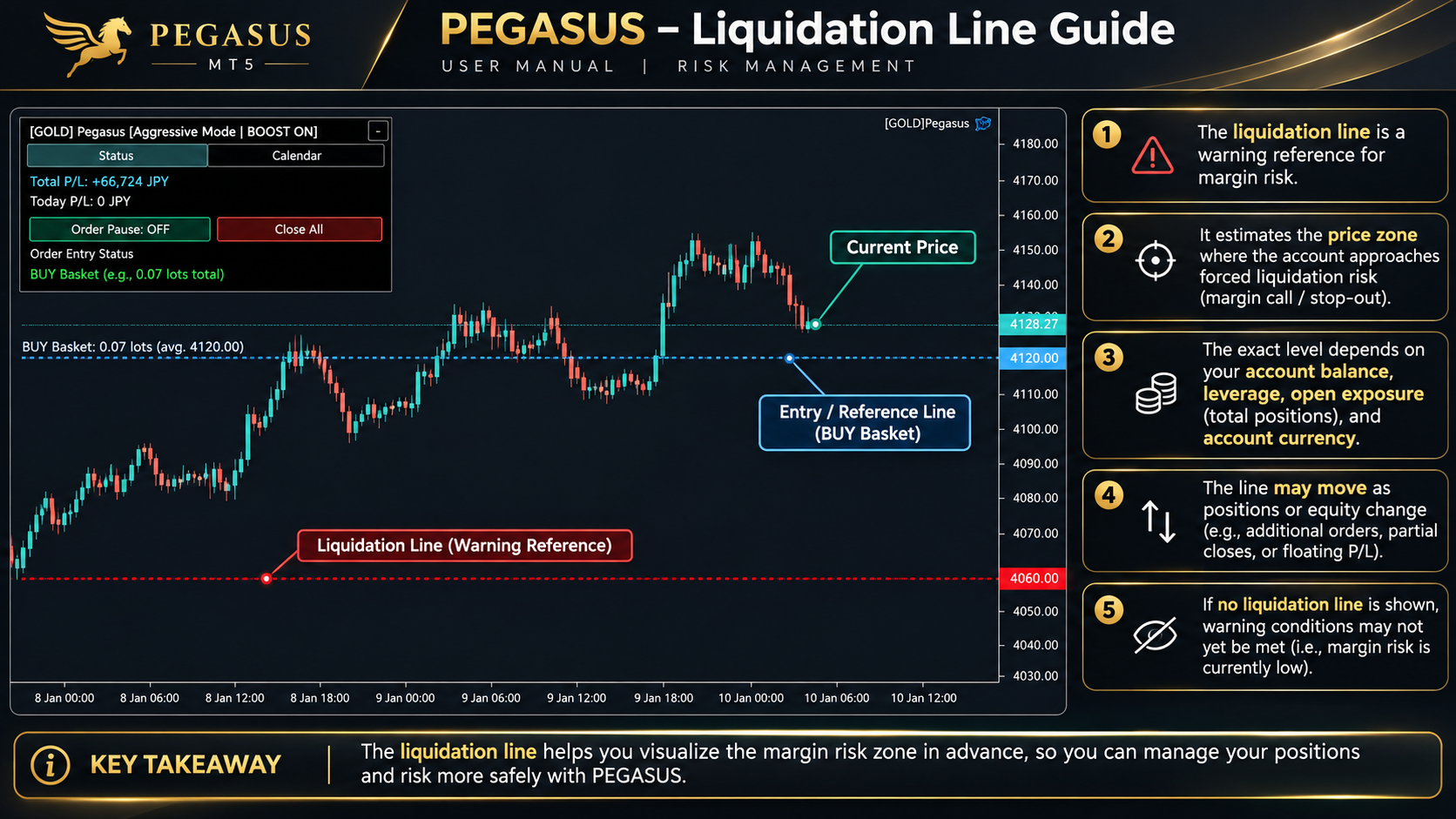
Figure: Conceptual liquidation-line illustration. All displayed example prices are fictitious and must not be used as trading levels.
What the line estimates: Under supported conditions, PEGASUS estimates an account stop-out reference using position-side projections, available equity/margin figures, and the broker’s stop-out mode. The estimate changes when positions, account equity or margin conditions change. Actual broker execution, spreads, swaps, other positions and contract conditions can make the real stop-out level differ.
VERY IMPORTANT: A missing line does NOT mean the account is safe. The source can hide it when there is no relevant open BUY basket, when other account positions make the projection inapplicable, when prices or margin information are unavailable, when a suitable solution cannot be calculated, when the line is outside the visible chart, or when the feature is disabled. The illustration’s simplified comment about non-display must NOT be interpreted as a safety test.
Not a protection order: The liquidation line is a visual estimate only. It does not close trades, guarantee a liquidation level, or limit maximum loss.
3.8 Emergency Controls, Saved Settings and Order IDs
| Input (exact label) | Default | What it controls / when to change it |
|---|---|---|
| Confirm close all | Disabled | When enabled, clicking Close All arms a confirmation step; click again within the available confirmation window to proceed. Disabled means no extra confirmation by default, so use this control carefully. |
| Override saved settings | Disabled | Normally PEGASUS restores its saved panel/entry-safety configuration and merges changed Inputs. Enable this only when intentionally replacing previously saved settings with the values currently displayed in Inputs. |
| Buy magic number | 26102041 | BUY order identifier. Must not collide with other EAs or installations on the same account and symbol. Changing it with positions open can disrupt ownership and recovery logic. |
| Sell magic number | 26102700 | SELL strategy identifier. Must differ from the BUY magic number and from unrelated EAs. Avoid changing it while positions are open. |
| Safety reset number | 0 | Advanced recovery control. Increase only when following a verified recovery procedure, with no relevant pending orders and after confirming broker history. Do not change as a routine way to force entries. |
Saved settings behavior: PEGASUS persists certain runtime and configuration states between sessions. After editing Inputs, verify the EFFECTIVE settings shown on the panel and by the EA before allowing new trades. The absence of a “Saved settings restored” banner is intentional and does not indicate that restoration was disabled.
Recovery caution: If the EA reports a damaged state file, duplicate instance, missing history, unknown order status, or failed persistence, do not delete files or increase Safety reset number blindly. Resolve the underlying condition and preserve your trade history first.
4. Status Panel — Controls and Interpretation
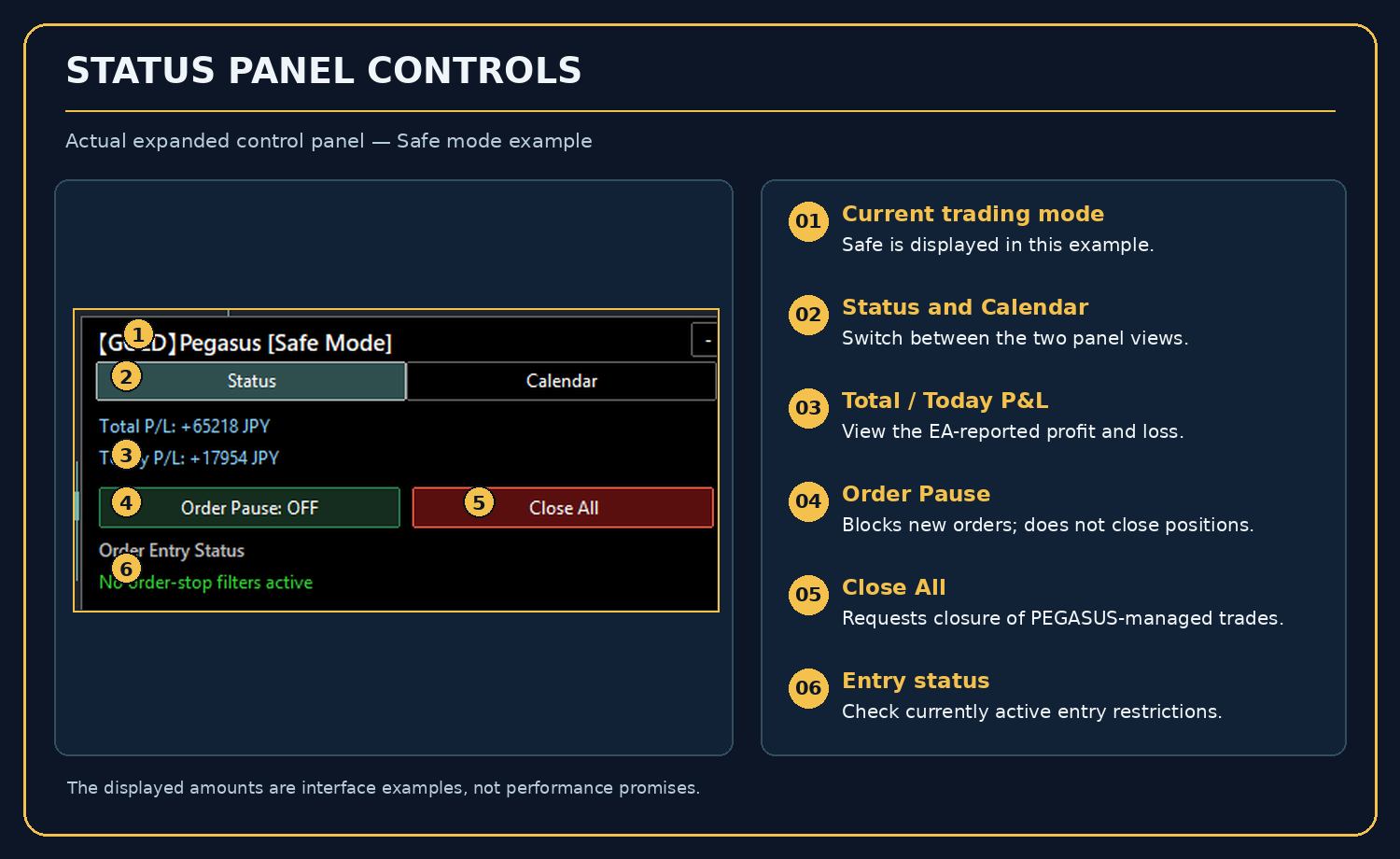
Figure: On-chart Status tab with the operating mode, P/L, Order Pause, Close All and entry-filter status.
- Mode heading: Safe / Standard / Aggressive, with BOOST ON only when the switch is enabled. The heading is not a live risk meter.
- Status / Calendar: two tabs of the same panel. Calendar shows trading-performance history, not scheduled macroeconomic events.
- Total P/L / Today P/L: the EA’s reported deal results for its tracked trading activity, in the account currency. “Today” follows the MT5 server-day boundary.
- Order Pause: a manual stop for NEW entries. It does not close the existing BUY/SELL baskets.
- Close All: attempts to close PEGASUS-managed positions, including its separate BUY and SELL identifiers. Closing orders may require retries and is not guaranteed if broker execution is unavailable.
- Order Entry Status: reports active entry restrictions. “No order-stop filters active” does not mean a signal exists or that an order is imminent.
- Collapse (+/–): minimize or expand the control panel. Chart resizing may require sufficient free area.
5. Daily P/L Calendar
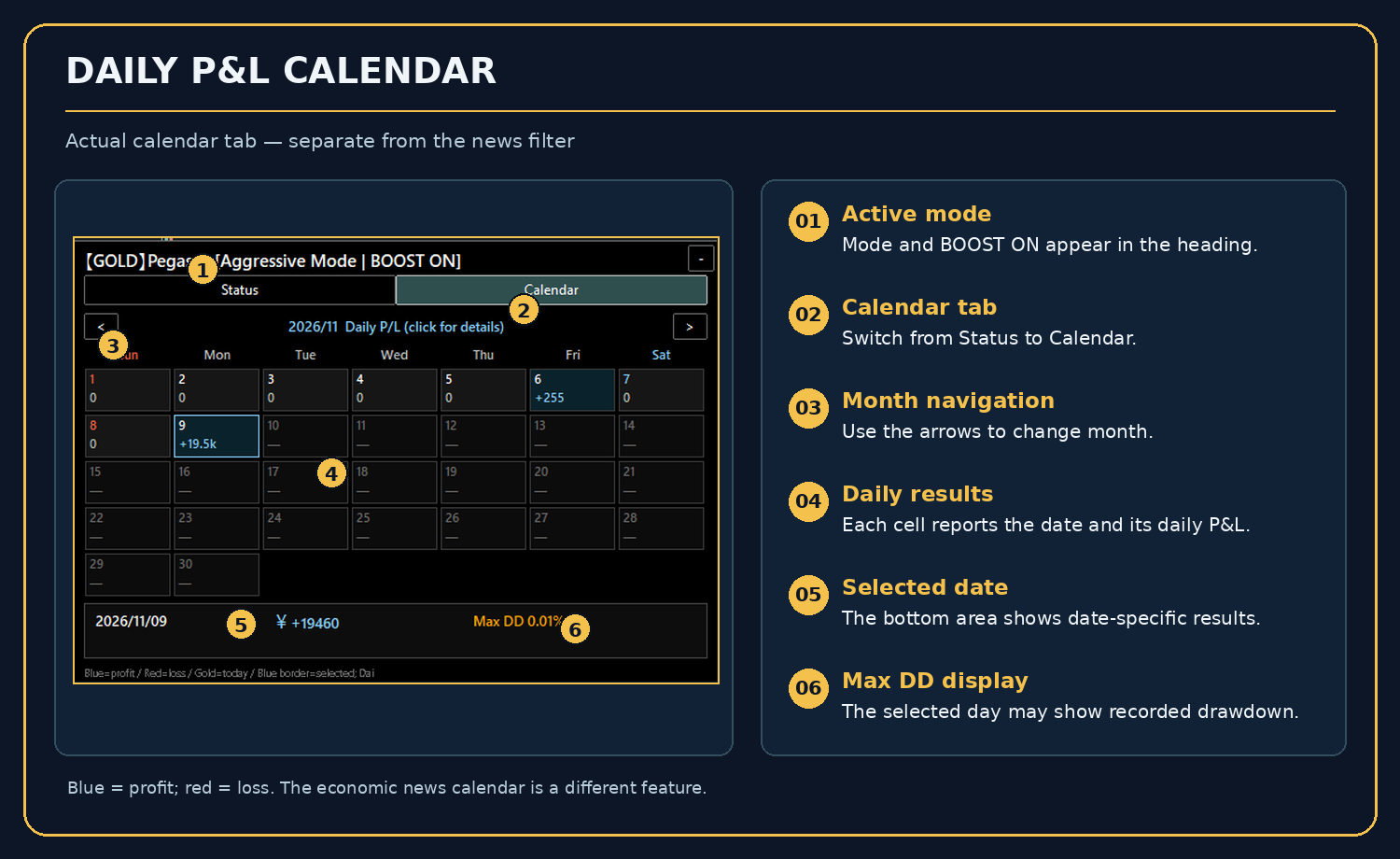
Figure: Calendar tab showing monthly daily P/L, month navigation, selected-day result and Max DD.
- Previous / Next: navigate through monthly results.
- Daily cells: blue = positive P/L; red = negative P/L; muted/zero values indicate no net change reported for that date; future dates have no realized performance data.
- Gold outline: today. Blue outline: currently selected day.
- Selected date: choose a completed date to view its detailed amount below the grid.
- Daily Max DD: measured as the largest recorded relative decline from the day’s peak EA-equity tracking value when a record is available. “--” means no valid daily drawdown record is available for that date.
The calendar is intended for review and bookkeeping. It does not prove real-money returns and it does not replace the MT5 account history or broker statements. The daily Max DD display is not a guaranteed account-level stop-out forecast.
6. How the Trading Safety Functions Work
Entry controls versus trade exits: Scheduled pause, the news filter, spread limits, manual Order Pause and the minimum margin-level entry check are restrictions on NEW orders. They do not automatically close an open basket merely because a pause condition becomes active.
BUY management: PEGASUS uses a basket/position-adding approach. It does not provide a normal fixed individual BUY stop-loss. Floating losses can become very large during a prolonged downward move. A profit-taking exit or recovery is not guaranteed.
SELL management: SELL entries are managed separately and use loss-limiting rules, including protective behavior at position/basket limits. These are not guarantees of execution or maximum loss.
Fail-safe behavior: the EA may pause new entries when it cannot confirm prices, margin, history, saved state or economic calendar data. Do not bypass such pauses without understanding their cause.
7. Saved Settings, Restarts and Multiple Charts
- PEGASUS saves supported parameters and runtime state to local MT5 files for recovery. A restart or timeframe change should not be treated as permission to forget existing positions.
- If an input change appears to be ignored, first confirm whether a previously saved value was restored and whether Override saved settings is required for the intended change.
- A symbol change, different broker suffix, new account, or changed magic number changes the operating context and may affect existing records and position ownership.
- Avoid running two instances with the same account, symbol and magic numbers; the EA uses persistent locks and may refuse duplicate activation.
- Check the panel’s actual display and click positions after moving to another corner, resizing the chart, collapsing the panel, or changing MT5 layouts.
8. Troubleshooting
| Symptom | What to review first |
|---|---|
| EA does not initialize | Check GOLD/XAUUSD symbol naming, hedging mode, tradable contract/lot specifications, account-currency conversion (if needed), and Experts / Journal messages. |
| No new orders | Confirm actual signals are present; review Order Pause, scheduled hours, calendar filter, spread, available margin, account conversion, emergency status, and state/historical data. |
| Panel is absent or clipped | Review Show control panel, selected corner and pixel offsets. Enlarge the chart for the Calendar tab, which needs a wider chart area. |
| Settings appear unchanged | Check saved-setting restoration; do not assume editing Inputs overrides every saved setting. Review Override saved settings and confirm the effective state. |
| BOOST ON displayed but lot unchanged | Check whether the profile is Safe, whether the applicable sizing threshold was reached, broker volume constraints, and any existing basket-size lock. |
| Liquidation line not shown | Do not interpret absence as safety. Check feature enablement, exposure type, other account positions, symbol data, margin availability and on-screen price range. |
| Calendar Max DD shows -- | The selected day may have no valid recorded DD history. Do not replace missing data with an assumed zero. |
| Close All not complete | Check broker connection, order execution errors, open positions and Expert logs. Do not open a duplicate EA instance as a workaround. |
9. Essential Risk Disclosure
PEGASUS is a high-risk automated trading system. Adding to adverse BUY positions can increase exposure while price moves against the account. Individual BUY positions are not protected by a conventional fixed stop-loss. The estimated liquidation-line illustration does not represent a risk guarantee. All modes can lose money; Standard, Aggressive, and the relevant BOOST profiles can amplify losses. Different brokers, execution prices, gaps, spreads, margin requirements, commissions, swaps, account currencies and market history can produce materially different results.
Never interpret screenshots, simulated prices, the free Account Checker’s Suitable status, or historical backtests as a promise of future returns. Start in a demo environment and use only capital you can afford to lose. Keep MT5 connected for automated management, or use a carefully configured VPS if you need uninterrupted operation.
10. Support and Further Reading
For setup questions or unexpected behavior, contact the author through MQL5 product comments or the platform messaging system. Include: MT5 build, broker, account type, symbol specification, selected mode/Boost, relevant input values, and Experts/Journal messages. Remove account numbers and other sensitive data before sharing screenshots. Never disclose passwords.
For the initial installation sequence, see the separate PEGASUS GOLD v1.00 — Quick Start Guide in the developer’s MQL5 blog.
Manual revision: v1.00 / source checked 10 November 2026. This publication is explanatory documentation, not a guarantee of runtime correctness or investment outcomes.