QuantFlow Engine
- Experts
-
Deynis Alejandro Puro Rodriguez
 Engineered for consistency. Built to last.
Quasar Innovate is an independent technology and finance organization dedicated to
developing advanced Expert Advisors for Forex, metals, indices, cryptocurrencies and
synthetic markets. - Version: 3.9
- Mise à jour: 13 octobre 2026
- Activations: 10
QuantFlow Engine Adaptive Intelligence System
Multi-Asset Expert Advisor for MetaTrader 5. Single-chart deployment
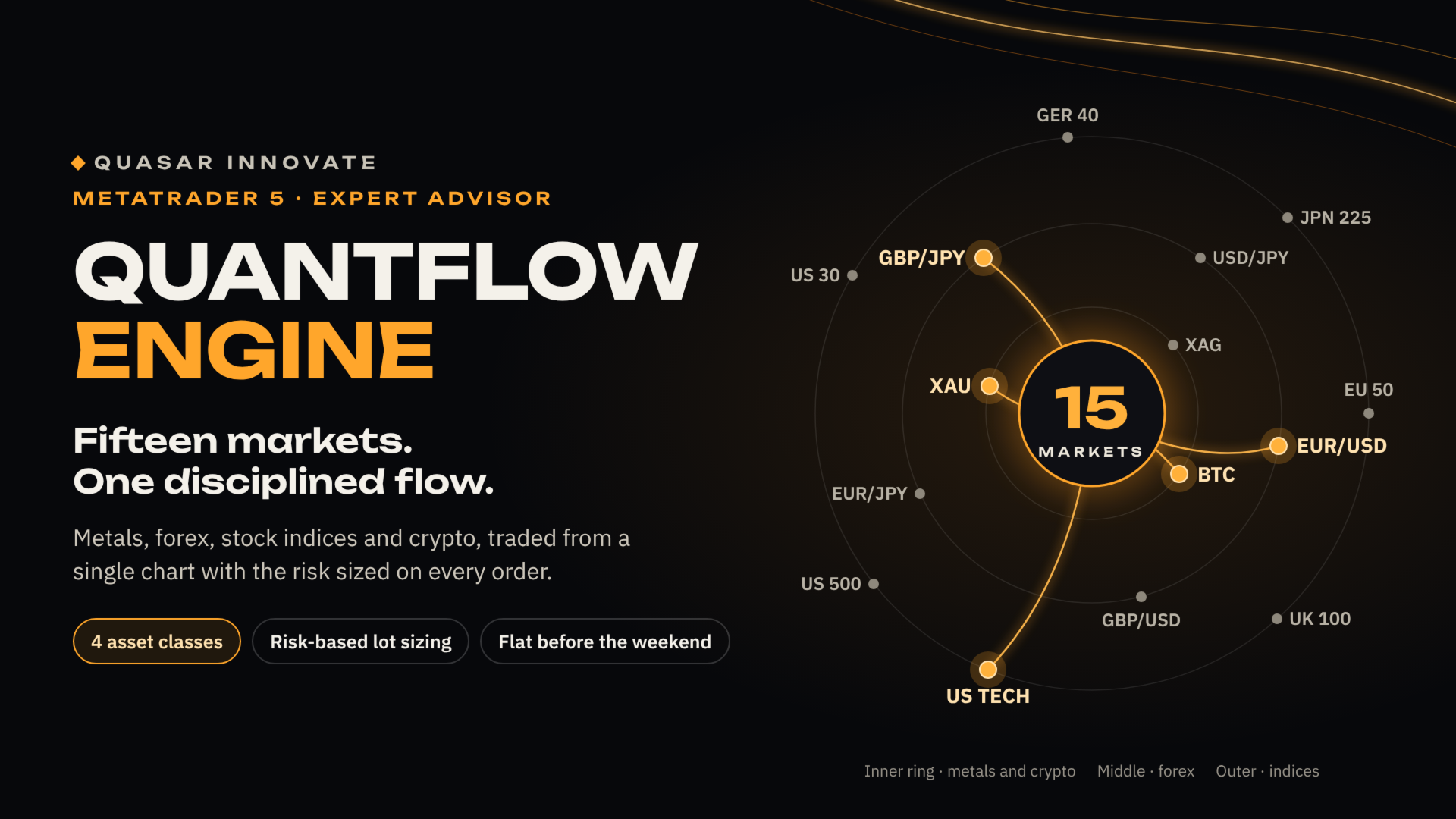
QuantFlow Engine is a multi-asset Expert Advisor designed to trade Forex, metals, stock indices and cryptocurrencies from a single chart. Each instrument is evaluated by its own independent analytical engine, while risk is managed through a centralized framework to reduce the concentration risk of single-symbol systems.
Day trading strategy (intraday). No Martingale, no Grid, no Recovery Methods, no HFT, no Scalping.
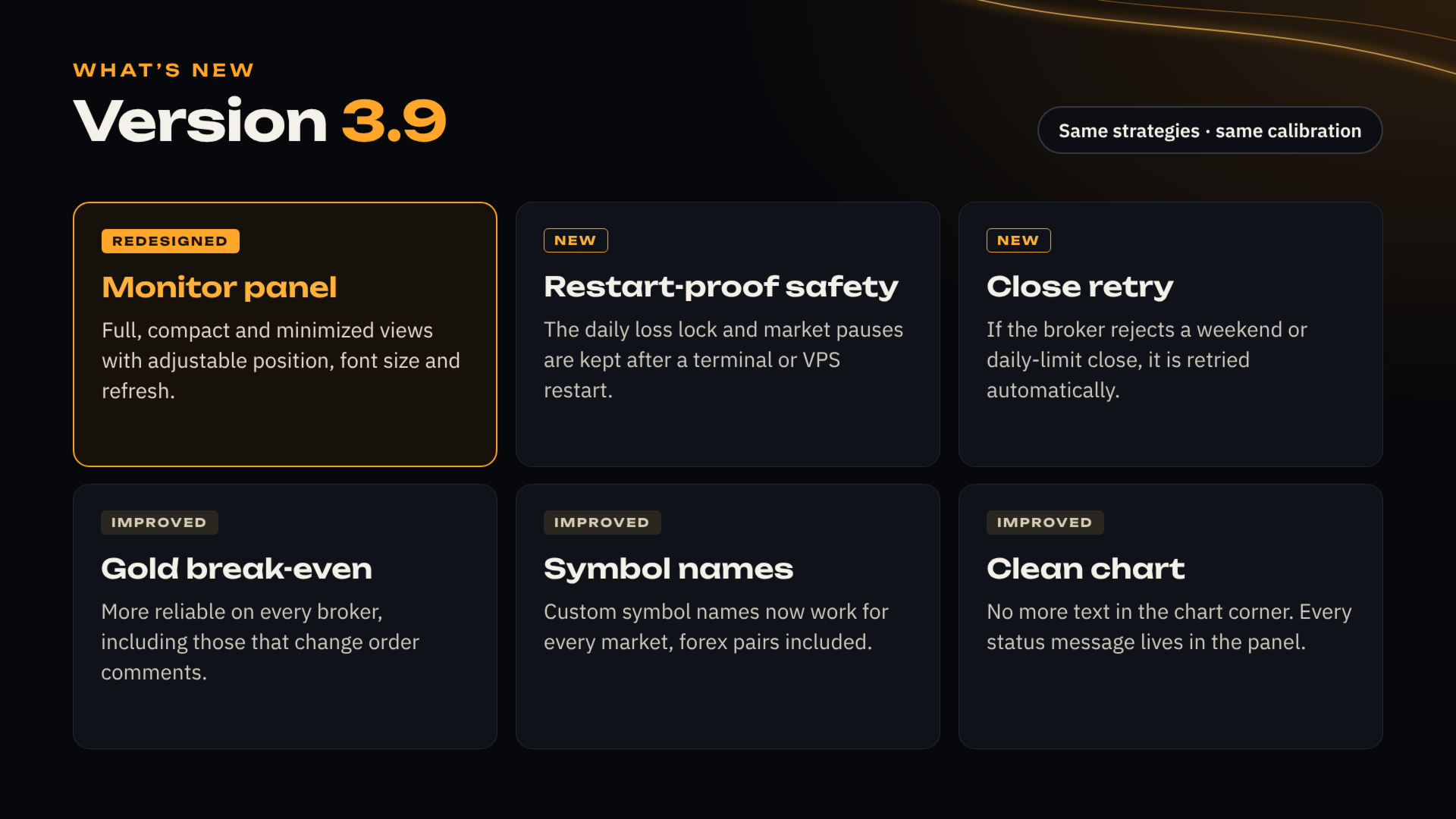
This product is actively maintained and may receive updates to improve stability and adapt to changing market behaviour.
Supported Markets and Instruments
| Class | Symbols |
|---|---|
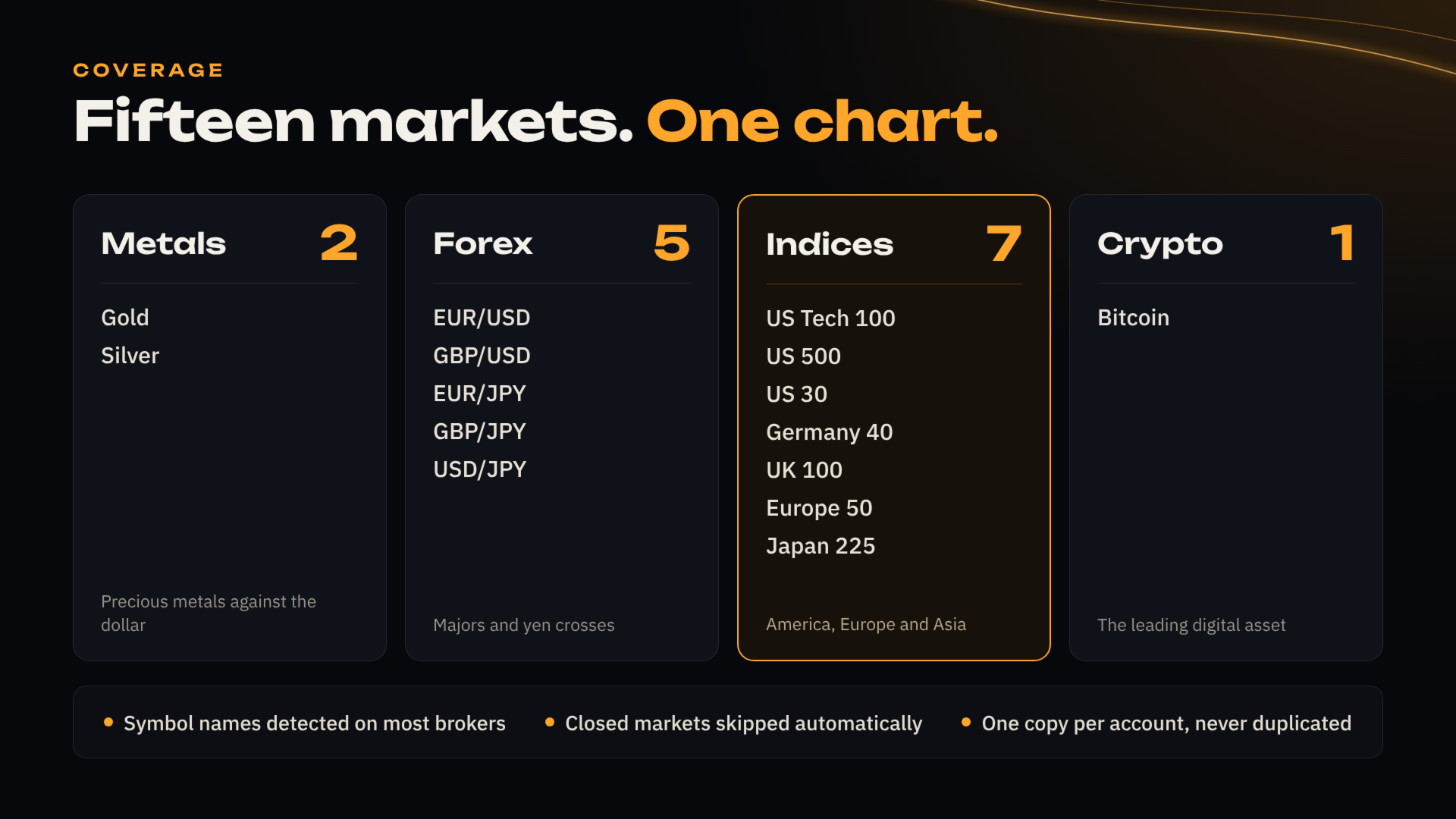
| Forex | EURUSD, GBPUSD, EURJPY, GBPJPY, USDJPY |
| Metals | XAUUSD (Gold), XAGUSD (Silver) |
| Stock indices | US100, US500, UK100, GER40, EU50, JP225, US30 |
| Cryptocurrencies | BTCUSD |
Some brokers use prefixes or suffixes. The EA detects and validates the broker-specific name automatically, and writes the result in the Experts log at start-up so you can confirm what it resolved. If your server uses a non-standard convention, or the symbol is not enabled in Market Watch, use the manual symbol name inputs.
Single-Chart Rule
QuantFlow Engine is a single-instance multi-asset system and must be attached to one chart only. Running several instances may result in duplicated trades and unintended exposure. Recommended setup: XAUUSD on H1, one chart only. Never change the timeframe while the EA is running.
From version 3.8 the EA detects this by itself: if a copy is already running on another chart of the same terminal, the second copy does not trade and the panel states the reason. Detection covers charts within the same terminal; if you run two separate terminals on the same account, keep the EA in only one of them.
Installation
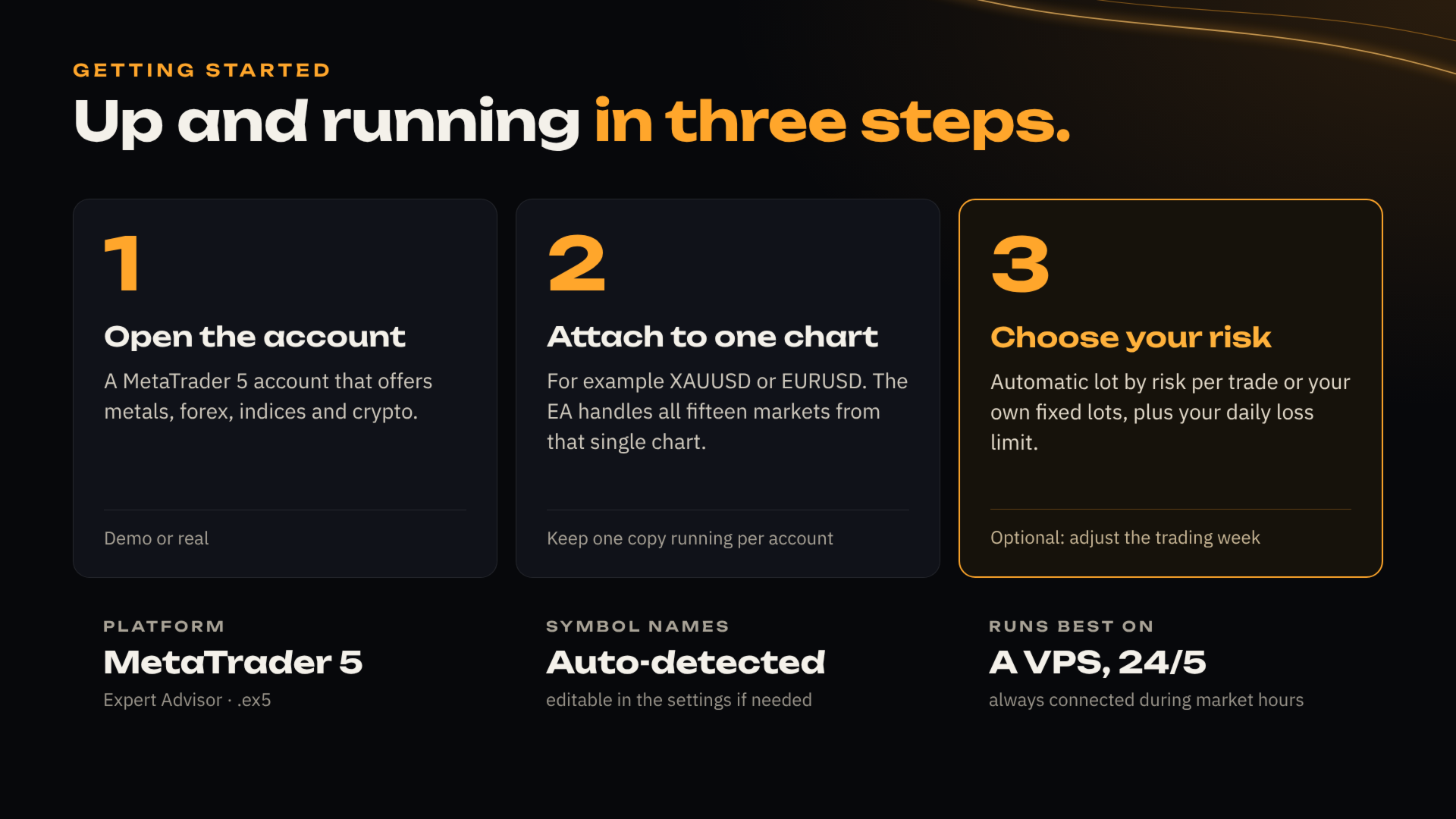
- Open MetaTrader 5.
- Ensure the required symbols are available on your broker server and visible in Market Watch.
- Open XAUUSD on H1.
- Attach QuantFlow Engine to that chart only.
- Enable Algo Trading / AutoTrading.
- Confirm successful initialization in the Experts tab.
- Choose the Lot Size Mode. Automatic needs no further setup; Manual needs the volumes from the reference table.
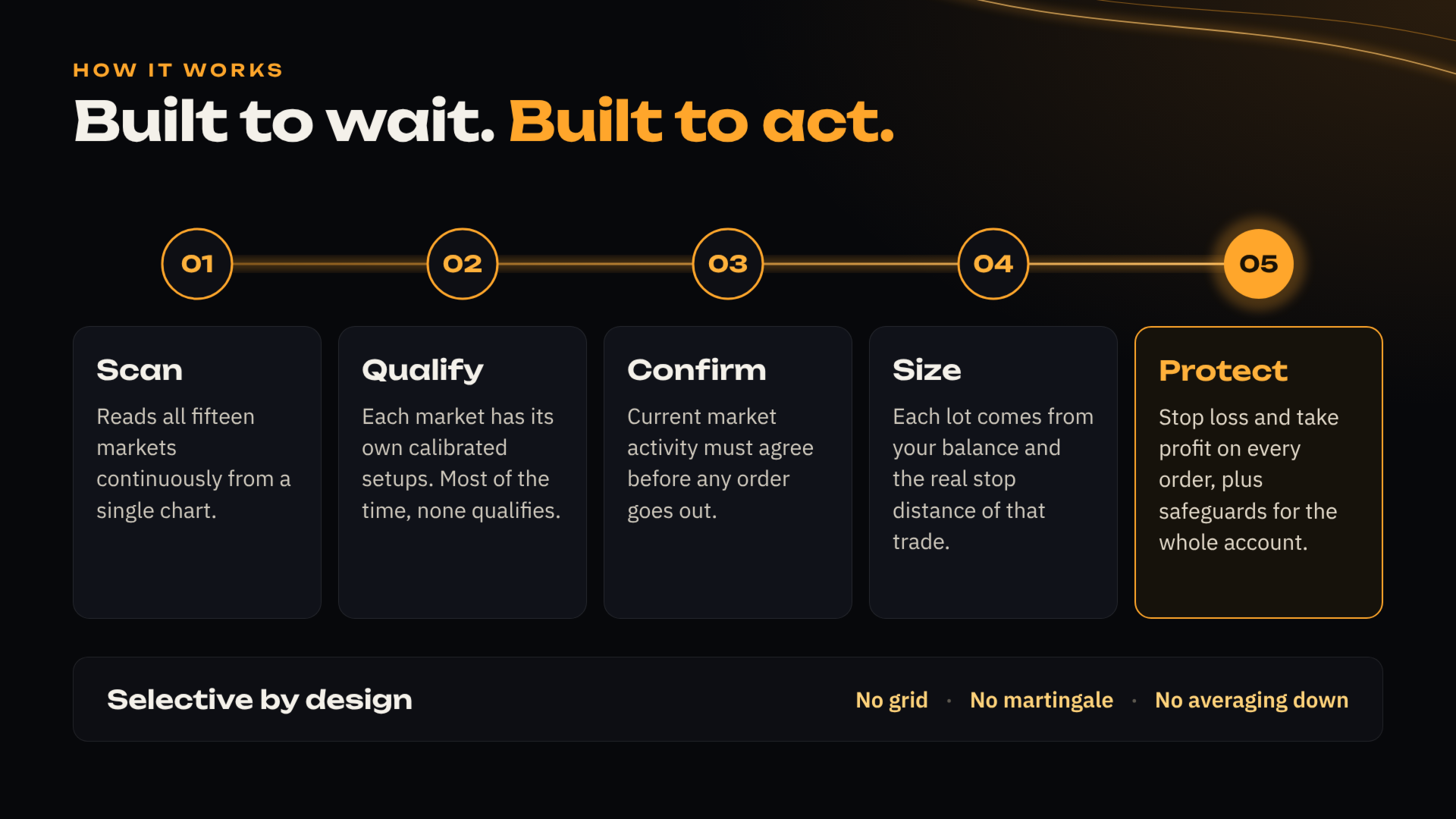
Once initialized, the EA detects and validates the available symbols, monitors the supported markets, and executes trades only when its internal conditions are met.
This Expert Advisor is complex and extensive, so a backtest may take a considerable time to load. During the test the platform downloads historical data for every symbol integrated in the EA. Please be patient.
Trading Logic
QuantFlow Engine uses a selective decision engine based on volatility conditions, directional volume and flow behaviour, price structure and micro-movements, multi-timeframe confirmations, and exhaustion and reversal areas.
The EA is designed to avoid overtrading. Periods without trades can be normal when conditions are not suitable.
Risk Management Framework
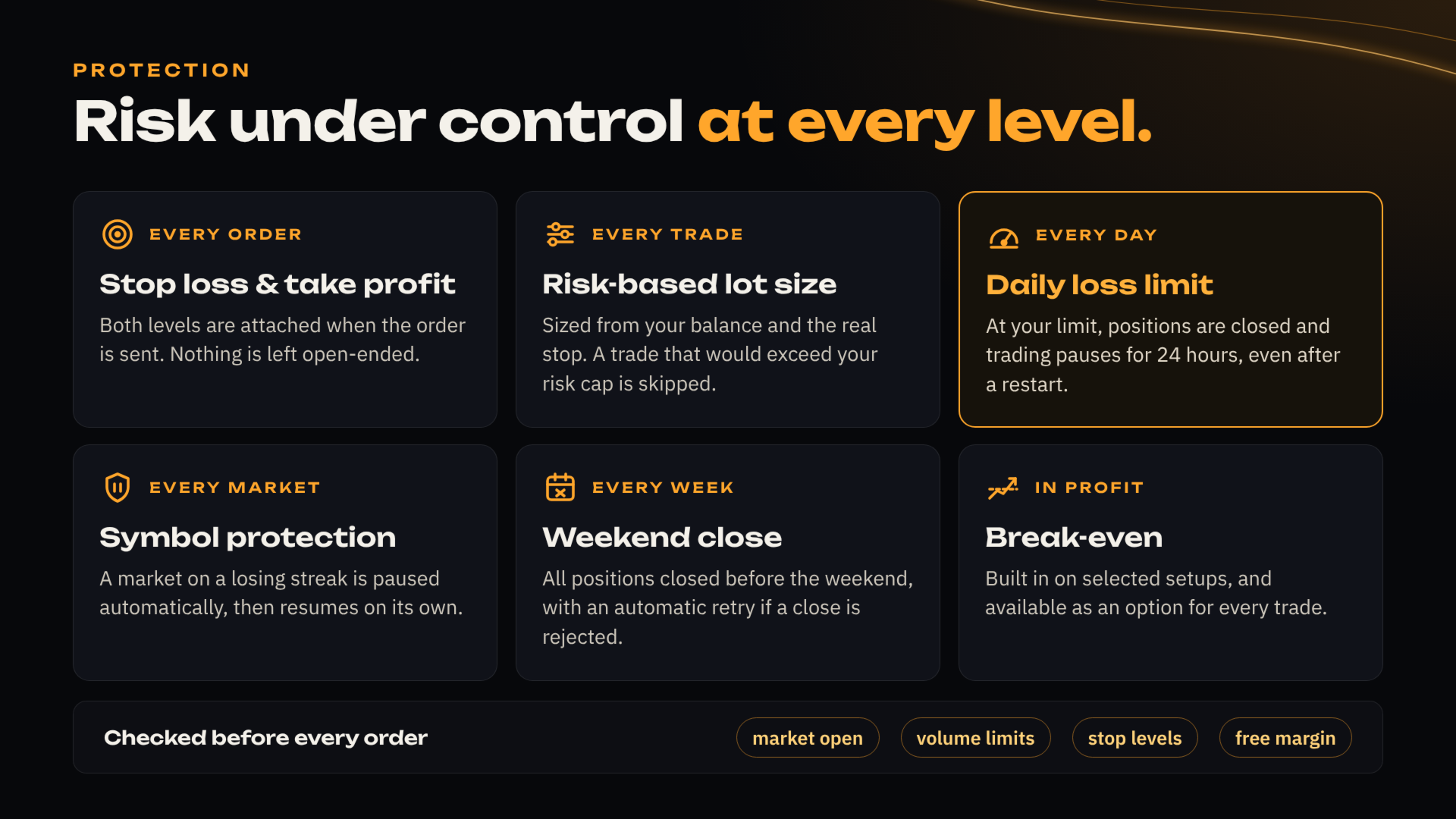
Risk is managed with portfolio-style discipline:
- Position sizing from account balance and real stop loss distance, or fixed volumes per symbol
- Controlled exposure per symbol, with correlation-aware limitations to reduce clustered risk
- Daily loss protection. When the configured threshold is reached, the EA closes its own open positions and stops trading for the next 24 hours. Positions from other programs or opened manually are never touched
- Automatic symbol suspension after an adverse sequence, when enabled. The affected symbol pauses for a predefined period and reactivates by itself, while the rest keep trading. Only positions opened by this EA are counted
- Asset-specific stop loss and take profit logic
- Order validation before every trade: volume limits, volume step, aggregate symbol volume limit, broker minimum stop distance, free margin and open market session
Input Parameters
Parameters are organised in groups inside the EA properties window. Boolean inputs: false means OFF, true means ON.
| Group | Parameter | Default | What it does |
|---|---|---|---|
| 1. General | InpMagicNumber | 85190342 | Identifies the trades opened by this EA, so it manages only its own positions |
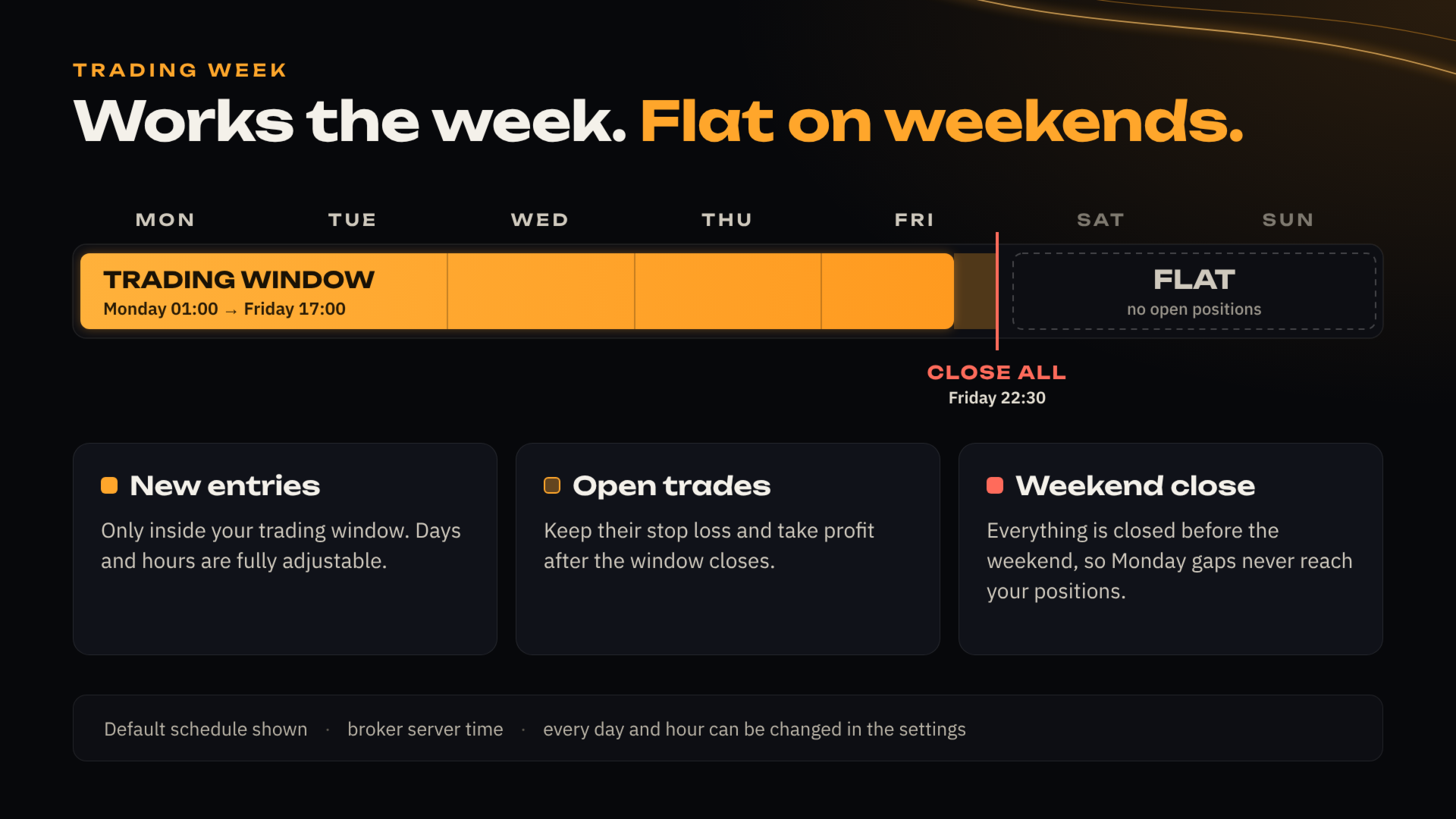
| 2. Trading Time Window | StartTradingDay | Monday | Day the trading week becomes active |
| StartTradingHour | 1 | Server hour on that day when the EA starts looking for trades | |
| StopTradingDay | Friday | Day the trading week stops | |
| StopTradingHour | 17 | Server hour on that day when the EA stops opening new trades | |
| CloseAllDay | Friday | Day all open positions are force-closed | |
| CloseAllHour | 22 | Server hour of the forced close | |
| CloseAllMinute | 30 | Minute of the forced close, for example 22:30 server time | |
| 3. Daily Risk | MaxDailyLossPercent | 20.0 | Percentage of the balance at the start of the day. When reached, the EA closes its own positions and pauses for 24 hours |
| 4. Break-Even | Enable_Move_SL_BE | false | Moves the stop loss to break-even after predefined progression levels |
| BreakEvenLevels | 95 % | How far towards the target before the stop loss is moved | |
| 5. TP Booster | Enable_TP_Booster | false | Expands take profit targets when conditions indicate a higher probability of further favourable movement |
| 6. Market Sensitivity | SensitivityLevels | -35 % | Adaptive calibration to align behaviour across brokers with different volume and liquidity reporting |
| 7. Symbol SL Protection | CheckAndDisableSymbolBYSL | true | Temporarily suspends a symbol that accumulates an adverse stop loss sequence, while the EA keeps trading the rest |
| 8. Symbol Names | NameToSymbol_... | per broker | One input per instrument, to specify the exact symbol name used by your broker |
| 9. Lot Size Mode | LotSizingMode | Automatic | Automatic (risk based) or Manual (fixed volumes) |
| AutoRisk_MinPercent | 2.0 % | Lower end of the risk range. The EA aims at this value first | |
| AutoRisk_MaxPercent | 5.0 % | Upper limit. Above this, the signal is discarded rather than opened with more risk than requested | |
| 10. Manual Lot | One input per symbol | see table | Used only when Lot Size Mode is set to Manual |
Trading time window. Broker server time, calibrated for a GMT+3 schedule. Between the start and the stop the EA operates continuously. If your broker server time is not GMT+3, adjust these inputs so the effective window matches the same GMT+3 hours. The day selectors are new in 3.8 and let you shift the whole weekly window when your server uses a different week boundary.
Note on daily risk. This value must be consistent with your volumes and account balance. On funded accounts, set it slightly below the prop firm daily limit to keep a buffer. On personal accounts, avoid setting it too low or the EA may pause during normal fluctuations. It is a limit per 24-hour window, not a limit on total drawdown over a longer period.
Note on break-even. It can reduce drawdown, and it can also reduce long-run performance by closing trades earlier during normal retracements.
Note on the TP Booster. OFF is recommended for a more conservative style. ON may increase aggressiveness in profit capture and can lead to different outcomes depending on market conditions and execution.
Note on lot size. In Automatic mode no volume configuration is needed: the EA looks for the smallest volume the instrument allows whose risk reaches the minimum, and accepts it only if it stays below the maximum. If even the smallest volume would exceed the maximum, the signal is discarded and the panel shows the symbol and the reason. This can happen when the account is small relative to a specific instrument. In Manual mode each symbol and strategy uses the fixed volume you set, and the reference table below applies.
Market sensitivity is the most relevant input to set up. Test it using recent data, ideally the last 24 months.
| Broker | Reference value |
|---|---|
| IC Markets | -35 % |
| Deriv | -20 % |
| Prop firms and generic brokers | -35 % |
Lot Size Reference (Base: 1,000 USD)
Applies to Manual Lot Size mode. In Automatic mode the EA sizes every position by itself and this table is for reference only.
New Lot Size = Table Lot Size x (Your Capital / 1000)
Minimum recommended balance: 400 USD, with the volumes scaled proportionally. Contract specifications differ by broker, so always verify your broker's contract size and symbol specifications before using the suggested volumes.
| Symbol and strategy | Lot Size | Contract Size | % Risk per strategy (1,000 USD) |
|---|---|---|---|
| XAUUSD P1, P2, P3, P4 | 0.02 | 100 | 3 - 6 % |
| XAGUSD P1, P2 | 0.10 | 1000 | 3 - 6 % |
| EURUSD P1, P2 | 0.12 | 100000 | 3 - 4 % |
| GBPUSD P1 | 0.12 | 100000 | 3 - 4 % |
| GBPUSD P2 | 0.10 | 100000 | 3 - 4 % |
| EURJPY P1 | 0.10 | 100000 | 3 - 4 % |
| EURJPY P2 | 0.12 | 100000 | 3 - 4 % |
| GBPJPY P1 | 0.10 | 100000 | 3 - 4 % |
| GBPJPY P2 | 0.12 | 100000 | 3 - 4 % |
| USDJPY P1, P2 | 0.12 | 100000 | 3 - 4 % |
| Europe 50 (EU50) P1, P2 | 1.00 | 1 | 3 - 4 % |
| UK100 P1, P2 | 0.80 | 1 | 3 - 4 % |
| US Tech 100 (US100) P1, P2 | 0.30 | 1 | 3 - 4 % |
| US SP 500 (US500) P1, P2 | 1.00 | 1 | 3 - 4 % |
| US30 P1, P2 | 0.10 | 1 | 3 - 4 % |
| Germany 40 (GER40) P1, P2 | 0.20 | 1 | 3 - 4 % |
| JP225 P1, P2 | 20.00 | 1 | 4 - 5 % |
| BTCUSD P1 | 0.03 | 1 | 2 - 3 % |
| BTCUSD P2 | 0.02 | 1 | 3 - 4 % |
On-Chart Panel
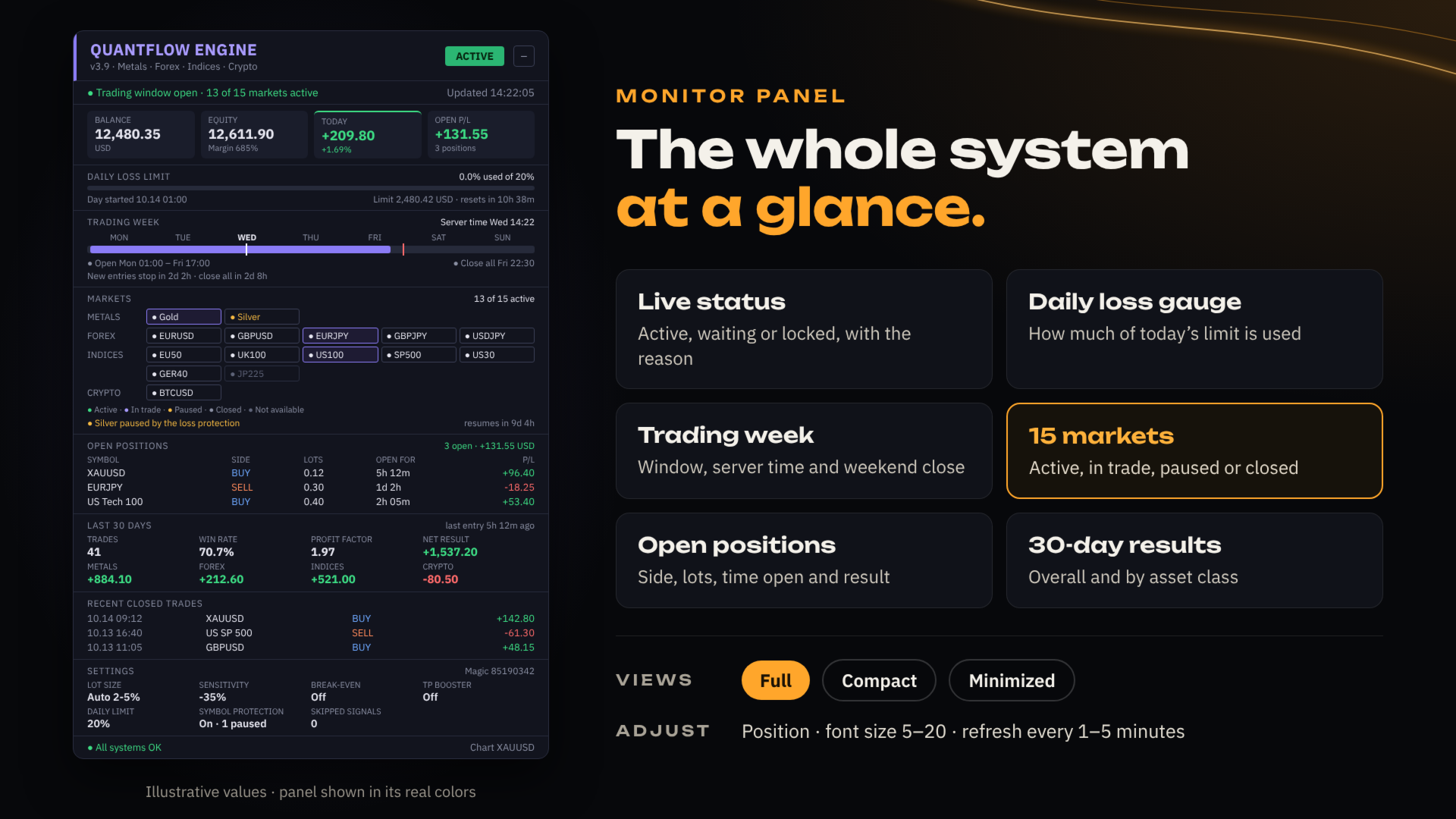
The panel reports the EA name and version, the trading status, the number of symbols being monitored, the account balance, the profit and loss of the day with the daily risk bar, and the number of discarded signals with the symbol and reason of the last one.
That last line makes support easier: you can report what the panel says without opening the log. The panel also states directly when algo trading is disabled, when the account does not allow Expert Advisors, when the daily limit has paused the EA, and when a duplicate copy is detected.
Backtesting Recommendation
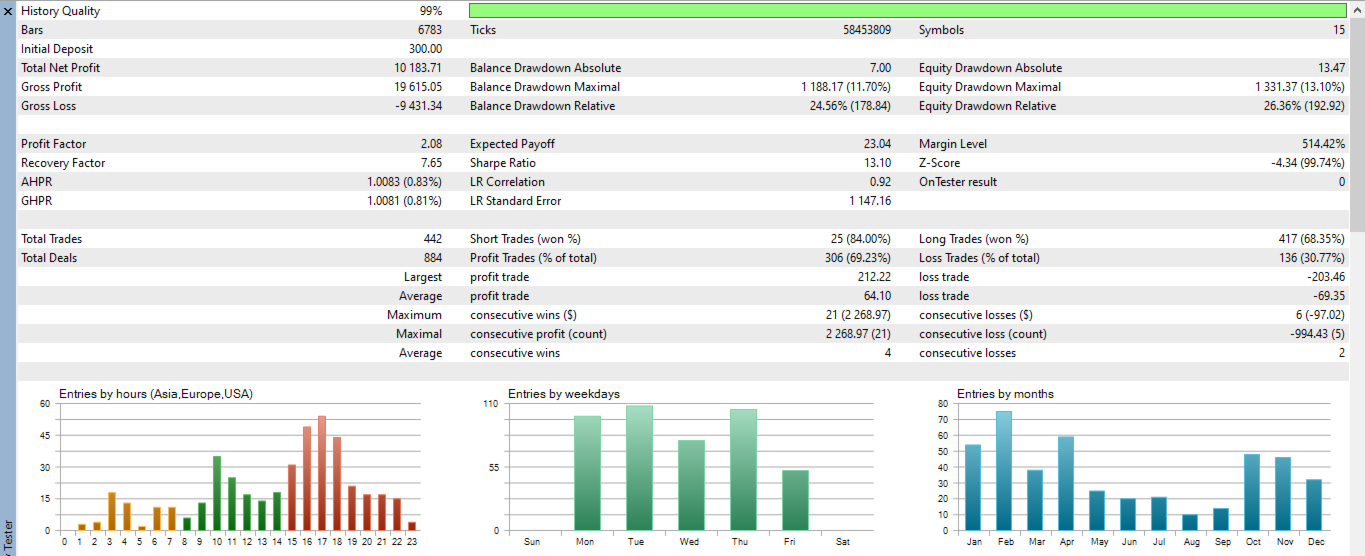
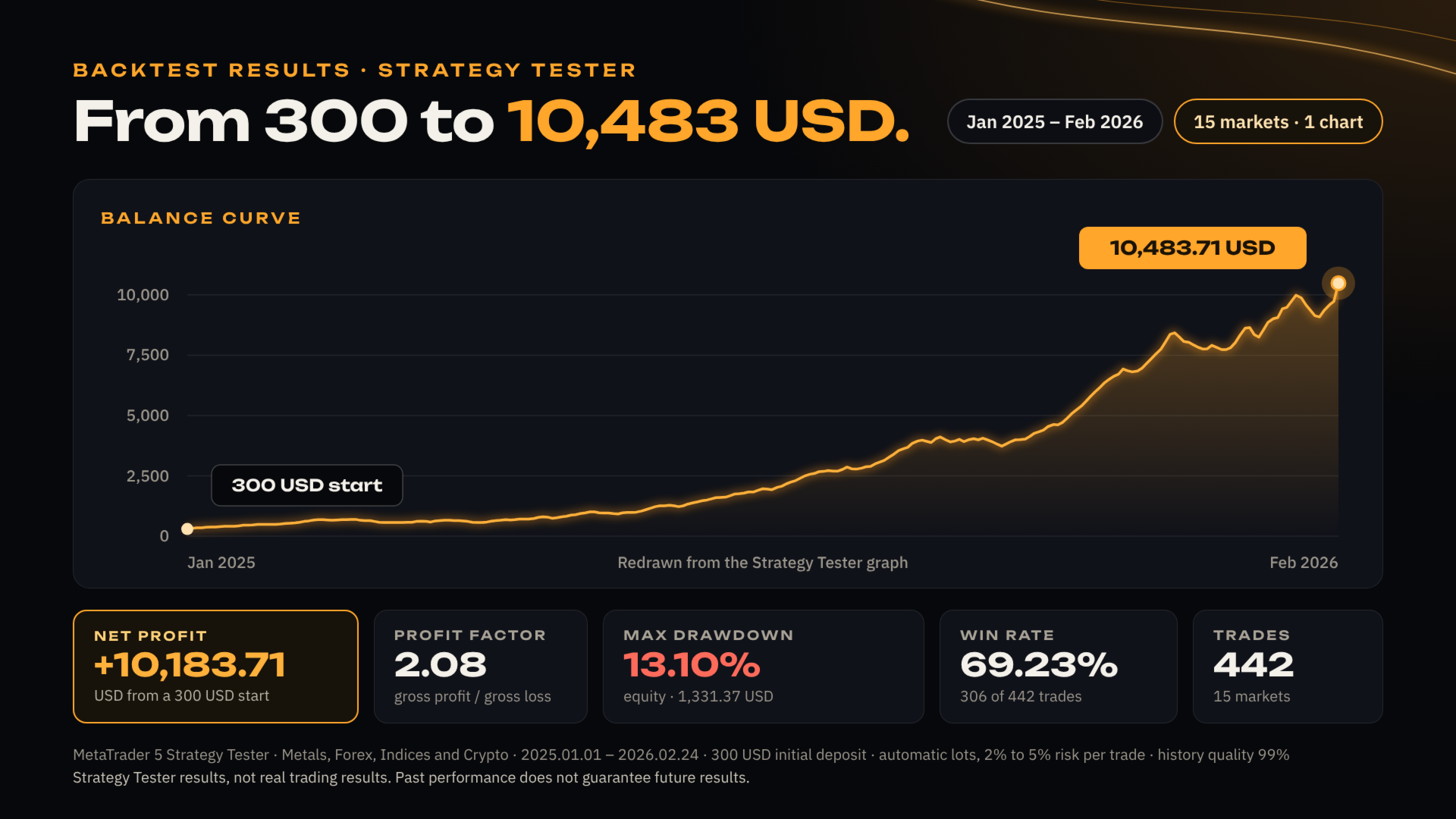
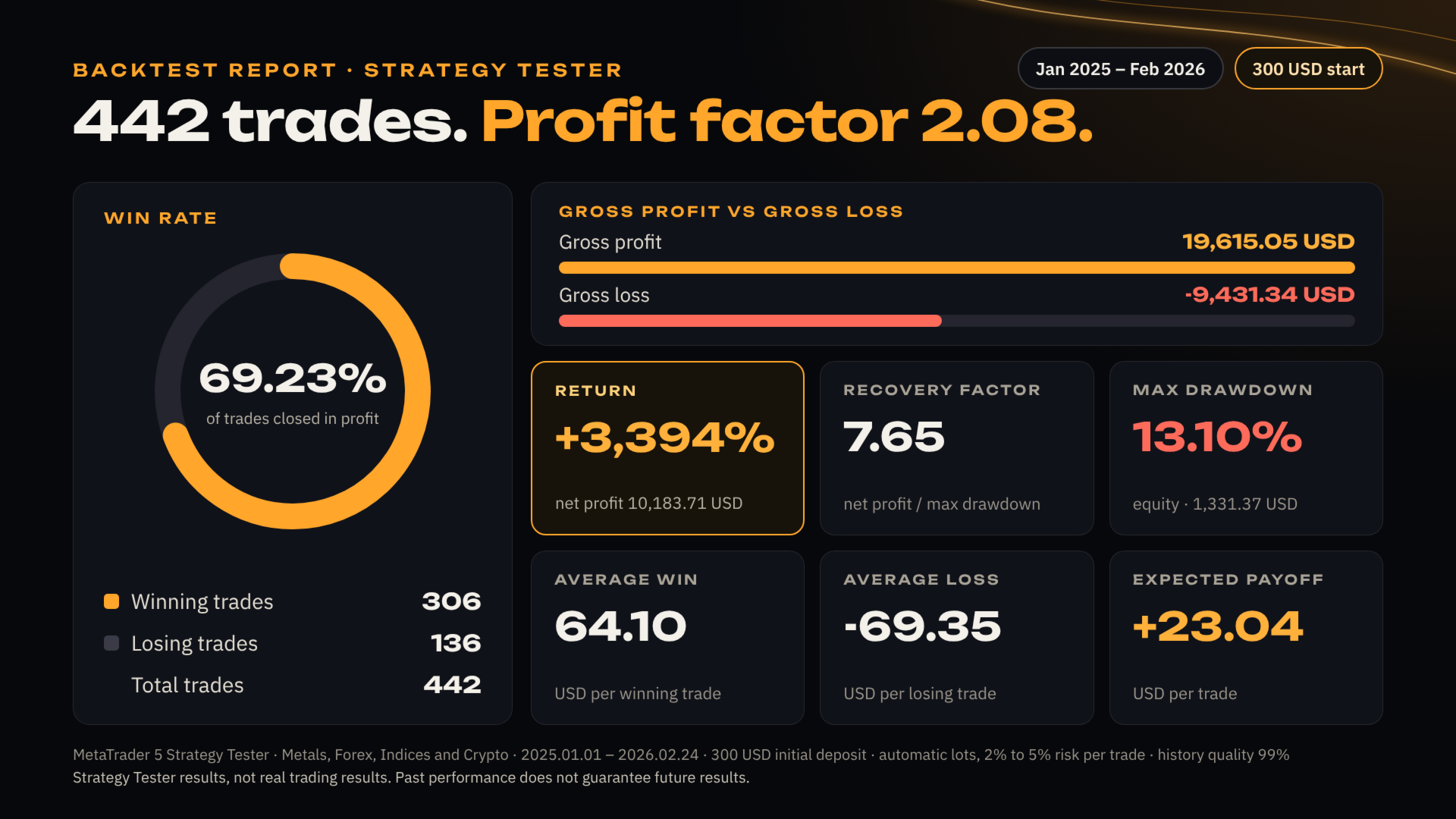
Use the last 24 months of historical data when possible, with real spreads and commissions. Consider that multi-year tests may not reflect current execution conditions. Calibrate SensitivityLevels for your broker before drawing conclusions.
Normal System Behaviour
The following are normal and do not indicate a problem:
- Periods with no trades
- Uneven trade distribution across symbols
- Automatic pauses due to risk protections
- Selective execution based on internal validation
- Fewer symbols monitored than the total, when one is temporarily suspended
- Discarded signals in Automatic Lot Size mode when the account is small relative to a specific instrument
Operational Notes
For stable operation, avoid frequent restarts or re-attaching the EA. Each strategy uses internal waiting times between entries, and restarting resets them. If your environment is prone to disconnections, a VPS may help improve continuity.
For cleaner trade management, consider using a dedicated trading account and avoid mixing several EAs or manual trading on the same account. This also keeps the daily loss calculation and the symbol suspension logic aligned with what this EA is actually doing.
Quick Troubleshooting
| Symptom | What to check |
|---|---|
| EA is not trading | Look at the panel first: it names the reason when algo trading is off, the account does not allow EAs, the daily limit has paused the EA, or the copy is a duplicate. Then confirm successful initialization in the Experts tab, the correct broker environment, and that the required symbols are available and visible |
| Signals are being discarded | Check the discarded signals counter on the panel. In Automatic mode, an account that is small relative to a specific instrument will discard its signals, because the smallest volume that instrument allows would exceed the maximum risk |
| A symbol is not being traded | It may be temporarily suspended by the SL protection, or its name may not have been detected. The symbol list written in the log at start-up confirms what the EA resolved on your server |
| Trades are duplicated | Almost always the EA attached to more than one chart. From 3.8 the second copy detects it and does not trade. Remove all instances and keep one |
Updates and Support
Support for this product is provided through the MQL5.com product comments and the MQL5.com messaging system. Please use these official channels for questions, troubleshooting and update-related assistance.
Disclaimer
Trading involves risk. Past performance does not guarantee future results. Results may vary due to market conditions, broker execution, spreads, commissions, liquidity, volatility regimes and user configuration. Test the product in the Strategy Tester and on a demo account before running it on a live account.