New MetaTrader 5 Build 1210: Enhanced Depth of Market and General Improvements
MetaTrader 5 platform update is to be released on Friday, October 30, 2015. The update will feature the following changes:
Terminal: Added ability to place limit orders at a price worse
than the market one in the Depth of Market. This allows you to get a
guaranteed order execution at a specified price on the market.
If we drag a limit order through ask/bid border, it will change to a
stop order (Buy Limit will be replaced by Buy Stop, while Sell Limit -
by Sell Stop). Hold Crtl while dragging so that a limit order is not
replaced by a stop one.
Terminal: Added the "Show quick trading buttons" option in the
chart settings. It allows you to hide the One Click Trading panel
enabling buttons and the Depth of Market from a chart.
Terminal: Fixed occasional conflicts between tooltips and other applications.
MQL5: Fixed the operation of the Copy* functions for copying
history data with dynamic arrays having the AS_SERIES flag. The flag is
set by the ArraySetAsSeries function and indicates that indexation of
the array elements is performed as in timeseries.
MQL5: Changed the CHART_SHOW_ONE_CLICK property managed via
ChartSetInteger and ChartGetInteger. Previously, the property allowed
showing/hiding the One Click Trading panel on a chart. Now, it also
shows/hides the buttons for setting the One Click Trading panel and the
Depth of Market on a chart (similar to the "Show quick trading buttons"
in the chart settings).
MQL5: Fixed template operation.
Updated documentation.
The update will be available through the LiveUpdate system.
New MetaTrader 5 Platform Build 1240: Faster operation and embedded videos
MetaTrader 5 platform update is to be released on Thursday, December 17, 2015. The update will feature the following changes:
Hosting: Added a link to the tutorial video "How to Rent A Virtual Platform"
into the Virtual Hosting Wizard dialog. Watch this two-minute video to
learn how to easily launch a trading robot or copy signals 24/7.
Terminal: Accelerated update of the list of open orders and
positions during high-frequency trading (50 and more operations per
second).
Terminal: Optimized and greatly accelerated initial
synchronization of the terminal with a trade server in case of a large
amount of symbols (tens of thousands). Now, you can start working much
faster after connection is established.
Terminal: Optimized and significantly reduced memory consumption by the terminal.
Terminal: Added saving and restoring the depth of market settings when closing/opening the terminal.
Terminal: Fixed artifacts that occurred in Windows 10 when dragging the terminal windows.
Terminal: Fixed the context help for a number of commands and
dialogs. For activating help concerning a certain element, move the
cursor on it and press F1.
Terminal: The works on adapting the interface for high resolution screens (4K) are underway.
MQL5: Added the new properties for the OrderGetString,
HistoryOrderGetString, and HistoryDealGetString functions responsible
for receiving data on orders and deals:
ORDER_EXTERNAL_ID - order ID in an external trading system (on the exchange).
DEAL_EXTERNAL_ID - deal ID in an external trading system.
MQL5: Fixed the ZeroMemory function operation when working with
structures and classes. Memory clearing was not performed in some cases.
MQL5: Added the error codes during the SendFTP function operation.
The function sends the file to the address specified on the FTP tab of
the Options window.
ERR_FTP_NOSERVER - FTP server is not specified in the settings
ERR_FTP_NOLOGIN - FTP login is not specified in the settings
ERR_FTP_FILE_ERROR - file does not exist
ERR_FTP_CONNECT_FAILED - failed to connect to the FTP server
ERR_FTP_CHANGEDIR - file upload directory not found on the FTP server
ERR_FTP_CLOSED - connection to the FTP server closed
MQL5: Fixed type casting access by inheritance between child class objects and
their parents.
MQL5: Fixed a few errors in the class templates.
MQL5: Fixed requesting ticks using the CopyTicks function. When
specifying the COPY_TICKS_TRADE parameter (copy only trade ticks) for
consecutive identical trade ticks (identical volume and last price),
only the first tick was passed.
MQL5: Fixed defining a size of a custom type variable.
MQL5: Fixed an error when using ZLib in the CryptDecode function that led to an infinite unzip loop.
Tester: Fixed synchronization of the price history for a symbol different from the main test one.
Tester: Fixed doubling of the TRADE_TRANSACTION_DEAL_ADD
transaction (adding a trade to history) in the OnTradeTransaction event
handler.
MetaEditor: Added a link to the tutorial video "How to Create a Trading Robot in the MQL5 Wizard" to the MQL5 Wizard. Watch this three-minute video and develop a trading robot without writing a single line of code.
Tester: Changed forward test behavior during genetic optimization.
Now, all unique results obtained after genetic optimization participate
in forward passes. Previously, only 1/4 of the results were used.
MetaEditor: Fixed window arrangement commands if one of the
windows is fully expanded. The Window menu allows you to arrange open
files as tiles, vertically, horizontally and as a cascade.
MetaEditor: The works on adapting the interface for high resolution screens (4K) are underway.
Hosting: Fixed migration for hosting when a custom indicator is
called or an EX5 library within a custom indicator is called from an
Expert Advisor.
Updated documentation.
The update will be available through the LiveUpdate system.
New MetaTrader 5 build 1325: Hedging option and testing on real ticks
MetaTrader 5 platform update is to be released on Friday, April 22, 2016. The new version features the following changes:
Terminal: We have added the second accounting system — hedging, which expands the possibilities of retail Forex traders. Now, it is possible to have multiple positions per symbol, including oppositely directed ones. This paves the way to implementing trading strategies based on the so-called "locking" — if the price moves against a trader, they can open a position in the opposite direction.
Since the new system is similar to the one used in MetaTrader 4, it will be familiar to traders. At the same time, traders will be able to enjoy all the advantages of the fifth platform version — filling orders using multiple deals (including partial fills), multicurrency and multithreaded tester with support for MQL5 Cloud Network, and much more.
Now, you can use one account to trade the markets that adhere to the netting system and allow having only one position per instrument, and use another account in the same platform to trade Forex and apply hedging.
Opening a hedge account and viewing position accounting type
A position accounting system is set at an account level and displayed in the terminal window header and the Journal:
To open a demo account with hedging, enable the appropriate option:
Netting system
With this system, you can have only one common position for a symbol at the same time:
If there is an open position for a symbol, executing a deal in the same direction increases the volume of this position.
If a deal is executed in the opposite direction, the volume of the existing position can be decreased, the position can be closed (when the deal volume is equal to the position volume) or reversed (if the volume of the opposite deal is greater than the current position).
It does not matter, what has caused the opposite deal — an executed market order or a triggered pending order.
The below example shows execution of two EURUSD Buy deals 0.5 lots each:
Execution of both deals resulted in one common position of 1 lot.
Hedging system
With this system, you can have multiple open positions of one and the same symbol, including opposite position.
If you have an open position for a symbol, and execute a new deal (or a pending order triggers), a new position is additionally opened. Your current position does not change.
The below example shows execution of two EURUSD Buy deals 0.5 lots each:
Execution of these deals resulted in opening two separate positions.
New trade operation type - Close By
The new trade operation type has been added for hedging accounts — closing a position by an opposite one. This operation allows closing two oppositely directed positions at a single symbol. If the opposite positions have different numbers of lots, only one order of the two remains open. Its volume will be equal to the difference of lots of the closed positions, while the position direction and open price will match (by volume) the greater of the closed positions.
Compared with a single closure of the two positions, the closing by an opposite position allows traders to save one spread:
In case of a single closing, traders have to pay a spread twice: when closing a buy position at a lower price (Bid) and closing a sell position at a higher one (Ask).
When using an opposite position, an open price of the second position is used to close the first one, while an open price of the first position is used to close the second one.
In the latter case, a "close by" order is placed. Tickets of closed positions are specified in its comment. A pair of opposite positions is closed by two "out by" deals. Total profit/loss resulting from closing the both positions is specified only in one deal.
Tester: Added ability to test trading robots and technical indicators in real tick history.
Testing and optimization on real ticks are as close to real conditions as possible. Instead of generated ticks based on minute data, it is possible to use real ticks accumulated by a broker. These are ticks from exchanges and liquidity providers.
To start testing or optimization in real ticks, select the appropriate mode in the strategy tester:
Tick data has greater size compared to minute one. Downloading it may take quite a long time during the first test. Downloaded tick data is stored by months in TKC files in \bases\[trade server name]\ticks\[symbol name]\.
Testing on real ticks
When testing on real ticks, a spread may change within a minute bar, whereas when generating ticks within a minute, a spread fixed in the appropriate bar is used.
If the Market Depth is displayed for a symbol, the bars are built strictly according to the last executed trade price (Last). Otherwise, the tester first attempts to build the bars by Last prices, and in case of their absence, uses Bid ones. OnTick event is triggered on all ticks regardless of whether the Last price is present or not.
Please note that trading operations are always performed by Bid and Ask prices even if the chart is built by Last prices. For example, if an Expert Advisor using only bar open prices for trading (i.e., the built-in Moving Average) receives a signal at Last price, it performs a trade at another price (Bid or Ask depending on the direction). If "Every tick" mode is used, the bars are built by Bid prices, while trades are performed by Bid and Ask ones. The Ask price is calculated as Bid + fixed spread of a corresponding minute bar.
If a symbol history has a minute bar with no tick data for it, the tester generates ticks in the "Every tick" mode. This allows testing the EA on a certain period in case a broker's tick data is insufficient. If a symbol history has no minute bar but the appropriate tick data for the minute is present, these ticks are ignored. The minute data is considered more reliable.
Testing on real ticks in the MQL5 Cloud Network
Testing on real ticks is available not only on local and remote agents, but also through the MQL5 Cloud Network. Optimization of a strategy that could take months, can be completed in a few hours using the computing power of thousands of computers.
To test a strategy using the MQL5 Cloud Network, enable the use of cloud agents:
Tests on real ticks using the MQL5 Cloud Network can consume a lot of data. This can significantly affect the payment for the use of the network power.
Terminal: In addition to hedging support, the new platform version provides wider opportunities for migrating accounts from MetaTrader 4. Now, brokers can automatically transfer accounts to MetaTrader 5, including all operations: open and pending orders, and complete trading history.
A welcome dialog appears when first connecting to the account migrated from MetaTrader 4. Data transmission is securely encrypted during migration. To get started, specify the password of your account that you used in MetaTrader 4, and then set a new password.
Once connected, you will be able to continue using your account, just as if it has been opened in MetaTrader 5. The complete history of all trades from MetaTrader 4 is automatically added to the new account.
The tickets of orders and positions (including history orders) are not preserved during import, because one history record from MetaTrader 4 can be imported as up to 4 history operations in MetaTrader 5. New tickets are assigned to all trading records.
The account numbers can be preserved or replaced depending on how the broker imports them.
Terminal: Added the Chat. Now, you can communicate with your MQL5.community friends and colleagues. The chat displays all personal messages from your MQL5 account. To start communicating, log in to your account directly from the chat window or via the platform settings: Tools -> Options -> Community.
Terminal: Simplified demo account creation dialog, added ability to create hedge accounts. You do not have to fill the large form any more. Simply specify basic data and select trading parameters: account type, deposit, leverage, and hedging ability.
Terminal: Added automatic allocation of a demo account for quick start. If the platform has no accounts yet, a demo account on the first available trade server is allocated during the launch. After successful opening, connection to the account is established immediately.
Terminal: Now, each position has a ticket — a unique number. It usually matches the ticket of an order used to open the position except when the ticket is changed as a result of service operations on the server, for example, when charging swaps with position re-opening. A ticket is assigned automatically to all available positions after the terminal update.
Terminal: Fixed setting Stop Loss and Take Profit levels when placing a market order leading to a position reversal. Until recently, no appropriate levels were set for a new position.
Terminal: Fixed displaying prices with four and more decimal places on the one-click trading panel elements.
Terminal: Fixed displaying news in the print preview window.
Terminal: Fixed tick chart display.
Terminal: Fixed opening the Market Depth after the terminal emergency shutdown.
Terminal: Added a check if market orders are allowed when displaying one-click trading panel control elements.
Terminal: Optimized profit and margin calculation in case of a large number of open orders and positions.
Terminal: Added translation of the user interface into Malay.
Terminal: Fully revised the user manual. New design, interactive screenshots and embedded videos — learn trading in MetaTrader 5 with maximum convenience:
Terminal: Fixed display of graphical objects in the "Chart on foreground" mode.
MQL5: The format of the executable EX5 files has changed to implement the new features of the MQL5 language and the new hedging option in MetaTrader 5. All EX5 applications compiled in previous builds of MetaEditor will work properly after the update, i.e. the upward compatibility is fully preserved.
EX5 programs compiled in build 1325 and above will not run in old terminal builds - backward compatibility is not supported.
MQL5: Added support for abstract classes and pure virtual functions.
Abstract classes are used for creating generic entities that you expect to use for creating more specific derived classes. An abstract class can only be used as the base class for some other class, that is why it is impossible to create an object of the abstract class type.
A class which contains at least one pure virtual function in it is abstract. Therefore, classes derived from the abstract class must implement all its pure virtual functions, otherwise they will also be abstract classes.
A virtual function is declared as "pure" by using the pure-specifier syntax. Consider the example of the CAnimal class, which is only created to provide common functions – the objects of the CAnimal type are too general for practical use. Thus, CAnimal is a good example for an abstract class:
class CAnimal
{
public:
CAnimal(); // Constructorvirtualvoid Sound() = 0; // A pure virtual functionprivate:
double m_legs_count; // How many feet the animal has
};
Here Sound() is a pure virtual function, because it is declared with the specifier of the pure virtual function PURE (=0).
Pure virtual functions are only the virtual functions for which the PURE specifier is set: (=NULL) or (=0). Example of abstract class declaration and use:
class CAnimal
{
public:
virtualvoid Sound()=NULL; // PURE method, should be overridden in the derived class, CAnimal is now abstract and cannot be created
};
//--- Derived from an abstract classclass CCat : public CAnimal
{
public:
virtualvoid Sound() { Print("Myau"); } // PURE is overridden, CCat is not abstract and can be created
};
//--- examples of wrong usenew CAnimal; // Error of 'CAnimal' - the compiler returns the "cannot instantiate abstract class" error
CAnimal some_animal; // Error of 'CAnimal' - the compiler returns the "cannot instantiate abstract class" error//--- examples of correct usenew CCat; // no error - the CCat class is not abstract
CCat cat; // no error - the CCat class is not abstract
Restrictions on abstract classes
If the constructor for an abstract class calls a pure virtual function (either directly or indirectly), the result is undefined.
//+------------------------------------------------------------------+//| An abstract base class |//+------------------------------------------------------------------+class CAnimal
{
public:
//--- a pure virtual functionvirtualvoid Sound(void)=NULL;
//--- functionvoid CallSound(void) { Sound(); }
//--- constructor
CAnimal()
{
//--- an explicit call of the virtual method
Sound();
//--- an implicit call (using a third function)
CallSound();
//--- a constructor and/or destructor always calls its own functions,//--- even if they are virtual and overridden by a called function in a derived class//--- if the called function is purely virtual//--- the call causes the "pure virtual function call" critical execution error
}
};
However, constructors and destructors for abstract classes can call other member functions.
MQL5: Added support for pointers to functions to simplify the arrangement of event models.
To declare a pointer to a function, specify the "pointer to a function" type, for example:
typedefint (*TFunc)(int,int);
Now, TFunc is a type, and it is possible to declare the variable pointer to the function:
TFunc func_ptr;
The func_ptr variable may store the function address to declare it later:
int sub(int x,int y) { return(x-y); }
int add(int x,int y) { return(x+y); }
int neg(int x) { return(~x); }
func_ptr=sub;
Print(func_ptr(10,5));
func_ptr=add;
Print(func_ptr(10,5));
func_ptr=neg; // error: neg is not of int (int,int) typePrint(func_ptr(10)); // error: there should be two parameters
Pointers to functions can be stored and passed as parameters. You cannot get a pointer to a non-static class method.
MQL5: MqlTradeRequest features two new fields:
position — position ticket. Fill it when changing and closing a position for its clear identification while trading in hedging mode. In the netting system, filling the field does not affect anything since positions are identified by a symbol name.
position_by — opposite position ticket. It is used when closing a position by an opposite one (opened at the same symbol but in the opposite direction). The ticket is used only in the hedging system.
MQL5: Added TRADE_ACTION_CLOSE_BY value to the ENUM_TRADE_REQUEST_ACTIONS enumeration of trading operation types — close a position by an opposite one. The ticket is used only in the hedging system.
MQL5: Added trading operation tickets to the enumerations of the appropriate order, deal, and position properties:
Added ORDER_TICKET property to ENUM_ORDER_PROPERTY_INTEGER — order ticket. Unique number assigned to each order.
Added DEAL_TICKET property to ENUM_DEAL_PROPERTY_INTEGER — deal ticket. Unique number assigned to each deal.
Added POSITION_TICKET property to ENUM_POSITION_PROPERTY_INTEGER — position ticket. Unique number assigned to each newly opened position. It usually matches the ticket of an order used to open the position except when the ticket is changed as a result of service operations on the server, for example, when charging swaps with position re-opening. To find an order used to open a position, apply the POSITION_IDENTIFIER property. POSITION_TICKET value corresponds to MqlTradeRequest::position.
MQL5: Added ORDER_TYPE_CLOSE_BY value to the ENUM_ORDER_TYPE order type enumeration — close by order.
MQL5: Added ORDER_POSITION_BY_ID value to the ENUM_ORDER_PROPERTY_INTEGER order property enumeration — opposite position identifier for ORDER_TYPE_CLOSE_BY type orders.
MQL5: Added DEAL_ENTRY_OUT_BY value to the ENUM_DEAL_ENTRY deal direction enumeration — a deal is performed as a result of a close by operation.
MQL5: MqlTradeTransaction also features the two similar fields:
position — ticket of a position affected by transaction. It is filled for transactions related to handling market orders (TRADE_TRANSACTION_ORDER_* except TRADE_TRANSACTION_ORDER_ADD, where a position ticket is not assigned yet) and order history (TRADE_TRANSACTION_HISTORY_*).
position_by — opposite position ticket. It is used when closing a position by an opposite one (opened at the same symbol but in the opposite direction). It is filled only for orders closing a position by an opposite one (close by) and deals closing by an opposite one (out by).
MQL5: Added PositionGetTicket function — return a position ticket by an index in the list of open positions and automatically select that position for further work using the PositionGetDouble, PositionGetInteger, and PositionGetString functions.
ulong PositionGetTicket(
int index // index in the list of positions
);
MQL5: Added PositionSelectByTicket function — select an open position for further work by a specified ticket.
bool PositionSelectByTicket(
ulongticket// position ticket
);
MQL5: Added SYMBOL_MARGIN_HEDGED value to the ENUM_SYMBOL_INFO_DOUBLE trade symbol property enumeration — size of a contract or margin for one lot of hedged positions (oppositely directed positions at one symbol).
If the initial margin (SYMBOL_MARGIN_INITIAL) is specified for a symbol, the hedged margin is specified as an absolute value (in monetary terms).
If the initial margin is not set (equal to 0), a contract size to be used in the margin calculation is specified in SYMBOL_MARGIN_HEDGED. The margin is calculated using the equation that corresponds to a trade symbol type (SYMBOL_TRADE_CALC_MODE).
MQL5: Added ACCOUNT_MARGIN_MODE value to the ENUM_ACCOUNT_INFO_INTEGER account property enumeration — mode of margin calculation for the current trading account:
ACCOUNT_MARGIN_MODE_RETAIL_NETTING — used for the over-the-counter market when accounting positions in the netting mode (one position per symbol). Margin calculation is based on a symbol type (SYMBOL_TRADE_CALC_MODE).
ACCOUNT_MARGIN_MODE_EXCHANGE — used on the exchange markets. Margin calculation is based on the discounts specified in symbol settings. Discounts are set by the broker, however they cannot be lower than the exchange set values.
ACCOUNT_MARGIN_MODE_RETAIL_HEDGING — used for the over-the-counter market with independent position accounting (hedging, there can be multiple positions at a single symbol). Margin calculation is based on a symbol type (SYMBOL_TRADE_CALC_MODE). The hedged margin size (SYMBOL_MARGIN_HEDGED) is also considered.
MQL5: Added TERMINAL_SCREEN_DPI value to the ENUM_TERMINAL_INFO_INTEGER client terminal property enumeration — data display resolution is measured in dots per inch (DPI). Knowledge of this parameter allows specifying the size of graphical objects, so that they look the same on monitors with different resolution.
MQL5: Added TERMINAL_PING_LAST value to the ENUM_TERMINAL_INFO_INTEGER client terminal properties — the last known value of a ping to a trade server in microseconds. One second comprises of one million microseconds.
MQL5: Fixed return of the SendFTP function call result. Previously, FALSE was returned after a successful sending instead of TRUE.
MQL5: Fixed an error in StringConcatenate function that occasionally caused "Access violation" execution error.
MQL5: Fixed a few errors occurred when working with template functions.
MQL5: Added ability to display lines exceeding 4000 characters for Print, Alert, and Comment functions.
MQL5: Fixed an error in ArrayCompare function that occurred when comparing an array to itself but with different initial position shift from the beginning.
MQL5: Added support for hedging to Standard Library:
CPosition
Added methods:
SelectByMagic — select position by a magic number and symbol for further work.
SelectByTicket — select position by a ticket for further work.
CTrade
Added methods:
RequestPosition — receive a position ticket.
RequestPositionBy — receive an opposite position ticket.
PositionCloseBy — close a position with the specified ticket by an opposite position.
SetMarginMode — set margin calculation mode according to the current account settings.
Added overloading for the methods:
PositionClose — close position by ticket.
PositionModify — modify position by ticket.
CAccountInfo
Changed the methods:
MarginMode — receive margin calculation mode. Until recently, the method worked similarly to the new StopoutMode method.
MarginDescription — receive margin calculation mode as a string. Until recently, the method worked similarly to the new StopoutModeDescription method.
StopoutModeDescription — receive minimum margin level specification mode as a string.
CExpert
Added methods:
SelectPosition — select a position for further work.
MQL5: Added a few improvements to the Standard Library.
MQL5: Fixed unloading of DLLs.
MQL5: Added support for template class constructors.
Signals: Fixed a few trading signals showcase display errors.
Tester: Fixed an error that hindered the calculation of commission on several trading symbol types.
Tester: Fixed filling Expert field for trading orders resulting from SL/TP activation according to the Expert field of the corresponding position. Previously, it was not filled.
Tester: Fixed switching to usual and forward optimization results' tabs.
Tester: Fixed calculation and display of the "Envelopes" indicator.
Tester: Optimized visual testing.
Tester: Optimized profit and margin calculation in case of a large number of open orders and positions.
Tester: Optimized trading operations during high-frequency trading.
Tester: Now, history synchronization is not performed if a request for non-critical symbol's properties (not requiring the current quotes) has been made. For example, SYMBOL_SELECT, SYMBOL_DIGITS, SYMBOL_SPREAD_FLOAT, SYMBOL_TRADE_CALC_MODE, SYMBOL_TRADE_MODE, SYMBOL_TRADE_STOPS_LEVEL, SYMBOL_TRADE_FREEZE_LEVEL, SYMBOL_TRADE_EXEMODE, etc. Previously, the non-critical symbol history was synchronized at any request for its property.
Tester: Fixed calculation of swaps as a percentage per annum.
MetaEditor: Fixed search of words by files in "Match Whole Word Only" mode.
MetaEditor: Added moving to a file by double-clicking on the necessary file's compilation result line.
MetaEditor: Fixed display of some control elements in Windows XP.
Updated documentation.
The update will be available through the LiveUpdate system.
New MetaTrader 5 Platform build 1340: Convenient transfer of certificates to mobile devices and Strategy Tester improvements
MetaTrader 5 platform update is to be released on Friday, May 13, 2016. The update will feature the following changes:
Terminal: Now certificates used for the advanced security
connection can be conveniently transfered from the desktop platform to
mobile terminals.
The trading platform supports extended
authentication by protecting a trade account using an SSL certificate in
addition to a password. The certificate is a file that is individually
generated for an account on the trade server. This file is unique, and
account connection is not possible without the certificate.
In
the earlier platform versions, any certificate requested and generated
from the desktop terminal needed to be manually copied and installed on
the device to enable use of the trading account from the MetaTrader 5
Mobile for iPhone/iPad or Android. Now, certificates can be conveniently transfered.
The Process of Certificate Transfer A certificate is transfered via a trade server:
A certificate is first encrypted on the desktop terminal: the
account owner sets the password for certificate encryption using the
secure AES-256 algorithm. This password is only know to the user, while
it is not sent to the server.
Further, the encrypted certificate is sent to the trade
server, where it is stored until the mobile terminal receives it, but no
more than one hour.
To receive the certificate on a mobile device, the user must
connect to the trading account from the mobile terminal. After
connecting, the user is prompted to import the certificate. To proceed
with the import, the user needs to specify the password that was used
for the certificate encryption on the desktop terminal.
Certificate transfer process is secure: the trade server is only
used as an intermediate storage, while the certificate is encrypted on
the client's side. The certificate password is not transmitted to or
stored on the trade server.
How to Transfer a Certificate Connect to your account from the desktop terminal and select "Transfer Certificate" in its context menu:
Enter the master password of the account to confirm that it belongs
to you. Next, set a password to protect the certificate before sending
it to the server. Set a password that has at least 8 digits.
After successfully sending the certificate to the server, open the
mobile terminal and connect to your account. You will immediately be
prompted to import the certificate. Confirm and enter the password that
you have set from the desktop terminal.
You can view the imported certificate in the "About — Certificates" section.
Updated MetaTrader 5 Platforms for iPhone/iPad and Android supporting certificate transfer will be released soon.
Tester: An updated algorithm for the execution of pending orders,
as well as SL ans TP, which provides more accurate testing conditions.
Advanced options of visual testing.
What's New for Exchange Instruments
In the real market, charts of exchange-traded instruments are generated
based on Last price information (the price of the last executed deal).
Stop Orders also trigger at the Last price. Limit orders trigger at Bid
and Ask prices. All types of orders are always executed at the current
market Bid/Ask prices. The Strategy Tester has been updated and now
better emulates real market conditions:
Before
After
Triggering
Bid/Ask for all types of Pending Orders and SL/TP
Bid/Ask for Limit Orders Last for Stop, Stop-Limit and SL/TP orders
Execution
The price specified in the order for all types of Pending Orders and SL/TP
Bid/Ask at the time of order triggering for all types of Pending Orders and SL/TP
Let us consider an example of the Si-6.16 symbol. A new Buy Stop
order with the trigger price = 72580 is set while the current prices
are: Bid=72570, Ask=72572, Last=72552. New current prices are received
in a price stream:
Bid=72588
Ask=72590
Last=72580
A trigger for Stop-Orders of exchange instruments is the Last
price. So the Last price=72580 received in the stream activates the Buy
Stop order. In the earlier versions, the same price would be used to
execute this order. This behavior is incorrect, because there is no
Ask=72580 in the market to execute the Buy transaction.
The current Ask=72590 is used in the updated tester version, so the
Buy Stop order is executed at this price. The new trade execution
algorithm in the Tester is closer to real market conditions. The trade
operation would be executed at a non-market price when using the
previous algorithm, which would lead to inaccurate testing results.
What's New for Other Instruments
The algorithm has not changed for other instruments: Bid/Ask prices are
used for all types of pending orders, as well as for SL and TP.
However, the execution mode has changed: in earlier versions, orders
were executed at the price specified in the order. Now market Bid and
Ask prices as of the time of order activation are used.
What's New in Visual Testing
During visual testing, the bar's High Ask and Low Bid price lines are
now shown in the tester. On such charts, it is more convenient to test
Expert Advisors that trade exchange instruments, because bars of such
instruments, as well as order triggering are based on the Last prices,
while market operations are executed at Bid and Ask prices.
New option on the visual testing chart: navigation to a specified
date. Double-click on the chart and enter the desired date and time. It
is also possible to navigate to any order or trade: double-click on the
appropriate trading operation on the Trade, History or Operations tab.
MQL5: Fixed behavior of the CopyTicks function: it could return fewer ticks than was requested.
MQL5: Fixed generation of template functions.
Tester: Expanded logging of information about price and tick
history loaded before testing start. The log now contains information
about the completion of history loading, as well as the amount of data
downloaded and time spent:
2016.05.10 12:47:53 Core 1 5.10 Mb of history processed in 0:00.842
2016.05.10 12:47:53 Core 1 GBPUSD: history synchronization completed [5225 Kb]
Updated documentation.
Fixed errors reported in crash logs.
The update will be available through the LiveUpdate system.
New MetaTrader 5 Platform build 1375: Time & Sales and access to ticks during testing
MetaTrader 5 platform update is to be released on Friday, July 15, 2016. The update will feature the following changes:
Terminal: The Time & Sales feature has been added to the Market Depth.
What is Time & Sales? The Time & Sales feature
provides the price and time of every trade executed on the exchange.
Information on every trade includes the time when the trade was
executed, its direction (buying or selling), as well as the price and
volume of the trade. For easy visual analysis, different colors are used
to indicate different trade directions: blue is used for Buy trades,
pink for Sell trades, green means undefined direction. Trade volumes are
additionally displayed in a histogram.
How Time & Sales can help you understand the market
The Time & Sales feature provides tools for a more detailed market
analysis. The trade direction suggests who has initiated the trade: the
buyer or the seller. The volume of trades allows traders to understand
the behavior of market participants: whether the trades are performed by
large or small market players, as well as estimate the activity of the
players. The trade execution speed and the volume of trades on various
price levels help traders to estimate the importance of the levels.
How to use Time & Sales data
In addition to the visual analysis of the table, you can save the
details of trades to a CSV file. Further, they can be analyzed using any
other software, such as MS Excel. The file contains comma-separated
data:
If you want to save data to a file, open the context menu:
The broker's platform should be updated to version 1375, in order to enable proper detection of trade direction.
Tester: A new tester feature allows requesting tick history
while testing using the CopyTicks function. In earlier versions, access
to ticks was not available in the Strategy Tester.
In the "Every tick" mode, the function will return the
history of generated ticks. It is possible to request up to 128,000 last
ticks.
In the "Every tick based on real ticks" mode, the
function will return the history of real ticks. The depth of the
requested data depends on the availability of history data. However,
note that last 128,000 ticks are cached in the Strategy Tester, and the
request will be performed quickly. A deeper history is requested from a
hard disk, so the request execution can take much more time.
The function will not work in the modes "Open price only"
and "1 minute OHLC", because tick history is not created in these
modes.
Tester: Added support for milliseconds. In previous versions, the time quantum in the Strategy Tester was equal to one second.
Now the EventSetMillisecondTimer and Sleep functions are more accurate in the Tester.
The
accuracy of tick feeding during multi-currency EA testing has been
increased. In earlier versions, if one second contained multiple ticks
(i.e. the tick volume of a one-minute bars exceeded 60), the same time
was set for all these ticks. It does not matter when testing
single-currency Expert Advisor, because ticks are sequentially passed to
the Expert Advisor. However, when you test an Expert Advisor on
multiple pairs, it is important to know the pair, from which the tick
has arrived first. In earlier versions, ticks of each symbol were passed
to the Expert Advisor sequentially: first, all the ticks within one
second for one symbol, then all the ticks for another symbol. Now they
are sent taking into account milliseconds.
When real ticks are
used in testing, milliseconds are taken from the source tick data. When
ticks are generated, milliseconds are set in accordance with the tick
volume. For example, if 3 ticks fit within one second, their millisecond
time will be equal to 000, 333 and 666.
Tester: In the "Open prices only" and "1 minute OHLC" modes,
pending and SL/TP orders are now executed at the requested price, not
the current price at the time of execution. The algorithm of execution
at market prices used in accurate modes (every tick and real ticks), is
not suitable for less accurate modes. In some modes intermediate ticks
are not generated, therefore the difference between the requested order
price and the current price (Open or OHLC) can be significant. Execution
of orders at the requested price in the "Open prices only" and "1
minute OHLC" provides more accurate testing results.
Tester: Added support for forward testing in the visual mode.
Now two separate windows are opened for back and forward testing,
allowing users to compare Expert Advisor performance on different time
intervals.
The forward testing window is only opened after testing on the main period is completed.
Tester: Now, instead of the margin level, the load on the
deposit is displayed on the main testing chart. The load is calculated
as the margin/equity ratio.
MQL5:
The behavior of the OrderSend function during order placing,
modification, and canceling has changed. The changes only apply to
orders sent to external trading systems. In earlier version, OrderSend
function control was returned after the order has been successfully
placed (handled) on the broker's server. Now the control is only
returned after the broker's server receives a notification from an
external trading system notifying that the order has been successfully
placed in that system.
The below diagram shows the previous (red arrow) and current behavior of the function:
MQL5: A new field in the MqlTradeResult structure:
retcode_external - an error code in the external trading system. The use
and types of these errors depend on the broker and the external trading
system, to which trading operations are sent. For example,
retcode_external values filled by Moscow Exchange differ from those
returned by DGCX.
MQL5: New properties in the ENUM_CHART_PROPERTY_STRING
enumeration: CHART_EXPERT_NAME and CHART_SCRIPT_NAME. Now, the
ChartGetString function allows users to find out the name of an Expert
Advisor and/or script attached to a chart which is defined by the
chart_id parameter.
Terminal: The time between the arrival
of a new tick/Market depth change and call of OnTick and OnCalculate has
been significantly reduced. Also the time between the arrival of a
trade state change event and call of OnTick and OnCalculate has been
reduced. Now MQL5 programs provide a faster response to market events.
Terminal: Trade requests are now sent faster when extended authentication with SSL certificates is used.
Terminal: User interface translation into Persian has been updated.
Terminal: Fixed display of SL/TP setting commands in the context menu of the chart when working in the hedging mode.
Signals: Fixed occasional error, due to which copying of the 'close by' operation could fail.
Signals: Improved automated matching of currency pairs containing RUB and RUR.
Market: Fixed sorting by product category.
Tester: Fixed calculation of commission as a percentage per annum during testing.
Tester: Fixed calculation and display of balance on the chart generated in the process of testing.
MetaEditor: Fixed setting of focus in the replace text field when opening a replace dialog box.
MetaEditor: Fixed replacing of multiple text occurrences when you search upwards starting from the current positions.
Updated documentation.
The update will be available through the LiveUpdate system.
New MetaTrader 5 build 1395: Faster trade operations and visual testing improvements
MetaTrader 5 platform update is to be released on Friday, August 19, 2016. The new version features the following changes:
Terminal: The client terminal now provides for faster sending of trading commands.
Terminal: Fixed an error which prevented execution of MQL5 applications in terminals running in 32-bit Windows 10, build 1607.
Terminal: The Navigator now displays whether a trading account is operating in the Hedging or Netting mode.
Terminal:
A new context menu command has been added to the Navigator, it allows
to connect to a web terminal using a selected account.
Terminal: The Help section of the menu has been updated, now it features links to video guides.
Terminal: Error fixes connected with operation on high-resolution displays (4K).
Terminal: Fixed errors in Persian translation of the user interface.
MQL5:
Added new 'void *' pointers to enable users to create abstract
collections of objects. A pointer to an object of any class can be saved
to this type of variable. It is recommended to use the operator
dynamic_cast<class name *>(void * pointer) in order to cast back.
If conversion is not possible, the result is NULL.
class CFoo { };
class CBar { };
//+------------------------------------------------------------------+//| Script program start function |//+------------------------------------------------------------------+voidOnStart()
{
void *vptr[2];
vptr[0]=new CFoo();
vptr[1]=new CBar();
//---for(int i=0;i<ArraySize(vptr);i++)
{
if(dynamic_cast<CFoo *>(vptr[i])!=NULL)
Print("CFoo * object at index ",i);
if(dynamic_cast<CBar *>(vptr[i])!=NULL)
Print("CBar * object at index ",i);
}
CFoo *fptr=vptr[1]; // Will return an error while casting pointers, vptr[1] is not an object of CFoo
}
//+------------------------------------------------------------------+
MQL5:
Added support for the operator [ ] for strings. The operator enables
users to get a symbol from a string by index. If the specified index is
outside the string, the result is 0.
string text="Hello";
ushort symb=text[0]; // Will return the code of symbol 'H'
MQL5: Added a second version of the TesterInit event
handler with the int OnTesterInit(void) signature, which can return
INIT_SUCCEEDED (0) or INIT_FAILED (or any non-zero value). If
OnTesterInit returns a non-zero value, the optimization will not begin.
MQL5: Fixed an error, which could lead to different results returned by different ChartGetString overloaded functions.
Tester:
Added new commands and hot keys for visual testing. Now it is possible
to configure charts in the visual tester like in the terminal: to change
colors, to control visibility of various elements, to apply templates,
etc.
Tester: Fixed operation of the Sleep function in the "Open prices" testing mode.
Tester: Fixed formation of incorrect state of bars on timeframes W1 and MN1.
MetaEditor: Added UI translation into Traditional Chinese.
Updated documentation.
The update will be available through the LiveUpdate system.
MetaTrader 5 platform update is to be released on Friday, September 16, 2016. The update will feature the following changes:
Terminal: Implemented the new algorithm of forming the Exposure
tab for an exchange market. Now, the platform adapts the display of
assets depending on the risk management system applied to a trading
account: Retail Forex, CFD, Futures or Exchange model.
The Assets section is helpful for those trading Forex or futures at an exchange
showing their current status on the market. Same currencies can be
found in a variety of different symbols: as one of the currencies in a
pair, as a base currency, etc. For example, you may have oppositely
directed positions on GBPUSD, USDJPY and GBPJY. In this situation, it is
very difficult to understand how much currency you have and how much
you need. Having more than three positions further complicates the task.
In this case, the total account status can be easily seen in the Assets
tab.
Let's use the same three positions as an example:
Buy GBPJPY 1 lot at 134.027 — received 100 000 GBP, given 134 027 000 JPY
Sell USDJPY 1 lot at 102.320 — given 100 000 USD, received 102 320 000 JPY
Sell GBPUSD 1 lot at 1.30923 — given 100 000 GBP, received 103 920 USD
We have bought and sold 100 000 GPB simultaneously. We have 0 GBP,
and the Assets tab does not display this currency. As of USD, we gave a
currency in one case and received it in another. The Assets tab
calculates the final outcome and adds it to the current balance since
the deposit currency is USD as well. JPY participated in two deals
meaning that the tab displays its total value.
Those using the exchange model can use the section to
understand how their money is used. Unlike the previous model, the funds
are withdrawn/added right when deals are performed. For example, if you
buy EURRUB, you receive EUR at once while the appropriate sum in RUB is
withdrawn from the balance. During trading, the account balance may
even become negative: when you use borrowed money while purchased assets
are used as the collateral. In this case, the Assets tab allows you to
easily understand the trading account status.
Additionally, you can see the liquidation value here — amount of
funds on the account and the price (result) of closing all current
positions at the market price.
Terminal: Fixed deal type display in the history of trading operations.
Terminal: Fixed repeated risk notification window display when re-connecting to a trading account.
Terminal: Optimized and fixed working with the trading symbol
selection dialog in case of a large number of symbols (several thousands
and more).
Terminal: Fixed display of levels of built-in indicators calculated
based on Moving Average (Bollinger Bands, Adaptive Moving Average,
etc.). Previously, an error occurred when plotting indicators in a
separate subwindow.
Terminal: Fixed an error that could occasionally interfere with
placing a futures contract order in case an order price coincides with
the upper or lower contract price limit.
MQL5: Optimized and accelerated compilation of MQL5 applications.
MQL5: Added support for 'final' and 'override' modifiers for classes, structures and functions.
'final' modifier for classes and structures
The presence of the 'final' modifier when declaring a structure or
a class prohibits the further inheritance from it. If there is no need
to make any further changes in the class (structure) or such changes are
unacceptable for security reasons, declare that class (structure) with
the 'final' modifier. In this case, all class methods are also
implicitly considered 'final'.
class CFoo final
{
//--- class body
};
class CBar : public CFoo
{
//--- class body
};
When attempting to inherit from a class with the 'final' modifier as shown above, the compiler displays an error:
cannot inherit from 'CFoo' as it has been declared as 'final'
see declaration of 'CFoo'
'override' modifier for functions
The 'override' modifier means that a declared function should
always override the parent class method. Using the modifiers allows you
to avoid errors when overriding, such as accidental change of a method
signature. For example, the 'func' method accepting the 'int' type
variable is defined in the base class:
class CFoo
{
voidvirtual func(int x) const { }
};
The method is overridden in the inherited class:
class CBar : public CFoo
{
void func(short x) { }
};
But the argument type is mistakenly changed from 'int' to 'short'.
In fact, the method overload instead of overriding is performed in that
case. While acting according to the overloaded function definition algorithm, the compiler may in some cases select a method defined in the base class instead of an overridden one.
In order to avoid such errors, the 'override' modifier should be explicitly added to the overridden method.
class CBar : public CFoo
{
void func(short x) override { }
};
If the method signature is changed during the overriding process,
the compiler cannot find the method with the same signature in the
parent class issuing the compilation error:
'CBar::func' method is declared with 'override' specifier but does not override any base class method
'final' modifier for functions
The 'final' modifier acts in the opposite way — it disables method
overriding in derived classes. If the method implementation is
self-sufficient and fully completed, declare it with the 'final'
modifier to ensure it is not changed later.
class CFoo
{
voidvirtual func(int x) final { }
};
class CBar : public CFoo
{
void func(int) { }
};
When attempting to override a method with the 'final' modifier as shown above, the compiler displays an error:
'CFoo::func' method declared as 'final' cannot be overridden by 'CBar::func'
see declaration of 'CFoo::func'
MQL5: Fixed compiling template functions with default parameters.
Market: Fixed a few errors in sorting Market products.
Tester: Fixed updating the current market prices for open orders and positions in the visual testing mode.
Tester: Removed slippage during Buy Limit and Sell Limit order execution when testing using exchange symbols.
Tester: Fixed occasional generation of incorrect prices in "Open prices" testing mode.
Tester: Fixed generation of OnTradeTransaction events when testing.
Tester: When testing based on real ticks, the data on the mismatch of tick prices (bid or last depending on the price used to generate a bar) and low or high values of the existing minute bar appears in the tester log.
MetaEditor: Fixed displaying the data profiling in source code files.
Updated documentation.
The update will be available through the LiveUpdate system.
New MetaTrader 5 Platform Build 1455: Libraries of mathematical functions in MQL5
MetaTrader 5 platform update is to be released on Friday, October 14, 2016. The new version features the following changes:
Terminal: Added tooltips for the Buy, Sell and Close buttons in trade dialogs. The tooltips contain information about the security to be bought or sold during the operation, to help beginners understand the trading process.
Terminal: Added new icons of orders, deals and positions in the "Trading" and "History" tabs.
Terminal: The updated terminal provides optimized and much faster (up to 4-5 times) display and update of the Market Depth, of the tick chart in the Market Depth, and of the Time & Sales data.
Terminal: Fixed synchronization of tick history during non-trading hours. The process could consume an excessive amount of network traffic in some cases.
Implementing algorithms of linear algebra, interpolation, etc. in multiple-precision arithmetic (using MPFR)
How to Use
ALGLIB files are located in \MQL5\Include\Math\Alglib. To use the functions, add the main library file into your program:
#include <Math\Alglib\alglib.mqh>
MQL5: Mathematical statistics functions have been included into the Standard Library. MQL5 now provides the functionality of the R language, which is one of the best tools for statistical data processing and analysis.
Library Features
The statistical library contains functions for calculating the statistical characteristics of data, as well as functions for operations with statistical distributions:
Functions for the calculation of statistical characteristics of array elements
Options for operations with statistical distributions: normal distribution, lognormal distribution, beta distribution, etc.
How to Use
The statistical library files are located in \MQL5\Include\Math\Stat. To use the library, add the file with required functions into your program, for example:
MQL5: The MQL5 version of the Fuzzy library has been included into the Standard Library. The Fuzzy library implements Mamdani and Sugeno fuzzy inference systems.
Library Features
13 membership functions
Flexible form for developing fuzzy system rules
Mamdani fuzzy inference system
Sugeno fuzzy inference system
5 defuzzification method for Mamdani-type systems
Unlimited amount of input and output variables
How to Use
Fuzzy Library files are located in \MQL5\Include\Math\Fuzzy. To use the library, add the file with required functions into your program, for example:
MQL5: New property CHART_QUICK_NAVIGATION allows enabling/disabling quick navigation bar in the chart. If you need to modify and access the property state, use the ChartSetInteger and ChartGetInteger functions.
The navigation bar is opened by pressing Enter or Space. It allows you to quickly move to the specified date on the chart, as well as to switch symbols and timeframes. If your MQL5 program processes Enter or Space key pressing, disable the CHART_QUICK_NAVIGATION property, in order to avoid interception of these events by the terminal. The quick navigation bar can still be opened by a double click.
MQL5: New functions FileLoad and FileSave have been added. They provide an easy method to read and save arrays to files. Unlike FileRead* and FileWrite*, these functions do not require the indicator handle. FileLoad and FileSave operate with arrays of numeric types, as well as with simple structures that do not have strings, dynamic arrays or class objects.
long FileLoad(
conststring filename, // [in] File namevoid &buffer[], // [out] An array to which the file is readuint common_flag=0// [in] 0 - search for the file in the Files folder of the terminal, FILE_COMMON - search in the common directory of terminals
);
bool FileSave(
conststring filename, // [in] File nameconstvoid &buffer[], // [in] An array to which the file is saveduint common_flag=0// [in] 0 - create a file in the Files folder of the terminal, FILE_COMMON - create in the common directory of terminals
);
An example of how to write ticks to a file and then read them:
//--- input parametersinputint ticks_to_save=1000; // Number of ticks//+------------------------------------------------------------------+//| Script program start function |//+------------------------------------------------------------------+voidOnStart()
{
string filename=_Symbol+"_ticks.bin";
MqlTick ticks[];
//---int copied=CopyTicks(_Symbol,ticks,COPY_TICKS_ALL,0,ticks_to_save);
if(copied!=-1)
{
PrintFormat(" CopyTicks(%s) copied %d ticks",_Symbol,copied);
//--- If the tick history is synchronized, the error code is equal to zeroif(!GetLastError()==0)
PrintFormat("%s: Ticks are not synchronized. Error=",_Symbol,copied,_LastError);
//--- Writing ticks to a fileif(!FileSave(filename,ticks,FILE_COMMON))
PrintFormat("FileSave() failed, error=%d",GetLastError());
}
elsePrintFormat("Failed CopyTicks(%s), Error=",_Symbol,GetLastError());
//--- Now reading the ticks back to the fileArrayFree(ticks);
long count=FileLoad(filename,ticks,FILE_COMMON);
if(count!=-1)
{
Print("Time\tBid\tAsk\tLast\tVolume\tms\tflags");
for(int i=0;i<count;i++)
{
PrintFormat("%s.%03I64u:\t%G\t%G\t%G\t%I64u\t0x%04x",
TimeToString(ticks[i].time,TIME_DATE|TIME_SECONDS),ticks[i].time_msc%1000,
ticks[i].bid,ticks[i].ask,ticks[i].last,ticks[i].volume,ticks[i].flags);
}
}
}
MQL5: Modified display of custom indicators with the DRAW_CANDLES drawing mode. Now it is possible to set from one to three colors for this mode. The display of candlesticks depends on how many colors are set.
If one color is specified, all candlesticks on the chart will be fully painted in this color.
//--- Candlesticks painted in the same color #property indicator_label1 "One color candles"#property indicator_type1 DRAW_CANDLES
//--- Only one color is specified, so all candlesticks are the same color#property indicator_color1 clrGreen
If two colors are specified, one color is used for candlestick edges, the other one is used for the body.
//--- The color of the candlesticks differs from the color of shadows#property indicator_label1 "Two color candles"#property indicator_type1 DRAW_CANDLES
//--- Candlestick edges and shadows are green, body is white#property indicator_color1 clrGreen,clrWhite
If three colors are specified, one color is used for candlestick edges, two other colors are used for the bodies of bullish and bearish candlesticks.
//--- The color of the candlesticks differs from the color of shadows#property indicator_label1 "One color candles"#property indicator_type1 DRAW_CANDLES
//--- Candlestick edges and shadows are green, the body of a bullish candle is white, the body of a bearish candle is red#property indicator_color1 clrGreen,clrWhite,clrRed
The DRAW_CANDLES style allows setting custom colors of candlesticks. All colors can also be changed dynamically while the indicator is running, using the function PlotIndexSetInteger(drawing_index_DRAW_CANDLES, PLOT_LINE_COLOR, modifier_number, color) where modifier_number can have the following values:
0 – the color of edges and shadows
1 – the color of the bullish candlestick body
2 – the color of the bearish candlestick body
//--- Setting the color of edges and shadowsPlotIndexSetInteger(0,PLOT_LINE_COLOR,0,clrBlue);
//--- Setting the color of the bullish candlestick bodyPlotIndexSetInteger(0,PLOT_LINE_COLOR,1,clrGreen);
//--- Setting the color of the bearish candlestick bodyPlotIndexSetInteger(0,PLOT_LINE_COLOR,2,clrRed);
MQL5: Fixed bugs and improved operation with the tick history using CopyTicks functions.
MQL5: Starting with the new build, operators can be used in interfaces (was not allowed before).
Market: Fixed an error that could lead to the repeated request to sign in to MQL5.community when buying products from the Market.
Tester: Added UI translation into Greek, Malay and Hebrew.
Updated documentation.
The update will be available through the LiveUpdate system.
New MetaTrader 5 Build 1485: Additional testing mode and graphics in the Standard Library
The MetaTrader 5 platform update is to be released on Thursday, November 24, 2016. The new version features the following changes:
Terminal: The order of entries in the terminal and MetaEditor journals has changed. Before the update, the latest log entries were featured first. Now the oldest entries are shown in the beginning of the journal. A more conventional reverse sorting order makes reading the journal easier.
In addition, it is now possible to hide the 'Time' and 'Source' columns using the journal context menu.
Terminal: In the hedging mode, the ticket of a closed position is now displayed for the orders and deals in the trading history. This makes it easier to find related opening and closing operations.
Terminal: Fixed an error that caused copying of SL/TP from an existing position to a new position on the same instrument. The error could occur when using One Click Trading functions (for example, from the chart or from the Market Watch window) in the hedging mode.
Terminal: Fixed display of arrow objects on ultra-high-definition screens (4K).
MQL5: A new ArrayPrint function has been added, which prints simple types and structures to the array log.
void ArrayPrint(
constvoid& array[], // Printed arrayuint digits=_Digits, // The number of decimal placesconststring separator=NULL, // A separator between the values of the structure fieldsulong start=0, // The index of the first displayed elementulong count=WHOLE_ARRAY, // The number of displayed elementsulong flags=ARRAYPRINT_HEADER|ARRAYPRINT_INDEX|ARRAYPRINT_LIMIT|ARRAYPRINT_ALIGN
);
ArrayPrint does not print all fields of a structure array to logs – array fields and pointer fields of objects are skipped. If you want to print all fields of a structure, you should use a custom function for the mass printing with a desired formatting.
MQL5: Fixed error in the addition of strings of type S1=S2+S1
MQL5: The behavior of the ArrayResize function has changed. If -1 is passed as the reserve_size parameter, the function only releases unused (reserved) memory if the function does not increase the array size. Setting the new array size to 0 with reserve_size=-1 is equivalent to the ArrayFree call. The new behavior allows optimizing memory usage in MQL5 programs.
voidOnStart()
{
int arr[];
//--- Amount of memory initially used Print("Array size:",ArraySize(arr)," Memory used:",MQLInfoInteger(MQL_MEMORY_USED)," MB");
//--- Amount of memory used for the array of size 1, with a reserveArrayResize(arr,1,1024*1024);
Print("Array size:",ArraySize(arr)," Memory used:",MQLInfoInteger(MQL_MEMORY_USED)," MB");
//--- After the increase of the array, the amount of memory used will not change due to the reserveArrayResize(arr,1024*512,1024*1024);
Print("Array size:",ArraySize(arr)," Memory used:",MQLInfoInteger(MQL_MEMORY_USED)," MB");
//--- After reducing the array, the memory size will not change eitherArrayResize(arr,1);
Print("Array size:",ArraySize(arr)," Memory used:",MQLInfoInteger(MQL_MEMORY_USED)," MB");
//--- Unused memory will be released after the removal of the reserveArrayResize(arr,1,-1);
Print("Array size:",ArraySize(arr)," Memory used:",MQLInfoInteger(MQL_MEMORY_USED)," MB");
}
MQL5: Chart drawing functions have been added to the Standard Library. To use the new functionality, include MQL5\Include\Graphics\Graphic.mqh to your project.
Plotting a chart based on three data series using GraphPlot:
MQL5: Updated functions for working with mathematical statistics in the Standard Library. We have thoroughly checked the quality and accuracy of all functions both in the MQL5 version and in the source R language. Unit tests are distributed along with the static library; the tests enable control over the accuracy and performance speed. They are available in the directory \MQL5\Scripts\UnitTests\Stat.
TestStat.mq5 — the main test script for checking calculation results
TestPrecision.mq5 — test of calculation precision
TestBenchmark.mq5 — the test includes computing performance measurement
Tester: The updated version features advanced settings for configuring execution delays during testing. Now you can test your Expert Advisors in a variety of trading conditions, including the ideal case without a delay and any custom set delay.
Tester: Fixed generation of the tick volume of bars in the 'M1 based OHLC' mode.
Tester: Fixed specification of order and position opening time up to milliseconds when trading in the hedging mode.
Tester: Fixed "old tick" error, which could appear during multi-currency or multi-timeframe testing in the 'real ticks' mode.
Tester: Improved CopyTicks performance speed when the requested ticks are read from a database located on a disk.
MetaEditor: The file context menu in the Navigator and in the toolbox now features commands for working with the versioned source code repository MQL5 Storage.
MetaEditor: Fixed an error that could occasionally break the integrity of the local MQL5 Storage database when working with more than 1024 files in the repository.
MetaEditor: Fixed display of the file tree of MQL5 Storage.
MetaEditor: Fixed file display after a mass text replacement.
Updated documentation.
The update will be available through the LiveUpdate system.
New MetaTrader 5 Build 1490: Improvements and Fixes
A new version of the MetaTrader 5 platform will be released on December 2, 2016. We have fixed a number of bugs based on crash logs and user reports, in order to make the platform even more convenient for you.
The update will be available through the LiveUpdate system.
New MetaTrader 5 Build 1210: Enhanced Depth of Market and General Improvements
MetaTrader 5 platform update is to be released on Friday, October 30, 2015. The update will feature the following changes:
If we drag a limit order through ask/bid border, it will change to a stop order (Buy Limit will be replaced by Buy Stop, while Sell Limit - by Sell Stop). Hold Crtl while dragging so that a limit order is not replaced by a stop one.
The update will be available through the LiveUpdate system.
New MetaTrader 5 Platform Build 1240: Faster operation and embedded videos
MetaTrader 5 platform update is to be released on Thursday, December 17, 2015. The update will feature the following changes:

This video as well as many others is available on the official MetaQuotes Software Corp. YouTube channel.MetaEditor: Added a link to the tutorial video "How to Create a Trading Robot in the MQL5 Wizard" to the MQL5 Wizard. Watch this three-minute video and develop a trading robot without writing a single line of code.

This video as well as many others is available on the official MetaQuotes Software Corp. YouTube channel.The update will be available through the LiveUpdate system.
New MetaTrader 5 build 1325: Hedging option and testing on real ticks
MetaTrader 5 platform update is to be released on Friday, April 22, 2016. The new version features the following changes:
Since the new system is similar to the one used in MetaTrader 4, it will be familiar to traders. At the same time, traders will be able to enjoy all the advantages of the fifth platform version — filling orders using multiple deals (including partial fills), multicurrency and multithreaded tester with support for MQL5 Cloud Network, and much more.
Now, you can use one account to trade the markets that adhere to the netting system and allow having only one position per instrument, and use another account in the same platform to trade Forex and apply hedging.
Opening a hedge account and viewing position accounting type
A position accounting system is set at an account level and displayed in the terminal window header and the Journal:

To open a demo account with hedging, enable the appropriate option:Netting system
With this system, you can have only one common position for a symbol at the same time:
It does not matter, what has caused the opposite deal — an executed market order or a triggered pending order.
The below example shows execution of two EURUSD Buy deals 0.5 lots each:
Execution of both deals resulted in one common position of 1 lot.
Hedging system
With this system, you can have multiple open positions of one and the same symbol, including opposite position.
If you have an open position for a symbol, and execute a new deal (or a pending order triggers), a new position is additionally opened. Your current position does not change.
The below example shows execution of two EURUSD Buy deals 0.5 lots each:
Execution of these deals resulted in opening two separate positions.
New trade operation type - Close By
The new trade operation type has been added for hedging accounts — closing a position by an opposite one. This operation allows closing two oppositely directed positions at a single symbol. If the opposite positions have different numbers of lots, only one order of the two remains open. Its volume will be equal to the difference of lots of the closed positions, while the position direction and open price will match (by volume) the greater of the closed positions.
Compared with a single closure of the two positions, the closing by an opposite position allows traders to save one spread:
In the latter case, a "close by" order is placed. Tickets of closed positions are specified in its comment. A pair of opposite positions is closed by two "out by" deals. Total profit/loss resulting from closing the both positions is specified only in one deal.
Testing and optimization on real ticks are as close to real conditions as possible. Instead of generated ticks based on minute data, it is possible to use real ticks accumulated by a broker. These are ticks from exchanges and liquidity providers.
To start testing or optimization in real ticks, select the appropriate mode in the strategy tester:

Tick data has greater size compared to minute one. Downloading it may take quite a long time during the first test. Downloaded tick data is stored by months in TKC files in \bases\[trade server name]\ticks\[symbol name]\.Testing on real ticks
When testing on real ticks, a spread may change within a minute bar, whereas when generating ticks within a minute, a spread fixed in the appropriate bar is used.
If the Market Depth is displayed for a symbol, the bars are built strictly according to the last executed trade price (Last). Otherwise, the tester first attempts to build the bars by Last prices, and in case of their absence, uses Bid ones. OnTick event is triggered on all ticks regardless of whether the Last price is present or not.
Please note that trading operations are always performed by Bid and Ask prices even if the chart is built by Last prices. For example, if an Expert Advisor using only bar open prices for trading (i.e., the built-in Moving Average) receives a signal at Last price, it performs a trade at another price (Bid or Ask depending on the direction). If "Every tick" mode is used, the bars are built by Bid prices, while trades are performed by Bid and Ask ones. The Ask price is calculated as Bid + fixed spread of a corresponding minute bar.
If a symbol history has a minute bar with no tick data for it, the tester generates ticks in the "Every tick" mode. This allows testing the EA on a certain period in case a broker's tick data is insufficient. If a symbol history has no minute bar but the appropriate tick data for the minute is present, these ticks are ignored. The minute data is considered more reliable.
Testing on real ticks in the MQL5 Cloud Network
Testing on real ticks is available not only on local and remote agents, but also through the MQL5 Cloud Network. Optimization of a strategy that could take months, can be completed in a few hours using the computing power of thousands of computers.
To test a strategy using the MQL5 Cloud Network, enable the use of cloud agents:
Tests on real ticks using the MQL5 Cloud Network can consume a lot of data. This can significantly affect the payment for the use of the network power.
A welcome dialog appears when first connecting to the account migrated from MetaTrader 4. Data transmission is securely encrypted during migration. To get started, specify the password of your account that you used in MetaTrader 4, and then set a new password.

Once connected, you will be able to continue using your account, just as if it has been opened in MetaTrader 5. The complete history of all trades from MetaTrader 4 is automatically added to the new account.The tickets of orders and positions (including history orders) are not preserved during import, because one history record from MetaTrader 4 can be imported as up to 4 history operations in MetaTrader 5. New tickets are assigned to all trading records.
The account numbers can be preserved or replaced depending on how the broker imports them.
EX5 programs compiled in build 1325 and above will not run in old terminal builds - backward compatibility is not supported.
Abstract classes are used for creating generic entities that you expect to use for creating more specific derived classes. An abstract class can only be used as the base class for some other class, that is why it is impossible to create an object of the abstract class type.
A class which contains at least one pure virtual function in it is abstract. Therefore, classes derived from the abstract class must implement all its pure virtual functions, otherwise they will also be abstract classes.
A virtual function is declared as "pure" by using the pure-specifier syntax. Consider the example of the CAnimal class, which is only created to provide common functions – the objects of the CAnimal type are too general for practical use. Thus, CAnimal is a good example for an abstract class:
Here Sound() is a pure virtual function, because it is declared with the specifier of the pure virtual function PURE (=0).
Pure virtual functions are only the virtual functions for which the PURE specifier is set: (=NULL) or (=0). Example of abstract class declaration and use:
Restrictions on abstract classes
If the constructor for an abstract class calls a pure virtual function (either directly or indirectly), the result is undefined.
However, constructors and destructors for abstract classes can call other member functions.
To declare a pointer to a function, specify the "pointer to a function" type, for example:
Now, TFunc is a type, and it is possible to declare the variable pointer to the function:
The func_ptr variable may store the function address to declare it later:
Pointers to functions can be stored and passed as parameters. You cannot get a pointer to a non-static class method.
bool PositionSelectByTicket( ulong ticket // position ticket );Margin calculation for hedged positions is described in details in the MetaTrader 5 trading platform Help.
CPosition
Added methods:
CTrade
Added methods:
Added overloading for the methods:
CAccountInfo
Changed the methods:
Added methods:
CExpert
Added methods:
The update will be available through the LiveUpdate system.
New MetaTrader 5 Platform build 1340: Convenient transfer of certificates to mobile devices and Strategy Tester improvements
MetaTrader 5 platform update is to be released on Friday, May 13, 2016. The update will feature the following changes:
The trading platform supports extended authentication by protecting a trade account using an SSL certificate in addition to a password. The certificate is a file that is individually generated for an account on the trade server. This file is unique, and account connection is not possible without the certificate.
In the earlier platform versions, any certificate requested and generated from the desktop terminal needed to be manually copied and installed on the device to enable use of the trading account from the MetaTrader 5 Mobile for iPhone/iPad or Android. Now, certificates can be conveniently transfered.
The Process of Certificate Transfer
A certificate is transfered via a trade server:
Certificate transfer process is secure: the trade server is only used as an intermediate storage, while the certificate is encrypted on the client's side. The certificate password is not transmitted to or stored on the trade server.
How to Transfer a Certificate
Connect to your account from the desktop terminal and select "Transfer Certificate" in its context menu:

Enter the master password of the account to confirm that it belongs to you. Next, set a password to protect the certificate before sending it to the server. Set a password that has at least 8 digits.After successfully sending the certificate to the server, open the mobile terminal and connect to your account. You will immediately be prompted to import the certificate. Confirm and enter the password that you have set from the desktop terminal.

You can view the imported certificate in the "About — Certificates" section.What's New for Exchange Instruments
In the real market, charts of exchange-traded instruments are generated based on Last price information (the price of the last executed deal). Stop Orders also trigger at the Last price. Limit orders trigger at Bid and Ask prices. All types of orders are always executed at the current market Bid/Ask prices. The Strategy Tester has been updated and now better emulates real market conditions:
Last for Stop, Stop-Limit and SL/TP orders
Let us consider an example of the Si-6.16 symbol. A new Buy Stop order with the trigger price = 72580 is set while the current prices are: Bid=72570, Ask=72572, Last=72552. New current prices are received in a price stream:
A trigger for Stop-Orders of exchange instruments is the Last price. So the Last price=72580 received in the stream activates the Buy Stop order. In the earlier versions, the same price would be used to execute this order. This behavior is incorrect, because there is no Ask=72580 in the market to execute the Buy transaction.

The current Ask=72590 is used in the updated tester version, so the Buy Stop order is executed at this price. The new trade execution algorithm in the Tester is closer to real market conditions. The trade operation would be executed at a non-market price when using the previous algorithm, which would lead to inaccurate testing results.What's New for Other Instruments
The algorithm has not changed for other instruments: Bid/Ask prices are used for all types of pending orders, as well as for SL and TP. However, the execution mode has changed: in earlier versions, orders were executed at the price specified in the order. Now market Bid and Ask prices as of the time of order activation are used.
What's New in Visual Testing
During visual testing, the bar's High Ask and Low Bid price lines are now shown in the tester. On such charts, it is more convenient to test Expert Advisors that trade exchange instruments, because bars of such instruments, as well as order triggering are based on the Last prices, while market operations are executed at Bid and Ask prices.

New option on the visual testing chart: navigation to a specified date. Double-click on the chart and enter the desired date and time. It is also possible to navigate to any order or trade: double-click on the appropriate trading operation on the Trade, History or Operations tab.2016.05.10 12:47:53 Core 1 GBPUSD: history synchronization completed [5225 Kb]
The update will be available through the LiveUpdate system.
New MetaTrader 5 Platform build 1375: Time & Sales and access to ticks during testing
MetaTrader 5 platform update is to be released on Friday, July 15, 2016. The update will feature the following changes:What is Time & Sales?
The Time & Sales feature provides the price and time of every trade executed on the exchange. Information on every trade includes the time when the trade was executed, its direction (buying or selling), as well as the price and volume of the trade. For easy visual analysis, different colors are used to indicate different trade directions: blue is used for Buy trades, pink for Sell trades, green means undefined direction. Trade volumes are additionally displayed in a histogram.
How Time & Sales can help you understand the market
The Time & Sales feature provides tools for a more detailed market analysis. The trade direction suggests who has initiated the trade: the buyer or the seller. The volume of trades allows traders to understand the behavior of market participants: whether the trades are performed by large or small market players, as well as estimate the activity of the players. The trade execution speed and the volume of trades on various price levels help traders to estimate the importance of the levels.
How to use Time & Sales data
In addition to the visual analysis of the table, you can save the details of trades to a CSV file. Further, they can be analyzed using any other software, such as MS Excel. The file contains comma-separated data:
2016.07.06 16:05:04.305,89360,89370,89370,4,Buy
2016.07.06 16:05:04.422,89360,89370,89370,2,Buy
2016.07.06 16:05:04.422,89360,89370,89370,10,Buy
2016.07.06 16:05:04.669,89360,89370,89370,1,Buy
2016.07.06 16:05:05.968,89360,89370,89360,7,Sell
When real ticks are used in testing, milliseconds are taken from the source tick data. When ticks are generated, milliseconds are set in accordance with the tick volume. For example, if 3 ticks fit within one second, their millisecond time will be equal to 000, 333 and 666.
The forward testing window is only opened after testing on the main period is completed.
The below diagram shows the previous (red arrow) and current behavior of the function:
The update will be available through the LiveUpdate system.
New MetaTrader 5 build 1395: Faster trade operations and visual testing improvements
MetaTrader 5 platform update is to be released on Friday, August 19, 2016. The new version features the following changes:
It is recommended to use the operator dynamic_cast<class name *>(void * pointer) in order to cast back. If conversion is not possible, the result is NULL.
The update will be available through the LiveUpdate system.
New MetaTrader 5 Build 1430: Updated Exposure tab
MetaTrader 5 platform update is to be released on Friday, September 16, 2016. The update will feature the following changes:The Assets section is helpful for those trading Forex or futures at an exchange showing their current status on the market. Same currencies can be found in a variety of different symbols: as one of the currencies in a pair, as a base currency, etc. For example, you may have oppositely directed positions on GBPUSD, USDJPY and GBPJY. In this situation, it is very difficult to understand how much currency you have and how much you need. Having more than three positions further complicates the task. In this case, the total account status can be easily seen in the Assets tab.
Let's use the same three positions as an example:
Buy GBPJPY 1 lot at 134.027 — received 100 000 GBP, given 134 027 000 JPY
Sell USDJPY 1 lot at 102.320 — given 100 000 USD, received 102 320 000 JPY
Sell GBPUSD 1 lot at 1.30923 — given 100 000 GBP, received 103 920 USD
We have bought and sold 100 000 GPB simultaneously. We have 0 GBP, and the Assets tab does not display this currency. As of USD, we gave a currency in one case and received it in another. The Assets tab calculates the final outcome and adds it to the current balance since the deposit currency is USD as well. JPY participated in two deals meaning that the tab displays its total value.
Those using the exchange model can use the section to understand how their money is used. Unlike the previous model, the funds are withdrawn/added right when deals are performed. For example, if you buy EURRUB, you receive EUR at once while the appropriate sum in RUB is withdrawn from the balance. During trading, the account balance may even become negative: when you use borrowed money while purchased assets are used as the collateral. In this case, the Assets tab allows you to easily understand the trading account status.
Additionally, you can see the liquidation value here — amount of funds on the account and the price (result) of closing all current positions at the market price.
'final' modifier for classes and structures
The presence of the 'final' modifier when declaring a structure or a class prohibits the further inheritance from it. If there is no need to make any further changes in the class (structure) or such changes are unacceptable for security reasons, declare that class (structure) with the 'final' modifier. In this case, all class methods are also implicitly considered 'final'.
When attempting to inherit from a class with the 'final' modifier as shown above, the compiler displays an error:
see declaration of 'CFoo'
'override' modifier for functions
The 'override' modifier means that a declared function should always override the parent class method. Using the modifiers allows you to avoid errors when overriding, such as accidental change of a method signature. For example, the 'func' method accepting the 'int' type variable is defined in the base class:
The method is overridden in the inherited class:
But the argument type is mistakenly changed from 'int' to 'short'. In fact, the method overload instead of overriding is performed in that case. While acting according to the overloaded function definition algorithm, the compiler may in some cases select a method defined in the base class instead of an overridden one.
In order to avoid such errors, the 'override' modifier should be explicitly added to the overridden method.
If the method signature is changed during the overriding process, the compiler cannot find the method with the same signature in the parent class issuing the compilation error:
'final' modifier for functions
The 'final' modifier acts in the opposite way — it disables method overriding in derived classes. If the method implementation is self-sufficient and fully completed, declare it with the 'final' modifier to ensure it is not changed later.
When attempting to override a method with the 'final' modifier as shown above, the compiler displays an error:
see declaration of 'CFoo::func'
The update will be available through the LiveUpdate system.
New MetaTrader 5 Platform Build 1455: Libraries of mathematical functions in MQL5
MetaTrader 5 platform update is to be released on Friday, October 14, 2016. The new version features the following changes:
Terminal: Added tooltips for the Buy, Sell and Close buttons in trade dialogs. The tooltips contain information about the security to be bought or sold during the operation, to help beginners understand the trading process.
MQL5: An MQL5 version of the ALGLIB numerical analysis library has been included into the Standard Library.
Library Features
How to Use
ALGLIB files are located in \MQL5\Include\Math\Alglib. To use the functions, add the main library file into your program:
MQL5: Mathematical statistics functions have been included into the Standard Library. MQL5 now provides the functionality of the R language, which is one of the best tools for statistical data processing and analysis.
Library Features
The statistical library contains functions for calculating the statistical characteristics of data, as well as functions for operations with statistical distributions:
How to Use
The statistical library files are located in \MQL5\Include\Math\Stat. To use the library, add the file with required functions into your program, for example:
The detailed description of the library functions is available in the article Statistical Distributions in MQL5 - Taking the Best of R.
MQL5: The MQL5 version of the Fuzzy library has been included into the Standard Library. The Fuzzy library implements Mamdani and Sugeno fuzzy inference systems.
Library Features
How to Use
Fuzzy Library files are located in \MQL5\Include\Math\Fuzzy. To use the library, add the file with required functions into your program, for example:
A detailed description of the library is available in the Code Base: Fuzzy - library for developing fuzzy models
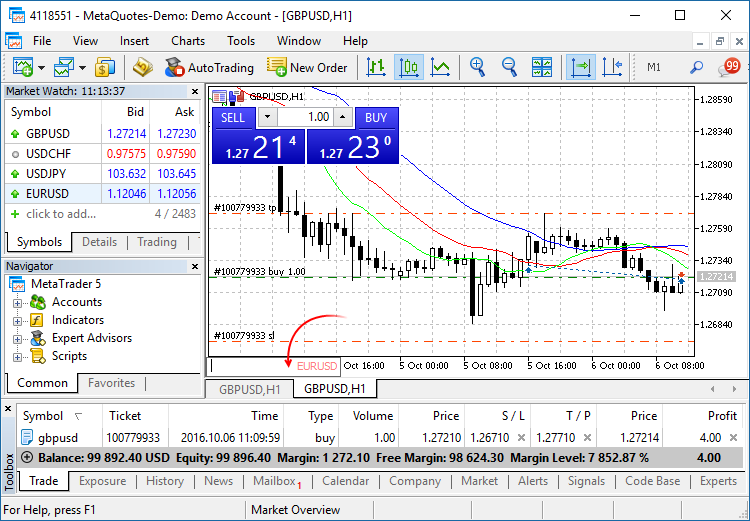
The navigation bar is opened by pressing Enter or Space. It allows you to quickly move to the specified date on the chart, as well as to switch symbols and timeframes. If your MQL5 program processes Enter or Space key pressing, disable the CHART_QUICK_NAVIGATION property, in order to avoid interception of these events by the terminal. The quick navigation bar can still be opened by a double click.An example of how to write ticks to a file and then read them:
If one color is specified, all candlesticks on the chart will be fully painted in this color.
If two colors are specified, one color is used for candlestick edges, the other one is used for the body.
If three colors are specified, one color is used for candlestick edges, two other colors are used for the bodies of bullish and bearish candlesticks.
The DRAW_CANDLES style allows setting custom colors of candlesticks. All colors can also be changed dynamically while the indicator is running, using the function PlotIndexSetInteger(drawing_index_DRAW_CANDLES, PLOT_LINE_COLOR, modifier_number, color) where modifier_number can have the following values:
The update will be available through the LiveUpdate system.
New MetaTrader 5 Build 1485: Additional testing mode and graphics in the Standard Library
The MetaTrader 5 platform update is to be released on Thursday, November 24, 2016. The new version features the following changes:
In addition, it is now possible to hide the 'Time' and 'Source' columns using the journal context menu.
ArrayPrint does not print all fields of a structure array to logs – array fields and pointer fields of objects are skipped. If you want to print all fields of a structure, you should use a custom function for the mass printing with a desired formatting.
Plotting a chart based on three data series using GraphPlot:
The result:
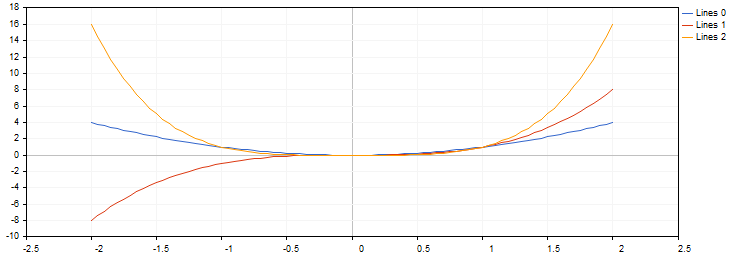
Plotting a chart based on a data array using GraphPlot:The result:
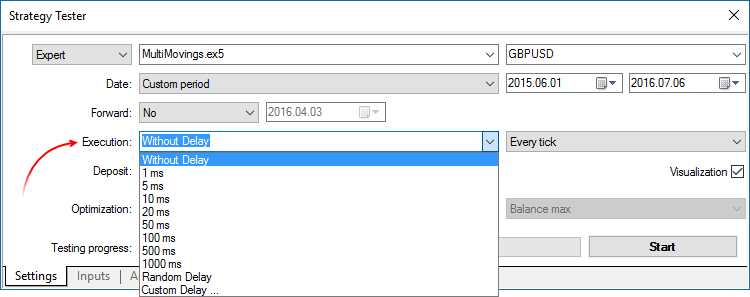
Only the random delay mode was available in earlier versions.The update will be available through the LiveUpdate system.
New MetaTrader 5 Build 1490: Improvements and Fixes
A new version of the MetaTrader 5 platform will be released on December 2, 2016. We have fixed a number of bugs based on crash logs and user reports, in order to make the platform even more convenient for you.
The update will be available through the LiveUpdate system.