✔️ Draw Agent MT4: https://www.mql5.com/en/market/product/14929
✔️ Draw Agent MT5: https://www.mql5.com/en/market/product/14964
Draw Agent is a simple, fast way to mark up your MetaTrader chart by hand, as on a blackboard. Choose a pen or a brush, pick any colour and size, and draw in front of or behind the candles.
Your drawings are saved per symbol, so they are still there when you come back. Delete one drawing, the last one or all of them, save a screenshot with one click, and control everything from one compact panel with five themes, five languages and your own shortcut keys.
👉 Save time, reduce errors, and trade smarter.
Built with the Graphic GUI Library: the panel of this tool is built with Graphic GUI Library MT4 | MT5.
Installation
- Buy and download Draw Agent from the Market, or from the Market tab of your terminal.
- Open a chart of the symbol you want to draw on.
- In the Navigator, open Expert Advisors and drag Draw Agent onto the chart.
- Press OK. The panel appears on the chart. No WebRequest URL and no DLL are needed.
Main Panel Explanation
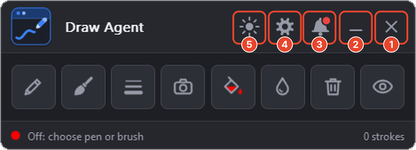
The five buttons in the title bar are numbered on the image:
-
❌Close Button: This button is used to stop the Expert Advisor (EA) and remove it from the chart.
-
➖Minimize Button: This button is used to collapse the panel. Press the "P" key (default) to show or hide the panel again with your keyboard.
-
🔔Notifications Button: This button is used to open the notifications panel for the tool. The notifications panel displays important notifications and news about the EA. A red dot shows that there is a new message.
-
⚙️Settings Button: This button is used to open the settings panel. The settings panel allows you to configure everything in the tool (Sync, Shortcuts, General and Look tabs).
-
🌗Theme Button: This button is used to switch the panel between a light and a dark look quickly (the icon is a sun in a dark theme and a moon in a light theme). You can pick any of the 5 themes in the Look tab of the settings panel.
The rest of the main panel:
- Pen: This button is used to draw with a thin, solid line. Press it again to stop drawing.
- Brush: This button is used to draw with a wide, thick stroke. Press it again to stop drawing.
- Line size: This button is used to open the five sizes of the pen or the brush in a small window next to the panel.
- Screenshot: This button is used to save an image of the chart to the terminal Files folder.
- Colour: This button is used to open the palette of ready colours and the colour picker.
- Background: This button is used to put new drawings behind the candles. When it is off, new drawings are in front of the candles.
- Delete: This button is used to remove all drawings. With "Only this symbol" turned on, it removes only the drawings of the current symbol.
- Show / Hide: This button is used to show or hide all drawings without deleting them.
Themes
Draw Agent has five themes: Dark, Light, Midnight, Contrast and Soft. You can also set your own accent colour and hover colour in the Style tab of the settings.

How it works
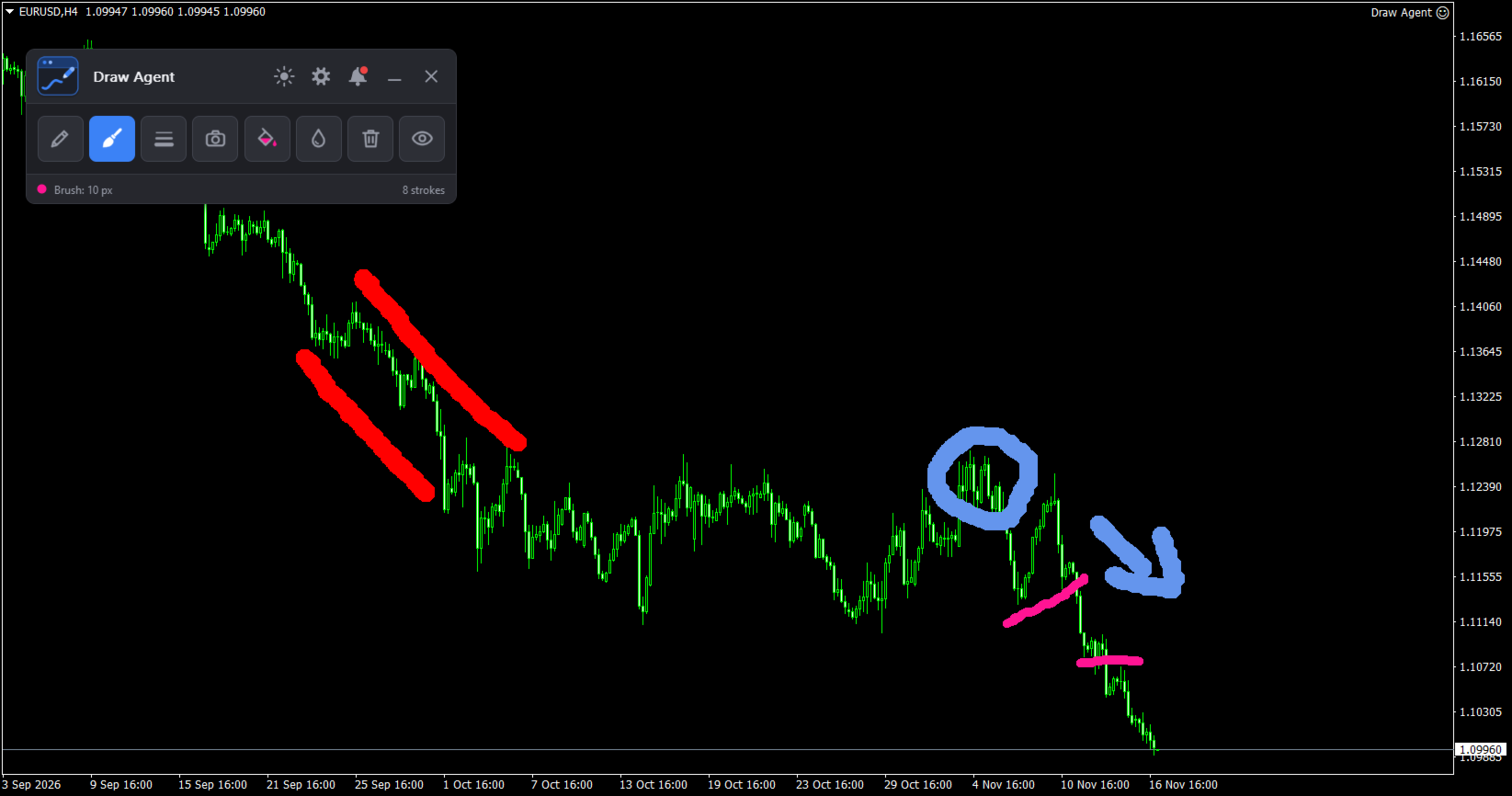
From the panel, you can:
- Draw freehand on the chart with the pen or the brush.
- Choose any colour and one of five line sizes.
- Draw in front of or behind the candles.
- Click a drawing to select it. A marker appears at the beginning and at the end of the drawing.
- Delete the selected drawing, the last drawing or all drawings.
- Hide and show all drawings without deleting them.
- Keep the drawings of each symbol separate, and hide the drawings of other symbols.
- Save a screenshot of the chart, with or without the panel.
Quick start
- Press the Pen or Brush button, or press the Draw Enable key.
- Choose the Colour and the Line size.
- Hold the left mouse button on the chart and move the mouse to draw.
- Click a drawing to select it, then press the Delete Selected key. Press the Delete Last key to remove the most recent drawing.
Available Inputs
- Pen: thin, solid line.
- Brush: thick stroke.
- Line size: five sizes for the pen and five for the brush.
- Colour: palette and colour picker.
- Background: draw behind or in front of the candles.
- Delete: remove all drawings, with an optional question first.
- Show / Hide: show or hide all drawings.
- Screenshot: save the chart image to the Files folder.
Settings Panel Explanation
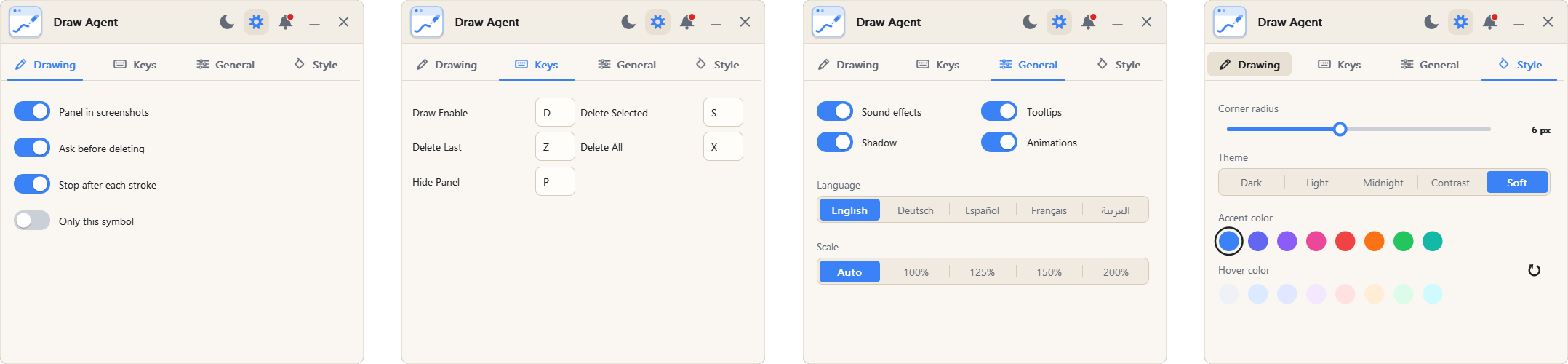
Press the gear button in the title bar to open the settings. The settings have four tabs. All settings are remembered between sessions (the General tab is shown in Spanish, to show the language option).
Drawing tab
- Show panel in screenshot: chooses whether the panel appears in the screenshot. When off, the screenshot shows only the chart and your drawings.
- Ask before deleting all: shows a question before all drawings are removed.
- Stop drawing after each stroke: the drawing mode ends when you release the mouse button.
- Only this symbol: shows only the drawings of the current symbol, and limits Delete to this symbol.
Keys tab
Each shortcut is one letter or one digit. The same key cannot be used twice; a message tells you when a key is already in use.
- Draw Enable: a keyboard shortcut to start and stop drawing, without clicking the Pen or Brush button.
- Delete Selected: a keyboard shortcut to delete the drawing that is currently selected. Click a drawing to select it; a dot shows at each end.
- Delete Last: a keyboard shortcut to delete the last drawing you made.
- Delete All: a keyboard shortcut to delete all drawings.
- Hide Panel: a keyboard shortcut to hide and show the panel.
General tab
- Language: English, German, Spanish, French or Arabic (Arabic uses a right-to-left layout).
- Panel scale: Auto (follows the Windows scaling), 100%, 125%, 150% or 200%.
- Animations: turn the panel animations on or off.
- Tooltips: turn the hint texts on or off.
- Shadows: turn the window shadows on or off.
- Play Sound: plays a sound effect every time an action is performed.
Style tab
- Theme: Dark, Light, Midnight, Contrast or Soft.
- Corner radius: how round the corners of the panel and windows are.
- Accent colour: the main colour of buttons, switches and the logo.
- Hover colour: the colour of a control under the mouse.
Notifications Panel Explanation
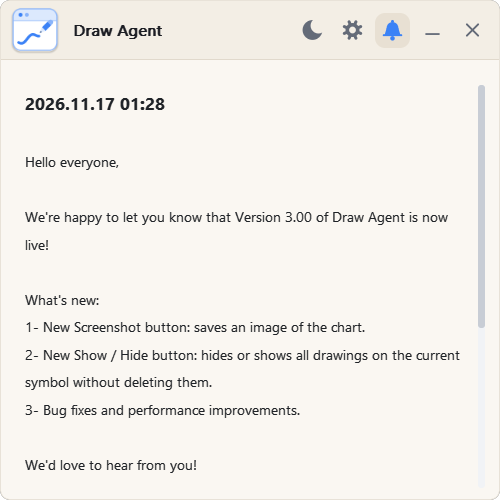
Open it with the bell button (3 on the main panel image). A red dot on the bell shows that there is a new message.
The Date refers to the date and time when the notification was generated.
The Notification refers to the message that is displayed. This can include information about the EA or the updates or message from the developer.
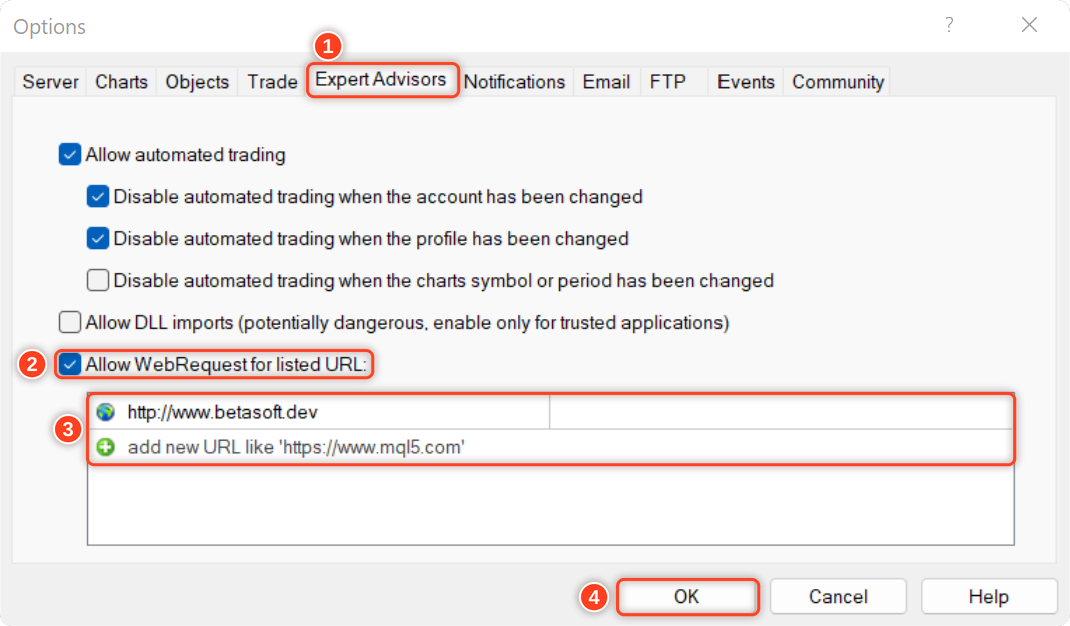
To allow EA getting the notifications, you need to add our website link to the list of allowed URLs in the platform's settings.
Here are the steps to add a link to the allowed URLs list in MetaTrader (Check The Image Below):
- Open the MetaTrader platform and go to "Tools" in the top menu, then select "Options".
- In the "Options" window, click on the "Expert Advisors" tab.
- Check the "Allow WebRequests for listed URL" option and click on the "Add" button.
- In the "New URL" field, enter the URL that you want to allow web requests for (http://www.betasoft.dev).
- Click "OK" to save the URL to the list of allowed URLs.
Why Traders Love Draw Agent
✅ Fast – draw with one click and one drag
✅ Tidy – every drawing is saved per symbol
✅ Safe – delete one, the last, or all; hide without deleting
✅ Clear – pen, brush, five sizes, any colour
✅ Yours – five themes, five languages, your own keys
We’d love to hear what you think about the tool! Please feel free to share your feedback and let us know if there are any improvements you’d like to see. Please contact me for any questions or assistance here.
✔️ Draw Agent MT4: https://www.mql5.com/en/market/product/14929
✔️ Draw Agent MT5: https://www.mql5.com/en/market/product/14964
Built with the Graphic GUI Library MT4 | MT5.