MT5 Trade Copier: Manual Trading in MT5 and Where Copier Settings Actually Belong

Product link:
https://www.mql5.com/en/ market/product/191385
Two of the most persistent misunderstandings in copy trading have nothing to do with strategy, risk, or market analysis. They are purely structural: users do not know which features belong to MetaTrader 5 and which belong to the copier, and they do not know whether settings should be configured on the sender or the receiver. The result is hours of wasted effort, confusing behavior, and trades that are copied when they should not be—or not copied when they should be.
This article addresses both problems in one place. First, we clarify the manual trading tools that belong to MT5 and must never be searched for inside the copier. Second, we explain precisely which settings belong on the receiver and why enabling them on the sender achieves nothing. By the end, you will have a clear mental model of how the two systems interact.
PART ONE: MANUAL TRADING TOOLS BELONG TO METATRADER 5, NOT THE COPIER
Every new copy trading user eventually asks the same question: "Where do I find the Buy and Sell buttons?" or "How do I close a trade with one click?" They then spend time digging through the copier's input parameters, looking for options that do not exist. The confusion is understandable, but the answer is simple: those tools are built into MetaTrader 5 itself. They have never been, and never will be, part of any trade copier.
The copier's role is narrow and specific. It watches the sender account, detects new trades, modifications, and closures, and replicates them on the receiver. It does not provide a trading interface. It does not draw buttons on your chart. It does not give you a panel to click. All of that comes from the platform, and once you enable it, it works alongside the copier without conflict.
1. Closing Orders Manually with One Click
The fastest way to close a position manually is through the Terminal window at the bottom of your screen. Open the Trade tab, locate the position you want to close, and click the small X at the end of that row, in the Profit column. The position closes immediately at market price.
Alternatively, right-click the position and select "Close Position" from the context menu. This opens a small confirmation window where you can review the volume and price before confirming. Both methods work whether or not a copier is running, because they are executed directly by the terminal.
2. Enabling the Buy/Sell Buttons (One Click Trading)
By default, MetaTrader 5 does not show the Buy and Sell buttons on the chart. This is a safety measure, because one-click trading can be dangerous if you click by accident. To enable it, go to Tools → Options, or simply press Ctrl+O. Click the Trade tab, check the box labeled "One Click Trading", and press OK.
Once enabled, a small trading panel becomes available on your chart. This panel contains Buy and Sell buttons along with a volume field. Clicking Buy opens a long position instantly, and clicking Sell opens a short position. There is no confirmation dialog, which is exactly why the feature is disabled by default.
3. Using the Keyboard Shortcut to Show the Panel
Even after enabling One Click Trading, the panel may not be visible. To show or hide it, simply press Alt + T on your keyboard. The panel toggles on and off with each press. You can also right-click anywhere on the chart and select "One Click Trading" from the context menu to display it.
This shortcut is extremely useful when you want quick access to manual trading without cluttering your chart permanently. Many traders keep the panel hidden during normal operation and only bring it up when they need to intervene manually.
4. Why This Distinction Matters
The reason this clarification is important is that users waste enormous amounts of time searching for these features inside the copier. They assume that because the copier handles trades, it must also handle the manual interface. It does not. The copier is an automation layer that sits on top of the platform. The platform provides the buttons; the copier provides the replication.
Once you understand this, everything becomes simpler. If you want manual control, enable it in MT5. If you want automatic copying, configure it in the copier. The two systems coexist peacefully, each doing its own job.
PART TWO: FILTERS, REVERSE MODE, AND ALL COPYING SETTINGS BELONG ON THE RECEIVER
The second major misunderstanding is even more damaging, because it silently produces wrong results rather than obvious errors. Many traders configure day filters, time filters, reverse mode, spread filters, and lot sizing options on the sender account, believing that these settings control how trades are copied. They do not. Every one of these settings is a receiver-side control. Enabling them on the sender has absolutely no effect.
The reason is architectural. The sender's only job is to broadcast what happens on its account. It reports: a trade opened, a trade modified, a trade closed. It does not decide what the receiver does with that information. The receiver is the one that decides whether to act on the signal, how to size the position, whether to reverse the direction, and whether the current market conditions meet the criteria for copying.
This means that if you enable a day filter on the sender, nothing changes. The sender continues to broadcast trades on Saturday. The receiver continues to copy them unless the receiver's own day filter is configured. The same logic applies to every other setting.
Day Filters (Monday–Friday)
These determine which weekdays are allowed for copying. If you want to avoid weekend trading, you must disable Friday on the receiver. Configuring this on the sender has no effect whatsoever.
Time Filters (GMT Windows)
These restrict copying to specific hours of the day. For example, you may want to copy only during the London–New York overlap. This must be set on the receiver. The sender will continue broadcasting trades outside that window, but the receiver will ignore them.
Reverse Mode
This flips the direction of copied trades, turning Buys into Sells and vice versa. It is a receiver-side transformation. Enabling reverse mode on the sender does nothing; the sender still reports its original direction. Only the receiver's setting determines whether the copied trade is reversed.
Spread Filter
This rejects trades when the current spread exceeds a defined threshold. Since spread is measured on the receiver's broker, the filter must be configured on the receiver. The sender's spread is irrelevant, because the receiver pays its own broker's spread.
Direction Filters (Buy-Only / Sell-Only)
These restrict copying to long or short positions only. Like reverse mode, this is a receiver-side decision. The sender reports all trades; the receiver filters them based on its own settings.
Lot Sizing Methods
Fixed lot, multiplier, and balance-ratio scaling all depend on the receiver's account balance and broker specifications. They must be configured on the receiver. The sender's lot size is only a reference point.
Custom SL/TP
Overriding stop loss and take profit levels is a receiver-side operation. The custom distances are calculated based on the receiver's entry price and broker stop levels.
Drawdown Protection
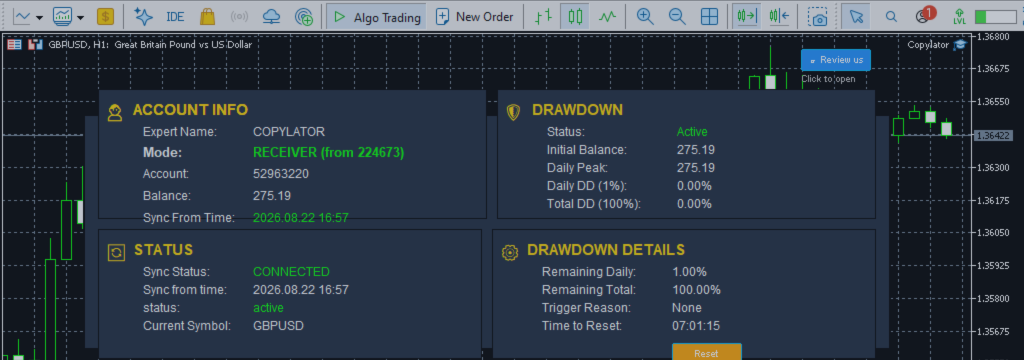
This monitors the receiver's equity or balance and blocks or closes trades when limits are breached. It is meaningless on the sender, because the sender's drawdown has no bearing on the receiver's risk.
The pattern is consistent: every setting that changes how a trade is copied belongs on the receiver. The sender is a broadcaster, not a controller.
PART THREE: WHY THIS CONFUSION EXISTS AND HOW TO AVOID IT
The confusion arises from a natural but incorrect assumption: that the account where trades originate is also the account where decisions are made. In manual trading, this is true. You open a trade on your account, and you decide everything about it. In copy trading, the two roles are separated. The sender generates signals; the receiver interprets them.
A second source of confusion is the user interface. Both sender and receiver instances of the copier display the same input parameters. It is easy to assume that because the options are visible on both sides, they function on both sides. They do not. Many inputs are simply ignored in sender mode.
A third source is the manual trading features discussed in Part One. Because users expect the copier to be a complete trading solution, they look for Buy/Sell buttons and one-click closing inside it. When they cannot find them, they become frustrated. The solution is to recognize that these belong to MT5.
To avoid all of this confusion, follow three simple rules:
Rule 1: Manual trading tools come from MT5.
If you want to open, close, or modify trades by hand, use the Terminal window, the One Click Trading panel, or the context menu. These are platform features, not copier features.
Rule 2: Copying behavior settings belong on the receiver.
Day filters, time filters, reverse mode, spread filters, direction filters, lot sizing, custom SL/TP, and drawdown protection must all be configured on the receiver account. Configuring them on the sender is wasted effort.
Rule 3: The sender only broadcasts.
Never expect the sender to control how trades are copied. Its job is to report activity. Everything else is the receiver's responsibility.
PART FOUR: PRACTICAL EXAMPLES
Scenario A: A trader wants to avoid copying trades on Fridays.
Incorrect approach: Enable the Friday filter on the sender.
Correct approach: Disable Friday on the receiver's day filter.
Result: The sender continues to trade on Friday, but the receiver ignores those signals.
Scenario B: A trader wants to copy trades in reverse.
Incorrect approach: Enable reverse mode on the sender.
Correct approach: Enable reverse mode on the receiver.
Result: The receiver opens the opposite direction of every sender trade, with SL and TP automatically adjusted.
Scenario C: A trader wants to close a position manually.
Incorrect approach: Search for a "close" option inside the copier settings.
Correct approach: Open the Terminal window, go to the Trade tab, and click the X next to the position. Or right-click and select Close Position.
Result: The position closes immediately, and the copier detects the closure and replicates it to any connected receivers if applicable.
Scenario D: A trader wants to see Buy and Sell buttons on the chart.
Incorrect approach: Look for a copier setting that enables them.
Correct approach: Tools → Options → Trade → check One Click Trading, then press Alt + T to show the panel.
Result: Buy and Sell buttons appear, provided by MT5, working alongside the copier without conflict.
These examples illustrate the same principle repeatedly: the platform provides manual tools, the copier provides automation, and the receiver provides copying behavior.
PART FIVE: A UNIFIED MENTAL MODEL
The cleanest way to think about all of this is to imagine three separate layers:
Layer 1: MetaTrader 5 (the platform)
This layer provides the trading interface. It includes the Terminal window, the One Click Trading panel, the Buy and Sell buttons, manual closing, and the context menus. Everything you do by hand happens here.
Layer 2: The Sender instance of the copier
This layer watches the sender account and broadcasts activity. It has no opinion about how trades should be copied. It simply reports what happened.
Layer 3: The Receiver instance of the copier
This layer receives broadcasts and decides what to do with them. It applies filters, adjusts lot sizes, reverses directions if configured, and manages risk. Every copying behavior setting lives here.
Once you internalize these three layers, every question about configuration becomes easy to answer. If you are asking about manual trading, the answer is in Layer 1. If you are asking about what gets broadcast, the answer is in Layer 2. If you are asking about how trades are copied, the answer is in Layer 3.
CONCLUSION
Copy trading is powerful precisely because it separates signal generation from signal execution. But that separation also creates two predictable sources of confusion: users look for manual trading tools inside the copier, and users configure copying behavior settings on the sender. Both mistakes waste time and produce unexpected results.
The solutions are simple and permanent. Manual trading tools—closing positions, Buy/Sell buttons, One Click Trading—come from MetaTrader 5 and must be enabled in the platform, not the copier. Copying behavior settings—day filters, time filters, reverse mode, spread filters, direction filters, lot sizing, custom SL/TP, and drawdown protection—belong on the receiver and must be configured there.
Once you apply these two rules, your copy trading setup becomes predictable, efficient, and easy to manage. The platform handles manual control. The sender broadcasts. The receiver decides. Each layer does its job, and the entire system operates exactly as intended.
Product link:
https://www.mql5.com/en/ market/product/191385