Trade Guardian Pro is a loss-protection utility for MetaTrader 5. It watches your account and closes everything before your loss limit is reached — on a personal account, a funded account or an evaluation. It supervises trades opened manually or by other Expert Advisors.
Product page: Trade Guardian Pro (MT5) 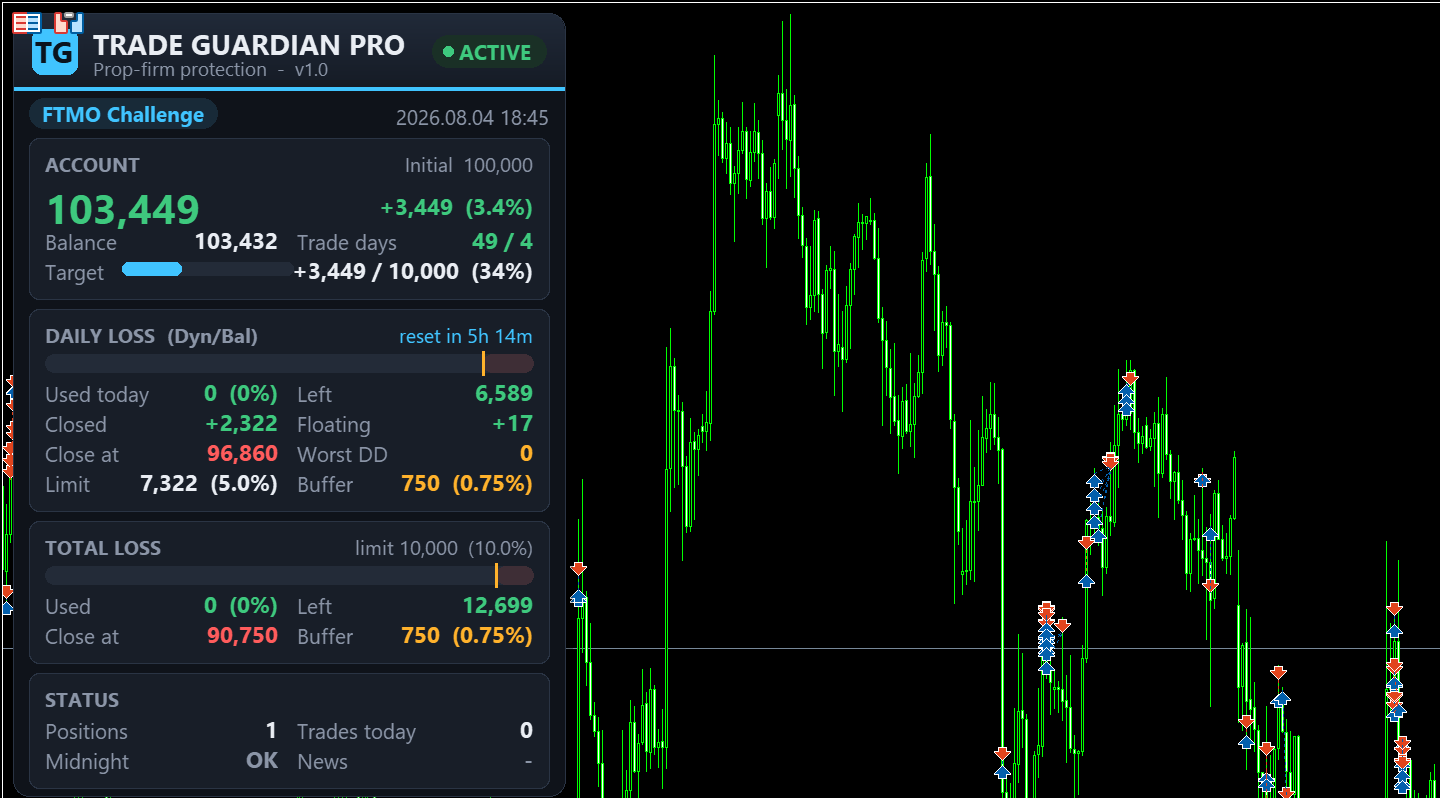
0 — IMPORTANT INFORMATION
- Trade Guardian Pro is a protection utility, not a trading system: it never opens trades.
- Load it on one chart per account. It supervises the whole account from that single chart, on any symbol and any broker, hedging or netting.
- The EA stays idle until you enter your Account Size in the inputs. This is by design: it will never act on a wrong figure.
- Enable Algo Trading in the terminal, otherwise the EA cannot close positions for you.
- In the Market build, closing the whole terminal on trigger is disabled (Market rules). Positions are still closed and pending orders deleted; the "Close Terminal" input has no effect.
1 — INSTALLATION
- Buy or rent the EA on the MQL5 Market, or download the demo.
- In MetaTrader 5: Tools → Options → Expert Advisors → make sure algorithmic trading is allowed.
- Open one chart of any symbol (the symbol does not matter — the EA watches the whole account).
- Drag Trade Guardian Pro from the Navigator (Market section) onto the chart.
- In the inputs dialog, set Account Size to the starting size of your account (e.g. 100000 for a 100k account) and pick a Prop Firm Preset — or leave CUSTOM and set your own limits.
- Press OK. The dashboard appears; the pill in the header should read ACTIVE.
- Check the Algo Trading button in the toolbar is ON (green).
- Done. The protection now runs in the background on every tick and every second.
2 — QUICK START
- Account Size is the only required input. Until it is set the EA is IDLE and the panel shows an amber "ACCOUNT SIZE REQUIRED" card. Press F7, enter the size, OK.
- Pick a preset for your firm (FTMO, The5ers, MyForexFunds…) or use CUSTOM with your own daily/total loss.
- Everything else has sensible defaults — safety buffers of 0.75%, midnight protection ON, no-stop-loss alerts ON.
3 — THE DASHBOARD
The on-chart panel is a single compact dashboard (position, width and font size adjustable in the inputs).
| Element | Meaning |
| Header pill | ACTIVE (green) = protection running · BLOCKED (red) = protection triggered, trading blocked · SETUP (amber) = Account Size not set · MISMATCH (red) = Account Size does not match the balance, protection paused |
| Equity | Live equity, balance, and P/L as a percentage of the account size |
| DAILY LOSS card | Progress bar with the used part of the daily limit, the safety-buffer zone and an amber mark on the trigger point. Shows Used, Left, Limit, Safety Buffer and the exact Close at equity level where the protection will act |
| TOTAL LOSS card | Same layout for the total (overall) loss limit |
| TARGET card | Profit target progress bar (when the preset has a target) |
| Info rows | Closed and floating profit of the day, worst drawdown of the day, minimum-trading-days counter, countdown to the next daily reset |
| RESET button | Shown only when the protection has triggered — unblocks the EA (see section 8) |
| CONFIRM SIZE button | Shown only in MISMATCH state — one click confirms the size is right and resumes protection (see section 9) |
4 — PRESETS
Presets fill in daily loss, total loss, drawdown mode, profit target, minimum trading days, news and weekend rules for the main evaluation firms. Values checked on the official firm sites (2026 rules):
| Preset | Daily DD | Daily base | Total DD | DD mode | Target | Min days | News | Weekend |
| FTMO Challenge | 5% | Balance | 10% | Dynamic | 10% | 4 | free | free |
| FTMO Verification | 5% | Balance | 10% | Dynamic | 5% | 4 | free | free |
| FTMO Funded | 5% | Balance | 10% | Dynamic | — | — | restricted | restricted |
| FTMO Swing Challenge | 5% | Balance | 10% | Dynamic | 10% | 4 | free | free |
| FTMO Swing Verification | 5% | Balance | 10% | Dynamic | 5% | 4 | free | free |
| FTMO Swing Funded | 5% | Balance | 10% | Dynamic | — | — | free | free |
| The5ers High Stakes (Step 1) | 5% | max(Bal, Eq) | 10% | Static | 8% | 3 | restricted | free |
| The5ers High Stakes Funded | 5% | max(Bal, Eq) | 10% | Static | — | — | restricted | free |
| FundedNext Stellar 2-Step (Ph. 1) | 5% | Balance | 10% | Static | 8% | 5 | free | free |
| FundingPips 2-Step (Ph. 1) | 5% | max(Bal, Eq) | 10% | Static | 8% | 3 | free | free |
| FTMO 1-Step Challenge | 3% | Balance | 10% trailing EOD | Static | 10% | — | free | free |
| The5ers Hyper Growth | 3% | Balance | 6% | Static | 10% | — | free | free |
| User Preset 1-4 | 5% | Balance | 10% | Dynamic | — | — | free | free |
| User Preset 5 (FTMO Swing copy) | 5% | Balance | 10% | Dynamic | 10% | 4 | free | free |
The 5 user presets (User Preset 1-5) are free slots for any other firm or phase - for example a Phase 2 with a 5% target: copy the closest preset line and change the numbers.
Every preset is editable without recompiling. On first start the EA writes the file TGP_Presets_<account>.csv into the shared folder MetaQuotes\Terminal\Common\Files . Open it with any text editor: one line per preset, columns ID, Name, DailyDD%, TotalDD%, DDMode(0=Dyn/1=Stat), DDBase(0=Bal/1=Eq/2=Max), ProfitEnabled, ProfitPct, MinDaysEnabled, MinDays, NewsRestrict, WeekendRestrict, TotalDDTrailing(0/1, optional) . Lines starting with # are comments. Change a value (for example when a firm changes its rules), save, and restart the EA - the file wins over the built-in values.
Any single rule can also be overridden from the inputs: every override input defaults to -1 or Auto (= use preset); set a value and it replaces the preset value for that rule only.
5 — LOSS PROTECTION
Daily loss. The EA tracks the equity through the day and compares the daily loss (closed + floating, swap and commission included) against the daily limit. When the loss reaches the limit minus the daily safety buffer, the protection triggers: positions are closed, pending orders deleted, trading is blocked.
Total loss. Same mechanism against the overall drawdown limit of the account.
Dynamic vs Static drawdown. Dynamic (FTMO style): profit you make raises the floor, so the allowed loss grows with your gains. Static (The5ers style): the floor is fixed at account size minus the limit, regardless of profit.
Daily base. The daily limit can be anchored to the balance at the daily reset (FTMO style), to the equity, or to the higher of balance and equity at the day start (The5ers High Stakes / FundingPips style).
Trailing end-of-day total. Some programs (FTMO 1-Step) trail the max-loss floor to the highest end-of-day balance: the EA keeps that high-water mark across restarts and the TOTAL LOSS card anchors to it.
Safety buffer. Default 0.75% for daily and 0.75% for total, separately configurable. The buffer is why the EA closes before the limit: slippage, spread widening and gap moves are absorbed by the buffer instead of breaching your account. The dashboard always shows the exact Close at equity level.
6 — DAILY RESET AND MIDNIGHT PROTECTION
- Reset cycle: on the daily bar open (broker midnight, default) or at a custom hour/minute of broker time. Optionally skip weekend days.
- At each reset the daily counters start fresh; the dashboard shows a countdown to the next reset.
- Midnight protection (ON by default): in the last 30 minutes before the reset the EA checks the floating loss; if it exceeds 80% of the daily limit it closes the positions, so an overnight floater cannot eat the next day's allowance. Both the window (minutes) and the threshold (%) are inputs.
7 — RISK ALERTS
Alerts are edge-triggered: one alert per event, no endless repetitions. Delivery by popup, push notification, e-mail and/or sound (each can be switched on/off).
| Alert | When it fires |
| No Stop Loss | A position has no SL 30 seconds after opening (grace period for EAs that set the SL right after the order). Re-arms if the SL is set and later removed |
| Max lot size | A position is bigger than your chosen lot cap |
| Max risk per trade | The distance to SL implies more risk than your chosen % of the account |
| Max positions / max daily trades | More concurrent positions, or more trades today, than your caps |
| Hedging | Opposite positions on the same symbol (all hedged symbols listed in one message) |
| Martingale | Lot-increase pattern after a loss |
| News | High-impact news from the MT5 economic calendar, configurable minutes before and after the release (used automatically by the presets with news restriction) |
| Trading hours | Activity outside your allowed session — alert only, close positions, or block-new-trades warning |
| Weekend hold | Positions still open near the weekend on presets that forbid it |
8 — WHAT HAPPENS ON TRIGGER
- All positions are closed in the order you chose: losing first (default), profitable first, FIFO or LIFO. Pending orders are deleted (both actions can be switched off).
- The event is alerted on every enabled channel and written to the log file.
- Trading stays BLOCKED: if anything opens a new position while blocked, the EA closes it immediately.
- The blocked state is saved in the terminal and survives a restart — restarting MT5 does not disarm the protection.
Unblocking. Three ways:
- Wait: with Auto Reset on New Trading Day (default ON) the block clears at the next daily reset.
- Press the red RESET button on the panel.
- Set the one-time input Reset Trigger and Restart to true (it resets and reverts by itself).
9 — SAFETY-FIRST BEHAVIOR
- Idle until configured. With Account Size = 0 (the default) no check runs and no trigger is possible. The panel shows what to do.
- Account Size mismatch. If the balance is outside 50%–150% of the Account Size you entered, the protection pauses instead of acting on wrong numbers (a wrong size would produce wrong limits and could close everything on a false drawdown). The panel shows a red MISMATCH card with both figures.
- If the size is actually right (e.g. an account legitimately doubled), click CONFIRM SIZE — RESUME PROTECTION and answer Yes: the confirmation is remembered across restarts. Changing the Account Size input cancels the old confirmation.
- Checks are also skipped while the terminal is disconnected or account data is not yet valid (prevents false triggers at startup).
10 — INPUTS REFERENCE
| Group | Input | Default | Meaning |
| Preset | Prop Firm Preset | CUSTOM | Preset to load (section 4) |
| Preset | Account Size | 0 | Required. Starting size of the account; EA idle until set |
| Preset | Challenge Start Date | 0 | 0 = derive from account history |
| Daily DD | Max Daily Loss % | -1 | -1 = use preset |
| Daily DD | Daily DD Mode | Auto | Auto = preset; or force Dynamic/Static |
| Daily DD | Daily DD Calculation Base | Auto | Auto = preset; or force Balance / Equity / max(Balance, Equity) |
| Total DD | Max Total Loss % | -1 | -1 = use preset |
| Total DD | Total DD Trailing (EOD) | Auto | Auto = preset; Yes = max-loss floor trails the highest end-of-day balance |
| Profit Target | Enable Profit Target | Auto | Auto = preset; Yes/No forces it |
| Profit Target | Profit Target % | -1 | -1 = preset, 0 = disabled |
| Profit Target | Alert at % of Target Reached | 80 | Early alert when this share of the target is reached |
| Min Days | Enable Min Days / Min Trading Days | Auto / -1 | Minimum trading days counter |
| Trading Rules | News / Weekend Restricted | Auto | Auto = preset; Yes/No forces it |
| Safety Buffers | Daily / Total Safety Buffer % | 0.75 / 0.75 | Margin subtracted from the limits (section 5) |
| Recovery | [ONE-TIME] Reset Trigger and Restart | false | Set true once to unblock after a trigger |
| Recovery | Auto Reset on New Trading Day | true | Block clears at the next daily reset |
| Reset | Daily Reset Cycle | Daily Bar | Daily bar open or custom time |
| Reset | Custom Reset Hour / Minute | 0 / 0 | Broker time, used with Custom Time cycle |
| Reset | Skip Weekend Days | false | No reset on Saturday/Sunday |
| Midnight | Enable Midnight Protection | true | Section 6 |
| Midnight | Minutes Before Reset to Check | 30 | Check window |
| Midnight | Max Floating Loss % of Daily Limit | 80 | Close threshold |
| Trading Hours | Enable / Start / End / Action | false, 8:00–22:00, Alert Only | Session restriction, broker time |
| Filters | Magic Numbers | empty | Comma separated; empty = supervise all trades |
| Filters | Symbol Filter | empty | Comma separated; empty = all symbols |
| Filters | Include Swap and Commission | true | Costs included in loss calculations |
| Risk Alerts | Alert for Trades without Stop Loss | true | Section 7 |
| Risk Alerts | Max Lot Size / Max Risk % / Max Positions / Max Daily Trades | 0 | 0 = disabled |
| Pattern Alerts | Hedging / Martingale Alert | false | Section 7 |
| News | Enable News Alert | true | MT5 economic calendar |
| News | Minutes Before / After | 15 / 15 | Alert window around the release |
| News | High Impact Only | true | Filter by impact |
| Trigger Actions | Close All Positions / Delete Pending | true / true | What the trigger does |
| Trigger Actions | Order Closing Sequence | Losing First | FIFO, LIFO, Profit First, Losing First |
| Trigger Actions | Close Terminal on Trigger | false | Disabled in the Market build |
| Trigger Actions | Terminal Action | Keep Running | Keep running or remove EA from chart |
| Notifications | Popup / Push / Email / Sound | true / true / false / true | Alert channels |
| Display | Panel X / Y / Width / Font Size | 10 / 30 / 320 / 9 | Dashboard position and size |
| Logging | Enable Log File | true | Writes TGP_log_<account>.txt in MQL5\Files |
11 — TIPS, FAQ AND TROUBLESHOOTING
The panel says SETUP and nothing happens. You have not set Account Size. Press F7 and enter the starting size of the account.
The panel says MISMATCH. The balance is far from the Account Size you entered. If the size is wrong, fix it in the inputs. If it is right (account grew a lot), press CONFIRM SIZE.
It triggered and now every trade closes immediately. That is the block working as intended. Unblock with the RESET button, the one-time reset input, or wait for the next trading day (section 8).
Push notifications do not arrive. Set your MetaQuotes ID in Tools → Options → Notifications and enable push in the EA inputs.
No news alerts. The broker must provide the MT5 economic calendar; check that news alerts are enabled and remember the default filter is high-impact only.
Can I run it together with my trading EAs? Yes — that is the point. One Trade Guardian Pro chart supervises everything, including other EAs. Use the magic/symbol filters if you want it to watch only some strategies.
Does it work on netting accounts? Yes, hedging and netting are both supported (hedging detection is only meaningful on hedging accounts).
Recommended setup: keep the safety buffers at 0.75% or higher, keep midnight protection ON, and test the whole flow once on a demo account so you see a trigger and a reset before going live.
12 — LINKS AND SUPPORT
- Product page: Trade Guardian Pro (MT5)
- All products: seller page
- Support: send me a private message on MQL5. When reporting a problem please include the log file TGP_log_<account>.txt (folder MQL5\Files) and a screenshot of the dashboard.
MORE TOOLS BY INAKIS
- Trade Sentinel MT5 - professional order panel: risk-based lot sizing, draggable lines, partial TPs, basket engine and equity monitor
- MT5 To Telegram Signal Bridge - post your trades to Telegram as professional, copier-friendly signals
- MT4 To Telegram Signal Bridge - the same signal bridge for MetaTrader 4
- Strategy Compare - compare your EAs by magic number: P&L and performance in one dashboard (MT5)
- Strategy Compare MT4 - the same comparison dashboard for MetaTrader 4
Contact: Telegram @inakis1 or private message on MQL5.