
Multi TF Symbol Scanner Alerts
Detailed Setup and Usage Guide
Multi TF Symbol Scanner Alerts helps you scan selected symbols, compare trend direction across multiple timeframes and receive alerts when important market conditions appear.
You attach it to a chart and get a clean dashboard where you can see the current symbol trend, monitor a symbol watchlist, check cross-timeframe confirmation and control alert delivery from one place. The goal is simple: less manual chart switching, faster market overview and clearer notification workflow.
This document combines a product overview, practical panel explanation and step-by-step setup notes. For Telegram bot creation and Chat ID setup, use your separate Telegram setup blog/article and place the link where indicated below.
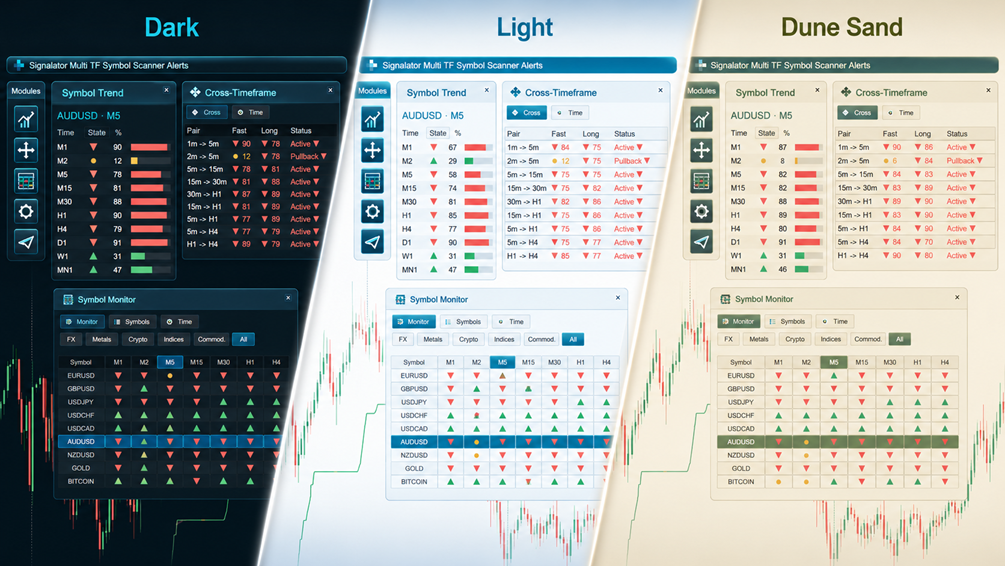
Figure 1. Theme preview: Dark, Light and Dune Sand interface styles.
1. What the product is designed forThe product is designed for traders who monitor several symbols and timeframes during the trading day.
Instead of switching between many charts manually, you can use one chart as a control dashboard and watch:
· the current symbol trend
· trend state by timeframe
· cross-timeframe agreement or counter movement
· selected symbols in a monitor table
· Popup, Push, Email and Telegram alerts
The product does not open trades, close trades, modify orders or manage positions. It is a scanner, dashboard and alert utility.
No profit is promised or implied. The purpose is market visibility, faster monitoring and notification delivery.
2. Main workflow1. Attach the product to a chart.
2. Open the Symbol Monitor.
3. Select the symbols you want to monitor.
4. Check the trend state across visible timeframes.
5. Click a symbol row to switch the chart to that symbol.
6. Click a timeframe to switch the current chart timeframe when needed.
7. Review the Symbol Trend panel for the selected symbol.
8. Check cross-timeframe confirmation in the Cross-Timeframe panel.
9. Enable Popup, Push, Email or Telegram alerts.
10. Let the product notify you when selected conditions appear.
3. InstallationInstall the product from the MQL5 Market in MetaTrader 5.
1. Open MetaTrader 5.
2. Open the Navigator panel.
3. Find the product under Market / your purchased products.
4. Drag it onto a chart.
5. Allow the product to run on the chart.
6. If Telegram alerts are required, also configure WebRequest access as explained later in this guide.
Recommended first chart: use a liquid symbol such as EURUSD, GBPUSD, USDJPY, XAUUSD / GOLD or another symbol available from your broker.
4. First launch and dashboard layoutOn first launch, the product creates its visual dashboard on the chart.
The interface can show several working panels directly on the chart:
· Symbol Trend - current chart symbol trend by timeframe
· Cross-Timeframe - lower/higher timeframe confirmation
· Symbol Monitor - selected symbols and timeframe states in one table
· Symbols - visual symbol selection from broker instruments
· Settings - layout, language, themes, signals, candles and panel controls
· Notifications - Popup, Push, Email and Telegram delivery controls
You do not need to use everything at once. Open only the panels you need.
The interface is designed for chart interaction:
· click a symbol row to change the current chart instrument
· click a timeframe to change the current chart timeframe
· use draggable panels to arrange the workspace
· use Dark, Light or Dune Sand theme styles
· switch interface language
· turn chart grid, candles and trendline display on/off
· unlock or reset panel positions from Settings
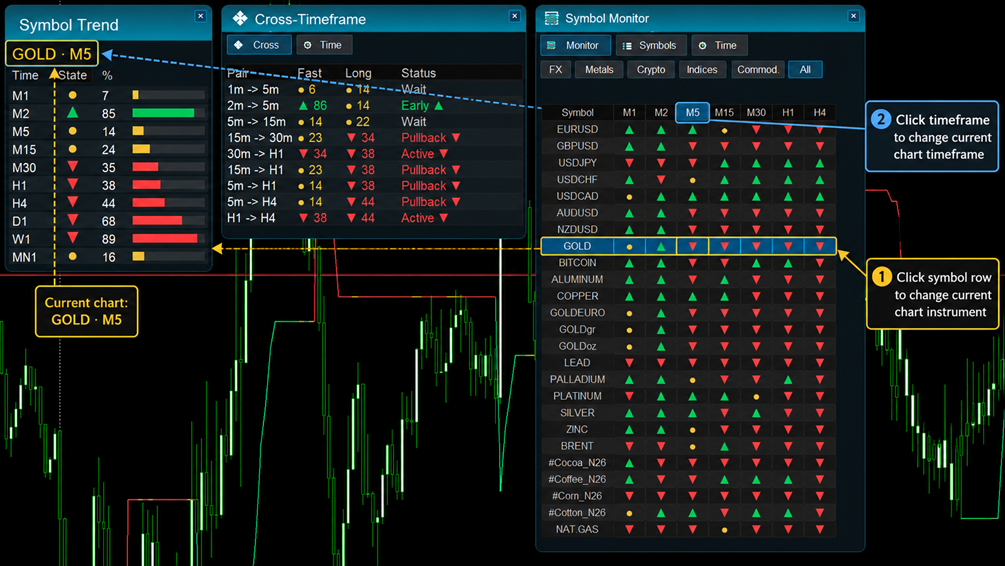
Figure 2. Example of direct chart interaction from the Symbol Monitor.
5. Symbol Trend panel - current symbol monitoringThe Symbol Trend panel focuses on the currently selected chart symbol.
It shows:
· current symbol and current chart timeframe
· timeframe-by-timeframe trend direction
· bullish, bearish and neutral / fading state
· trend intensity percentage
· visual strength bars
· optional chart trend line display
Green / bullish states show upward tendency. Red / bearish states show downward tendency. Neutral / fading states show mixed or unclear state.
6. Cross-Timeframe panel - timeframe agreementThe Cross-Timeframe panel compares a faster timeframe with a higher timeframe.
It helps you see whether short-term movement agrees with the larger timeframe or moves against it.
The panel shows:
· pair name
· fast timeframe direction and score
· higher timeframe direction and score
· status
Possible status values include:
· Active - fast and higher timeframes agree in the same direction
· Counter - fast and higher timeframes point in opposite directions
· Early - fast timeframe has direction while higher timeframe is still neutral / fading
· Pullback - higher timeframe has direction while fast timeframe is neutral / fading
· Wait - no clear cross-timeframe condition is active yet
The score is a trend intensity value. It is not a profit probability.
6.1. Cross-Timeframe Time tab
The Cross-Timeframe panel also has a Time tab where you configure which timeframe pairs are monitored.
You can select trend sensitivity: Conservative, Balanced or Aggressive.
You can also select cross pairs such as M1->M5, M2->M5, M5->M15, M15->M30, M30->H1, M15->H1, M5->H1, M5->H4, M5->D1, H1->H4, H1->D1, H4->D1 and D1->W1.
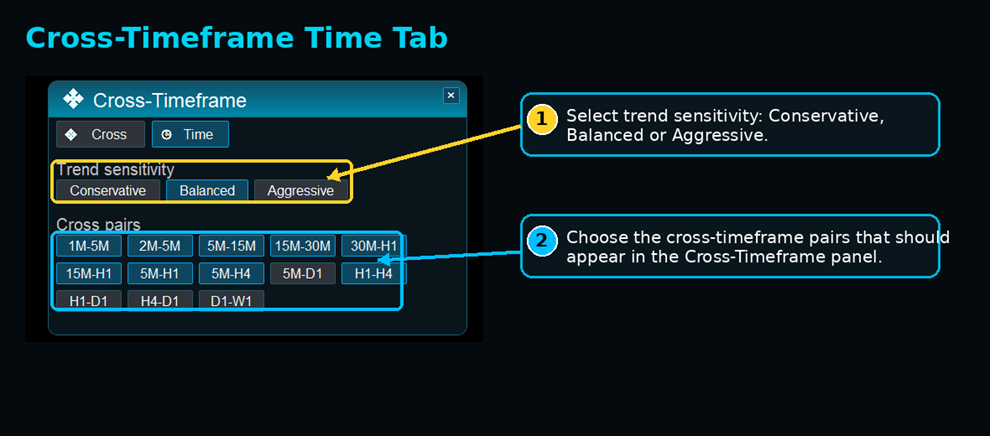
Figure 3. Cross-Timeframe Time tab: sensitivity and cross-pair selection.
7. Symbol Monitor - multi-symbol monitoringThe Symbol Monitor is the main scanner table. It shows selected symbols in rows and selected timeframes in columns.
Typical visible columns are M1, M2, M5, M15, M30, H1 and H4. The selected symbol row is highlighted. The selected timeframe column is also highlighted.
Each cell shows the current trend state for that symbol and timeframe:
· green arrow = bullish / upward state
· red arrow = bearish / downward state
· yellow dot = neutral, mixed or fading state
This makes the table useful not only for reading signals, but also for navigation.
7.1. Changing chart symbol from the monitor
When chart switching is enabled, you can click a symbol row inside the Symbol Monitor. If you click the GOLD row, the current chart changes to GOLD. The Symbol Trend panel then updates to show GOLD, and the current chart symbol becomes GOLD.
7.2. Changing chart timeframe from the monitor
You can also use the timeframe header / timeframe cell area to change the current chart timeframe. For example, if the current chart is GOLD M5 and you click M15 or H1, the chart can switch to that timeframe.
8. Symbols tab - choosing instruments to monitorThe Symbols tab controls which instruments appear in the Symbol Monitor.
Symbols can be added in two ways:
· by manual input in the product inputs
· by visual selection from symbols available with your broker
The visual Symbols tab includes category buttons such as FX, Metals, Crypto, Indices, Commodities, Stocks, Custom and All.
The table shows Instrument, State and Type.
State meaning: ON = active and shown in the monitor, OFF = available but currently not active, Hidden = known in the category but not currently shown as active.
8.1. Discover button
The Discover button searches for more broker symbols in the current category. Use it when you want to find more available instruments from your broker symbol list.
Example: if you open Metals and press Discover, the product can search for more broker metal instruments such as GOLD, SILVER, COPPER, PLATINUM, PALLADIUM or broker-specific metal names. The exact result depends on your broker.
8.2. Clean button
The Clean button removes non-active symbols from the current Symbols view. Use it after discovery if the list becomes too crowded.
A practical workflow is: open the Symbols tab, choose a category, press Discover if needed, turn ON the symbols you want to monitor, then press Clean to remove unused or non-active rows from the current view.
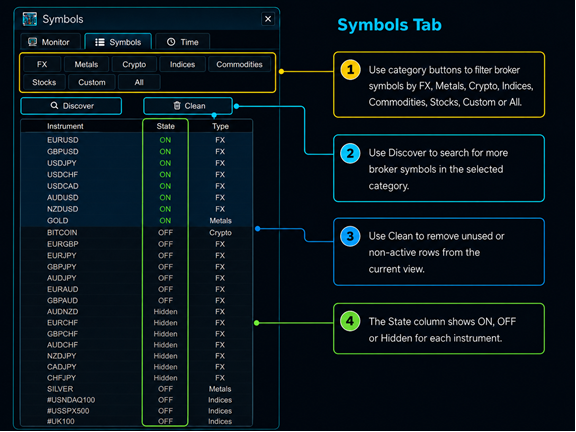
Figure 4. Symbols tab: category filtering, Discover and Clean.
9. Timeframe selectionThe product can work with multiple timeframes. Typical visible timeframes include M1, M2, M5, M15, M30, H1 and H4. Additional higher timeframes can be enabled depending on your configuration.
For best performance, use only the timeframes you actually need. Monitoring many symbols across many timeframes increases calculation load.
A practical first setup is: M1, M5, M15, M30, H1 and H4.
9.1. Symbol Monitor Time tab
The Symbol Monitor has a Time tab where you can choose which timeframe columns are shown in the monitor table. Available timeframe buttons can include M1, M2, M5, M15, M30, H1, H4, D1, W1 and MN1.
Use only the timeframes you actually need. More timeframes give more information, but also require more calculation and more screen space.
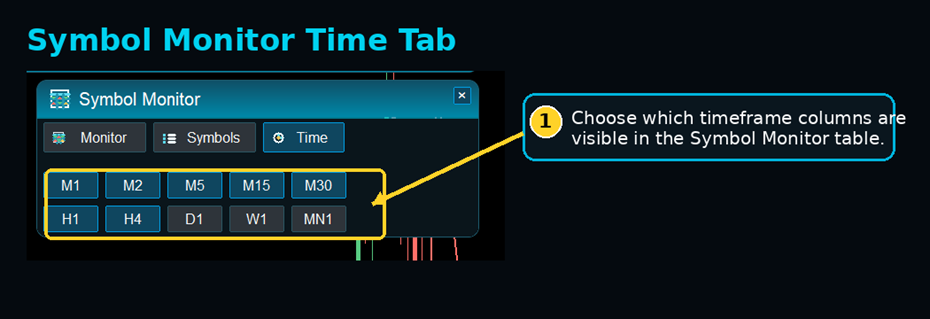 Figure 5. Symbol Monitor Time tab: choose visible timeframe columns.
The Settings panel controls the main visual and layout behavior.
· Anchor - choose where the panel layout is positioned on the chart
· Layout - Vertical or Horizontal
· Language - English, Spanish, Russian or Chinese
· Theme - Dark, Light or Dune Sand
· Signals - Soft or Vivid
· Candles - Colour, B/W or Default
· Trendline - ON or OFF
· Line Time - Current, M15, H1, H4 or D1
· Grid - ON or OFF
· Panels - Unlock panels or Reset layout
Use Vertical when you prefer stacked panels. Use Horizontal when you want panels spread across the top of the chart. Unlock panels allows you to move panels manually. Reset returns the panel layout to the default position.
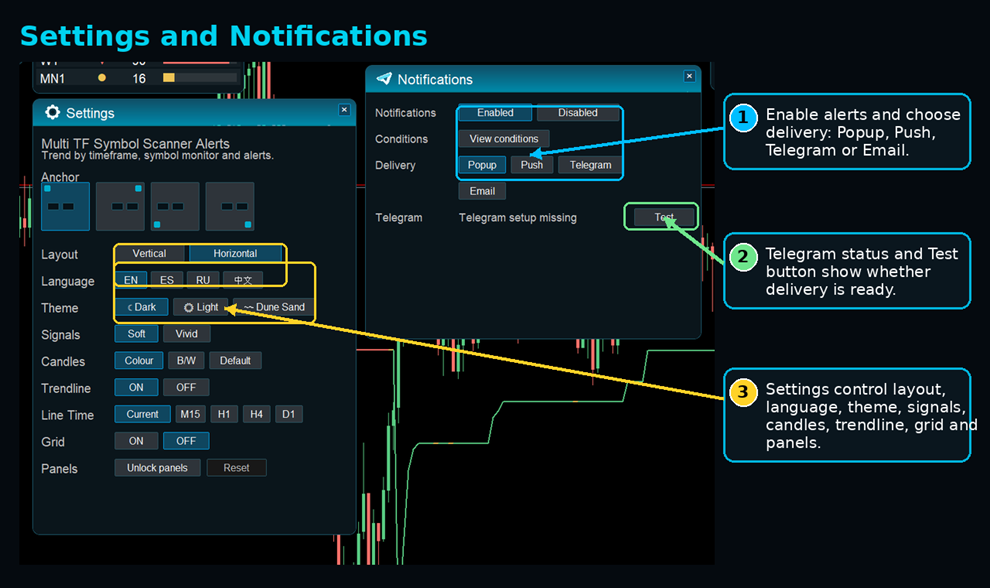
Figure 6. Settings and Notifications panels.
11. Notifications panelThe Notifications panel controls alert delivery.
It includes:
· Notifications Enabled / Disabled
· View conditions button
· Popup delivery
· Push delivery
· Telegram delivery
· Email delivery
· Telegram status
· Telegram test button
The product can send alerts for the currently selected chart instrument, symbols from the Symbol Monitor list, and selected trend and cross-timeframe conditions.
12. Popup alerts1. Open the Notifications panel.
2. Enable alerts.
3. Enable Popup alerts.
4. Select the alert conditions you want to monitor.
Popup alerts are useful when you are near the terminal and want immediate desktop feedback.
13. Push notifications1. Open MetaTrader 5.
2. Go to Tools -> Options -> Notifications.
3. Enable Push notifications.
4. Enter your MetaQuotes ID.
5. Test the notification from MetaTrader.
6. Enable Push alerts in the product Notifications panel.
Push notifications are useful when you want alerts on your phone through the MetaTrader mobile app.
14. Email alerts1. Open MetaTrader 5.
2. Go to Tools -> Options -> Email.
3. Configure SMTP settings.
4. Test the email setup from MetaTrader.
5. Enable Email alerts in the product Notifications panel.
Email delivery depends on your MetaTrader email settings and your mail provider.
15. Telegram setupTelegram bot creation, BotFather steps, Chat ID setup and screenshot examples are covered in your separate Signalator Telegram setup guide.
Insert your Telegram setup guide link here: https://www.mql5.com/en/blogs/post/771332
To use Telegram in this product, you need:
· Telegram Bot Token
· Telegram Chat ID
· MetaTrader WebRequest permission for Telegram
· Telegram delivery enabled in the product
15.1. Connecting Telegram to this product
After you have created your Telegram bot and found your Chat ID, open the product inputs or Notifications panel and enter your Bot Token and Chat ID. Then enable Telegram alerts.

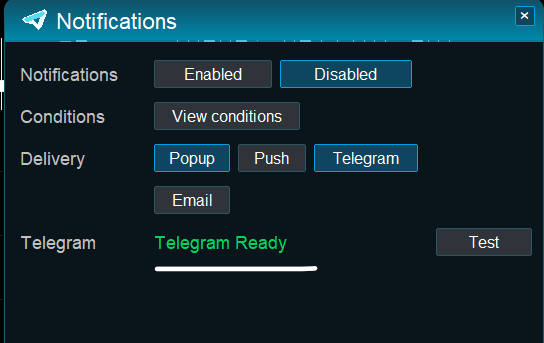
If Telegram credentials are missing, the Notifications panel shows that Telegram setup is missing.
15.2. Required MetaTrader WebRequest setting
For Telegram delivery, MetaTrader must allow WebRequest access to Telegram.
Required URL: https://api.telegram.org
If Telegram messages are not delivered, check the Bot Token, Chat ID, whether you started the bot chat, WebRequest permission, internet connection, and MetaTrader Experts / Journal logs.
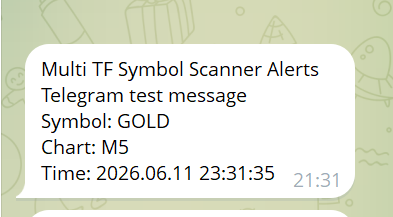
15.3. Testing Telegram delivery
1. Open the Notifications panel.
2. Make sure Telegram is enabled.
3. Press the Telegram Test button.
4. Check your Telegram chat.
If the test message arrives, Telegram delivery is working.
16. Alert scopes: current symbol and Symbol Monitor
The product can work with two alert scopes:
· Current chart symbol
· Symbol Monitor watchlist
Current symbol alerts are based on the instrument currently opened on the chart. Symbol Monitor alerts are based on selected symbols in the monitor list.
17. Reducing alert noiseIf you receive too many alerts, reduce the number of active conditions or increase the alert cooldown.
· monitor fewer symbols
· use fewer timeframes
· disable lower-priority alert conditions
· increase cooldown seconds
· use current-symbol alerts only
· disable monitor watchlist alerts if not needed
18. Performance recommendations· start with a smaller symbol list
· enable only useful timeframes
· avoid scanning all broker symbols unless needed
· keep the monitor list practical
· use the default stable scanner/cache options
· allow the product time to load history on first launch
19. Broker symbol names and availabilityDifferent brokers use different symbol names. Examples: EURUSD, EURUSDm, EURUSD.ecn, GOLD, XAUUSD, BTCUSD, BTCUSD+.
The product can try to resolve common broker symbol variations where possible. However, final symbol availability depends on the broker, account type and Market Watch access.
If a symbol does not appear or cannot be loaded, check if the symbol exists in Market Watch, check whether the broker uses another name, try manual symbol input, enable/select the symbol in Market Watch, or reduce the monitor list and reload.
20. LanguagesThe interface currently supports English, Spanish, Russian and Chinese. Language can be changed from the product settings.
21. Practical examplesExample 1 - current symbol monitoring: Open USDCHF, attach the product, open the Trend panel and check whether M5, M15, M30, H1 and H4 are aligned or mixed.
Example 2 - multi-symbol scan: Add EURUSD, GBPUSD, USDJPY, GOLD and BTCUSD to the monitor list, open Symbol Monitor and check the arrows across visible timeframes.
Example 3 - cross-timeframe confirmation: Open the Cross-Timeframe panel and watch Active / Counter / Pullback / Early status for the selected pairs.
Example 4 - Telegram alerts: Create a Telegram bot, enter the Bot Token and Chat ID, allow WebRequest to https://api.telegram.org, press the test button and then enable the selected alert conditions.
22. TroubleshootingTelegram message not sent - check: Telegram enabled in the product, correct Bot Token, correct Chat ID, bot chat started, WebRequest URL added in MetaTrader, internet connection, Experts / Journal logs.
Push notification not sent - check: MetaTrader Push notifications enabled, correct MetaQuotes ID, test message works from MetaTrader settings, Push alerts enabled in the product.
Symbol does not appear - check: symbol exists in Market Watch, broker uses a suffix or different symbol name, symbol is selected/visible, manual symbol input is correct, selected category includes that symbol.
Panel is in the wrong place - use layout settings, unlock panel movement, drag the panels and lock the layout again.
Too many alerts - increase cooldown, reduce active alert conditions, monitor fewer symbols or disable watchlist alerts.
Scanner loads slowly - first launch may require history loading. Reduce symbol count, reduce timeframe count or avoid scanning all broker symbols.
23. Important noteMulti TF Symbol Scanner Alerts is a monitoring and alert utility. It does not open trades, close trades, modify orders or manage positions. It is not an automatic trading robot. Use it as a market visibility tool, a multi-timeframe scanner and an alert dashboard.
24. Part of the Signalator ecosystemMulti TF Symbol Scanner Alerts is part of the wider Signalator ecosystem for trading software, alerts, monitoring and automation infrastructure.
Signalator develops practical tools for traders and trading businesses, including:
· market scanners and alert utilities
· Telegram, Push, Email and web notification tools
· terminal monitoring and account status products
· trade panels and execution utilities
· local and remote copy trading workflows
· multi-account execution tools
· licensing and subscription systems
· dashboards, APIs and web-based trader infrastructure
More information: https://www.signalator.com
All Signalator MQL5 Market products: https://www.mql5.com/en/users/paveltsim/seller