Zeus Trade Assistant - Official Support Thread (Setup, Usage, FAQ)

I'm the developer of Zeus Trade Assistant, a neumorphic on-chart trade manager for MT5 available on the MQL5 Market. I'm starting this thread as the central home for questions, tutorials, setup walkthroughs, and feature updates — so you get the most out of the panel without having to message me one-on-one.
If you've purchased Zeus or are considering it, bookmark this thread. Everything important will live here.
MQL5 Market link: [Click Here]
Full PDF user manual: [Click Here].
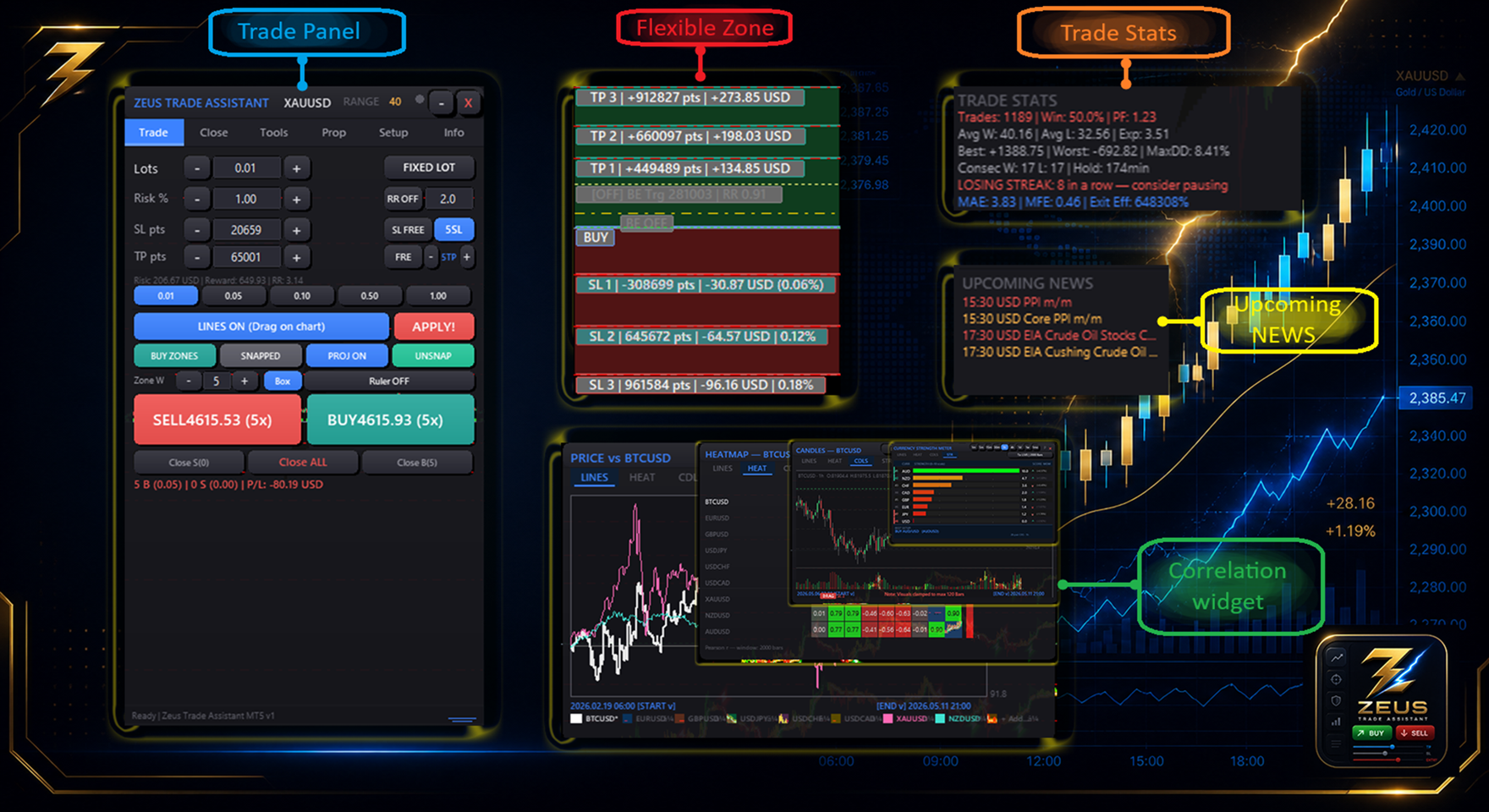
WHAT ZEUS IS — 30-SECOND OVERVIEW
Zeus is a manual and semi-automated on-chart trade manager. You decide when to enter. Zeus gives you the best possible tools to size, place, manage, and exit that trade.
It does not predict the market, generate signals, or open trades automatically.
Core features at a glance:
- Draggable Entry, SL, and up to 5 TP lines on the chart with color-coded DRAG affordances
- Split SL — give each open order its own independent Stop Loss line (outer slots drag with constraints; middle slots locked; each slot maps 1:1 to its broker order)
- Pre-trade Risk Confirmation — popup before every order showing lot size, risk %, SL/TP points, and R:R ratio
- Auto-Lot sizing — lot calculated from your risk % and SL distance in real time
- Basket Grid Engine — Zone Recovery and Classic DCA with cost-adjusted breakeven (accounts for swap, commission, spread)
- 7 Trailing Stop algorithms — Fixed, ATR, Chandelier, Step, Parabolic SAR, Support/Resistance, Breakeven-Plus
- Correlation Widget — rolling correlation across 8 pairs, PRICE and CORR mode, pre-trade overlap warning
- Zeus Trend Indicator — built-in trend filter with line + thunderbolt markers, push/Telegram alerts on signal flip
- Order Brackets — OCO, HH/LL auto-anchored OCO, News Straddle
- Stealth Mode — SL/TP stored as GlobalVariables, invisible to broker
- Equity Curve Overlay — Bloomberg-style P/L watermark on the chart
- Full Journal with CSV export, hour-of-day heatmap, MAE/MFE, exit efficiency
- Session Boxes — Asia, London, NY ranges live on chart
- Prop Firm risk gates — Kill Switch, Daily Loss Limit, Max Positions, Minimum Hold Time
- Broker suffix auto-detection (XAUUSD.v, EURUSDf, EURUSD_e, etc.)
- Keyboard: Tab hides/shows panel · Ctrl+Z undoes last close · ↑↓ scroll active tab
- Resizable panel with bottom-right crop handle
INSTALLATION — 2 MINUTES
- Purchase or rent Zeus from the MQL5 Market.
- Open MT5. In the Navigator panel, go to Market > Experts. Zeus appears there once your purchase is registered.
- Drag Zeus Trade Assistant.ex5 onto any chart.
- In the input dialog, tick Allow algorithmic trading.
- (Telegram alerts only) Also tick Allow WebRequest for listed URLs and add https://api.telegram.org to the list under Tools > Options > Expert Advisors.
- Click OK. The panel appears on the left side of the chart.

Note: Zeus runs on any symbol and any timeframe. Attach one instance per chart. All settings persist across restarts via GlobalVariables.
FIRST-TIME SETUP — 5 MINUTES
Do this once per account. Settings survive restarts.
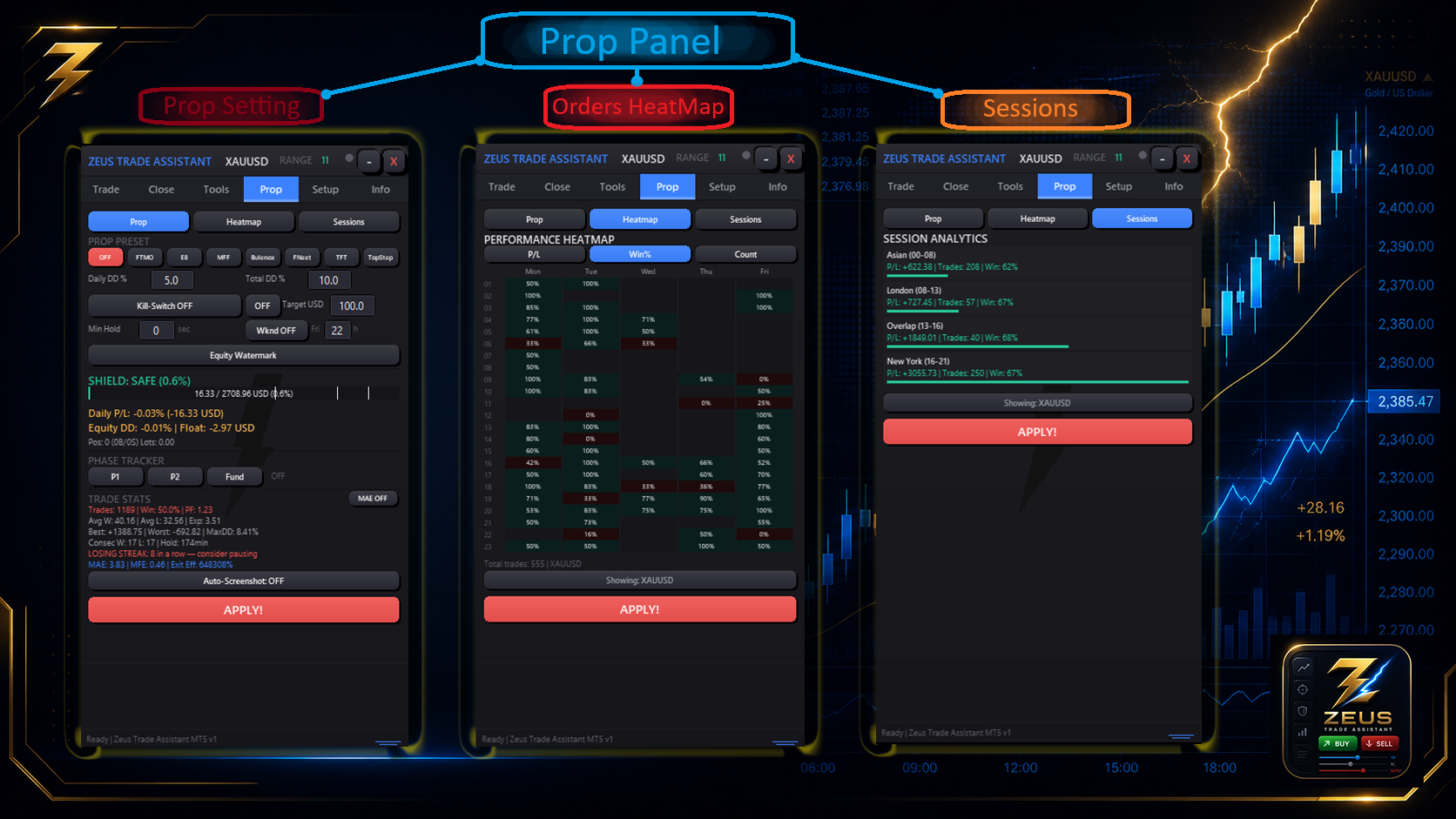
1. Risk Profile (Prop Tab)
| Setting | What it does | Suggested value |
|---|---|---|
| Default Risk % | Risk per trade as % of balance | 1.0% (retail) / 0.5% (prop) |
| Kill Switch Drawdown % | Closes all if equity drops this much from peak | Your prop firm max DD minus 1% |
| Daily Loss Limit % | Blocks new entries after this daily loss | Your prop firm daily limit minus 1% |
| Max Open Positions | Hard cap on simultaneous positions | 10 (default) |
| Minimum Hold Time | Seconds before a position can be closed | 60 (prop firms typically require this) |
2. Telegram Alerts (Setup Tab — Optional)
- Message @BotFather on Telegram → type /newbot → follow prompts → copy the bot token.
- Message your new bot once to initiate the conversation (bots cannot send first).
- Open https://api.telegram.org/bot<YOUR_TOKEN>/getUpdates in a browser → find your chat.id .
- In the Zeus Setup tab, paste the token and chat ID → click Test Alert. You should receive a message within 2 seconds.
3. Theme (Setup Tab)
Dark neumorphic is the default. Switch to light or compact from the Setup tab if preferred.
TAB-BY-TAB WALKTHROUGH
Zeus has six tabs: Trade · Close · Tools · Prop · Setup · Info
TRADE TAB

The main order-placement tab.
Lot sizing — three methods:
- Fixed lot — type the volume directly or use [−]/[+] spinners
- Quick Lot Presets — four one-click preset buttons you configure yourself (e.g. 0.10 / 0.25 / 0.50 / 1.00)
- Auto-Lot — Zeus calculates lot from your Default Risk % ÷ SL distance in points. Updates live as you move the SL line.
SL and TP:
- Type values in points, or drag the lines on the chart
- SL FREE / SL LOCKED — lock the SL distance while you reposition the entry
- RR ON / RR OFF — Risk-Reward mode auto-calculates TP from SL using your configured ratio (e.g. 1:2 → TP = 2× SL distance)
- Up to 5 TP levels with independent draggable lines and per-level partial close percentages
Split SL: Click [N SL] when you have 2+ open orders snapped to the panel. Zeus creates one SL line per order. Outer slots (SL1 closest to entry, last SL furthest) are draggable with directional constraints. Middle slots are locked. Each slot controls only its own broker order's SL. Mutually exclusive with R:R mode and disabled while Grid is active.
Order placement:
- BUY / SELL — immediate market execution
- BUY STOP / BUY LIMIT / SELL STOP / SELL LIMIT — pending orders placed at the current Entry line price
Every order button triggers the Risk Confirmation popup first. Review the numbers — confirm to execute, cancel to back out.
Basket Grid (further down the Trade tab):
States: OFF → ARMED → ACTIVE
| Parameter | Description |
|---|---|
| Mode | Classic DCA (same direction) or Zone Recovery (alternating hedge) |
| Spacing | Points between grid levels |
| Multiplier | Lot size multiplier per level (1.0 = flat) |
| Max Levels | Hard cap on grid orders |
When ACTIVE, Basket SL (red) and Basket TP (green) appear as draggable lines. The cost-adjusted breakeven (dotted line) shows the true zero-P/L price accounting for swap, commission, and spread — not just the simple weighted average entry.

CLOSE TAB
Sub-views: Positions · Orders · Journal · Stats
Positions: Live open positions with type, lots, entry, current P/L, and individual Close buttons. Trailing stop type is configured per position from here.
Mass actions: Close All · Close Profit · Close Loss · Close 25/33/50/67/75% · Move All to Breakeven
Orders: Pending orders with individual cancel buttons.
Journal: Closed trade history.
| Column | Value |
|---|---|
| Pair | Symbol |
| Type | BUY / SELL |
| Lots | Volume |
| Open price | Entry price |
| Close price | Exit price |
| P/L | DEAL_PROFIT + DEAL_SWAP — matches broker terminal exactly |
| Comm | Round-trip commission (separate column) |
| Date/Time | Close timestamp |
Filters: Today / Week / Month / All and Current Pair / All Pairs. Bottom bar shows Gross / Net / Comm / Swap / trade count. CSV export from the gear icon.

Stats: Full performance analytics.
- Win rate, profit factor, expectancy per trade
- Average win / average loss, largest win / largest loss
- Max consecutive wins/losses, max drawdown (% and absolute)
- Hour-of-day heatmap — which hours you actually make money
- MAE / MFE per trade
- Exit Efficiency — % of available favourable move captured
- Session breakdown: Asia / London / NY / Other

TOOLS TAB
Correlation Widget:


Opens as a draggable floating widget alongside the panel.
- PRICE mode — normalized price lines for all pairs on one scale (see who moved with who and who diverged)
- CORR mode — Pearson coefficient (−1 to +1) with reference lines at ±0.8
- 7 time ranges — 1D, 1W, 1M, 3M, 6M, 1Y, CUR (auto-matches chart timeframe)
- 8th slot — user-selectable pair from your Market Watch
- Pre-trade correlation warning — appears in the Risk Confirmation popup when a new trade overlaps existing exposure
- Broker suffixes auto-detected; legend cells clickable to hide/show individual pairs
Zeus Trend Indicator:

Built-in directional bias filter — no separate indicator needed.
- Master toggle — ON/OFF (clears all chart objects when OFF)
- Line — show/hide trend line overlay
- Thunders — show/hide thunderbolt markers at signal flips
- Alerts — push + Telegram on next signal change (latched — current signal does not fire on enable)
- Signal badge in panel header: BUY ▲ / SELL ▼ / WAIT
- Trend Lock — refuses counter-trend orders until disabled
Order Brackets:

| Mode | Description |
|---|---|
| OCO | Manual buy stop + sell stop. Whichever triggers, the other cancels. |
| HH/LL OCO | Auto-anchors above recent swing High and below recent swing Low. One click, no price picking. |
| News Straddle | Symmetric stops around current price using the Straddle Gap input (default 100 points). |
All bracket modes use the same Risk Confirmation flow as regular orders.
PROP TAB

Hard limits enforced before every order and every tick:
| Gate | Behaviour |
|---|---|
| Kill Switch | Closes all positions and cancels all orders when equity drops X% from peak. Hard floor — no mid-event override. |
| Daily Loss Limit | Blocks new entries after daily P/L reaches −X%. Existing positions remain open. |
| Max Open Positions | Refuses new orders above the cap. |
| Minimum Hold Time | Blocks position close before X seconds. Countdown visible in the position row. |
Reverse All — one click flips every open position. Hedge All — opens opposite-direction positions matching current exposure to lock basket P/L.
SETUP TAB
- Theme — dark neumorphic (default) / light / compact
- Box mode vs Ruler mode for SL/TP zone visualization
- Stealth Mode master toggle + Stealth Insurance distance (wide broker-side SL/TP as a failsafe)
- Telegram bot token + chat ID + Test Alert button
- Email and sound alert routing
- Partial close % per TP level
- Magic number (filter Zeus positions from other EAs)
- Session colors (Asia / London / NY)
- News filter buffer (auto-disable trading X minutes before/after red-flag events)
INFO TAB

Live account dashboard:
- Account name, number, server, leverage
- Balance, equity, free margin, used margin
- Current symbol bid / ask / spread
- P/L periods: Today / Week / Month / Overall (gross + net + commission + swap)
- vs Deposit % (performance vs total deposits)
- Upcoming high-impact news with countdown timers
- Equity Curve toggle — Bloomberg-style P/L watermark over chart background
- Session Boxes toggle — Asia / London / NY ranges live on chart
FREQUENTLY ASKED QUESTIONS
Will Zeus work on my broker?
Yes. Zeus uses standard MT5 trading functions. Verified on: IC Markets, Pepperstone, Exness, FTMO, FundedNext, BlackBull, Vantage, Tickmill, FBS, ICBC, OctaFX, RoboForex, and many others.
Does Zeus work on prop firm accounts?
Yes — it was specifically built with prop firm compliance in mind. Set your daily loss limit, max drawdown, and minimum hold time in the Prop tab and Zeus enforces them automatically.
Why is my Journal P/L different from the broker terminal?
It should not be. The P/L column is DEAL_PROFIT + DEAL_SWAP , matching the terminal's Profit column exactly. Zeus correctly counts DEAL_ENTRY_OUT_BY (hedge close-by) deals, which most panels filter out and which causes 15–25% undercount on grid accounts. If you see a discrepancy, check that the date range filter matches your broker report exactly.
How does Split SL work exactly?
With 2+ open orders snapped to the panel, click [N SL] next to the SL input. Zeus creates one SL line per open order, all starting at the same price. Each line is labeled (SL 1, SL 2, SL 3...) and bound 1:1 to its specific broker order.
Drag rules:
- SL 1 (closest to entry) → moves only toward entry (breakeven/profit stop)
- SL N (furthest from entry) → moves only away from entry (runner protection)
- Middle slots → locked between neighbours (cannot be dragged)
Dragging one slot updates only that position's broker SL. Others are untouched.
Split SL is mutually exclusive with R:R mode and is blocked while the Grid is active — both have their own stop logic and the two cannot coexist.
To collapse: click [N SL] until it returns to 1SL. Broker SLs stay where you set them.
How does the Correlation Widget help with pre-trade decisions?
It answers: "If I open this trade, am I just doubling an existing position?"
Example: You are long AUDUSD and want to add long EURUSD. If the two pairs have been +0.88 correlated this week, long EURUSD is effectively more AUDUSD exposure. The widget's pre-trade warning appears in the Risk Confirmation popup before you confirm the trade. You decide whether to proceed — Zeus just makes sure you see the overlap.
Use PRICE mode to spot divergence visually. Use CORR mode for quick numeric reference.
What does the Zeus Trend Indicator actually compute?
It calculates a directional bias for the current symbol and renders it as a trend line with thunderbolt markers at each signal flip. Toggles — line, thunders, and alerts — are independent. Run with thunders only if the line is too noisy for your chart style. The optional Trend Lock refuses counter-trend orders while a signal is active — a useful discipline tool for session-based traders.
What is the difference between OCO, HH/LL OCO, and News Straddle?
All three place a buy stop + sell stop pair. Whichever side triggers, the other cancels.
- OCO — you set both prices manually
- HH/LL OCO — Zeus reads the recent swing High and Low and places the stops automatically above and below. One click, no price selection.
- News Straddle — symmetric stops placed at ±Straddle Gap points from current price. Designed to place minutes before a high-impact event.
What are the keyboard shortcuts?
| Key | Action |
|---|---|
| Tab | Hide / show panel |
| Ctrl+Z | Undo last close (reopens position at market if within 5 minutes) |
| ↑ / ↓ | Scroll active tab content |
Can I resize the panel?
Yes. Drag the resize handle at the bottom-right corner to crop panel height. Setting persists across restarts. Click [—] in the title bar to collapse to header only; [+] to restore.
Does Stealth Mode actually hide my stops from my broker?
Yes. The order is sent with no SL or TP attached. Levels are stored as MT5 GlobalVariables locally. Zeus closes the position by market order when a virtual level is hit.
Important limitation: If your terminal disconnects, stealth protection is gone — nothing is at the broker. For insurance, set a wide Stealth Insurance broker-side SL/TP in the Setup tab. This provides a last-resort stop that only fires on major moves while the tight virtual level handles normal operations.
Can I use Zeus alongside another EA?
Yes. Configure a different magic number for each EA in the Setup tab. Zeus displays only positions matching its configured magic number.
Does Zeus work on netting accounts?
Yes. Zeus detects the account type and adapts. Hedging accounts support full basket and grid management. Netting accounts get per-symbol position management.
Is there a demo version?
Yes. Download from the same MQL5 Market page. The demo runs in the Strategy Tester and on any demo account.
Can I run Zeus on a VPS?
Yes. No configuration changes needed. Zeus runs as a standard MT5 Expert Advisor.
How do broker symbol suffixes work?
Zeus auto-detects common suffix patterns: dot-suffix (XAUUSD.v, EURUSD.pro), trailing letter (USDCHFf, EURUSDr), and underscore suffix (EURUSD_e). The symbol on the attached chart is always used correctly. The correlation widget applies the same auto-detection when looking up correlated pairs. If your broker uses an unusual pattern not auto-detected, contact me in this thread with the format.
I found a bug — how do I report it?
Reply below with:
- MT5 build number (Help → About)
- Broker name
- Symbol and timeframe
- Exact steps to reproduce
- Screenshot of the panel + Experts tab log
I read every bug report.
Can I request a feature?
Yes. Reply below with FEATURE REQUEST as the first line. I collect and prioritise by how frequently the same request appears.
TROUBLESHOOTING
Panel not showing on chart
- Confirm AutoTrading is enabled (toolbar button should be green, not red)
- Right-click chart → Expert Advisors → verify Zeus is listed and not marked with an X
- Check the Experts tab at the bottom for error messages
Telegram alerts not sending
- Confirm https://api.telegram.org is in the allowed URLs list under Tools → Options → Expert Advisors
- Confirm you have messaged your bot at least once before testing
- Click Test Alert in the Setup tab — check the Experts log for the HTTP response if it fails
Positions not showing in the Positions sub-view
- Verify the Magic Number matches the magic on your open positions
- If positions were opened manually without an EA, set Magic Number to 0
Grid not filling new levels
- Grid status must be ACTIVE, not ARMED
- Check that Max Levels has not been reached
- Check your free margin — new grid legs require margin
Zeus Trend showing nothing on the chart
- Confirm the master toggle is ON (Tools tab → ANALYTICS → Zeus Trend Indicator)
- Confirm at least one of Line or Thunders sub-toggles is ON
- Wait for one bar to close — the engine computes on bar close, not every tick
HH/LL OCO not finding swing levels
The bracket reads recent fractals. On very low timeframes with little structure, no clear swing exists. Try a higher timeframe, or use plain OCO with manually set prices.
Stats trade count differs from broker report
Verify the date range filter in the Stats sub-view exactly matches the range in your broker report. Zeus counts every deal type including DEAL_ENTRY_OUT_BY — ensure the filter window is identical.
LINKS
- Zeus Trade Assistant on MQL5 Market: Click Here
- PDF User Manual: Attached to this post
- Bug reports and feature requests: Reply below
- Licensed user direct support: DM me on MQL5 with your purchase order ID
Thanks for reading. Drop your questions below — I get to them within a day or two.
Happy trading 🚀