How to Master VWAP Ultimate Pro (MT5 & MT4) — A Step‑by‑Step User Guide

VWAP Ultimate Pro MT4 & MT5 combines multi-period VWAP, persistent Anchored VWAP, Session VWAP, sigma or percentage bands, smart alerts and an interactive control panel in one professional indicator. This guide explains how to install, configure and use VWAP Ultimate Pro on MetaTrader 4 and MetaTrader 5.
Public channel: CLICK HERE
- Added automatic saving and restoration of the manual AVWAP anchor and panel settings.
- Anchor View modes and anchors can now remain active when switching timeframes or restarting the terminal.
- Added optional per-timeframe settings and anchor storage.
- Added dedicated Clear and Reset Settings controls.
- Improved Real Volume fallback, Volume Spike Filter handling, Mouse Anchor interaction and calculation responsiveness.
- Hide on D1/W1/MN1 now applies consistently to the main VWAP, fixed AVWAP, preview and displayed values.
1 Installing the Indicator
- Open MetaTrader (MT4 or MT5) and select the Market tab.
- Search for “VWAP Ultimate Pro” for MT5 or “VWAP Ultimate Pro MT4” for MT4.
- Click Buy or Download and complete the installation. Restart the terminal only if prompted.
- In Navigator, expand Indicators → Market and drag VWAP Ultimate Pro onto a chart.
2 VWAP in 60 Seconds
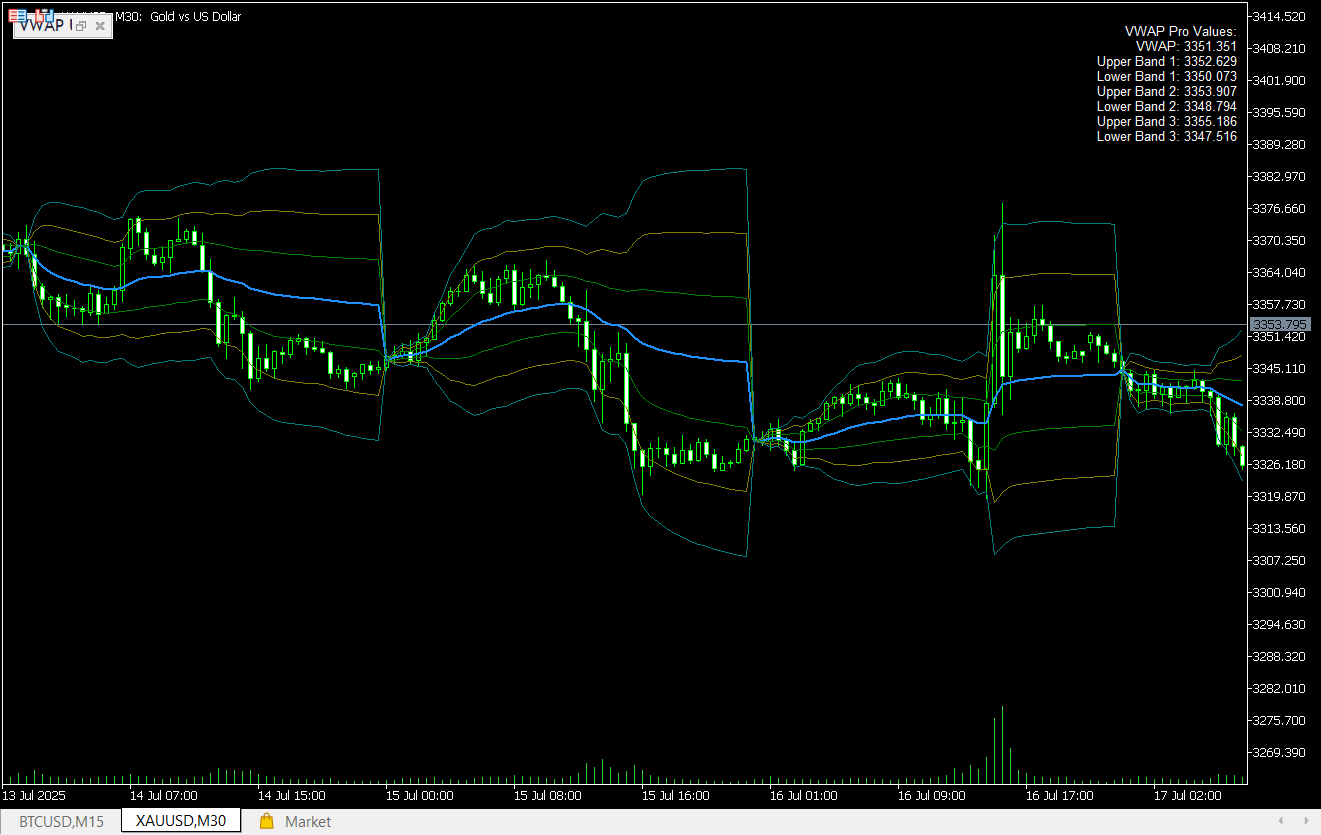
- VWAP: Volume-Weighted Average Price, commonly used to evaluate fair value and price positioning.
- Anchored VWAP: Starts the calculation from a manually selected event such as a swing high, swing low, breakout or economic release.
- Persistent Anchor: The manual anchor can be restored when switching timeframes or restarting the terminal.
- Session VWAP: Restarts for Asia, Europe, US or a custom session.
- Dynamic Bands: Up to three standard-deviation bands or percentage-based bands.
- Daily Reset Mode: Broker Midnight, UTC Midnight or DST-aware New York 17:00 Forex rollover.
- VWAP Source: Close, Open, High, Low, HL2, HLC3 or OHLC4.
3 Quick-Start Checklist
- Attach the indicator. The initial display is determined by your current Indicator Inputs or restored saved settings.
- Select the desired VWAP Mode and VWAP Source.
- For Forex Daily VWAP, consider using New York 17:00 rollover for institutional-style daily boundaries.
- Choose the required bands and configure any crossing alerts.
- To place an Anchored VWAP:
- Set Anchor View to Only or Overlay.
- Activate the Mouse Anchor chart button.
- Move the pointer over a candle to preview the AVWAP.
- Click the selected candle to fix the anchor.
- Use the compact Clear button or click the vertical anchor marker to remove the current anchor.
- Use Reset Settings to restore the settings currently configured in Indicator Inputs.
4 Automatic Saving, Anchor Restoration & Reset Behaviour
- AutoSaveLoad = true: Automatically saves and restores the effective panel settings and manual anchor.
- AutoSaveLoad = false: The indicator uses the current Inputs without loading or updating the saved state.
- SavePerTimeframe = false: The default setting. The same broker server and symbol share one configuration and anchor between timeframes.
- SavePerTimeframe = true: Each timeframe keeps its own panel settings and manual anchor.
- Clear: Removes only the current manual anchor. The remaining indicator configuration is preserved.
- Anchor View = Off: Disables Anchored VWAP and clears the current manual anchor while preserving unrelated panel settings.
- Reset Settings: Clears the manual anchor and restores the complete effective configuration from the current Indicator Inputs.
- Input changes: Changing one value through Indicator Properties updates the corresponding setting without unnecessarily resetting unrelated saved panel selections or anchors.
Important: Saved state is scoped by broker server and symbol. Two different symbols do not share anchors. Real-time synchronisation between multiple simultaneously open charts of the same symbol is not intended.
5 Important Notes for MT4 Users
- Email alerts: MT4 email delivery depends on terminal and SMTP compatibility. Push notifications or on-chart popups are generally recommended.
- Volume: MT4 uses Tick Volume. MT5 may use Real Volume on supported symbols.
- Alert icons: Some MT4 builds may display “+ / –” instead of arrow icons. Functionality is unchanged.
6 Control Panel & Inputs – Every Option Explained
| Control / Setting | Description / When to Use |
|---|---|
| AutoSaveLoad | Automatically saves and restores panel settings and the manual AVWAP anchor. Enabled by default. |
| SavePerTimeframe | OFF shares one configuration between timeframes on the same broker server and symbol. ON stores a separate state for each timeframe. |
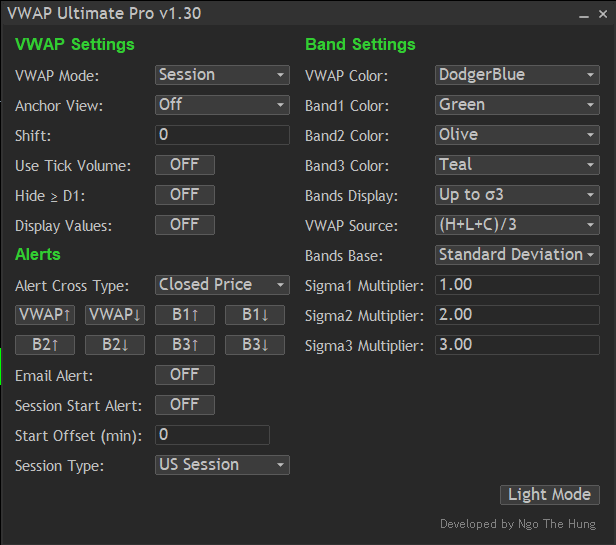
| VWAP Mode | Daily, Weekly, Monthly, Quarterly, Yearly or Session VWAP. |
| Daily Reset Mode | For Daily VWAP, choose Broker Midnight, UTC Midnight or the DST-aware New York 17:00 Forex rollover. |
| Anchor View | Off disables and clears the current manual anchor. Only displays Anchored VWAP and its bands. Overlay displays Anchored VWAP together with the selected main VWAP mode. |
| Mouse Anchor | Activates interactive anchor placement and candle-based preview. |
| Clear | Removes the current manual anchor without resetting other settings. |
| Reset Settings | Restores all effective settings from the current Indicator Inputs and clears the manual anchor. |
| VWAP Source | Close, Open, High, Low, HL2, HLC3 or OHLC4. HLC3 is the default. |
| Bands Display | None or up to three upper and lower bands. |
| Bands Base | Standard Deviation or Percentage of VWAP. |
| Volume Spike Filter | Optional median-based volume clamping for abnormal feed-volume outliers. OFF by default. |
| Spike Lookback | Number of bars used to estimate median volume. A non-positive value safely bypasses the filter and uses raw volume. |
| Spike Multiplier | Maximum accepted volume relative to the median. A lower positive value clamps more aggressively. A non-positive value bypasses the filter and uses raw volume. |
| Shift | Offsets plotted lines horizontally. |
| Hide ≥ D1 | Hides the main VWAP, fixed AVWAP, Mouse Anchor preview and displayed values on D1, W1 and MN1 charts. The saved anchor itself is preserved. |
| Display Values | Displays a compact VWAP and band-value legend. Values refresh immediately after relevant panel changes. |
| Use Tick Volume | MT4 always uses Tick Volume. MT5 can select Tick or Real Volume. When complete Real Volume is unavailable, MT5 falls back consistently to Tick Volume. |
| Colour Mode | Switches the panel between Light and Dark themes. |
| ▼ Alert Section ▼ | |
| Alert Cross Type | Current Price triggers immediately. Closed Price waits for candle close. |
| VWAP ↑ / VWAP ↓ | Enables upward and downward VWAP-cross alerts. |
| B1 ↑ … B3 ↓ | Enables crossing alerts for the selected upper and lower bands. |
| Session Start Alert | Provides a configurable notification before the selected session opens. |
| Email Alert | Supported on MT5 when terminal email settings are configured. MT4 delivery depends on terminal and SMTP compatibility. |
Panel selections, colours, calculations, alerts and the manual anchor can be restored automatically when AutoSaveLoad is enabled.
7 Practical Trading Scenarios
7.1 Intraday Mean-Reversion
- Timeframe: M5–M15.
- Use Session VWAP.
- Monitor price extensions toward the second or third band.
- Look for confirmation before targeting a return toward VWAP.
7.2 Trend Continuation
- Set a manual anchor at a significant swing, breakout or news candle.
- Use Overlay mode to compare the fixed AVWAP with the selected periodic VWAP.
- Monitor reactions near the AVWAP or its first band.
7.3 Breakout Confirmation
- Apply Daily VWAP on an intraday chart.
- For Forex, consider using the New York 17:00 rollover.
- Compare the breakout direction with VWAP slope and price positioning.
8 Alert Centre – Push, Email & Telegram
- Push: Open Tools → Options → Notifications, enable notifications and enter your MetaQuotes ID.
- Email on MT5: Configure email under Tools → Options → Email, enable it and activate Email Alert in the panel.
- Email on MT4: Delivery depends on terminal and SMTP compatibility. Push and popup alerts are recommended alternatives.
- Closed Price: Alerts wait for a completed candle before confirming a cross.
- Telegram: Attach the companion Alert Relay Helper to one chart and follow the step-by-step setup guide.
9 Tips, Performance & FAQs
- How do I keep an AVWAP anchor when changing timeframe? Keep AutoSaveLoad enabled and SavePerTimeframe disabled. The same saved anchor will be restored on the same broker server and symbol.
- How do I use a different anchor on every timeframe? Enable SavePerTimeframe.
- How do I remove only the anchor? Use the Clear chart button, click the vertical anchor marker or delete the marker through the chart’s Object List.
- How do I restore my Input configuration? Press Reset Settings.
- Does Clear remove my other settings? No. Clear removes only the manual anchor.
- Does Anchor View Off preserve the anchor? No. Switching Anchor View to Off disables and clears the current manual anchor while keeping unrelated settings.
- What happens when Real Volume is unavailable? MT5 uses a consistent Tick Volume fallback. MT4 always uses Tick Volume.
- What happens if Spike Lookback or Spike Multiplier is zero? The Volume Spike Filter is bypassed and VWAP is calculated using raw volume.
- VWAP jumps because of rare feed-volume spikes? Enable the optional Median Volume Spike Filter and adjust the positive multiplier.
- Forex Daily VWAP feels misaligned? Try the New York 17:00 rollover daily reset.
- Performance issues on a low-end computer? Reduce displayed bands, disable Display Values or use fewer indicator instances.
- Are templates still useful? Yes. Templates save Indicator Inputs and chart configuration. AutoSaveLoad separately restores effective panel settings and the manual anchor.
- Licensing and activations: Product licensing and available activations are managed by MQL5 Market and shown in your MQL5 account.
- Trial: Use the Market demo and Strategy Tester to evaluate the indicator before purchasing.
Need support or want to suggest a feature?
Send a message through MQL5 or contact Telegram.