Smart Trade Assistant Virtual
- Yardımcı programlar
- Sürüm: 1.0
- Etkinleştirmeler: 5

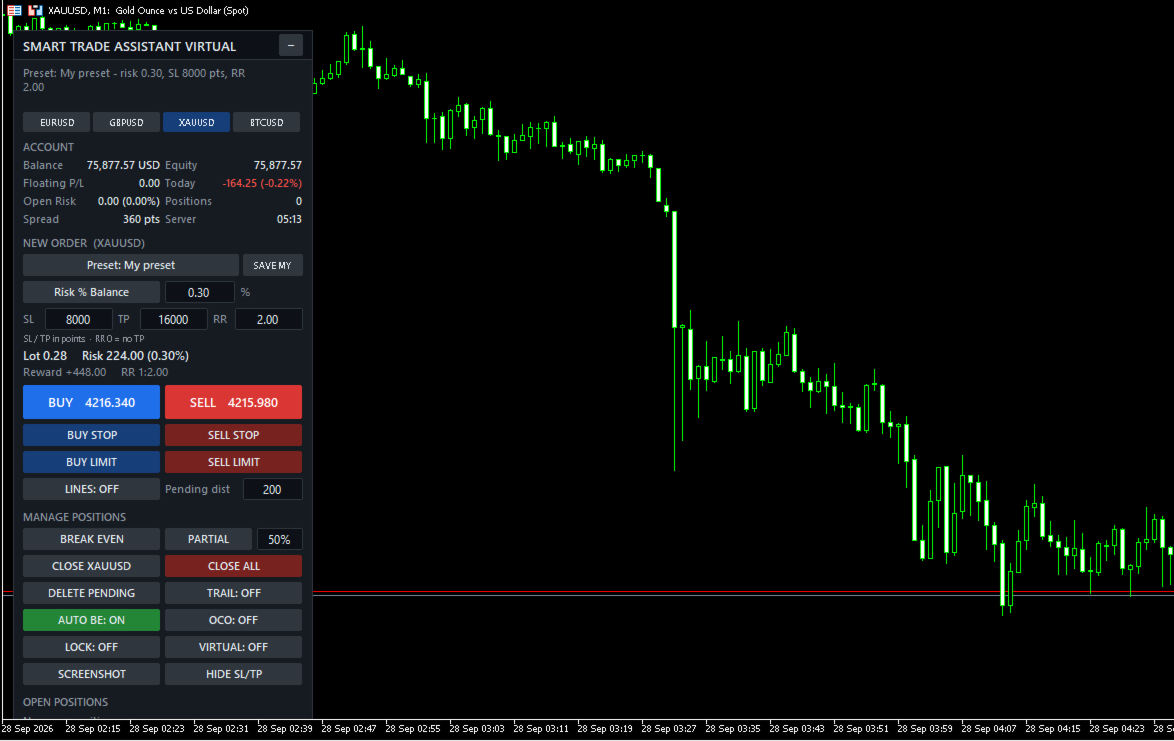
Smart Trade Assistant Virtual is a trading panel for manual traders. It calculates the lot size from your risk, places market and pending orders with one click, and manages your open trades: break-even, partial close, trailing stop, profit lock and OCO. SL/TP and pending orders can also be virtual, which means they are kept by the panel and hidden from the broker.
The panel never opens a trade by itself. You decide when to trade, and the panel handles the parts that are easy to get wrong.
The full user guide is at the end of this description.
Risk and lot size
- Lot size calculated from your risk. Modes: % of balance, % of equity, % of free margin, fixed money, or fixed lot.
- Works on any symbol: Forex, gold, indices, crypto, stocks and CFDs. The value of the SL is calculated by the terminal itself, including contract size and currency conversion.
- The lot is always rounded down, so the real risk never exceeds your setting.
- Live display of lot, money at risk, reward and Risk:Reward before you send the order.
- Clear messages when the lot is below the broker minimum, the SL is too close (stops level + spread), or margin is not enough.
Placing orders
- BUY / SELL and BUY STOP, SELL STOP, BUY LIMIT, SELL LIMIT.
- Drag and drop ENTRY, SL and TP lines on the chart. The lot and RR update while you drag.
- Optional confirmation window before every order.
- Checks the stops level, freeze level, trade mode, filling mode and margin before sending.
Trade management
- Break-even with one click, or automatic at a trigger (points, pips or R).
- Partial close with one click, and multi-level partial close (TP1 / TP2 / TP3) with optional break-even after TP1.
- 6 trailing stop methods: fixed distance, ATR, moving average, fractal, previous candle, high/low of N candles.
- Profit lock: the SL moves in steps, for example at +1R lock +0.2R, at +2R lock +1R.
- BE, ½ and X buttons on each open position, plus Close symbol, Close all and Delete pending.
- OCO: when one pending order is filled, the others on the same symbol are deleted.
Virtual SL/TP and virtual pending orders
- SL and TP are not sent to the broker. They are shown as dotted lines on the chart, and the position is closed when the price reaches them.
- Drag the lines to move the levels. Delete a line to remove that level.
- HIDE SL/TP button moves the SL/TP of open positions into virtual mode.
- Virtual pending orders are saved to a file and survive a restart of the terminal.
- Optional real "safety SL" placed further away, in case the terminal stops.
Account protection
- Trading hours and trading days (broker server time), and close all at a set time.
- Daily profit target and daily loss limit: block new trades until tomorrow, or close all and block.
- Close all when floating profit or loss reaches an amount or a % of the balance.
- Maximum open positions, maximum pending orders, maximum risk per trade, maximum total open risk.
- Maximum spread filter.
- When trading is blocked, the order buttons turn grey and the reason is shown on the panel.
More tools
- Account dashboard: balance, equity, floating P/L, today's result, open risk if every SL is hit, spread, server time.
- Presets: Scalping, Day Trading, Swing, Gold, Forex, Prop Firm, and your own saved preset.
- Symbol switch buttons.
- Screenshots by button, or automatically when a trade opens, closes or reaches break-even.
- Alerts when the price crosses your own horizontal lines.
- The panel remembers your values and switches after a restart of the terminal.
- Hotkeys (Shift + key) and popup, sound, push and e-mail notifications.
Which trades are managed
- Current chart symbol only, or all symbols.
- This EA only, manual trades only, this EA + manual trades, or all trades.
Main inputs
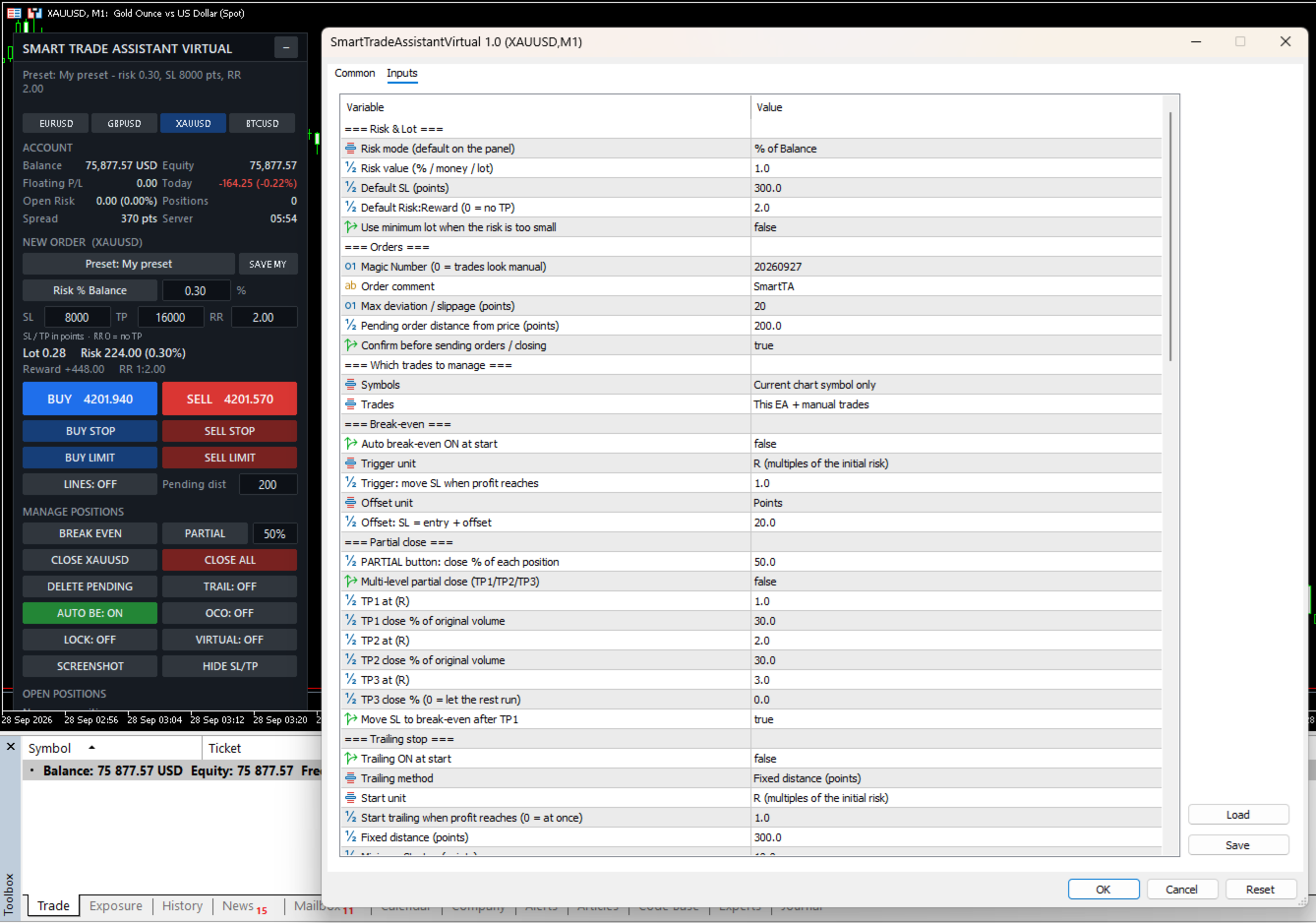
- Risk mode / value, default SL, default RR – starting values of the panel.
- Magic number, order comment, max deviation, pending distance, confirmation.
- Symbols / Trades – which trades the panel manages.
- Break-even – automatic BE, trigger and offset (points, pips or R).
- Partial close – PARTIAL %, multi-level TP1/TP2/TP3 with R levels and %.
- Trailing stop – method, start, distance, step, timeframe and indicator settings.
- Profit lock – unit and steps.
- Virtual – virtual mode at start and safety SL.
- Trading time and Account protection – all limits (0 = off).
- Screenshots, line alerts, notifications.
- Panel – position, scale, width, sections to show, symbol list, hotkeys, line colors, remember panel values.
Important
- Automatic management and virtual SL/TP work only while MetaTrader 5 is running and connected. Use a VPS, or the safety SL, if you use virtual levels.
- Supports hedging and netting accounts.
- Test the panel on a demo account first. Trading involves risk.
User guide
1. Installation
- Buy or rent the product in the Market tab of MetaTrader 5 (or on the MQL5 website), then click Install. It appears in the Navigator under Expert Advisors → Market.
- Drag Smart Trade Assistant Virtual onto the chart of the symbol you want to trade.
- On the Common tab, tick Allow Algo Trading. Adjust the Inputs if needed, then click OK.
- Make sure the Algo Trading button on the MT5 toolbar is green. The panel appears in the top-left corner of the chart.
Tip: the panel remembers your values and switches after a restart of MT5. If you change a value in the Inputs window, the new input value is used.
Strategy Tester: you can try the panel in visual mode of the Strategy Tester. The confirmation window is skipped in the tester.
2. The panel
- Top line: the result of your last action or an error message. If trading is blocked, the reason is shown in orange below it, for example "Blocked: Spread 45 > max 30 points".
- Symbol buttons: switch the chart symbol (list set in the inputs).
- Account: balance, equity, floating P/L, today's result, open risk (money lost if every SL is hit), number of positions, spread and server time. Can be hidden with Show account = false.
- New order: preset, risk mode and value, SL / TP in points, Risk:Reward. Type a value and press Enter.
- Calculation: lot, money at risk, reward and RR, updated live. Problems (SL too close, not enough margin…) are shown here.
- Order buttons: BUY, SELL, BUY STOP, SELL STOP, BUY LIMIT, SELL LIMIT, LINES and pending distance.
- Manage positions: BREAK EVEN, PARTIAL + %, CLOSE [symbol], CLOSE ALL, DELETE PENDING, switches TRAIL / AUTO BE / OCO / LOCK / VIRTUAL (green = ON), SCREENSHOT and HIDE SL/TP.
- Open positions: each managed position with its profit and three buttons: BE, ½ and X. "(V)" = virtual SL/TP, "no SL" = position without stop loss.
If the bottom of the panel is cut off by a small chart window, set Show account = false or reduce Panel scale % (for example 85).
3. Risk and lot size
Click the risk mode button to switch between modes:
- Risk % Balance / % Equity / % Free Margin: the % you lose if the SL is hit.
- Risk Money: a fixed amount in the account currency.
- Fixed Lot: the lot itself. The risk is still shown when there is an SL.
SL and TP are in points. 1 point is the smallest price step. EURUSD (5 digits): 300 points = 30 pips. XAUUSD with 2 digits: 300 points = 3.00 USD; with 3 digits: 3000 points = 3.00 USD. Check the digits of your symbol.
- Change the SL: the lot is recalculated; if RR > 0 the TP becomes SL × RR.
- Change the TP: RR = TP ÷ SL.
- Change the RR: the TP is recalculated. RR 0 = no TP.
How the lot is calculated: money at risk = balance × % → the terminal calculates the loss of 1 lot at the SL (contract size, tick value and currency conversion included) → lot = money at risk ÷ loss per lot, rounded down to the broker's lot step. The real risk is never above your setting.
Example: balance 10,000, risk 1% = 100. XAUUSD SL 3.00 × 100 oz = 300 per lot → 100 ÷ 300 = 0.333 → 0.33 lot, real risk 99.00.
If the lot is below the broker minimum, the panel shows "Risk too small: minimum lot…". Enable Use minimum lot when the risk is too small to use the minimum lot instead.
4. Placing orders
- BUY / SELL: at the current price, with the calculated lot and SL/TP.
- BUY STOP = Ask + Pending dist, SELL STOP = Bid − Pending dist, BUY LIMIT = Ask − Pending dist, SELL LIMIT = Bid + Pending dist. SL/TP are measured from the pending price.
- With Confirm before sending ON (default), a window shows symbol, lot, SL, TP, risk and reward before sending.
Before every order the panel checks: algo trading allowed, symbol trade mode, SL/TP on the correct side and beyond the broker's stops level (for market orders the spread is included), pending price on the correct side, margin, and the account protection rules. If the SL is too close, the panel tells you the minimum, for example "use SL >= 7150".
5. Drag and drop lines
Click LINES (or Shift+L). Three lines appear: ENTRY (dashed), SL and TP, each with a label.
- Drag the SL: the lot is recalculated so the risk stays the same.
- Drag the TP: RR and reward change, the lot does not.
- Drag the ENTRY: SL and TP move with it (used for pending orders).
- SL below ENTRY = BUY, SL above ENTRY = SELL.
- BUY/SELL use the SL/TP lines; pending buttons use the ENTRY line. After the order is placed, the lines are removed.
6. Managing positions
What is "R"? R is the initial risk of a trade: the distance from the open price to its first SL. A trade with a 300-point SL is +1R when it is 300 points in profit. The panel remembers R for each position, even after a restart. R-based features need the position to have an SL when the panel first sees it.
- BREAK EVEN: moves the SL to entry + offset (default 20 points) on every managed position that is far enough in profit. Positions in loss are not touched.
- AUTO BE: does the same automatically when the profit reaches the trigger (default 1R).
- PARTIAL + %: closes that % of every managed position (rounded down to the lot step). If the rest would be below the minimum lot, the whole position is closed.
- Multi TP (inputs): TP1 / TP2 / TP3 at R levels each close a % of the original volume, for example 1R → 30%, 2R → 30%, and the SL can move to break-even after TP1.
- CLOSE [symbol], CLOSE ALL, DELETE PENDING.
- BE / ½ / X on a row: break-even, partial close or close for that single position.
- OCO: when a pending order is filled, the other managed pending orders on the same symbol are deleted (also for virtual pending orders).
Trailing stop methods (new SL for a BUY; mirrored for a SELL):
- Fixed distance: Bid − distance.
- ATR: Bid − ATR(period) × multiplier.
- Moving Average: MA − offset.
- Fractal: latest confirmed lower fractal − offset.
- Previous candle: low of the previous candle − offset.
- High / Low: lowest low of the last N candles − offset.
Trailing starts when the profit reaches Start trailing (default 1R, 0 = at once). The SL only moves forward, by at least Minimum SL step, and respects the stops and freeze levels.
7. Virtual SL/TP and virtual pending orders
Switch VIRTUAL: ON (or Shift+V). New market orders are sent without SL/TP. The panel keeps the levels, draws them as dotted lines and closes the position when the price reaches one.
- Drag a dotted line to move the level. A level that would close the position at once is refused.
- Select a dotted line and press Delete to remove that level.
- Break-even, trailing, profit lock and multi TP work with virtual levels.
- HIDE SL/TP: moves the real SL/TP of open positions into virtual mode.
- Safety SL (input): a real SL placed a number of points beyond the virtual SL.
- Virtual levels are not limited by the broker's stops level.
With VIRTUAL ON the pending buttons create virtual pending orders (dash-dot line "V-BUY STOP …"). When the price reaches the line, the panel opens a market order with virtual SL/TP. Drag the line to move it (SL/TP move with it) or delete it to cancel. Virtual pending orders are saved to a file and come back after a restart.
Important: virtual levels work only while MT5 is running and connected. If the terminal, computer or VPS stops, the position is not closed at the virtual SL. Use the safety SL or a VPS.
8. Profit lock, presets and other tools
Profit lock (LOCK: ON): the SL moves in steps set in Steps, for example "1:0.2, 2:1, 3:2" = at +1R lock +0.2R, at +2R lock +1R, at +3R lock +2R. Unit: R, points or pips.
Presets (click the Preset button to cycle):
- Inputs: values from the EA settings.
- Scalping: risk 0.5%, SL 100, RR 1.5, auto BE, trailing.
- Day Trading: risk 1%, SL 300, RR 2, auto BE.
- Swing: risk 1%, SL 1000, RR 3, auto BE, ATR trailing, profit lock.
- Gold: risk 0.5%, SL 500, RR 2, auto BE, ATR trailing.
- Forex: risk 1%, SL 200, RR 2, auto BE.
- Prop Firm: risk 0.25%, SL 300, RR 2, auto BE, profit lock, max risk per trade 0.5%, max total risk 1.5%, max 3 positions, daily loss 2%.
- My preset: click SAVE MY to save the current panel values.
SL values are in points; adjust them to your symbol.
Screenshots: SCREENSHOT button, or automatic when a trade opens, closes or reaches break-even. Files: File → Open Data Folder → MQL5\Files\SmartTA\Screenshots.
Line alerts: draw a normal horizontal line; when the price crosses it you get an alert (and push/e-mail if enabled). Put a name in the line's Description to see it in the alert. Moving the line does not trigger an alert.
9. Account protection
All limits are in the inputs; 0 = off.
- Trading hours / days (server time) and close all at a set time.
- Close all when floating profit or loss reaches an amount or a % of the balance.
- Daily profit target / daily loss limit (% of the balance at the start of the server day): block new trades until tomorrow, or close all and block. To unlock the same day, set the daily limits to 0.
- Max open positions / max pending orders.
- Max risk per trade and max total open risk (% of balance).
- Max spread.
When something blocks trading, the order buttons turn grey and the reason is shown in orange. Management of open positions continues.
Prop firm example: risk 0.25% · max risk per trade 0.5% · max total risk 1.5% · max positions 3 · daily loss limit 2% → close all + block.
10. Which trades are managed
- Symbols: current chart symbol only (default) or all symbols.
- Trades: this EA only, manual trades only, this EA + manual trades (default), or all trades.
- Magic number: set on every order from the panel. If another EA runs on the same account, keep Trades at "This EA + manual trades" or "This EA only".
11. Hotkeys and notifications
Hold Shift and press a key while the chart is active:
- Shift+B / Shift+S: BUY / SELL
- Shift+C: close positions on this symbol
- Shift+E: break-even · Shift+P: partial close
- Shift+T: trailing ON/OFF · Shift+V: virtual ON/OFF
- Shift+D: delete pending · Shift+L: lines ON/OFF
Notifications (popup, sound, push, e-mail) are sent when an order opens, a position closes or partly closes, break-even is set, a TP level is reached or a protection rule triggers. Push needs your MetaQuotes ID in Tools → Options → Notifications.
12. Troubleshooting
- "Algo Trading is disabled": click the Algo Trading button on the toolbar.
- "Allow Algo Trading is off in the EA settings": F7 → Common → tick Allow Algo Trading.
- "Risk too small: minimum lot…": increase the risk, reduce the SL, or enable Use minimum lot.
- "SL too close … use SL >= X": set the SL to at least X points.
- "Not enough free margin": the calculated lot is shown in orange; reduce the risk or widen the SL.
- Buttons are grey: read the orange "Blocked: …" line.
- Auto BE / multi TP / trailing does not start: the position needs an SL when the panel first sees it; check the switch and the Symbols / Trades inputs.
- Trades on other symbols are not managed: set Symbols = All symbols, or attach the panel to those charts.
Always test on a demo account first. Trading involves risk.