Chart Order Trade Manager MT5
- Yardımcı programlar
- Sürüm: 6.82
- Güncellendi: 6 Mart 2026
- Etkinleştirmeler: 10

Trade Manager — Professional Order and Position Management Panel for MetaTrader 5
Automatic lot, Stop Loss and Take Profit calculation, entry by chart click, draggable SL and TP lines, trailing stop, auto break-even, partial close and a complete CSV export of your trading history — all from one interactive chart panel.
OVERVIEW
Trade Manager is a professional order and position management panel for MetaTrader 5. It significantly simplifies manual order entry, automatically calculates lot size, Stop Loss and Take Profit based on the configured risk budget, and displays all relevant parameters clearly in an interactive chart panel.
The panel is fully operable by mouse and keyboard. The entry price can be set with a single chart click, Stop Loss and Take Profit can be dragged directly on the chart with immediate live feedback, and every field supports both AUTO mode (automatic calculation) and MANUAL mode (free input).
FEATURES
The panel and its AUTO and MANUAL modes
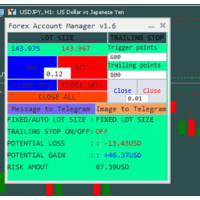
Anchored to any chart corner, upper left by default, the panel holds the Entry, S/L, T/P and Lots fields, the risk percentage with five presets, the R:R ratio in steps of 0.1 from 0.1 to 10.0 and the magic number for new orders, plus an account display with the balance, the maximum risk of the current configuration in red and the maximum possible profit in green. Every field switches individually between AUTO and MANUAL at any time. In AUTO, Entry follows the market price, S/L comes from ATR or DefaultSLPips, T/P from the R:R ratio and Lots from risk percentage and SL distance; in MANUAL each accepts plus and minus buttons or free input, Entry also a chart click and S/L and T/P also a drag handle.
Chart-click entry, drag handles and live R:R
A single click on the chart sets the entry price, SL and TP are recalculated and the R:R updates instantly. Handles marked = SL = and = TP = sit on their chart lines: hold, drag, release — the value is applied and the field switches to MANUAL. In AUTO mode the lot size is recalculated on every SL drag, and the panel R:R updates in real time while you are still dragging.
Direction switch with SL/TP mirroring
Switching between LONG and SHORT mirrors manual SL and TP values to the correct side automatically, preserving the pip distance. After every executed order the LONG/SHORT button flips to the direction actually traded, so pressing B while the panel shows SHORT executes a BUY and the panel switches to LONG.
Automatic order type detection
The EA detects by itself whether the entry price lies above or below the market and selects the order type accordingly: market order at market, BUY STOP or SELL LIMIT above market, BUY LIMIT or SELL STOP below market. No manual selection is required.
Execution safeguards
In AUTO mode, SL and TP are recalculated from the actual fill price after a market order and applied via TRADE_ACTION_SLTP, compensating slippage precisely. The filling type IOC, FOK or RETURN is read from the broker symbol properties, so the EA works with any broker, and an order failing through a requote, timeout or brief connection loss is retried up to three times. Before every order SL and TP are checked against the broker minimum stop distance (SYMBOL_TRADE_STOPS_LEVEL); if either is too close to the entry, a clear alert fires before the request is sent.
Risk calculator, ATR stop loss and R:R manager
Lot size is calculated from account balance, risk percentage and SL distance in pips and recalculated on every SL change. With UseATRForSL enabled the SL distance comes from the ATR indicator with a configurable multiplier and adapts to current volatility; disabled, the fixed DefaultSLPips distance applies. Take Profit is placed at the configured risk-reward multiple from the entry, adjustable in steps of 0.1. A risk preset button, 0.5, 1.0, 2.0, 3.0 or 5.0 percent, recalculates the lot size immediately while the SL and TP lines stay in place. Pip size is determined correctly for Forex, Gold, Silver, Crypto, Indices and Energy.
Trailing stop as a toggle
The T key or the trailing button, labelled with the configured pip distance, activates and deactivates an automatic trailing stop. While active the SL is trailed every 10 ticks at that distance behind the current price; deactivating leaves the last SL exactly in place. Works on all filtered open positions and is fully compatible with hedge accounts.
Auto break-even as a toggle
The E key or the B10 button, labelled with the configured trigger in pips, activates and deactivates automatic break-even management. Every open position is monitored individually and its SL moved to the entry price once it reaches the configured BreakEvenTrigger, once per ticket. Deactivating clears the processed-ticket list, so reactivating re-evaluates all open positions immediately.
Trailing and break-even combined
Both can run at the same time. Break-even moves the SL to entry only if it is not already at or beyond entry, so a position whose SL trailing has already pushed past entry is skipped automatically. Trailing only moves the SL when the new level is strictly better and never moves it backwards. The order of activation does not matter.
Chart visualisation and status display
For each filtered open position three lines are drawn automatically: the entry price line dashed, the SL line dotted in red and the TP line dotted in green. Coloured zones visualise the risk zone in red and the reward zone in green with freely configurable transparency. While trailing stop or auto break-even is active, a status label in the lower left corner names the function and its pip distance.
Partial close, Close All and Close By Opposite
Partial close closes a configurable share of a position with one click, 50 percent by default through PartialClosePercent, with the button always showing the current value. Volume is rounded down to the broker lot step, and if it falls below the broker minimum lot, PartialCloseIfBelowMin decides between closing fully and skipping with an alert. Close All closes all filtered positions at once, with the filling mode determined per broker.
Close By Opposite on the W key nets all open LONG against all open SHORT positions through the broker CLOSE_BY mechanism, so no spread is paid on the matched volume. It respects the magic number filter, falls back to a regular market close if the broker rejects CLOSE_BY, leaves unmatched positions open and logs every closed pair at LogLevel 1. All actions — closing, trailing, break-even and partial close — can be restricted to a specific magic number.
Maximum positions and daily loss limit
EnableMaxPositions blocks new orders once the configured number of open positions is reached. EnableMaxDailyLoss blocks new orders once the daily loss of the entire account exceeds MaxDailyLossPercent, across all symbols, realised and unrealised, including commission and swap. Each EA instance checks independently and blocks only its own new orders, while trailing stop, auto break-even, partial close and Close All stay fully active. Both limits are off by default.
CSV export with performance statistics
The complete trading history is written to TradingHistory_[AccountNumber].csv. Existing entries are recognised and not duplicated, so the file grows incrementally with the newest trades on top. Commission is captured correctly for every broker model because entry-leg and exit-leg charges are combined, and the comment column shows the EA name together with the close reason.
With ExportWithBenchmarks enabled, a statistics block is placed at the very top across ten sections: general statistics, profitability with win rate, net profit including commission and swap, gross profit and loss, profit factor and expectancy, trade metrics with largest and average win and loss, pips analysis, time analysis with average holding duration per outcome, trading days with daily win rate and best and worst day, winning and losing streaks, long versus short per direction, the actual average R:R from win and loss amounts, and export info. A status label right of the panel shows the current phase immediately on click.
Save settings
The Save button writes entry, SL, TP, lots, risk percentage, R:R, magic number, direction, the AUTO and MANUAL states and the display options for lines, panel, zones and labels to file and restores them on the next start. ATR, export settings, trailing and break-even are always read from the input parameters instead. A green status label confirms a successful save.
About overlay and keyboard control
The I key or the About button opens a centred info overlay with the current version, all features and all 19 keyboard shortcuts grouped into order entry, position management and display, always centred regardless of chart size.
The EA can be operated entirely without a mouse. L toggles the entry, SL and TP lines, P the panel, Z the zones, O the MT5-native order level lines and Y the trade history arrows, R switches the line labels between right and left and D redraws everything. Q toggles direction, B and S fire a quick BUY or SELL, W triggers Close By Opposite, C closes all filtered positions, X performs the partial close, T toggles trailing, E break-even, H the shortcut reference, and the keys 1 to 5 apply the risk presets. The same actions exist as panel buttons, including Save, Export and the five presets.
PARAMETERS
All parameters ship with working defaults, so the EA is ready to trade the moment it is attached to a chart.
Risk management. RiskPercentage (1.0) is the risk per trade in percent of balance and RRRatio (2.0) the ratio for the automatic TP. The SL distance comes either from UseATRForSL (true) with ATRMultiplier (1.5) and ATRPeriod (14) or from the fixed DefaultSLPips (20.0); DrawLevels and ShowInfoPanel, both true, control the chart lines and the panel.
Order entry. StartWithSellDirection (false) sets the starting direction, DefaultMagicNumber (7) the magic number for new orders.
Position management. EnableAutoTrailing and EnableAutoBreakEven (both false) start those functions immediately; TrailingDistance (20.0 pips), BreakEvenTrigger (10.0 pips), PartialClosePercent (50.0) and PartialCloseIfBelowMin (true) configure them. EnableMaxPositions with MaxPositions (5) and EnableMaxDailyLoss with MaxDailyLossPercent (5.0) hold the two limits, ShowCloseAllButton (true) the Close All button, CloseOnlyMagicNumber (true) the magic number filter; set to false, every open position on the symbol is included, manual trades with magic 0 and positions of other EAs among them.
Export settings. ExportAllSymbols, ExportAllMagicNumbers and IncludeManualTrades (all true) export the whole account including trades with magic 0, ExportWithBenchmarks (true) adds the statistics block, and AutoExportOnClose (false) exports when the EA is removed or the terminal closes.
Intervals, alerts and logging. PanelUpdateSeconds and LineUpdateSeconds (both 1) set panel refresh and line redraw in seconds, 0 meaning every tick. ShowAlerts (true) controls the alert popups; disabled, the EA runs silently while the journal stays complete. RestoreOnTFChange (true) restores the panel state across a timeframe change. LogLevel (1) sets the journal detail from errors only, recommended for live and VPS use, through operational events and diagnostics, up to a full trace including tick logs.
Panel, labels, zones and colours. PanelCorner (UPPER_LEFT), its offsets (20 and 30) and its size (350 wide, PanelMinHeight 477, FieldValueWidth 140) are set in pixels, as are the label side (LabelsOnRight, true), the label offsets (22 each) and the label boxes (222 by 30). ShowRiskRewardZones (true), ZoneTransparency (0 opaque to 100 invisible) and ShowConnectorLine (false) govern the zones. Colours default to EntryLineColor DodgerBlue, StopLossColor Crimson, TakeProfitColor LimeGreen, RiskZoneColor Pink and RewardZoneColor LightGreen for the two zones, PanelBackgroundColor DimGray, and white for PanelTextColor and ButtonTextColor.
INSTALLATION
Copy the compiled file to the Experts folder of your MetaTrader 5 data folder, then restart MetaTrader 5 or press F5 to refresh the Navigator. Drag the EA onto any chart, enable automated trading in the properties dialog and confirm with OK. AutoTrading must also be active in the terminal, through the toolbar button or Ctrl+E.
The panel starts in AUTO mode, so entry, SL, TP and lots are calculated straight away. Set the entry with a chart click, adjust SL and TP with the drag handles, set risk percentage and R:R with the plus and minus or preset buttons, select LONG or SHORT and press BUY or SELL — the EA chooses market or pending automatically. Press T for trailing, E for break-even and H for the shortcut reference.
With CloseOnlyMagicNumber enabled, only positions carrying the configured magic number are managed. Settings are stored in TradeManager_Settings.txt and the export in TradingHistory_[AccountNumber].csv, both in the MT5 Files folder.
COMPATIBILITY
MetaTrader 5 from build 3000, all timeframes and all instruments including Forex, metals such as XAU and XAG, indices, crypto, energy and CFDs. Demo and live accounts, hedge and netting alike. AutoTrading must be enabled in the terminal and in the EA properties. A one-month rental is available alongside the full purchase.
Version 6.82 | fi.con Investment Group | MQL5 Marketplace