QuickTrade Assistant MT5
- Utilitários
- Versão: 5.10

🟦 QuickTrade J Assistant Basic – Simple Line-Based Trading Assistant for MT5
⭐ Short Description
QuickTrade J Assistant Basic is a clean, line-based trading assistant for MT5.
Control Entry, SL, TP, Risk %, Money Risk, Lot Mode, Reward Ratio or Reward Price directly on the chart using three smart draggable bars.
The whole interface is drawn on a single chart bitmap, so it stays light and smooth. It includes hover edit boxes, notification cards, supply/demand zone click, keyboard shortcuts, commission-aware lot calculation and a multi-mode Close/Delete manager.
🧾 Full Description
QuickTrade J Assistant Basic is a minimalist yet powerful manual trading tool for traders who want a fast, clean and visual workflow.
Instead of a bulky panel with dozens of chart objects, it uses three horizontal bars for SL, Entry and TP. Each bar has editable fields, buttons and live calculations. All three bars are drawn on ONE full-chart bitmap label, so the chart stays responsive.
Perfect for scalpers, intraday traders and price action users who want to trade with precision and speed.
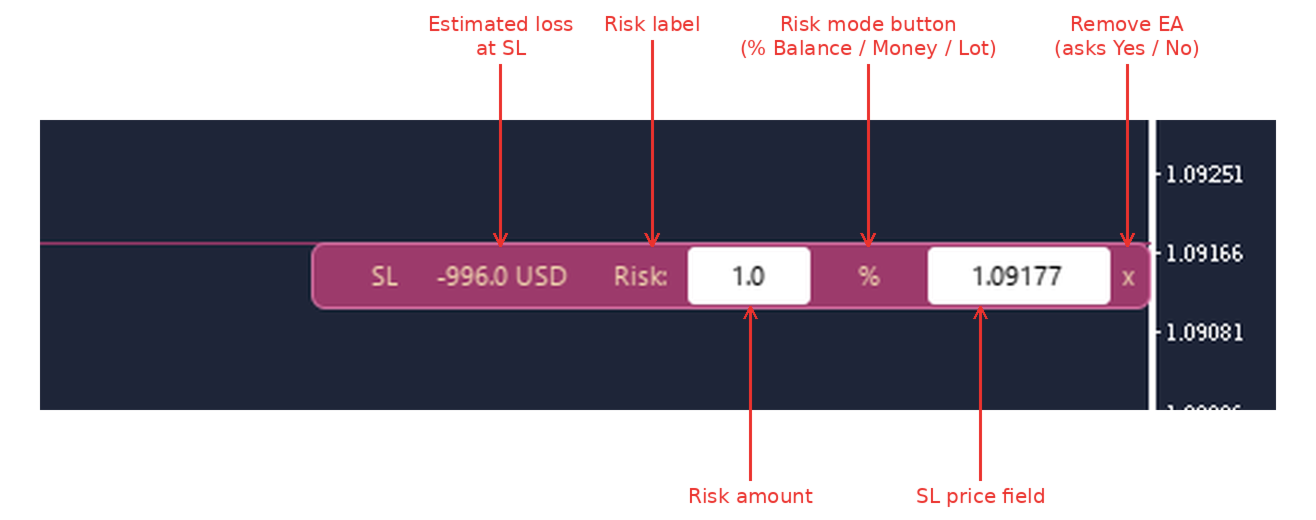
🎨 1. SL Bar (Stop Loss Bar – Magenta)
Your risk management center.
✔ Live information
- Estimated loss in account currency if SL is hit
- Risk value
- SL price
✔ Drag & Drop
Move the SL visually on your chart. Drag from any part of the bar.
✔ Risk Mode button (3 modes)
- % Mode – lot calculated from risk % of balance
- Money Mode – lot calculated from a fixed money amount
- Lot Mode – fixed lot; the loss at SL becomes informational
Each mode remembers its own value. When you switch mode, the box shows that mode's value.
✔ "X" Button
Removes the EA from the chart (fully closes the assistant, not just hides the interface). A confirmation card (Yes / No) prevents accidental clicks.
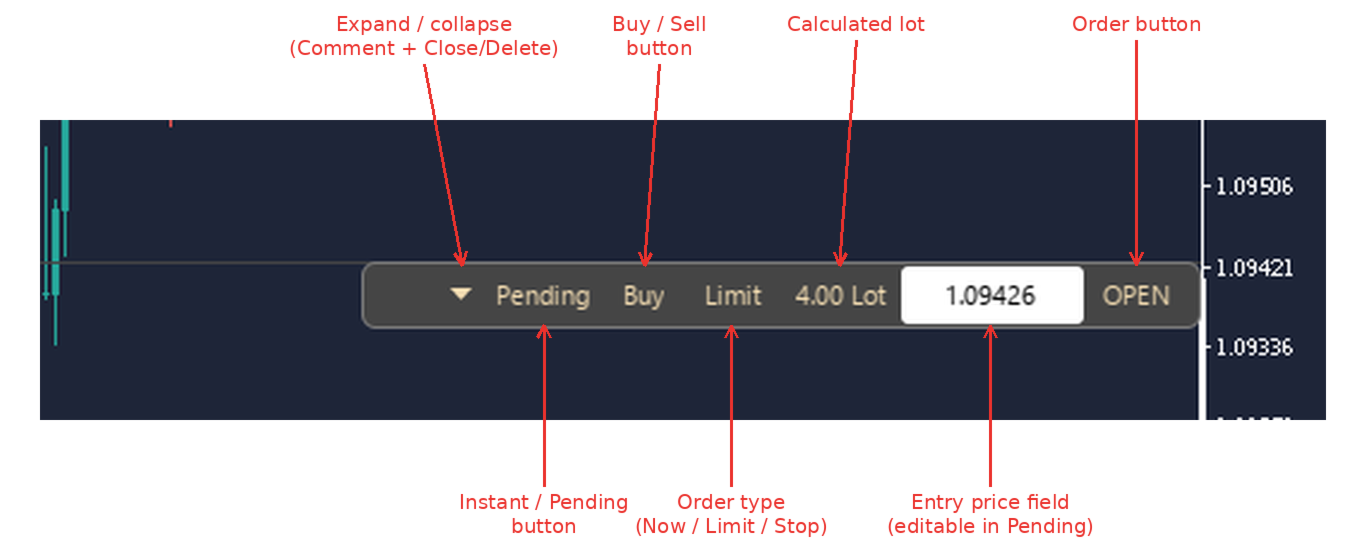
💠 2. Entry Bar (Order Control Bar)
Main buttons:
1️⃣ Instant / Pending
- Instant: market order. The entry price follows the live price (Ask for Buy, Bid for Sell) and cannot be dragged.
- Pending: the entry bar can be dragged or typed. The label changes automatically to Now / Limit / Stop based on your entry and SL.
2️⃣ Buy / Sell
Flips the trade direction and mirrors SL and TP around the entry. The direction also updates automatically when you drag SL across the entry.
3️⃣ OPEN
Sends the order using the mode, direction, calculated lot, SL, TP and comment.
Also shown: calculated lot size, entry price, and the expand/collapse arrow ▼ ▲.
🟫 3. Expandable Action Panel (▼)
- Comment box (sent with the order)
- Multi-mode Close/Delete button. Cycle through modes with the arrows ◄ ►:
• Close All Positions
• Delete All Orders
• Close [Symbol] Positions
• Delete [Symbol] Orders
• Close Profitable
• Close Losing
• Delete Limit Orders
• Delete Stop Orders
The label shown = the action executed. It runs immediately, without a confirmation, and applies to all trades on the account. If some trades cannot be closed, a card shows a summary such as "Closed 5 of 7, 2 failed" with the error code.
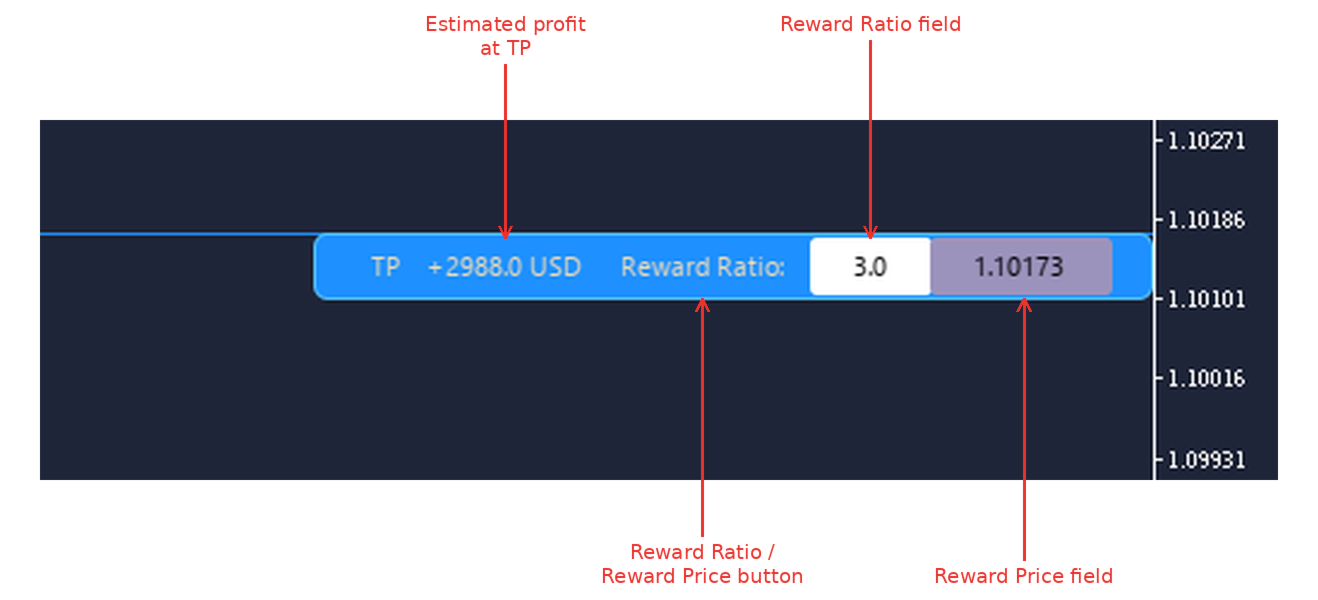
🟩 4. TP Bar (Take Profit Bar – Blue)
Click the "Reward Ratio / Reward Price" label to switch the mode.
🔵 Mode 1 – Reward Ratio
- You edit the ratio (for example 3.0). The TP price is calculated and read-only.
- Moving SL or Entry moves TP automatically, so the ratio is always kept.
- Dragging the TP moves the SL so that the selected ratio stays the same.
🔵 Mode 2 – Reward Price
- You drag or type the TP price freely.
- The ratio is calculated and read-only.
- TP does not follow SL or Entry. Only the ratio changes.
Summary
Mode | Drag TP? | Edit ratio? | Edit price? | TP follows SL/Entry?
Reward Ratio | Yes (SL adjusts) | Yes | No | Yes
Reward Price | Yes (only TP moves)| No | Yes | No
🧮 5. Lot and Risk Calculation
- Lot size is calculated with the platform's own profit calculation for your symbol, so it is accurate on forex, metals, indices and crypto.
- The lot is rounded down to the broker's volume step and kept inside the minimum and maximum lot.
- If your risk is too small for the minimum lot, a card shows the real risk of the minimum lot and asks you to confirm (Yes / No) before the order is sent.
- Optional: include a commission cost per lot. The lot is then calculated so that the loss at SL plus the commission stays within your risk.
✨ 6. Smart Chart Features
- Hover edit boxes: move the mouse over a price or value box and a native edit box appears, so you can type or paste values. Press Enter or click outside to apply, Esc to cancel.
- Drag any bar from any part of it. Chart scrolling is locked while you hover over or drag a bar.
- Bars stay attached to their price when you scroll or zoom, and are hidden when the price is outside the screen.
- Smart start position: Entry, SL and TP appear on screen, separated, ready to use.
- Zone click: click inside a rectangle drawn on your chart. A pending entry is set at the zone edge, and the SL is placed behind the zone plus a buffer (Daily ATR % or fixed pips) and spread.
- Notification cards (top-right): order results, trade server errors and warnings. They disappear after 5 seconds or when you click the chart.
- Your settings (risk mode, each mode's value, ratio, Instant/Pending, Buy/Sell, comment) are saved per chart and restored after a restart or when you change symbol or timeframe.
- Works on hedging and netting accounts. On netting accounts a card reminds you that new orders merge into the existing position.
📨 7. Telegram (Optional)
After an order is placed, the EA can send a chart screenshot with the order details to your Telegram bot: ticket, entry, size, risk/reward, SL, TP, commission and comment. No DLL is needed.
To use it, add https://api.telegram.org under Tools > Options > Expert Advisors > Allow WebRequest for listed URL.
🎮 8. Keyboard Shortcuts
CTRL – lock / unlock the chart's fixed scale
UP – previous symbol in Market Watch
DOWN – next symbol in Market Watch
Z – clean chart mode (hide / show all bars)
🧪 9. How to Use
1. Attach QuickTrade J Assistant Basic and enable Algo Trading
2. Drag the SL and TP bars (or type the values)
3. Choose the risk mode and enter your risk
4. Set the reward ratio or the TP price
5. Choose Instant/Pending and Buy/Sell
6. Click OPEN
7. Expand ▼ for the Close/Delete manager and the comment box
8. Use Z, UP, DOWN and CTRL for a faster workflow
📥 10. Inputs
- Entry / SL / TP bar colors
- Font size
- Include commission and commission cost per lot
- Zone click buffer: mode (Daily ATR or manual pips), ATR %, pips, spread
- Magic number
- Slippage (points)
- Telegram: send logs, bot token, chat ID, picture width and height
Risk mode, risk values and reward ratio are set directly on the bars and saved per chart.
⚠ 11. Notes
- Not an auto-trading EA. Every trade needs your click.
- No DLL and no external license is required.
- Close/Delete actions apply to all trades on the account, not only to trades opened by this EA.
- Please test on a demo account first. Trading involves risk.
📌 12. Version History
v5.00
- Interface rebuilt as a single full-chart bitmap label (lighter and smoother)
- Rounded bars
- Drag from any part of a bar
- Native hover edit boxes with copy and paste
- Notification and confirmation cards
- Zone click with ATR or pips buffer
- Settings saved per chart
- Telegram order log without DLL
- Magic number and slippage inputs