
WONNFX trade panel MT4
- Experts
-
Sergei Tsirat
 WONNFX ONLINE
Expert Advisor & Trading Systems & CopyTradingFX
[no martingale, grid trading, averaging, or other dangerous methods]
Tools for MetaTrader 5 & 4
[Indicators / Advisors / Utilities] - Versão: 11.2
- Atualizado: 29 outubro 2026
WONNFX TradePanel — Trading Panel for MT4
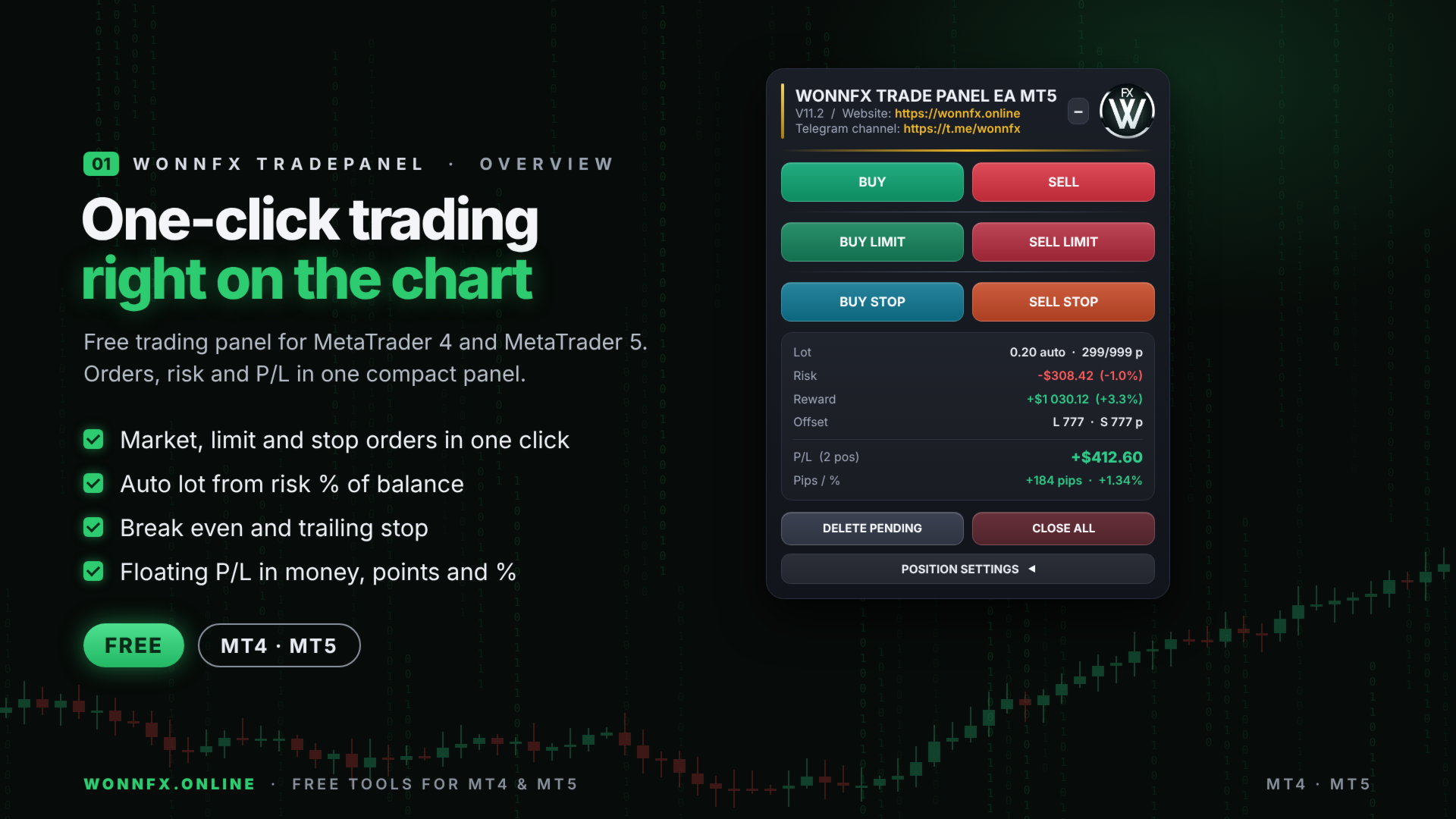
One-click trading panel that lets you trade right from the chart. It handles market, limit and stop orders, calculates the lot from your risk automatically, moves trades to break even, trails the stop, and shows floating profit in money, points and percent. Everything sits in a compact, modern panel. Once a pending order has been placed on the chart, it can be manually moved to the desired price level.
One-click trading
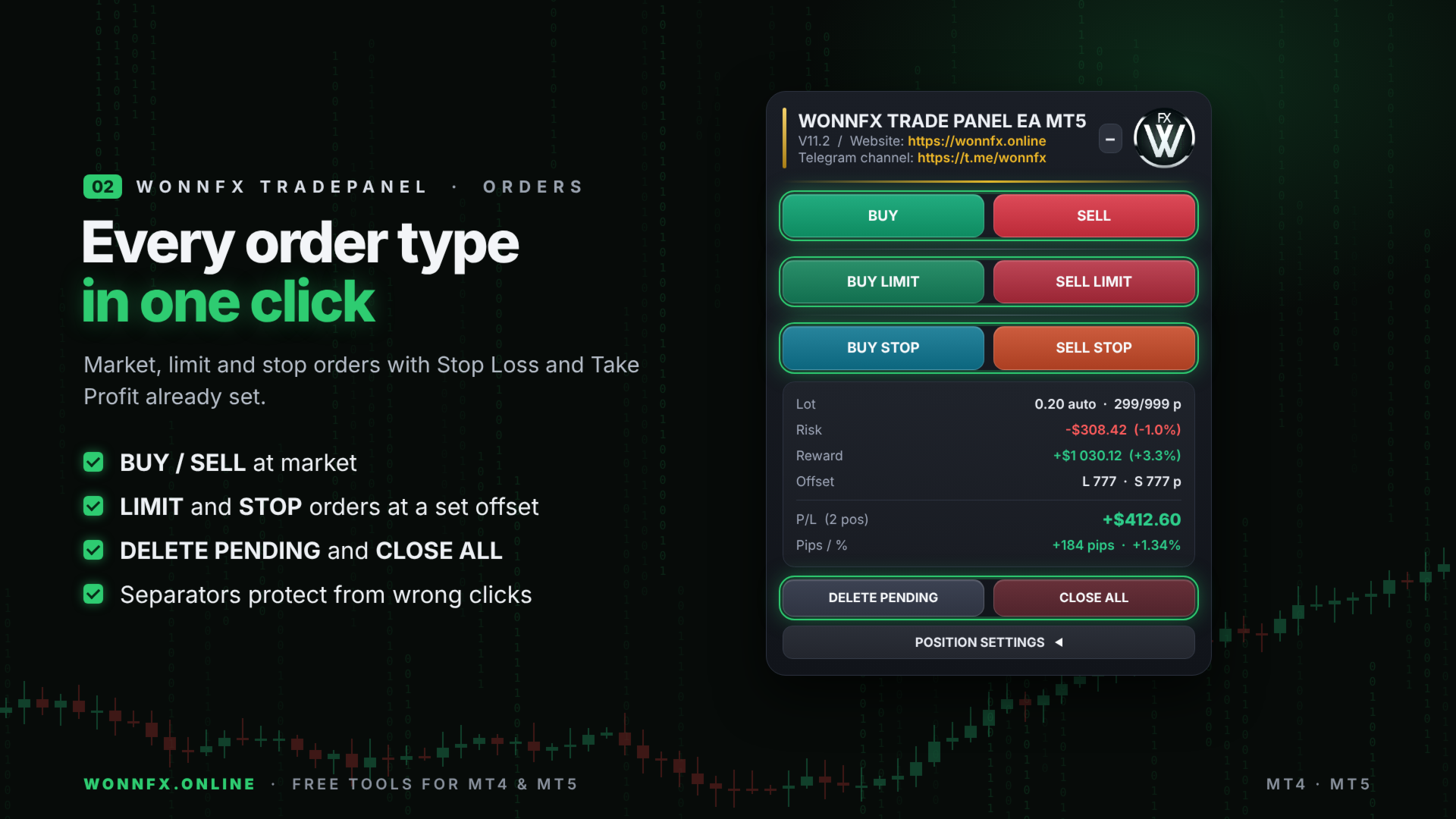
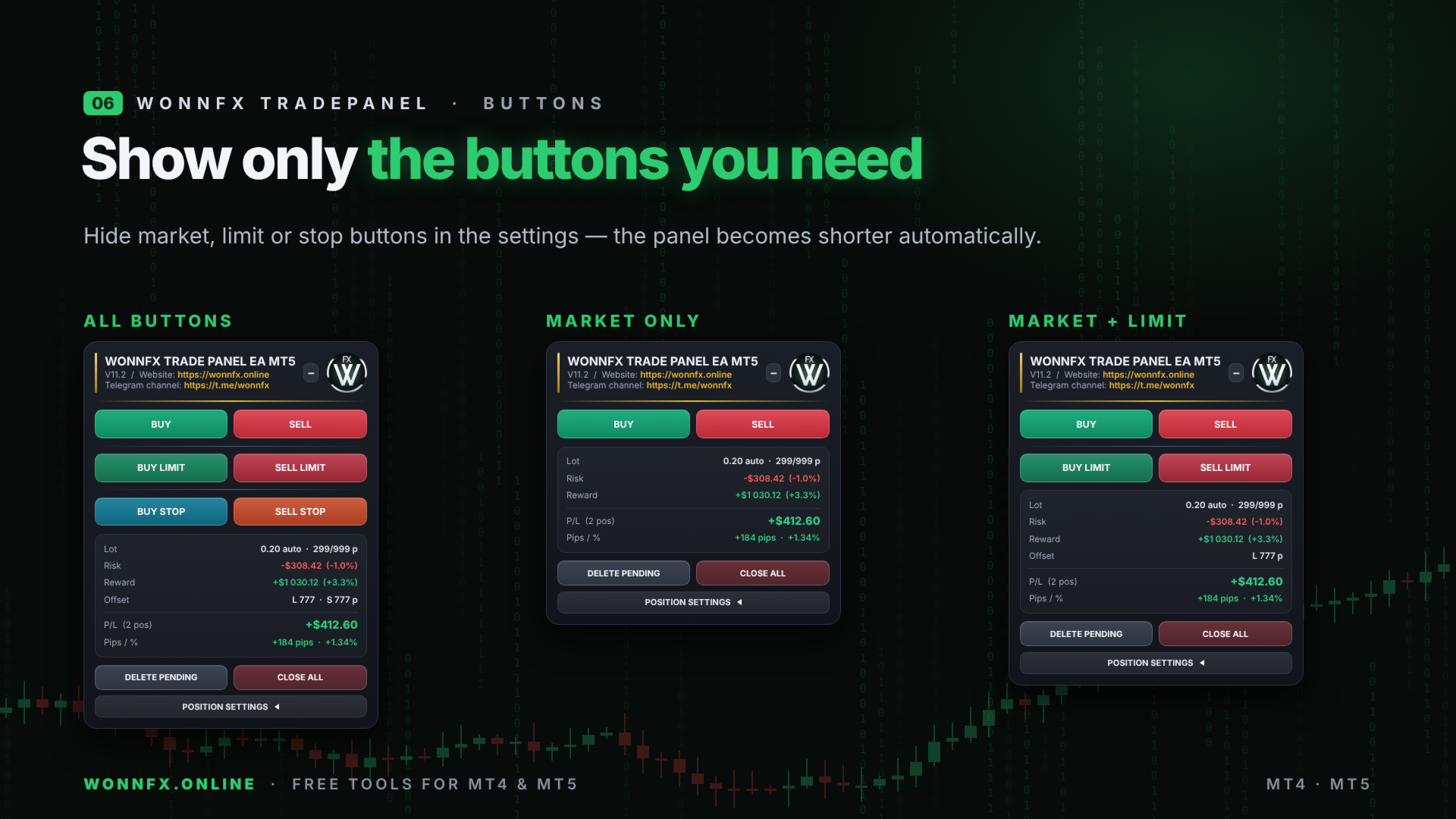
- BUY / SELL: market orders.
- BUY LIMIT / SELL LIMIT: limit orders at a set distance from the current price (once an order has been placed on the chart, it can be manually moved to the desired price level)
- BUY STOP / SELL STOP: stop orders at a set distance from the current price (once an order has been placed on the chart, it can be manually moved to the desired price level)
- DELETE PENDING: deletes all of the panel’s pending orders.
- CLOSE ALL: closes all of the panel’s positions and deletes its pending orders.
- Stop Loss and Take Profit are set when the order is placed.
Risk management
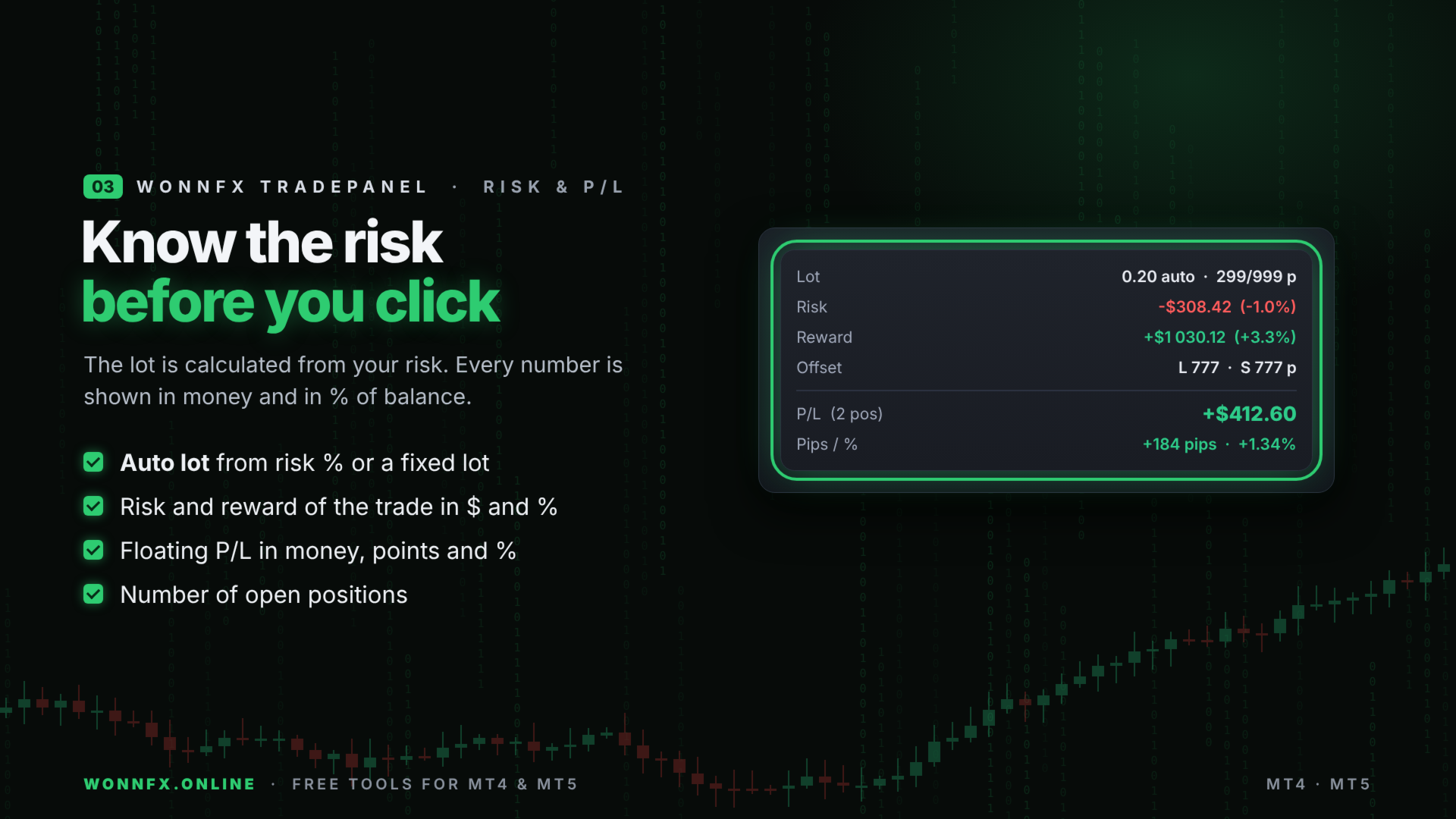
- Auto lot: the panel sizes each trade so that hitting the Stop Loss costs a set % of your balance.
- Fixed lot, if you don’t want automatic sizing.
- Break even, with an offset to cover commission and spread.
- Trailing stop, which can also start only after break even.
- Automatic deletion of pending orders at a set time.
Live information on the panel
- Current lot, Stop Loss and Take Profit.
- Risk and potential profit of the trade, in money and in % of balance.
- Distance of pending orders from the price.
- Floating profit/loss in money, points and % of balance, plus the number of open positions.
Position settings right on the chart
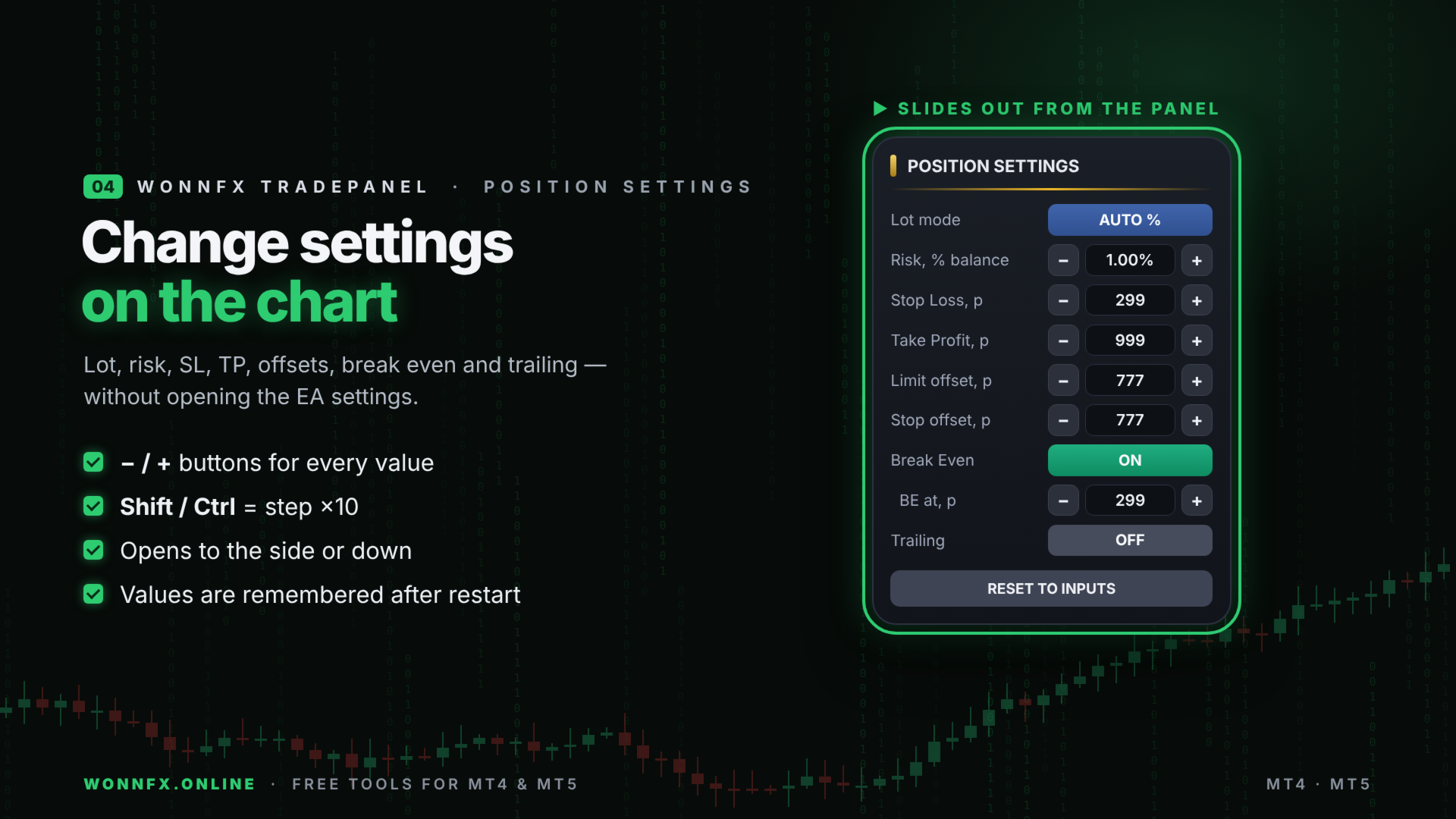
- The POSITION SETTINGS block opens from the panel. Change lot or risk, SL, TP, order offsets, break even and trailing with − / + buttons, without opening the EA settings.
- Hold Shift or Ctrl while clicking to change values in steps 10 times larger.
- The block slides out to the side (automatically away from the chart edge) or down.
- Changed values are remembered after a timeframe change and after a terminal restart.
Convenience and error protection
- Separators between button groups help prevent clicking the wrong button.
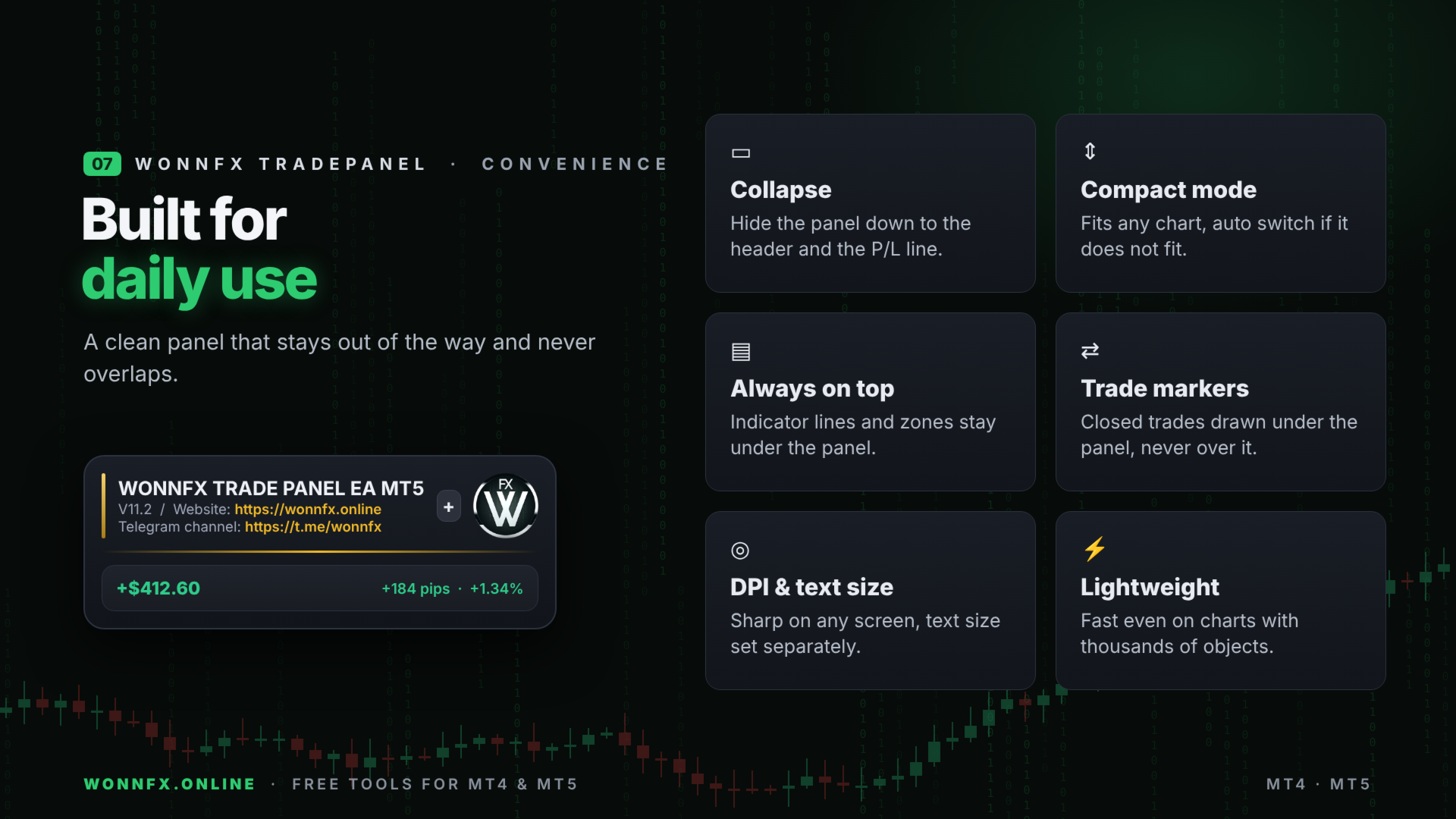
- One click collapses the panel to its header and the P/L line.
- Compact mode, plus automatic fitting to the chart height.
- The panel stays above lines and objects drawn by other indicators.
- Closed-trade markers (entry, exit and the line between them) are drawn under the panel and never cover it.
- Text size is adjustable separately, and the panel scales to any screen (DPI-aware).
- Works on ECN accounts: if the broker doesn’t accept SL/TP with the order, they are set right after it opens.
The panel manages only its own orders (by Magic Number) on the current symbol and doesn’t interfere with other Expert Advisors.
Settings
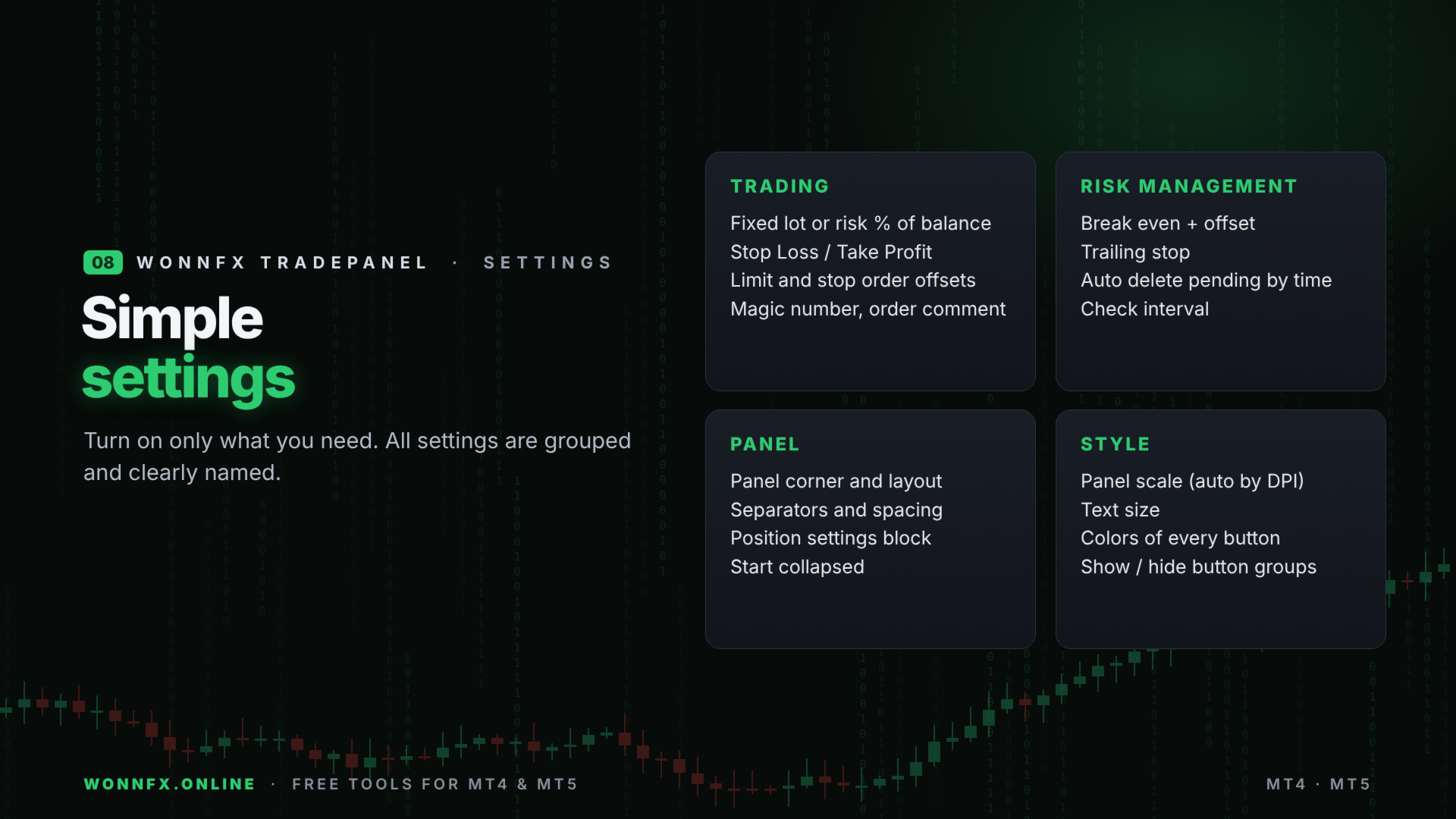
MAIN TRADING SETTINGS
- Fixed lot size: fixed volume. Set it to 0 and the lot is calculated from risk instead.
- Auto lot (% of balance): risk per trade as a % of balance, used for auto lot.
- Stop Loss: stop loss in points from the entry price (0 = no stop loss).
- Take Profit: take profit in points from the entry price (0 = no take profit).
- Magic Number: the number the panel uses to recognize its own orders.
- Order comment: comment added to every order.
LIMIT ORDER SETTINGS
- Price offset for limit orders: distance of limit orders from the current price, in points.
STOP ORDER SETTINGS
- Price offset for stop orders: distance of stop orders from the current price, in points.
AUTO DELETE SETTINGS
- Enable auto delete: turns on automatic deletion of pending orders.
- Hour / Minute: deletion time, in broker server time.
RISK MANAGEMENT
- Enable Break Even: turns on the move to break even.
- Move to BE when: profit in points at which the stop moves to break even.
- BE offset for commission: how far from the entry price, in points, the stop is placed to cover commission and spread.
- Enable trailing: turns on the trailing stop. If break even is on, trailing starts after break even.
- Trailing Stop: trailing distance from the current price, in points.
- Check interval: how often positions are checked for break even, trailing and auto delete, in seconds.
PANEL APPEARANCE
- Panel position: chart corner. 0 = top left, 1 = bottom left, 2 = top right, 3 = bottom right.
- Panel background: panel background color.
PANEL LAYOUT
- Panel layout: Compact, or Normal (with section titles).
- Button height: button height in pixels (0 = auto).
- Spacing between button rows: space between rows of buttons.
- Separators: separator lines between the MARKET, LIMIT and STOP button groups.
- Separator gap: extra space around each separator.
- Separator color: separator color.
- Gap between BUY and SELL: space between the BUY and SELL buttons (0 = auto).
POSITION SETTINGS BLOCK
- Show settings block: shows the POSITION SETTINGS block.
- Where settings block opens: side (auto), right, left or down.
- Opened on start: opens the block when the EA starts.
- Remember values: keeps the values changed on the panel.
- Step for SL/TP/offset/BE/trailing: step size of the − / + buttons, in points.
- Step for fixed lot: step size for the fixed lot.
- Step for risk %: step size for the risk percentage.
- Auto switch to Compact: switches to the compact layout if the panel doesn’t fit the chart height.
- Start collapsed: starts the panel collapsed.
PANEL STYLE
- Panel scale: scale of the whole panel (1.0 = automatic, based on screen DPI).
- Text size: 1.0 = small, 1.2 = standard, 1.5 = large, 2.0 = extra large.
BUTTON VISIBILITY
- Show MARKET / LIMIT / STOP buttons: show or hide each group of buttons.
BUTTON COLORS
- A separate color for each button: BUY, SELL, BUY LIMIT, SELL LIMIT, BUY STOP, SELL STOP, DELETE PENDING and CLOSE ALL.
Important
- “Points” in the settings means the smallest price step of the symbol. For example, on XAUUSD with 2 decimal places, 100 points = 1.00 in price.
- Algo trading must be allowed both in the terminal and in the EA settings.
- In MT4, closed-trade markers use the period currently loaded in the “Account History” tab.

















































EXCELENTE MAS sin embargo no es un robot de trading 100% automático, esto significa que el panel no buscará operaciones ni analizará el mercado por sí solo mientras duermes. Tú tienes que estar frente al gráfico, decidir en qué nivel quieres entrar, y usar los botones del panel para ejecutar la orden. Dicho esto, si estás dispuesto a operar de forma manual o semiautomática, este panel cumple absolutamente con todo lo que estabas buscando para ser un proveedor de señales seguro, FELICITACIONES AL DESARROLLADOR