Visual Strategy Backtester
- ユーティリティ
- バージョン: 1.1
- アクティベーション: 5

VISUAL STRATEGY BACKTESTER
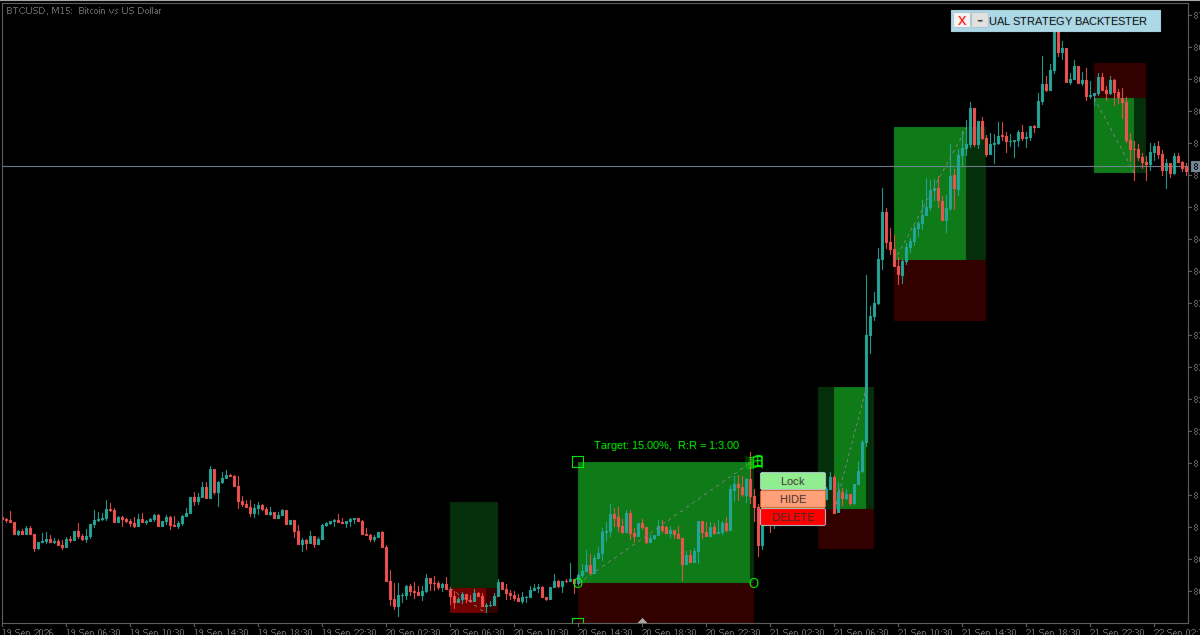
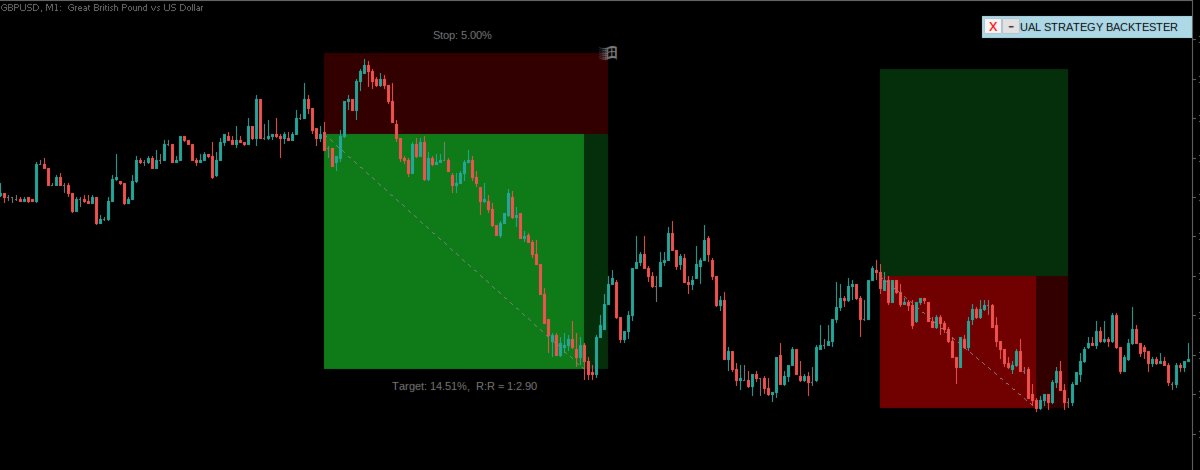
This is a tool, which allows you to manually backtest your strategy on historical prices, and later shows you the results.
If you have a strategy and want to do a quick backtest based on historical prices, without coding, this tool enables you to do so.
How it works
1. You have a strategy you want to test.
2. You launch the visual strategy backtester
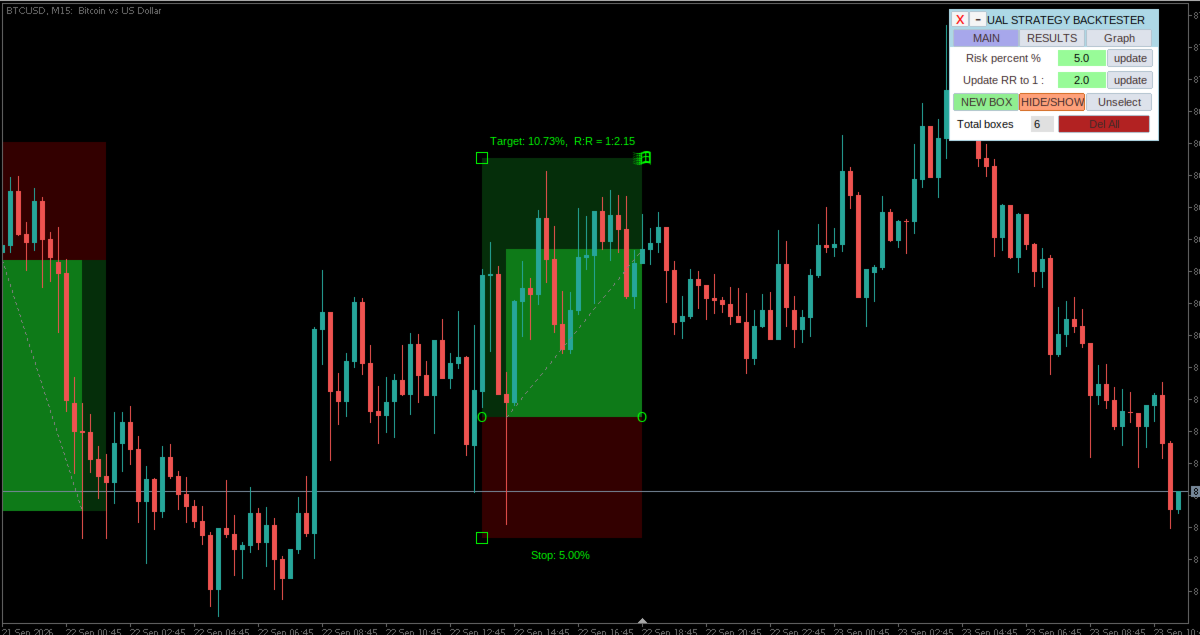
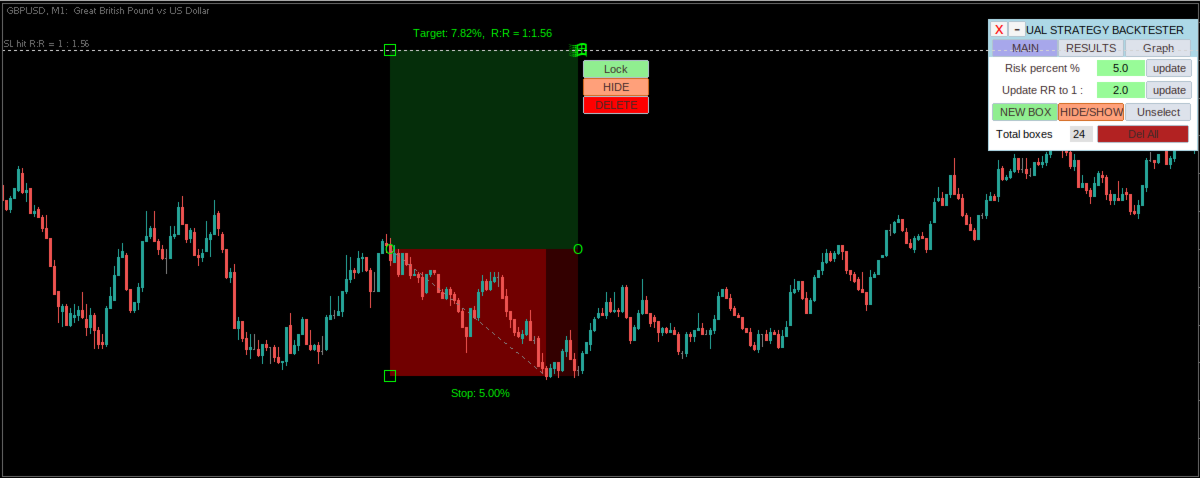
3. Click add 'New Box' or type the keyboard shortcut for adding a new position box
4. Adjust its stoploss and take profit according.
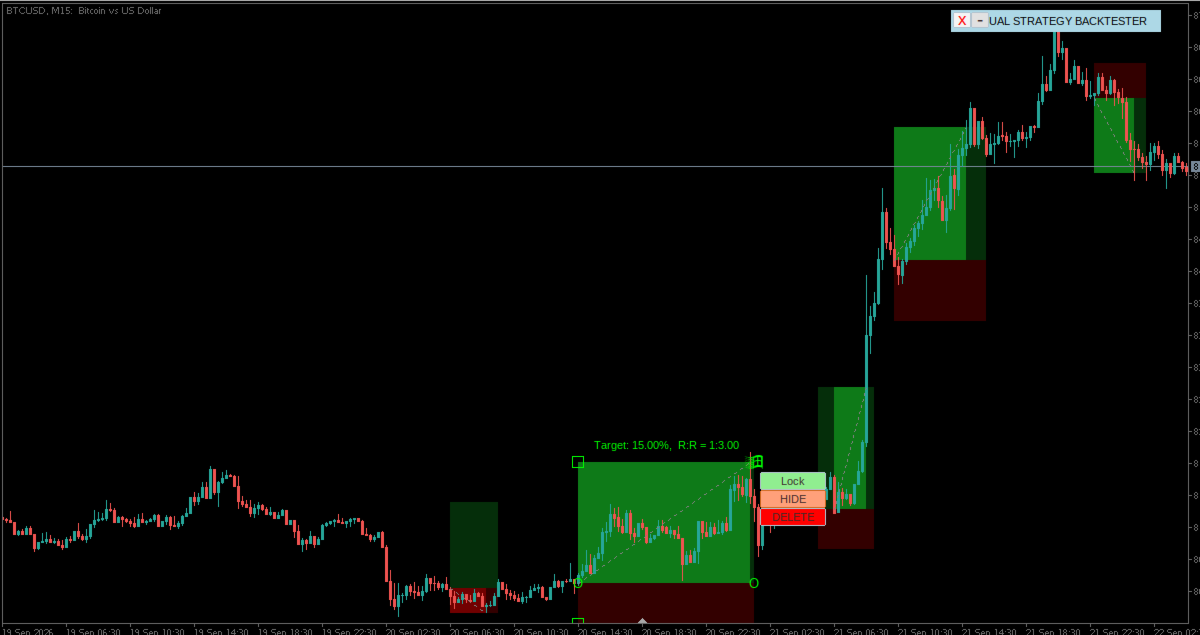
5. keep adding more position boxex where ever your conditions are met in the chart,
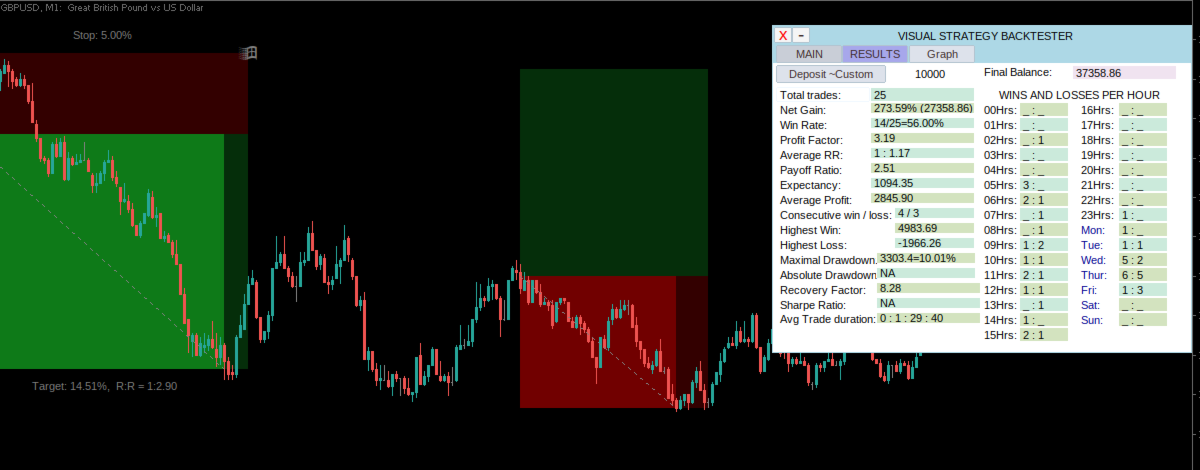
6. When you have tested enough trades in backtest, then clicking the results tab, will show you the statistics of the backtest you have done.
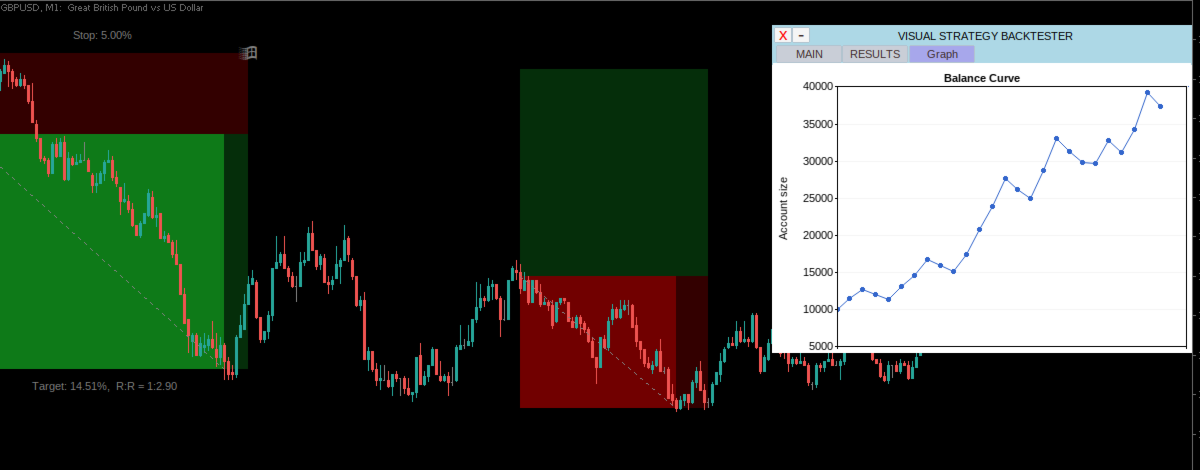
7. Click on the graph tab to see the equity curve of the backtest.
Please note:
This tool does not make any trades on the market, or place, orders.
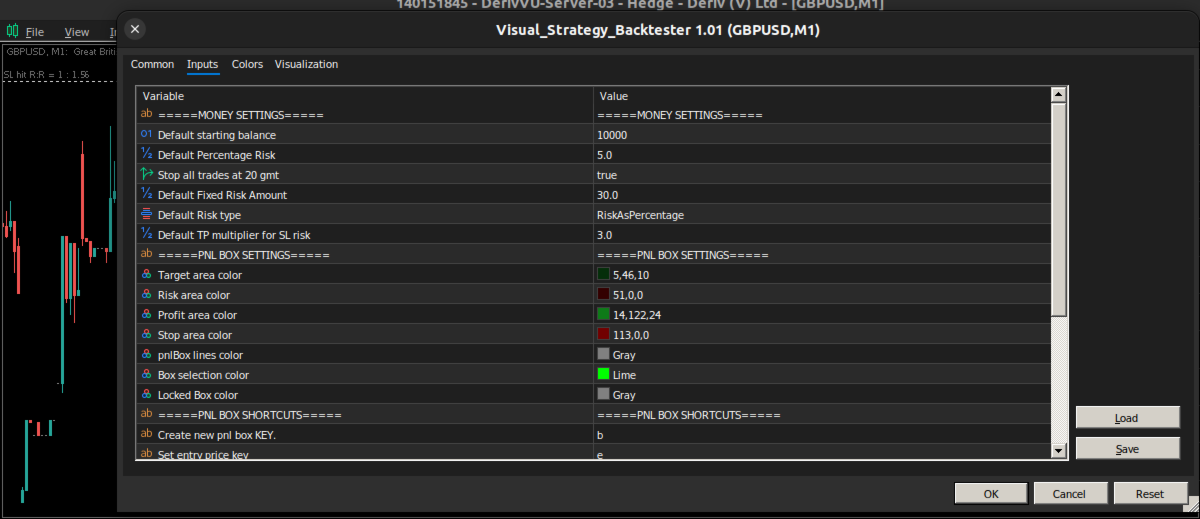
input interface
| Default starting balance | This is the default amount the tool will use to calculate your PnL, it can also be adjusted from the panel |
| Default percentage risk | This is the percentage of account balance to risked for each back-test trade/position box |
| Default Fixed Risk Amount | In case you want a fixed dollar risk for each backtest position, set it here |
| Default Risk type | Choose between Fixed amount risk or Percentage risk |
| Default TP multiplier for SL | The default Reward multiplier for risk. |
| ===PNL BOX SETTINGS=== | |
| Target area color | Set the colour of the target area of the position box |
| Risk area color | Set the colour of the Risk or Stop Loss area of the position box |
| Profit area color | Set the colour of the Profit area of the position box, when the trade is activated, and its profitable |
| Stop area color | Set the colour of the stopped area of the position box, when the trade is activated, and its a loss |
| PnlBox lines color | Set the colour of the line of the position box which traces the start and end of the trade points |
| Box selection color | Set the colour of the markings to showing that a position box is selected |
| Locked Box color | In case a position box is locked, selecting it will display this color |
| ===PNL BOX SHORTCUTS=== | |
| Create new pnl box KEY. | Set a keyboard shortcut for adding new Position box on the chart |
| Set entry price key | Set a keyboard shortcut to use for setting the entry price of the Position box |
| Set SL price key | Set a keyboard shortcut to use for setting Stop loss price of the position box |
| Set TP price key | Set a keyboard shortcut to use for setting a take profit price of the position box |
| set Hide ALL positions key | Set a keyboard shortcut to use to hide all the position boxes available on the current chart |
| =====PANEL SETTINGS===== | |
| Panel's X coordinate. | Default x coordinate for the panel |
| Panel's Y coordinate. | Default Y coordinate for the Y panel |
| Font size | font size for labels |
| Minimize Panel Key | Set a keyboard shortcut to minimise or maximise the panel |
| panel prefix (max 6) | Set a prefix to use as unique identifier this tools objects, maximum of 6 letters |
Note on strategy tester.
This tool does not work well on Strategy tester, you may rent it for one month, or request the developer to give you limited version for you to test it out.