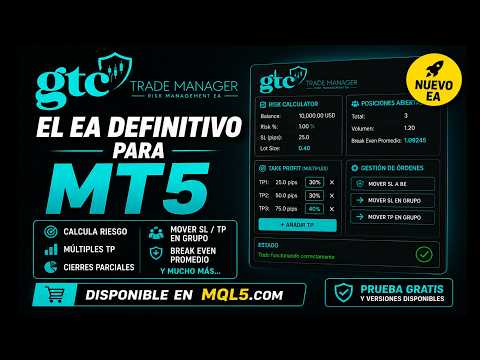
GTC Trade Manager

COMMERCIAL DESCRIPTION

🚀 Why GTC Trade Manager?

How many times have you entered a trade without knowing exactly how much you were risking? How many times have you moved your stop too late, or panic-closed without a plan? GTC Trade Manager was built by traders, for traders who refuse to guess.

GTC TRADE MANAGER — User Guide / Guía de Usuario

GTC Trade Manager is a visual trading panel for MetaTrader 5 that centralizes everything you need to

execute, manage and protect your trades with pinpoint precision — all in one interface. No more

opening a lot-size calculator, editing stops by hand, or losing trades to a lack of discipline.

Install the EA on any chart and it acts as a true trading cockpit: it calculates position size in real time,

deploys draggable visual lines with instant R:R ratios, automates Break Even and Trailing Stop with

four distinct algorithms, and protects you with daily discipline rules that activate automatically.

What makes GTC Trade Manager different?

Smart Combo Break Even: the only BE type on the market that calculates the exact price at

which a group of positions — even hedged ones — reaches real equilibrium, accounting for

swap, commissions, and each position's volume. One click.

Chandelier Exit Trailing (CHDL): a professional trailing algorithm used by institutional traders.

Anchors the stop to the highest/lowest of N candles minus a multiple of ATR, protecting you from

noise without exiting strong trends.

Draggable visual lines with color zones: drag entry, stop and TP lines directly on the chart.

The panel instantly recalculates lot size, R:R and USD risk. Perfect for scalping where every

second matters.

Multi-position manager: select any group of trades and apply individual BE, combo BE, trailing

or partial close in a single click. Professional basket management — no coding needed.

Automated discipline rules: set a max trades per day, max daily loss and profit target. The EA

automatically blocks new entries — or closes everything — when limits are hit, hands-free.

Bilingual ES/EN: switch the panel language with a single parameter. Ideal for traders working in

teams or teaching students in different languages.

Async close optimized for scalping: mass-close buttons send all orders simultaneously

without waiting for confirmation. In scalping, every millisecond matters.

Scalable interface: adjust the panel size to your screen resolution with a single parameter.

From 1080p to 4K setups.

Whether you are an intraday trader, scalper or swing trader, if you want to execute like a professional

from day one, GTC Trade Manager is the tool you have been looking for.

## 🇬🇧 ENGLISH


### Overview


GTC Trade Manager is a visual trading tool for MetaTrader 5 developed by GTC Media Capital. It allows you to open, manage and close trades quickly and intuitively from a floating panel directly on the chart, without opening additional windows. Designed for active traders, scalpers and swing traders who need full control of their positions in real time.


---


### ✅ MAIN FEATURES


#### 📐 Automatic risk calculation

- Three risk modes: **% of equity/balance**, **fixed USD amount** or **fixed lots**

- Configurable calculation base: account equity or balance

- Automatic lot size calculation based on the defined SL distance

- Quick adjustment buttons `< >` to increment/decrement risk without typing


#### 📏 Interactive chart lines

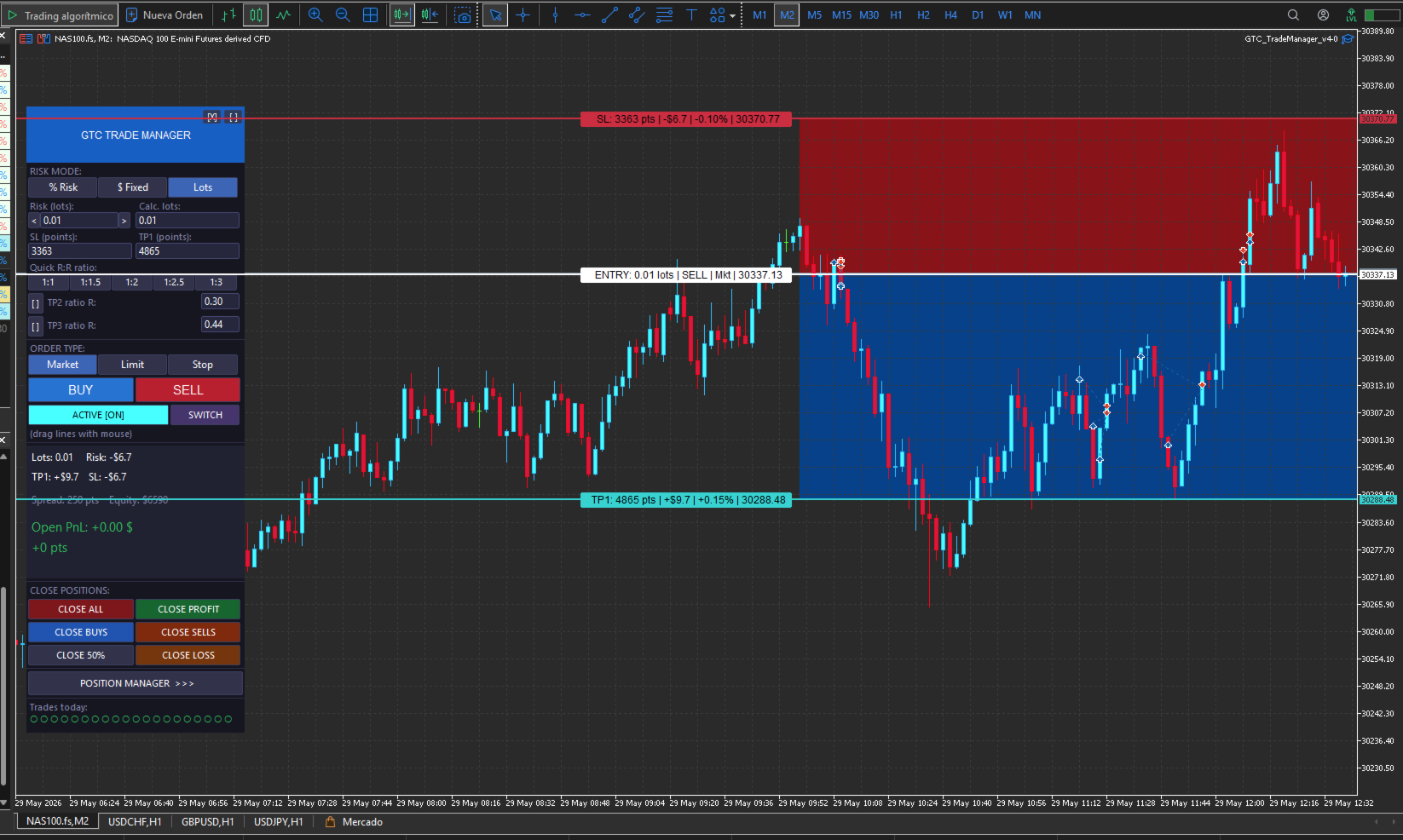
- **ENT / SL / TP1 / TP2 / TP3** lines drawn directly on the chart

- Freely drag each line with the mouse — the panel updates in real time

- Automatic BUY/SELL direction detection based on SL position relative to ENT

- **SWITCH** button to flip the trade direction

- **ACTIVATE** button to toggle lines on/off with a single click

- Color zones between ENT-SL (red) and ENT-TP1/TP2/TP3 (blue) for visual clarity

- Price labels with opaque background on each line (ENT, SL, TP1, TP2, TP3)


#### 📊 Quick R:R ratio buttons

- 5 configurable R:R ratio buttons: `1:1 | 1:1.5 | 1:2 | 1:2.5 | 1:3` (fully customizable in inputs)

- TP1 updates instantly when any ratio is pressed


#### 🛒 Order types

- **Market**, **Limit** and **Stop** selectable directly from the panel

- **BUY** (blue) and **SELL** (red) execution buttons


#### 📈 Multiple TPs (TP2 and TP3)

- Optional TP2 and TP3 with configurable R ratio (e.g. 2R, 3R)

- Configurable partial close % of lots at TP1 and TP2


#### 💛 Breakeven average line on chart

- Yellow line on the chart showing the weighted breakeven of all open positions

- Enable/disable via input parameter


---


### 🗂️ REAL-TIME INFORMATION PANEL


The main panel shows in real time:

- Calculated lots and risk lots

- TP1 in $ and SL in $

- Current spread in points

- Account equity

- Total open P&L in $


---


### 📋 POSITION MANAGER


Floating secondary panel for advanced multi-position management:


- **Open positions list** showing ticket, direction (BUY/SELL), lots, P&L and SL for each

- **Individual or mass selection** (SEL. ALL / DESEL. ALL) with checkboxes

- **Automatic scroll** (▲/▼) for more than 12 open positions

- **Selection indicator** with combined P&L of selected positions

- **Combo BE**: calculates and applies breakeven to the combined set of selected positions — uses TP if in loss, SL if in profit

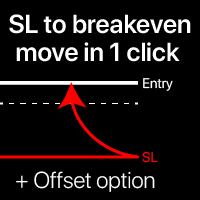
- **Individual BE**: moves the SL to breakeven for each selected position individually

- **Auto BE**: automatically moves SL to BE when price travels a configurable % of the ENT→TP1 distance (runs in the background for all positions)

- **SL in Profit**: instead of moving to exact BE, places the SL at a configurable profit level (R ratio: 0 = pure BE, 0.5 = 50%R, 1 = 1:1R, etc.)


---


### 🔁 TRAILING STOP (4 modes)


**Trailing by selection** (applies only to selected positions):

- **BE**: moves SL to breakeven when the configured trigger is reached

- **Classic TS**: fixed-distance trailing step in points

- **ATR**: dynamic trailing based on ATR(N) × multiplier

- **Chandelier**: trailing based on highest high / lowest low of N bars


**Global Trailing**: automatically applied to all positions on the symbol (same 4 modes)


Configurable parameters: BE trigger distance, BE offset, TS distance, TS step, ATR period, ATR multiplier, Chandelier bars.


---


### ❌ QUICK CLOSE FUNCTIONS


From the main panel with a single click:

- **CLOSE ALL**: closes all positions on the symbol

- **CLOSE PROFIT**: closes only profitable positions

- **CLOSE BUYS**: closes only buy positions

- **CLOSE SELLS**: closes only sell positions

- **CLOSE 50%**: closes 50% of the volume of each position

- **CLOSE LOSS**: closes only losing positions


All close functions use async mode for maximum speed (ideal for scalping).


---


### 📏 DAILY RULES (advanced risk management)


Automatic account protection with configurable daily limits:

- **Max trades per day**: blocks new entries once the limit is reached

- **Max daily loss %**: closes all positions and blocks trading until the next day

- **Max daily profit %**: blocks new entries once the target is reached


Each rule can be enabled/disabled independently.


---


### 🎛️ INTERFACE & USABILITY


- Main panel **draggable** from the header to any position on the chart

- Panel **minimizable** with `[-]` button to save screen space

- **Configurable UI scale** (80% – 200%) to adapt to any screen resolution

- **Bilingual**: full interface in **Spanish** or **English** (selectable in inputs)

- Two independent panels: Main Panel + Position Manager (opened/closed with a button)

- Compatible with any symbol and timeframe

- Configurable magic number to identify EA trades


---


### ⚙️ CONFIGURABLE PARAMETERS (inputs)


| Group | Parameters |

|---|---|

| General | Magic number, slippage, comment, language |

| Risk | Mode (%, USD, Lots), base (equity/balance), values |

| SL/TP | SL in points, TP1 in points, TP2/TP3 R ratio, partial close % |

| R:R Ratios | 5 fully customizable ratios |

| Trailing | Mode, BE trigger, BE offset, TS distance, TS step, ATR, Chandelier |

| SL/BE Management | Auto BE (%, on/off), SL in profit (R ratio, on/off) |

| Rules | Max trades/day, max loss %, max profit % (each individually on/off) |

| Panel | X/Y position, UI scale % |


GTC Trade Manager  — Input Parameters Guide

This guide explains every configurable parameter of the EA so you can adapt it to your trading style from the very first session. The parameters are grouped exactly as they appear in MetaTrader 5 when you load the EA.

GENERAL

Magic Number — A unique identifier that the EA stamps on every order it places. It allows MetaTrader to distinguish this EA's trades from manual trades or those placed by other EAs running at the same time. If you run multiple EAs simultaneously, each one must have a different Magic Number to avoid interference. The default value works fine; only change it if you experience a conflict with another EA.

Slippage — The maximum allowed price slippage in points when executing a market order. If the price moves more than this value between the moment you press the button and the moment the broker fills the order, the order is rejected. A value of 10 points is reasonable for most instruments. During high-volatility events or major news releases you can increase it to 20–30 to avoid unnecessary rejections.

Comment — The text that appears in the comment column of your open positions in MetaTrader. Useful for visually identifying the EA's trades in the history tab. The default is "GTC"; you can change it to any short text you prefer.

Language — Selects the language of the panel interface. You can choose between Spanish (LANG_ES) and English (LANG_EN). All button labels, text fields, and panel messages will switch automatically based on this setting.

RISK

This group defines how the EA calculates position size before each trade.

Risk Basis — Determines which account value the risk percentage is applied to. If you choose EQUITY, the calculation is based on the current account equity (balance plus or minus any floating profit or loss from open positions). If you choose BALANCE, it is based on the closed balance, ignoring open positions. Using EQUITY is generally more conservative, because if you have open losing positions the next trade will automatically be sized smaller.

Risk Mode — Defines the position sizing method. You have three options. RISK_PERCENT calculates lot size automatically so that if the stop loss is hit you lose no more than a fixed percentage of your account. RISK_USD does the same but uses a fixed dollar amount instead of a percentage. RISK_LOTS ignores automatic calculation entirely and executes with exactly the number of lots you specify, regardless of the stop loss distance.

Risk % (InpRiskPct) — Only active when the mode is RISK_PERCENT. Sets the maximum percentage of the account you risk per trade. For example, with a value of 1.0 on a $10,000 account, the EA will calculate the lot size so that hitting the stop loss results in exactly a $100 loss. This is the most important parameter for sound risk management.

Risk USD (InpRiskUSD) — Only active when the mode is RISK_USD. Sets the fixed dollar amount you risk per trade, regardless of account size. With a value of 100, every trade risks $100 if the stop loss is hit.

Risk Lots (InpRiskLots) — Only active when the mode is RISK_LOTS. Directly sets the number of lots for each trade. The EA performs no risk calculation in this mode; it simply opens the position with the size you specify here.

SL / TP

This group sets the default Stop Loss and Take Profit values when the EA starts. You can adjust them at any time from the panel or by dragging the lines on the chart.

SL Points (InpSLPts) — Initial distance of the Stop Loss from the entry price, in points. For most forex pairs with 5-decimal pricing, 1 point equals 0.00001 (so 500 points = 50 pips). For indices like the S&P 500 or Nasdaq, 1 point equals 1 index point. Adjust this value to match the instrument you trade most frequently.

TP1 Points (InpTP1Pts) — Initial distance of the first Take Profit from the entry price, in points. When you press any of the R:R ratio buttons on the panel, this value is recalculated automatically.

Use TP2 — Enables or disables the second Take Profit. When active, a TP2 line appears on the chart that you can drag freely. Disabled by default.

TP2 Ratio R (InpTP2R) — Sets the TP2 distance as a multiple of the risk. With a value of 2.0 and a 100-point stop loss, TP2 will be placed 200 points from the entry. Only has effect when Use TP2 is enabled.

TP1 Close % (InpTP1ClosePct) — The percentage of the position that is automatically closed when price hits TP1. With a value of 50, half the lots are closed at the first target, leaving the rest to run toward TP2 or TP3.

Use TP3 — Enables or disables the third Take Profit. Works the same as Use TP2 but for a third target level. Disabled by default.

TP3 Ratio R (InpTP3R) — Sets the TP3 distance as a multiple of the risk. Same logic as TP2 Ratio R but for the third level.

TP2 Close % (InpTP2ClosePct) — The percentage of the position closed when price hits TP2. The remaining portion continues toward TP3.

R:R RATIOS

This group customizes the five risk-to-reward ratio buttons that appear on the main panel under "Quick R:R ratio".

QR1, QR2, QR3, QR4, QR5 — Each value sets the multiplier for one button. A value of 1.0 means 1:1 (TP1 at the same distance as the SL), 1.5 means 1:1.5, 2.0 means 1:2, and so on. When you press one of these buttons on the panel, TP1 is instantly recalculated by multiplying the stop loss distance by that ratio. For example, if your SL is 100 points away and you press the button set to 2.0, TP1 moves to 200 points from entry. Configure all five ratios to match your usual profit targets.

TRAILING

This group configures all available trailing stop modes. The parameters defined here apply to both the Global Trailing (which acts on all open positions) and the per-selection trailing from the Position Manager.

Trail Mode (InpTrailMode) — Sets the trailing mode active when the EA starts. Options are TRAIL_OFF (disabled), TRAIL_BE (moves the SL to breakeven once price reaches the trigger), TRAIL_CLS (classic trailing at a fixed point distance), TRAIL_ATR (dynamic trailing based on the ATR indicator) and TRAIL_CHDL (Chandelier trailing based on candle highs and lows). You can change this mode at any time from the Position Manager panel without restarting the EA.

BE Trigger Points (InpBETrigPts) — Only active in BE trailing mode. Defines how many points price must move in your favor before the EA moves the SL to breakeven. With a value of 200, once price travels 200 points in the direction of your trade, the SL is automatically shifted to the entry price plus the offset.

BE Offset Points (InpBEOffPts) — Extra points added on top of the exact breakeven price when the SL is moved. With a value of 5, when the BE is triggered the SL lands not exactly at the entry price but 5 points beyond it (above entry for a buy), locking in a small minimum profit even if price reverses all the way back. With a value of 0 the SL sits exactly at the entry price.

TS Distance Points (InpTSDistPts) — Only active in Classic Trailing mode. Sets the gap in points between the current price and the trailing SL while the trail is active. The SL follows price maintaining this distance but never moves backward. With 300 points, if price rises 400 points from entry the SL will have moved to 100 points above the entry price.

TS Step Points (InpTSStepPts) — Sets the minimum additional price movement required before the EA updates the SL in classic trailing mode. Prevents the SL from being updated on every single tick and reduces broker server load. With a value of 10, the SL only adjusts when price moves at least an additional 10 points in your favor.

ATR Period (InpATRPeriod) — Only active in ATR trailing mode. Sets the number of candles the ATR indicator uses to calculate current market volatility. The standard value is 14 candles. A smaller number makes the trailing more reactive to recent price action; a larger number smooths it out.

ATR Multiplier (InpATRMult) — Only active in ATR trailing mode. The ATR value is multiplied by this number to determine the SL distance. With an ATR of 50 points and a multiplier of 2.0, the SL is placed 100 points from price. Increase this value to give the position more breathing room and avoid early stop-outs in volatile markets.

Chandelier Bars (InpChanBars) — Only active in Chandelier trailing mode. Defines how many candles back the EA looks to find the highest high (for buys) or lowest low (for sells) on which to anchor the SL. With 22 bars, the EA finds the highest high of the last 22 candles and places the SL one ATR distance below that high. This is a structure-based trailing approach rather than a fixed-distance one.

CHART

Show BE Line (InpShowBELine) — Enables or disables the yellow breakeven line that appears on the chart whenever you have open positions. This line shows the exact price at which your entire set of open positions would be at zero profit or loss, weighted by the volume of each trade. It is particularly useful when you have several positions in the same direction or positions on both sides of the market at once.

SL/BE MANAGEMENT

This group controls two automatic functions that work in the background on all your open positions without any manual intervention required.

Auto BE Enable (InpAutoBEEnable) — Enables or disables the automatic breakeven system. When active, the EA continuously monitors all open positions and moves the SL to breakeven automatically as soon as price has traveled the configured percentage of the distance from entry to TP1. You do not need to be at the screen for it to trigger. If you prefer to manage the BE manually from the Position Manager, leave this option disabled.

Auto BE % (InpAutoBEPct) — Sets the percentage of the entry-to-TP1 distance that price must complete before the Auto BE fires. With a value of 80, if your TP1 is 100 points from entry, the BE will trigger automatically once price has traveled 80 points in your favor. With 50 it would trigger halfway to TP1, with 100 only upon reaching TP1.

SL In Profit Enable (InpSLInProfitEnable) — Activates a variation of Auto BE where instead of moving the SL exactly to the entry price (pure breakeven), it is moved to a price that guarantees a minimum profit. When disabled, Auto BE moves the SL to the entry price. When enabled, the SL is moved to the entry price plus the ratio configured in the next parameter.

SL In Profit R (InpSLInProfitR) — Defines how much minimum profit the SL locks in when SL In Profit is active, expressed as a ratio of the original risk. With a value of 0.0 the result is identical to pure breakeven (SL at entry). With 0.5 the SL lands half a risk-unit above entry, guaranteeing a 0.5R profit even if price reverses all the way back. With 1.0 the SL locks in a full 1R profit. This parameter has no effect if SL In Profit Enable is disabled.

RULES

This group lets you activate automatic daily protection limits that the EA enforces to guard your account against losing streaks or over-trading.

Max Trades Enable (InpMaxTradesEnable) — Enables or disables the daily trade limit. When active, the EA counts the trades placed during the session and blocks the BUY and SELL buttons once the configured limit is reached. The counter resets automatically the following day. Useful for traders who tend to over-trade after a run of losses.

Max Trades Day (InpMaxTradesDay) — The maximum number of trades allowed per day when the limit is enabled. With a value of 5, the EA blocks new entries after the fifth trade of the day, win or lose.

Max Loss Enable (InpMaxLossEnable) — Enables or disables the maximum daily loss limit. This is the most important protective rule. When active, the EA continuously monitors the cumulative percentage loss during the session. If the total loss exceeds the configured threshold, the EA automatically closes all open positions and blocks any new entries until the next day. It eliminates the risk of continuing to lose after a bad session.

Max Loss % (InpMaxLossPct) — The daily loss percentage that triggers the automatic close and trading block. It is calculated against the equity at the start of the trading day. With a value of 2.0, if equity drops 2% from the opening value of the day the EA closes everything and locks trading. A common range in professional risk management is 1% to 3% depending on trading style.

Max Profit Enable (InpMaxProfitEnable) — Enables or disables the daily profit cap. When active, the EA blocks new entries (without closing existing positions) as soon as cumulative profit for the day exceeds the configured percentage. This is designed to protect a good day's gains and avoid the risk of giving them back by continuing to trade after the daily target is reached.

Max Profit % (InpMaxProfitPct) — The daily profit percentage that triggers the block on new entries. With a value of 5.0, once the account is up 5% on the day, no new trades will be allowed. Any positions already open continue with their normal management until they close.

PANEL

Panel X (InpPanelX) — The initial horizontal position of the panel in pixels from the left edge of the chart window. Once the EA is loaded, you can drag the panel to any position by clicking and dragging from its header. This value is only used the first time the EA loads or after a restart.

Panel Y (InpPanelY) — The initial vertical position of the panel in pixels from the top edge of the chart window. Works the same way as Panel X.

UI Scale % (InpUIScale) — Global scale of the panel interface expressed as a percentage. A value of 100 corresponds to the base size designed for standard Full HD resolution. If you use high-resolution screens (2K, 4K) or if the panel feels too small or too large for your display, adjust this value. At 80 the panel takes up less screen space; at 140 (the default) it is 40% larger than the base size; at 200 it doubles in size. All panel elements — buttons, text, spacing — scale proportionally with this parameter.


フィルタ:
レビューなし
レビューに返信