Trade Journal Auto
- Utilità
- Versione: 2.80
- Aggiornato: 25 ottobre 2026

1. First Time Setup (Takes 30 Seconds):
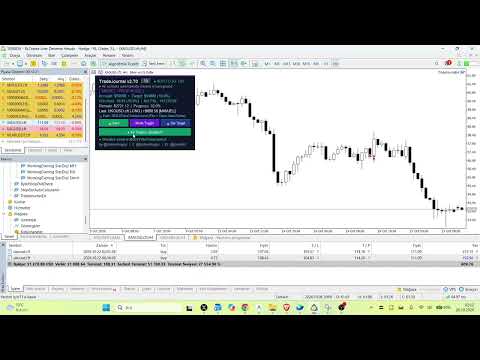
- Attach the EA: Drop the EA onto any single unused chart (a pair you don't actively trade on).
- Click ⚙ Set Target:
- The setup window will appear on your chart.
- Pick Your Mode: Choose between Prop / Challenge Mode or Free / Compound Mode.
- Set Account & Target: Enter your starting balance (e.g. 50000 ) and target percentage (e.g. 8 ).
- Click Start.
- Click 🔄 Scan All History & Update:
- Instantly scans and imports your entire closed trade history, commissions, swaps, and partial closes matching official MT5 math.
- Click 💾 Save:
- Immediately compiles and updates your HTML report.
2. How Background Tracking & Screenshots Work:
- You DO NOT need to attach the EA to every pair!
- Keep it running on just ONE single unused chart in the background.
- While you trade normally across any instruments (Crypto, Gold, FX, Indices):
- When you open an order or place a pending setup, it auto-captures the Entry / Setup screenshot.
- When you take a Partial TP, it logs the closed lot percentage and takes a screenshot.
- When the trade closes (TP, SL, or Manual), it captures the Exit screenshot.
- All captured trades and images are cataloged automatically. Open trades are excluded until closed.
3. How to View Your Journal:
- In MT5's top menu, click: File -> Open Data Folder .
- In the window that opens, go to: MQL5 -> Files -> TradeJournal and double-click index.html .
- Your complete trade journal with charts, statistics, and calendar will open in your browser.