SLTP Zones Canvas
- Utilità
-
Zhang Yi
 I'm have 12 years experience in foreign exchange trading and 12 years EA programming
 - Versione: 1.35
- Aggiornato: 25 agosto 2026
- Attivazioni: 10
1. What Is It?
--------------------------------------------------------
A TradingView-style visual panel EA for your open positions.
It draws semi-transparent zones for the Open, Take Profit (TP)
and Stop Loss (SL) of ALL positions of the current chart symbol
directly on the chart, and lets you:
* Modify TP / SL by simply dragging the label boxes
* Close a position with one click
* Clear or set SL / TP
* No deal-ticket dialog needed
【IMPORTANT】 Why is it an EA and not an indicator?
MetaTrader 5 does NOT allow custom indicators to execute trade
operations (trade requests are blocked by the terminal and return
retcode 0 / "[unknown retcode 0]"). That is why this version,
which can modify and close positions, must be an Expert Advisor.
--------------------------------------------------------
2. Installation & Attachment
--------------------------------------------------------
1. Place SLTP_Zones_Canvas.mq5 into MQL5\Experts\AI\
(already in place), then compile with F7 in MetaEditor
to generate the .ex5.
2. In the terminal Navigator, go to:
Expert Advisors -> AI -> SLTP_Zones_Canvas.
3. Drag it onto the chart of the symbol you want to monitor
(e.g. XAUUSD, any timeframe).
4. Make sure the "Algo Trading" button on the toolbar is
ENABLED (green). Otherwise every trade request from the EA
will be rejected.
5. The zones appear immediately. Position changes, chart zoom
and scrolling are followed automatically.
Tip: The EA only shows positions of the CURRENT chart symbol.
To monitor several symbols at once, attach one EA per chart.
--------------------------------------------------------
3. On-Screen Elements
--------------------------------------------------------
For each position the EA draws:
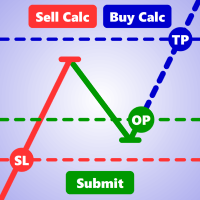
TP zone (green, semi-transparent) : area from open price to TP
SL zone (red, semi-transparent) : area from open price to SL
TP label box : TP: price | +points | +money currency (above line)
SL label box : SL: price | -points | -money currency (below line)
Open label box : BUY/SELL lots open_price | Ratio: R/R | floating P/L
Close button (x) : left of the Open box; click = close position
(white bg black x; turns red on hover)
Cancel SL button (x) : right of the SL box; click = clear SL (SL=0, TP kept)
Cancel TP button (x) : right of the TP box; click = clear TP (TP=0, SL kept)
SL / TP setup buttons : shown when a new position has no SL/TP;
drag them vertically to set a level
Multiple positions are independent. Dragging the Open box of a
position brings that position's drawing to the front.
--------------------------------------------------------
4. How to Use
--------------------------------------------------------
1. Modify Take Profit / Stop Loss (core feature)
- Press and hold the left mouse button on a TP or SL label
box and drag vertically.
- A full-width preview line appears (TP = dark green,
SL = dark red) with a live P/L tag on the right showing
the estimated profit/loss at the target price.
- Release the button to commit. Success plays the "ok" sound;
an invalid level plays "timeout" and the change is rejected.
2. Move the zones (visual only, does not affect the position)
- Press and hold on the Open label box and drag horizontally
to shift the whole group of zones out of the way of the candles.
3. Close a position
- Click the x button to the left of the Open box to close
the position at market.
4. Clear Stop Loss / Take Profit
- Click the x right of the SL box = clear stop loss.
- Click the x right of the TP box = clear take profit.
- When there is not enough room near the right edge, the
button automatically flips to the LEFT side of the box and
the tooltip follows, so it is always clickable.
5. Set SL / TP for a new position
- If a position has no SL/TP, red "SL" and green "TP" buttons
appear right of the Open box.
- Drag the desired button vertically to the target price and
release to confirm.
--------------------------------------------------------
5. Parameters (EA Properties -> Inputs)
--------------------------------------------------------
Parameter Default Description
--------------------------------------------------------
InpTPColor Lime Color of the TP zone
InpSLColor Red Color of the SL zone
InpZoneAlpha 20 Zone fill transparency (0-255)
InpLabelAlpha 120 Label box background transparency (0-255)
InpShowLabels true Show the price label boxes
InpShowOpenLine true Show the Open label box
InpLabelFontSize 15 Label font size (pixels)
InpExtendBars 280 Zone extension to the right in pixels
(0 = extend to the right chart edge)
InpRedrawMS 300 Auto-refresh interval (ms;
0 = refresh only on position change)
Fixed internally: SLTP_MIN_RIGHT_VISIBLE = 50
(minimum visible pixels of the zone left edge from the right
edge of the chart; keeps boxes clickable. Not adjustable.)
--------------------------------------------------------
6. Interaction Details & Rules
--------------------------------------------------------
* Hover highlight: boxes brighten with a type-colored border;
x buttons turn red with a white x and show a "Close" /
"Cancel" tooltip.
* Drag lock: the chart panning is locked while dragging and
restored on release to prevent accidental scrolling.
* Anti-misclick: a drag/click only triggers when the press
starts INSIDE a box; dragging other windows across does not
trigger anything.
* Validity check (on release):
Buy : SL must be < market (Bid); TP must be > Bid and >= open
Sell : SL must be > market (Ask); TP must be < Ask and <= open
Invalid -> "timeout" sound and rejection; valid -> "ok" sound.
* Sounds: ok.wav / timeout.wav are embedded resources;
no extra files are needed.
* Refresh: a 50 ms timer detects position snapshot changes
(open price / SL / TP) and redraws; InpRedrawMS throttles
re-renders that follow price and chart zoom.
--------------------------------------------------------
7. Notes & FAQ
--------------------------------------------------------
1. Load it as an EXPERT ADVISOR. The indicator with the same
name under Indicators\AI cannot trade (display only).
2. Do NOT attach the indicator version and this EA to the same
chart at the same time (both use the canvas object name
"AI_SLTP_Zones_Canvas" and would overwrite each other).
3. Enable "Algo Trading" before use. Dragging and closing are
REAL trading operations - use with care.
4. Some brokers enforce minimum stop distances / stop-level
rules; follow your broker's requirements.
5. Zones are drawn only for the symbol matching the chart;
multiple positions of the same symbol are all shown.
6. If dragging feels laggy, increase InpRedrawMS; to change the
zone length, adjust InpExtendBars.
--------------------------------------------------------
8. Feature Checklist
--------------------------------------------------------
[x] TP/SL semi-transparent zones (TradingView style)
[x] Drag to modify TP/SL with live preview line and P/L tag
[x] Drag the Open box to move zones; bring positions to front
[x] One-click close (x button)
[x] Clear SL / clear TP (x buttons, auto-flip near right edge,
tooltip follows the side)
[x] SL/TP quick-setup buttons for positions without stops
[x] Hover highlighting, Close/Cancel tooltips, ok/timeout sounds
[x] Auto-follow of position changes and chart zoom
========================================================