Telegram Trade Notifier EA for MetaTrader 5
- Utilità
- Anestis Giannogloudis
- Versione: 2.0
- Aggiornato: 15 maggio 2026
Product Description
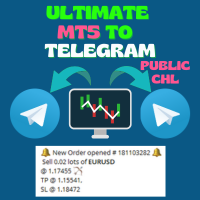
MT5 to Telegram Trade Notifier is a lightweight Expert Advisor for MetaTrader 5 that sends instant Telegram alerts when trades are opened, closed, or closed by Stop Loss.
This tool is designed for traders who want to monitor their MetaTrader 5 account in real time without staying in front of the terminal. The EA does not open, modify, or manage trades. It only monitors trade activity and sends notifications to your selected Telegram chat, group, or channel.
Main Features
✅ Instant Telegram notification when a trade is opened
✅ Notification when a trade is closed
✅ Special alert when Stop Loss is hit
✅ Shows account number and server
✅ Shows symbol, order type, volume, entry price, close price, Stop Loss, and Take Profit
✅ Displays gross profit/loss, swap, commission, and net result
✅ Supports profit, loss, and breakeven result labels
✅ Option to monitor all symbols or only the current chart symbol
✅ Optional Magic Number filter
✅ Works with manual trades and EA trades
✅ Does not open trades or interfere with trading activity
How It Works
After installation, attach the EA to any chart in MetaTrader 5. Enter your Telegram Bot Token and Chat ID in the EA inputs. Once active, the EA listens for trade transactions on the account and sends alerts to Telegram according to your selected settings.
Inputs
- BotToken — your Telegram bot token
- ChatId — your Telegram chat, group, or channel ID
- NotifyOpenTrades — enable or disable trade open alerts
- NotifyClosedTrades — enable or disable trade close alerts
- NotifyStopLoss — enable or disable Stop Loss alerts
- OnlyCurrentSymbol — notify only trades from the chart symbol
- MagicFilter — notify only trades with a specific Magic Number, or set to 0 for all trades
Important Notes
The EA requires WebRequest permission in MetaTrader 5.
Add this URL in MetaTrader 5:
Go to:
Tools → Options → Expert Advisors → Allow WebRequest for listed URL
Then add the URL above.
Disclaimer
This Expert Advisor is a notification tool only. It does not open trades, close trades, modify orders, or provide trading signals. It is intended only to help users receive trade activity alerts from MetaTrader 5 to Telegram.
How to Create a Telegram Bot and Add It to Your Channel
Use these steps to connect the MT5 Telegram Trade Notifier EA to your Telegram channel.
1. Create a Telegram Bot
- Open Telegram on your phone or computer.
- In the search bar, type:
@BotFather
- Open the official BotFather account.
- Send this command:
/newbot
- BotFather will ask you to choose a bot name.
Example:
MT5 Trade Notifier
- BotFather will then ask you to choose a bot username.
The username must end with bot.
Example:
MT5TradeNotifierBot
or:
MyMT5AlertsBot
- After the bot is created, BotFather will give you a Bot Token.
It will look similar to this:
1234567890:ABCDEF_your_bot_token_here
- Copy this token.
You will paste it into the EA input:
input string BotToken = "PASTE_YOUR_BOT_TOKEN_HERE";
2. Start Your Bot
Before the bot can send messages, open your new bot in Telegram.
- Search for your bot username.
- Open the bot chat.
- Press Start.
This activates the bot.
3. Add the Bot to Your Telegram Channel
- Open your Telegram channel.
- Tap the channel name at the top.
- Go to Administrators.
- Tap Add Administrator.
- Search for your bot username.
Example:
@MT5TradeNotifierBot
- Select your bot.
- Give the bot permission to:
Post Messages
- Save the changes.
The bot must be an administrator of the channel. If the bot is not an admin, it will not be able to post MT5 alerts in the channel.
4. Send a Test Message in the Channel
After adding the bot as admin:
- Open your Telegram channel.
- Send any test message.
Example:
test
This helps Telegram register the channel update so you can find the channel ID.
5. Get Your Channel Chat ID
Open your browser and paste this link:
https://api.telegram.org/botYOUR_BOT_TOKEN/getUpdates
Replace:
YOUR_BOT_TOKEN
with your real bot token.
Example:
https://api.telegram.org/bot1234567890:ABCDEF_your_bot_token_here/getUpdates
In the result, look for the channel ID.
It usually starts with:
-100
Example:
-1002335566690
Copy this full number.
Paste it into the EA input:
input string ChatId = "-1002335566690";
6. Add Bot Token and Chat ID to the EA
In the EA settings, add your values:
input string BotToken = "YOUR_TELEGRAM_BOT_TOKEN";
input string ChatId = "YOUR_CHANNEL_CHAT_ID";
Example:
input string BotToken = "1234567890:ABCDEF_your_bot_token_here";
input string ChatId = "-1002335566690";
Do not share your real bot token with anyone.
7. Enable WebRequest in MetaTrader 5
The EA must be allowed to send messages to Telegram.
In MetaTrader 5:
- Go to Tools
- Click Options
- Open the Expert Advisors tab
- Enable:
Allow WebRequest for listed URL
- Add this URL:
- Click OK
8. Attach the EA to a Chart
- Open MetaTrader 5.
- Open any chart.
- Attach the Telegram Trade Notifier EA to the chart.
- Enable Algo Trading.
- Enter your BotToken and ChatId.
- Click OK.
When the EA starts correctly, it should send this message to your Telegram channel:
✅ Telegram Trade Notifier EA started
Account: ...
Server: ...
After that, your Telegram channel will receive alerts when trades are opened, closed, or closed by Stop Loss.
Important Notes
The bot must be added as an administrator in your Telegram channel.
The bot must have permission to Post Messages.
For channels, the Chat ID usually starts with:
-100
The Bot Token is private. Never share it publicly.
The EA is a notification tool only. It does not open, close, or modify trades
o keep the MT5 to Telegram Trade Notifier working continuously, MetaTrader 5 must remain open and connected to the internet. The Expert Advisor can only send Telegram alerts while the trading terminal is running.
If you want the notifier to work 24/7, it is recommended to use a VPS. A VPS keeps MetaTrader 5 running online even when your personal computer is turned off, restarted, or disconnected from the internet.
This is especially useful for traders who want to receive trade notifications at any time, including during the night, while traveling, or when they are away from their computer.
For 24/7 notifications, install MetaTrader 5 on a VPS, attach the EA to a chart, enable Algo Trading, enter your Telegram Bot Token and Chat ID, and make sure WebRequest is allowed for https://api.telegram.org.
Without a VPS or an always-running computer, the EA will stop sending Telegram messages when MetaTrader 5 is closed or the internet connection is lost.