Drawing Button MT5
- Utilità
- Versione: 1.1
- Aggiornato: 28 gennaio 2026
- Attivazioni: 10

Drawing Assistant Tool for MT5
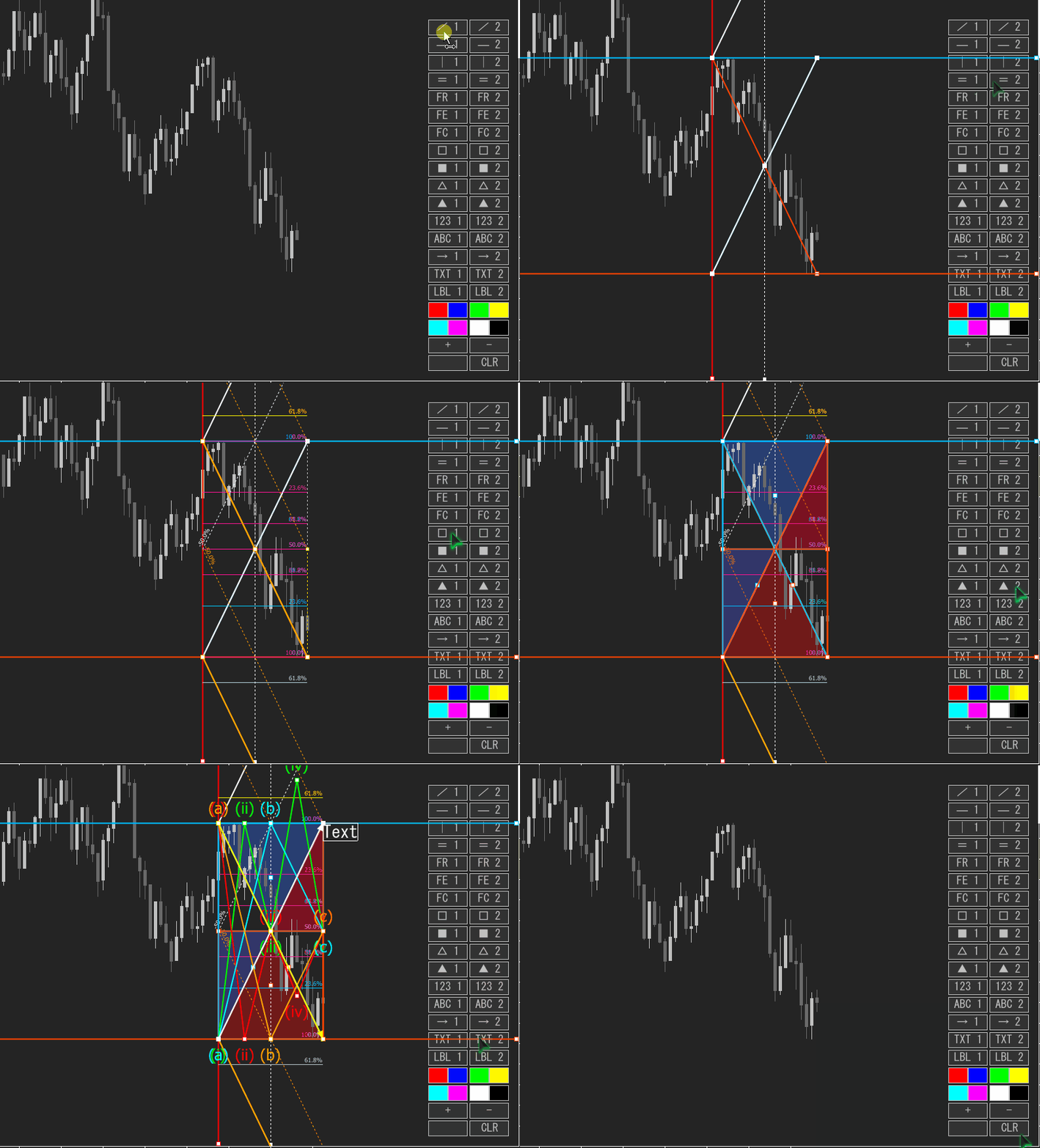
This is an assistant tool that allows you to create drawing objects with a single click from an on-chart panel, using settings independent of the standard MT5 objects.
-
Dual Presets: You can draw two distinct styles for each object type, labeled "1" and "2", simply by clicking the respective buttons.
-
Three Styles Available: Since these presets function independently from the standard MT5 toolbar objects, you effectively have access to three different object styles (Standard + Preset 1 + Preset 2) for each tool.
-
Timeframe Visibility: You can set a maximum visibility timeframe. Objects will be automatically hidden on timeframes higher than this setting. (Note: Objects drawn while viewing a timeframe higher than the limit will be visible on all timeframes.)
-
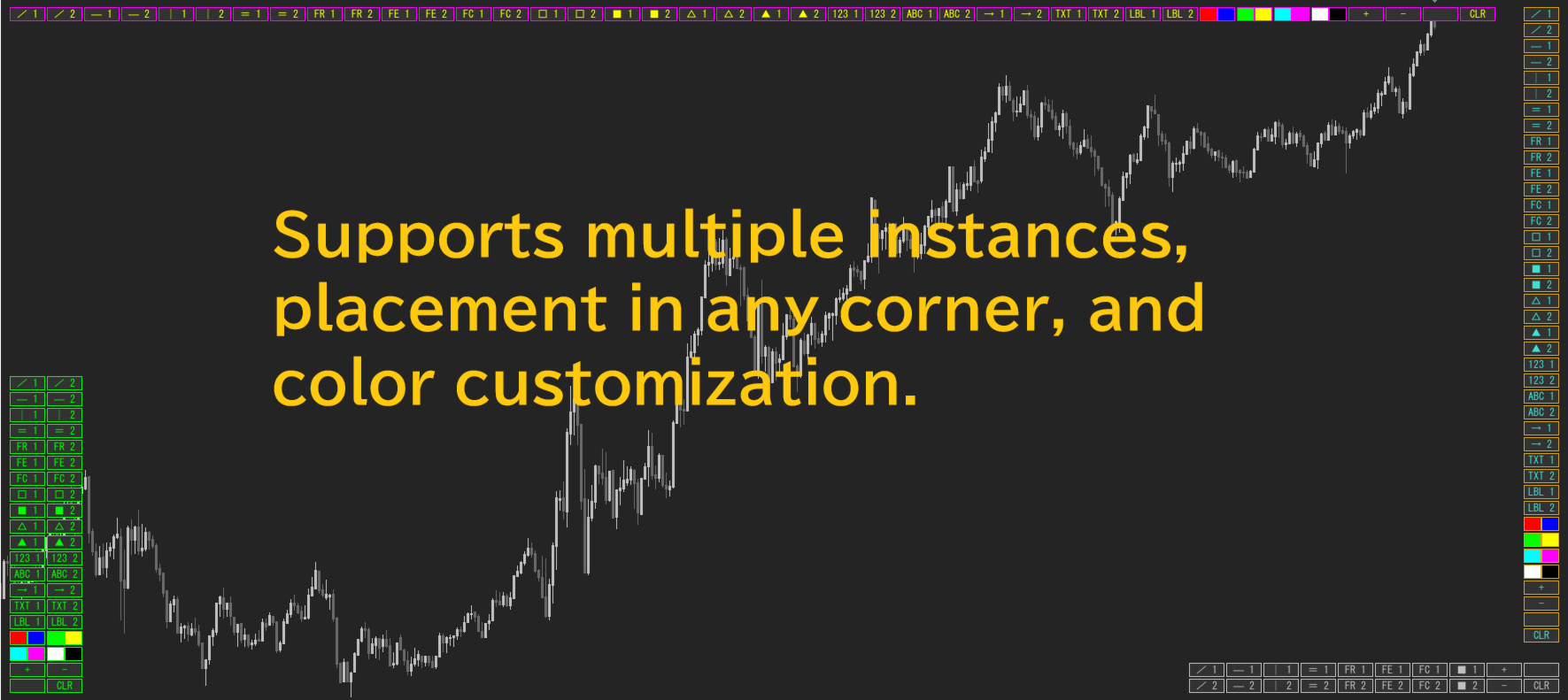
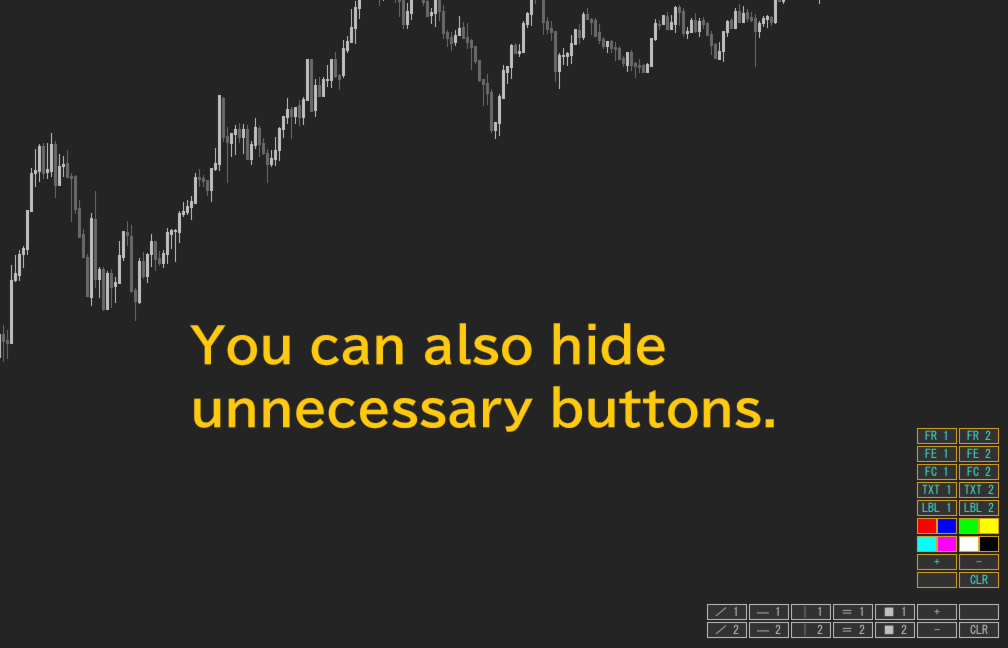
Flexible Layout: The default layout is a single column, but you can switch to a 2-column display. You can also toggle between vertical and horizontal orientation to fit your workspace.
-
Smart Features:
-
Color Palette: Changes the color of the currently selected object (applies only to objects created by this tool).
-
Clear Button: Deletes only the objects created by this tool, keeping your other analysis intact.
-
Customizable Panel: Each tool group (buttons "1" and "2") can be toggled on or off. Hidden buttons are removed, and the panel automatically adjusts to fill the gaps.
-
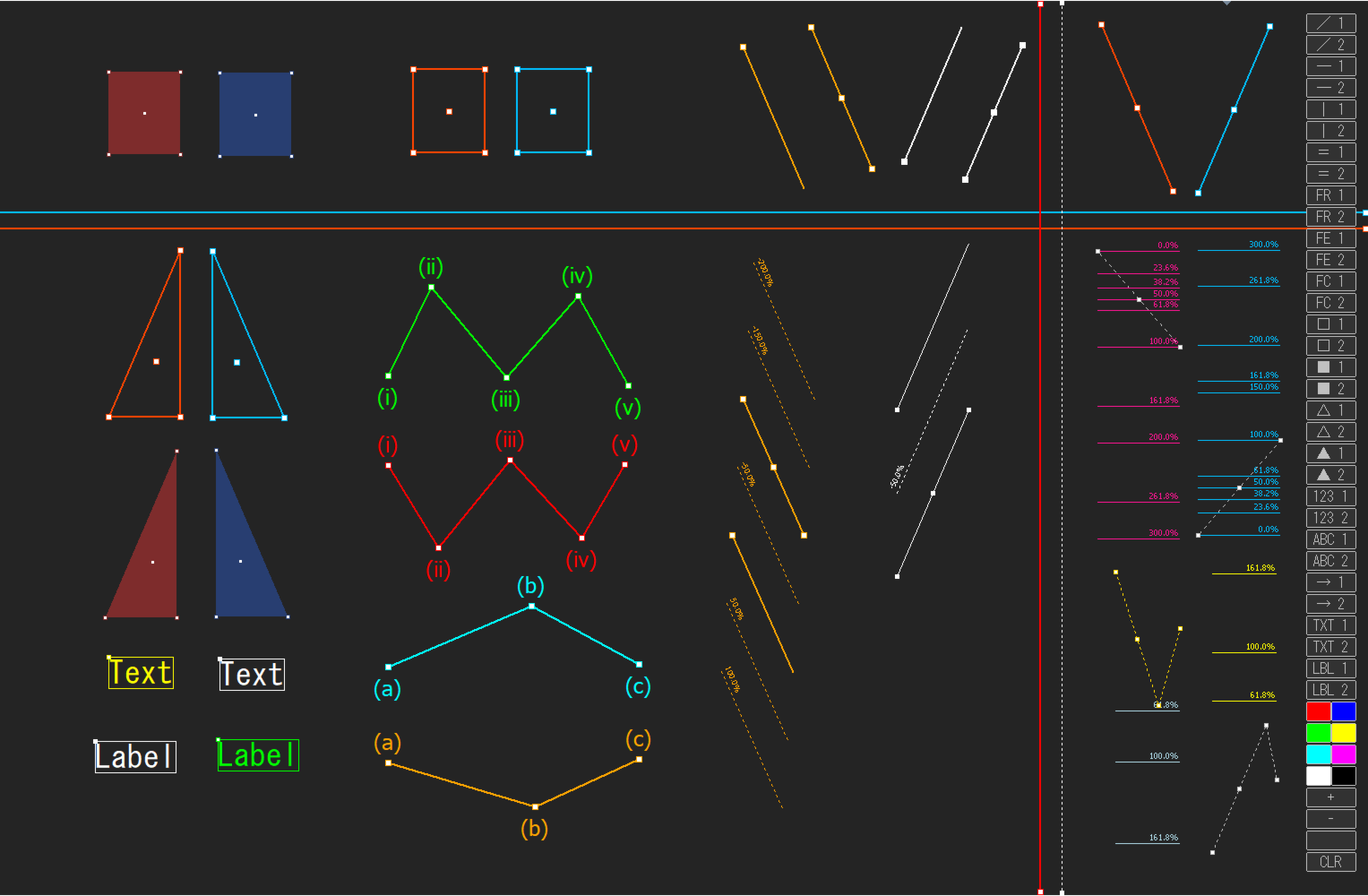
[Supported Tools]
-
Trend Line
-
Horizontal Line
-
Vertical Line
-
Equidistant Channel
-
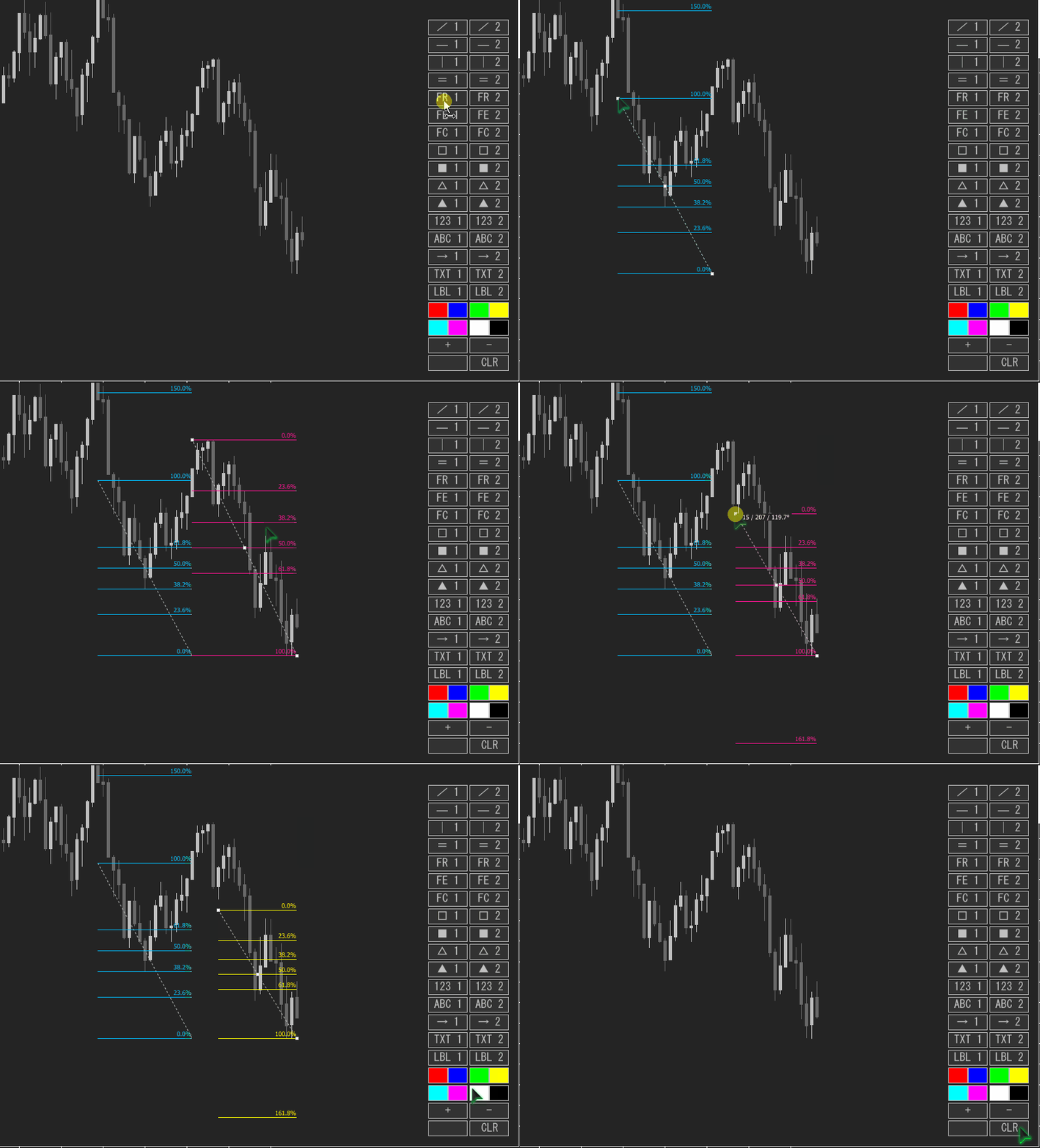
Fibonacci Retracement
-
Fibonacci Expansion
-
Fibonacci Channel
-
Rectangle Outline
-
Filled Rectangle
-
Triangle Outline
-
Filled Triangle
-
Elliott Impulse (12345)
-
Elliott Correction (ABC)
-
Arrow Line
-
Text
-
Label
[Parameters]
-
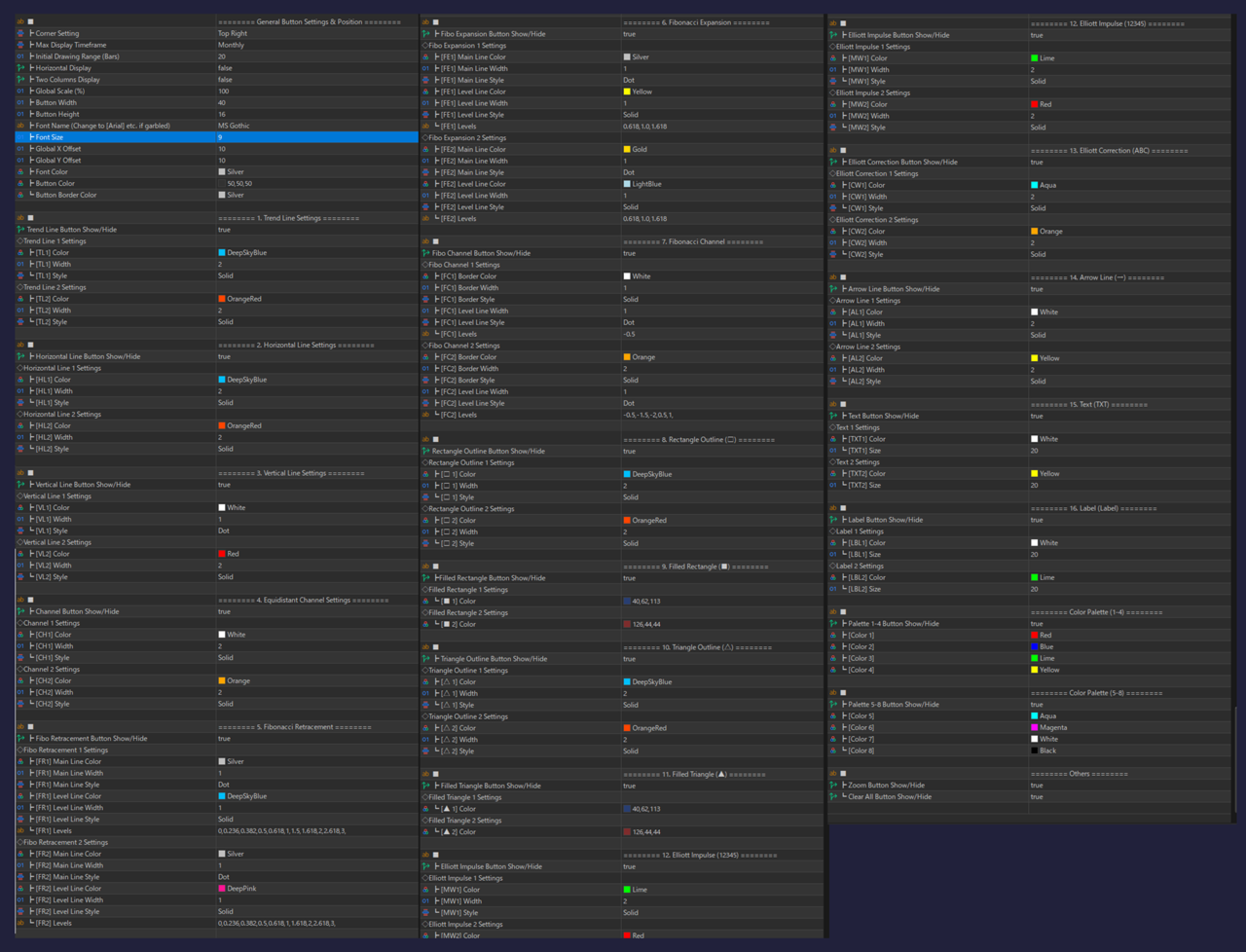
General Settings: Configure panel position, size, font, and column layout.
-
Initial Drawing Range (Bars): Sets the number of past candles referenced to calculate the initial size/position of the object (Default: 20 bars).
-
Tool Settings: Customize the color, width, and line style for each tool (Preset 1 & Preset 2) individually.
-
Color Palette: Customize the 8 colors available in the palette buttons.