Quick Trade Entry and Position sizer
- Utilitaires
- Version: 1.52
- Activations: 5

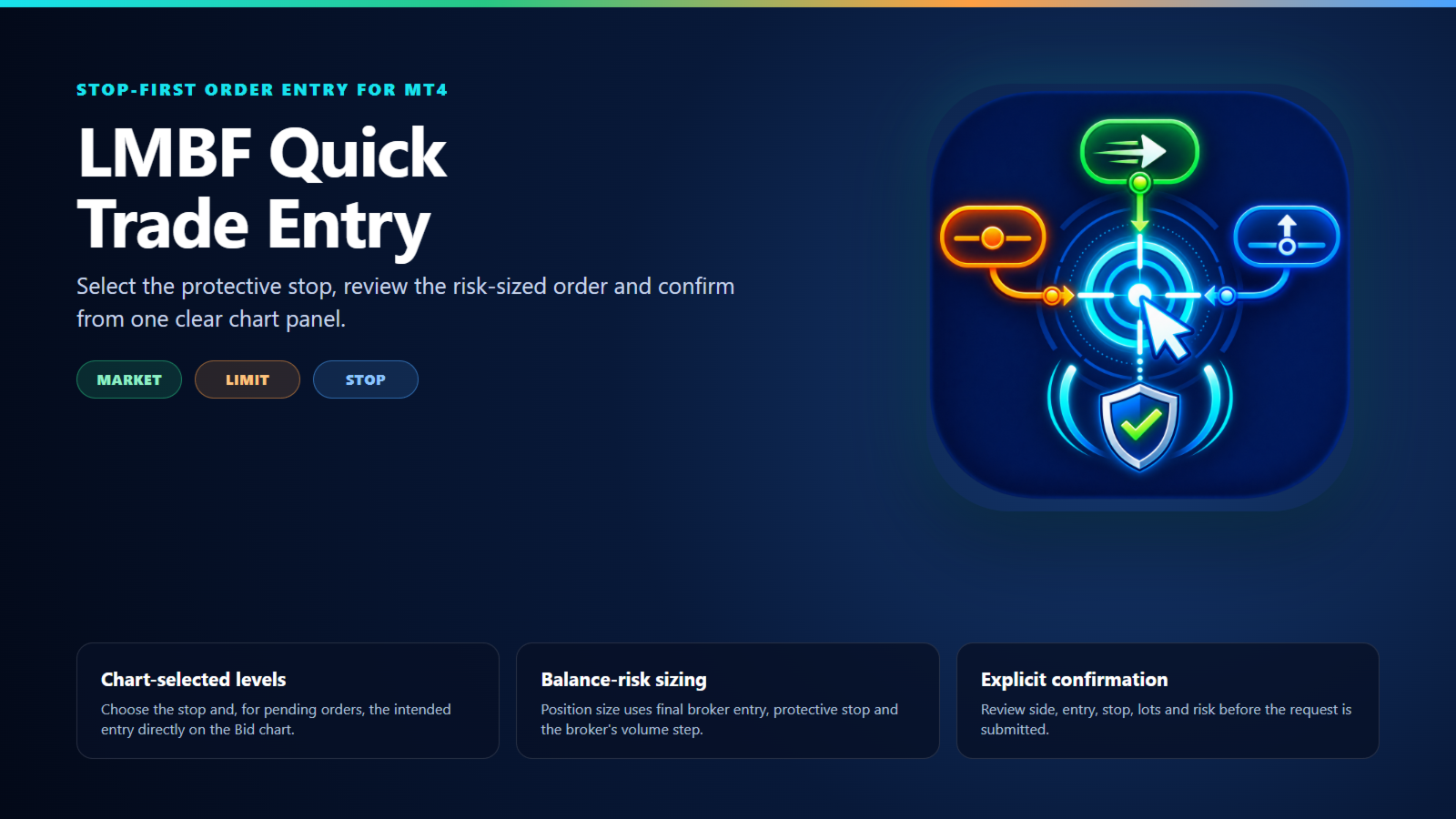
LMBF Quick Trade Entry is a stop-first, risk-sized order-entry indicator for MetaTrader 4.
Choose MARKET, LIMIT or STOP, select the required price level or levels directly on the chart, review the calculated order details and confirm. The panel shows the inferred direction, broker entry, protective stop, position size and estimated balance risk before a request is submitted.
The indicator does not generate trading signals or choose trades. It helps a discretionary trader turn an existing trade decision into a clearly reviewed order request.
Required execution companion
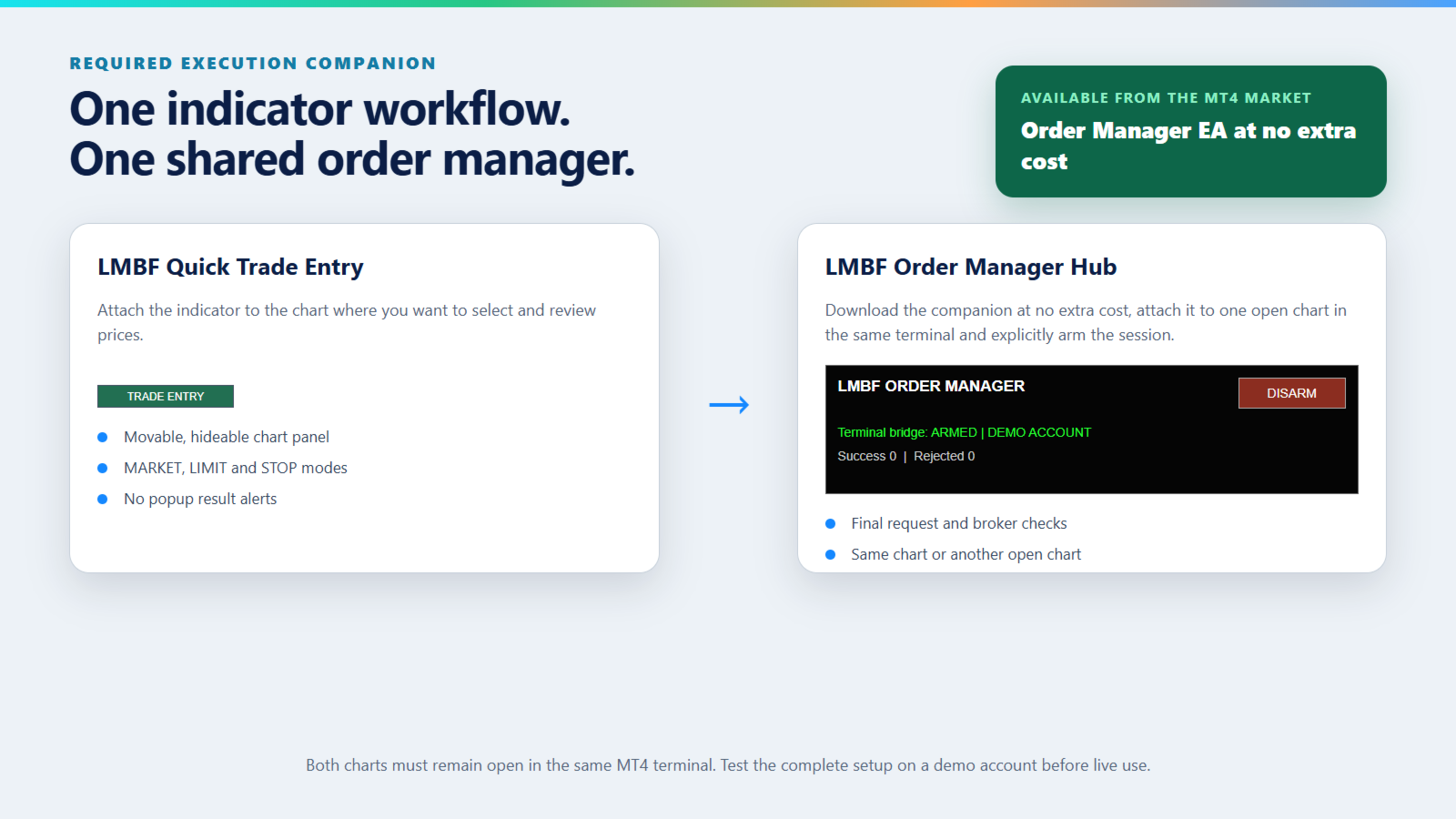
Quick Trade Entry works with LMBF Order Manager Hub, which is available for download from the MetaTrader 4 Market at no extra cost. The manager must be installed in the same MT4 terminal, attached to one open chart and armed before the indicator can submit an order request. This is so the Quick Trade Entry can be installed as an indicator, even though another EA may already exist on the same chart.
There is no additional purchase required for the Order Manager EA.
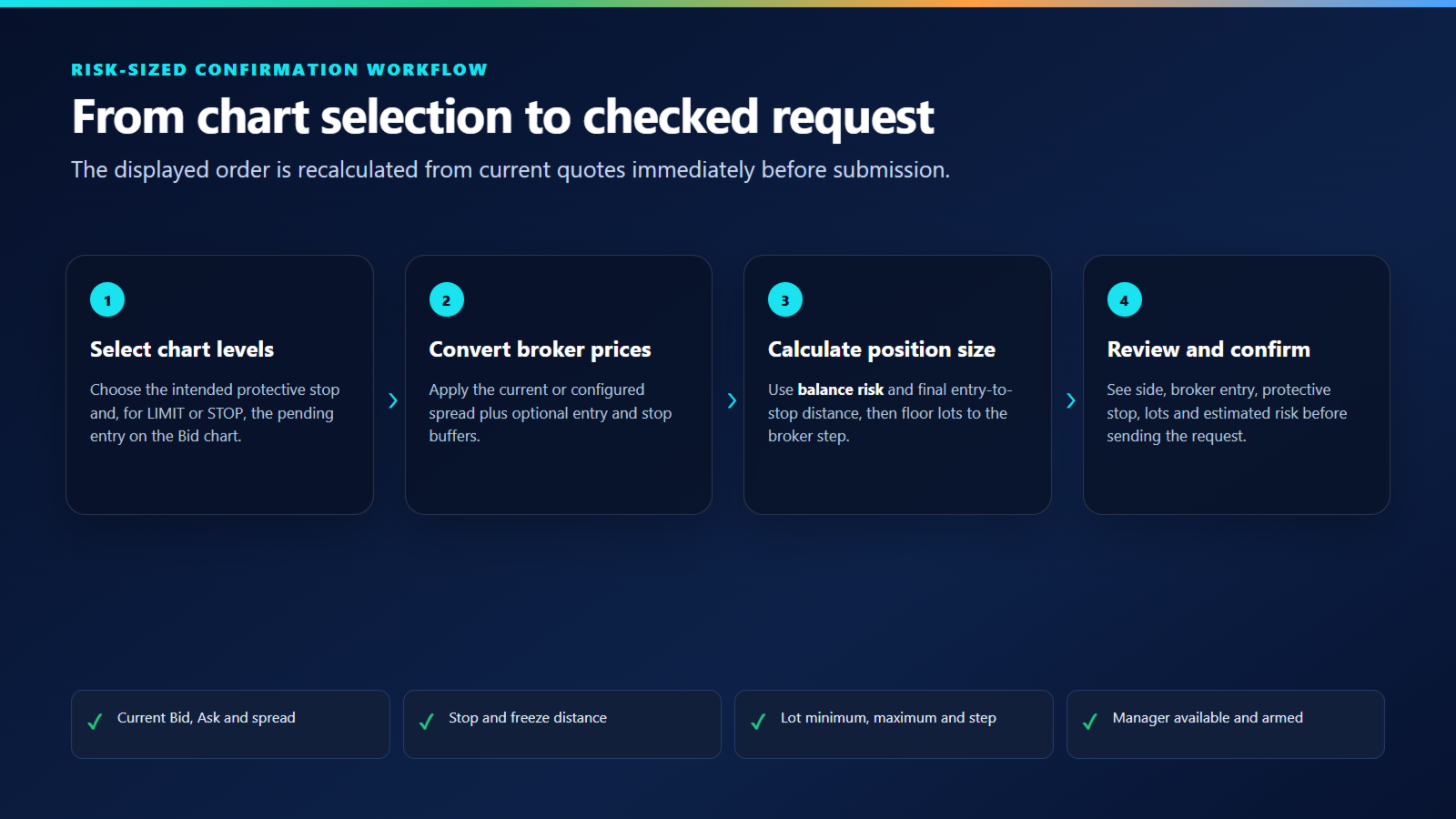
The indicator performs the chart workflow and publishes the final confirmed request. The manager checks the request and performs the supported MT4 order operation. No DLL, WebRequest or external service is used.
Three order modes
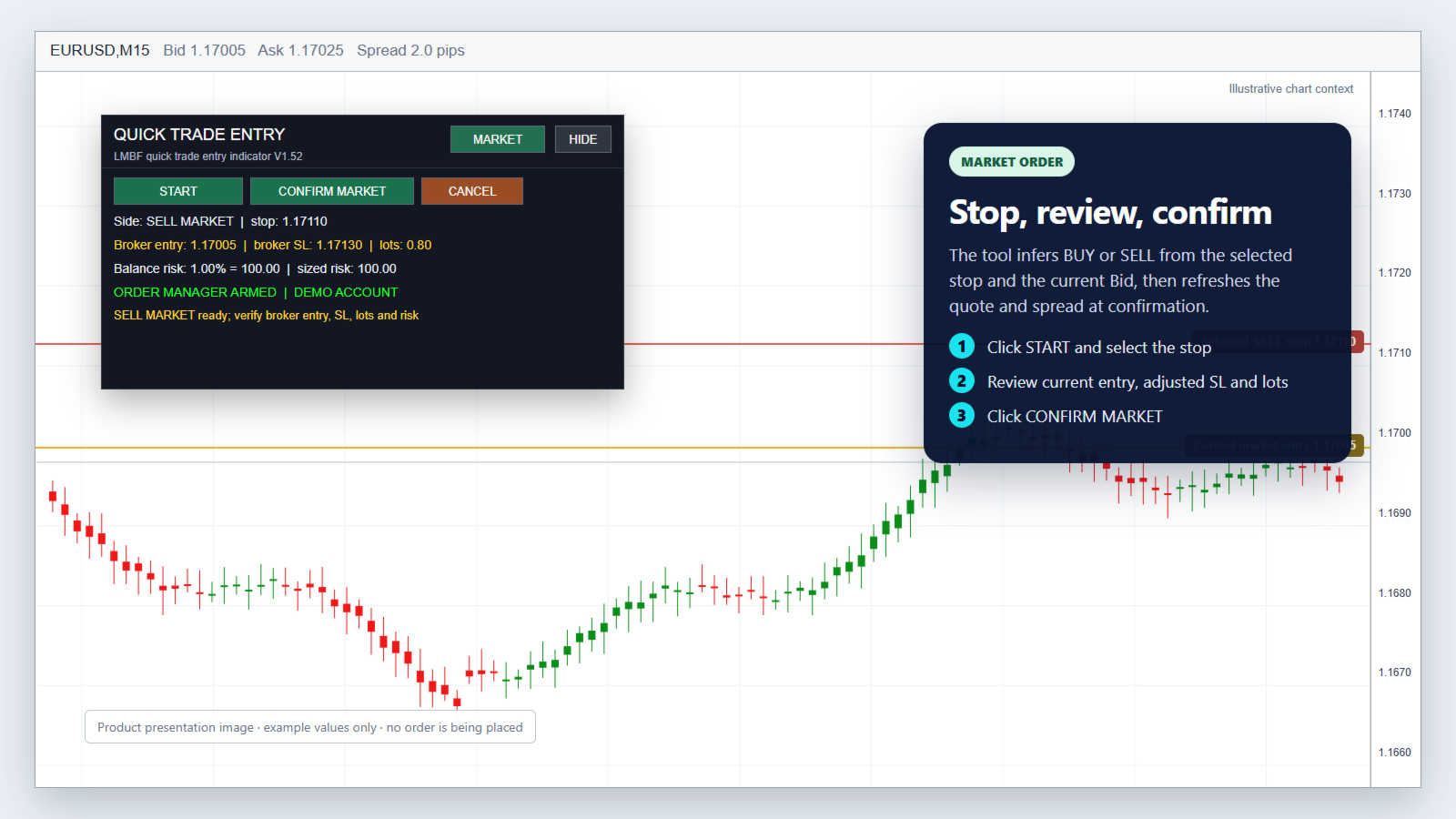
Market order
- Select MARKET and click START.
- Click the intended protective stop on the main chart.
- Review the inferred BUY or SELL direction, current entry, broker stop, lots and risk.
- Click CONFIRM MARKET.
The current Bid, Ask and spread are refreshed at confirmation. A stop below Bid selects BUY; a stop above Bid selects SELL.
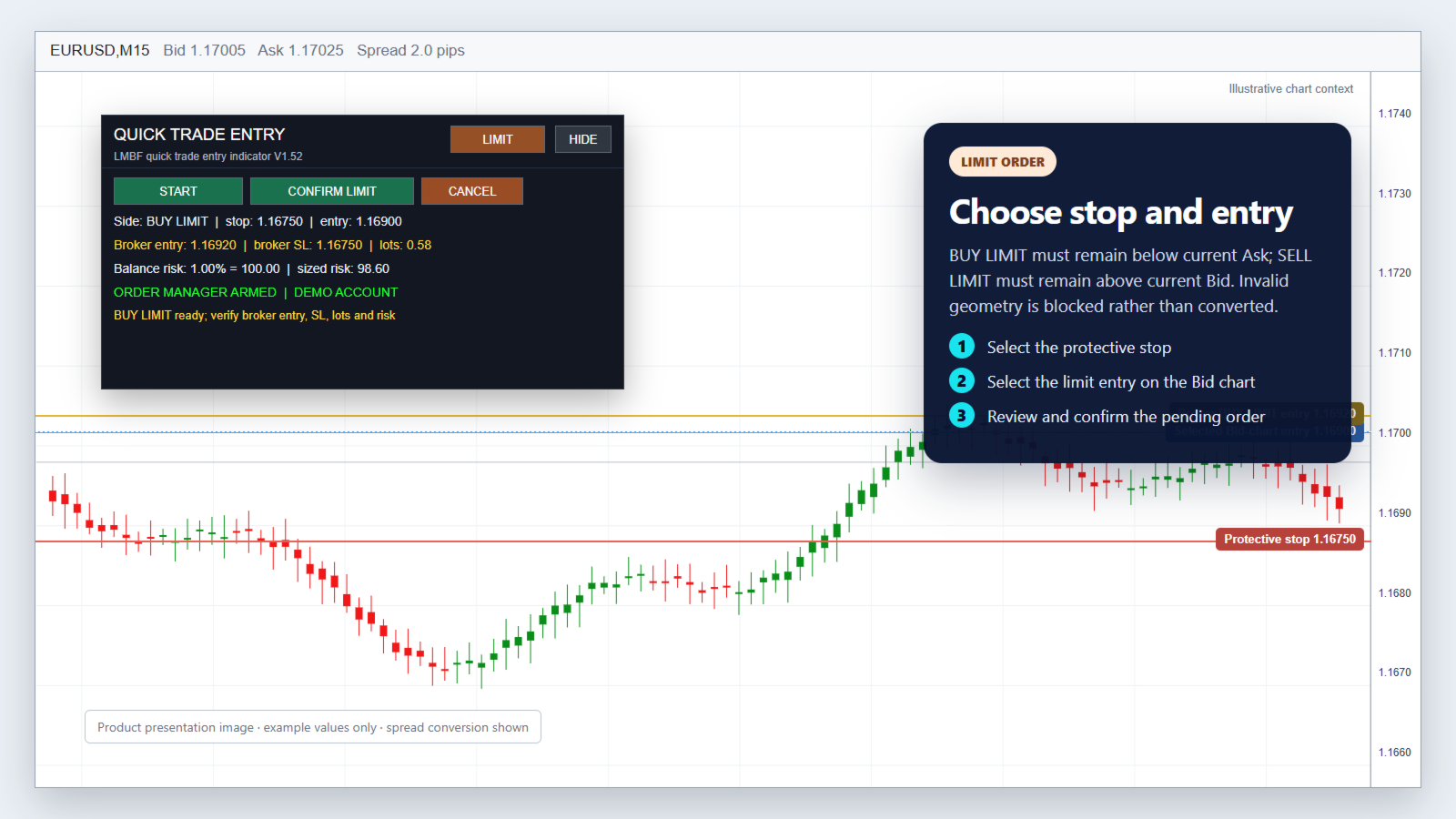
Limit order
- Select LIMIT and click START.
- Click the intended protective stop on the Bid chart.
- Click the intended limit entry on the Bid chart.
- Review the final values and click CONFIRM LIMIT.
A protective stop below the entry selects BUY LIMIT. A protective stop above the entry selects SELL LIMIT. BUY LIMIT must remain below current Ask and SELL LIMIT above current Bid by the broker minimum distance.
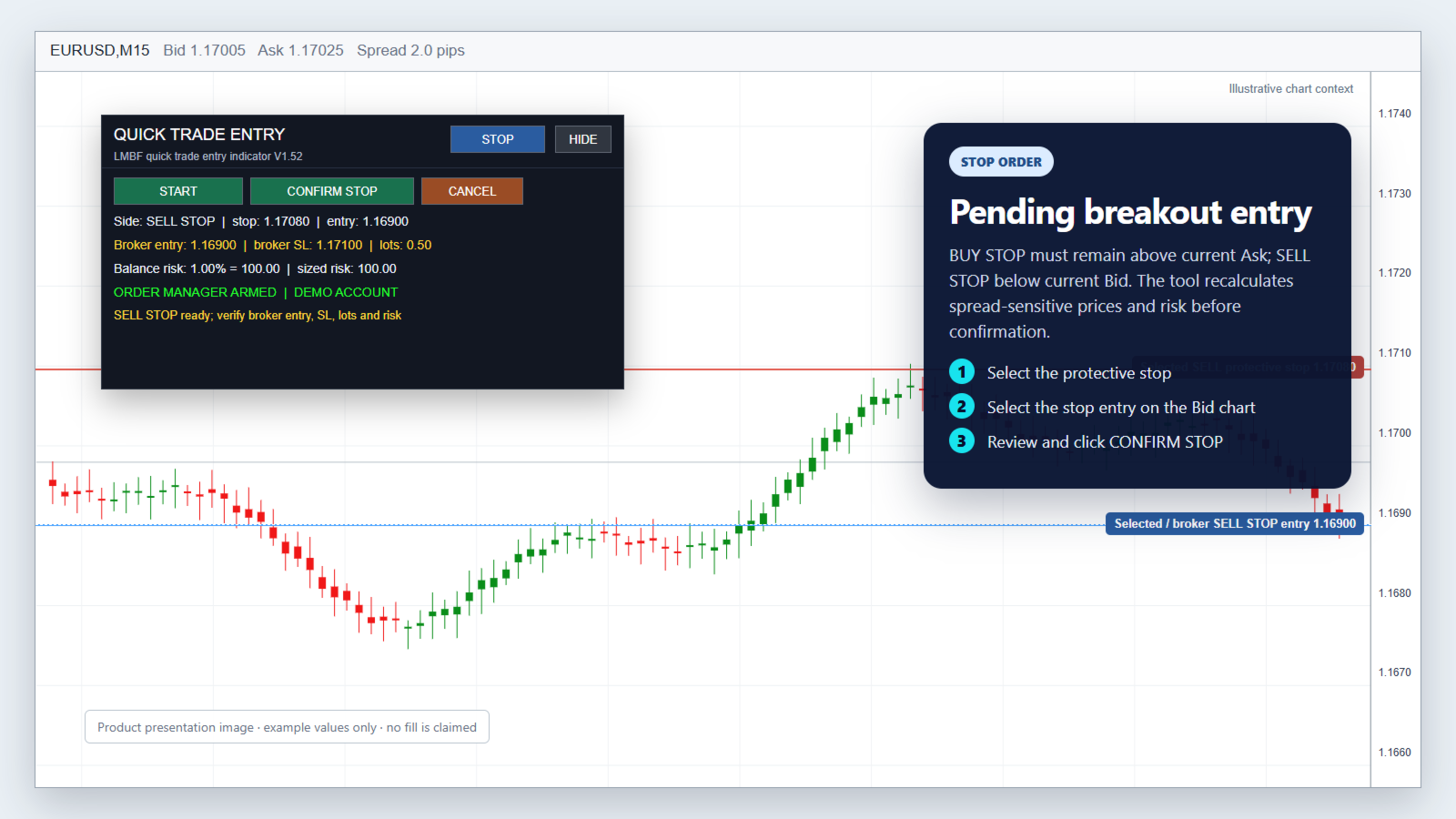
Stop order
- Select STOP and click START.
- Click the intended protective stop on the Bid chart.
- Click the intended stop entry on the Bid chart.
- Review the final values and click CONFIRM STOP.
A protective stop below the entry selects BUY STOP. A protective stop above the entry selects SELL STOP. BUY STOP must remain above current Ask and SELL STOP below current Bid by the broker minimum distance.
Invalid pending-order geometry is blocked. The indicator does not silently convert the request into another order type.
Balance-risk position sizing
Position size is calculated from current account balance, the selected risk percentage and the final distance between broker entry and protective stop.
The result is floored to the broker lot step so rounding does not increase the requested risk. Broker minimum and maximum volume limits are checked. The panel shows both the balance-risk budget and estimated risk for the normalized position size.
Bid-chart and spread conversion
MT4 charts display Bid prices. Quick Trade Entry converts chart selections into broker prices using the spread available when the order is confirmed.
- A BUY protective stop uses the selected Bid-chart stop, adjusted by the optional stop buffer.
- A SELL protective stop adds current spread and the configured buffers because the stop is triggered on Ask.
- BUY LIMIT and BUY STOP entries add current spread and the optional spread buffer to the selected Bid-chart entry.
- SELL LIMIT and SELL STOP use the selected Bid-chart entry.
UseCurrentSpread is enabled by default. A manual spread and optional maximum-spread ceiling are also available.
Confirmation and checks
Every order requires an explicit confirmation from the panel. Immediately before submission, the indicator refreshes quotes and rechecks:
- selected order type and direction;
- entry and protective-stop geometry;
- current spread and configured buffers;
- broker stop and freeze distance;
- tick size, tick value and risk-sized volume;
- broker minimum, maximum and lot step;
- manager availability and armed state.
The LMBF Order Manager Hub then applies its own connection, permission, margin, risk, spread, exposure and broker-validity checks. A protective stop is included with the create request. There is no deliberate unprotected-order fallback.
Clear chart controls
- MARKET, LIMIT and STOP use separate configurable button colours.
- The full panel can be hidden and restored from a compact TRADE ENTRY control.
- Drag the title bar or collapsed control to move the panel.
- Panel position and visibility are remembered across timeframe changes by default.
- Selected chart levels remain visible while the panel is collapsed.
- Results and validation problems appear in the panel and Experts log without MT4 popup alerts.
Setup
- Download LMBF Order Manager Hub at no extra cost, then install and attach it to one MT4 chart.
- Enable AutoTrading and allow trading for the manager EA.
- Review the manager limits and click ARM. Its panel should display ARMED.
- Attach LMBF Quick Trade Entry to the chart where you want to select prices.
- Confirm that the Quick Trade Entry panel shows ORDER MANAGER ARMED.
- Test MARKET, LIMIT and STOP workflows on a demo account using the smallest practical volume before live use.
The manager chart and indicator chart must remain open in the same MT4 terminal. They may be the same chart or different charts.
Main inputs
Order and risk
- ClientInstanceId: unique mailbox identifier for this indicator instance.
- SlippagePoints: requested slippage for order creation.
- TradeComment: comment supplied with the create request.
- DefaultOrderMode: initial MARKET, LIMIT or STOP selection.
- RiskPercent: percentage of current balance used for position sizing.
- MaximumRiskPercent: upper limit accepted by the indicator.
Spread and price conversion
- UseCurrentSpread: use current Ask minus Bid when true.
- ManualSpreadPoints: manual spread used when current-spread mode is disabled.
- SpreadBufferPoints: extra points added to spread-adjusted entries and sell stops.
- StopBufferPoints: optional extra distance applied to the protective stop.
- MaximumSpreadPoints: optional spread ceiling; zero disables the ceiling.
Panel
- ShowPanelInitially: choose expanded or collapsed first display.
- RememberPanelVisibility: retain expanded or collapsed state.
- AllowPanelDrag: allow mouse movement of the panel.
- RememberPanelPosition: retain the moved position.
- PanelCorner, PanelX and PanelY: initial panel location.
- MarketModeButtonColor, LimitModeButtonColor and StopModeButtonColor: independent selector colours.
- Additional inputs control panel, text, line and button appearance.
Important
LMBF Quick Trade Entry is an order-entry tool, not a trading strategy or signal service. It does not guarantee that an order will be accepted, filled at a requested price or protected from slippage, gaps or broker execution rules.
The trader remains responsible for the symbol, account, direction, entry, stop, risk percentage and final confirmation. Always verify every displayed value and test the complete setup on a demo account before live use.