 MetaTrader 5
 Experts
 Indicators
 Scripts
 Libraries
 Storage
Join our fan page

T5Copier - MT 5 client to client Local trade copier - expert for MetaTrader 5

- Views:
- 5068
- Rating:
- Published:
- Updated:
-
 You are missing trading opportunities:
- Free trading apps
- Over 8,000 signals for copying
- Economic news for exploring financial markets
Registration Log inYou agree to website policy and terms of use
If you do not have an account, please register -
 Need a robot or indicator based on this code? Order it on Freelance
Go to Freelance
Need a robot or indicator based on this code? Order it on Freelance
Go to Freelance
A local client to client trade copier with custom dashboard in C# and transport pipe in golang
How to Run the MT5 Trade Copier ( Archived dll based version )
Step 1: Start the ZMQ Routing Bridge
- Open Windows File Explorer and navigate to: C:\T5Copier\Go_bridge\
- Double-click and run T5Copier_Bridge.exe .
- A terminal window will open indicating that the bridge is listening on:
- Port 5567 (Master incoming)
- Port 5568 (Slave outgoing)
- Port 5569 (Dashboard logs)
Step 2: Open the C# WPF Dashboard
- Navigate to: C:\T5Copier\Dashboard\
- Double-click and run CSharpDashboard.exe .
- In the dropdown at the top, select MT5 Copier (Port 5569) .
- Click Connect Dashboard . The status indicator will change to CONNECTED (MT5) .
Step 3: Set up the MT5 Master Terminal (Sender)
- Open the MT5 terminal that you want to copy trades from.
- Make sure the Master EA is installed: go to the Navigator panel, right-click Experts, and click Refresh. You should see T5Copier_Master .
- Drag T5Copier_Master onto any single chart.
- In the properties window:
- Go to the Common tab and check Allow DLL imports and Allow Algo Trading .
- Go to the Inputs tab and ensure the address matches the bridge: tcp://localhost:5567 .
- Click OK. Ensure the Algo Trading button in the MT5 top toolbar is green.
Step 4: Set up MT5 Slave Terminals (Receivers)
- Open one or more MT5 terminals that you want to copy trades to.
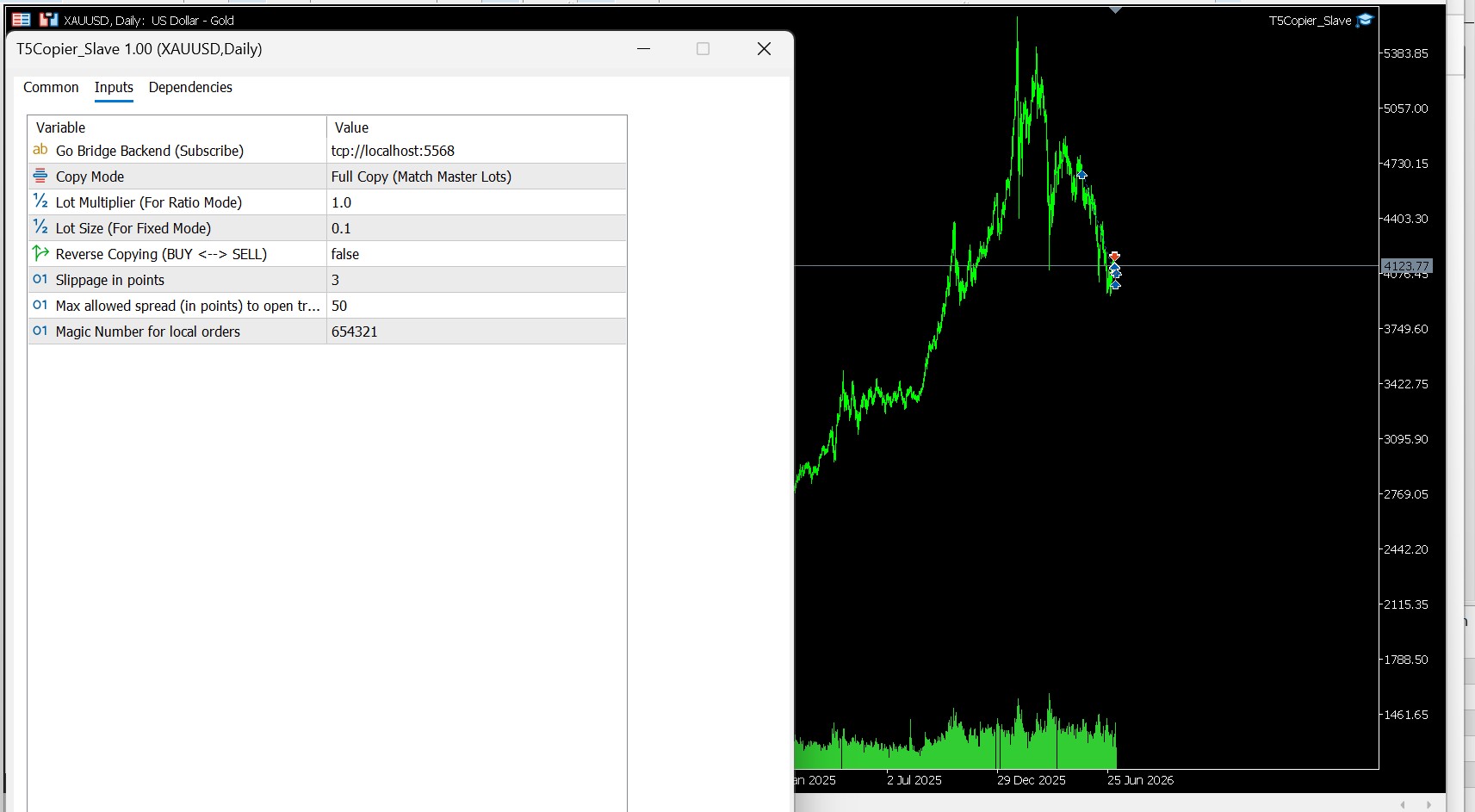
- Drag the Slave EA ( T5Copier_Slave ) onto a chart.
- In the properties window:
- Go to the Common tab and check Allow DLL imports and Allow Algo Trading .
- Go to the Inputs tab and configure your copy logic:
- InpLotMode : Select LOT_MODE_FULL , LOT_MODE_RATIO , or LOT_MODE_FIXED .
- InpLotMultiplier : Set your multiplier (e.g., 2.0 for double lots).
- InpReverseCopy : Set to true if you want to flip BUYs to SELLs and vice versa.
- Click OK. Ensure Algo Trading is enabled in the top toolbar.
++++++++++++++++++++++++++++++++++++++++++++++++++++++++++++++++++++++++++++++++++++++++++
ere is the comprehensive step-by-step user guide for running the new trade copier versions.
Part 1: Running the MT5 DLL-Free Copier (Codebase Compliant)
This version uses MetaTrader 5's native TCP sockets, meaning it is 100% DLL-free and does not require any external library files ( libzmq.dll or libsodium.dll ) to run or validate.
Step 1: Start the Go TCP Bridge
- Navigate to: C:\T5Copier\Go_bridge\
- Double-click and run T5Copier_Bridge.exe .
- A console window will open indicating that the Go Bridge is listening on TCP port 5580 .
Step 2: Launch the C# WPF Dashboard
- Navigate to: C:\T5Copier\Dashboard\
- Double-click and run CSharpDashboard.exe .
- In the dropdown, select MT5 Copier (Port 5580) .
- Click Connect Dashboard . The status will change to CONNECTED (MT5) .
Step 3: Attach the MT5 Master EA (Sender)
- Open your Master MT5 terminal.
- In the Navigator, drag T5Copier_Master onto any single chart.
- In the properties window:
- Common tab: Ensure Allow Algo Trading is checked. (Note: DLL imports are NOT required!)
- Inputs tab: Verify the server address is 127.0.0.1 and the port is 5580 .
- Click OK. Enable Algo Trading in the MT5 top toolbar.
Step 4: Attach the MT5 Slave EA (Receiver)
- Open your Slave MT5 terminal.
- Drag T5Copier_Slave onto any chart.
- In the properties window:
- Common tab: Check Allow Algo Trading . (DLL imports are NOT required!)
- Inputs tab: Configure your preferred parameters (e.g. InpLotMode , InpLotMultiplier , InpReverseCopy ).
- Click OK. Enable Algo Trading in the toolbar.
Part 2: Running the MT4 Copier (ZeroMQ Powered)
This version uses the high-performance ZeroMQ library, which matches MT4's strict environment.
Step 1: Start the Go ZMQ Bridge
- Navigate to: C:\T4Copier\Go_bridge\
- Double-click and run T4Copier_Bridge.exe .
- It will listen on Ports:
- 5557 (Master incoming)
- 5558 (Slave outgoing)
- 5559 (Dashboard logs)
Step 2: Launch the C# WPF Dashboard
- Navigate to: C:\T4Copier\Dashboard\
- Double-click and run CSharpDashboard.exe .
- In the dropdown, select MT4 Copier (Port 5559) .
- Click Connect Dashboard .
Step 3: Attach the MT4 Master EA (Sender)
- Open your Master MT4 terminal.
- Drag T4Copier_Master onto any chart.
- In the properties window:
- Common tab: Check Allow DLL imports . (Required for ZeroMQ DLLs!)
- Inputs tab: Keep the default tcp://localhost:5557 .
- Click OK.
Step 4: Attach the MT4 Slave EA (Receiver)
- Open your Slave MT4 terminal.
- Drag T4Copier_Slave onto any chart.
- In the properties window:
- Common tab: Check Allow DLL imports and Allow live trading .
- Inputs tab: Set inputs (e.g., InpLotMode , InpLotMultiplier , etc.).
- Click OK.
Step 5: Verification (Common to Both)
- Place a trade on the Master terminal.
- Watch the C# Dashboard: The trade details (ticket, symbol, type, lot size) will immediately pop up in the Active Copied Trades grid.
- Confirm that the trade was replicated instantly on the Slave terminal(s) with your configured lot/reverse rules.
- Close the trade on the Master terminal; the Slave terminal(s) will close it instantly.
 Envelope SAR
This indicator is a trend-momentum oscillator that tracks where price sits relative to its structural volatility channel using a normalized relationship between the Parabolic SAR and Envelopes.
Profit Loss calendar
P/L Calendar — Monthly Profit & Loss at a Glance. P/L Calendar shows you, day by day, exactly how your account performed this month — so you can spot your best and worst days, track your win rate, and see your trading rhythm without digging through the terminal's history tab.
MA + Envelope Breakouts
Breakouts based on envelope channel or band, multi EA logic in One EA
Market Miner
A multi strategy EA gold mine :)