TradeCore Pro — User Guide. Part 4. Position Management: Breakeven, Trailing and Partial Close

The fourth part of the TradeCore Pro trading panel guide continues position management: automatic breakeven, trailing stop, level-based partial close and bulk close with risk limits.
- Download TradeCore Pro MT4
- Download TradeCore Pro MT5
- 7-day trial version: available on request via private messages on the profile
- Launch price: a special price for early buyers, it will increase as functionality grows
← Part 3. Position Management: Basket and Grid
Contents
- 1. Section Panel and Workspace
- 2. Trade Section. Opening and Quick Trade Management
- 3. Orders Section. Pending Orders, Groups and Grids
- 4. Common and Individual Management Settings
- 5. Basket Section. Managing a Position Basket
- 6. Basket Grid Section. A Grid for a Position Basket
- 7. Breakeven Section. Automatic Breakeven
- 8. Trailing Stop Section. Position Trailing Stop
- 9. Partial Close Section. Level-Based Partial Close
- 10. Close Positions Section. Bulk Close and Risk Limits
- 11. Economic Events Section. Economic Calendar and News Lines
- 12. Alerts Section. Price and Time Alerts
- 13. Time Section. Expirations and Trading Sessions
- 14. Statistic Section. Trading Statistics and Full Report
- 15. Multi-Symbol Trading and the Broker Screener
- 16. Settings Window. Application and Chart Display Settings
7. Breakeven Section. Automatic Breakeven
The Breakeven module automatically moves the stop loss into the profit area when the position result reaches the specified level. This locks in breakeven or part of the profit without manually modifying the order. The module works for the whole symbol, for a single ticket and for a basket side: the settings scope is selected as described in section 4.

Figure 38. Breakeven window
- Enable Stop Loss to Breakeven switch — enables the module for the current symbol.
- Ticket checkbox and dropdown, Individual checkbox and Scope Enable switch — selection of the settings scope and its enabling.
- Ticket (N) table — management targets: positions and orders of the symbol. The Trigger column shows how the move is launched, the Locked column shows the result at the current stop loss.
- Start field, Percent to TP checkbox and field — the profit level at which the stop loss is moved.
- Locked In field and Units list — the locked result and its units, PIPS or ATR.
Move timing. The Start field (4) sets the profit in the selected units: when price covers this distance from the entry price, the stop loss moves automatically. With the Percent to TP checkbox (4) on, a percent of the distance from the entry price to the take profit is used instead of Start: the trigger is tied to the actual target of the trade.
Locked result. The Locked In field (5) sets how much profit remains between the entry price and the new stop loss. A value of 0 puts the stop loss exactly at the entry price, a positive value locks in part of the profit. The Units list (5) applies to both Start and Locked In.
Target table. The table (3) highlights in bold green a ticket whose trigger level has already been reached (section 4). The i prefix means individual settings, P is used for a pending order and vP for a virtual one. A dash in the Locked column means the stop loss is not set yet.
In basket mode, BUY and SELL sides are shown instead of tickets, and the individual settings of a side apply to the whole basket side.
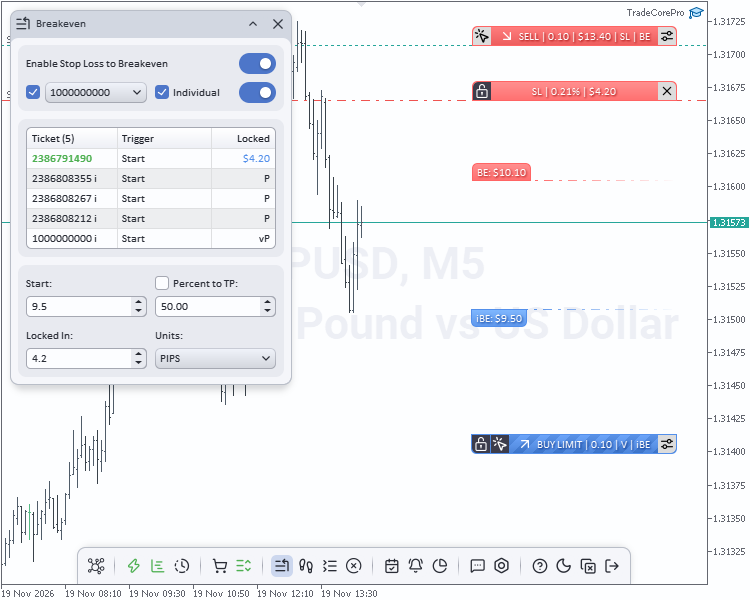
Figure 39. Breakeven levels on the chart
In Figure 39, the trigger has already fired for the SELL position: the stop loss moved into the profit area, and the Locked column shows the locked result. The other targets show breakeven level lines: BE for the shared settings and iBE for the individual ones.
8. Trailing Stop Section. Position Trailing Stop
The Trailing Stop module moves the stop loss after the price while the position moves in the profitable direction. Unlike Breakeven, which fires once at a set level, trailing keeps pulling the stop loss on every new price move. The module works for the whole symbol, for a single ticket and for a basket side: the settings scope is selected as described in section 4.
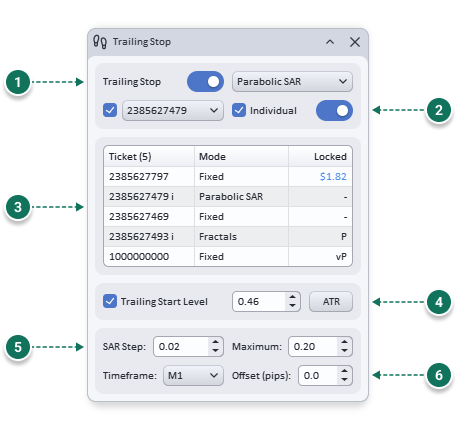
Figure 40. Trailing Stop window
- Trailing Stop switch and trailing-type dropdown — enables the module for the current symbol and selects the algorithm.
- Ticket checkbox and dropdown, Individual checkbox and Scope Enable switch — selection of the settings scope and its enabling.
- Ticket (N) table — management targets: positions and orders of the symbol. The Mode column shows the ticket's trailing type, the Locked column shows the result locked by the current stop loss.
- Trailing Start Level checkbox and field and units button — the profit level that enables trailing, in PIPS or ATR units.
- First parameter row of the selected type. In the figure these are SAR Step and Maximum of the Parabolic SAR type.
- Second parameter row of the selected type. In the figure these are Timeframe and Offset (pips).
Start level. The Trailing Start Level field (4) sets the profit at which trailing turns on: until then the stop loss does not move. With the checkbox off, the limit is disabled and trailing is active from the first tick.
Target table. Different tickets can run different trailing types: in Figure 40 the table (3) shows some with Fixed, others with Parabolic SAR and Fractals. Bold green highlights a ticket that has trailing enabled and whose price is currently beyond the Trailing Start Level: in this state the module is actively moving the stop loss. The i prefix means individual settings (section 4), P is used for a pending order and vP for a virtual one. The Locked column shows the result at the set stop loss, broker-side or virtual. A dash means the stop loss is not set yet.
In basket mode, BUY and SELL sides are shown instead of tickets, and the individual settings of a side apply to the whole basket side.
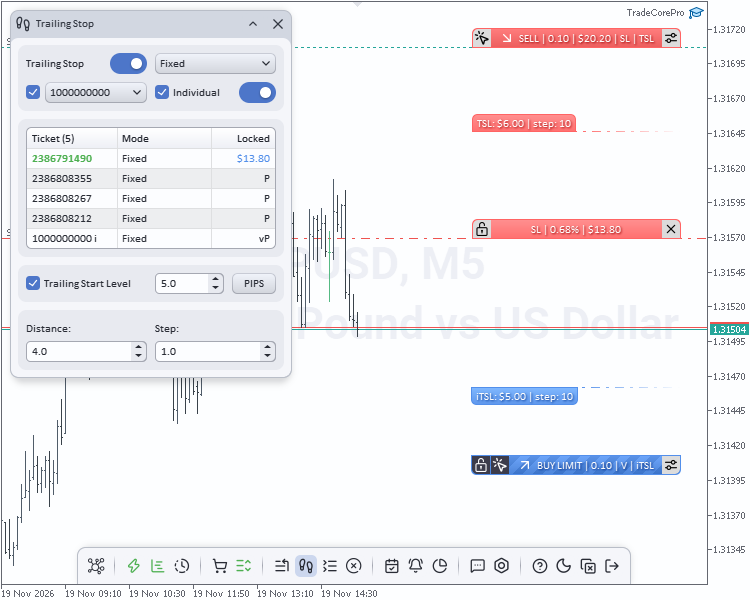
Figure 41. Trailing Stop levels on the chart
In Figure 41, trailing has already moved the stop loss of the SELL position into the profit area, and the TSL line shows the current calculated level and move step. The pending order has individual trailing whose level is marked iTSL: the settings are prepared in advance and pass to the position after the order fills (section 4).
There are six trailing types. The field set of each type matches pending-order trailing, so they are listed briefly here. For the detailed description see section 3.5.
- Fixed — holds a fixed distance from price: Distance and Step fields, whose PIPS or ATR units are switched by the shared button next to the Trailing Start Level field.
- Periodic — moves the stop loss on a timer: Distance (pips), Move Step (pips) and Interval (sec), and the Next Move label shows the time until the move of the selected ticket.
- ATR — distance in ATR multiples: Period, Timeframe, Distance and Step.
- Moving Average — binding to a moving average: Period, Timeframe, Method, Price, Step (pips) and Offset (pips).
- Parabolic SAR — binding to the indicator dots: SAR Step, Maximum, Timeframe and Offset (pips).
- Fractals — binding to the nearest fractal: Fractal Bars, Timeframe and Offset (pips).
9. Partial Close Section. Level-Based Partial Close
The Partial Close module closes a position in parts: when price covers the specified distance from the open price, only part of the volume is locked in and the remainder keeps working. TP levels close part of the volume on the profit side, SL levels reduce a losing position in steps without waiting for the full stop. Each level is single-use: once executed, it turns off. The module works for the whole symbol, for a single ticket and for a basket side: the settings scope is selected as described in section 4.
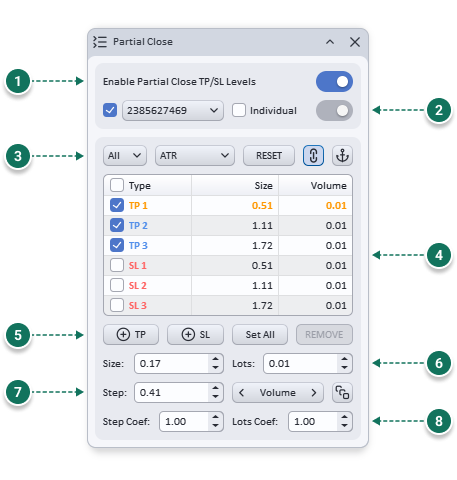
Figure 42. Partial Close window
- Enable Partial Close TP/SL Levels switch — enables the module for the current symbol.
- Ticket checkbox and dropdown, Individual checkbox and Scope Enable switch — selection of the settings scope and its enabling.
- Table filter All, TP or SL, units dropdown, RESET button and two level-link buttons.
- Level table Type | Size | Volume — a checkbox enables the level, the Size column sets the distance from the open price, the Volume column sets the volume to close.
- + TP and + SL buttons add a level of the corresponding type, Set All applies the progression fields to all levels, REMOVE deletes the selected levels.
- Size and Lots fields — distance and closed volume of the first level.
- Step field, Volume or Percent button and distribution button — step between levels, volume mode and automatic distribution of the position volume across levels.
- Step Coef and Lots Coef fields — progression coefficients of distances and volumes.
Units and progression. Level distances are set in the list (3) in PIPS, in ATR multiples, in PERCENT of the main TP or SL and in MONEY. Each + TP or + SL button (5) adds a level by progression: the new level's distance equals Size + Step (6-7) with the increasing coefficient Step Coef (8), and the volume equals Lots (6) with the Lots Coef coefficient (8). With coefficients at 1.00, levels are spaced evenly with equal volume, as in the figure. The level volume is set in lots with Volume or in Percent of the position volume (7), and the distribution button (7) divides the whole position volume across the levels automatically.
Level linking. The paperclip button (3) links the fields: edits of Size, Step and Lots apply to all levels of the table (4) at once. The anchor button (3) binds the levels to the main TP or SL: when its line is dragged on the chart, the partial-close levels are recalculated proportionally and keep their share of the total size.
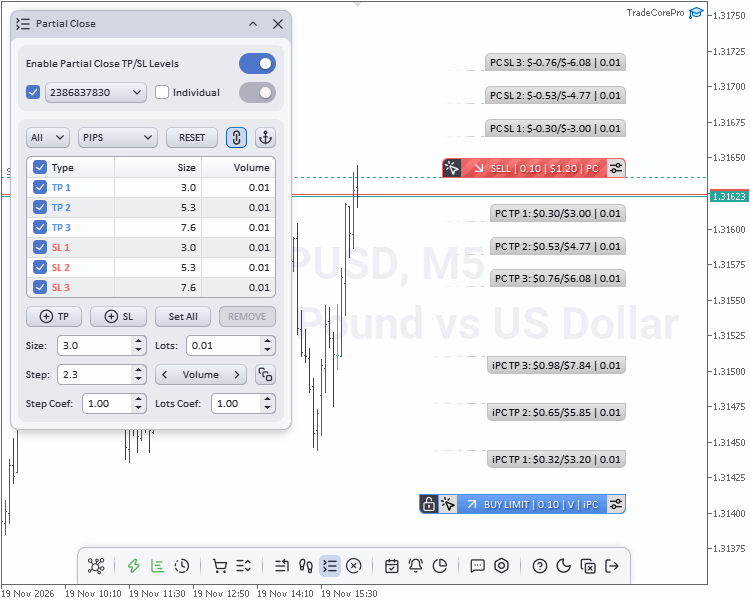
Figure 43. Partial Close levels on the chart
In Figure 43, the SELL position runs three PC TP levels on the profit side and three PC SL levels on the loss side. The level tag PC TP 1: $0.30/$3.00 | 0.01 reads as follows: the profit of the part being closed, the profit of the remaining position at that level, and the volume being closed. The BUY LIMIT pending order has levels marked iPC TP: individual settings are prepared in advance and pass to the position after the order fills (section 4).
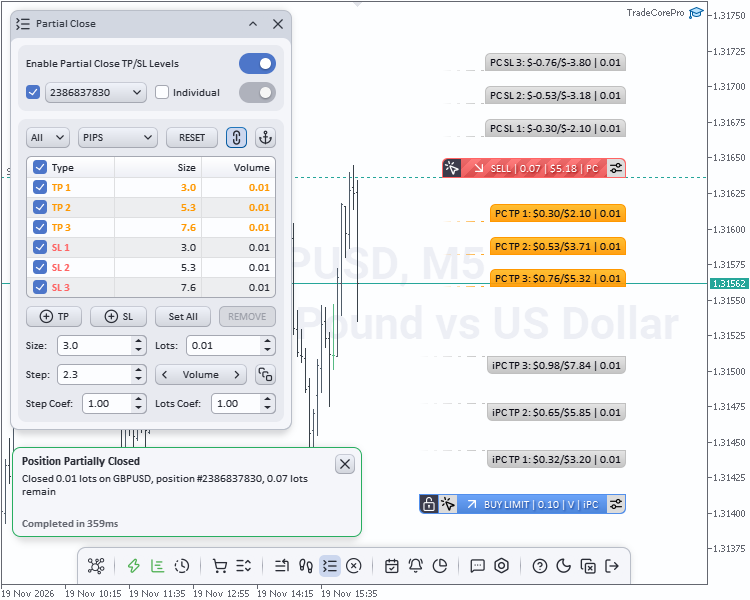
Figure 44. Partial Close after level execution
In Figure 44, price has passed all three PC TP levels: the executed levels are highlighted orange and disabled, the position volume dropped from 0.10 to 0.07 lots, and a notification records each partial close with the remaining volume and the fill time.
10. Close Positions Section. Bulk Close and Risk Limits
The Close Positions window combines two tools: manual closing of position groups and automatic closing when a result limit is reached.
10.1. Closing by Groups
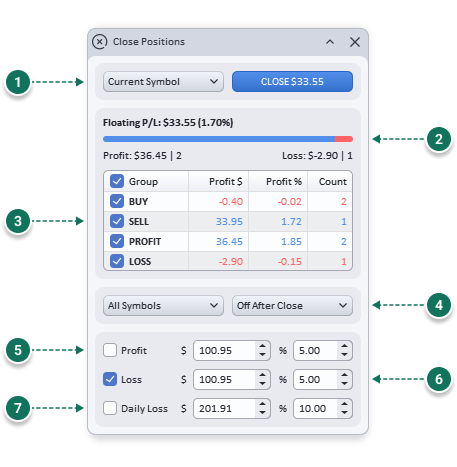
Figure 45. Close Positions window
- Close-scope list Current Symbol or Account and CLOSE button — closes all positions of the checked groups within the selected scope: the current symbol or the whole account.
- Floating P/L panel — a colored bar of the profit and loss share, and below it the totals by side: the sum and count of profitable and losing positions.
- Group table — BUY, SELL, PROFIT and LOSS checkboxes with the result and position count of each group. The header checkbox checks all groups at once.
- Rule-scope lists Current Symbol or All Symbols and the after-close action Off After Close or Keep On.
- Profit checkbox and limit fields in currency and percent — close when the floating profit reaches the limit.
- Loss checkbox and limit fields — close when the loss limit is exceeded.
- Daily Loss checkbox and limit fields — close when the daily loss across the whole account is exceeded.
How groups close. Check one or more groups in the table (3) and press CLOSE (1): all positions belonging to at least one checked group are closed, and the button shows their combined floating result. For example, checking SELL and PROFIT closes all sells and all profitable positions of the scope. Pending orders are not affected by group closing.
10.2. Conditional Auto-Close with Close If and the Daily Limit
The Close If rules (5-7) watch the result continuously, even while the window is closed. The rule scope is selected with the list (4): Current Symbol watches the floating result of the current symbol, All Symbols the result of the whole account. The Daily Loss rule (7) is only available for All Symbols and counts the daily loss: the sum of the result already locked in during the day plus the current floating one.
Each rule's limit is set in account currency or in percent of balance: the fields are linked and the last edited value takes effect. The Profit and Loss rules can be enabled at the same time.
Action after triggering. In Off After Close mode (4), after closing, all rule checkboxes are automatically unchecked and auto-close stops until the next enabling. The Keep On mode leaves the rules enabled: new positions also come under control. On every trigger the module shows a notification and sends a push message.
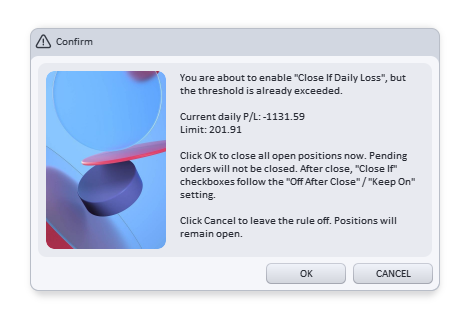
Figure 46. Close If confirmation at an exceeded limit
If a rule's condition is already exceeded at the moment it is enabled, the application shows a confirmation with the current result and the limit (Figure 46). OK closes the open positions at once, pending orders are not affected. Cancel leaves the rule disabled and the positions open.
Part 5. Monitoring and Analytics →