✔️ Trades Time Manager MT4©: https://www.mql5.com/en/market/product/103716
✔️ Trades Time Manager MT5©: https://www.mql5.com/en/market/product/103715
Attach Trades Time Manager to one chart only. Every chart that has the tool runs its own task list, so two charts could run the same task twice.
Your trades. On time. Every time.
Stop watching the clock. With Trades Time Manager you write a list of tasks, each with a date, a time and an action, and the tool runs them for you on the server time: open a Buy or a Sell, place a stop or a limit order, close your trades, move the stop loss to break-even, change the take profit or cancel the pending orders.
Choose which days of the week a task repeats. Ask for a confirmation or a countdown before it runs, decide what happens to a task that was missed, and get an alert before, after and when something fails.
👉 Plan your trading day once, let the tool keep the time, and keep your trading disciplined.
Installation:
- Buy or download Trades Time Manager from the MQL5 Market, then open MetaTrader and go to the "Navigator" window, "Expert Advisors" section.
- Drag "Trades Time Manager" onto one chart. Make sure "Allow Algo Trading" (MT5) or "Allow live trading" (MT4) is enabled in the Common tab, and that the Algo Trading / AutoTrading button in the toolbar is on. The tool has no other inputs: everything is set in the panel.
- The tool trades only what is in your task list, at the time you chose. It does not give signals and does not trade by itself.
- Open the "New task" tab, fill in your first task and press "Add task".
Main Panel Explanation:
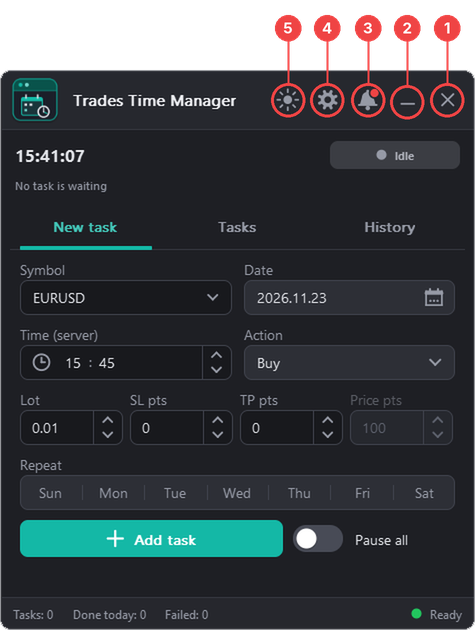
The five buttons in the title bar are numbered on the image:
-
❌Close Button: This button is used to stop the Expert Advisor (EA) and remove it from the chart. Your tasks, history and settings are kept and come back when you attach the EA again.
-
➖Minimize Button: This button is used to collapse the panel to its title bar. Click it again to open the panel.
-
🔔Notifications Button: This button is used to open the notifications panel for the tool. The notifications panel displays important notifications and news about the EA. A red dot shows that there is a new message.
-
⚙️Settings Button: This button is used to open the settings panel. The settings panel allows you to configure everything in the tool (General, Tasks, Alerts and Data tabs).
-
🌗Theme Button: This button is used to switch the panel between a light and a dark look quickly. You can pick any of the 5 themes in the General tab of the settings panel.
The rest of the main panel:
- Server clock: the server time of your broker. All tasks run on this time.
- State chip: Running (tasks are waiting and will run), Idle (no task is waiting), Paused (Pause all is on) or Blocked (Algo Trading is off, so no task can run). The colour of the panel follows the state at once.
- Next task: the next task with its countdown, for example "Next: Buy EURUSD - in 04:12".
- Tabs: New task, Tasks and History (see below).
- Status bar: the number of tasks, the tasks done today and failed today, and on the right Ready, Algo trading off or No connection.
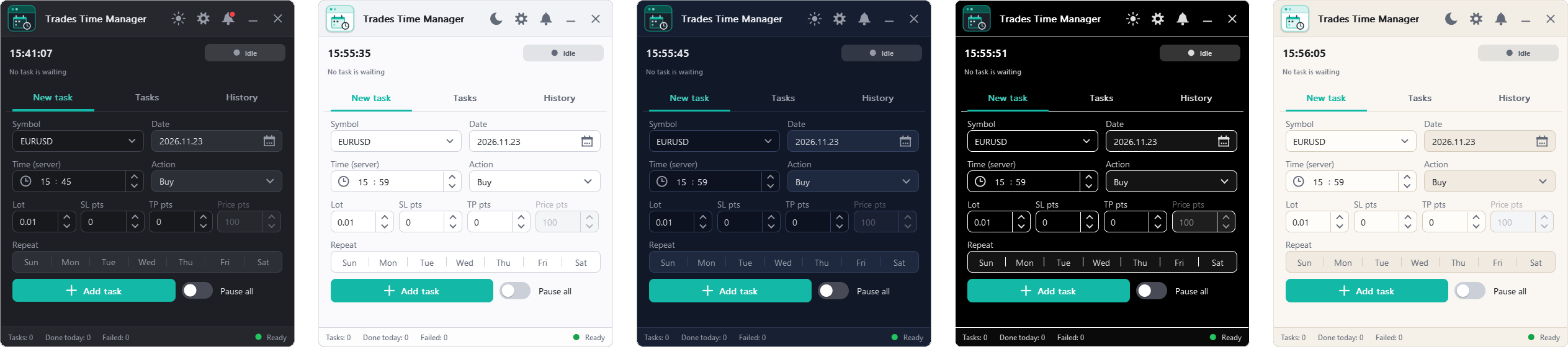
Themes:
Trades Time Manager comes with 5 themes: Dark, Light, Midnight, Contrast and Soft. Pick one in the General tab of the settings panel, or switch quickly between a light and a dark look with the Theme button. The logo follows the accent colour you choose.
How it works:
From the panel, you can:
- Build a list of timed tasks: one action, one symbol (or all symbols), one date and time.
- Run 15 actions: Buy, Sell, Buy Stop, Sell Stop, Buy Limit, Sell Limit, Close Buy only, Close Sell only, Close by symbol, Close all, Close profit, Close loss, Move SL to break-even, Modify TP and Cancel all pending.
- Repeat a task on the days you choose, from Sunday to Saturday.
- Be asked, or get a countdown with a Cancel button, before a task runs.
- Choose what happens to a task that was missed (for example when the terminal was off): Skip, Run late or Ask me.
- Pause all tasks with one button, and see every result in the History.
- Get alerts before a task, when it is done, when it fails and when it is missed: pop-up, sound, push or email.
- Export and import your task list as a file, and change the theme, the language and the size of the panel.
Quick start:
- Attach the EA to one chart and open the "New task" tab.
- Choose the symbol, the action, the date and the time (server time). Add the lot, SL, TP and Price if the action uses them.
- Choose the repeat days, or leave them empty to run once.
- Press "Add task". The task appears in the "Tasks" tab with its countdown.
New Task Tab Explanation:
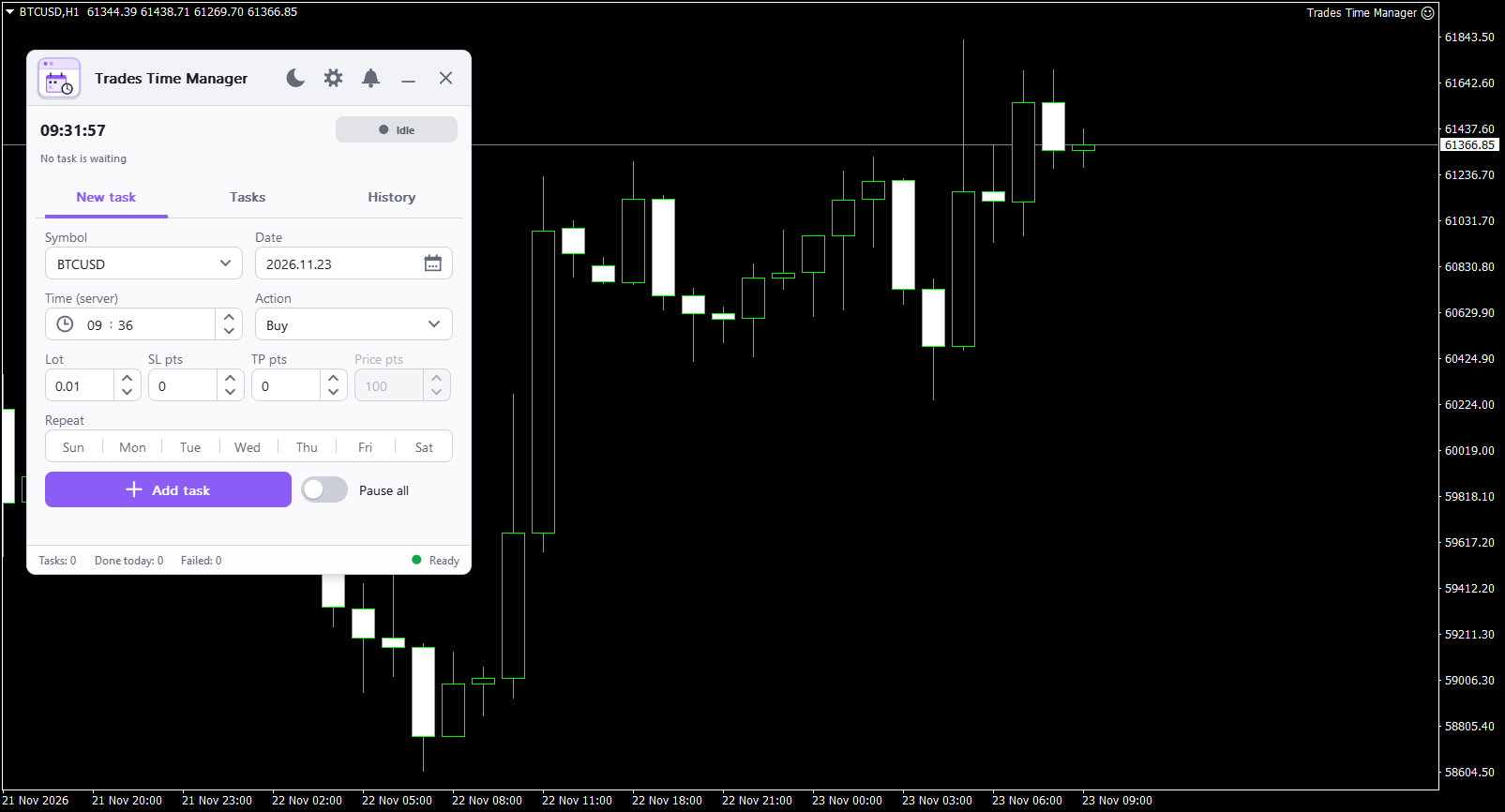
- Symbol: the symbol of the task. For Close, Move SL to break-even, Modify TP and Cancel actions the first choice is "All symbols"; pick a symbol to act on that symbol only.
- Action: what the task does (the 15 actions above). Fields that the action does not use are greyed out.
- Date and Time (server): when the task runs.
- Lot: the volume of the order. It is checked against the minimum, the maximum and the step of the symbol.
- Price (points away): for pending orders, the distance in points from the market. A limit order gets a better price, a stop order a worse one.
- SL (points) and TP (points): the stop loss and the take profit, in points from the entry. For Modify TP, the TP is set that many points from the open price of the trades.
- Repeat: the days of the week on which the task repeats (Sun to Sat). With no day chosen, the task runs once.
- Add task: checks the task and adds it. If something is wrong (the time is in the past, the symbol does not exist, the lot is not allowed, the stop is closer than the stop level) a message under the button tells you what to change. The same checks run again when the task runs.
- Pause all: stops every task until you switch it off.
Tasks and History Explanation:
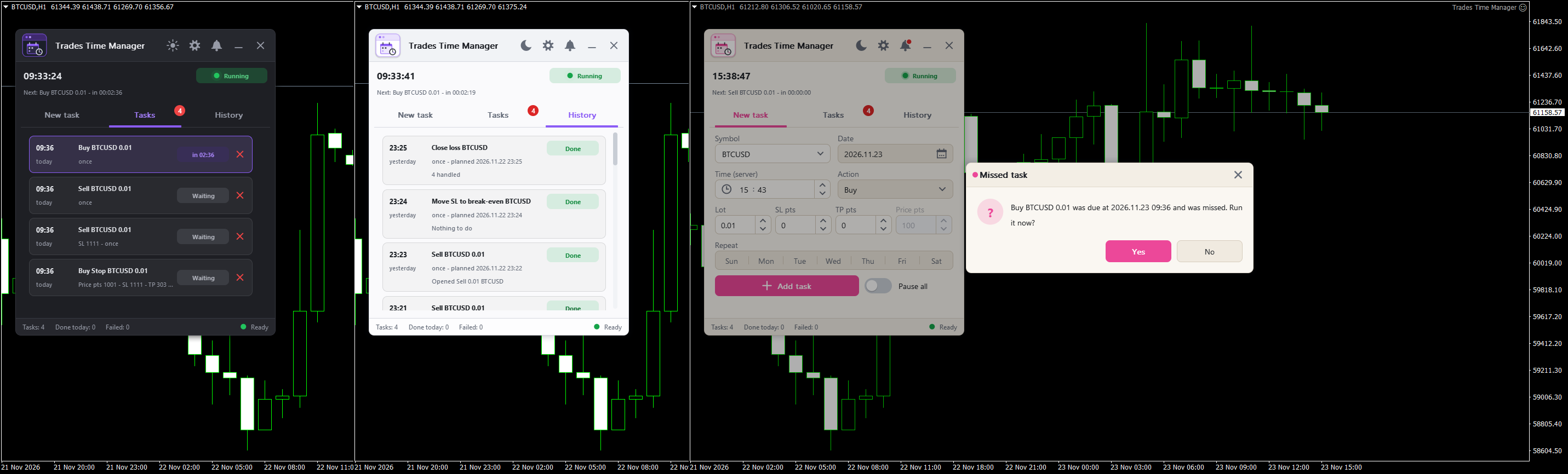
- Tasks tab: every waiting task as a card with its time, day, action, details and status. The next task is marked with its countdown. Press the x on a card to delete the task. "Remove finished tasks" cleans the list.
- History tab: every task that ran, failed, was missed or was cancelled, with the time, the action, the lot, the price, SL and TP, the planned time and the result (the ticket, the number of closed trades, or the reason of a failure).
- A task that runs once moves to the History with its result. A repeating task is kept in the History for each run and waits for its next day.
- Dashboard cards: Waiting, Done today and Failed today, so you see the day at a glance.
Settings Panel Explanation:
The settings panel has four tabs: General, Tasks, Alerts and Data. Every change is saved at once. Press Done to go back to the panel, or Reset to defaults to start again. Point at any setting to see a tooltip that explains it.
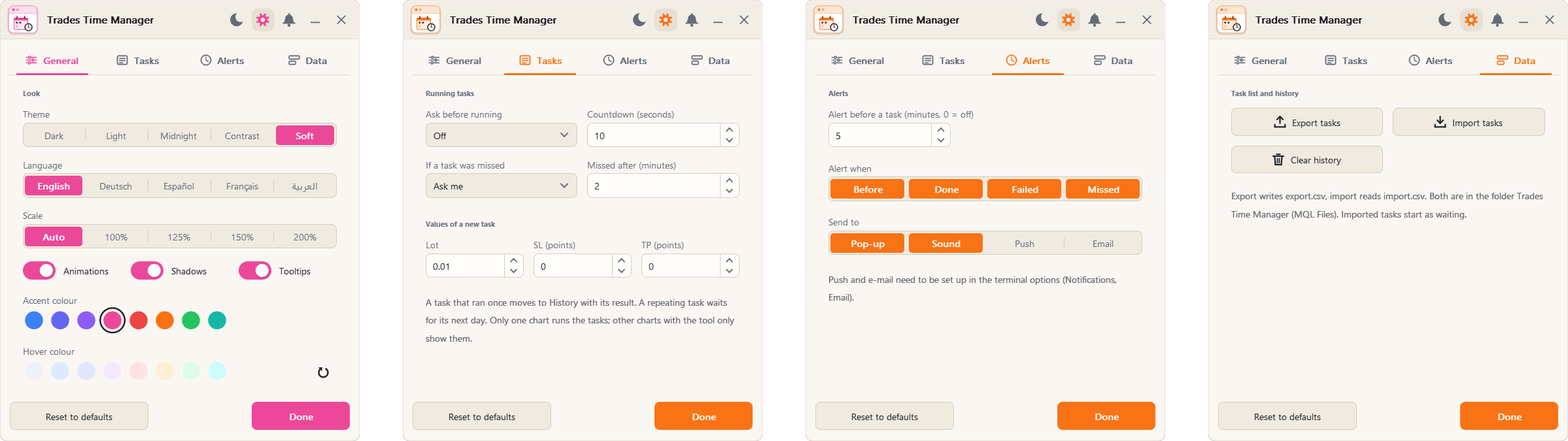
General tab
- Animations: turn the panel animations on or off.
- Shadows: turn the shadows of the windows on or off.
- Tooltips: turn the help texts on or off.
- Language: English, Deutsch, Español, Français or Arabic (Arabic shows right to left).
- Scale: Auto, 100%, 125%, 150% or 200%. Use a bigger scale on high resolution screens.
- Theme: Dark, Light, Midnight, Contrast or Soft.
- Accent colour: the main colour of buttons and highlights. The logo follows it.
- Hover colour: the colour of a button when you point at it. The arrow button goes back to the theme's hover colour.
Tasks tab
- Ask before running: Off (just run), Ask (a Yes / No box) or Countdown (a message with a Cancel button).
- Countdown (seconds): the time you have to cancel a task in the Countdown mode.
- If a task was missed: Skip, Run late or Ask me.
- Missed after (minutes): how late a task may be and still count as on time.
- Values of a new task: the lot, SL, TP and other values the New task tab starts with.
Alerts tab
- Alert before a task (minutes): how long before a task you get the alert. 0 = off.
- Alert when: Before, Done, Failed and Missed.
- Send to: Pop-up, Sound, Push and Email. Push and Email need to be set up in the terminal options (Notifications, Email).
Data tab
- Export tasks: writes your task list to the file export.csv.
- Import tasks: reads the file import.csv (same format as the export). Imported tasks start as waiting.
- Clear history: removes all the results from the History tab.
- Both files are in the folder "Trades Time Manager" inside MQL Files (the Data Folder of the terminal).
Notifications Panel Explanation:
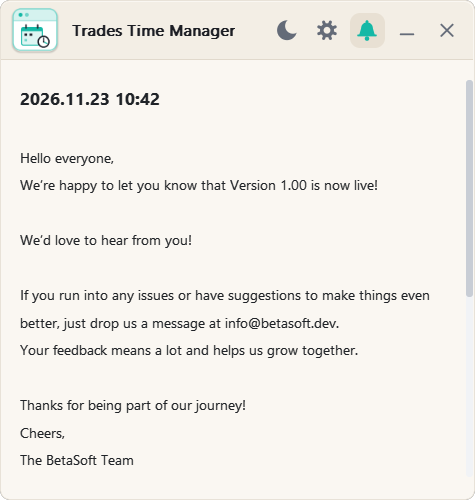
Open it with the bell button (3 on the main panel image). A red dot on the bell shows that there is a new message.
The Date refers to the date and time when the notification was generated.
The Notification refers to the message that is displayed. This can include information about the EA or the updates or message from the developer.
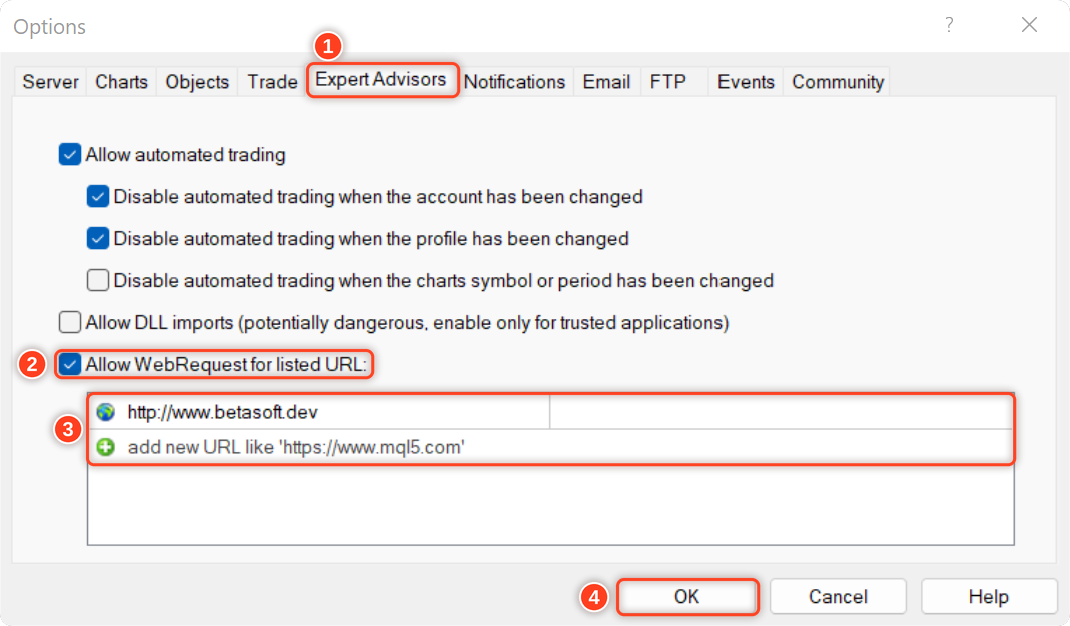
To allow EA getting the notifications, you need to add our website link to the list of allowed URLs in the platform's settings.
Here are the steps to add a link to the allowed URLs list in MetaTrader (Check The Image Below):
- Open the MetaTrader platform and go to "Tools" in the top menu, then select "Options".
- In the "Options" window, click on the "Expert Advisors" tab.
- Check the "Allow WebRequests for listed URL" option and click on the "Add" button.
- In the "New URL" field, enter the URL that you want to allow web requests for (http://www.betasoft.dev).
- Click "OK" to save the URL to the list of allowed URLs.
Why Traders Love Trades Time Manager
✅ Never miss a time – tasks run on the server time, even when you are away from the screen.
✅ 15 actions – open, pending, close, break-even, modify TP and cancel orders.
✅ Repeat on your days – one task for every Monday, or from Monday to Friday.
✅ Stay in control – confirm, countdown, cancel, pause all and a clear history.
✅ Safe by design – every task is checked when you add it and again when it runs.
✅ Always informed – alerts by pop-up, sound, push and email.
✅ Made for your screen – 5 themes, 5 languages, tooltips and a scalable panel.
We’d love to hear what you think about the tool! Please feel free to share your feedback and let us know if there are any improvements you’d like to see. Please contact me for any questions or assistance here.
✔️ Trades Time Manager MT4©: https://www.mql5.com/en/market/product/103716
✔️ Trades Time Manager MT5©: https://www.mql5.com/en/market/product/103715