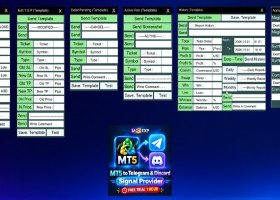
This is the complete user guide for Chakana Trade Panel 2.00 (MetaTrader 5 and MetaTrader 4): the lot modes, the SL / TP lines, pending orders, automatic management and the close-at-target rule, with starting values. Product pages: MT5 · MT4. Live demo video: youtu.be/jMhcHO65YtE.
1. Install
- Attach the EA to the chart of the symbol you trade and allow Algo Trading.
- Trades managed by the panel: only trades opened by this panel (magic number, the default) or all trades on the chart symbol, including manual trades and trades from the phone. Choose the second if you want trailing, break-even and the close buttons to act on everything you trade on that symbol.
- Keep the terminal running: trailing, automatic break-even and the close-at-target rule work inside your terminal.
2. Lot: fixed or by risk
- Switch the mode on the panel: fixed lot, risk % of balance or fixed risk amount in the account currency.
- In the risk modes the lot is calculated from the stop-loss distance and rounded down, so the risk is never above what you chose. The panel shows the money at risk and the margin before you click.
- The risk modes need a stop loss: type it in points or use the lines. Default stop loss = 0 means no stop until you set one.
3. SL and TP lines on the chart
- Show them with the lines button (or L with hotkeys on). Each line shows the money at stake; in the risk modes the lot follows the stop while you drag it.
- SELL and BUY open at market with the stop and target of the lines.
- Modify all applies the current lines to every open position in scope with one click.
4. Pending orders
Drag the amber line where you want to enter. The panel picks Limit or Stop from where the line sits: below the price a buy is a Buy Limit and a sell is a Sell Stop; above the price a sell is a Sell Limit and a buy is a Buy Stop. The SL and TP lines move with the entry line, and in the risk modes the lot is sized from the entry to the stop. Initial distance of the pending line sets where the line appears (200 points by default).
5. Automatic management
- Trailing stop: points (distance from the price), ATR x multiplier or low / high of the last N closed candles. It starts at Start trailing at this profit and only moves when the stop improves by at least the step.
- Automatic break-even at a profit in points, with an offset beyond the entry for commission and spread.
- Starting values: break-even at 150 points with 2 points of offset; trailing by ATR(14) x 2 starting at 200 points. Adjust the point values to the symbol: 200 points are 20 pips on EURUSD but only 2 USD on gold quoted with 2 decimals.
6. Close all at a P/L target
Set a floating profit target and/or a floating loss limit, in money or % of balance. When one is reached the panel closes every position in scope; the distance to each target is shown on the panel.
7. Manual management
Partial close by % (50 % by default), break-even with the offset, reverse, delete pendings, and close by type: all, winners, losers, buys, sells. The live list shows every position with its P/L and a close button. Hotkeys (B buy, S sell, C twice close all, E break-even, R reverse, L lines) are off by default; turn them on only if you want them, and test them on a demo first.
8. Check it in 5 minutes
- Run the free demo in the Strategy Tester in visual mode: it opens, manages and closes demo trades with the minimum lot.
- On a demo account, choose 1 % risk, drag the stop and compare the lot and the money at risk with your own calculation.
Questions: product comments or private message. If the panel saves you time, a short review helps other traders find it.
Trade Panel is an order management tool. It does not predict the market and does not promise profits. Trading involves risk of loss.