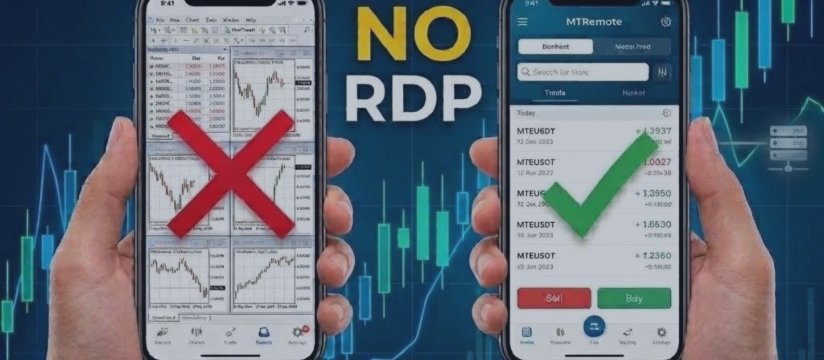
MT5 Mobile Doesn't Run EAs: 3 Ways to Control Your Expert Advisor From Your Phone

You open MetaTrader 5 on your phone, look for a way to attach your Expert Advisor - and there isn't one. That's not a hidden setting. The MT4 and MT5 apps for Android and iOS simply don't run EAs, custom indicators or scripts. Your EA lives in the desktop terminal on Windows, on a PC or a VPS, and nowhere else.
So the real question isn't how to run an EA on a phone. It's how to stay in control of the terminal where it runs.
The gap nobody warns you about
The mobile app talks to your broker's server, not to your terminal. It shows your balance, positions and history - including trades the EA opened - and lets you trade by hand. What it can't show is the state of the terminal itself.
If your VPS restarted overnight and the EA never came back, the app shows nothing unusual. The account looks fine. There are just no new trades, and you find out hours later.
The app also can't:
- attach, stop or remove an EA, or change its inputs
- show the Experts log, so you can't see why a trade wasn't opened
- show the comments your EA prints on the chart
- apply your chart templates
Way 1: remote desktop
RDP, AnyDesk or TeamViewer give you the whole desktop terminal on your phone. Everything is possible, but a desktop UI on a 6-inch screen over mobile data is slow and fiddly. An open RDP port on a VPS is also a constant target for brute-force bots.
Way 2: push notifications
If your EA calls SendNotification, it can alert you through your MetaQuotes ID. Useful, but one-way: you learn that something happened and still can't act on it. And it only works if the EA's author built notifications in.
Way 3: a control panel for the terminal
MTRemote connects your terminal to a control panel you open in your phone's browser. A small EA on a chart links the terminal to MTAgent on the same PC or VPS, and the connection is end-to-end encrypted - no RDP, no open ports.
From the panel you can attach or remove any EA, apply templates, read the Experts and Terminal logs, see your EA's chart comments, check that the terminal is online, and trade.
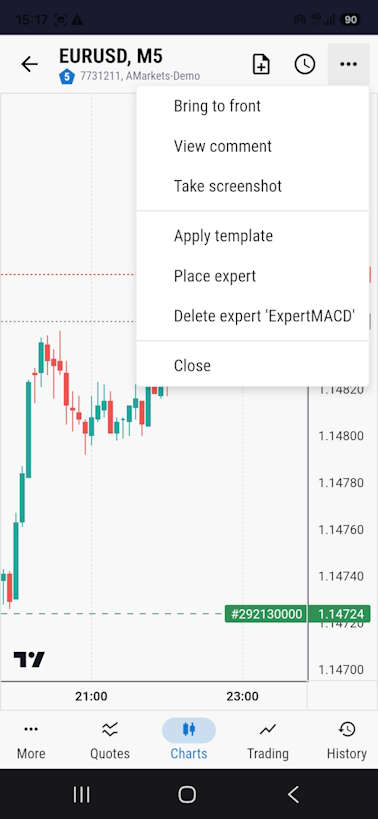
How to set it up
- Run the EA in the desktop terminal on a PC or VPS that stays on.
- Connect the terminal to MTRemote, and control your EAs, read the logs and check that the terminal is online - right from your phone.
- Trade from the same panel: MTRemote supports all trade operation types, so you don't need a separate mobile app.
MTRemote is available on MQL5 Market: MT5 Remote for MetaTrader 5 and MT4 Remote for MetaTrader 4. Questions are welcome in the Comments tab of either product page.


