

This illustrated guide walks through the Fibo Nova workspace, signal lifecycle, display controls, Instrument Radar, observed records, notifications and all 41 settings. Follow the numbered sections alongside the matching guide images.
Table of Contents
- User Guide Cover
- Start Here
- Workspace Overview
- Read the Sidebar
- Entry and Target Levels
- Follow the Signal Lifecycle
- Quality and Live Structure
- Display Controls
- Navigation and Artwork
- Instrument Radar
- Manage and Add Symbols
- Observed Activity
- Signal Pips and Units
- Sessions and Notifications
- Troubleshooting
- Artwork and Chart Overlays
- Live Cards and Pip Display
- History and Alert Channels
- Session Timeline and Clock
- Sydney Manual Hours
- Tokyo Manual Hours
- London Manual Hours
- New York Manual Hours
- Detailed Pip Unit Settings
1. User Guide Cover
Fibo Nova is an indicator for MetaTrader 5 that brings the focused setup, Fibonacci levels, entry and target prices, live multi-timeframe structure, Instrument Radar, session context and observed signal records into one chart workspace. This guide explains how to read the interface and configure its 41 settings.
- The indicator displays signal levels. It does not open orders, move broker stops or close account positions.
- Quality scores describe rule-based qualification. Signal Pips record observed signal stages rather than account profit.
- The screenshots are examples. Prices, scores and totals can differ between captures and should be read in their own symbol, timeframe and observation context.

2. Start Here
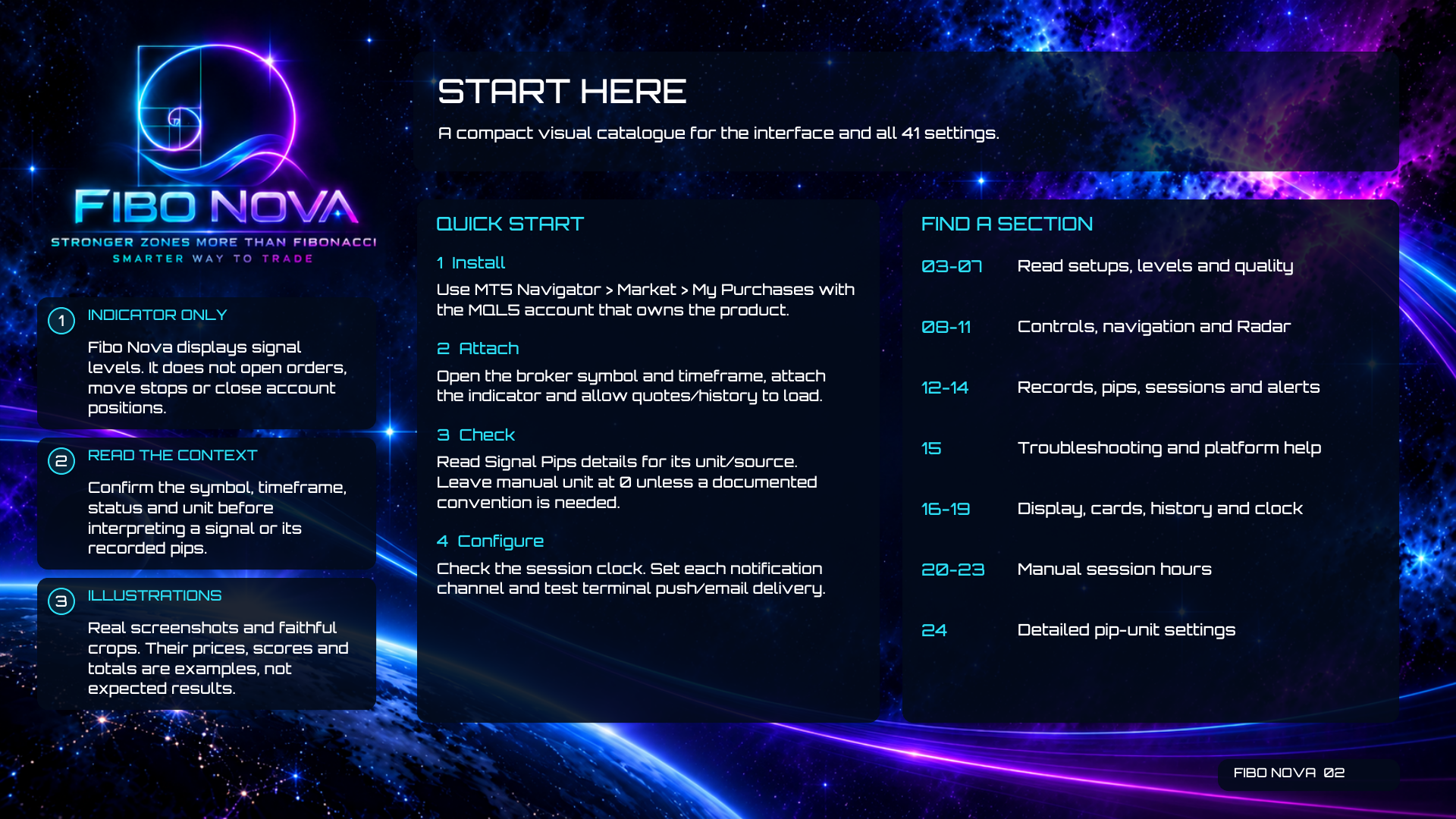
Begin with the correct product account, broker symbol and chart timeframe. Allow market quotes and history to load before interpreting the display.
- Install through MT5 Navigator > Market > My Purchases using the MQL5 account that owns the product.
- Open the required broker symbol and timeframe, then attach Fibo Nova.
- Open the Signal Pips details and check the unit and source. Leave the manual pip unit at 0 unless you need a documented convention.
- Check the session clock, configure each required notification channel and test terminal push or email delivery.
3. Workspace Overview
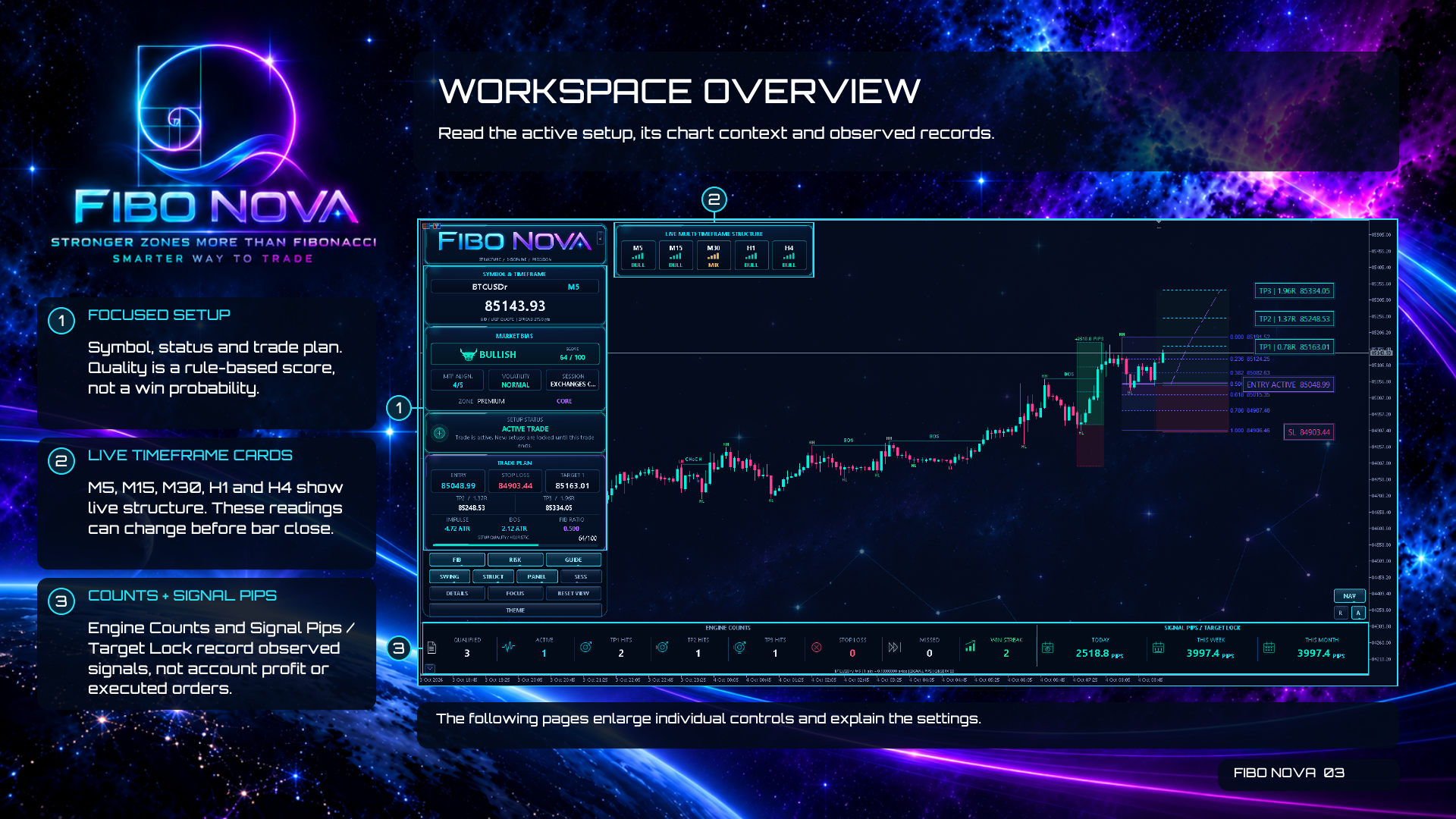
The workspace combines the focused setup, live timeframe cards and observed activity. Read these areas together while keeping their purposes separate.
- Focused setup: identify the symbol, current status, planned levels and rule-based quality score.
- Live timeframe cards: compare M5, M15, M30, H1 and H4 structure. Live readings can change before the current bar closes.
- Engine Counts and Signal Pips / Target Lock: review observed signals and stages. These are not executed-order counts or account profit.
4. Read the Sidebar
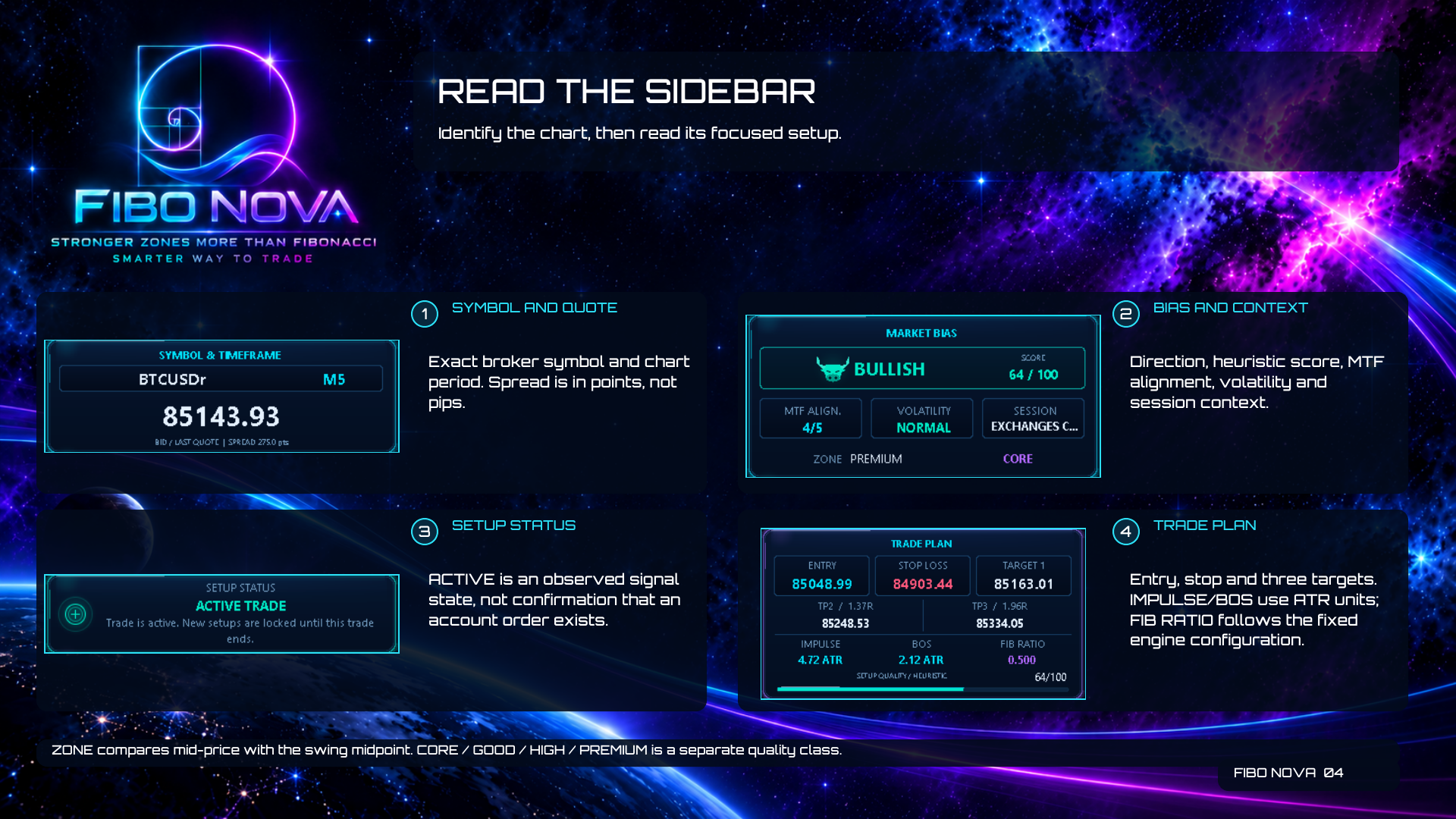
Start at the symbol and quote area, then move through bias, context, setup status and the trade plan.
- The symbol and chart period identify the active chart. Spread is displayed in points, not pips.
- Bias and context include direction, heuristic score, MTF alignment, volatility and session information.
- ACTIVE is an observed signal state; it does not confirm that a broker order exists.
- The plan shows entry, stop and three targets. IMPULSE and BOS use ATR units; FIB RATIO follows the fixed engine configuration.
Usage note: ZONE compares mid-price with the swing midpoint. CORE, GOOD, HIGH and PREMIUM are separate quality classes.
5. Entry and Target Levels
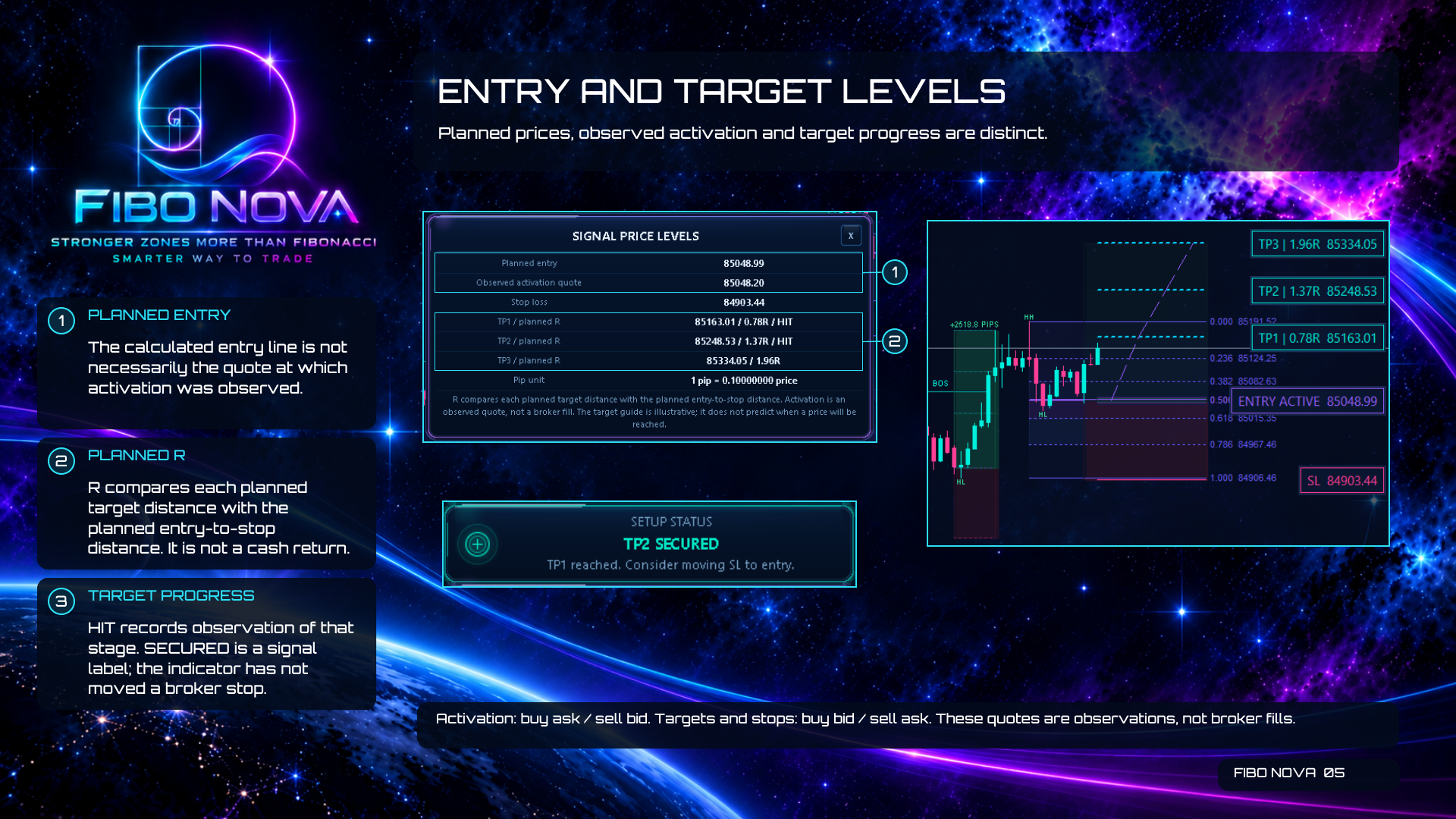
Planned levels, observed activation and target progress are different parts of the display.
- The planned entry is the calculated entry line. It may differ from the quote at which activation is observed.
- Planned R compares each target’s distance from planned entry with the planned entry-to-stop distance. It is not a cash return.
- HIT records observation of a target stage. SECURED is a signal label and does not mean a broker stop has been moved.
Usage note: Activation uses buy ask or sell bid. Target and stop observation uses buy bid or sell ask. These are observed quotes, not broker fills.
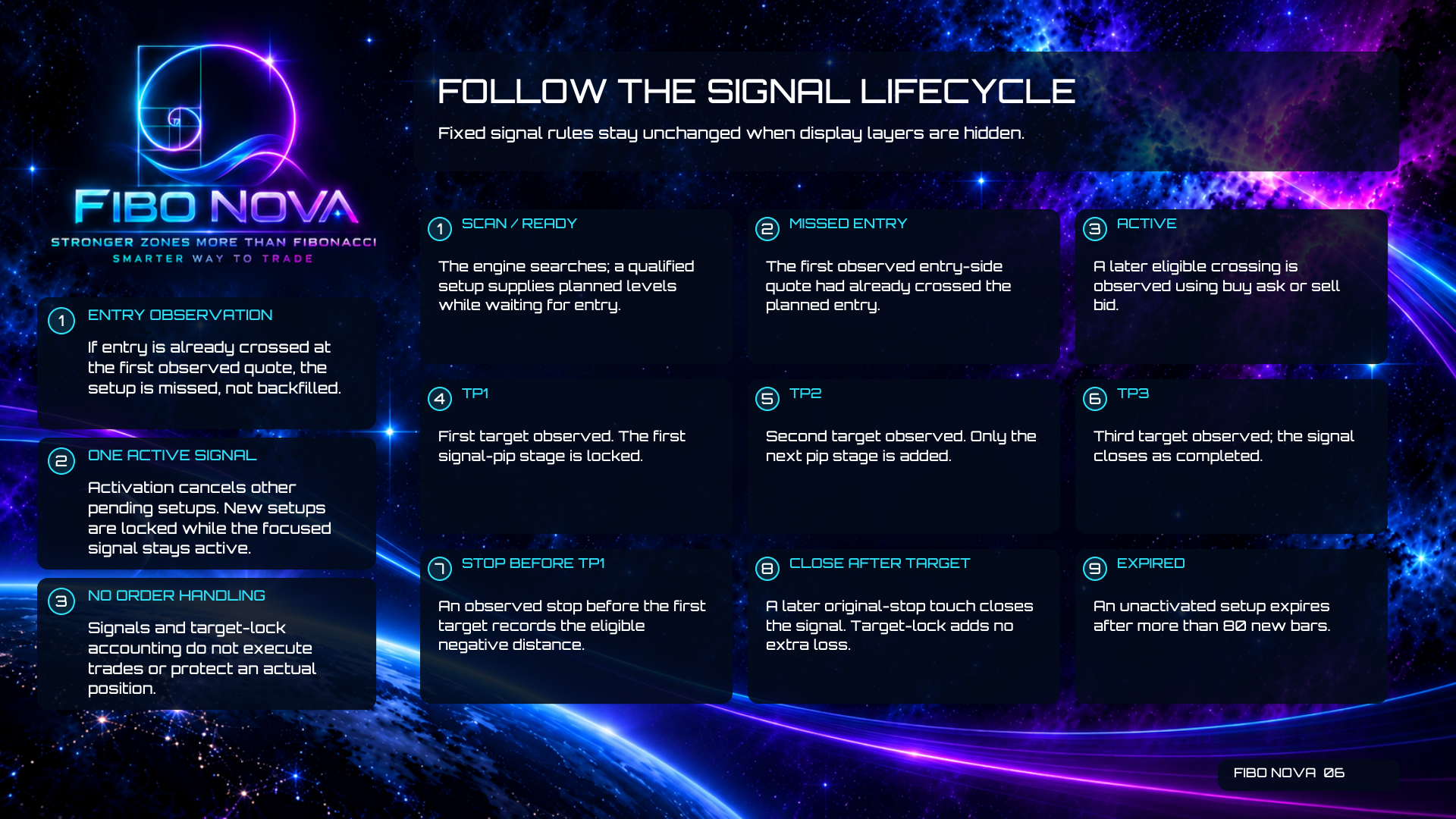
6. Follow the Signal Lifecycle
The signal lifecycle follows fixed rules. Hiding chart layers does not change qualification.
- SCAN / READY: the engine searches and a qualified setup supplies planned levels while awaiting entry.
- MISSED ENTRY: the first observed entry-side quote has already crossed the planned entry. The setup is not backfilled.
- ACTIVE: a later eligible crossing is observed. Activation cancels other pending setups; new setups are locked while the focused signal remains active.
- TP1, TP2 and TP3: the first reached stage locks its signal-pip contribution; each later reached target adds only the next stage. TP3 closes the signal as completed.
- STOP BEFORE TP1: an observed stop records the eligible negative distance.
- CLOSE AFTER TARGET: a later touch of the original stop closes the signal without an additional target-lock loss.
- EXPIRED: an unactivated setup expires after more than 80 new bars.
Usage note: The lifecycle and target-lock accounting do not execute trades or protect a real position.
7. Quality and Live Structure
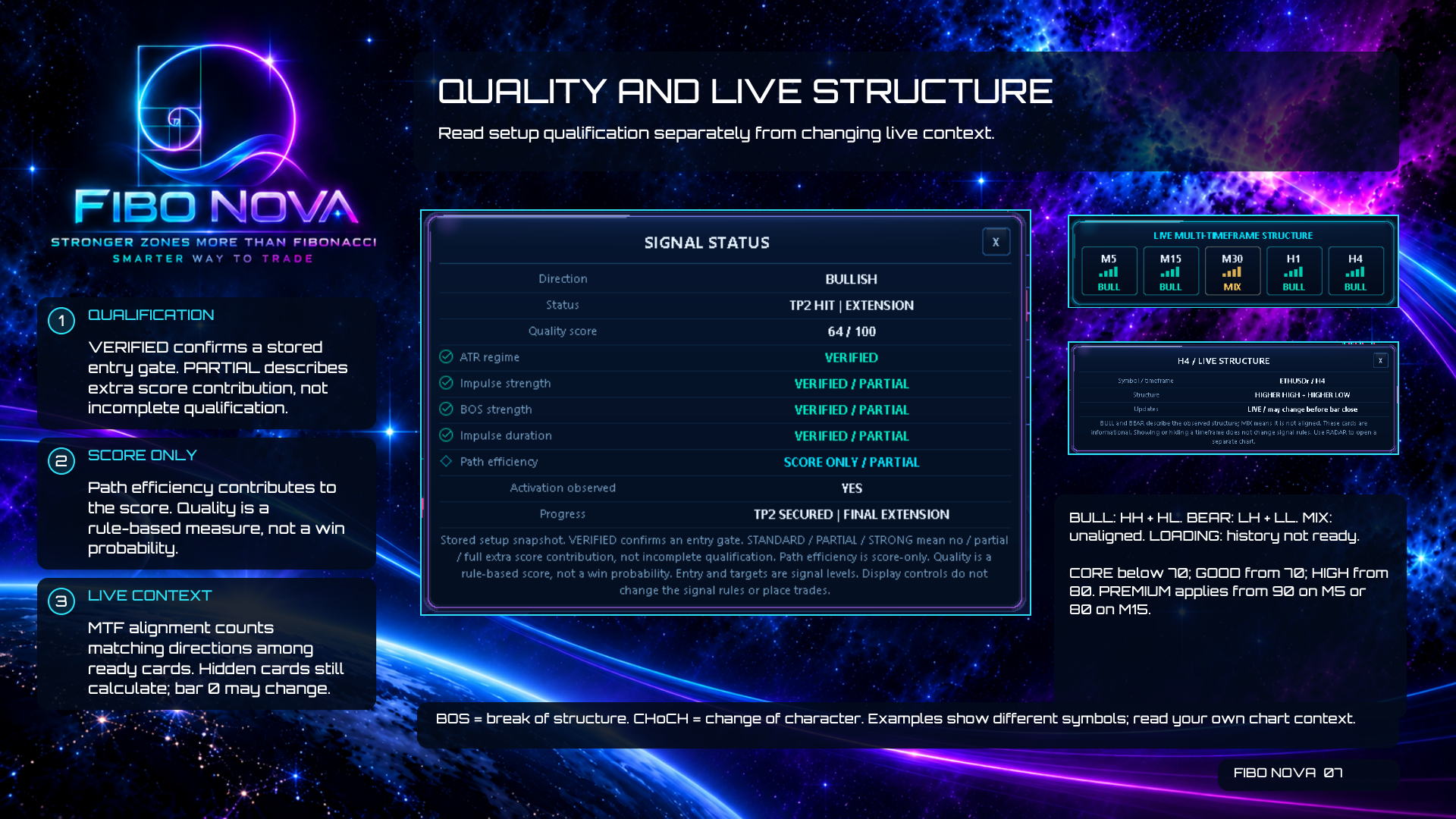
Read stored setup qualification separately from the changing live market context.
- VERIFIED confirms a stored entry gate. PARTIAL describes an extra score contribution, not incomplete qualification.
- Path efficiency contributes to the score. Quality is a rule-based measure, not a win probability.
- MTF alignment counts matching directions among ready cards. Hidden cards still calculate, and the current bar can change.
- BULL means HH + HL; BEAR means LH + LL; MIX means unaligned; LOADING means history is not ready.
- CORE is below 70, GOOD begins at 70 and HIGH begins at 80. PREMIUM applies from 90 on M5 or 80 on M15.
Usage note: BOS means break of structure. CHoCH means change of character. Always read the context of your own chart rather than comparing unrelated screenshot scores.
8. Display Controls
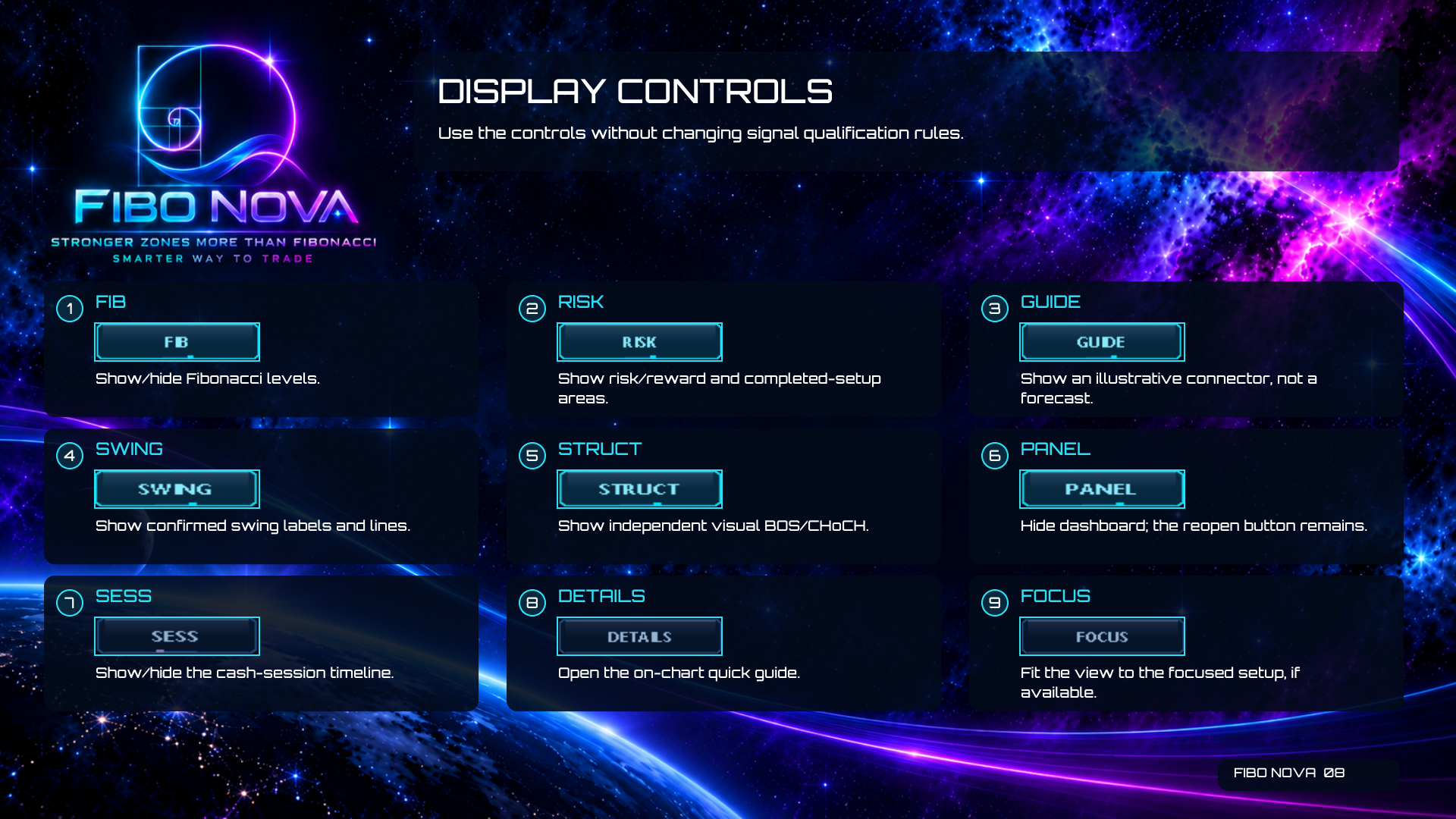
Use the on-chart controls to choose which visual layers are shown.
- FIB: show or hide Fibonacci levels.
- RISK: show risk/reward and retained completed-setup areas.
- GUIDE: show an illustrative connector. It is not a forecast.
- SWING: show confirmed swing labels and lines.
- STRUCT: show the independent visual BOS / CHoCH overlay.
- PANEL: hide the dashboard while leaving the reopen button available.
- SESS: show or hide the cash-session timeline.
- DETAILS: open the on-chart quick guide.
- FOCUS: fit the view to the focused setup when available.
Usage note: These display controls do not change signal qualification rules.
9. Navigation and Artwork
The original chart view, focused setup view and live-price view are separate destinations.
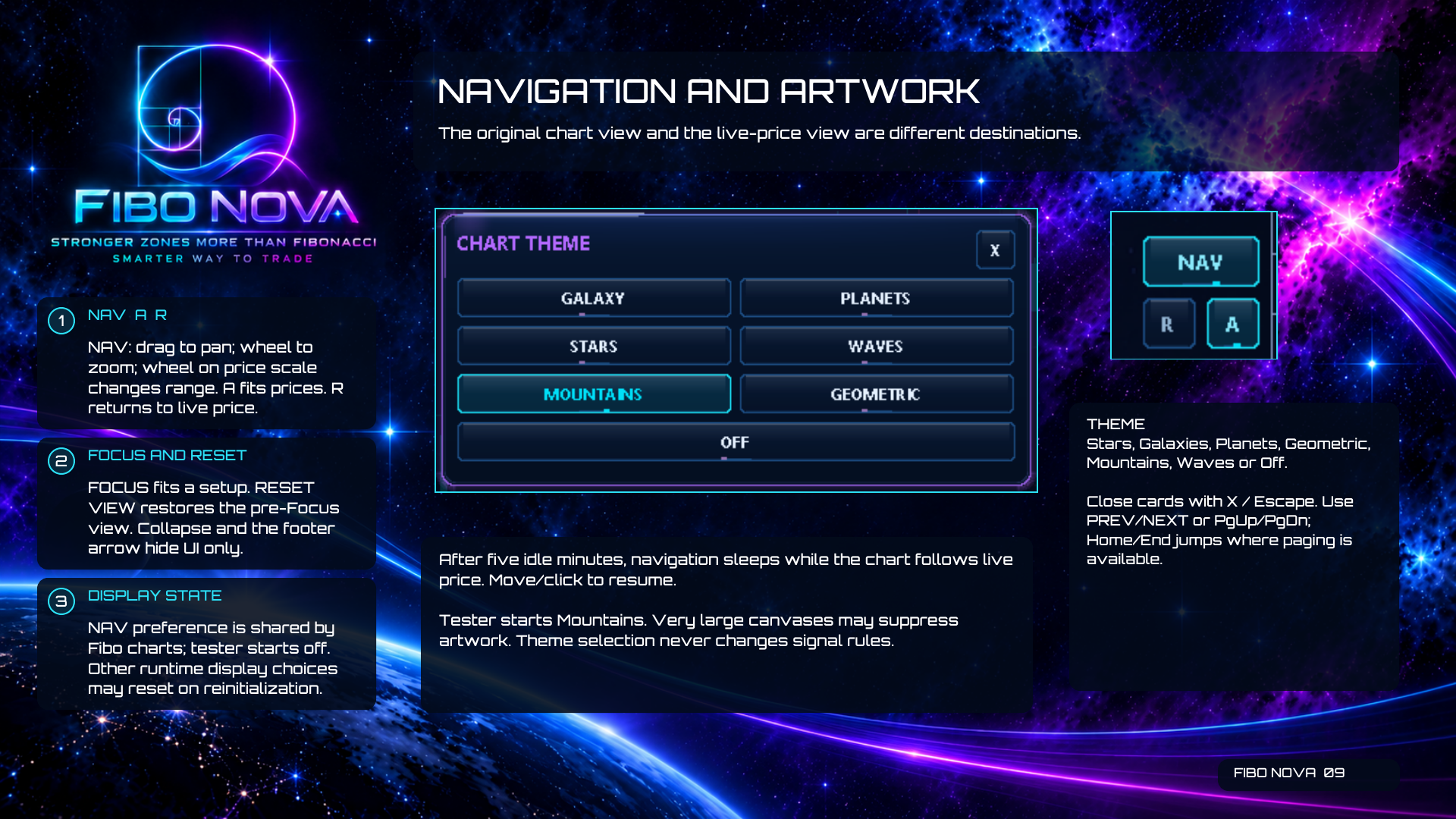
- NAV enables dragging to pan and the mouse wheel to zoom. Using the wheel on the price scale changes the range. A fits prices; R returns to live price.
- FOCUS fits the setup. RESET VIEW restores the pre-Focus view. Collapse and the footer arrow hide interface elements only.
- After five idle minutes, navigation sleeps while the chart follows live price. Move or click to resume.
- Close cards with X or Escape. Use PREV / NEXT or PgUp / PgDn; Home / End jumps where paging is available.
- Artwork choices are Stars, Galaxies, Planets, Geometric, Mountains, Waves and Off.
Usage note: NAV preference is shared by Fibo charts; the tester starts with NAV off and Mountains artwork. Other runtime display choices may reset on reinitialization. Very large canvases may suppress artwork. Themes never change signal rules.
10. Instrument Radar
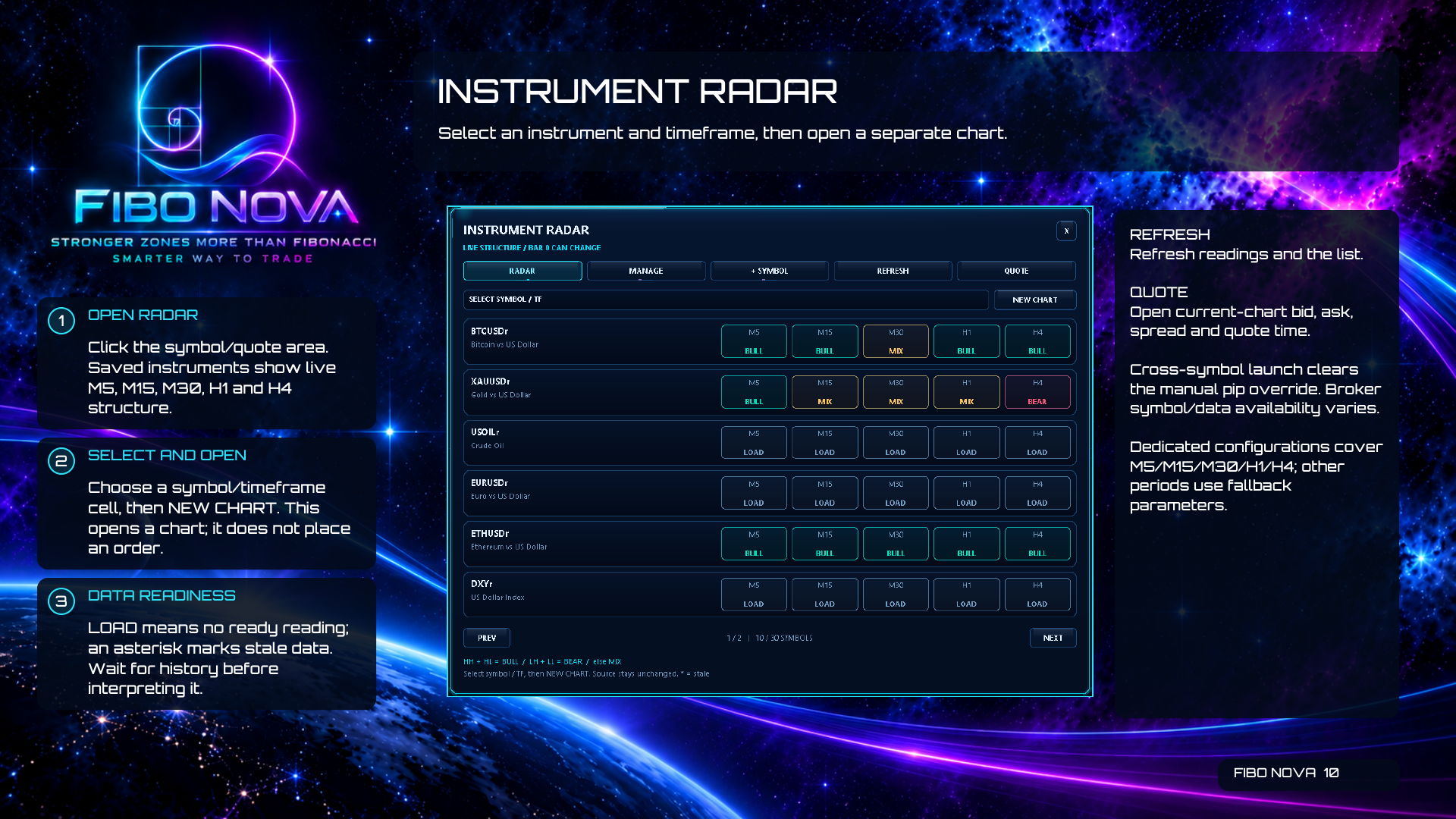
Instrument Radar lets you compare live structure across saved instruments and open a separate chart for the selected symbol and timeframe.
- Click the symbol / quote area to open Radar.
- Read the M5, M15, M30, H1 and H4 cells, select one, then choose NEW CHART. This opens a chart without placing an order.
- LOAD means no ready reading. An asterisk marks stale data. Wait for the required history before interpreting the cell.
- REFRESH updates readings and the list. QUOTE opens the current chart’s bid, ask, spread and quote time.
Usage note: Cross-symbol launch clears the manual pip override. Dedicated configurations cover M5, M15, M30, H1 and H4; other periods use fallback parameters. Broker symbol and data availability can vary.
11. Manage and Add Symbols
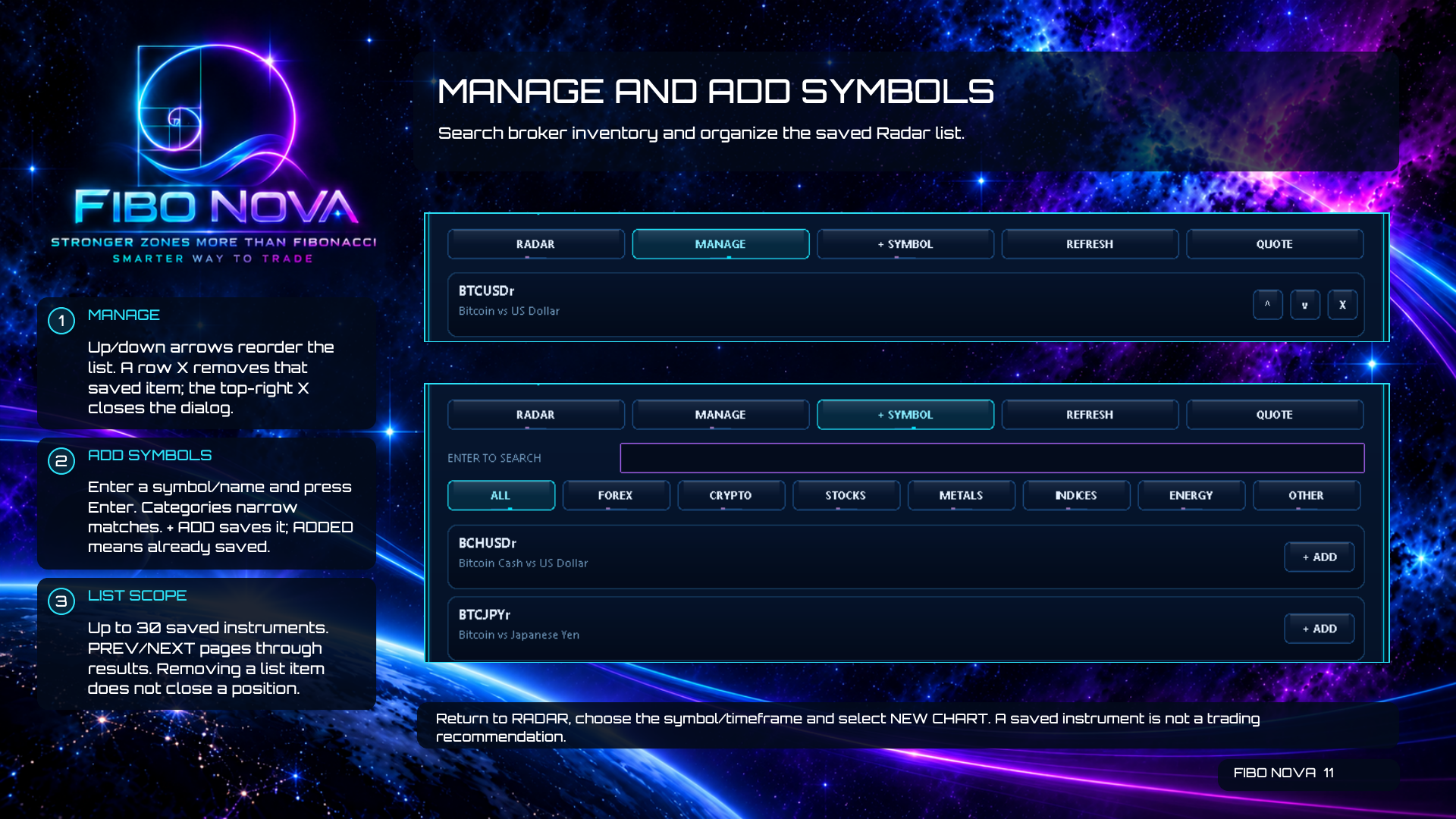
Use the Radar management controls to organize a list from the broker’s available instruments.
- MANAGE: use the up/down arrows to reorder. A row X removes that saved item; the top-right X closes the dialog.
- ADD SYMBOLS: enter a symbol or name and press Enter. Categories narrow the matches. + ADD saves an instrument; ADDED means it is already saved.
- The list supports up to 30 saved instruments. PREV / NEXT pages through results.
- Return to RADAR, choose the symbol and timeframe, then select NEW CHART.
Usage note: Removing a saved item does not close a position. Saving an instrument is not a trading recommendation.
12. Observed Activity
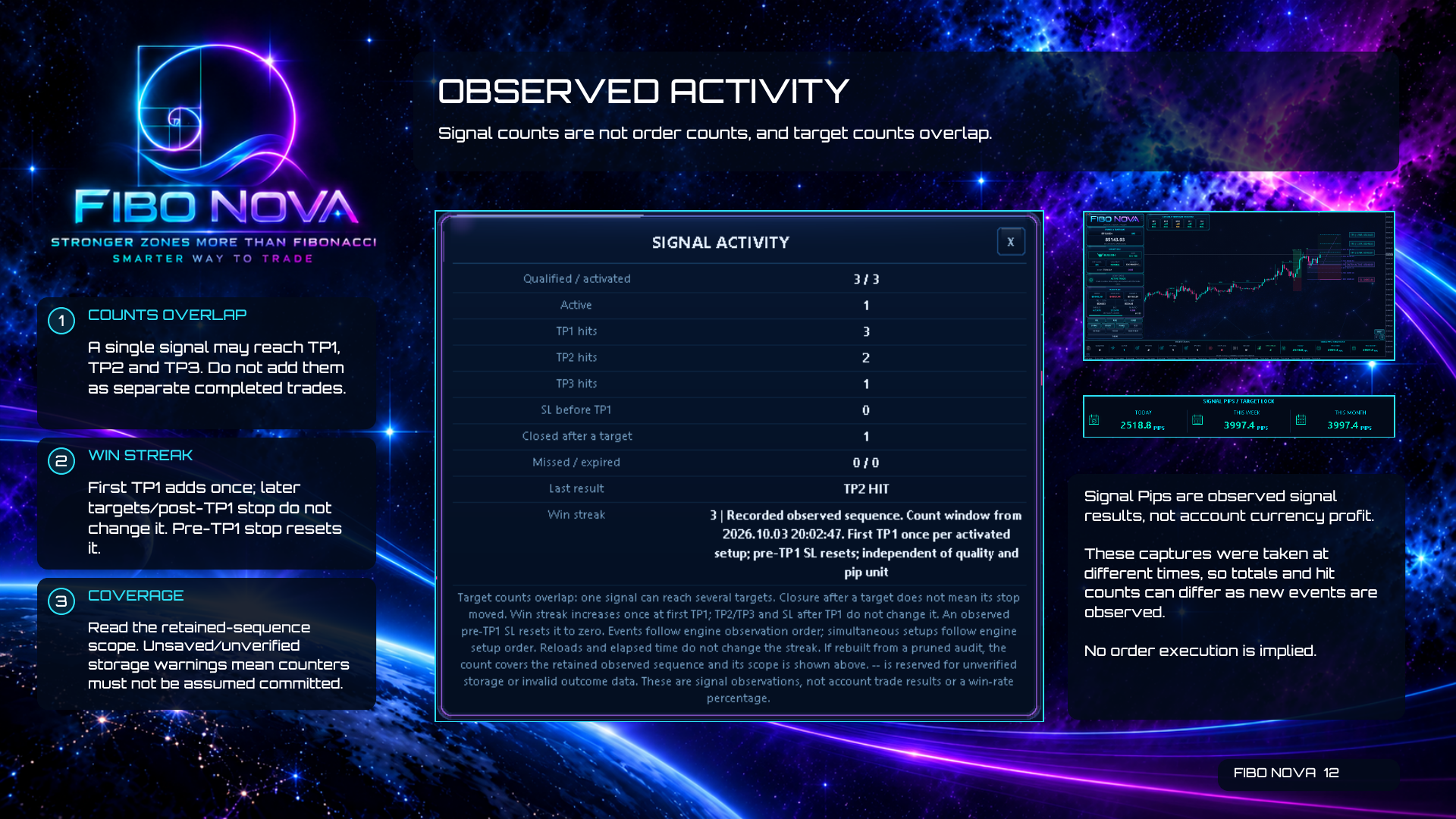
Engine Counts describe observed signal events. Target counts overlap, so they must not be added as separate completed trades.
- A single signal can reach TP1, TP2 and TP3.
- The first TP1 adds once to the win streak. Later targets and a post-TP1 stop do not change it. A pre-TP1 stop resets it.
- Read the retained-sequence scope. If storage is marked unsaved or unverified, do not assume the counters have been committed.
Usage note: Signal Pips are observed signal results, not account-currency profit. Captures taken at different times can show different totals as new events are observed.
13. Signal Pips and Units
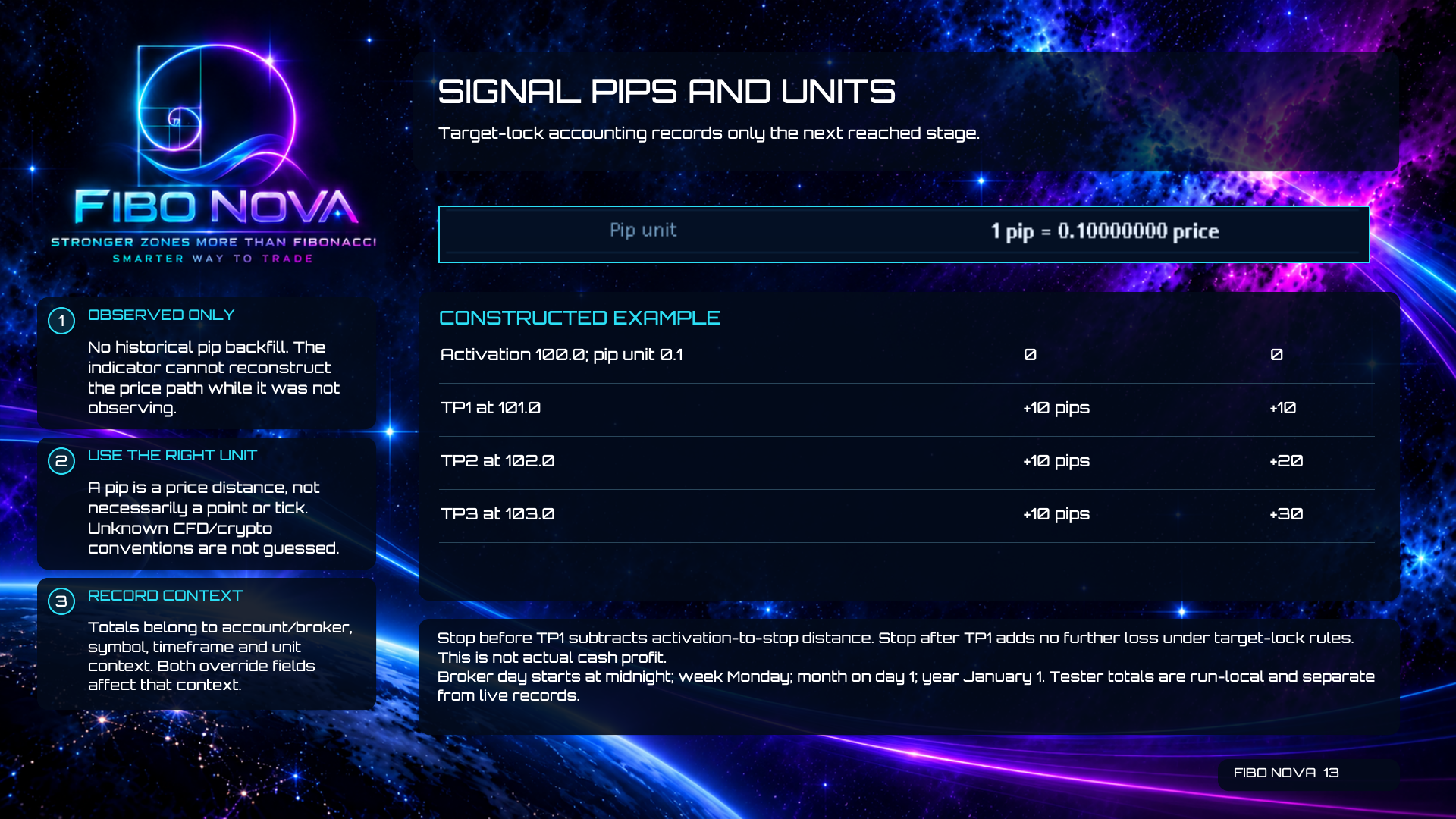
Target-lock accounting records only the next reached stage. A pip is a defined price distance and is not necessarily one point or one tick.
- Constructed example: activation at 100.0 with a pip unit of 0.1 starts at 0. TP1 at 101.0 contributes +10 pips, TP2 at 102.0 adds another +10, and TP3 at 103.0 adds another +10, for +30 total.
- A stop before TP1 subtracts the eligible activation-to-stop distance. A stop after TP1 adds no further loss under target-lock rules.
- No historical pip backfill is performed. The indicator cannot reconstruct a price path while it was not observing.
- Records belong to their account/broker, symbol, timeframe and pip-unit context. Both override fields affect that context.
- Broker day begins at midnight, week on Monday, month on day 1 and year on January 1. Tester totals are run-local and separate from live records.
Usage note: Unknown CFD or crypto pip conventions are not guessed. Unavailable pips are not zero, and these totals are not actual cash profit.
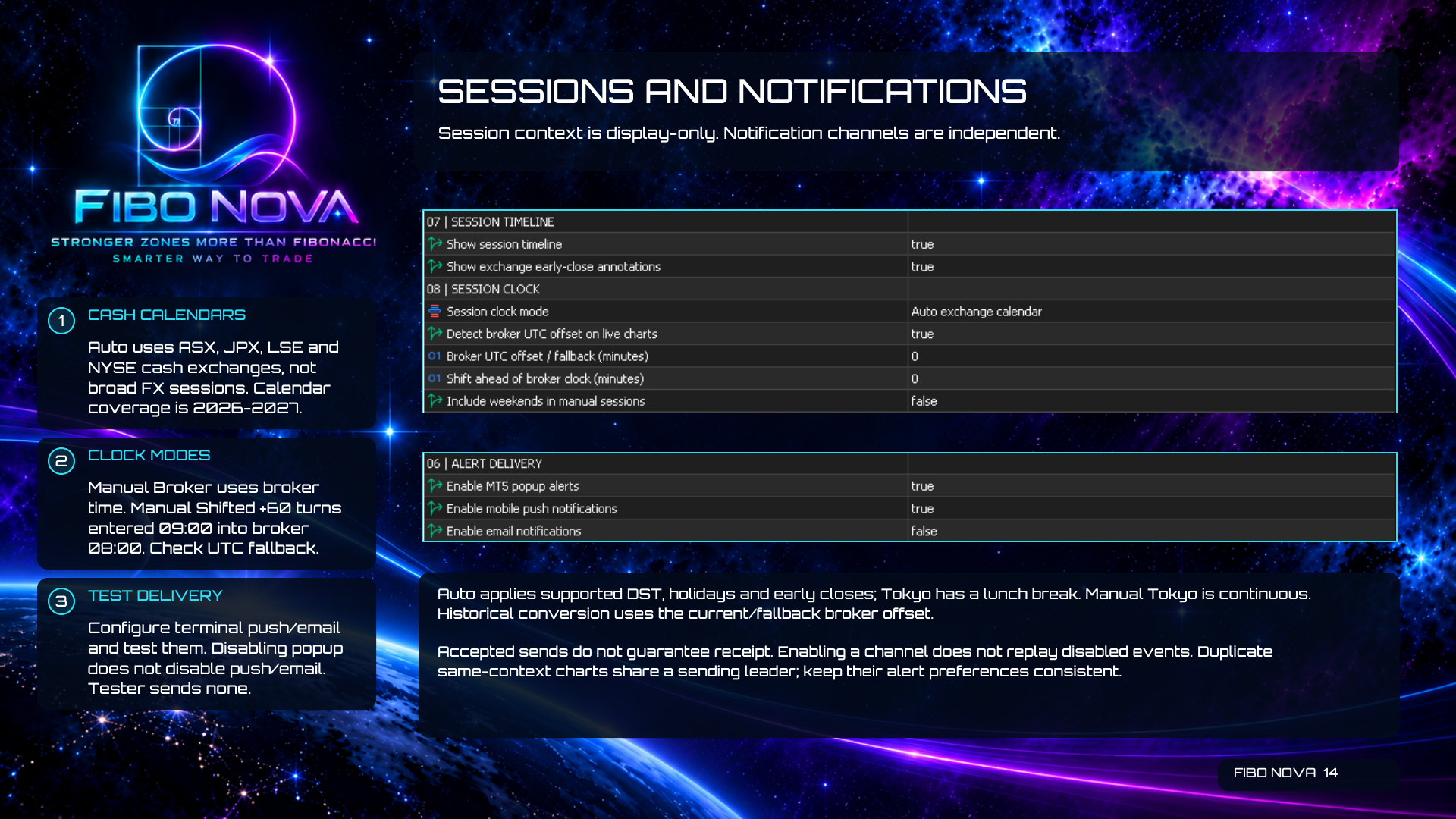
14. Sessions and Notifications
The session timeline supplies display-only context. Popup, push and email are independent notification channels.
- Auto uses the ASX, JPX, LSE and NYSE cash-exchange calendars, not broad FX sessions. Supported calendar coverage is 2026–2027.
- Auto applies supported daylight-saving changes, holidays and early closes. Tokyo includes a lunch break; a manual Tokyo window is continuous.
- Manual Broker uses broker time. In Manual Shifted, +60 converts entered 09:00 to broker 08:00. Check the broker UTC fallback.
- Configure and test the terminal’s push or email channel as required. Turning popup off does not turn push or email off. The tester sends no notifications.
Usage note: Historical conversion uses the current or fallback broker offset. Accepted sends do not guarantee receipt; enabling a channel does not replay events that occurred while it was disabled. Duplicate same-context charts share a sending leader, so keep their alert preferences consistent.
15. Troubleshooting
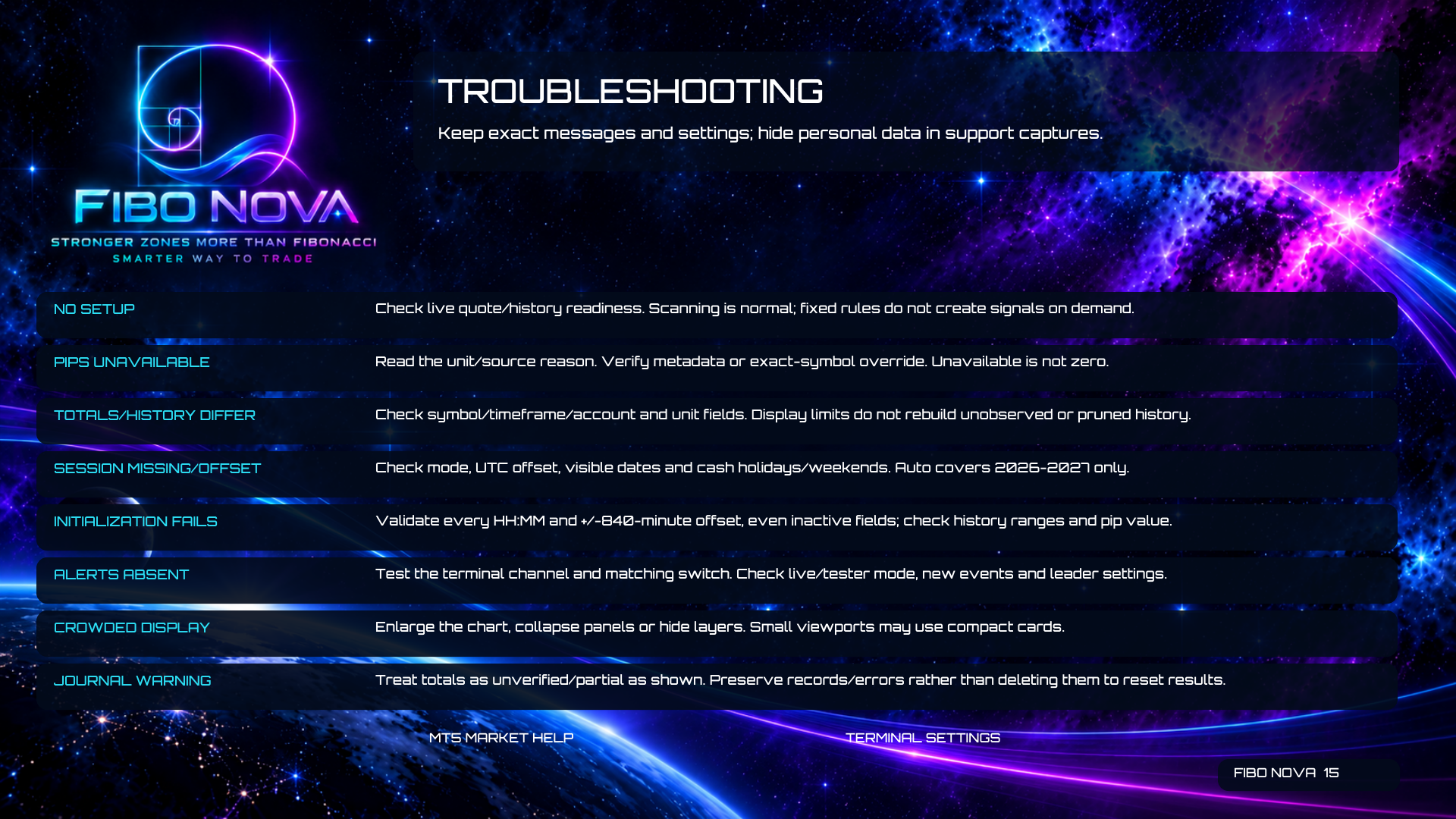
Check exact settings and displayed reasons before changing the configuration. Hide personal information in support screenshots.
- No setup: confirm live quotes and history readiness. Scanning is normal; fixed rules do not create signals on demand.
- Pips unavailable: read the unit/source reason and verify metadata or the exact-symbol override.
- Totals or history differ: compare account, symbol, timeframe and both unit fields. Display limits cannot rebuild unobserved or pruned history.
- Session missing or offset: check mode, UTC offset, visible dates and cash holidays/weekends. Auto coverage is 2026–2027.
- Initialization fails: validate every HH:MM time and offset, including inactive fields, plus history ranges and the pip value.
- Alerts absent: test the terminal channel and matching switch; check live/tester mode, new events and leader settings.
- Crowded display: enlarge the chart, collapse panels or hide layers. Small viewports may use compact cards.
- Journal warning: treat totals as partial or unverified as shown. Preserve records and error details instead of deleting them to reset results.
16. Artwork and Chart Overlays
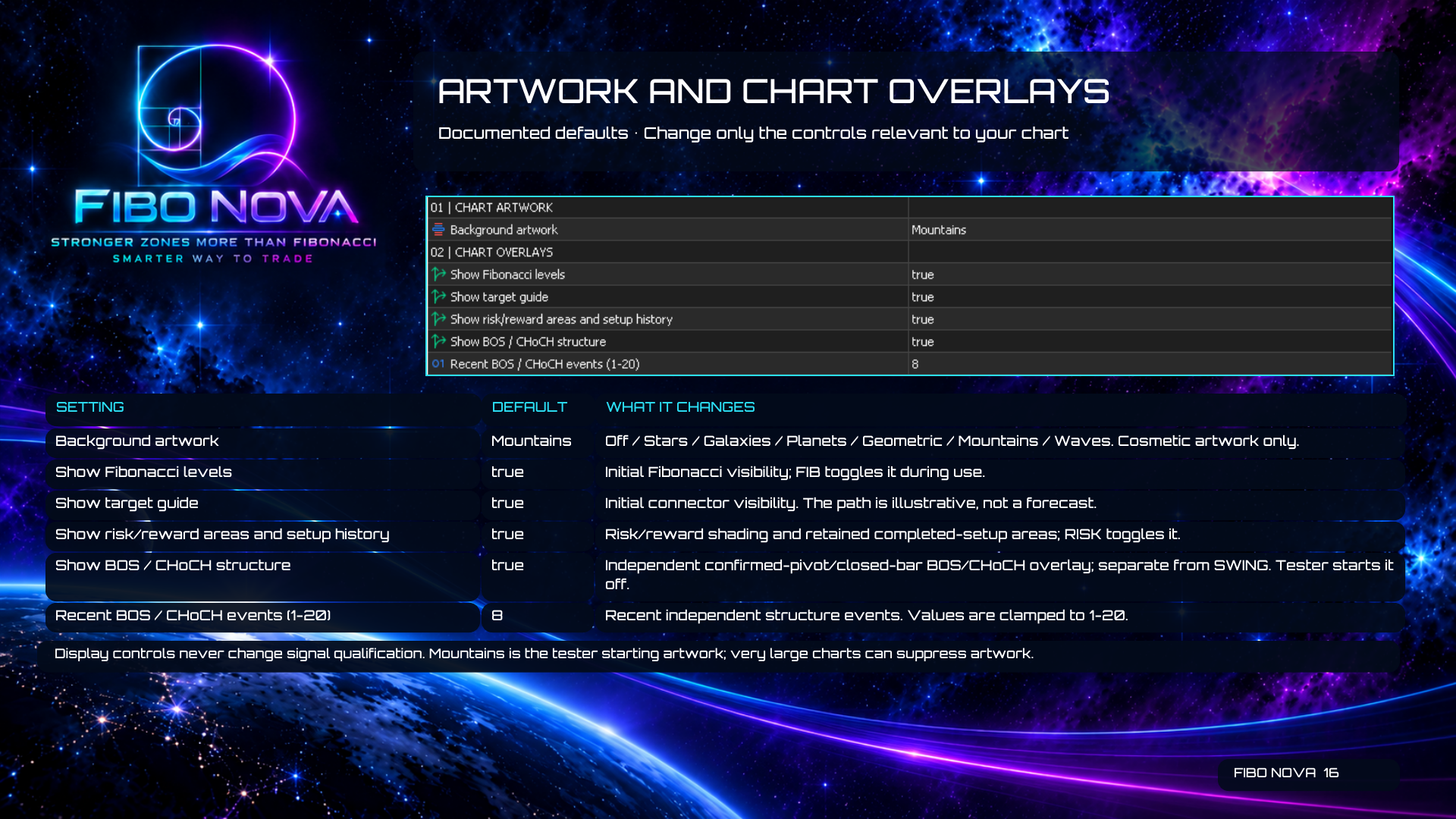
These settings choose initial visual presentation. Their documented defaults are listed below.
- Background artwork — Mountains. Choices: Off, Stars, Galaxies, Planets, Geometric, Mountains or Waves.
- Show Fibonacci levels — true. FIB toggles visibility during use.
- Show target guide — true. The connector is illustrative, not a forecast.
- Show risk/reward areas and setup history — true. RISK toggles the shading and retained completed-setup areas.
- Show BOS / CHoCH structure — true. This is an independent confirmed-pivot / closed-bar overlay, separate from SWING. The tester starts it off.
- Recent BOS / CHoCH events (1–20) — 8. Values are clamped to the 1–20 range.
Usage note: Display settings never change signal qualification. Very large charts can suppress artwork.
17. Live Cards and Pip Display
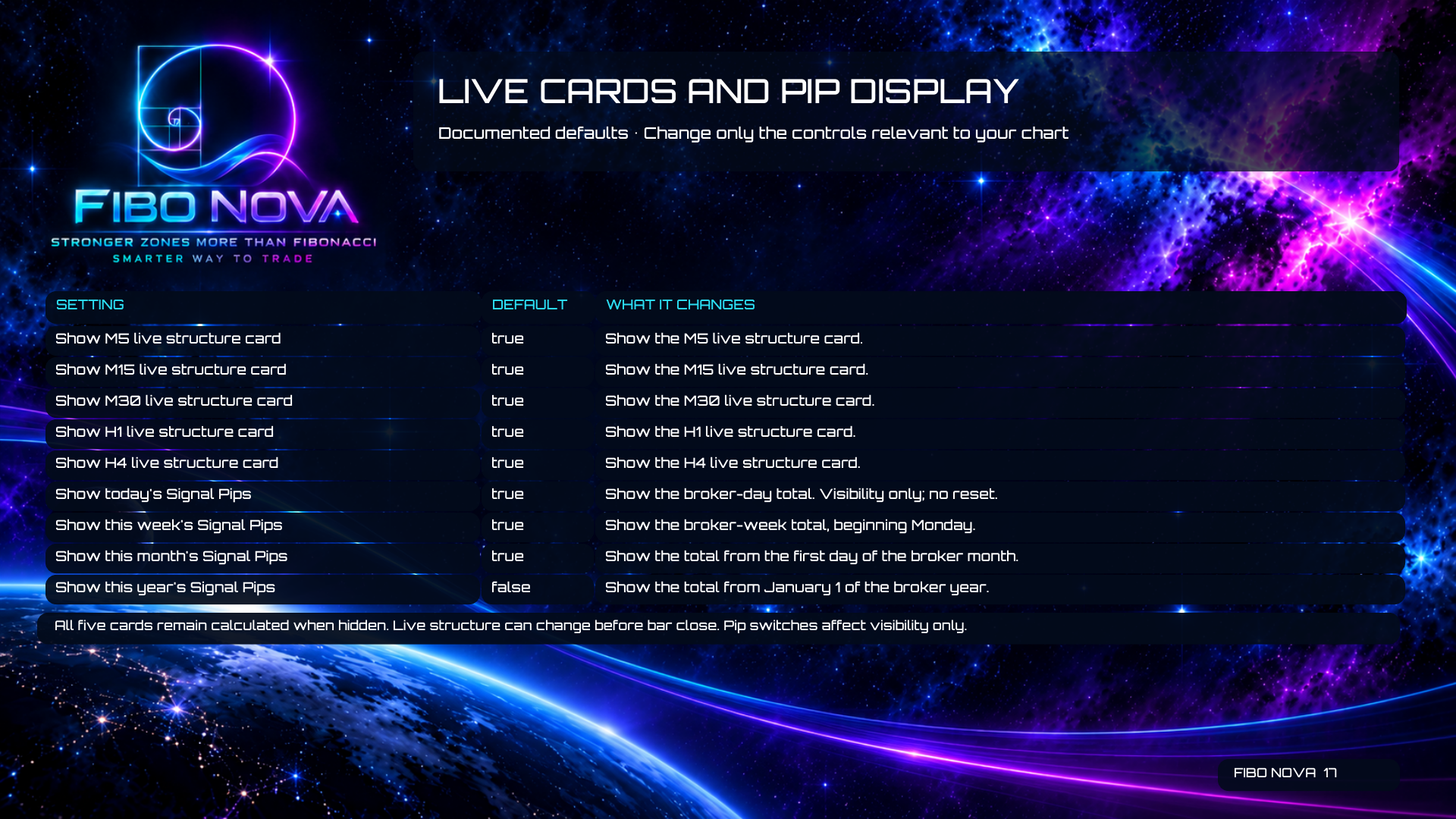
Choose which live cards and period totals are visible. Hiding them does not stop their underlying calculations or reset pip records.
- Show M5 live structure card — true.
- Show M15 live structure card — true.
- Show M30 live structure card — true.
- Show H1 live structure card — true.
- Show H4 live structure card — true.
- Show today’s Signal Pips — true; the broker-day total.
- Show this week’s Signal Pips — true; the broker-week total beginning Monday.
- Show this month’s Signal Pips — true; the total from day 1 of the broker month.
- Show this year’s Signal Pips — false; the total from January 1 of the broker year.
Usage note: All five cards continue calculating when hidden. Live structure can change before bar close.
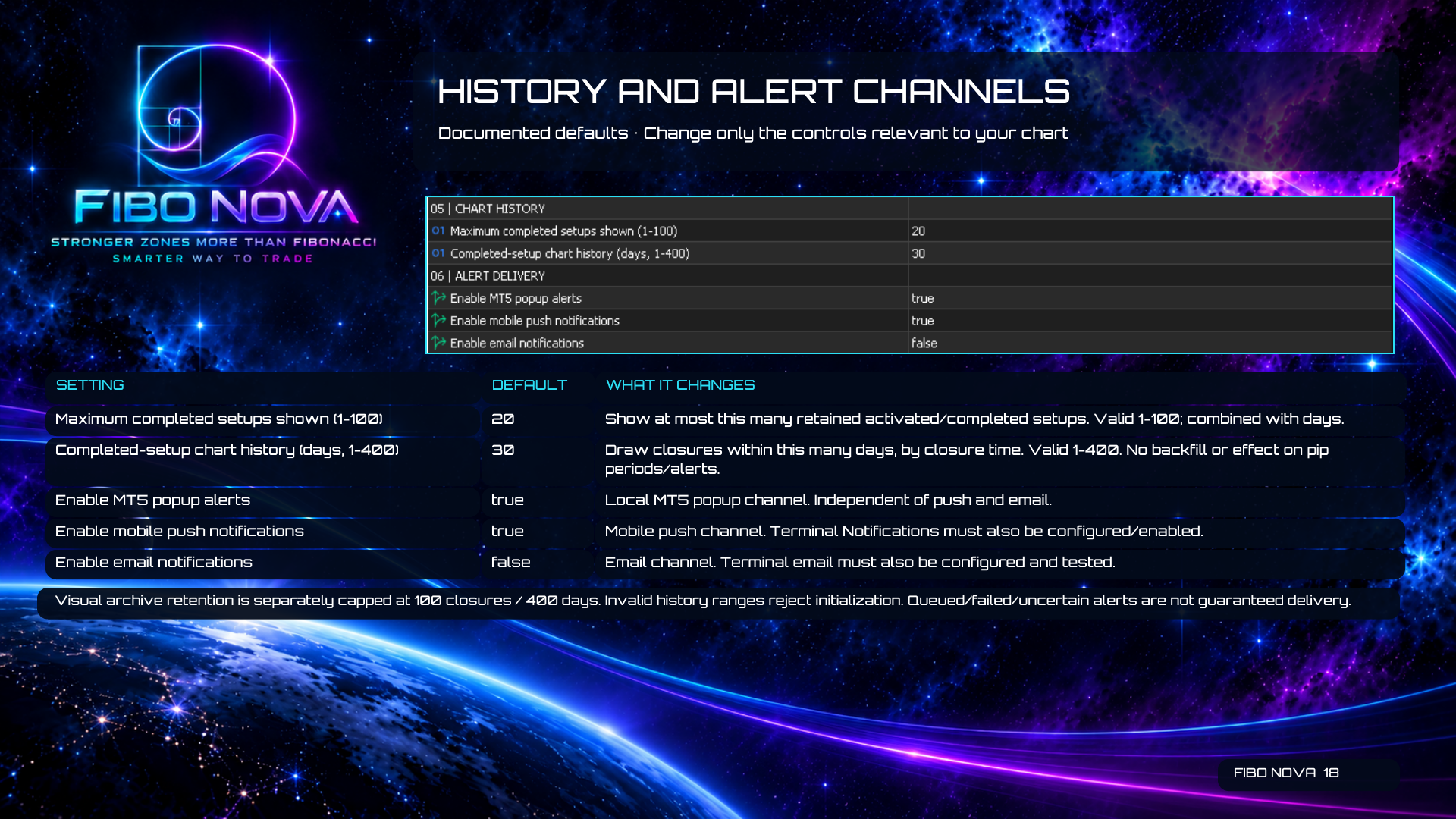
18. History and Alert Channels
Chart-history limits control which retained completed setups are drawn. Notification switches control separate delivery channels.
- Maximum completed setups shown (1–100) — 20. Combined with the day limit.
- Completed-setup chart history (days, 1–400) — 30. Uses closure time, with no backfill or effect on pip periods or alerts.
- Enable MT5 popup alerts — true.
- Enable mobile push notifications — true. Terminal Notifications must also be configured and enabled.
- Enable email notifications — false. Terminal email must also be configured and tested.
Usage note: Visual archive retention is separately capped at 100 closures / 400 days. Invalid history ranges reject initialization. Queued, failed or uncertain alerts do not establish delivery.
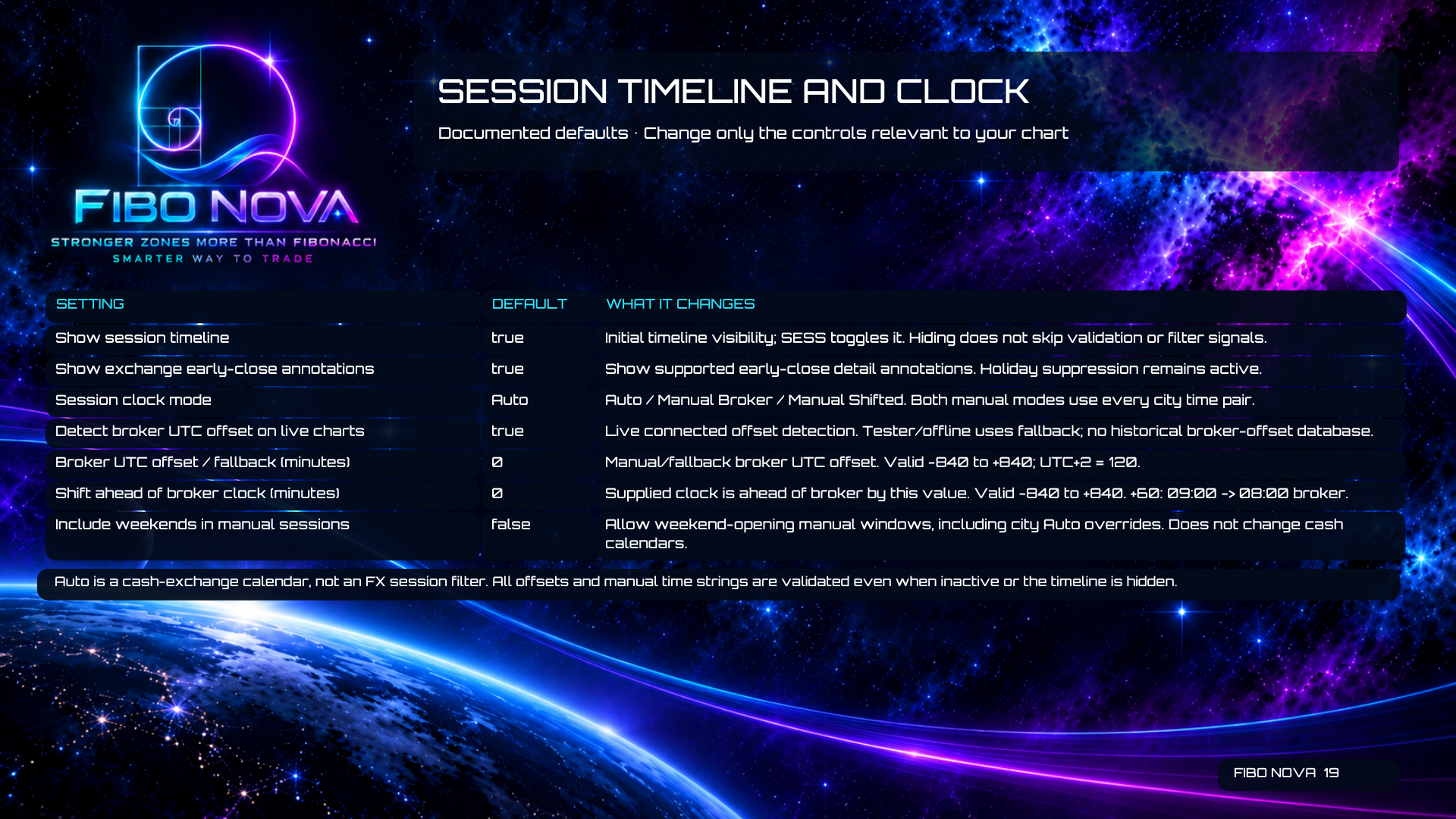
19. Session Timeline and Clock
Set the clock before using session windows as context. Hiding the timeline does not filter signals or bypass validation.
- Show session timeline — true. SESS changes runtime visibility.
- Show exchange early-close annotations — true. Holiday suppression remains active.
- Session clock mode — Auto. Choices are Auto, Manual Broker and Manual Shifted. Both manual modes use every city time pair.
- Detect broker UTC offset on live charts — true. Tester/offline uses the fallback; there is no historical broker-offset database.
- Broker UTC offset / fallback (minutes) — 0. Valid range: −840 to +840. UTC+2 is 120.
- Shift ahead of broker clock (minutes) — 0. Valid range: −840 to +840. At +60, entered 09:00 becomes broker 08:00.
- Include weekends in manual sessions — false. Permits weekend-opening manual windows, including city overrides in Auto; it does not change cash calendars.
Usage note: All offsets and manual time strings are validated even when inactive or hidden. Auto is a cash-exchange calendar, not an FX session filter.
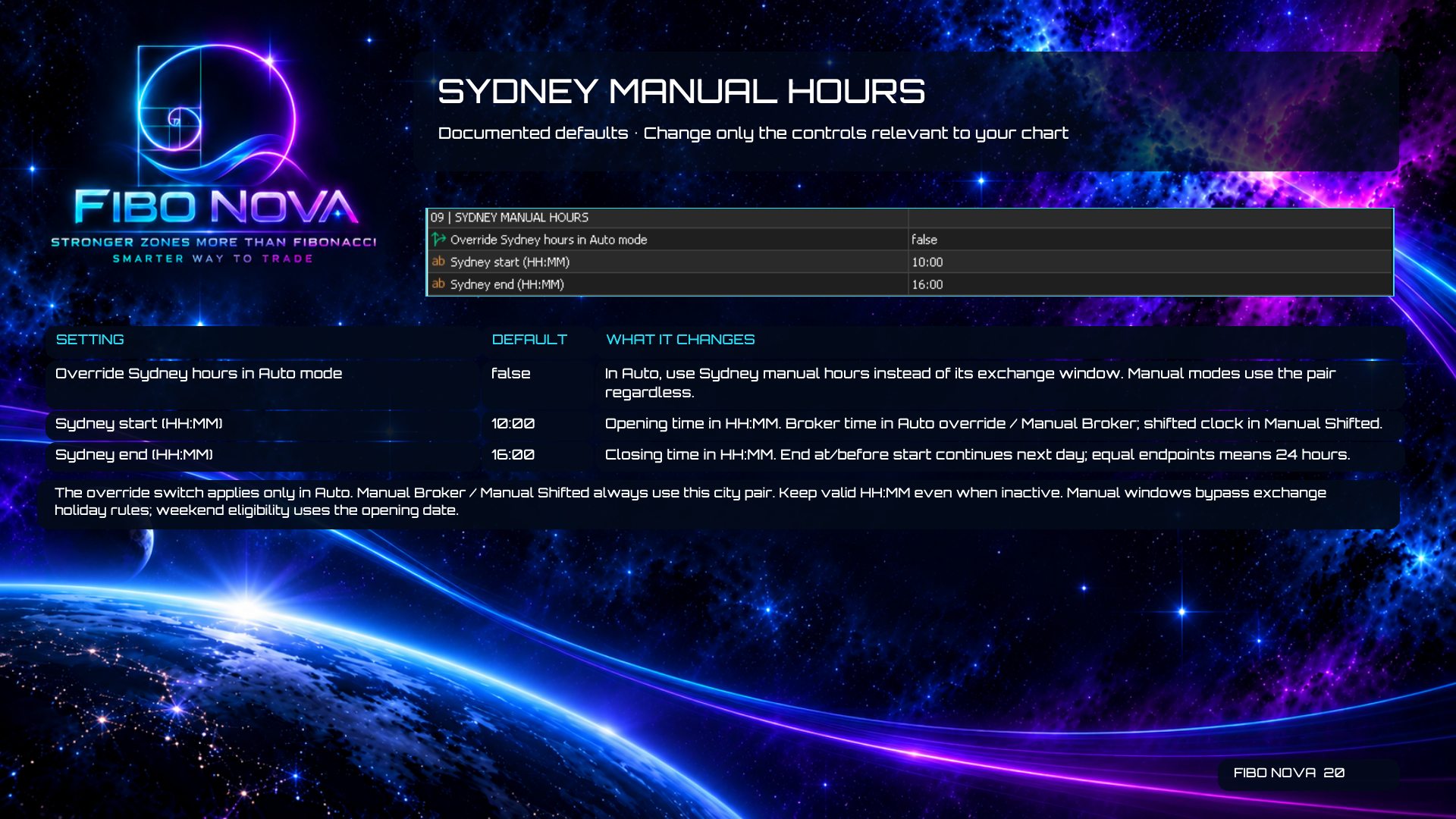
20. Sydney Manual Hours
The override switch controls this city only in Auto mode. Manual Broker and Manual Shifted always use the city’s entered start/end pair.
- Override Sydney hours in Auto mode — false.
- Sydney start (HH:MM) — 10:00.
- Sydney end (HH:MM) — 16:00.
- Auto override and Manual Broker interpret the entered times in broker time. Manual Shifted interprets them using the supplied shifted clock.
Usage note: Use valid HH:MM values even when these fields are inactive. An end at or before the start continues into the next day; equal endpoints mean 24 hours. Manual windows bypass exchange holiday rules, and weekend eligibility uses the opening date.
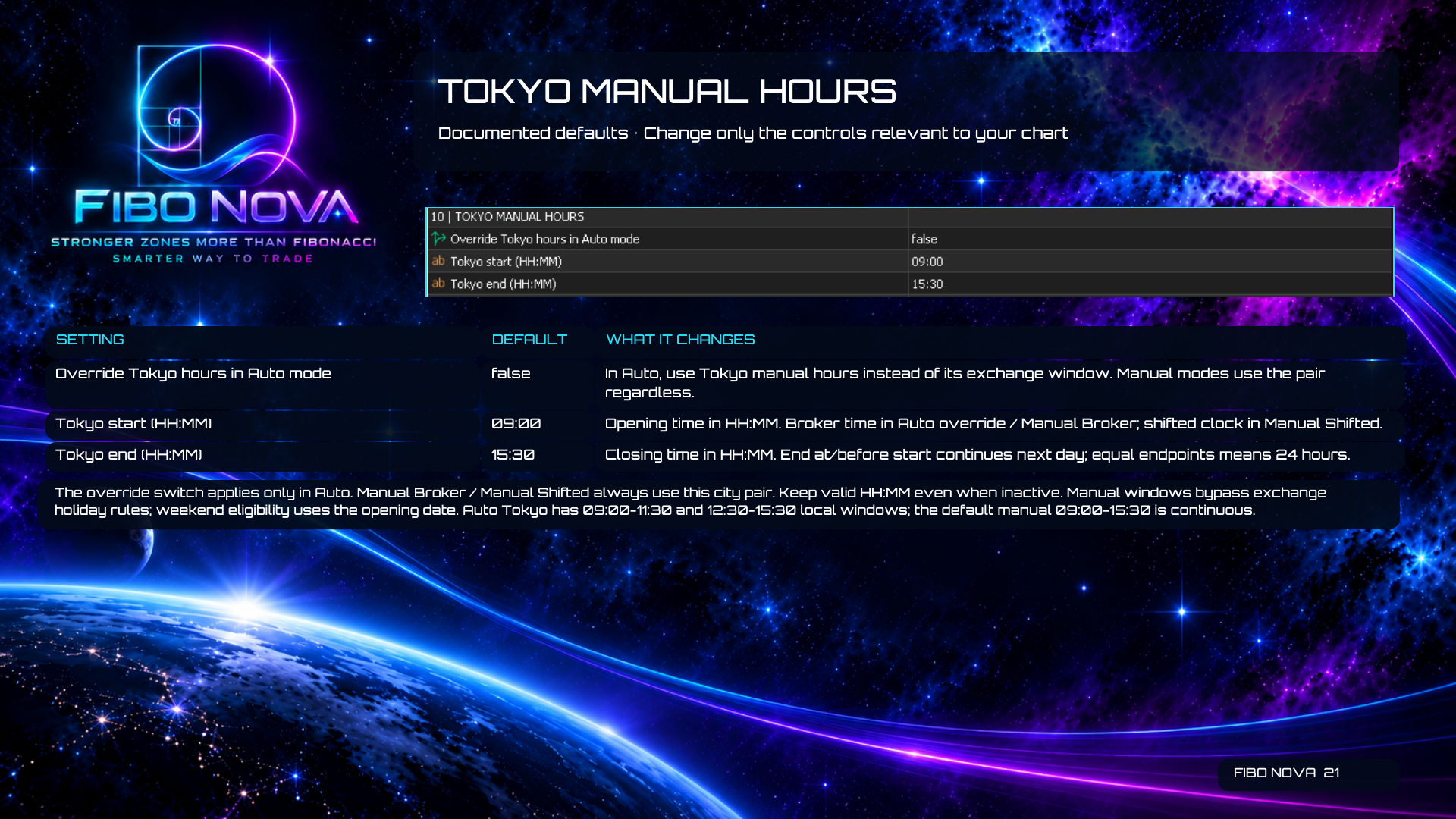
21. Tokyo Manual Hours
The override switch controls this city only in Auto mode. Manual Broker and Manual Shifted always use the city’s entered start/end pair.
- Override Tokyo hours in Auto mode — false.
- Tokyo start (HH:MM) — 09:00.
- Tokyo end (HH:MM) — 15:30.
- Auto override and Manual Broker interpret the entered times in broker time. Manual Shifted interprets them using the supplied shifted clock.
Usage note: Use valid HH:MM values even when these fields are inactive. An end at or before the start continues into the next day; equal endpoints mean 24 hours. Manual windows bypass exchange holiday rules, and weekend eligibility uses the opening date. Auto Tokyo uses 09:00–11:30 and 12:30–15:30 local windows. The default manual 09:00–15:30 window is continuous.
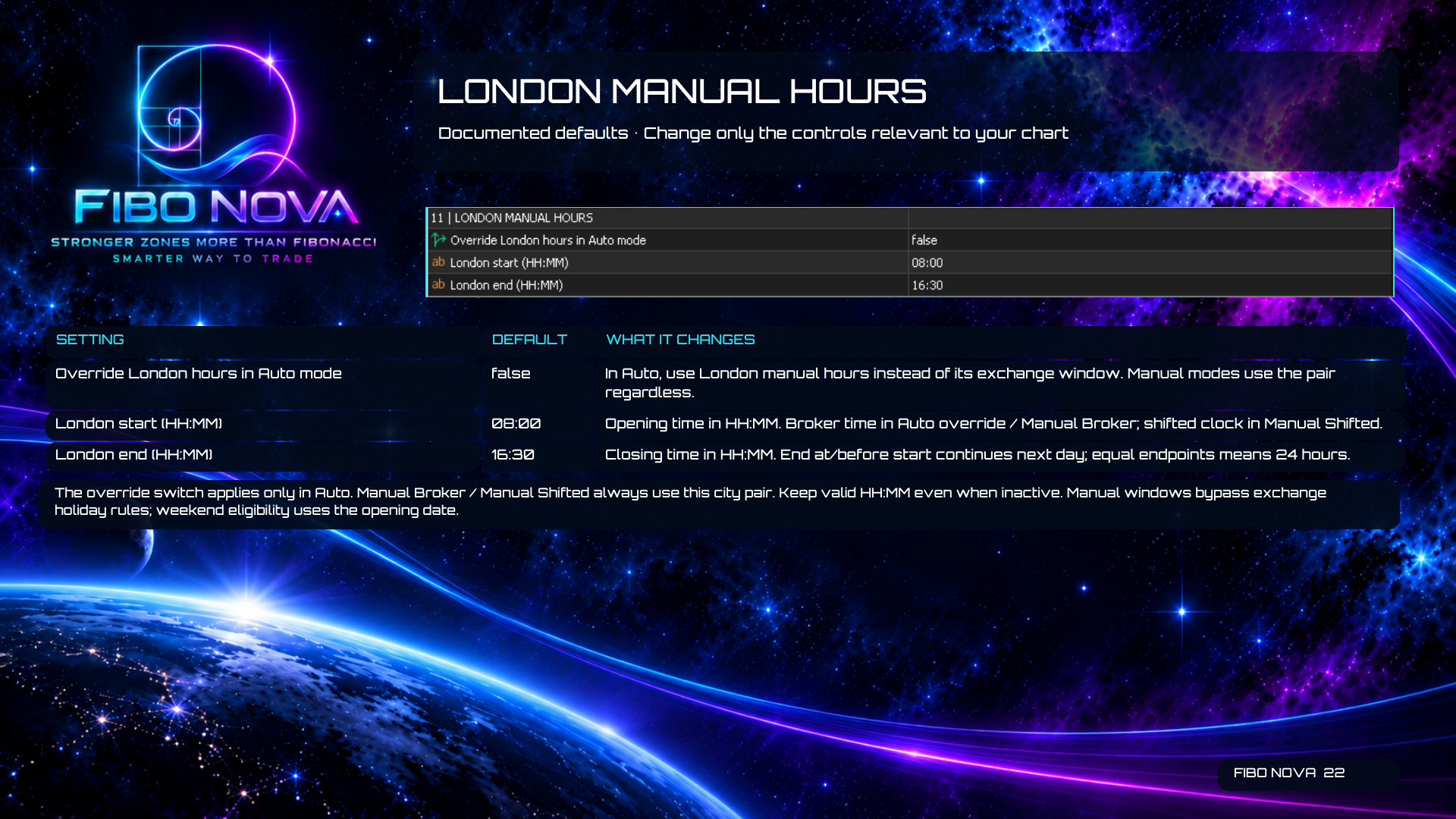
22. London Manual Hours
The override switch controls this city only in Auto mode. Manual Broker and Manual Shifted always use the city’s entered start/end pair.
- Override London hours in Auto mode — false.
- London start (HH:MM) — 08:00.
- London end (HH:MM) — 16:30.
- Auto override and Manual Broker interpret the entered times in broker time. Manual Shifted interprets them using the supplied shifted clock.
Usage note: Use valid HH:MM values even when these fields are inactive. An end at or before the start continues into the next day; equal endpoints mean 24 hours. Manual windows bypass exchange holiday rules, and weekend eligibility uses the opening date.
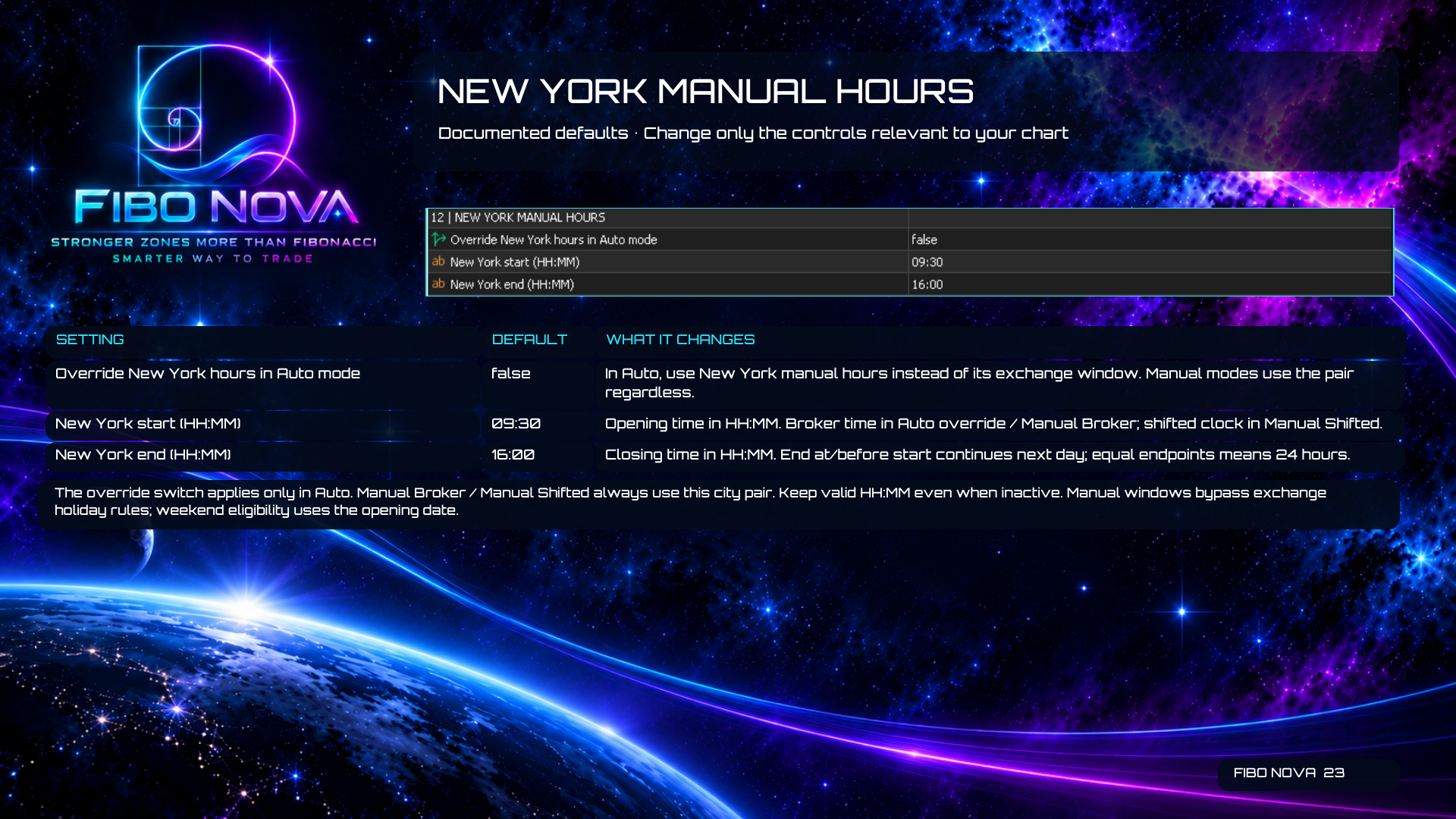
23. New York Manual Hours
The override switch controls this city only in Auto mode. Manual Broker and Manual Shifted always use the city’s entered start/end pair.
- Override New York hours in Auto mode — false.
- New York start (HH:MM) — 09:30.
- New York end (HH:MM) — 16:00.
- Auto override and Manual Broker interpret the entered times in broker time. Manual Shifted interprets them using the supplied shifted clock.
Usage note: Use valid HH:MM values even when these fields are inactive. An end at or before the start continues into the next day; equal endpoints mean 24 hours. Manual windows bypass exchange holiday rules, and weekend eligibility uses the opening date.
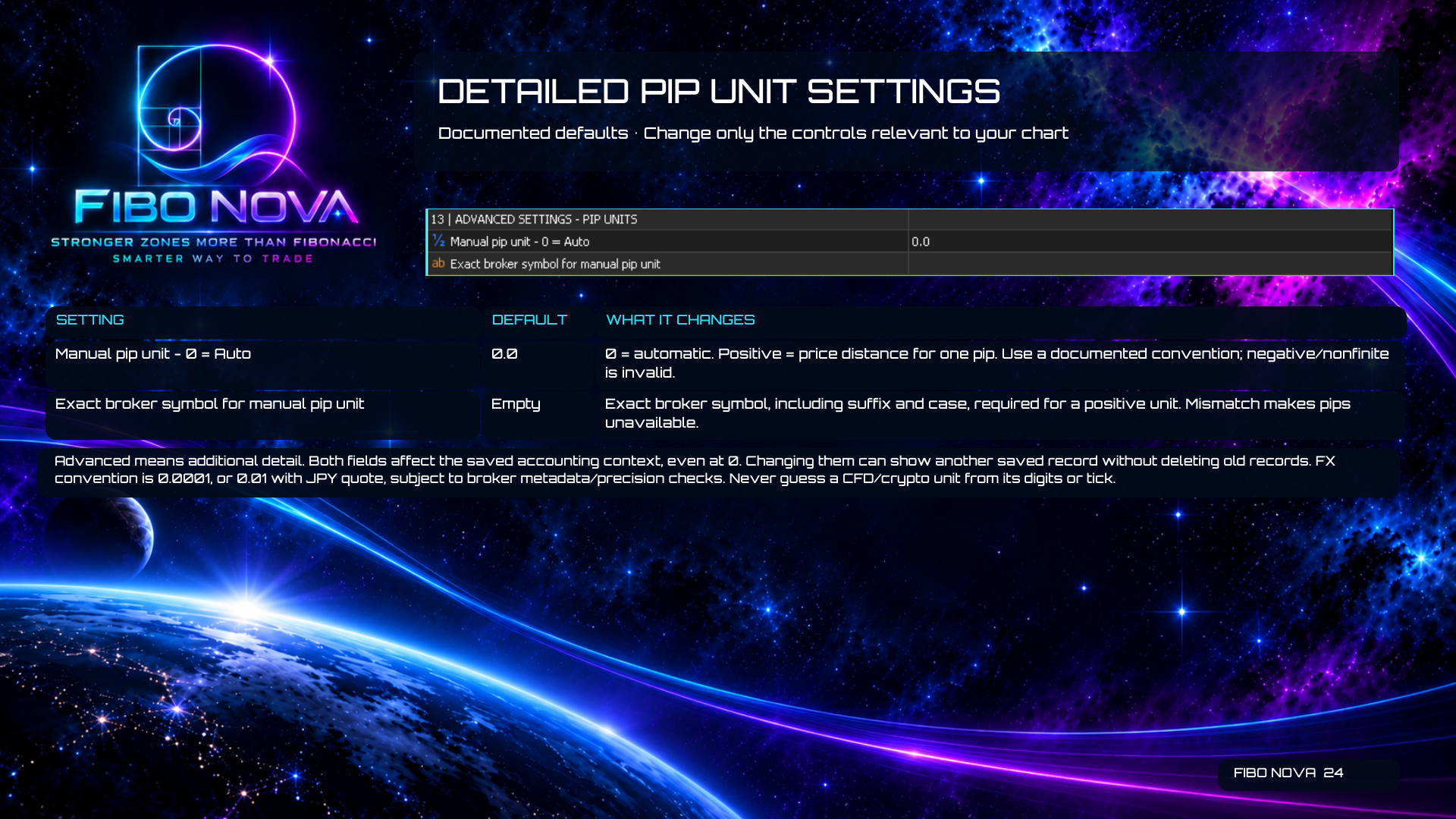
24. Detailed Pip Unit Settings
Keep automatic pip handling unless a documented instrument convention requires a manual unit.
- Manual pip unit - 0 = Auto — 0.0. Zero selects automatic handling. A positive value defines the price distance for one pip. Negative or non-finite values are invalid.
- Exact broker symbol for manual pip unit — empty. A positive manual unit requires the exact broker symbol, including its suffix and letter case. A mismatch makes pips unavailable.
Usage note: Both fields affect the saved accounting context, even at 0. Changing them can display another saved record without deleting older records. The FX convention is 0.0001, or 0.01 with JPY as quote currency, subject to broker metadata and precision checks. Never infer a CFD or crypto pip unit from digits or tick size alone.
Documentation Information
Product: Fibo Nova
Platform: MetaTrader 5



