TSC Signal Copier: Complete Installation and Configuration Guide

Introduction
This article provides a comprehensive guide to installing and configuring TSC Signal Copier, a system that automates Telegram signal execution in MetaTrader 5. The system is designed for traders who follow multiple signal providers and require a solution that eliminates format errors, maps symbols automatically, and manages risk professionally.
Unlike conventional signal copiers that apply fixed parsing rules, TSC Signal Copier PRO incorporates an AI engine that analyzes the context of each signal before execution. This allows normalizing inconsistent formats, validating stop loss and take profit coherence, and blocking ambiguous signals that could generate unwanted trades. The result is cleaner and more predictable execution, with fewer operational errors and greater control over risk.
The system consists of two coordinated components. The desktop application manages the connection with Telegram, analyzes each signal through the AI engine, and writes validated signals to a local file. The MetaTrader 5 EA reads that file and executes trades applying the risk management configuration defined by the user.
What Makes TSC Signal Copier PRO Different
Most signal copiers available on the market work the same way: they read text, look for keywords, and execute orders. This approach has a fundamental limitation — it assumes every signal is perfectly formatted. In reality, Telegram signals vary widely in format, language, and structure. Some providers use GOLD, others use XAUUSD. Some include stop loss, others do not. Some write in English, others in Spanish or Russian.
TSC Signal Copier PRO addresses this problem through several key differentiators:
AI-Powered Signal Analysis. Instead of relying on rigid parsing rules, the system uses an AI engine that understands the context of each signal. This enables automatic symbol mapping, coherence validation, and detection of ambiguous signals before they reach the market.
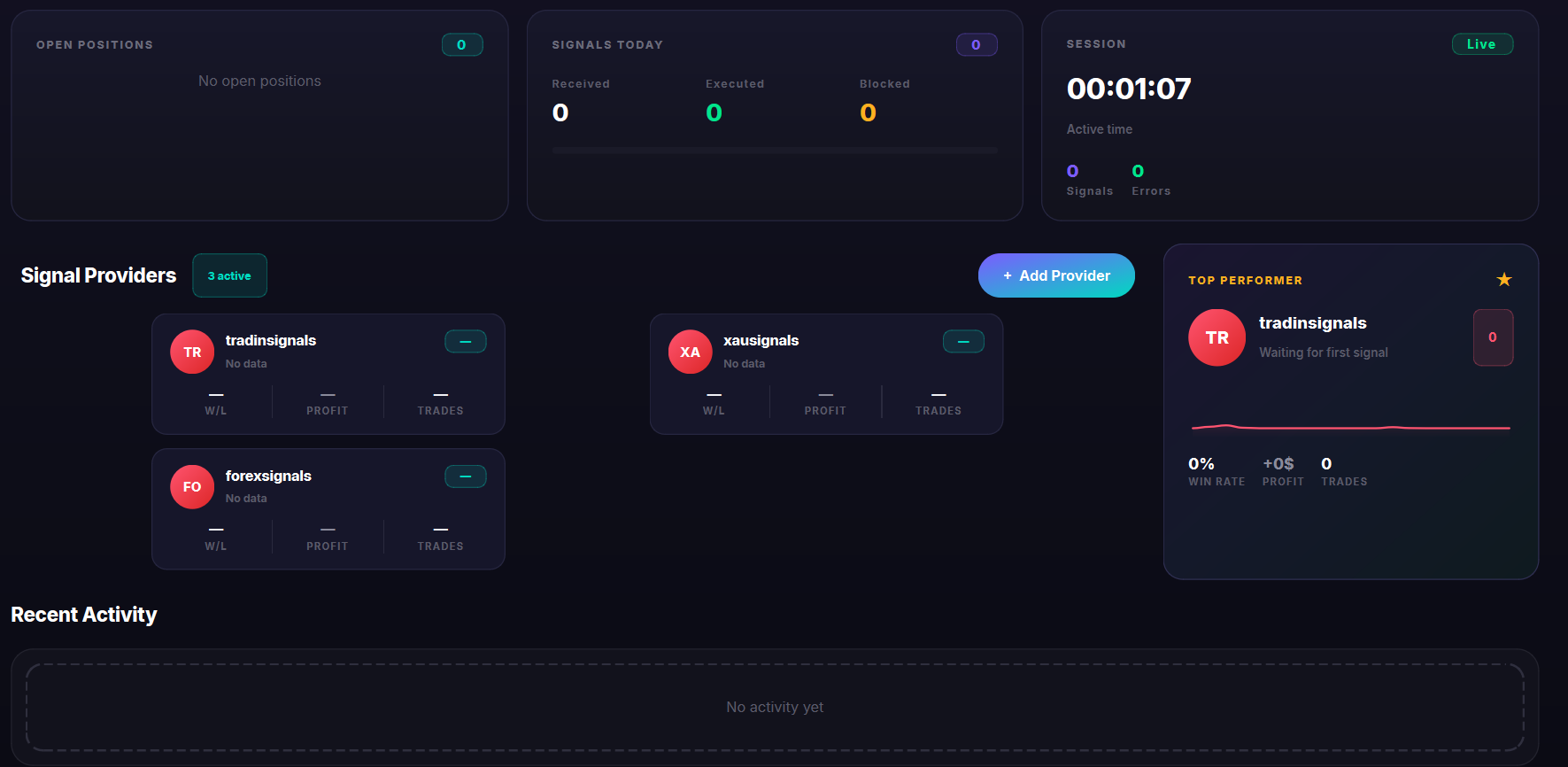
Provider Performance Scoring. The desktop application tracks the performance of each signal provider in real time. It calculates win rate, profit factor, consistency, and an orientative score from 0 to 100. This allows you to identify which providers are performing well and which are losing effectiveness.
Dual-Layer Architecture. The system separates signal analysis from trade execution. The desktop application handles Telegram connectivity and AI processing, while the EA focuses exclusively on executing validated signals with full risk management. This separation provides greater stability and flexibility.
Native Performance. No WebView2 is required. A local SQLite database keeps all data on your PC, ensuring privacy and fast performance without external dependencies.
Complete Risk Management. The EA includes break-even, trailing stop, multiple take profit levels, daily/weekly/monthly limits, drawdown protection, news filter, and prop firm protection with configurable offset and randomization.
System Requirements
Before proceeding with installation, verify that your equipment meets the following requirements:
| Component | Requirement |
|---|---|
| Operating System | Windows 10 or higher |
| MetaTrader 5 | Build 3000 or higher, installed and running |
| Internet Connection | Required for Telegram communication |
| RAM | 4 GB minimum |
| Disk Space | Approximately 150 MB available |
| MQL5 Account | Required to download the EA from the Market |
| VPS (recommended) | For continuous 24/7 operation |
Part 1: Downloading the EA from MQL5 Market
The EA is distributed exclusively through MQL5 Market. This ensures you receive updates automatically and that installation is performed cleanly in the correct terminal location.
Step 1: Log in to MQL5
Open MetaTrader 5 and access Tools → Options (Ctrl+O). Select the Community tab and enter your MQL5 credentials. It is important to use the username, not the email address associated with the account.
Step 2: Access the Market section
In the Navigator panel (Ctrl+N), expand the Market section. You can also access through Tools → MQL5 Market or via the Market icon located at the bottom of the terminal.
Step 3: Locate and install the product
Search for TSC Signal Copier PRO in the catalog or access directly from the product link if available. Once located, click the download or installation button. The terminal will automatically handle file placement in the corresponding folder within MQL5\Experts\Market.
Step 4: Activate AutoTrading
In the MetaTrader 5 top toolbar, verify that the AutoTrading button is active, shown in green. This control is independent of the permission granted in the EA properties and must be enabled for algorithmic trading to function correctly.
Step 5: Verify initialization
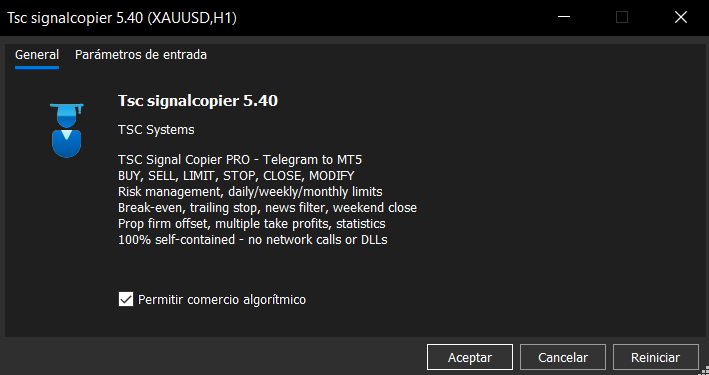
Once the EA is attached, the program name will appear in the top right corner of the chart accompanied by a status icon. Additionally, open the Toolbox panel (Ctrl+T) and select the Experts tab. Initialization messages confirm that the EA has loaded correctly and is operational.
Among the messages you should see are references to the program version, signal file path, and configuration confirmations.

Part 3: Desktop Application Connection
The EA alone does not generate signals; it depends on the desktop application to receive validated signals from Telegram. It is essential that both components are operational and properly synchronized.
The desktop application must be running on the same computer where MetaTrader 5 operates, or on a computer with access to the same signal file location. Once started, the application will display the Telegram connection status and the list of configured channels.
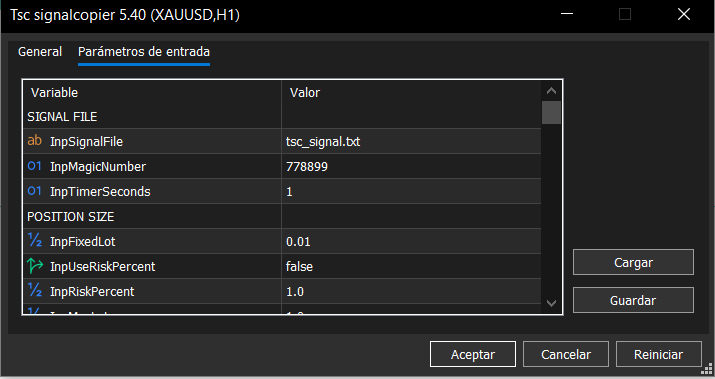
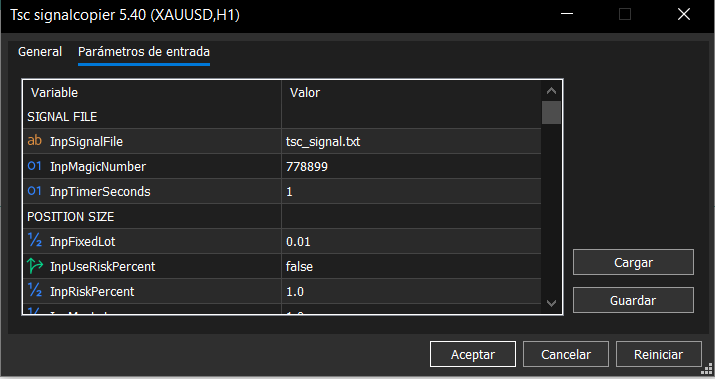
The EA will automatically detect new signals that the application writes to the file specified in the InpSignalFile parameter. No additional action is required from the user once both components are running.
Part 4: Core System Features
Once installation is complete, the system offers a set of features designed to professionalize signal execution and protect capital.
AI Signal Analysis
The analysis engine processes each signal before it reaches the EA. It normalizes formats, maps symbols automatically, and validates the coherence of stop loss and take profit levels. If it detects ambiguities or inconsistencies, the signal is blocked or flagged for review instead of executing automatically.
The AI engine recognizes signals in any language and format, including edited messages, forwarded messages, and image-based signals. This eliminates the need for manual keyword templates or signal pattern configuration.
Risk Management
The EA implements multiple layers of risk control. Lot sizing can be performed on a fixed basis or based on risk percentage. Additionally, it incorporates automatic break-even, dynamic trailing stop, and partial close at multiple take profit levels.
The risk calculation uses the account balance and the distance to stop loss to determine the appropriate position size, ensuring consistent risk exposure across trades.
Capital Protection
The system includes configurable profit and loss limits on daily, weekly, and monthly basis. Upon reaching these thresholds, the EA can cease opening new trades or close all open positions, according to the selected configuration.
The drawdown protection feature monitors account equity relative to its peak and can automatically halt trading if a specified percentage decline is reached.
Break-Even and Trailing Stop
The break-even feature moves the stop loss to the entry price plus a configurable margin once the position reaches a specified profit level. The trailing stop follows the price as it moves in your favor, locking in profits while allowing the trade to continue running.
Both features are configurable per provider, allowing different settings for different signal sources.
Multiple Take Profits
The system supports up to three take profit levels with configurable percentages. This allows securing partial profits while leaving a portion of the position running for larger moves.
Each TP level can be configured independently, with the remaining volume managed by the EA according to the user's preferences.
Prop Firm Protection
For traders operating under prop firm rules, the system includes configurable entry offset and randomization. This makes your trades differ from the original signal, helping avoid detection by prop firm algorithms that monitor for copy trading.
The offset can be randomized within a configurable range to create natural variation between trades.
Operational Filters
The system integrates trading hours filters, automatic weekend close, and high-impact news detection through the MetaTrader 5 economic calendar. These filters allow adapting operations to the specific conditions of each strategy.
The news filter can be configured to avoid trading during a specified window before and after high-impact events, with currency matching to only block signals affected by the news.
Control Panel
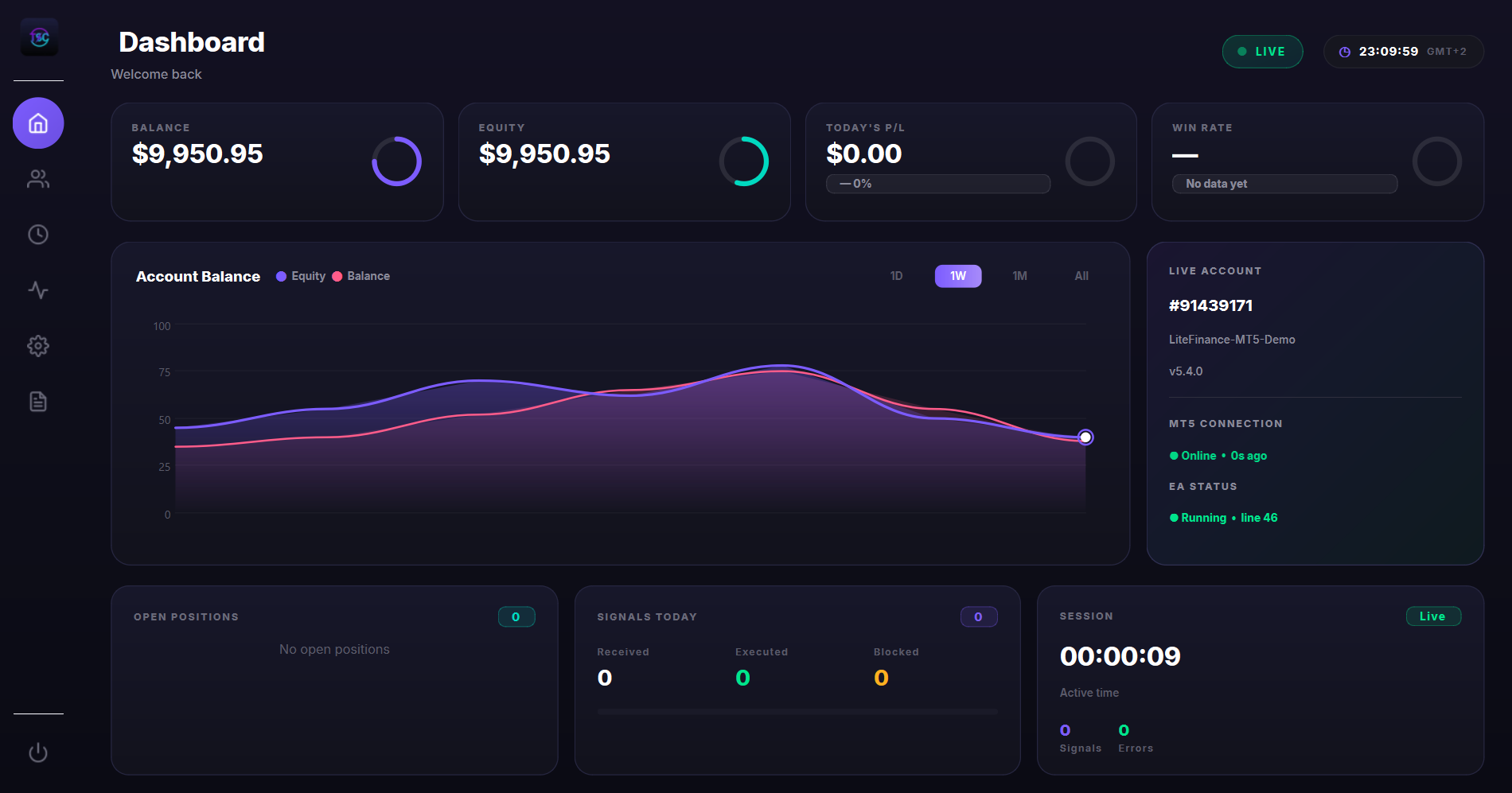
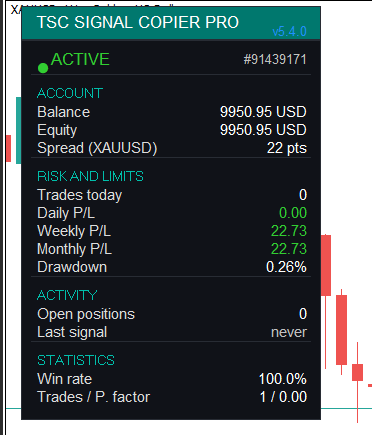
Both the desktop application and the EA incorporate monitoring elements. The application displays statistics per provider, including win rate, profit factor, and an orientative score. The EA presents a panel on the chart with account information, accumulated results, and operational status.
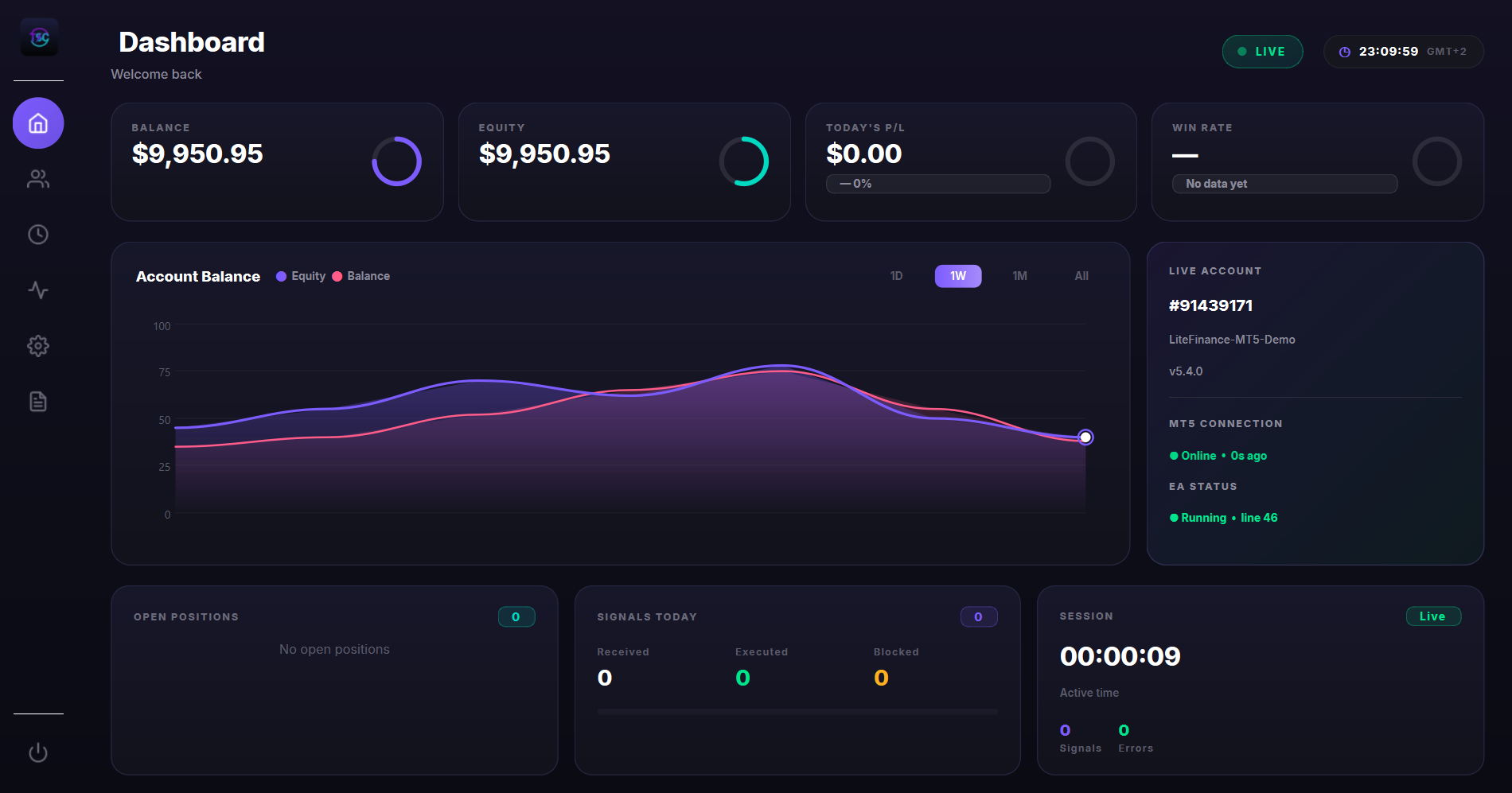
The dashboard provides real-time visibility into account balance, equity, daily/weekly/monthly P&L, and open positions, all from a single interface.
Troubleshooting Common Issues
The following section covers the most common incidents and their possible solutions.
The EA does not appear in the Navigator
Verify that you have logged in correctly to MQL5. Check that the download has completed in the Market → Purchased section. Refresh the Navigator by right-clicking or restart the terminal.
The EA does not execute trades
Confirm that the AutoTrading button is active and that the Allow algorithmic trading option is checked in the EA properties. Review the Experts tab to identify possible error messages.
The EA does not receive signals
Verify that the desktop application is running and connected. Check that the signal file path matches the value configured in InpSignalFile.
Market closed errors
The EA automatically detects market closed situations, weekends, and holidays, omitting execution without generating errors. This behavior is normal and does not require intervention.
Trades are blocked by SL/TP policy
Check your SL/TP policy setting. Verify that the signal includes both SL and TP. Adjust the policy to Allow if you want to execute signals without stop loss.
Links and Resources
The desktop application and additional documentation are available at the official project repository:
The EA is obtained directly through MQL5 Market once purchased.