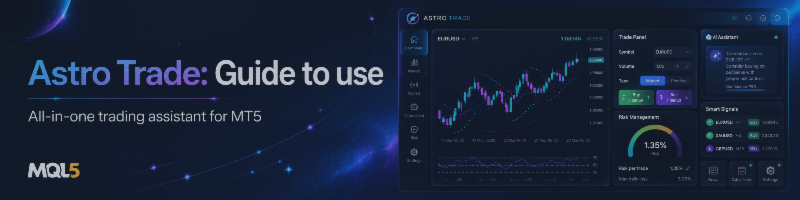

AstroTrade Tools - User Guide
Complete Guide for MetaTrader 5Guide Version: 1.20 | MQL5 Market Version: 1.20
This guide is written for end users and describes the actual behavior of the current AstroTrade build.
Related Guide:
Astro Trade: Guide to using the AI assistant
TABLE OF CONTENTS
1. What Is AstroTrade?
2. Important Notes Before You Start
3. Installation and First Launch
4. MT5 Inputs
5. Trade Management Scope
6. Sidebar and Workspace
7. Account Bar
8. Trade Panel - Trade Tab
9. Visual Trade
10. Trailing Stop and Break-even
11. Position Manager
12. Manage Trades - Manual
13. Manage Trades - Auto
14. Manage Trades - Time / Scheduled Close
15. Trend Trigger Builder
16. Event Console
17. Ask Astro - Overview
18. Ask Astro - Command Assistant
19. Market Analysis in Chat
20. Conversation Context and Memory
21. Watch Conditions
22. Trading Commands and Safety
23. Chart Commands
24. Chart Appearance Commands
25. Astro Chart Intelligence
26. Rule Checklist Coach
27. Widget Gallery
28. Review Center / History
29. Performance Analytics
30. Telegram Center
31. Settings Center
32. Saved Settings and Restart Behavior
33. Behavior When the Market Is Closed
34. Managing Manual Trades
35. Hedging vs Netting Accounts
36. Common Problems and Troubleshooting
37. Recommended Workflows
38. Useful Chat Commands
39. Current Build Limitations
40. Safety Notes
1. WHAT IS ASTROTRADE?
AstroTrade is an Expert Advisor and trading workspace for MetaTrader 5.
It combines multiple tools in one interface:
- Trade planning and execution
- Risk-based lot calculation
- Visual trade planning
- Position management
- Manual and automatic position closing
- Scheduled closing
- Trend-line based trade triggers
- Trade review and analytics
- Technical widgets
- Telegram notifications
- Offline English trading assistant
- Chart Intelligence
- Natural-language chart appearance commands
AstroTrade is not a market prediction system.
No trading result is guaranteed.
The built-in assistant does NOT use:
- ChatGPT
- OpenAI API
- Claude
- Gemini
- Local LLMs
- External AI models
The assistant is fully offline and rule-based.
Telegram is the only feature that requires internet access when enabled.
↑ Back to Table of Contents
2. IMPORTANT NOTES BEFORE YOU START
For trading functions to work correctly:
- MT5 Algo Trading must be enabled.
- Your trading account must allow trading.
- The symbol must be tradable.
- Position volume must respect broker Min/Max/Step rules.
- Stop Loss and Take Profit must respect broker stop-distance rules.
- New market orders cannot execute while the market is closed.
- Price triggers and automated closing logic require market ticks.
Recommendation:
Test the workspace on a Demo account before using it on a live account.
↑ Back to Table of Contents
3. INSTALLATION AND FIRST LAUNCH
1. Install AstroTrade in MetaTrader 5.
2. Open a chart.
3. Attach AstroTradeAssistantMT5 to the chart.
4. Review the Inputs.
5. Enable Algo Trading.
6. Click OK.
7. Wait for the AstroTrade interface to load.
8. Use the compact shortcut rail or full sidebar to open panels.
Recommendation:
For normal use, one main AstroTrade instance is usually enough.
Running multiple instances with the same Magic Number can cause multiple
instances to observe or manage the same positions and triggers.
If you intentionally run more than one instance, use carefully planned scope
and Magic Number settings.
↑ Back to Table of Contents
4. MT5 INPUTS
RISK AND TRADE DEFAULTS
-----------------------
Default risk (%)
The default risk percentage used in the Trade Panel.
Internal supported range:
0.1% to 100%
Maximum selectable risk (%)
The maximum risk percentage selectable from the Trade Panel.
AstroTrade magic number
The Magic Number used for orders opened by AstroTrade.
Supported internal range:
1 to 999999999
If Magic Number 0 is entered, AstroTrade uses 260802 for safety.
TRADE MANAGEMENT SCOPE
----------------------
Manage only the chart symbol
true:
Only positions for the current chart symbol are included.
false:
Symbol filtering is disabled.
Manage only positions with this magic
true:
Only positions using the AstroTrade Magic Number are included.
false:
Magic filtering is disabled.
This allows manual MT5 trades, which normally use Magic Number 0, to be visible.
Allow account-wide close commands
This controls destructive account-wide close permission.
It does NOT control whether positions can be displayed.
This separation is intentional for safety.
OPTIONAL TELEGRAM NOTIFICATIONS
-------------------------------
Enable Telegram integration
Personal bot token
Personal chat ID
Telegram also requires the Telegram API URL to be added to MT5 WebRequest
permissions.
↑ Back to Table of Contents
5. TRADE MANAGEMENT SCOPE
AstroTrade separates two concepts:
A) Visible Scope
Controls which positions are shown in Position Manager and used by certain
non-destructive reports.
B) Destructive / Bulk Scope
Controls which positions are allowed to be closed by bulk close operations.
EXAMPLE 1 - Only AstroTrade trades on the current chart
--------------------------------------------------------
Manage only the chart symbol = true
Manage only positions with this magic = true
Allow account-wide close commands = false
EXAMPLE 2 - All trades on the current chart, including manual trades
------------------------------------------------------------------------
Manage only the chart symbol = true
Manage only positions with this magic = false
Allow account-wide close commands = false
EXAMPLE 3 - AstroTrade trades across all symbols
------------------------------------------------
Manage only the chart symbol = false
Manage only positions with this magic = true
Allow account-wide close commands = false
EXAMPLE 4 - View all account positions, including manual trades
----------------------------------------------------------------
Manage only the chart symbol = false
Manage only positions with this magic = false
Allow account-wide close commands = false
In this mode, Position Manager can show all symbols and all Magic Numbers,
while full account-wide bulk closing remains locked.
The Position Manager subtitle may show:
Visible scope • all symbols / all magic • bulk close locked
EXAMPLE 5 - Full account visibility and full account bulk close
----------------------------------------------------------------
Manage only the chart symbol = false
Manage only positions with this magic = false
Allow account-wide close commands = true
This is the most powerful and highest-risk configuration.
↑ Back to Table of Contents
6. SIDEBAR AND WORKSPACE
AstroTrade has two navigation modes:
- Compact Shortcut Rail
- Full Smart Sidebar
The Full Sidebar contains:
TRADE
- Trade
- Positions
- Manage
ANALYZE
- Ask Astro
- Chart Intelligence
- Trend Trigger
- Analytics
REVIEW & TOOLS
- History
- Telegram
- Widgets
- Event Console
- Settings
The sidebar may also display:
- Current symbol and timeframe
- Account snapshot
- Equity
- Open P/L
- Current position information
- Market overview
Market Overview is currently designed around these standard symbols:
EURUSD
XAUUSD
GBPUSD
USDCAD
USDJPY
If your broker uses suffixes or prefixes such as EURUSDm or XAUUSD.a,
some Market Overview values may not be available.
Windows can be moved around the chart.
Auto Fade can reduce the opacity of inactive windows.
↑ Back to Table of Contents
7. ACCOUNT BAR
The Account Bar can display:
- Balance
- Equity
- Margin
- Free Margin
- Margin Level
- Spread
Settings include:
Show Account Bar
Fade when idle
During certain Visual Trade or sidebar states, the Account Bar may be hidden
to prevent interface overlap.
↑ Back to Table of Contents
8. TRADE PANEL - TRADE TAB
The Trade Panel contains:
- Trade
- Trailing
- Break-even
TRADE TAB
---------
Risk %
The percentage used for risk-based lot calculation.
Calc Lot
Calculates lot size using:
- Account Balance
- Risk %
- Entry price
- Stop Loss
- Symbol-specific OrderCalcProfit calculations
A valid Stop Loss is required.
AstroTrade does not force lot size above broker limits to reach the desired risk.
Volume is normalized to the broker's Min / Max / Step rules.
Lot Size
Manual trade volume.
UI range:
0.01 to 100
Actual tradable volume still follows broker rules.
Visual: OFF / ON
Enables or disables the Visual Trade Planner.
LONG / SHORT
Sets the planning direction.
Mode: PTS
SL/TP values are entered as point distances.
Mode: PRICE
SL/TP values are entered as exact prices.
Stop Loss / Take Profit
Used for trade planning and execution.
R:R / Risk / Reward
Shows estimated risk/reward information.
BUY / SELL
Sends the trade request.
Before sending, AstroTrade checks:
- Valid tick
- Valid volume
- Broker stop-distance rules
- Free margin
- Correct SL/TP direction
- Trading permission
Broker rejection reasons are written to MT5 logs.
↑ Back to Table of Contents
9. VISUAL TRADE
When Visual Trade is enabled, the trade plan is shown directly on the chart.
The planner can show:
- Entry
- Stop Loss
- Take Profit
- Risk / Reward
- Break-even concept
- Trailing concept
The plan can be adjusted visually.
AstroTrade attempts to prevent unwanted chart auto-scaling while SL/TP lines
are being moved.
MARKET VS PENDING LIMIT
-----------------------
If Visual Entry remains attached to market price:
AstroTrade sends a market order.
If Entry is moved away from market:
AstroTrade may use pending LIMIT logic.
LONG:
BUY LIMIT must be below Ask.
SHORT:
SELL LIMIT must be above Bid.
The current build supports LIMIT-style Visual Pending entries.
It is not designed as a generic Stop Order planner.
If a pending limit request is rejected, the visual plan remains on the chart
so it can be corrected.
↑ Back to Table of Contents
10. TRAILING STOP AND BREAK-EVEN
TRAILING TAB
------------
Enable after position opens
Activation Profit
Trail Distance
Typical flow:
POSITION OPEN
→ ARMED
→ ACTIVE
→ SL FOLLOWS
BREAK-EVEN TAB
--------------
Move SL after the trigger is reached
Trigger Level
Profit Lock Offset
Typical flow:
POSITION OPEN
→ TRIGGER HIT
→ SL TO ENTRY + OFFSET
IMPORTANT:
The Protection Engine records Trailing and Break-even settings for trades opened
through AstroTrade's Trade Panel and supported AstroTrade pending orders.
A pre-existing manual MT5 position is not automatically adopted into the
Trade Panel's protection record.
Position Manager can still display and close manual positions.
↑ Back to Table of Contents
11. POSITION MANAGER
Position Manager displays open positions in the current Visible Scope.
Top summary:
OPEN POSITIONS
TOTAL VOLUME
FLOATING P/L
Each position card may display:
- Symbol
- BUY / SELL
- Volume
- Ticket
- Entry price
- Current price
- SL
- TP
- Floating P/L
Position actions:
HALF
CLOSE
HALF
Performs a 50% partial close.
Current build:
Partial close from this panel is supported for Hedging accounts.
On Netting / Exchange accounts, HALF is intentionally rejected.
CLOSE
Closes the specific ticket shown on the card.
Bottom actions:
CLOSE WINNERS
CLOSE LOSERS
If Visible Scope includes the entire account but:
Allow account-wide close commands = false
then full account-wide bulk closing remains locked.
POSITION CARD LIMIT
-------------------
The panel displays up to 24 position cards at once.
The top summary can still represent the full Visible Scope.
↑ Back to Table of Contents
12. MANAGE TRADES - MANUAL
Manual tab actions:
CLOSE ALL POSITIONS
Close Buys
Close Sells
Close Winners
Close Losers
These operations use destructive trade-management scope.
Always check your Scope before using bulk close commands.
↑ Back to Table of Contents
13. MANAGE TRADES - AUTO
The Auto tab includes automatic close triggers.
GLOBAL TARGETS
- Profit Money
- Profit Pips
BUY TARGETS
- Profit Money
- Profit Pips
SELL TARGETS
- Profit Money
- Profit Pips
IMPORTANT CURRENT-BUILD BEHAVIOR
--------------------------------
Some UI labels may use wording such as:
Close if Total Profit
Close ALL Long
Close ALL Short
However, the current implementation evaluates the threshold per position.
Example:
Close if Profit > $5
means:
Each individual position is checked, and a position may close when its own
floating P/L reaches the configured threshold.
The current Auto Close implementation does not aggregate the entire basket
into one combined P/L threshold.
PIP CALCULATION
---------------
For 3-digit and 5-digit symbols:
1 pip = 10 points
For other symbols:
1 pip = 1 point
Auto triggers use destructive scope.
Auto close logic is tick-driven.
↑ Back to Table of Contents
14. MANAGE TRADES - TIME / SCHEDULED CLOSE
The Time tab schedules position closing for a future date and time.
DATE
----
Day
Month
Year
TIME
----
Hour
Minute
ACTIONS
-------
Close All
Close Profitable
Close Buys
Close Sells
ARM SCHEDULE
------------
After choosing the date, time, and actions:
1. Select one or more actions.
2. Click ARM SCHEDULE.
3. AstroTrade validates the target date/time.
4. If valid, the schedule becomes armed.
5. The panel displays an ARMED status.
The checkboxes only select what should happen.
They no longer automatically arm the schedule.
If you change:
- Date
- Time
- Selected actions
after arming, the schedule is disarmed and must be armed again.
VALIDATION
----------
AstroTrade checks:
- Valid calendar date
- Future date/time
- At least one selected action
Invalid or past schedules are rejected with a clear panel message.
YEAR RANGE
----------
2024 to 2100
MINUTE STEP
-----------
5 minutes
IMPORTANT
---------
Scheduled Close is tick-driven.
It is NOT a broker-side server schedule.
If the target time occurs while the market is completely closed and no tick
arrives, the schedule cannot execute until MT5 receives a new tick.
Expired saved schedules are disabled on restart.
↑ Back to Table of Contents
15. TREND TRIGGER BUILDER
Trend Trigger Builder uses chart objects as trading triggers.
STEP 1 - SELECT LINE
--------------------
Supported object types:
- Trend Line
- Horizontal Line
The line must be selectable.
Internal AstroTrade chart objects and certain trade-history objects are filtered.
STEP 2 - CONDITION
------------------
Cross Above Line
Cross Below Line
Trade direction:
Buy
Sell
STEP 3 - ORDER SETTINGS
-----------------------
Lots
SL
TP
SL/TP in this panel use pip-based calculation.
ACTIVATE TRIGGER
----------------
Arms the trigger and adds it to the Event Console.
CROSSING LOGIC
--------------
A trigger does not fire simply because price is already on one side of the line.
AstroTrade first records the initial relationship and waits for a real crossing.
After a successful order:
The trigger is removed.
If the broker rejects the order:
The trigger remains active.
If the source line is deleted:
The trigger is also removed.
Trend triggers are stored separately using Account Login + Magic Number.
Trend Trigger logic is tick-driven.
↑ Back to Table of Contents
16. EVENT CONSOLE
Event Console displays active events and triggers.
It may include:
- Trend Trigger
- Manage Trades Auto Trigger
- Scheduled Close
- Price Alert
Trend Trigger entries can include:
- Name
- Type
- Condition
- Lots
- Delete
Triggers can be removed from the Event Console.
↑ Back to Table of Contents
17. ASK ASTRO - OVERVIEW
The Technical & Command Assistant contains:
Overview
Command Assistant
Overview provides a quick snapshot.
MARKET SNAPSHOT
---------------
Trend
RSI
MACD
EMA 12/24
ATR
Spread
ACCOUNT & EXPOSURE
------------------
Open positions
Floating P/L
Margin Level
Session
TECHNICAL CONTEXT
-----------------
A short explanation of the current state.
This is decision support, not a guaranteed signal.
↑ Back to Table of Contents
18. ASK ASTRO - COMMAND ASSISTANT
The Command Assistant is:
- English only
- Fully offline
- Rule-based
- Trading-domain focused
- Context-aware
- Equipped with limited fuzzy matching
- Able to trigger safe UI actions
- Able to control chart appearance
The input field:
- Supports multiline display
- Wraps long text
- Can be reviewed with the mouse wheel
- Uses Enter to send the message
If the user enters mostly meaningless text, Astro should reject it instead of
incorrectly detecting topics such as SL or TP inside random words.
↑ Back to Table of Contents
19. MARKET ANALYSIS IN CHAT
Example questions:
ANALYZE THIS CHART
WHAT DO YOU SEE ON THIS CHART?
TREND
WHY?
HOW CONFIDENT ARE YOU?
CHECK MOMENTUM
RSI
MACD
SPREAD
WHERE IS SUPPORT?
WHERE IS RESISTANCE?
IS THIS A GOOD ENTRY?
IS THIS A GOOD LONG ENTRY?
IS THIS A GOOD SHORT ENTRY?
CONTINUATION QUALITY
WHAT WOULD CHANGE YOUR MIND?
The analysis engine can use:
- EMA 12/24
- MACD 12/26/9
- RSI 14
- ATR 14
- Closed candles
- Support / Resistance
- Recent structure
- Spread
- Recent spread baseline
- Price location
- Trading session
DIRECTIONAL BIAS
----------------
A directional score.
It is NOT a probability of winning.
DIRECTIONAL CONFIDENCE
----------------------
Measures agreement between coded directional evidence.
Example:
58% conflicted
does NOT mean:
58% probability the next trade will win.
ENTRY QUALITY
-------------
Evaluates the current location using:
- Direction
- Confidence
- Market location
- Structure
- Spread / Execution
- Momentum stretch
CONTINUATION QUALITY
--------------------
Evaluates immediate continuation conditions.
EXECUTION QUALITY
-----------------
Mainly reflects trading cost and current spread conditions.
IMPORTANT:
Strong Trend does not automatically mean Good Entry.
↑ Back to Table of Contents
20. CONVERSATION CONTEXT AND MEMORY
The assistant keeps up to 20 recent conversation turns.
Example:
TREND
then:
WHY?
then:
WHAT NEXT?
Astro attempts to connect follow-up questions to the previous topic.
Context commands:
WHAT WERE WE TALKING ABOUT
REPEAT THAT
REPEAT WHAT
WHY
SHOW IT
SHOW THEM
EXPLAIN THAT
TELL ME MORE
GO BACK TO THE PREVIOUS TOPIC
Small talk should not immediately erase the previous trading context.
SIMPLE PROFILE
--------------
Examples:
MY NAME IS ALI
CALL ME ALI
PERSONALITY
-----------
STYLE PROFESSIONAL
STYLE FRIENDLY
STYLE RISK COACH
WHAT STYLE
↑ Back to Table of Contents
21. WATCH CONDITIONS
After a chart analysis, ask:
WHAT NEXT?
Astro can save measurable conditions such as:
- Spread improvement
- Directional alignment
- Clearer structure
- Momentum matching direction
- Break above resistance
- Break below support
- Bullish reaction from support
- Bearish rejection from resistance
After a new candle closes, ask:
HAS IT HAPPENED YET?
Astro checks the saved condition.
If you changed the symbol or timeframe after creating the watch:
Astro should report that the saved condition belongs to the previous chart.
Watch Conditions are confirmation tools, not prediction tools.
Watch Conditions are session-based.
Do not rely on them surviving EA removal or restart.
↑ Back to Table of Contents
22. TRADING COMMANDS AND SAFETY
DIRECT ENTRY FROM CHAT
----------------------
Direct Buy/Sell execution from natural-language chat is intentionally disabled.
Examples that do NOT directly open trades:
BUY
SELL
OPEN BUY
OPEN SELL
PLACE ORDER
Use the Trade Panel for new entries.
CLOSE COMMANDS
--------------
Supported examples:
CLOSE ALL
CLOSE ALL TRADES
CLOSE ALL BUY
CLOSE ALL BUYS
CLOSE ALL SELL
CLOSE ALL SELLS
CLOSE LAST
CLOSE LAST TRADE
CLOSE WINNERS
CLOSE PROFIT TRADES
Before execution, Astro asks for confirmation:
Type CONFIRM within 15 seconds, or CANCEL.
Execute:
CONFIRM
Cancel:
CANCEL
All close actions still respect TradeManager safety scope.
↑ Back to Table of Contents
23. CHART COMMANDS
PRICE ALERT
-----------
Example:
ALERT 1.23450
The alert appears in Event Console.
Important:
Current Price Alert implementation is session-based and does not permanently
bind a separate symbol identifier to the alert.
Avoid changing the chart symbol after creating an alert.
Price Alert detection is tick-driven.
CHANGE SYMBOL
-------------
CHART EURUSD
CHART GBPUSD
CHART USDJPY
CHANGE TIMEFRAME
----------------
TF M1
TF M5
TF M15
TF M30
TF H1
TF H4
TF D1
or:
TIMEFRAME H1
MULTI-TIMEFRAME RSI SCAN
------------------------
SCAN
MULTI TIMEFRAME
Current scan reports RSI for:
M15
H1
H4
CALCULATIONS
------------
PIP VALUE
ESTIMATED MARGIN
MARGIN FOR 1 LOT
↑ Back to Table of Contents
24. CHART APPEARANCE COMMANDS
Examples:
SET BACKGROUND COLOR RED
SET BACKGROUND BLACK
CHANGE BACKGROUND TO BLUE
MAKE BACKGROUND BLACK
SET FOREGROUND WHITE
SET GRID COLOR GRAY
SET BULL CANDLES GREEN
SET BEAR CANDLES RED
SET BULL CANDLES RED AND BEAR CANDLES BLUE
SET BID LINE YELLOW
SET ASK LINE BLUE
SET LAST LINE WHITE
SET VOLUME COLOR GRAY
SET TRADE LEVEL COLOR RED
SET CHART LINE COLOR WHITE
VISIBILITY COMMANDS
-------------------
HIDE GRID
SHOW GRID
HIDE BID LINE
SHOW BID LINE
HIDE ASK LINE
SHOW ASK LINE
HIDE LAST LINE
SHOW LAST LINE
HIDE TRADE LEVELS
SHOW TRADE LEVELS
THEME
-----
DARK MODE
LIGHT MODE
RESTORE ASTROTRADE DEFAULT
--------------------------
DEFAULT CHART
CHART DEFAULT
RESET CHART
RESET CHART STYLE
RESET CHART COLORS
RESTORE CHART
RESTORE CHART STYLE
ASTRO DEFAULT
RESET CHART restores the current AstroTrade theme palette.
It does NOT restore raw MetaTrader factory colors.
RECOGNIZED COLOR NAMES
----------------------
RED
GREEN
BLUE
BLACK
WHITE
GRAY
GREY
DARK GRAY
DARK GREY
LIGHT GRAY
LIGHT GREY
DARK RED
DARK GREEN
DARK BLUE
LIGHT BLUE
LIGHT GREEN
ORANGE
YELLOW
MAGENTA
PURPLE
VIOLET
PINK
SILVER
MAROON
NAVY
TEAL
AQUA
CYAN
LIME
GOLD
↑ Back to Table of Contents
25. ASTRO CHART INTELLIGENCE
Panel:
Astro Chart Intelligence
Live Chart Read
MARKET CONTEXT
--------------
Trend
Momentum
Location / Structure
Volatility
Spread
Session
NEAREST STRUCTURE
-----------------
Current Price
Support
Resistance
DECISION QUALITY
----------------
Confidence
Entry Quality
Continuation Quality
RSI State
WHY ASTRO SEES IT THIS WAY
--------------------------
Shows the main coded evidence.
PRIMARY CONDITION TO WATCH
--------------------------
Shows the next confirmation condition Astro considers important.
ANALYZE / REFRESH
-----------------
Refreshes the market-state analysis.
SETTING
-------
Auto Analyze on Open
MARKET CLOSED
-------------
If MT5 already has enough historical data and indicator buffers loaded,
Chart Intelligence can analyze closed candles even when the market is closed.
If data is not ready, use Analyze / Refresh after loading more chart history.
↑ Back to Table of Contents
26. RULE CHECKLIST COACH
Chat commands:
ORGANIZE MY TRADING RULES
HELP ME ORGANIZE MY STRATEGY
BUILD MY TRADING RULES
The guided checklist contains:
1. Trading Style
2. Trend Timeframe
3. Entry Timeframe
4. Setup
5. Confirmation
6. Invalidation / Stop Rule
7. Exit Rule
8. Risk Rule
This feature organizes your own rules.
It does NOT:
- Create guaranteed strategies
- Validate profitability
- Replace backtesting
- Generate trading signals by itself
Always backtest a completed checklist before live trading.
↑ Back to Table of Contents
27. WIDGET GALLERY
Available widgets include:
POSITION HEALTH
---------------
Shows a selected position, prioritizing the current chart symbol.
Possible data:
Symbol
Side
P/L
Pips
Entry
Current Price
SL
TP
Progress
RISK METER
----------
Shows:
Estimated risk on positions with SL
Risk %
Risk Money
Margin Level
Positions without SL
Important:
Risk Meter reads account positions directly and is not identical to Position
Manager Visible Scope.
PROTECTION
----------
Shows:
Current SL
Distance to price
Protected P/L
UNPROTECTED
STOP PROTECTED
PROFIT LOCKED
CANDLE TIMER
------------
Shows remaining candle time and spread.
RSI MONITOR
-----------
RSI(14)
MACD
----
MACD(12,26,9)
Widgets can be enabled or disabled from Widget Gallery.
↑ Back to Table of Contents
28. REVIEW CENTER / HISTORY
Review Center analyzes closed trading history.
Tabs:
Overview
Trades
Equity
Stats
OVERVIEW
--------
NET P/L
CLOSED TRADES
WIN RATE
PROFIT FACTOR
Realized Balance Curve
MAX DD
TRADES
------
Closed trade / deal history table.
EQUITY
------
The main realized balance curve is currently shown in Overview.
The Equity tab mainly redirects the user toward Overview.
STATS
-----
Profit/Loss Donut
Gross Profit
Gross Loss
Profit Factor
Win Rate
Max Drawdown
IMPORTANT:
The Realized Balance Curve is based on closed-deal performance.
Historical floating equity is not reconstructed.
Review Center currently reads the full account history.
It is not limited by Position Manager Visible Scope.
Partial closes are aggregated where possible so every partial deal is not
treated as a completely separate full trade.
↑ Back to Table of Contents
29. PERFORMANCE ANALYTICS
Performance Analytics is separate from Review Center.
Analytics follows the current Visible Scope filters:
- Symbol filter
- Magic filter
Metrics include:
NET PROFIT
WIN RATE
PROFIT FACTOR
MAX DRAWDOWN
Charts may include:
Trade Direction
Buy vs Sell count
Volume Distribution
Buy vs Sell lots
Long vs Short P/L
Realized result by direction
Chat commands:
STATS
PERFORMANCE
WIN RATE
SHOW PERFORMANCE
Chat performance output and Analytics are designed to follow the same current
Visible Scope.
↑ Back to Table of Contents
30. TELEGRAM CENTER
SETUP
-----
1. Enable Telegram integration in Inputs.
2. Enter Bot Token.
3. Enter Chat ID.
4. In MT5 open:
Tools
→ Options
→ Expert Advisors
→ Allow WebRequest for listed URL
Add:
https://api.telegram.org
Telegram Center includes:
Trade Open
Trade Close
Trade Modify
Daily Report
Global Account Monitor
Test Connection
Send Sample Alert
TRADE OPEN
----------
Used by supported AstroTrade trade-open events and certain global monitoring
events.
TRADE CLOSE
-----------
Used by supported AstroTrade close events and global monitoring.
GLOBAL ACCOUNT MONITOR
----------------------
Can scan account positions and report newly opened or closed positions.
Trade Open / Trade Close toggles must also be enabled for those messages.
IMPORTANT CURRENT-BUILD NOTE
----------------------------
The UI contains:
Trade Modify
Daily Report
and their settings are saved.
However, automatic event wiring for these two options is not fully implemented
in the current build.
For practical notification behavior, rely mainly on:
Trade Open
Trade Close
Global Account Monitor
STRATEGY TESTER
---------------
Telegram WebRequest is not available in MT5 Strategy Tester.
↑ Back to Table of Contents
31. SETTINGS CENTER
Tabs:
Display
Workspace
Trading
Chart
About
DISPLAY
-------
Theme:
Light
Dark
Font Scale:
Standard 100%
Medium 110%
Large 120%
Extra Large 140%
WORKSPACE
---------
Show Account Bar
Fade when idle
Auto Fade Windows
TRADING
-------
Default Risk
Max Risk
AstroTrade Magic Number
Current chart symbol only
Own Magic Number only
Allow account-wide close commands
CHART
-----
Show Trade History
Auto Analyze on Open
ABOUT
-----
General product information.
IMPORTANT STARTUP BEHAVIOR
--------------------------
Risk / Magic / Scope values from MT5 Inputs are authoritative during EA startup.
Settings Center can change them during the current session and save settings,
but after removing/restarting the EA, Inputs are applied again.
If you want a Scope or Magic value to persist as the startup default, also
change the EA Inputs.
Theme / Font / Workspace / Chart settings are restored from the internal
settings file.
↑ Back to Table of Contents
32. SAVED SETTINGS AND RESTART BEHAVIOR
AstroTrade stores different data in internal files.
Examples:
AstroTrade_Settings.bin
-----------------------
Theme
Font settings
History overlay
Auto Close settings
Scheduled Close settings
Telegram toggles
Workspace settings
Runtime settings
TREND TRIGGERS
--------------
Stored separately using:
Account Login + Magic Number
PROTECTION RECORDS
------------------
Managed Trailing / Break-even state can be stored.
ASSISTANT PROFILE
-----------------
Name and personality style are stored.
WATCH CONDITIONS
----------------
Conversation Watch Conditions are session-based.
Do not assume they survive EA removal or restart.
↑ Back to Table of Contents
33. BEHAVIOR WHEN THE MARKET IS CLOSED
Features that can usually still be viewed without new ticks:
- Position Manager
- Existing open positions
- History
- Analytics
- Settings
- Some Chart Intelligence analysis if historical data is loaded
Features that require ticks for live execution:
- Trend Trigger
- Auto Close
- Scheduled Close execution
- Price Alert hit detection
- Live Trailing / Break-even processing
- New trade execution
- Some live market calculations
Scheduled Close is not a broker-side server order.
If its target time occurs with no market ticks, AstroTrade processes it only
when MT5 receives a new tick.
↑ Back to Table of Contents
34. MANAGING MANUAL TRADES
Manual MT5 trades normally use Magic Number 0.
VIEW MANUAL TRADES ON CURRENT SYMBOL
------------------------------------
Manage only the chart symbol = true
Manage only positions with this magic = false
VIEW MANUAL TRADES ACROSS ALL SYMBOLS
-------------------------------------
Manage only the chart symbol = false
Manage only positions with this magic = false
If you only want visibility and safe ticket-by-ticket management:
Allow account-wide close commands = false
Position Manager can still show the positions.
Single-ticket CLOSE from a position card remains available.
↑ Back to Table of Contents
35. HEDGING VS NETTING ACCOUNTS
HEDGING
-------
Multiple positions can exist on the same symbol.
HALF in Position Manager is designed for partial close in Hedging mode.
NETTING / EXCHANGE
------------------
One net position exists per symbol.
In the current build, Position Manager HALF is intentionally rejected for
Netting / Exchange accounts.
A new Buy or Sell on a Netting account may change the existing net position,
depending on broker and account rules.
↑ Back to Table of Contents
36. COMMON PROBLEMS AND TROUBLESHOOTING
PROBLEM:
A manual trade is not visible in Position Manager.
CHECK:
Manage only positions with this magic = false
If the trades are on different symbols:
Manage only the chart symbol = false
------------------------------------------------------------
PROBLEM:
All positions are visible, but CLOSE WINNERS / CLOSE LOSERS does not close
the entire account.
CAUSE:
Full account-wide bulk close may be locked.
To allow unrestricted account-wide bulk close:
Allow account-wide close commands = true
Only enable this if you intentionally want that permission.
------------------------------------------------------------
PROBLEM:
Trade blocked.
Possible reasons:
- Algo Trading disabled
- Market closed
- No valid tick
- Volume below minimum
- Invalid volume step
- Invalid SL/TP direction
- Broker stop-distance restriction
- Insufficient free margin
------------------------------------------------------------
PROBLEM:
Calc Lot does not work.
Check:
- Risk > 0
- SL is defined
- Tick is available
- SL is valid
- Broker pricing is available
------------------------------------------------------------
PROBLEM:
Trend Trigger cannot find a line.
Check:
- Object is Trend Line or Horizontal Line
- Object is selectable
- Press Refresh
- The object has not been deleted
------------------------------------------------------------
PROBLEM:
Chart Intelligence says history/data is not ready.
Try:
- Keep the chart open while MT5 loads history
- Load more bars
- Press Analyze / Refresh
------------------------------------------------------------
PROBLEM:
Telegram WebRequest failed.
Check:
- Telegram enabled
- Token correct
- Chat ID correct
- https://api.telegram.org added to MT5 WebRequest list
------------------------------------------------------------
PROBLEM:
Assistant does not understand the sentence.
The assistant is English and rule-based.
Try shorter direct phrases:
TREND
WHY
SPREAD
IS THIS A GOOD ENTRY
WHAT NEXT
SHOW THEM
------------------------------------------------------------
PROBLEM:
Price Alert behaves unexpectedly after changing chart symbol.
Current Price Alert is not permanently bound to a stored symbol.
Do not change the chart symbol after creating the alert.
------------------------------------------------------------
PROBLEM:
Scheduled Close checkboxes are selected but nothing is armed.
You must click:
ARM SCHEDULE
after choosing:
- Future date
- Future time
- At least one action
↑ Back to Table of Contents
37. RECOMMENDED WORKFLOWS
WORKFLOW A - RISK-BASED TRADE
-----------------------------
1. Open Trade Panel.
2. Select LONG or SHORT.
3. Define SL.
4. Set Risk %.
5. Click Calc Lot.
6. Define TP.
7. Review R:R.
8. Click BUY or SELL.
WORKFLOW B - VISUAL TRADE
-------------------------
1. Open Trade Panel.
2. Set Visual = ON.
3. Select LONG or SHORT.
4. Adjust SL/TP on chart.
5. Review Risk and Lot.
6. Keep Entry at market for market order.
7. Move Entry for supported limit logic.
8. Execute.
WORKFLOW C - MANAGE MANUAL TRADES ONLY
--------------------------------------
Inputs:
Manage only the chart symbol = false
Manage only positions with this magic = false
Allow account-wide close commands = false
Then open:
Position Manager
WORKFLOW D - BULK MANAGEMENT ON CURRENT SYMBOL
-----------------------------------------------
Manage only the chart symbol = true
Manage only positions with this magic = false
Allow account-wide close commands = false
Then use:
Manage Trades
WORKFLOW E - CHART ANALYSIS
---------------------------
ANALYZE THIS CHART
WHY
IS THIS A GOOD ENTRY
WHAT NEXT
After a new candle:
HAS IT HAPPENED YET
WORKFLOW F - RESTORE CHART
--------------------------
After changing chart colors with Chat:
RESET CHART
WORKFLOW G - SCHEDULED CLOSE
----------------------------
1. Open Manage Trades.
2. Open Time tab.
3. Set a future Date.
4. Set a future Time.
5. Select one or more Actions.
6. Click ARM SCHEDULE.
7. Confirm the ARMED status.
↑ Back to Table of Contents
38. USEFUL CHAT COMMANDS
MARKET ANALYSIS
---------------
ANALYZE THIS CHART
TREND
WHY
HOW CONFIDENT ARE YOU
CHECK MOMENTUM
RSI
MACD
SPREAD
WHERE IS SUPPORT
WHERE IS RESISTANCE
SHOW THEM
IS THIS A GOOD ENTRY
IS THIS A GOOD LONG ENTRY
IS THIS A GOOD SHORT ENTRY
CONTINUATION QUALITY
WHAT NEXT
HAS IT HAPPENED YET
WHAT WOULD CHANGE YOUR MIND
MEMORY
------
WHAT WERE WE TALKING ABOUT
REPEAT THAT
REPEAT WHAT
GO BACK TO THE PREVIOUS TOPIC
PERFORMANCE
-----------
STATS
PERFORMANCE
WIN RATE
SHOW PERFORMANCE
POSITIONS / RISK
----------------
SHOW MY POSITIONS
CHECK MY OPEN POSITIONS
CHECK MY RISK
CHECK MY RISK AND OPEN POSITIONS
WHAT IS MY EQUITY
WHAT IS THE CURRENT SPREAD
TOOLS
-----
SHOW RSI
SHOW MACD
OPEN HISTORY
OPEN ANALYTICS
OPEN SETTINGS
OPEN WIDGETS
OPEN TREND
OPEN STRATEGY COACH
OPEN CHART INTELLIGENCE
STRATEGY
--------
ORGANIZE MY TRADING RULES
HELP ME ORGANIZE MY STRATEGY
CHART
-----
CHART EURUSD
TF M15
DARK MODE
LIGHT MODE
RESET CHART
SET BACKGROUND COLOR RED
SET BULL CANDLES GREEN
SET BEAR CANDLES RED
HIDE GRID
SHOW GRID
ALERT
-----
ALERT 1.23450
CLOSE
-----
CLOSE ALL
Then:
CONFIRM
or:
CANCEL
↑ Back to Table of Contents
39. CURRENT BUILD LIMITATIONS
1. The Assistant is not an LLM.
2. The Assistant is English only.
3. Confidence is not probability of profit.
4. Direct Buy/Sell from Chat is intentionally disabled.
5. Watch Conditions are session-based.
6. Price Alert is not permanently tied to a stored symbol.
7. Position Manager displays up to 24 cards at once.
8. HALF is supported for Hedging accounts, not Netting/Exchange.
9. Review Center uses full account history.
10. Performance Analytics follows Visible Scope.
11. Auto Close labels do not perfectly describe current implementation;
thresholds are evaluated per position.
12. Telegram Trade Modify and Daily Report have UI settings, but their automatic
event wiring is not fully implemented in this build.
13. Scheduled Close is tick-driven, not broker-side.
14. Trend Trigger is tick-driven.
15. Pre-existing manual positions are not automatically adopted into the
Trade Panel Trailing/Break-even protection record.
16. Market Overview is designed around a fixed set of standard symbol names.
17. Broker suffixes/prefixes may cause some Market Overview values to be N/A.
↑ Back to Table of Contents
40. SAFETY NOTES
- Always review Scope before using Close All.
- Enable account-wide close permission only when intentionally required.
- Recheck SL, TP, and Lot before live execution.
- Risk calculations cannot guarantee exact loss during gaps or slippage.
- Stop Loss may execute at a different price during gaps.
- News can cause extreme spread and slippage.
- The Assistant does not receive live online news.
- High Confidence does not mean certainty.
- Entry Quality is a coded heuristic.
- Test your intended workflow on Demo before live use.
↑ Back to Table of Contents
END OF USER GUIDE
AstroTrade Tools
User Guide
Build 1.20
MQL5 Market Version 1.20



