TRADEOPS MT5 INSTALLATION GUIDE
IMPORTANT: TradeOps does not work in the MetaTrader 5 Strategy Tester. It is designed for interactive use on a normal MetaTrader 5 chart. For testing before using real funds, attach TradeOps to a chart on a broker demo account.
CONTENTS
1. Before You Begin
2. Installing From The MQL5 Market
3. Attaching TradeOps To A Chart
4. Enabling Platform Trading Permissions
5. Recommended Chart Setup
6. First-Launch Check
7. Multiple Charts And Magic Numbers
8. Keeping Automation Running
9. Updating TradeOps
10. Installing On Another Computer Or After An OS Change
11. Removing Or Reinstalling TradeOps
12. Installation Troubleshooting
13. Installation Safety Note
1. BEFORE YOU BEGIN
TradeOps is a MetaTrader 5 trade-management panel that runs as an Expert Advisor attached to a normal chart.
TradeOps cannot be used in the MetaTrader 5 Strategy Tester.
To test TradeOps before using real funds, install it normally through the MQL5 Market and attach it to a chart on a broker demo account.
You will need:
TradeOps does not require DLL imports or WebRequest permissions.
2. INSTALLING FROM THE MQL5 MARKET
Always install the protected Market version through the same MQL5.community account that owns or obtained the product. Do not rely on manually copying a Market EX5 file to another computer, because MQL5 Market applications are protected and activated for specific computer and operating-system configurations.
3. ATTACHING TRADEOPS TO A CHART
MetaTrader 5 supports only one Expert Advisor on each chart. If another Expert Advisor is already running on that chart, attaching TradeOps replaces it. Use a separate chart for each Expert Advisor instance.
4. ENABLING PLATFORM TRADING PERMISSIONS
TradeOps needs both its chart-level permission and the platform-wide trading permission.
If the panel is visible but orders cannot be placed or modified, recheck Tools > Options > Expert Advisors, the chart-level Allow Algo Trading setting, and the toolbar Algo Trading button.
5. RECOMMENDED CHART SETUP
TradeOps normally applies the chart properties required for its panel and on-chart tools. If candles or chart objects appear in front of the panel:
Use the Auto panel scale first. On high-DPI monitors, virtual machines, or Parallels, restart MetaTrader 5 after changing operating-system display scaling and then recheck the TradeOps Auto scale.
6. FIRST-LAUNCH CHECK
Before using TradeOps with real funds:
7. MULTIPLE CHARTS AND MAGIC NUMBERS
One TradeOps instance can switch its managed symbol through Market Watch, but on-chart visuals such as the RR tool require the managed symbol to match the chart symbol.
For simultaneous visual use on several symbols, open separate charts and attach TradeOps to each one. Use a different magic number for each instance when you want the instances to manage separate trade sets. Keep a written record of the magic number used on each chart.
8. KEEPING AUTOMATION RUNNING
TradeOps management logic runs in the MetaTrader 5 terminal. Keep the terminal open, connected, the TradeOps instance attached, and Algo Trading enabled whenever you rely on Grid placement, Trailing, Breakeven, Partial Close, OCO cancellation, or alerts.
Broker-held positions, pending orders, Stop Loss, and Take Profit levels remain at the broker after the terminal closes. However, a future action that TradeOps still needs to detect or send cannot occur while TradeOps is offline.
A suitable VPS can be used for uninterrupted operation, but always verify the migrated chart, permissions, inputs, symbols, and active trades after setup or migration.
9. UPDATING TRADEOPS
A Market update installs the latest available version. Keep your own record of important settings before updating.
10. INSTALLING ON ANOTHER COMPUTER OR AFTER AN OS CHANGE
MQL5 Market products use a limited number of activations tied to computer and operating-system configurations. A new computer, major virtual-machine change, hardware change, or operating-system reinstall can require another activation.
11. REMOVING OR REINSTALLING TRADEOPS
To stop TradeOps on a chart, right-click the chart and select Expert List, then remove TradeOps, or attach a different Expert Advisor to that chart.
Removing TradeOps from a chart does not automatically close open positions or delete broker-held pending orders. It also stops terminal-side management. Before removal, inspect and manually secure every open position, OCO pair, pending order, Grid plan, Trailing setting, Breakeven setting, and Partial plan.
To reinstall TradeOps, use Market/My Purchases while signed in to the MQL5.community account that owns or obtained the product.
12. INSTALLATION TROUBLESHOOTING
Q: Can I test TradeOps in the MetaTrader 5 Strategy Tester?
A: No. TradeOps is designed for interactive use on a normal MetaTrader 5 chart and does not work in the Strategy Tester. Use a broker demo account for functional testing.
Q: TradeOps is not visible in Navigator.
A: Confirm it was installed into the current terminal through the MQL5 Market, refresh Expert Advisors, and restart MetaTrader 5 if necessary.
Q: The Market version says it is not licensed or cannot be activated.
A: Sign in to the MQL5.community account that owns the product and install it from the Purchased area. Do not use a copied Market EX5 from another computer.
Q: The panel appears but trading actions do not work.
A: Check the chart-level Allow Algo Trading permission, the toolbar Algo Trading button, account connection, market hours, TradeOps status line, and the Experts and Journal tabs.
Q: The RR tool is greyed out.
A: The managed symbol must match the chart symbol for on-chart RR objects.
Q: The panel is behind the candles or chart objects.
A: Disable Chart on foreground and enable Chart Shift. Reattach TradeOps if necessary.
Q: The panel is too large or too small.
A: Use Auto scale first. After changing Windows, virtual-machine, or Parallels scaling, restart MetaTrader 5.
Q: An order is rejected after installation.
A: Installation may be correct. Check the broker response in Experts and Journal for invalid stops, invalid price, market closure, insufficient margin, unsupported order type, or another trading-condition issue.
13. INSTALLATION SAFETY NOTE
Test every intended TradeOps workflow on a broker demo account before using real funds. TradeOps must be tested on a normal MetaTrader 5 chart because it does not work in the Strategy Tester. Installing the panel correctly does not remove trading risk, broker execution risk, connection risk, or the need to monitor open positions.
IMPORTANT: TradeOps does not work in the MetaTrader 5 Strategy Tester. It is designed for interactive use on a normal MetaTrader 5 chart. For testing before using real funds, attach TradeOps to a chart on a broker demo account.
CONTENTS
1. Before You Begin
2. Installing From The MQL5 Market
3. Attaching TradeOps To A Chart
4. Enabling Platform Trading Permissions
5. Recommended Chart Setup
6. First-Launch Check
7. Multiple Charts And Magic Numbers
8. Keeping Automation Running
9. Updating TradeOps
10. Installing On Another Computer Or After An OS Change
11. Removing Or Reinstalling TradeOps
12. Installation Troubleshooting
13. Installation Safety Note
1. BEFORE YOU BEGIN
TradeOps is a MetaTrader 5 trade-management panel that runs as an Expert Advisor attached to a normal chart.
TradeOps cannot be used in the MetaTrader 5 Strategy Tester.
To test TradeOps before using real funds, install it normally through the MQL5 Market and attach it to a chart on a broker demo account.
You will need:
| - The desktop MetaTrader 5 terminal supplied by your broker. - A connected trading account. Use a demo trading account for the first setup and functional testing. - The MQL5.community account used to purchase or obtain TradeOps. - Permission to run Expert Advisors and algorithmic trading in MetaTrader 5. |
TradeOps does not require DLL imports or WebRequest permissions.
2. INSTALLING FROM THE MQL5 MARKET
| 1. Open the MetaTrader 5 terminal in which you want to use TradeOps. 2. Select Tools > Options, or press Ctrl+O. 3. Open the Community tab and sign in with the MQL5.community account used to purchase or obtain TradeOps. 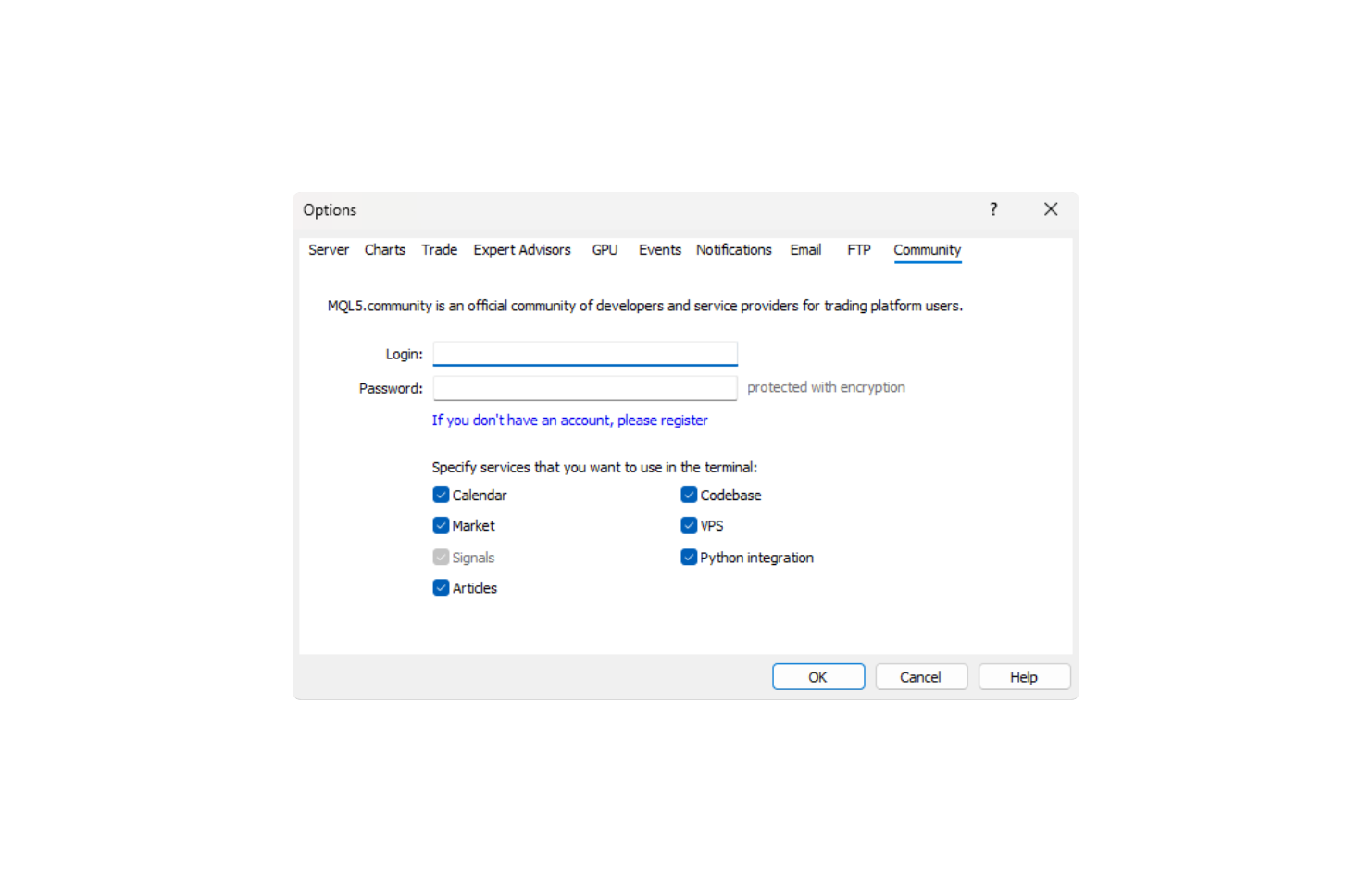 4. Open Navigator with View > Navigator or Ctrl+N. 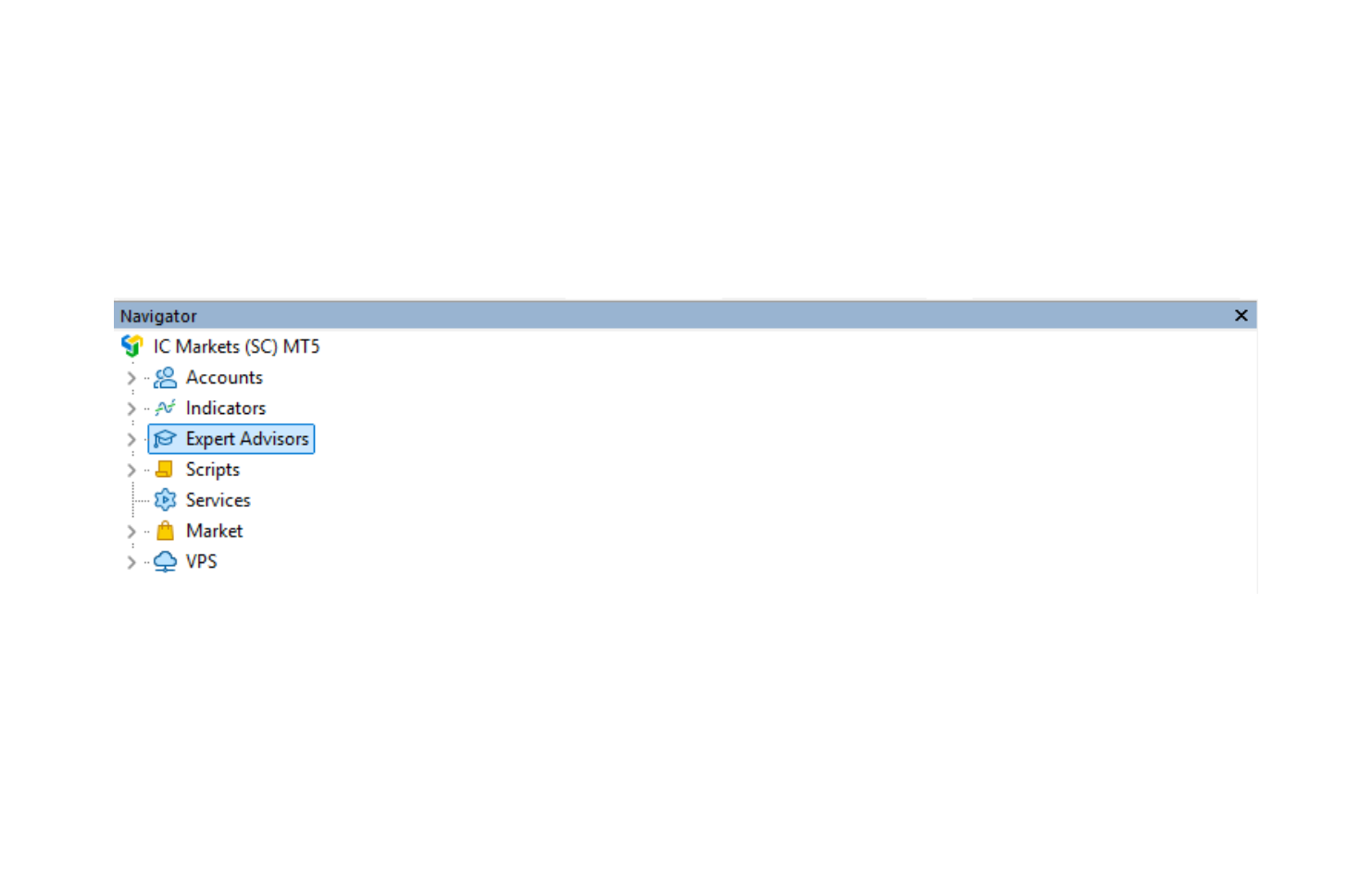 5. Open the Market or My Purchases area. Depending on the terminal layout, the Purchased list may also be available through Toolbox > Market > Purchased. 6. Find TradeOps and click Install. If a newer release is available, click Update. 7. After installation, locate TradeOps in Navigator under Expert Advisors > Market. |
Always install the protected Market version through the same MQL5.community account that owns or obtained the product. Do not rely on manually copying a Market EX5 file to another computer, because MQL5 Market applications are protected and activated for specific computer and operating-system configurations.
3. ATTACHING TRADEOPS TO A CHART
| 1. Open a normal MetaTrader 5 chart for the symbol you want to use first. 2. In Navigator, double-click TradeOps or drag it onto the chart. 3. The Expert Advisor properties window opens. 4. On the Common tab, enable Allow Algo Trading or the equivalent algorithmic-trading permission. 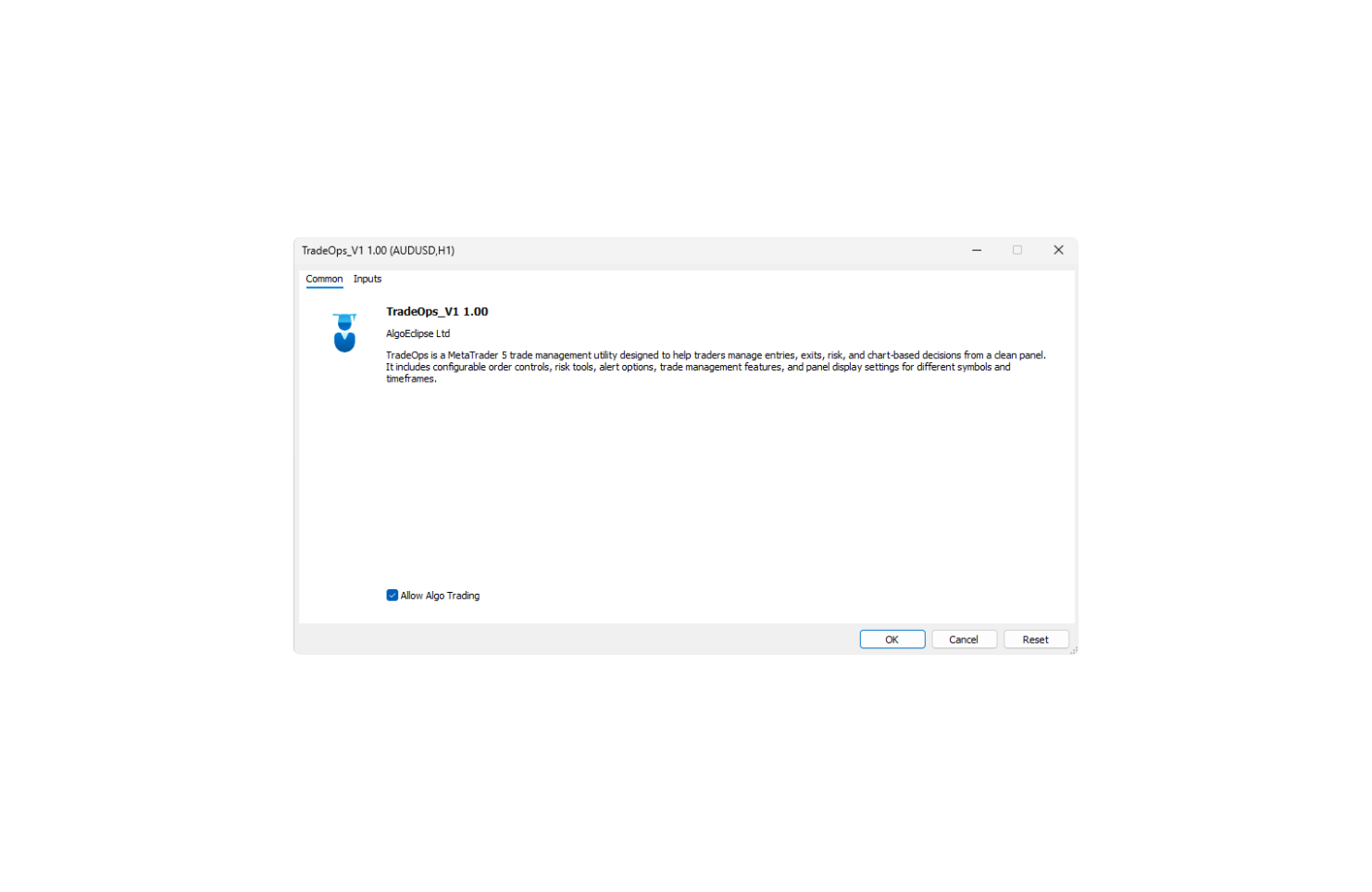 5. Do not enable Allow DLL Imports or add WebRequest addresses for TradeOps. 6. Open the Inputs tab and review the default settings. The defaults can be used for the first launch. 7. Click OK. |
MetaTrader 5 supports only one Expert Advisor on each chart. If another Expert Advisor is already running on that chart, attaching TradeOps replaces it. Use a separate chart for each Expert Advisor instance.
4. ENABLING PLATFORM TRADING PERMISSIONS
TradeOps needs both its chart-level permission and the platform-wide trading permission.
| 1. Find the Algo Trading button on the MetaTrader 5 toolbar. 2. Enable it. Some terminal builds label this control AutoTrading. 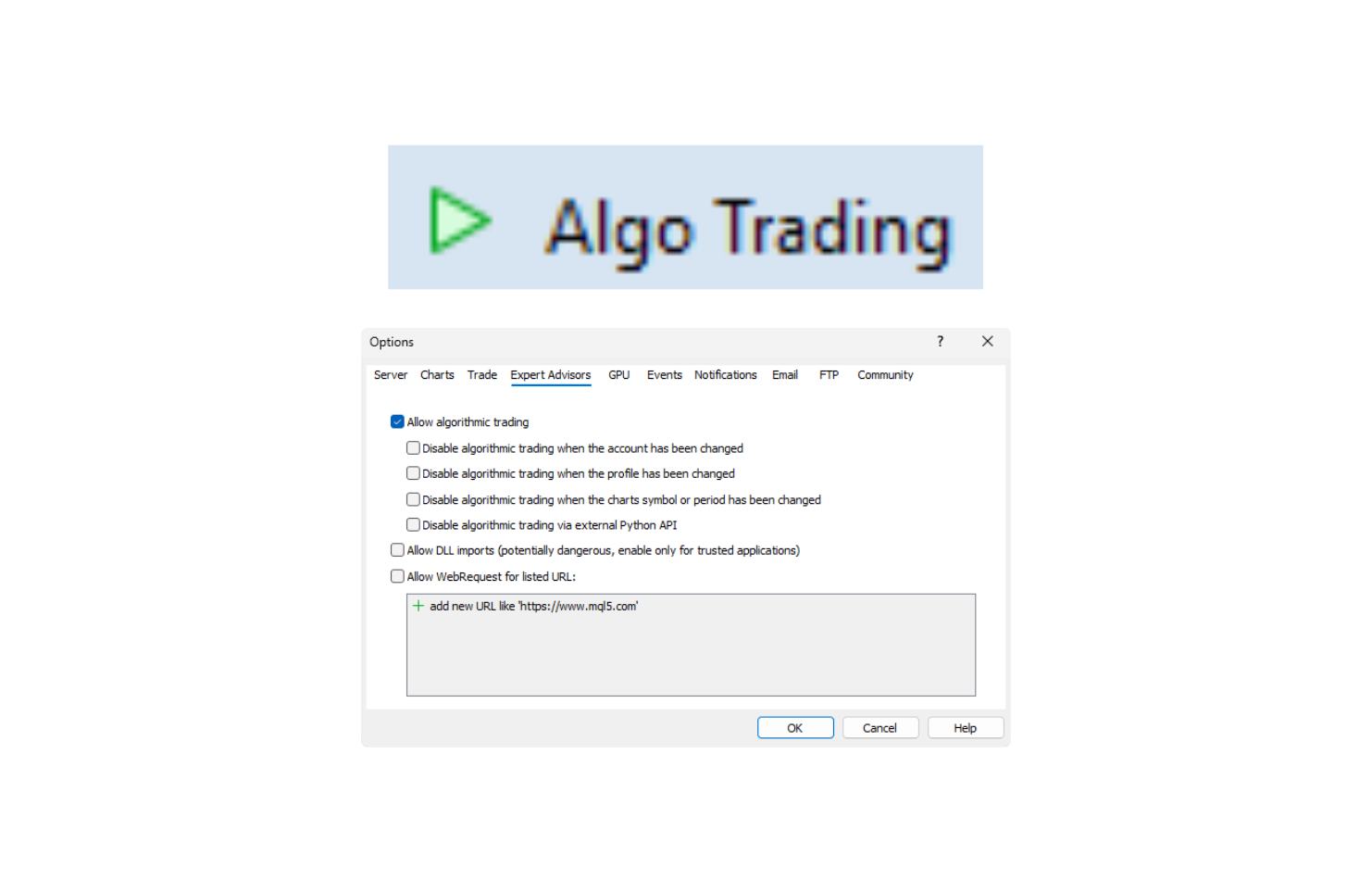 3. Confirm that TradeOps remains attached to the chart and that the Expert Advisor status icon does not show trading as disabled. 4. Confirm that the trading account is connected and that prices are updating. |
If the panel is visible but orders cannot be placed or modified, recheck Tools > Options > Expert Advisors, the chart-level Allow Algo Trading setting, and the toolbar Algo Trading button.
5. RECOMMENDED CHART SETUP
TradeOps normally applies the chart properties required for its panel and on-chart tools. If candles or chart objects appear in front of the panel:
1. Right-click the chart and select Properties.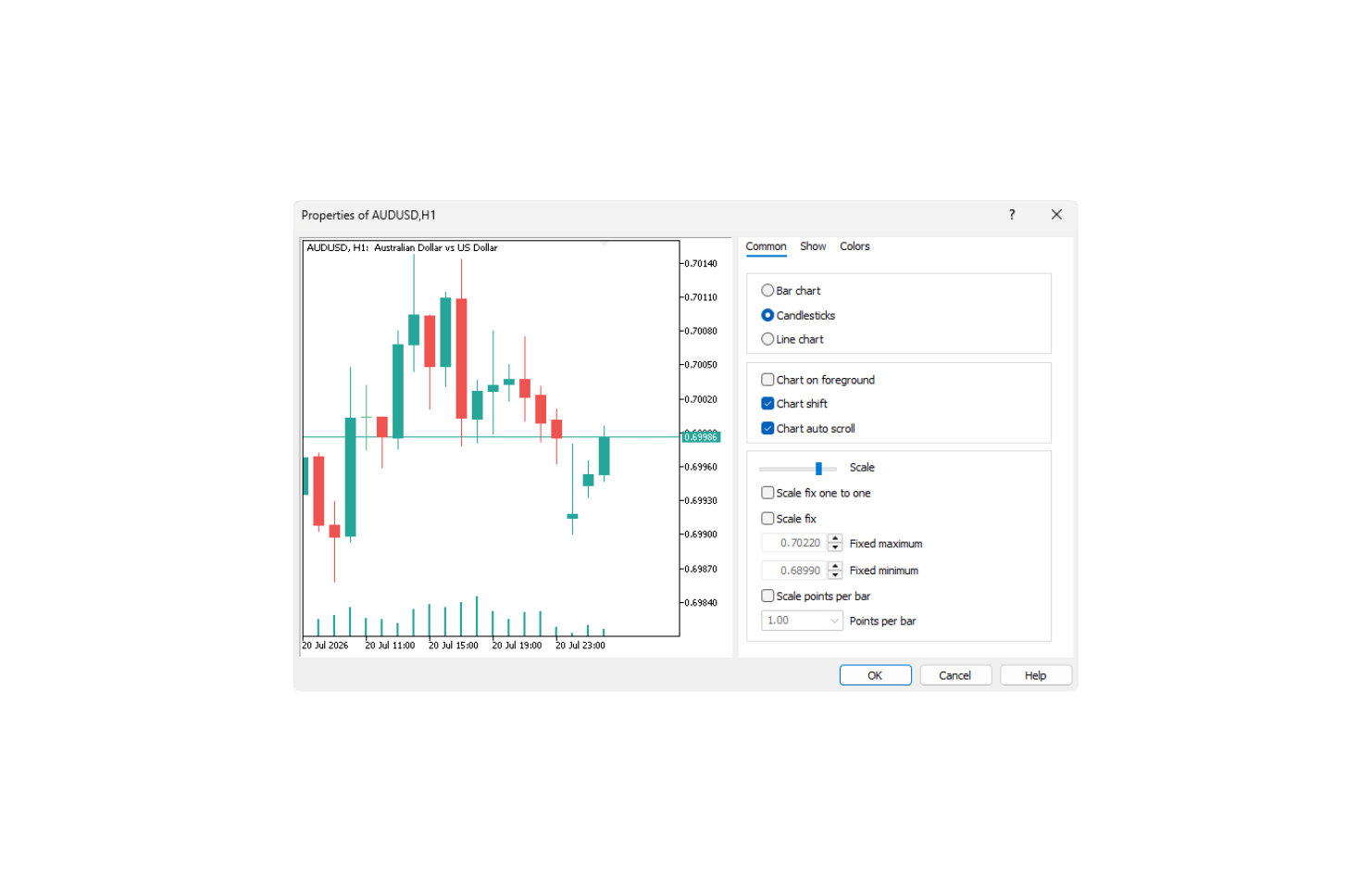 2. Make sure Chart on foreground is disabled. 3. Enable Chart Shift so the RR tool and panel have sufficient space on the right side of the chart. 4. Keep the required symbol visible in Market Watch if you intend to select it from TradeOps. |
Use the Auto panel scale first. On high-DPI monitors, virtual machines, or Parallels, restart MetaTrader 5 after changing operating-system display scaling and then recheck the TradeOps Auto scale.
6. FIRST-LAUNCH CHECK
Before using TradeOps with real funds:
| 1. Attach TradeOps to a normal chart on a broker demo account. Do not use the Strategy Tester. 2. Confirm the panel opens without an error message. 3. Confirm that the managed symbol is the intended symbol. 4. Confirm that the Manage dropdown shows New Trade / Order when no existing trade is selected. 5. Turn on the RR tool and verify that it draws correctly when the managed symbol matches the chart symbol. 6. Check the Rules tab and checklist so you understand any default blocks. 7. Place a minimum-size test trade on the demo account. 8. Test the intended Close, Breakeven, Trailing, Partial, Grid, and OCO workflows individually before combining them. 9. Review the Experts and Journal tabs to confirm there are no repeated errors. |
7. MULTIPLE CHARTS AND MAGIC NUMBERS
One TradeOps instance can switch its managed symbol through Market Watch, but on-chart visuals such as the RR tool require the managed symbol to match the chart symbol.
For simultaneous visual use on several symbols, open separate charts and attach TradeOps to each one. Use a different magic number for each instance when you want the instances to manage separate trade sets. Keep a written record of the magic number used on each chart.
8. KEEPING AUTOMATION RUNNING
TradeOps management logic runs in the MetaTrader 5 terminal. Keep the terminal open, connected, the TradeOps instance attached, and Algo Trading enabled whenever you rely on Grid placement, Trailing, Breakeven, Partial Close, OCO cancellation, or alerts.
Broker-held positions, pending orders, Stop Loss, and Take Profit levels remain at the broker after the terminal closes. However, a future action that TradeOps still needs to detect or send cannot occur while TradeOps is offline.
A suitable VPS can be used for uninterrupted operation, but always verify the migrated chart, permissions, inputs, symbols, and active trades after setup or migration.
9. UPDATING TRADEOPS
| 1. Before updating, open the TradeOps Inputs window and save a .set file if you have customised the inputs. 2. Record any active trade-management settings and review all open positions and pending orders. 3. Sign in to the correct MQL5.community account. 4. Open Market/My Purchases and click Update next to TradeOps. 5. Reattach or restart TradeOps if required by the release notes. 6. Confirm the version, inputs, managed symbol, magic number, and active management features before continuing. |
A Market update installs the latest available version. Keep your own record of important settings before updating.
10. INSTALLING ON ANOTHER COMPUTER OR AFTER AN OS CHANGE
| 1. Install MetaTrader 5 on the new or changed system. 2. Sign in to the MQL5.community account that owns TradeOps. 3. Open the Purchased area and install TradeOps from there. 4. Attach it to a chart and restore your intended inputs and magic number. |
MQL5 Market products use a limited number of activations tied to computer and operating-system configurations. A new computer, major virtual-machine change, hardware change, or operating-system reinstall can require another activation.
11. REMOVING OR REINSTALLING TRADEOPS
To stop TradeOps on a chart, right-click the chart and select Expert List, then remove TradeOps, or attach a different Expert Advisor to that chart.
Removing TradeOps from a chart does not automatically close open positions or delete broker-held pending orders. It also stops terminal-side management. Before removal, inspect and manually secure every open position, OCO pair, pending order, Grid plan, Trailing setting, Breakeven setting, and Partial plan.
To reinstall TradeOps, use Market/My Purchases while signed in to the MQL5.community account that owns or obtained the product.
12. INSTALLATION TROUBLESHOOTING
Q: Can I test TradeOps in the MetaTrader 5 Strategy Tester?
A: No. TradeOps is designed for interactive use on a normal MetaTrader 5 chart and does not work in the Strategy Tester. Use a broker demo account for functional testing.
Q: TradeOps is not visible in Navigator.
A: Confirm it was installed into the current terminal through the MQL5 Market, refresh Expert Advisors, and restart MetaTrader 5 if necessary.
Q: The Market version says it is not licensed or cannot be activated.
A: Sign in to the MQL5.community account that owns the product and install it from the Purchased area. Do not use a copied Market EX5 from another computer.
Q: The panel appears but trading actions do not work.
A: Check the chart-level Allow Algo Trading permission, the toolbar Algo Trading button, account connection, market hours, TradeOps status line, and the Experts and Journal tabs.
Q: The RR tool is greyed out.
A: The managed symbol must match the chart symbol for on-chart RR objects.
Q: The panel is behind the candles or chart objects.
A: Disable Chart on foreground and enable Chart Shift. Reattach TradeOps if necessary.
Q: The panel is too large or too small.
A: Use Auto scale first. After changing Windows, virtual-machine, or Parallels scaling, restart MetaTrader 5.
Q: An order is rejected after installation.
A: Installation may be correct. Check the broker response in Experts and Journal for invalid stops, invalid price, market closure, insufficient margin, unsupported order type, or another trading-condition issue.
13. INSTALLATION SAFETY NOTE
Test every intended TradeOps workflow on a broker demo account before using real funds. TradeOps must be tested on a normal MetaTrader 5 chart because it does not work in the Strategy Tester. Installing the panel correctly does not remove trading risk, broker execution risk, connection risk, or the need to monitor open positions.