- FREE Download NT Trade Manager Panel MT4 LIVE Demo - [DOWNLOAD]
- FREE Download NT Trade Manager Panel MT5 LIVE Demo - [DOWNLOAD]
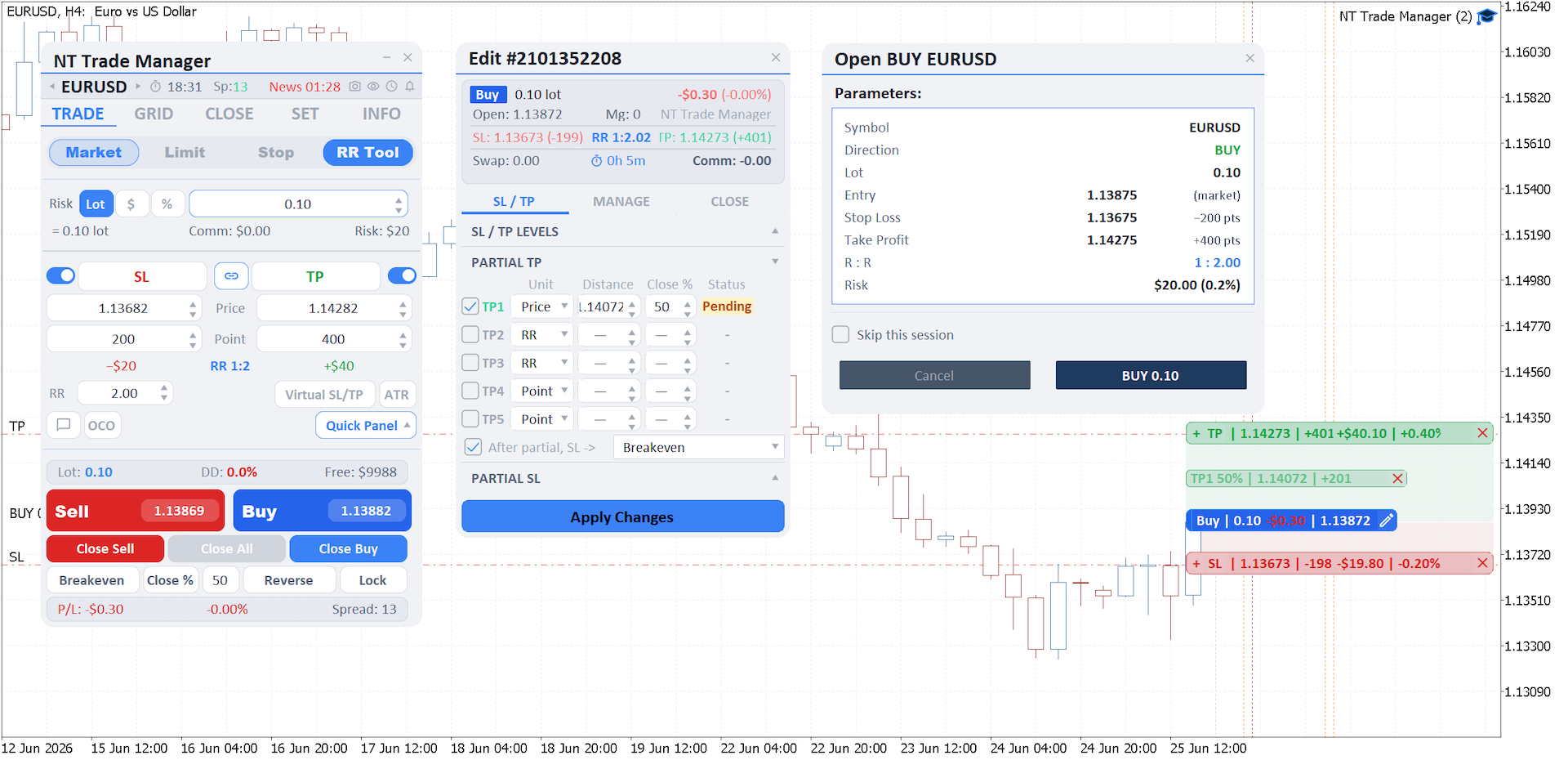
This is the installation guide for the free demo of NT Trade Manager. The demo is the complete panel with every feature included — nothing is stripped out. The only difference from the purchased version is that the demo runs on demo accounts only. That lets you try the panel's entire workflow live — from sizing the entry to managing and closing the position — right on a demo-account chart before you buy.
How the Demo Differs from the Purchased Version
- Full functionality. Everything is available — all tabs, RR Tool, partial close, trailing, Breakeven, Virtual SL/TP, Grid, risk limits, the calendar, and notifications. Nothing is disabled.
- Demo accounts only. The panel opens and manages trades on a demo account. On a live account the demo will not trade.
- Live work on the chart. This is an interactive panel you operate by hand right on the chart, so the only way to evaluate it is to use it live — not in the Strategy Tester. The demo lets you run the entire real workflow: open, manage, and close a trade on a demo account.
When you're ready to move to a live account, you buy or rent the full version on mql5.com Market (see [What's Next]).
Step 1. Download the Demo File
Download the demo file from this link:
- FREE Download NT Trade Manager Panel MT4 LIVE Demo - [DOWNLOAD]
- FREE Download NT Trade Manager Panel MT5 LIVE Demo - [DOWNLOAD]
You'll get a single `.ex5` file — that's the Expert Advisor we'll install in the terminal.
Step 2. Put the File in the Experts Folder
1. In MetaTrader 5, open `File → Open Data Folder`. The terminal's data folder opens in your file explorer.
2. Go to `MQL5 → Experts`.
3. Copy the downloaded `.ex5` file into this folder.
Step 3. Refresh the List and Drag It onto a Chart
1. Switch back to the terminal. In the `Navigator` window, right-click the `Expert Advisors` section and choose `Refresh`. NT Trade Manager will appear in the list.
2. Open a chart on your **demo account** for the symbol you plan to trade.
3. Drag NT Trade Manager from the `Navigator` onto that chart. The EA properties window opens.
4. On the `Common` tab, enable `Allow Algo Trading` and click OK.
Step 4. Check That Everything Works
- The panel appears in the left part of the chart.
- The `AutoTrading` button in the MetaTrader 5 toolbar is green. If it's red or crossed out, click it — without it the panel can't open trades.
- The account is a demo account. You can confirm this under `Navigator → Accounts` or by the account type shown in the terminal's title bar.
If the panel doesn't appear after you drag it on, check the `Experts` tab in the `Toolbox` window at the bottom of the terminal — it will show the reason (for example, algo trading isn't enabled).
What's Next
The demo gives you full access to every feature — walk through them with the detailed documentation:
- [Complete User Manual] — a tour of every tab, subwindow, and setting.
- [Deep Dive 1: Risk Management & Account Protection] — position sizing for your target risk, daily/weekly/monthly limits, breach actions, and Virtual SL/TP.
- [Deep Dive 2: Smart Closing — Partial + Trailing + Breakeven] — partial close across up to five levels, breakeven, and all six trailing-stop types with setup examples.
- [Deep Dive 3: Visual Trading — RR Tool, Chart Lines, Quick Panel] — building a trade with lines right on the chart, open-position banners, the expiry timeline, and the Quick Panel.
- [Deep Dive 4: Grid Trading] — grid trading: grid direction, multiplier-based volume growth, a shared TP/SL, and a preview before launch.
When you decide to trade on a live account, buy or rent the full version on mql5.com Market. Installing the purchased version is covered in the "Installation & First Launch" section of the [Complete User Manual]: it installs straight from the terminal via `Market → Purchased → Install`, and the license is tied to your MQL5 account.
- Buy NT Trade Manager MT5 - [PRODUCT PAGE]
- Buy NT Trade Manager MT4 - [PRODUCT PAGE]