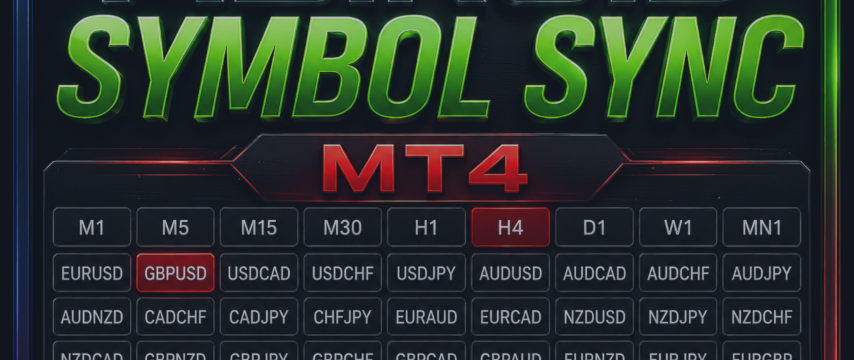

You can get it for free here:
MT4:
https://www.mql5.com/en/market/product/179894/
MT5:
https://www.mql5.com/en/market/product/179895/
Abiroid Symbol Sync
Features at a Glance
- One-click symbol change across all charts simultaneously
- One-click timeframe change across all charts simultaneously
- Live trade status on every pair button — active buy/sell and profit/loss coloring
- Pending order indicators shown separately on buttons (distinct buy/sell colors)
- Panel background color changes with your overall profit or loss
- Sync panel position across all charts
- Sync the number of buttons per row across all charts
- One-click template apply and broadcast to all open charts
- Draggable panel with optional position memory
- Show/Hide toggle button to keep your chart clean when not needed
- Place the panel in the main chart window or any indicator subwindow
- Row-based or column-based layout mode
- Control how many buttons appear per row (pairs) and per row (timeframes)
- Use symbols from your Market Watch or type your own custom list
- Use all available timeframes or define your own custom list
- Fully configurable colors for every element
- Works on MT4 and MT5 from the same codebase
Switching Symbols
The pair buttons are shown in a row (or column, depending on your layout). Click any pair button and all open charts that have the indicator attached switch to that symbol immediately. The active symbol button highlights so you always know which pair the panel is currently on.
Switching Timeframes
The timeframe buttons work the same way. Click M15, H1, H4 — or whatever timeframes you have configured — and every chart switches. The active timeframe button highlights.
Profit/Loss Based:

Bull/Bear Based:

Reading Trade Info on Buttons
Each pair button is more than just a label. It tells you at a glance what is going on with that symbol:
- If you have an active buy trade, the button color or border turns green (configurable).
- If you have an active sell trade, it turns red.
- If you have a pending buy order on a pair with no active trade, the border turns the pending buy color (light green by default).
- If you have a pending sell order, the border turns the pending sell color (light coral by default).
- If profit/loss coloring is enabled, the color reflects whether your net position on that pair is in profit or loss.
Panel Background Profit Indicator
When Enable Panel BG by Total Profit is turned on, the entire panel background changes color based on your total floating profit or loss across all open trades combined. It goes dark green when you are in profit and dark red when you are in loss. This means you do not have to look anywhere else to get a session-level profit pulse — the panel tells you immediately.


Applying Templates
The T button (Template) applies a template to the current chart. If you have Sync Templates enabled in the settings, it also broadcasts the template to all other open charts that have the indicator running. This is useful when you want every chart to load the same indicator set in one go.

Each indicator instance can have its own Template Name setting, so different charts can get different templates if you want that — or they can all share the same one.
Showing and Hiding the Panel
The small S/H button in the corner toggles the panel between visible and hidden. When hidden, only this small button remains so you can bring the panel back. The hide/show state can also sync across all charts so they all hide or show together.

Moving the Panel
You can drag the panel anywhere on the chart by clicking and holding on the panel background and then moving the mouse. The panel can be placed in the main chart window or in an indicator subwindow. If Sync Panel Position is enabled, dragging the panel on one chart moves it on all charts simultaneously, and any newly opened charts will automatically remember this position. If your panel ever gets dragged completely off-screen (for example, if you tile your charts), opening a new chart will detect it is out of bounds and safely auto-recover it to your default X/Y position!
Settings Explained

All settings are accessible through the indicator properties dialog when you double-click the indicator in the Navigator, or right-click the indicator on the chart and choose Properties.
Global Sync Settings
| Setting | What it does |
|---|---|
| Prefix | A unique identifier for this set of indicators. All charts that should communicate with each other must use the same prefix. If you have two separate groups of charts that you want to control independently, give them different prefixes. |
| Sync Panel Position | When enabled, dragging the panel on one chart moves it on every other chart with the same prefix. Useful if you have multiple screens and want the panel in the same spot everywhere. |
| Sync Number of Symbols/TF Per Row | When enabled, changing the buttons-per-row setting on one chart updates all other charts to match. Keeps the layout consistent across your workspace. |
| Sync Traded Pair (Symbol) | When enabled, clicking a pair button changes the symbol on all synced charts. This is the core sync feature. Disable it if you want the panel on a chart but do not want symbol sync on that particular chart. |
| Sync Timeframe | Same idea as symbol sync, but for timeframes. Disable on a specific chart to keep it locked to a timeframe while all others change. |
| Sync Templates | When enabled, the T button broadcasts the template to all synced charts. |
| Template Name | The name of the template file (without the .tpl extension) to apply when the T button is clicked. Leave blank to use the default chart template. |
| Refresh After Ticks | How many incoming ticks to wait before refreshing the trade info on the buttons. Lower values update faster but use slightly more resources. Default is 10 ticks. |
General Settings
| Setting | What it does |
|---|---|
| Panel Layout Mode | Choose between Row Based and Column Based. In Row Based mode, timeframes appear above the pairs. In Column Based mode, timeframes appear to the left of the pairs. Both layouts support wrapping with the per-row settings. |
| Panel X Position | The horizontal distance from the top-left corner of the chart window to the panel. This is the starting position when the panel is first placed. |
| Panel Y Position | The vertical distance from the top of the chart window to the panel. |
| Show/Hide Button | Whether to show the small S/H toggle button. If you never need to hide the panel, you can turn this off to keep things clean. |
| Panel Window | Which chart window to place the panel in. 0 means the main chart, 1 means the first subwindow (like an RSI window), 2 means the second subwindow, and so on. The panel draws and drags correctly in whichever window you choose. |
Pairs Settings
| Setting | What it does |
|---|---|
| Show Pairs Buttons | Toggle the entire pairs row on or off. Useful if you only want a timeframe switcher and no pair buttons. |
| Pair Selection Mode | Auto Market Watch automatically builds the list from whatever symbols are in your Market Watch. Manual Pairs List uses only the symbols you type in the field below. |
| Manual Pairs | A comma-separated list of symbols to show, e.g. EURUSD,GBPUSD,USDJPY . Only used when Pair Selection Mode is set to Manual. |
| Pairs Per Row | How many pair buttons to show before wrapping to a new row (Row Based mode) or a new column (Column Based mode). For example, if you have 7 pairs and set this to 4, the first 4 appear in the first row and the remaining 3 appear below. |
Timeframe Settings
| Setting | What it does |
|---|---|
| Show Timeframe Buttons | Toggle the entire timeframe row on or off. |
| TF Selection Mode | All MT4/MT5 Timeframes shows every available timeframe on your platform. Manual Timeframes shows only those you list below. |
| Manual TFs | A comma-separated list of timeframe labels, e.g. M1,M5,M15,H1,H4,D1 . Only used when TF Selection Mode is set to Manual. |
| TF Per Row | How many timeframe buttons to show per row before wrapping, same logic as Pairs Per Row. |

Color Settings
| Setting | What it does |
|---|---|
| ColorBgNormal | Default background color of the buttons and the panel. A dark color works best. |
| ColorBgActive | Background color of the currently active pair or timeframe button. |
| ColorText | Text color on all buttons. |
| ColorBorderNormal | Border color of buttons in their default state. |
| Trade Color Mode | Controls what the trade colors represent. Profit/Loss based colors the button by whether the net position is in profit or loss. Bull/Bear colors it by whether you are net long or net short. None disables trade coloring entirely and uses standard colors. |
| Trade Color Target | Whether the trade color applies to the Button Background or just the Button Border. The border option is more subtle and keeps the button readable. |
| Active Buy Trade Color | Color used when you have an active buy on that pair. |
| Active Sell Trade Color | Color used when you have an active sell on that pair. |
| Pending Buy Order Color | Color used on the border when a pending buy order exists. |
| Pending Sell Order Color | Color used on the border when a pending sell order exists. |
| Profit Color | Color used when the trade on that pair is in positive profit (used in Profit/Loss mode). |
| Loss Color | Color used when the trade on that pair is in a loss. |
Panel Background Settings
| Setting | What it does |
|---|---|
| Change Panel Bg by Total Profit | Enables the profit/loss background coloring on the panel itself. When your total open floating profit across all trades is positive, the panel background shifts to the profit color. When it is negative, it shifts to the loss color. |
| Total Profit Bg | The background color the panel switches to when total floating profit is positive. Default is a very dark green. |
| Total Loss Bg | The background color the panel switches to when total floating profit is negative. Default is a very dark maroon. |
Layout Tips
Row Based vs. Column Based
In Row Based mode, the panel stacks sections top to bottom: timeframes appear in a row above, pairs appear in rows below. Each section wraps into new rows based on your per-row settings.
In Column Based mode, the layout goes left to right: timeframes appear in a column on the left, pairs appear in columns to the right. Wrapping happens across columns instead of rows. If you set TF Per Row to 1 in Column Based mode, each timeframe gets its own row which creates a clean vertical column of timeframes on the side.

Controlling Button Wrapping
The Pairs Per Row and TF Per Row settings control how many buttons appear per row (in Row Based mode) or how many appear per column section (in Column Based mode). You can use these to shape the panel to fit your chart layout perfectly — compact and wide for small subwindows, or tall and narrow if you prefer a sidebar-style panel.
Using Subwindows
Set Panel Window to 1 or higher to place the panel inside an indicator subwindow (like RSI, MACD, or a separate empty indicator). This is handy if you want the panel off the main price chart area so it never overlaps your candles. The panel drags correctly inside the subwindow.
Multi-Chart Setup Example
Here is a typical setup:
- Open 4 charts: EURUSD, GBPUSD, USDJPY, AUDUSD.
- Add Abiroid Symbol Sync to each chart with the same Prefix (for example, ABR_SC_ ).
- Enable Sync Traded Pair, Sync Timeframe, and Sync Panel Position on all four.
- Now click GBPUSD on any panel — all four charts switch to GBPUSD instantly.
- Click H4 — all four switch to the H4 timeframe.
- Drag the panel to a corner on one chart — it moves to the same position on all four.
You can also set one chart to not sync (by disabling Sync Traded Pair on it) while still showing the panel, which is useful for a fixed reference chart you always want to stay on a specific pair.
Things to Know
- All charts that need to communicate must use the same Prefix. If you use different prefixes, they will not sync.
- Trade info on the buttons refreshes every N ticks based on your Refresh After Ticks setting. On slow pairs, this might feel slightly delayed — lower the tick count if you want faster updates.
- The template sync feature applies the template stored in your MetaTrader templates folder. Make sure the template name you enter matches an existing template file exactly.
If you have questions or run into anything, feel free to reach out through comments below. Enjoy the cleaner workflow.