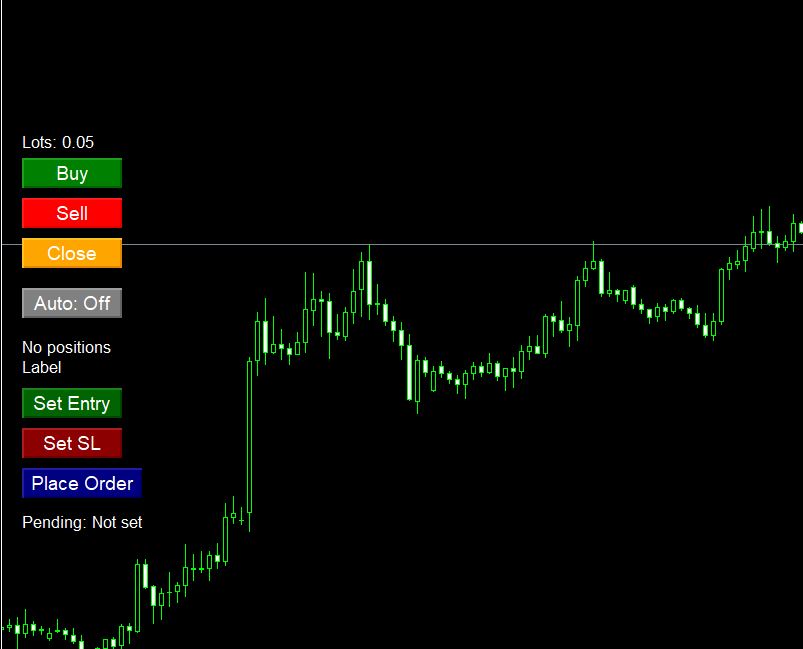
Manual/Auto Trading EA – Panel Trading, Auto Signals, Reversal, SL & Breakeven


🔍 Overview & Key Features
TrendPulse EA combines the power of automated signal detection with manual trading control. Whether you prefer fully automated trading, semi-automated assistance, or complete manual control, this EA adapts to your style.
https://www.mql5.com/en/market/product/174494
🎯 Core Capabilities
- Visual Signal Arrows: Clear BUY/SELL arrows on the main chart showing trend reversal signals
- Closed-Bar Confirmation: Signals trigger only after candle close, eliminating repainting issues
- Multi-Channel Alerts: Popup, sound, push notification, and email alerts
- Interactive Control Panel: One-click trading directly from the chart
- Auto Trading Modes: Four modes - Off, Both Directions, Long Only, Short Only
- Visual Pending Orders: Drag lines to set entry and stop-loss levels
- Auto Breakeven: Automatically move stops to breakeven when profit target reached
- Daily Loss Limit: Automatic trading halt when daily loss limit exceeded
🔧 Input Parameters Explained
Trading Parameters
| Parameter | Default | Description |
|---|---|---|
| Risk | 6 | Risk level for signal calculation. Higher values = less sensitive signals. Range: 1-10 recommended. |
| LotSize | 0.05 | Fixed lot size for each trade. Adjust based on your account size and risk tolerance. |
| StopLossPips | 20 | Stop loss distance in pips. Set to 0 to disable automatic stop loss. |
| BreakEvenPips | 15 | Profit level in pips to trigger breakeven move. Set to 0 to disable. |
| BreakEvenOffset | 1 | Pips above/below entry price to set breakeven. Positive = small profit lock. |
Magic Numbers & Identification
| Parameter | Default | Description |
|---|---|---|
| MagicNumber | 123456 | Identifier for auto-trading positions. EA manages only trades with this magic number. |
| ManualMagicNumber | 123457 | Identifier for manual/pending orders. Different from auto trades for separation. |
| OrderComment | AS | Comment tag added to all orders for identification in history. |
Panel & Visual Settings
| Parameter | Default | Description |
|---|---|---|
| PanelX | 20 | Horizontal position of control panel (pixels from left). |
| PanelY | 200 | Vertical position of control panel (pixels from top). |
| ShowArrows | true | Enable/disable signal arrows on chart. |
| ArrowBars | 300 | Number of historical bars to display arrows. More bars = more history shown. |
Alert Configuration
| Parameter | Default | Description |
|---|---|---|
| EnableAlerts | true | Master switch for all alerts. |
| AlertPopup | true | Show popup alert window on new signal. |
| AlertSound | true | Play sound on signal confirmation. |
| AlertSoundFile | alert.wav | Sound file name (must exist in MT5 Sounds folder). |
| AlertPush | false | Send push notification to mobile device (requires MT5 mobile app setup). |
| AlertEmail | false | Send email alert (requires email configuration in MT5). |
| AlertEmailSubject | TrendPulse Signal | Subject line for email alerts. |
Advanced Settings
| Parameter | Default | Description |
|---|---|---|
| RiskMoney | 50 | Maximum risk amount in USD for pending orders (calculates lot size based on SL distance). |
| TakeProfitUSD | 150 | Take profit target in USD per position. Set to 0 to disable. |
| DailyLossLimitUSD | 500 | Maximum daily loss allowed. Trading stops automatically when reached. |
🎛️ Control Panel Guide
The interactive control panel appears on your chart when the EA loads. This is your command center for manual trading and mode switching.
Panel Buttons Explained
📗 Buy Button (Green)
Immediately opens a BUY market order at current price with your configured lot size and stop loss.
📕 Sell Button (Red)
Immediately opens a SELL market order at current price with your configured lot size and stop loss.
🔒 Close Button
Closes all positions managed by this EA on the current symbol.
🤖 Auto Button
Cycles through trading modes: Off → Both → Long Only → Short Only → Off
Current mode displayed on the label below the button.
📍 Set Entry Line
Creates a draggable horizontal line on chart for pending order entry price.
🛑 Set SL Line
Creates a draggable horizontal line for stop loss level.
✅ Place Order
Places pending order using the Entry and SL lines. Automatically calculates direction and lot size.
📊 Signal System & Arrows
Arrow Display
Yellow upward arrows (↑) appear below candle lows when a buy signal confirms.
Yellow downward arrows (↓) appear above candle highs when a sell signal confirms.
Closed-Bar Confirmation
All trading actions use closed-bar confirmation - this means:
- Signal for bar index 1 (just closed) is compared to bar index 2
- Only when signal changes between these bars does action trigger
- This prevents false signals and repainting issues
🔔 Alert Configuration
The EA supports four alert channels simultaneously. Configure each based on your needs:
Setting Up Each Alert Type
1. Popup Alerts (AlertPopup = true)
Simple popup window in MT5. Most reliable, works immediately without setup.
2. Sound Alerts (AlertSound = true)
Place your .wav file in [MT5 Folder]/Sounds/ and set AlertSoundFile to the filename.
3. Push Notifications (AlertPush = true)
Requires:
- MT5 mobile app installed on your phone
- Same account logged in on mobile
- Notifications enabled in MT5 settings (Tools → Options → Notifications)
4. Email Alerts (AlertEmail = true)
Requires email configuration in MT5:
- Tools → Options → Email
- Enable and configure SMTP settings
- Test before relying on email alerts
Alert Message Format:
TrendPulse Closed Signal [BUY/SELL] | SYMBOL PERIOD | Close=PRICE | BarTime=DATE
⚡ Trading Modes
The EA offers four distinct trading modes accessible via the Auto button:
| Mode | Description | Use Case |
|---|---|---|
| Off | No automatic trading | Manual trading only, signals still shown |
| Both | Trade both directions | Normal trending markets |
| Long Only | Only buy signals | Bullish markets, avoid shorts |
| Short Only | Only sell signals | Bearish markets, avoid longs |
Auto Trading Logic
When Auto mode is active (not Off):
- On each new closed bar, check for signal change
- If signal flips to buy and mode allows longs → Open BUY
- If signal flips to sell and mode allows shorts → Open SELL
- If reverse signal detected → Close opposite position before opening new
📐 Visual Pending Orders
The visual pending order system allows you to place limit/stop orders by simply dragging lines on the chart.
How to Place a Visual Pending Order
A horizontal line appears on chart. Drag it to your desired entry price.
Another line appears. Drag it to your stop loss level (below entry for buy, above for sell).
EA automatically:
- Determines direction based on line positions
- Calculates lot size based on RiskMoney and stop distance
- Places appropriate Buy Limit/Sell Limit or Buy Stop/Sell Stop order
The "Pending" label shows order status: Set/Not set/Filled/Cancelled.
🛡️ Risk Management
The EA includes multiple layers of risk protection:
1. Stop Loss (Fixed)
Every trade automatically includes a stop loss at StopLossPips distance. Set to 0 to disable (not recommended).
2. Take Profit (USD-based)
When TakeProfitUSD > 0, the EA monitors position profit in USD and closes when target reached.
3. Daily Loss Limit (Critical Feature)
Highly recommended for all traders.
- Set DailyLossLimitUSD to your maximum acceptable daily loss
- EA tracks all closed trades with its magic numbers
- When total loss ≥ limit: All trading stops automatically
- Status shown on panel: "Daily loss limit reached..."
- Trading resumes next trading day (after server midnight)
4. Position Sizing
For visual pending orders, lot size is calculated as:
Lots = RiskMoney / (StopDistance_Pips × PipValue)This ensures you risk exactly your specified amount, regardless of stop distance.
🔒 Breakeven Settings
The automatic breakeven feature protects your profits:
How It Works
- Position opens with initial stop loss
- When profit reaches BreakEvenPips → Breakeven triggered
- Stop loss moved to entry price + BreakEvenOffset
- Position now cannot lose money (minus spread/slippage)
Example
- Entry: 1.08500
- Initial SL: 1.08300 (20 pips)
- BreakEvenPips: 15
- BreakEvenOffset: 1
- When price hits 1.08650 (15 pips profit) → SL moves to 1.08501
✅ Best Practices & Tips
🎯 For Best Results
- Always use stops. Never set StopLossPips to 0 in live trading.
- Set daily limits. Use DailyLossLimitUSD to protect your capital.
- Test first. Run on demo for at least 2 weeks before going live.
- Match timeframe. This EA works best on M5-M30 charts. Test your preferred timeframe.
- Monitor mode. Use "Off" mode to observe signals before enabling auto trading.
- Watch the news. Consider disabling auto mode during major news events.
- Use VPS. For 24/5 operation, run on a VPS to avoid interruptions.
- Check magic numbers. Ensure no conflicts with other EAs on the same account.
Recommended Starting Settings
| Parameter | Conservative | Moderate | Aggressive |
|---|---|---|---|
| Risk | 8 | 6 | 4 |
| LotSize | 0.01 per $1000 | 0.02 per $1000 | 0.05 per $1000 |
| StopLossPips | 30 | 20 | 15 |
| DailyLossLimitUSD | 2% of equity | 3% of equity | 5% of equity |
| Mode | Both | Both | Long/Short only |
❓ Frequently Asked Questions
Q: Why don't I see arrows on the chart?
A: Check that ShowArrows = true . Also, ensure ArrowBars is not set too low. The EA needs some history to calculate signals.
Q: Can I run multiple instances on different charts?
A: Yes, but ensure each uses different MagicNumbers to avoid position conflicts. Or use the same magic number if you want them to manage shared positions.
Q: Why didn't my pending order fill?
A: Check that your entry line is above current price for Buy Stop or below for Buy Limit. The EA automatically determines order type based on line position relative to market.
Q: Does it work on all currency pairs?
A: Yes, but adjust StopLossPips for different pair volatilities. XAUUSD (Gold) needs much higher pip values than EURUSD.
Q: Can I close positions manually?
A: Yes. The EA detects external closures and updates its internal state. However, using the panel "Close" button ensures proper synchronization.
Q: What happens if I close MT5?
A: Pending orders remain active on the broker server. The EA resumes monitoring when you reopen MT5. For continuous operation, use a VPS.
Q: Is the signal repainting?
A: No. The EA uses closed-bar confirmation. Signals only trigger after the candle closes, eliminating repainting issues common in many indicators.
Q: Can I use this on a prop firm account?
A: Yes, but verify your prop firm's rules on EAs and daily loss limits. The built-in DailyLossLimitUSD helps comply with many prop firm risk rules.