
Universal Signal Compatibility — No Indicator or Strategy Configuration Required
You do not need to configure any preferential signal type, custom indicator, or specific strategy to use this Expert Advisor. All incoming TradingView alerts are processed automatically, regardless of the indicator, script, or strategy that generated them.
There is no whitelist of supported indicators and no required signal format beyond a minimal, universal payload. As long as your alert contains the following three essentials, the EA will accept and process it:
- Signal Type / Action — e.g. Buy , Sell , Bullish , Bearish , MarketBuy , MarketSell , Close , Cancel , Exit , Stop
- Direction — implicit in the action (long/short)
- Asset / Symbol — the instrument name (e.g. EURUSD , BTCUSDT , XAUUSD , NAS100 )
That's it. Optional fields such as entry price, stop-loss, take-profit, lot size, template ID, or transaction ID are detected and used only if present — they are never mandatory.
Why this matters
- Plug-and-play with any TradingView source. Built-in indicators, public scripts, private Pine Script strategies, paid systems, custom alerts — all work out of the box.
- No need to rewrite your alert messages. If your alerts already send a symbol and a direction, you're ready to trade.
- Smart Asset Mapping automatically translates TradingView symbols (e.g. BTCUSD , GOLD , US100 ) into the equivalent broker symbol on your MT5 account — manually or automatically.
- Dynamic and broker-agnostic. The EA adapts to your broker's symbol naming, your account's risk settings, and your preferred order behavior — without you having to standardize anything on the TradingView side.
This flexibility is what makes the Expert Advisor exceptionally dynamic and easy to use: connect any TradingView alert, send the bare minimum, and the EA takes care of validation, normalization, risk sizing, and order execution — fully automatically.
Visual interface guide — buttons and zones explained step by step
GET THE EXPERT ADVISOR
FREE 7-Day TrialTry every feature, no payment required ✓ Full functionality unlocked ✓ All TIDs & assets supported ✓ Multi-stage TP/SL + trailing stop ⏱ 7 days, then expires | FULL Full VersionUnlimited access, lifetime license ✓ Everything in the trial ✓ No time limit ✓ Free updates included ✓ Priority support |
TABLE OF CONTENTS
- SETTINGS — General (page 1/2): Magic, Execution, Risk, Direction
- SETTINGS — General (page 2/2): SL/TP Format & Manual Override
- SETTINGS — Partial Close (Multi-stage TP & SL)
- SETTINGS — Trailing Stop
- SETTINGS — Global Set (master settings)
- SETTINGS — Time Restrictions
- TRANSACTIONS — Live positions
- MAPPING — TradingView symbols → Broker
- LOGS — Event journal
- API CONFIG — API key & Webhook
1. SETTINGS — GENERAL (page 1/2)
Core configuration for a TID: how each signal is executed and how much risk it takes.
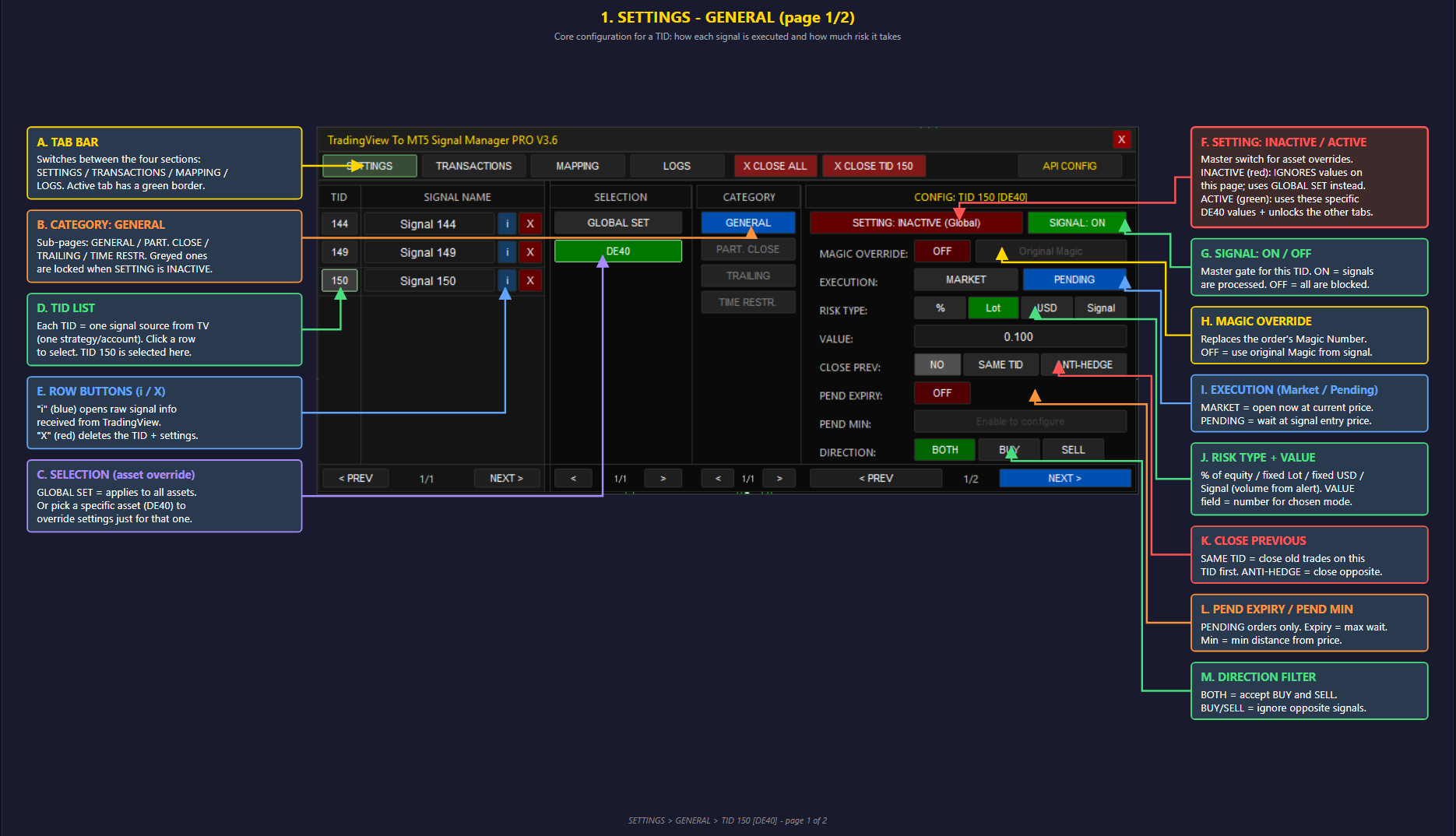
Key elements:
- TAB BAR — switches between SETTINGS / TRANSACTIONS / MAPPING / LOGS
- TID LIST — each TID = one signal source from TradingView
- SELECTION — pick GLOBAL SET or a specific asset (e.g. DE40) for overrides
- CATEGORY — sub-pages: GENERAL / PART. CLOSE / TRAILING / TIME RESTR.
- SETTING: INACTIVE / ACTIVE — master switch for asset overrides. INACTIVE = use GLOBAL Set values. ACTIVE = use these specific values + unlocks the other tabs
- SIGNAL: ON / OFF — master gate for the TID
- MAGIC OVERRIDE — replaces the order's Magic Number
- EXECUTION — MARKET (now) or PENDING (at signal price)
- RISK TYPE + VALUE — % equity / fixed Lot / fixed USD / Signal-based
- CLOSE PREVIOUS — NO / SAME TID / ANTI-HEDGE on entry
- PEND EXPIRY / PEND MIN — pending orders only
- DIRECTION FILTER — BOTH / BUY only / SELL only
2. SETTINGS — GENERAL (page 2/2)
How signal TP/SL values are interpreted, and how to override them manually.
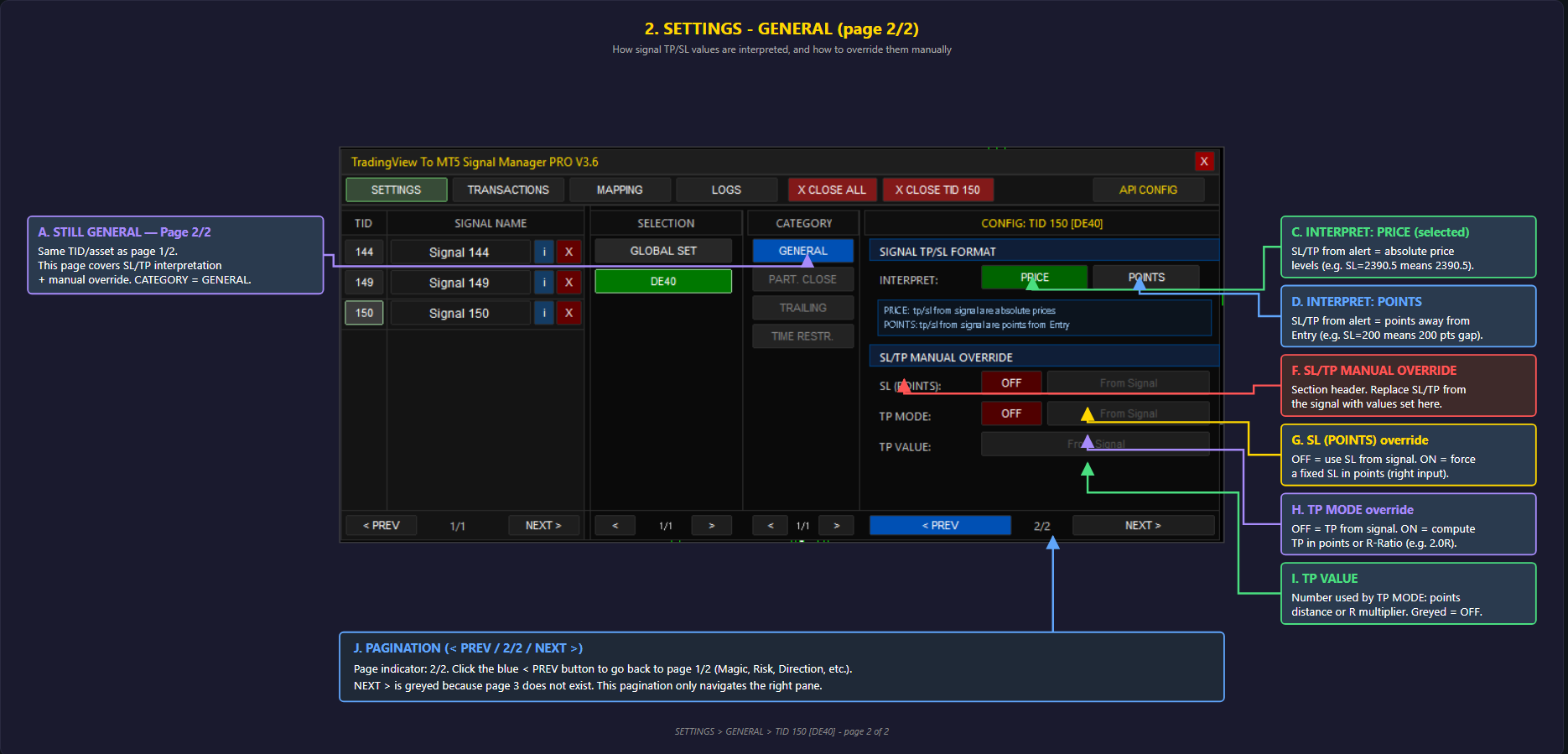
Key elements:
- INTERPRET: PRICE — SL/TP from alert are absolute price levels
- INTERPRET: POINTS — SL/TP from alert are points away from Entry
- SL/TP MANUAL OVERRIDE — section header, replace SL/TP from signal with values set here
- SL (POINTS) override — OFF = use signal SL; ON = force a fixed SL in points
- TP MODE override — OFF = signal TP; ON = compute TP in points or R-Ratio
- TP VALUE — number used by TP MODE
- PAGINATION — < PREV / 2/2 / NEXT > navigates the right pane
3. SETTINGS — PART. CLOSE (Multi-stage TP & SL)
Scaled exit at 3 TP levels + 2 SL levels with automatic position management.
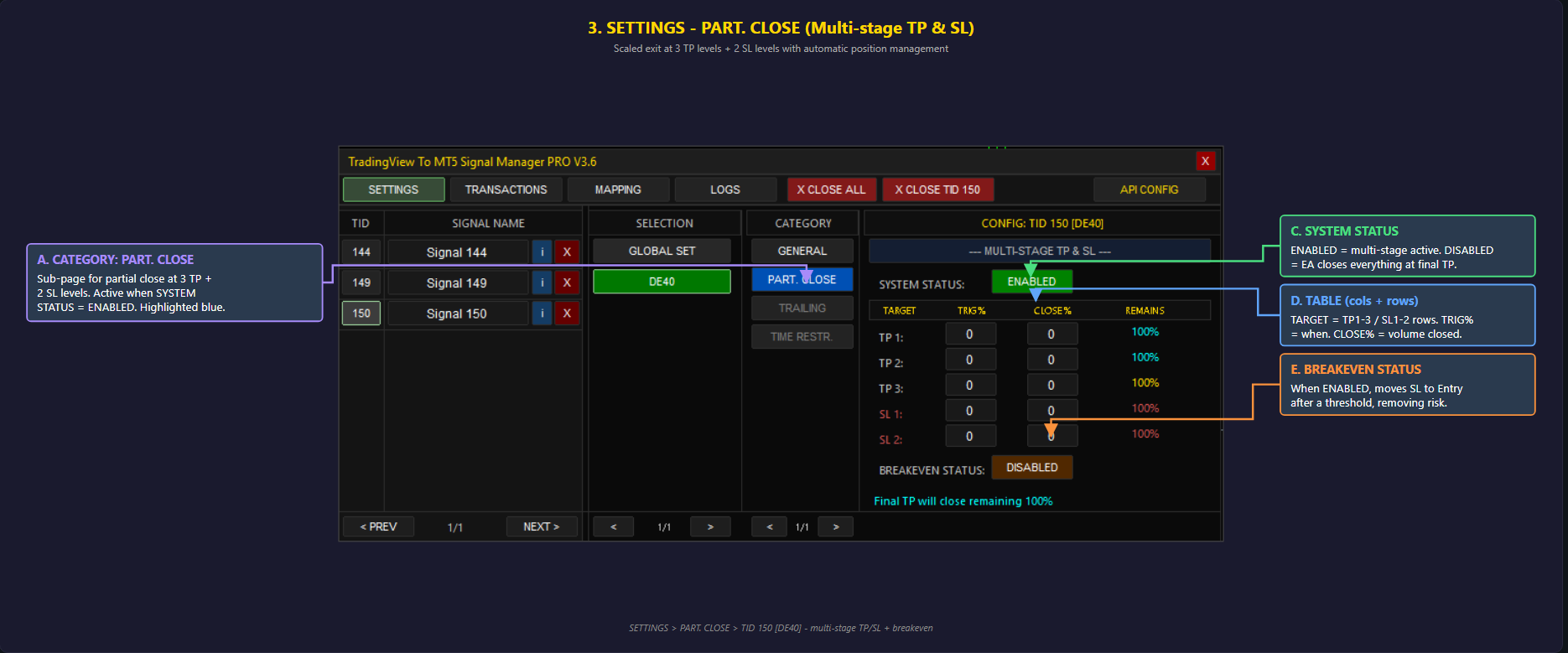
Key elements:
- SYSTEM STATUS — ENABLED = multi-stage active. DISABLED = closes everything at final TP
- TABLE (TARGET / TRIG% / CLOSE% / REMAINS) — TP1-3 / SL1-2 rows. TRIG% = when partial close fires. CLOSE% = volume closed
- BREAKEVEN STATUS — when ENABLED, moves SL to Entry after a threshold
4. SETTINGS — TRAILING STOP
Dynamic SL that follows price: activation, distance, retrace sensitivity.
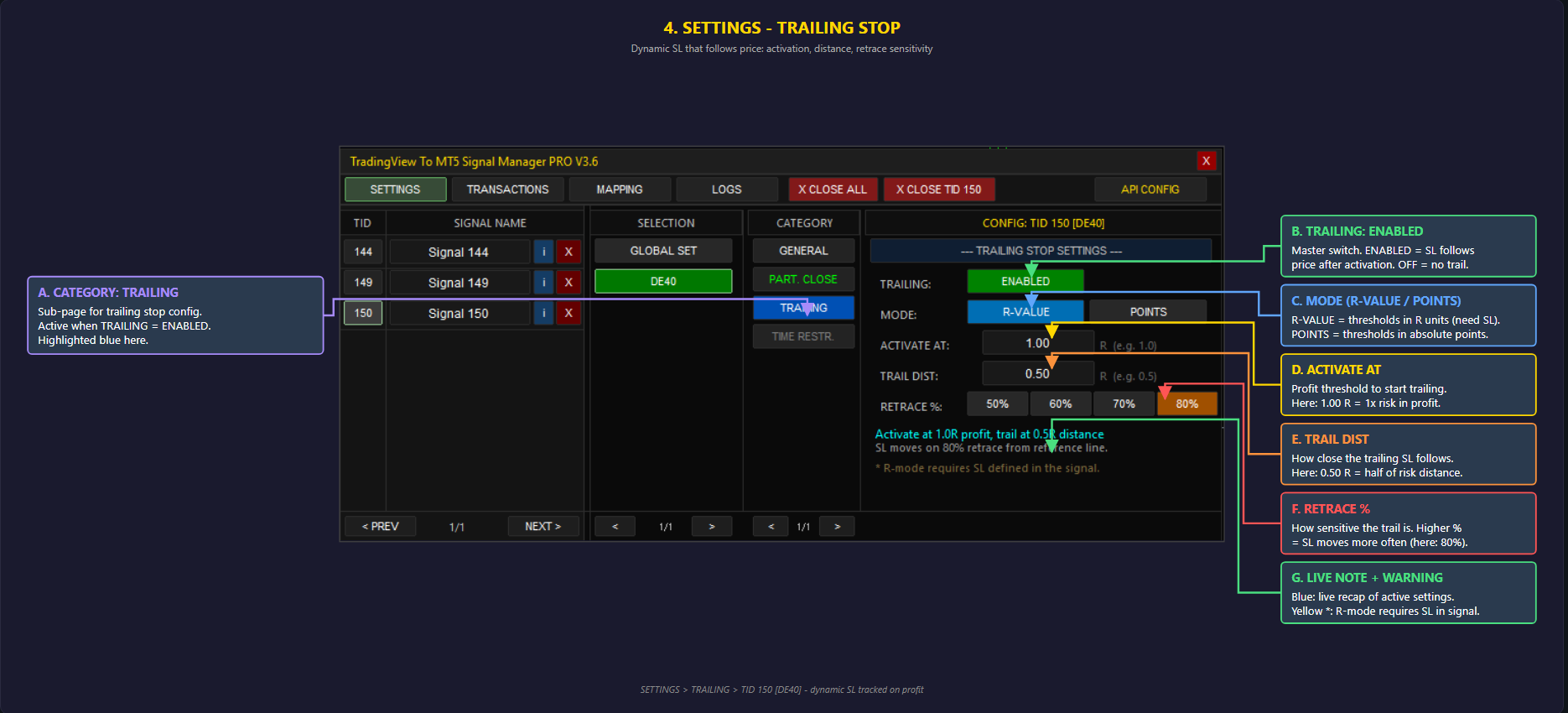
Key elements:
- TRAILING: ENABLED — master switch. ENABLED = SL follows price after activation
- MODE (R-VALUE / POINTS) — R-VALUE = thresholds in R units (need SL); POINTS = absolute points
- ACTIVATE AT — profit threshold to start trailing (e.g. 1.0 R = 1x risk in profit)
- TRAIL DIST — how close the trailing SL follows (e.g. 0.5 R = half of risk distance)
- RETRACE % — sensitivity. Higher % = SL moves more often
- Note: R-mode requires SL defined in the signal
5. SETTINGS — GLOBAL SET (master settings)
Default values applied to every asset without per-asset override.
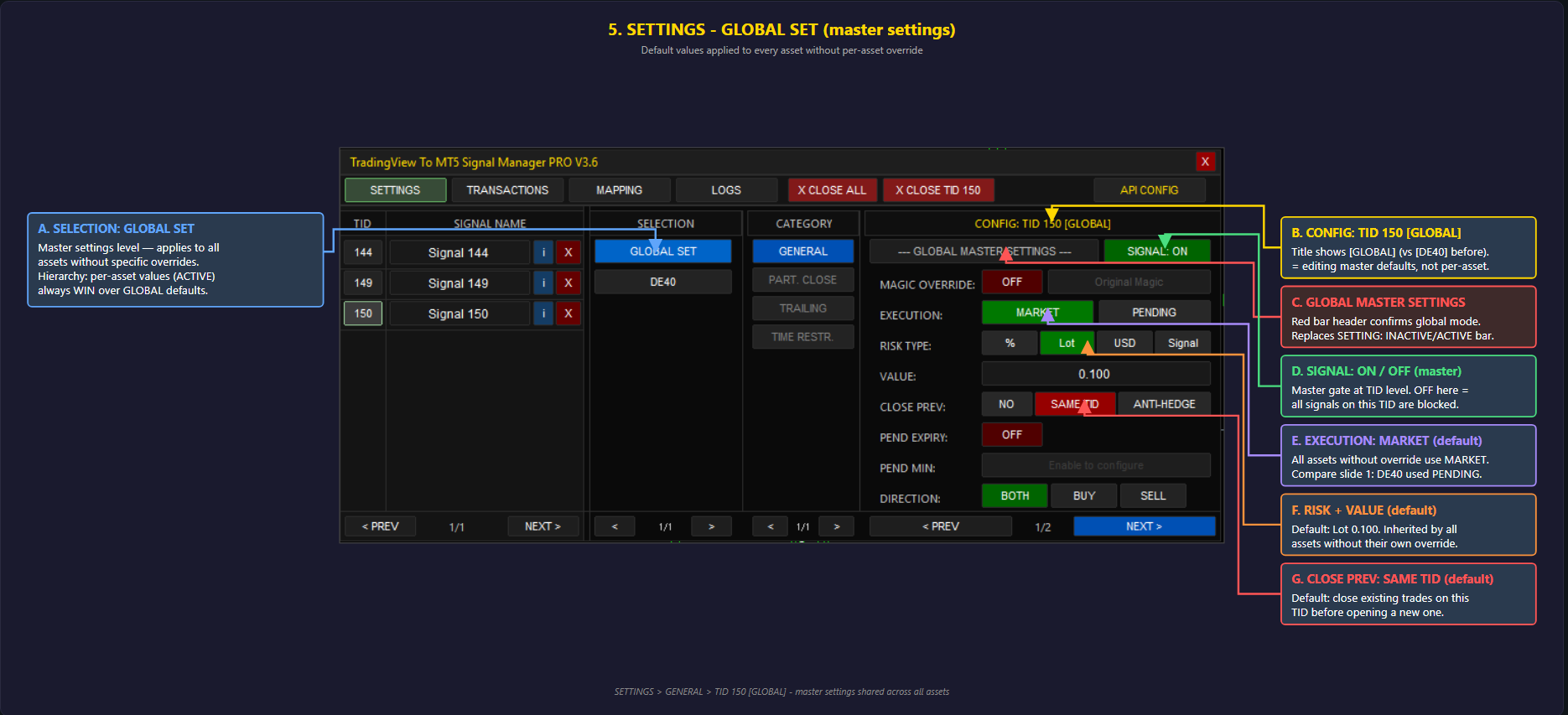
Key elements:
- SELECTION: GLOBAL SET — master settings level, applies to all assets without specific overrides
- CONFIG: TID 150 [GLOBAL] — title shows [GLOBAL] (vs [DE40] before)
- GLOBAL MASTER SETTINGS — red bar header confirms global mode
- Hierarchy: per-asset values (when ACTIVE) always WIN over GLOBAL defaults
6. SETTINGS — TIME RESTRICTIONS
Day-of-week and time-of-day filter for accepting signals.
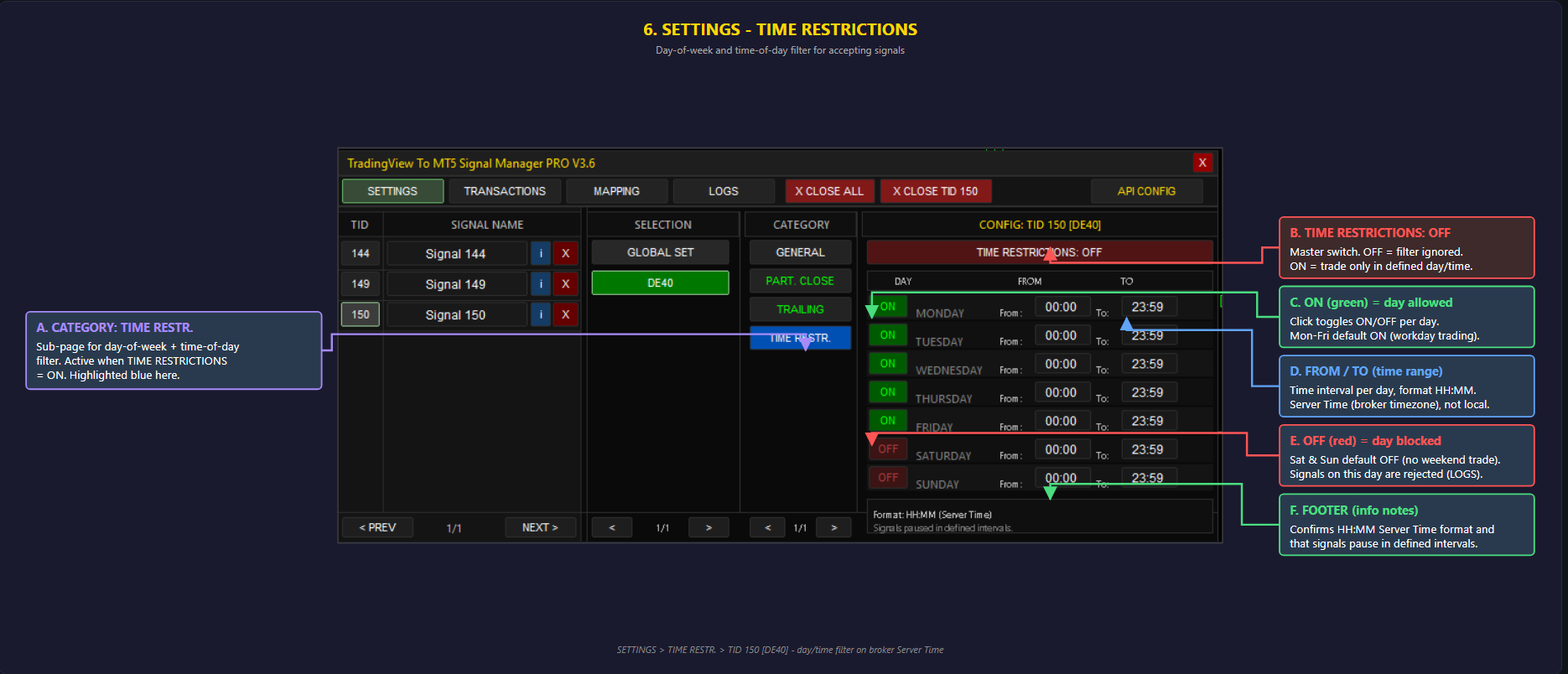
Key elements:
- TIME RESTRICTIONS: OFF/ON — master switch
- ON (green) = day allowed — Mon-Fri default ON
- OFF (red) = day blocked — Sat & Sun default OFF (no weekend trading)
- FROM / TO (time range) — HH:MM Server Time (broker timezone), not local
7. TRANSACTIONS — Live positions
Table of active orders managed by the EA, with live status.
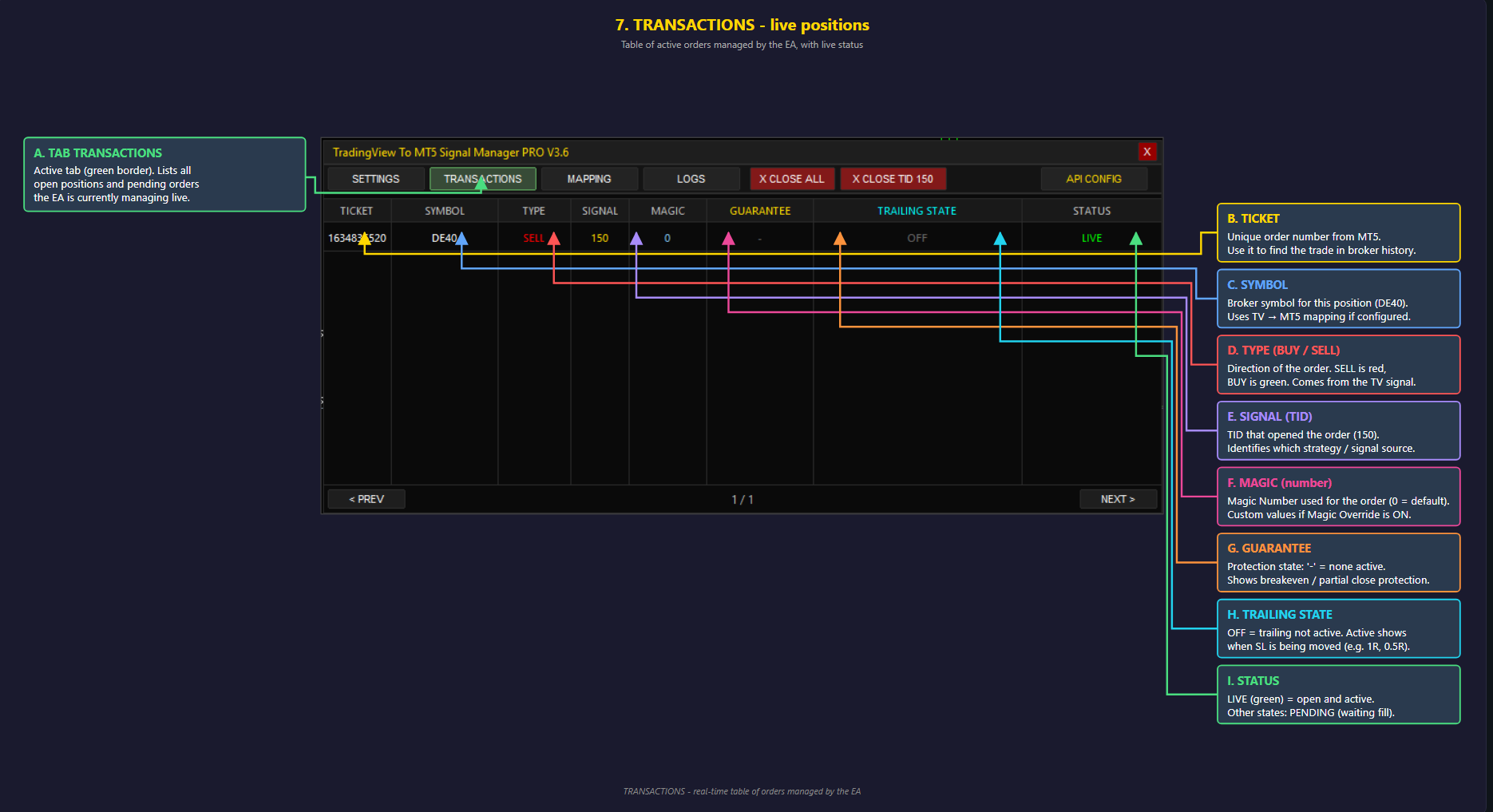
Columns explained:
- TICKET — unique order number from MT5
- SYMBOL — broker symbol for this position
- TYPE — BUY (green) or SELL (red)
- SIGNAL — TID that opened the order
- MAGIC — Magic Number used (0 = default)
- GUARANTEE — protection state ('-' = none active)
- TRAILING STATE — OFF / active shows trailing stop status
- STATUS — LIVE (green) = open and active; PENDING = waiting fill
8. MAPPING — TradingView symbols → Broker
How the EA translates TV symbol names into your broker's MT5 names (e.g. EURUSD → EURUSD.s).
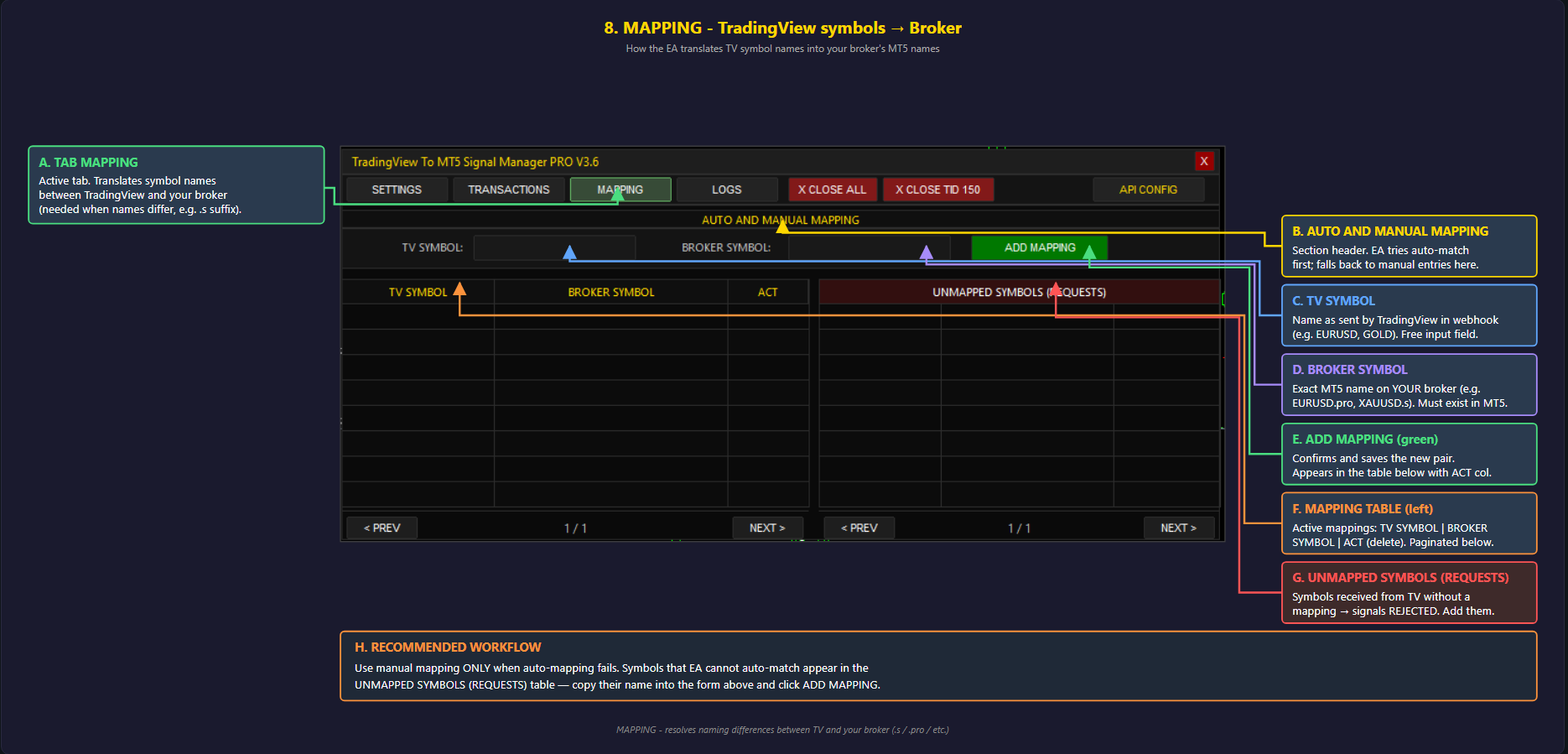
Key elements:
- TV SYMBOL — name as sent by TradingView in webhook
- BROKER SYMBOL — exact MT5 name on YOUR broker (must exist in Market Watch)
- ADD MAPPING — saves the new pair to the table
- UNMAPPED SYMBOLS (REQUESTS) — TV symbols without a mapping → signals REJECTED
9. LOGS — Event journal
All EA events: signals received, orders executed, errors.
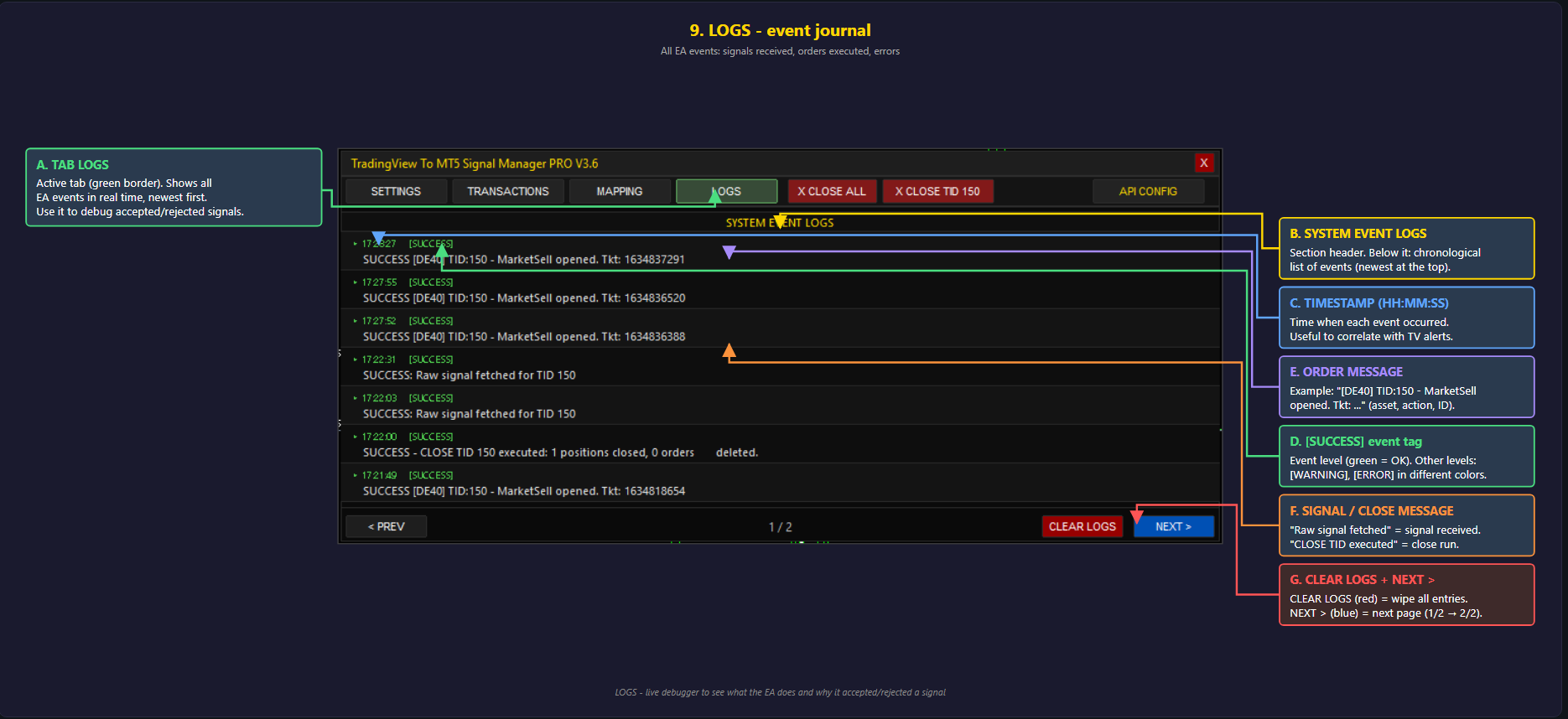
Log entry anatomy:
- TIMESTAMP (HH:MM:SS) — time when each event occurred
- [SUCCESS] event tag — green = OK. Other levels: [WARNING], [ERROR]
- ORDER MESSAGE — e.g. "[DE40] TID:150 - MarketSell opened. Tkt: ..."
- SIGNAL / CLOSE MESSAGE — "Raw signal fetched" / "CLOSE TID executed"
- CLEAR LOGS + NEXT > — wipe entries / next page
10. API CONFIG — API key & Webhook
3-step setup so TradingView can send alerts to your MT5.
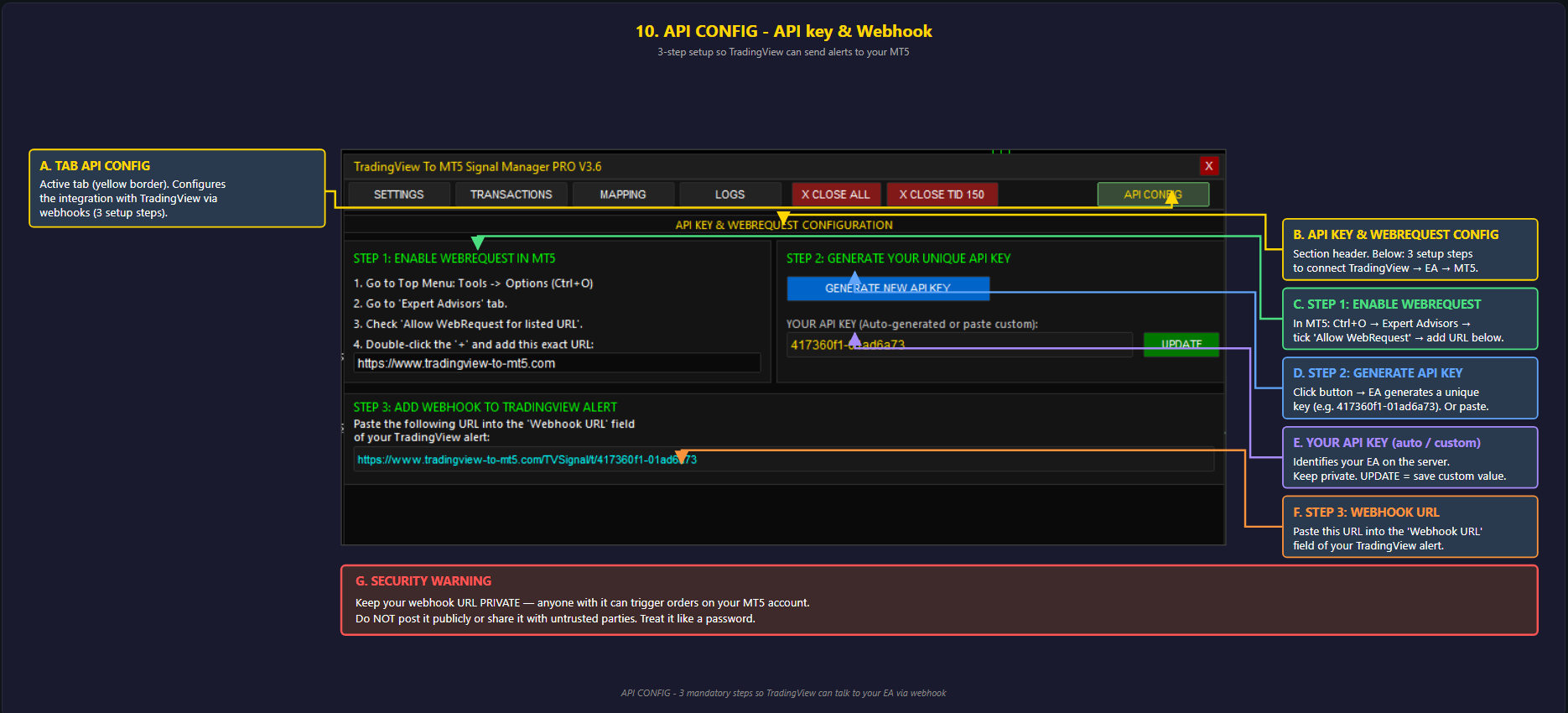
The 3 steps:
- ENABLE WEBREQUEST in MT5 — Ctrl+O → Expert Advisors → tick 'Allow WebRequest' → add the URL shown
- GENERATE API KEY — click button → EA generates a unique key (e.g. 417360f1-01ad6a73)
- ADD WEBHOOK URL — paste this URL into the 'Webhook URL' field of your TradingView alert
Ready to start? Pick your version:




