Easy Basic Setup for a Trade Copier Ready to Work "Out of the Box"
KopirMT4 and KopirMT5 are trade copiers for MT4 and MT5 platforms.
Links on products
KopirMT4 https://www.mql5.com/ru/market/product/4319?source=Site+Market+Product+Page#
KopirMT5 https://www.mql5.com/ru/market/product/40574?source=Site+Profile+Seller#
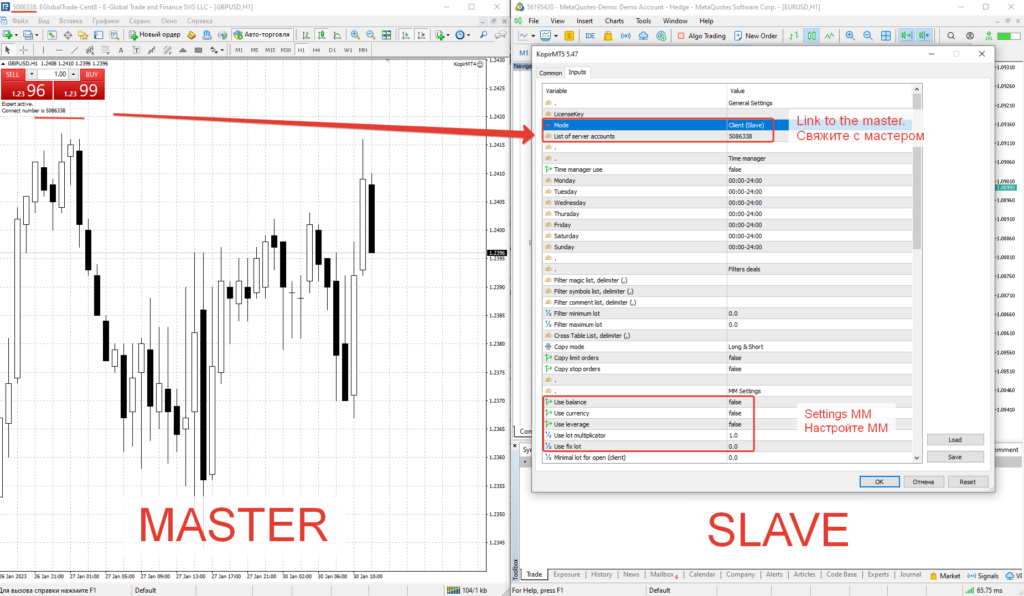
The simplest setup for copying trades.
Full List of Settings
General Settings — General Settings
Mode – role of this instance
Server – operates as a master account (sender).
Client – operates as a client (receiver).
Rule: 1 terminal — 1 copier. Do not install it on multiple charts; install it on any single chart.
List of server accounts – list of accounts (comma-separated) from which trades are copied (the copier must be running in Mode=Server on those accounts).
Time Manager — Time Manager
Time manager use – enables operation according to terminal (broker) time.
Monday, Tuesday, Wednesday, Thursday, Friday, Saturday, Sunday – time ranges during which new trades may be opened. This setting does not affect closing trades—only opening new ones. Format: HH:MM-HH:MM. You may also use HH-HH format and specify multiple ranges separated by commas.
HH – hours, MM – minutes.
Example: 03:25-14:58, 21:50-02:10
Filters Deals — Trade Filters
Filter magic list – filters trades by magic number.
This system is highly flexible and supports special symbols:
«-» exclusion mode: disables copying for the specified magic number.
«*» prefix match: copies trades if the magic number starts with the specified digits.
Examples:
-123 → copies all magic numbers except 123.
0,123,345 → copies only the listed magic numbers; others are ignored.
*123 → copies all magic numbers starting with 123 (e.g., 123568, 123888, etc.).
Manually opened orders have Magic = 0.
Filter symbols list – filters by server instrument names.
Using a symbol before the instrument name enables exclusion or exact matching:
«-» – prohibits copying the specified instrument.
«!» – requires exact instrument name match.
Examples:
EURUSD,GBPUSD – copies only these instruments; others are ignored.
-EURUSD – copies all instruments except EURUSD.
!AM – exact match (useful for CFDs on stocks with similar prefixes).
Alternative method: Keep only desired instruments in Market Watch, then restart the copier, open its settings, and click OK.
Filter comment list – filters by comment (or part of it).
Prefixes enable exclusion or exact matching:
«-» – blocks copying trades containing the specified comment substring.
«!» – requires exact comment match.
Examples (trade comment: “Amresling”):
-Amre – blocks all trades with “Amre” in the comment.
!Amresling – allows only trades with exact comment “Amresling”.
resling – copies all trades containing “resling” in the comment.
Filter minimum lot – minimum server lot allowed for copying. 0 = disabled.
Filter maximum lot – maximum server lot allowed for copying. 0 = disabled.
Cross Table List – complements the external cross-mapping file. Used to remap server instruments to different client instruments, especially when names differ completely.
Format: ServerInstrument1=ClientInstrument1, ServerInstrument2=ClientInstrument2
For large mappings, use external file kopirmt_cross.ini (located in your terminal’s Files folder).
Example: XAUUSD=GOLD, EURUSD=GBPCHF
Copy mode – copy direction: Long only, Short only, Long & Short, Copy new off.
Default: Long & Short.
“Copy new off” disables copying new trades but continues managing existing ones.
Copy limit orders – enables copying of limit orders.
Copy stop orders – enables copying of stop orders.
MM Settings — Money Management Settings
Use balance – enables lot calculation based on Client Balance / Server Balance ratio.
Use currency – activates lot recalculation considering deposit currency. Requires relevant conversion pair in Market Watch (e.g., USDRUB for RUB accounts, EURUSD for EUR/USD accounts, AUDUSD for AUD accounts).
Use leverage – enables lot adjustment based on Client Leverage / Server Leverage ratio.
Use lot multiplicator – lot multiplier. 1 = 100% of server lot. Use 2 to double, 0.5 to halve. All coefficients are applied cumulatively.
Use fix lot – if enabled (set Use lot multiplicator = 0), overrides all other multipliers with a fixed lot size.
Minimal lot for open (client) – if calculated lot is below this value, use this lot instead. 0 = disabled.
Maximal lot for open (client) – if calculated lot exceeds this value, use this lot instead. 0 = disabled.
Stop by equity – equity threshold (e.g., 500) below which new trades are not copied until equity rises above it.
Stop by margin level % – free margin percentage threshold below which copying stops. Resumes when margin level rises above it.
Stop by drawdown % – total drawdown percentage threshold that halts copying. Resumes when drawdown decreases.
Close all orders – forcibly closes all open trades if Stop by equity or Stop by margin level % conditions are triggered.
Alert mail use, Alert push use – send low equity/margin alerts via email or mobile push. Alerts are sent no more than once every 10 minutes. Terminal notification settings must be configured accordingly.
Copying Trades Settings — Trade Copying Settings
Timeout – time window (minutes) to copy a market order after it opens on the server. 0 = no timeout (waits indefinitely while the trade remains open on server). Does not affect closing.
Timeout for pending orders – time window (minutes) to copy pending/limit orders. 0 = copies immediately. Does not affect closing.
Pause for open next order (sec) – delay (seconds) between opening consecutive orders.
Slippage is spread – calculates entry tolerance as a spread multiplier. If disabled, uses points.
Filter slippage – entry tolerance as spread multiplier or in points.
Reopen position – reopens a trade at a price close to the original if it was manually closed on the client.
Reopen maximum – maximum number of allowed reopens per trade.
Scalper mode – enters only at exact or better price. May skip trades if price doesn’t return to entry level. Not suitable for averaging strategies.
Reverse mode – reverses trade direction (e.g., Server BUY → Client SELL).
Points – profit/loss threshold (in standard points) triggering trade copy. Example: -5 → copies when server trade reaches -5 points.
No close orders on client – prevents closing client trades when they close on the server. Partial closing is automatically disabled in this mode.
Count server order for copy start – starts copying only after a specified number of server orders are open (e.g., begins copying from the 5th order onward).
Auto comment – automatically replaces trade comments with server account number and copied trade ID.
User comment – custom comment for all trades. Enter a space (" ") to remove comments.
Copy stoploss use – enables StopLoss copying.
Copy takeprofit use – enables TakeProfit copying.
User can modify orders – allows manual or EA modification of SL/TP on client trades (required if another EA will manage them). Disables all SL/TP modifications defined below this option.
Stoploss Shift (+/- Points) – adjusts copied StopLoss by specified points (+ increases, – decreases).
Takeprofit Shift (+/- Points) – adjusts copied TakeProfit by specified points (+ increases, – decreases).
User takeprofit use – sets a fixed TakeProfit for all trades.
User take at points – TakeProfit value in standard points.
User stoploss use – sets a fixed StopLoss for all trades.
User stop at points – StopLoss value in standard points.
Trailing Settings — Trade Management Settings
Equity Tral Start (%) – activates trailing stop when profit reaches this percentage. Closes all selected group trades if profit drops below trailing step.
Equity Tral Step (%) – trailing stop step in percentage.
Trailing All Servers Use – trails all client trades collectively or per server separately.
Trailing Stop Points – classic trailing stop (min 1 point).
Trailing Step Points – trailing step (min 1 point).
BU Start Points – moves trade to breakeven after reaching specified profit (standard points).
BU Minimum Profit Points – minimum profit (standard points) required when moving to breakeven.
FAQ — Frequently Asked Questions
How much does it cost, and where can I buy it?
This is the official store. We recommend purchasing here to ensure access to support and updates.
How do I install the product in the terminal?
Follow the general installation instructions provided after purchase. Then configure basic settings using the video guide and test functionality.
Are updates free?
Yes. All updates for products purchased here are free and available in your Order history. Email notifications are sent for new versions.
Do I need to buy a license for each account?
You can choose either Account-bound license or Device (VPS) license.
VPS license allows unlimited terminals (typically 6–10 per standard VPS).
Account license applies only to client accounts.
Note: Always match MT4/MT5 version to your slave accounts. Version swaps are not supported.
Can I buy directly from you?
Yes—this is the official store. Purchasing elsewhere risks losing access to support and updates.
How to copy between MT4 and MT5?
You need both KopirMT4 and KopirMT5. Functionality is identical.
A trial version can serve as the server.
Limitation: MT4 cannot send/receive trades to/from MT5 Netting accounts. MT5-to-MT5 supports all account types.
Where is the Master or Client file?
Both modes are in one file. Set Mode=Server or Mode=Client in settings.
What is the copying speed?
Speed depends on your broker, not the copier.
The copier detects trades instantly (<50ms delay), but broker execution may lag.
Check Terminal Journal for timestamp difference between order submission and execution.
Test with the 7-day free trial.
Does it work across different brokers? Can I copy from demo to real?
Yes—it’s designed for multi-broker and demo-to-real copying.
Different instrument names are handled automatically or via kopirmt_cross.ini.
Demo accounts often execute faster than real accounts—test with the trial version.
Can I try it on a real or demo account?
Yes—the trial version works on any account with full functionality for 7 days.
What functionality is available?
Years of development enable nearly any copying scheme. See full settings list on our website.
Does the copier work over the internet?
No—it runs only on the local machine where installed.
To copy remotely: install a separate terminal with Master account (investor password recommended) on the remote PC/VPS to feed data to clients.
Can I open trades from my PC/smartphone while copying runs on VPS?
Yes—install all terminals on VPS and trade from any remote device using the Master terminal.
Can I use the copier with other EAs?
Yes—it coexists with other EAs on Master and Client accounts without interfering with their trades.
Install the copier on a separate chart.
Test with the trial version if unsure.
Trades aren’t copying or other issues occur?
Common issues have known solutions. Contact the developer for assistance.
Different instrument names across brokers—how to configure?
If names differ only by prefix (e.g., EURUSD.fx), clean up Market Watch (remove non-trading symbols) and restart the copier.
For completely different names (e.g., NASDAQ vs. NAQ100), edit kopirmt_cross.ini on the client:
– MT5: MQL5\Files\kopirmt_cross.ini
– MT4: MQL4\Files\kopirmt_cross.ini
Add mapping lines (no spaces around "="; match case exactly):
XAUUSD=GOLD
XAGUSD=SILVER
USDRUB=USDRUR
NASDAQ=NAQ100
Restart terminal or reload the copier after changes.
Note: If instruments are mapped via Cross Table, pending orders won’t copy—only market execution triggers copying.
I found version 3.xx, 4.xx, or Lite online—it doesn’t work. What should I do?
We don’t support pirated versions. They may contain errors risking your funds.
Our official version is affordable and includes developer support and timely fixes.
Respect developers—avoid piracy.
I bought your copier long ago—how to get the latest version?
Download the trial version and contact us with your purchase details. After verification, we’ll activate it for your account or provide a discount coupon.
Is your copier better than free alternatives online?
Free versions often lack support, updates, and reliability. Many are abandoned or buggy.
We rigorously test every update and provide free support to buyers.
Trades are duplicated (2+ identical orders)?
Use only one chart per terminal for the copier—remove extra instances on both Master and Client.
Copier isn’t copying trades—what to do?
1. Apply basic settings per instructions.
2. Ensure AutoTrading is ON, DLL imports and trading permissions are granted (MT4 requires DLL).
3. Confirm your broker allows EA trading.
4. Check Experts Journal for error messages.
5. Verify all required instruments are in Market Watch; add missing ones and restart terminal.
6. If unresolved, contact support via My Account → Support.
How to disable or change auto-comment?
On the Client, adjust these settings:
Auto comment = false → disables auto-comments.
User comment = " " → removes all comments (use a space).