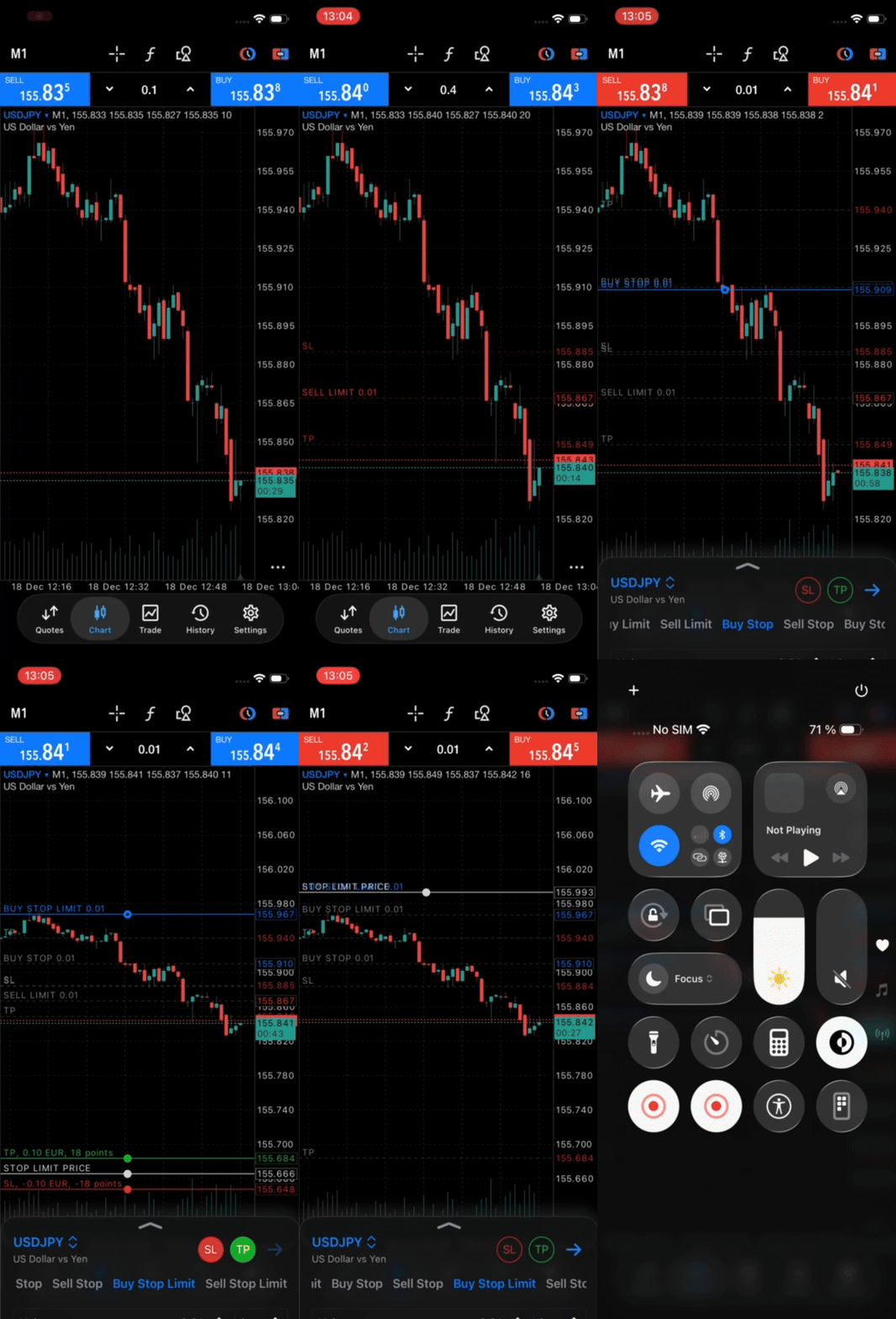
Updated trading dialog on the chart tab in Metatrader 5 5431 for iOS.
When placing a new pending order from the chart, the previous small panel has been replaced by a full-fledged trading dialog that supports all types of executions and trading orders.
When activated, it appears minimized at the bottom, allowing you to set the price level on the chart and select the order type. The order type is saved when you submit the order.
The dialogue can be expanded to full size by swiping or by clicking on the indicator:


In the full-size dialog, all other parameters may be set: volume, stops, execution/expiration modes:


The dialogue can be extended even further, to a tick chart:


You can collapse the dialog:
1. Swipe with varying force. You can minimize dialogue.
2. Tap on the "–" indicator to switch modes: normal/minimized.
3. Tapping on an empty space on the chart first minimizes and then hides the dialog.
Selecting a position or order on a chart opens its modification/deletion:


Details.
All digital values: volumes\prices\money can be entered:
- Moving levels on the chart
- Selecting values in popup selectors
- From the keyboard
The volume can be entered in either lots or as an approximate collateral amount. The increments in the selectors are adaptive and depend on the current value. The suggested value wheel is also updated for easy entry without a keyboard.


Margin is calculated based on the order price for pending orders and the purchase price for market orders. When placed in margin mode, the actual volume that will be placed in the order is displayed.

Stops . There are up to three modes for entering stop levels:
- Price (default)
- In pips: deviation from the current price or order/trigger price
- Potential profit/loss in monetary terms. The current price (market) or order price (pending orders) is also used for calculation.
There are value selectors for all modes

The calculated value of potential profit/loss is displayed below.
When entering in pips/money mode, the stop price value that will be placed in the order is also displayed.
For pips, you can lock the tp/sl ratio (lock icon). Changing one level will change the other proportionally.

When entering your desired profit/loss, the actual calculated values are displayed below. They may not always match the entered values due to the price increment.

Saving values.
Volume and stop values are saved separately for market and pending orders when submitting an order . For pending orders, the default order type is also saved.
Stops for new orders are set from saved ones by clicking the Add Stops button.
Compatibility with familiar UX.
When the chart's trading dialog is collapsed, buttons for adding/removing stops and an arrow for navigating to the order submission dialog are shown.