Hello! You are on the instruction page where I will teach you how to properly install and configure the PIPS HUNTER EA trading bot. So, if you want good trading results, try to follow my instructions carefully!
First of all, subscribe to my Telegram and YouTube channels to receive timely information about all updates and news!
Also, remember that good results depend on choosing the right broker. So don't ignore my recommendations:

My Telegram group - link

My Youtube channel - link

My Broker for Algo trading - link
1 - Open the quote windows for the recommended assets
So, I have prepared three sets of Katana Knife and Razor set files for users. The difference between these portfolios is that they use different indicator filters that determine the rules for entering and exiting the market. Thus, the advisor's trades on different portfolios are not similar to each other (in 60% of cases).
Therefore, you can use these set files on different trading accounts as well as on a single trading account.
Note: I use three portfolios at once on my "Pips Hunter Scalper Mode" signal. My leverage is only 1:30, which is enough to trade a large number of deals. However, I still recommend choosing a higher leverage for trading, if possible.
Set files for the PIPS HUNTER - download
Unzip the archive and you will see the settings files with the names of the currency pairs for which they are prepared. Go to your MT5 platform and open the windows with the charts of the currency pairs for which I have prepared these set files:

For example, to trade the Knife portfolio, we use the following currency pairs:
-
AUDCAD
-
AUDUSD
-
AUDSGD
-
EURAUD
-
EURCHF
-
EURNZD
-
GBPCAD
-
GBPCHF
-
GBPUSD
-
NZDUSD
Therefore, you need to open these 10 quote windows for the listed currency pairs.
I would like to remind you that this is a multi-currency trading bot, and if you want to achieve diversification, as well as many trades and high profits, you need to use this trading bot on all recommended assets, not just some of them. So stop whining that you are too lazy to open all these quote windows and make adjustments. It's not the most difficult thing in your life. Spend some time on it and you will see a profit!
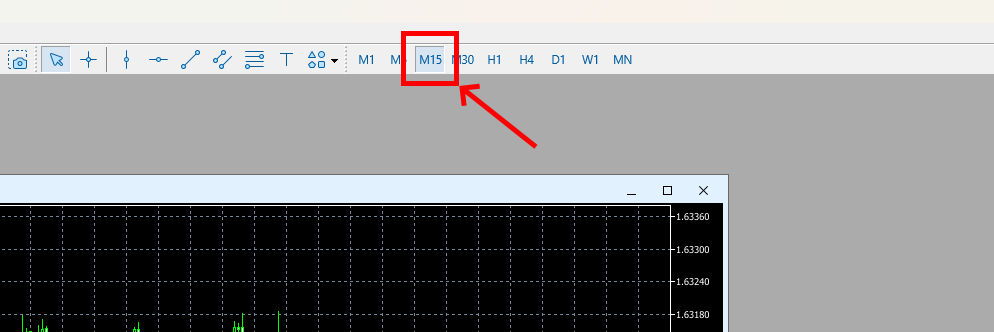
2 - Set the M15 timeframe for each open quote window:
This trading bot operates on the M15 timeframe, so you need to switch all the quote windows you have opened to the M15 timeframe. Double-check that all windows are switched to M15. Because users are usually inattentive!
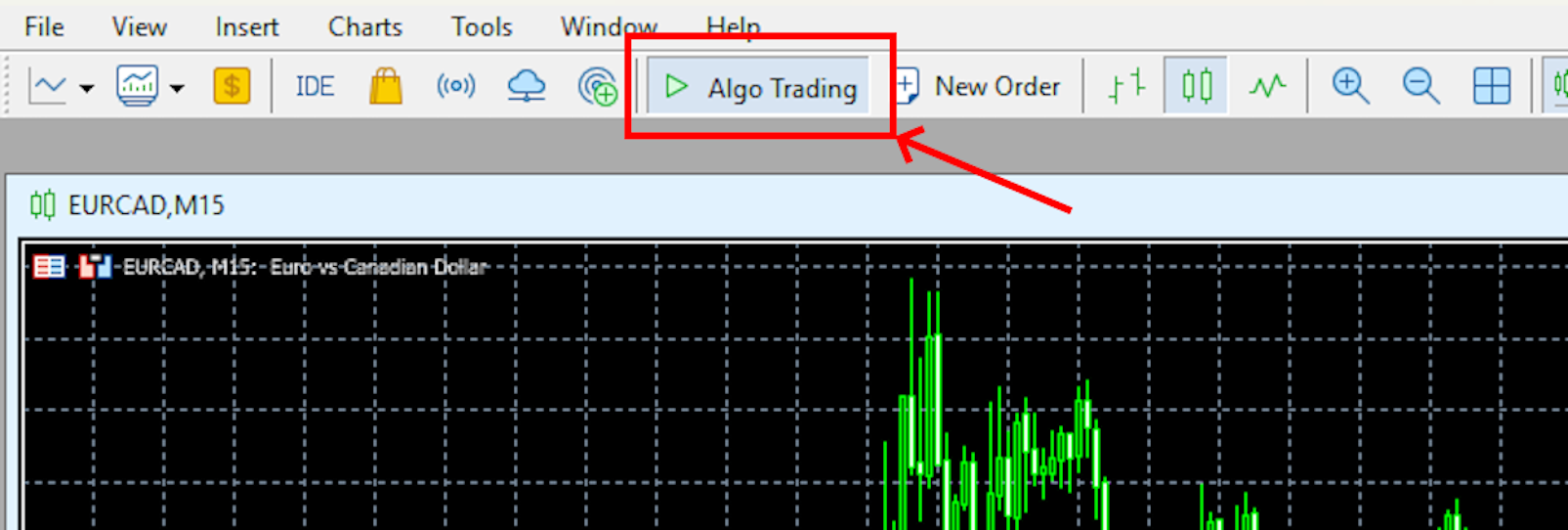
3 - Activate the automatic trading feature
Activate the automatic trading function so that your trading can perform algorithmic trading in the future:
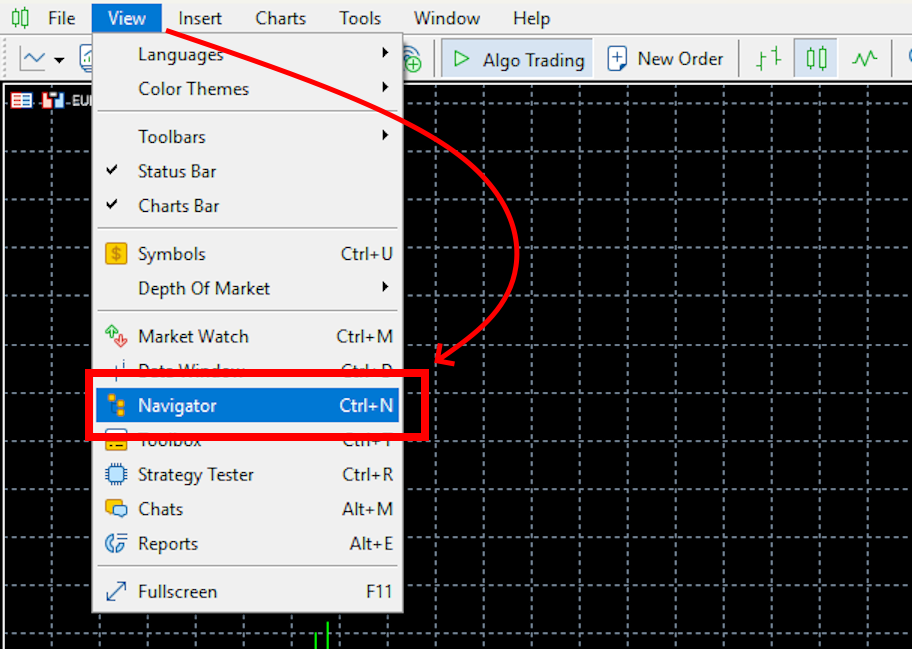
4 - Open the “Navigator” menu
5 - Installing the advisor on the quote chart
Drag the PIPS HUNTER EA onto one of the open quote chart windows:

7 - Apply the configuration set files
Please note that the PIPS HUNTER EA must be configured separately for each asset on which it will trade. I have prepared special set files for this purpose.
If you have not downloaded the configuration set files, please scroll up to the top of these instructions and find the download link. Unzip the archive with the set files. It is a regular ZIP archive.
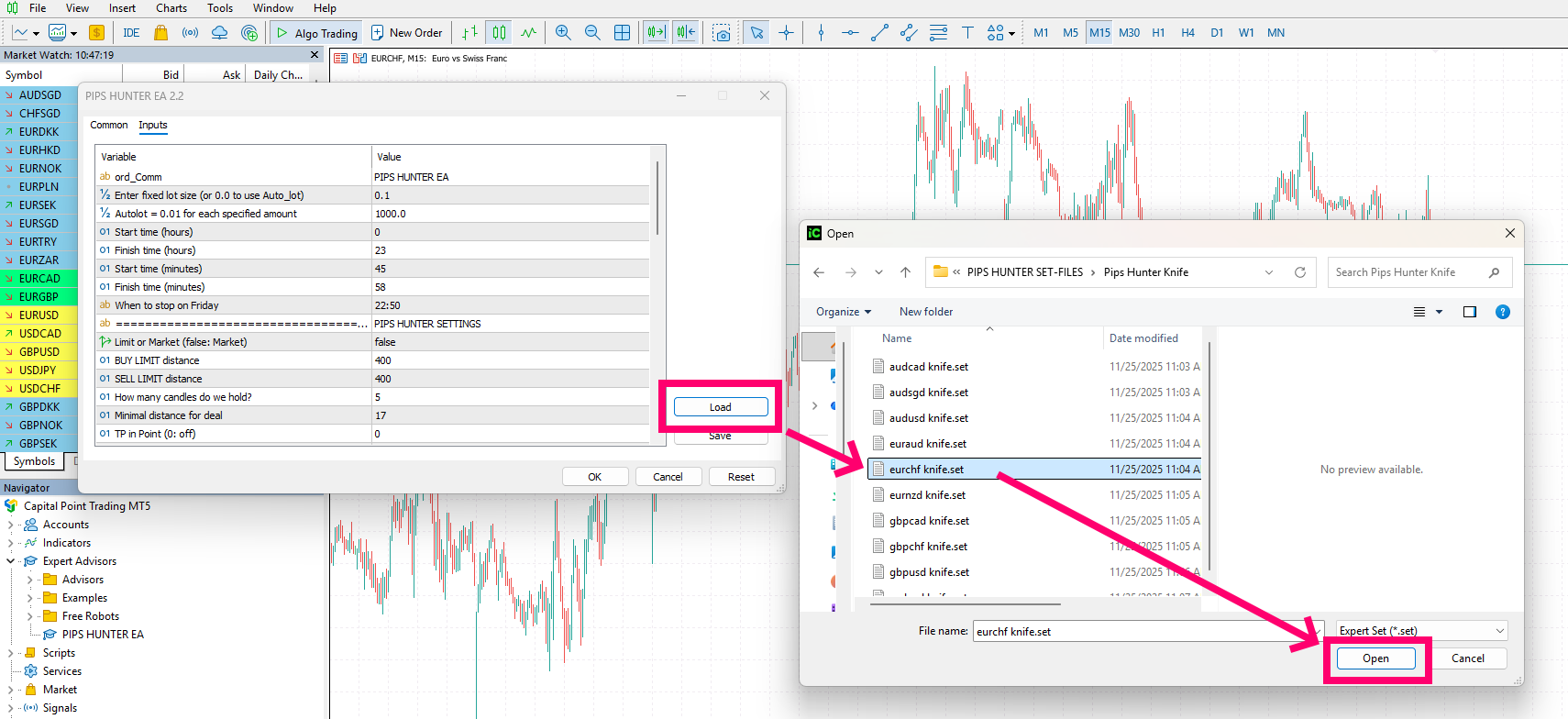
So, after applying the advisor to the quote chart, a configuration window will automatically open. To apply the set file, you need to click on the "Load" button:

Therefore, apply the PIPS HUNTER EA to all windows of recommended assets.
Using your PC's internal navigation, find the folder with the configuration set files. In this folder, select the set file whose name corresponds to the name of the asset you are configuring:
Therefore, apply the PIPS HUNTER EA to all windows of recommended assets.
8 - Money management
PIPS HUNTER EA can use an automatic money management algorithm or trade with a fixed lot size.
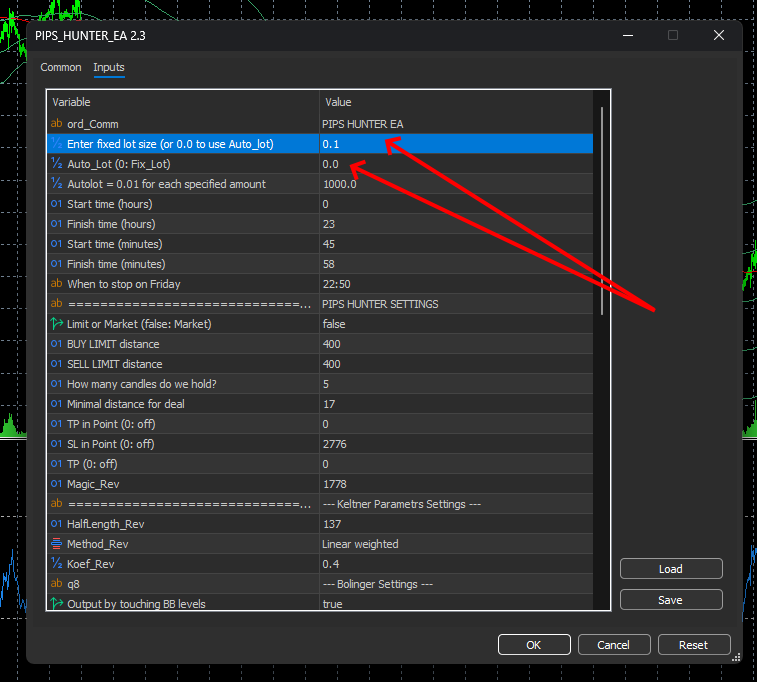
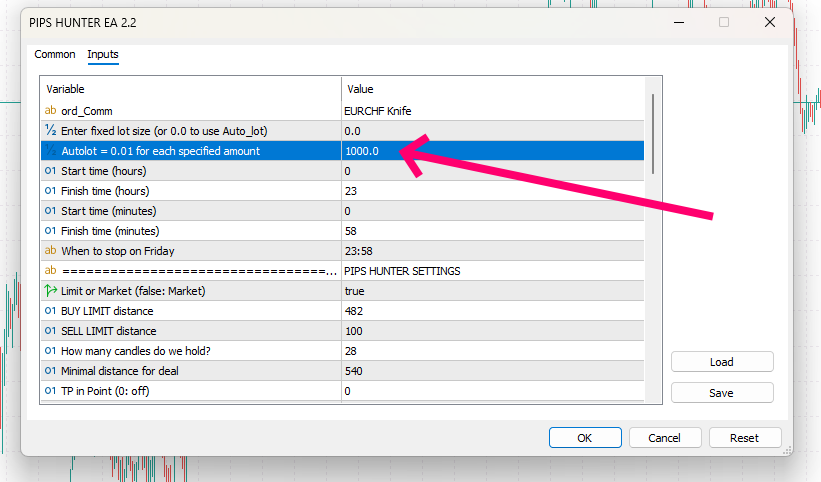
By default, the advisor uses an automatic money management algorithm with an Medium risk level. To change the risk level, go to the advisor's manual settings and change the value for the "Autolot" variable:
Set, for example, a value of 1000. Such a variable size means that the advisor will use a lot size of 0.01 for every 1000 units of deposit. If you have a deposit size of 5000, the advisor will trade with a lot size of 0.05:
9 - Risk management for Prop Firms trading
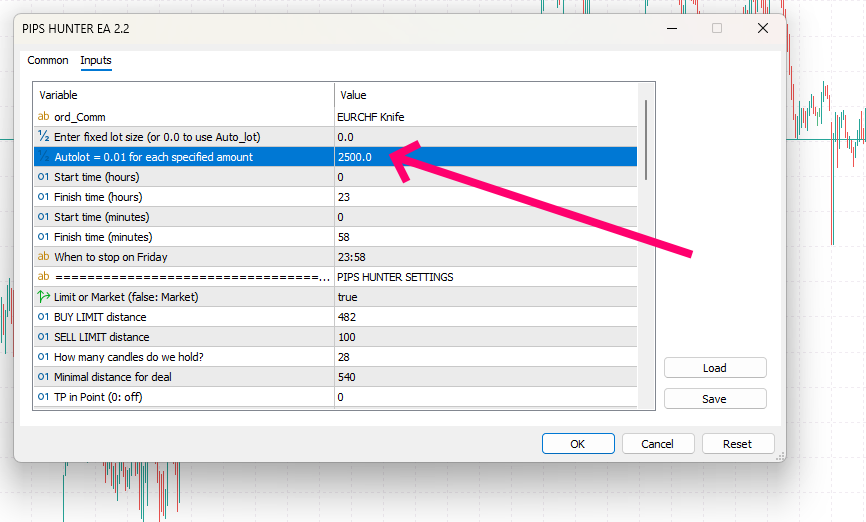
If you want to use Pips Hunter EA for Prop Firm trading, then set the value of the variable "Autolot" to "2500". This risk level will allow you to trade with a maximum drawdown of no more than 4%:
10 - Fixed lot trading
If you want to trade with a fixed lot size, simply enter its value for the "Enter Fixed Lot" variable and set "0.0" for the "Auto_lot" variable: