

🔧 Appointment
MT4/5 for Telegram Signals is a professional utility for MetaTrader 4/5 that automatically sends notifications to Telegram about all trading events:
-
opening, closing and modifying orders;
-
execution and deletion of pending orders;
-
automatic reports (daily, weekly, monthly);
-
automatic messages with graphics and text.
🧾 Demo version
You can request a demo version of the utility from me to test it before purchasing.
To do this, send me a private message in MQL5 or leave a comment on the product page - I will send a demo in response.
The demo only works on demo accounts, but includes all the utility's functionality:
You can check your Telegram message sending, reports, visual dashboard, and all notifications in real time.
The utility has an interactive visual control panel directly on the chart,
allowing you to configure all parameters without editing the code or entering the advisor properties.

🚀 Quick start
1️⃣ Add the utility to the chart of any instrument (for example, EURUSD).
2️⃣ Allow:
-
✅ “Allow WebRequest for listed URL”
-
3️⃣ After launch, a visual control panel will appear on the chart.
It can be moved and scaled with the mouse.
🌐 WebRequest Resolution
In order for the utility to communicate with Telegram, you need to allow WebRequest for Telegram API addresses.
How to do it:
-
In MetaTrader, open:
Tools → Settings → Advisors -
Check the box below:
✅ Allow WebRequest for specified URLs -
In the list below, add the following address:
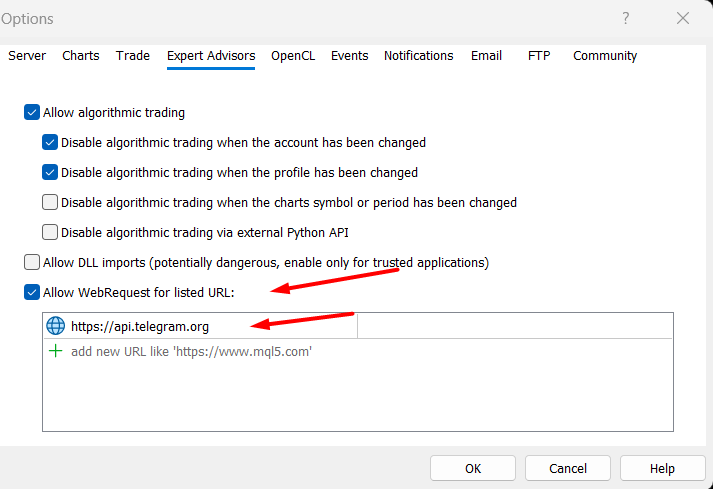
-
Click OK .
🤖 Obtaining a Telegram API Token and Chat ID
1️⃣ Creating a bot:
-
In Telegram, open @BotFather .
-
Send the command /newbot .
-
Enter a name and login for your bot.
Copy and save the received API token, add the created bot as an administrator of your channel where you want to receive notifications.
2️⃣ Obtaining a Chat ID:
- @userinfobot
- or @getidsbot
- or @RawDataBot
You will use this ID later.

Paste the Telegram API Token and Chat ID into the utility settings

🖥️ Visual control panel
The main panel appears on the chart after loading and consists of several tabs.
You can move it with the mouse, change its size and expand additional settings panels.
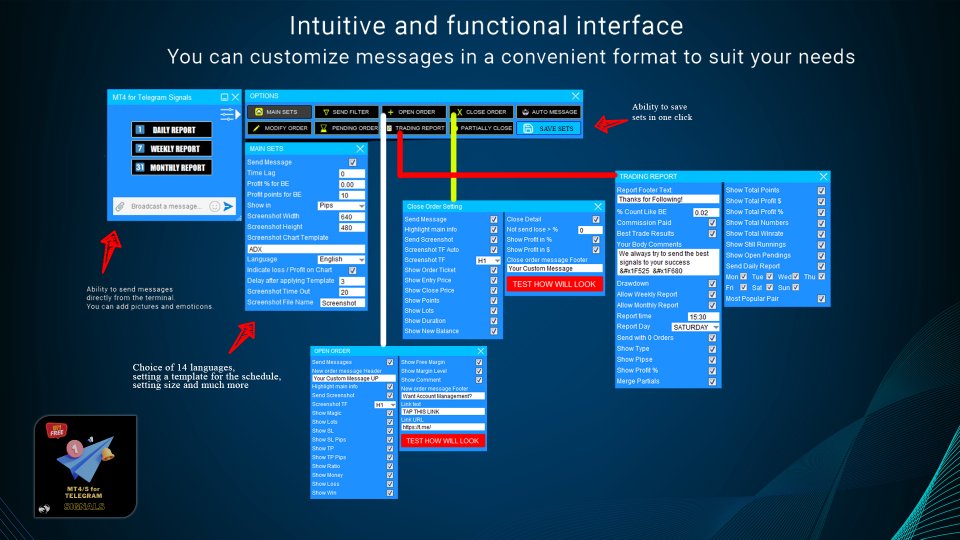
| Tab | Purpose |
|---|---|
| General | General settings (bot, chat, message design, language, template). |
| New Order | Messages when opening an order. |
| Close Order | Messages when closing a deal. |
| Modification | Notifications of SL/TP changes. |
| Pending Order | Execution and deletion of pending orders. |
| Reports | Daily, weekly and monthly reports with graphics. |
| Auto Messages | Automatic scheduled mailings. |
| Stories | Auto-posts (“stories”) with graphics and captions. |
| Test Message | Checking connection with Telegram. |
⚙️ Basic parameters and their purpose
🔹 Telegram Settings
| Parameter | Description |
|---|---|
| Bot Token | Paste your API token received from @BotFather here. |
| Chat ID | Insert the ID of the chat or channel where the bot will send messages. |
| Show Logs | Display information about successful/failed sendings in the terminal. |
🔹 Notification Settings
| Parameter | Description |
|---|---|
| SendMessageNO | Send a message when an order is opened. |
| SendMessageCO | When closing an order. |
| SendMessageMO | When modifying SL/TP. |
| SendMessagePO | When a pending order is activated. |
| SendMessageCPO | When deleting a pending order. |
| SendScreenshotNO/CO | Attach a screenshot of the chart to the message. |
| HighlightMainInfoOpen/Close | Use HTML <pre> formatting to highlight text. |
🔹 Reports
| Parameter | Description |
|---|---|
| Stat_LastDay | Automatic report for the past day. |
| Stat_LastWeek | Automatic weekly report. |
| Stat_LastMonth | Monthly report. |
| SendGraph | Add a profit chart to the report. |
🔹 Auto Messages
| Parameter | Description |
|---|---|
| EnableAutoMessages | Enable the auto-sending function. |
| AutoMsgText | Message text for auto-sending. |
| AutoMsgPeriod | Time interval between sendings. |
| AttachImage | Attach an image to an auto-message. |
🧩 Additional features
-
Collapsible panel - the panel can be collapsed to save space on the chart.
-
Auto-save settings - everything is saved automatically when you press the SAVE button.
-
HTML and emoji are supported in messages (📈🔥💰).
-
<pre>-formatting - makes the message structured in Telegram.
-
Screenshots are automatically created from the current chart.
💬 Checking the connection
-
Go to the Test Message tab.
-
Enter test text, for example: Connection test .
-
Click the Send button.
-
The message should appear in your Telegram channel.
-
If you haven't received it, check your API Token, Chat ID, and WebRequest.
📊 Recommendations for use
-
Use the utility on a separate chart (for example, EURUSD M1).
-
Keep your schedule open until you want to receive notifications.
-
Do not use the same bot on multiple terminals at the same time.
-
For stable operation, make sure you have a constant internet connection.
✅ Done!
Now the Telegram Sender Utility is fully configured and ready to go 🎯
Notifications, reports, and auto-messages will be automatically sent to your Telegram.




